Ask HN: What feature did you find after years of using macOS?
For me, it was finding that I can use "Stacks" in Finder to clear desktop. For years, I was irritated with screenshots lying all over my desktop screen but didn't have the energy to sort them manually. When I found out Stacks, I was like ...
Smart Folders (Finder -> File -> New Smart Folder). It's not exactly hidden but I never paid too much attention to it. It's essentially a way to create a folder whose content is dynamically updated based on your search conditions.
For example, you can create a smart folder that contains all PDF files matching a certain name pattern within a given directory (or the whole disk) [0]. You can get really advanced, there's a ton of different parameters you can use [1], and you can even create more complicated conditions by holding Option and clicking the plus sign (now changed to just three dots). And of course you can drag these folders into the sidebar's Favourites section.


I’ve been sad since they were introduced that they don’t work at the file system level, hence not in CLI applications. Support for them in desktop apps that open directories is also spotty.
I would LOVE them if they were reimplemented as a fuse style file system instead of a userland macOS trick.
I wonder if there is a list somewhere around Apple of "Annoying Edge Cases We'd Have To Support If Smart Folders Worked At The Filesystem Level", and how long it is.
Like, you're in a smart folder that contains files whose name includes "foo", and you try to create a file whose name does not include "foo", what happens? Do you get an existing filesystem error? Do you get a new "can't create new files in smart folders" error?
Interestingly enough I just discovered that if you drag a file into the Tags section of the Finder window's sidebar, it will remain where it is - but if you create a smart folder whose criteria is "tag:tagname" it won't let you drag anything into it, even though it shows the exact same set of files.
Presumably a "smart directory" would itself be read-only, as if mounted from an ROFS; but its contents would all be symbolic links, such that when you're opening the file, you're opening its readlink(2) target, so the fact that the source link was read-only doesn't matter to your ability to modify the file.
This would pretty much match the expectations of how "Smart Folders" currently work in the Finder, and also how equivalents like "Smart Playlists" work in iTunes/Music.
Also, duplicate filenames due to two files in two different locations both getting picked up by the smart folder.
Ooh, good one. Not a problem when it’s GUI-only, with the little display of the precise path at the bottom when you click it, but disambiguating this for CLI use requires a whole new approach.
You can easily tack on a random ID to the file name in that case and since it would just be a symlink it wouldn’t matter.
That's not the point. I have no doubt that the people at Apple are able to solve these issues. I think a lot of people on HN are able to propose solutions to many of these issues.
The point OP was making is that they have probably did their due diligence and subsequently decided that it ain't worth doing.
Oh for sure. I also imagine it depends on which team proposed it. If it’s the Finder team it might not occur to them to offload it to the file system team because it’s a fancy add on, not a system level thing. I have never used this feature but might give it a go. Having all the PDF files in one place could actually be fairly useful. Could also be nice to combine this with my Dropbox photography workflow.
I think it would be relatively easy to write a MacFUSE driver that uses the mdfind APIs to provide a fake directory of symlinks to the actual files. I might give it a shot. Sounds like a nice side project.
"hence not in CLI applications" is that specific aspect accurate? I'm no longer mac user but thought mdfind (https://ss64.com/osx/mdfind.html) was the command line version of what smart folders use. Not the same as a filesystem but usable for many CLI apps.
You could probably write a wrapper that uses the plist + spotlight (mdfind) to get a functional wrapper.
That being said, I agree that support should be native.
Oh and I almost forgot - there's also a similar concept of Smart Playlists within iTunes (Command+Option+N) [0].
And in Photos. I use it to create albums for different cameras and lenses I’ve had / have, very useful!
This is how I organize albums.
You can create a smart album that “is not” in “Any”. Now this smart album has all the photos that are not in any album.
As a DJ, I use Smart Playlist very heavily in iTunes. I genre tag all my music as it comes in, and then let the logic take over from there.
I exclusively used smart playlists for my ipod nano (for date reference :), I pray that one day these smart folders appear on win/osx as a low level. Like smart symbolic links. Surely it cant be that hard!
It would seem such a thing vexed even Bill Gates himself “biggest regret”: https://www.zdnet.com/article/bill-gates-biggest-microsoft-p...
+ tags, it is a really flexible and powerful way to organise your files (by project + status + …)
is there a way to use this to rebuild the missing "All My Files" on Macs?
I think so. Just create a new Smart Folder, set the condition to something that matches all files, for example "Created is after 1970" and sort by "Date Created".
I wonder if that’s how they implemented smart playlists for iTunes.
Other way around. Smart playlists (iTunes 3; July 17, 2002) came long before smart folders (MacOS X 10.4 "Tiger"; April 29, 2005), and solve a simpler problem due to dealing with a single file type and a pre-existing existing centralized database of standardized and relatively homogeneous ID3 metadata. Spotlight was created to extensibly generalize these capabilities to the while filesystem.

Cmd-space to bring up spotlight
Type whatever you want.
Cmd-b
Your default web browser with your default search engine will now open and perform your query. I can't stress this enough how much I use this workflow when writing code.
Another thing for the OPs issue with the screenshots, (there's a few steps via terminal so maybe try the above shortcut to search for an article on how to do it) you can have all your screenshots redirect to a folder.
For example all of my screenshots end up in $HOME/screenshots
Also, another cool and sometimes useful shortcut, holding option while clicking is a big thing in osx. Try click the wifi icon in the top right corner whilst holding the option key. It will give you a bunch more details :)
Command + L inside Spotlight to jump to the dictionary definition of the word you just typed.
Did you mean Command + D? That is what works for me (thanks for the tip!)
Oh, I didn't know that one! To summarize, within Spotlight --
Command + D: Opens Dictionary using the word you typed in Spotlight
Command + L: Jumps to dictionary definition without leaving Spotlight
Cool - I didn't notice it doing that.
I tried Cmd-b search in spotlight but it went with Firefox+Google when my default is Firefox+Duckduckgo, any chance someone knows how to fix it?
So, I've been messing around with this for about 30 minutes now. I don't like giving bad advice!
Set safari as your default, set the search engine you want in the safari preferences, change your browser back to what you prefer.
Props for the follow up!
Same for me. Changing safari search engines unfortunately doesn't help. Still a very cool shortcut.
Try changing the default in Safari, on the theory that it might use that as some sort of “system search engine”? Failing that, it’s probably just hardcoded.
Changed and it's still Google. Yeah the search string is probably hardcoded :(
Try Alfred. It’s even easier. I have a global shortcut that opens a search engine prompt. Press enter to begin the search.
Definitely uses Safari + Duck Duck Go for me. It appears that it just "types" the string into Safari's search bar, so whatever that does is what it does.
This one is revelatory. I've installed Alfred in the past solely for this workflow.
For more fun, have your screenshots sent to a folder, then have a LaunchAgent run pngcrush on new files in that folder...
I love you too
I’ve been using windows more recently since my personal Mac bit the dust and I’m trying to decide if there’s really that much reason to own a personal Mac.
So now I realize for years I’ve been using this silent feature of macs for years called “not totally jacked up font rendering”. I would never have imagined this was a feature, but apparently there is a collective insanity in windowsland where the quality of font rendering is not just a total and utter failure. So this is my new top Mac feature.
This is a holy war topic.
Some people, myself included, prefer how Windows render fonts. Others prefer MacOS.
From what I recall the last time this came up on HN, MacOS tries to render true to the font as if in a professional work flow that ends with a physical product. Windows aims for on screen legibility as it's primary goal.
Also remember that most Windows machines have a much lower DPI screen that what comes with or is hooked up to a Mac, so what is being optimized for there is also different.
Honestly hooked up to my large 1440p screen, MacOS's font rendering isn't /that/ nice, it becomes a wash vs Windows, and on a 1080p laptop I'll take Windows don't rendering.
That's a hard pill to swallow when my ability to read anything is so strained by trying to focus letters. I mean if I was just able to read the words better I'd not be complaining, that's what I want to do lol. I'm on 1440p here and microsoft sells devices with higher resolutions so I don't know how much legs this argument has to keep going on. I mean this is what I see in windows system preferences promising to make things less blurry:
https://1drv.ms/u/s!AkO2l6AGLMlwhKhSgq-aamXREBO0Vw?e=01Qr5w
How is this more legible in any objective universe lol.
It's complicated.
So there is subpixel antiiasing, which I prefer, it works really well on lower res displays and gives you more horizontal dpi, but not all app frameworks support it (...) and some people /hate/ it.
Then there is the classic grayscale anti-aliasing.
Finally there is the nightmare of different DPI monitors.
I've also witnessed a machine (Surface Book!) that decided to start rendering all fonts in MS office applications in some weird super jaggy way like it was 1992 or something.
The fonts should never be blurry, IIRC Microsoft tries go snap characters to pixel boundaries, which is less "correct" than Apple but should be more legible.
Unless something goes wrong...
Something is broken with you pc. What resolution have you set? In Windows you set display resolution to your monitors native resolution. And then in Scale and Layout you set the necessary scaling.
Native resolution (3440x1440), scaling is default. This was a clean install on new hardware.
noticed the same when I first boot-camped into windows and my retina MacBooks fonts were Jacked. never noticed how nicely MacOS displays fonts till I was met with the nonsense that is windows high resolution font rendering yuck
do you have a gpu in your pc? i've never seen windows 10 fonts look like this
I regularly switch between devices, platforms, and monitors. On all platforms, it really depends on the font, the application, and the hardware. For example, Windows has a really hard time if you have multiple monitors with different DPIs. Some macOS applications have trouble with some monitors. macOS itself has trouble with some monitors. It varies widely.
Be sure to toggle the System Prefs -> General -> Font smoothing when doing the comparison. Turning it off might be more pleasant in some resolutions.
I remember watching a speech from Steve Jobs where he specifically said he learned about calligraphy or typefacing (I don’t remember the specific terms) to implement proper font rendering on macs. This was also before OSX came out.
It was interesting because I realized how subtly difficult font rendering is. Unless you’re using a monospaced font all of the characters have different widths, you have to figure out how to split text into lines, or how much to space text if the alignment is set to justify. In some of the fancier fonts on macOS, the characters actually change slightly if there are other characters nearby.
If I recall, what he was really saying was - when he was in college, he chose to go to some classes that weren't required, but were interesting to him, personally - one of them was on typography. He learned a bunch of non-obvious things about how fonts are designed, and how they use things like serifs for legibility, etc, etc - just this huge swath of things that he didn't necessarily "learn in depth", but he became aware of the existence of, and aware of why anyone ought to care that they exist.
So then a few years later, he's running a computer company, and it's the heyday of greenscreen, monospaced fonts. And a lot of people - without this connection to the font-making culture of western history, genuinely thought that's perfectly fine, no room-for-improvement, etc. Monospaced stuff was honest, straightforward, industrial - it didn't waste any effort on silliness like "looking pretty" (very much like soviet brutalist architecture).
As a manager, he was able to at least greenlight the idea of "wasting money" (lots of it, in fact), on decent typography, because, thanks to that education, he understood it wasn't just being done to make stuff prettier, but was actually being done to make it easier to read. That there was a powerful, utilitarian reason to do fancy fonts, not just an aesthetic one.
I don’t think it was specifically for the Mac. I think this might be from the speech he gave at Stanford where he talked about dropping his required classes and going to ones that he just was interested in. He later applied what he learned though.
Yes that was the speech
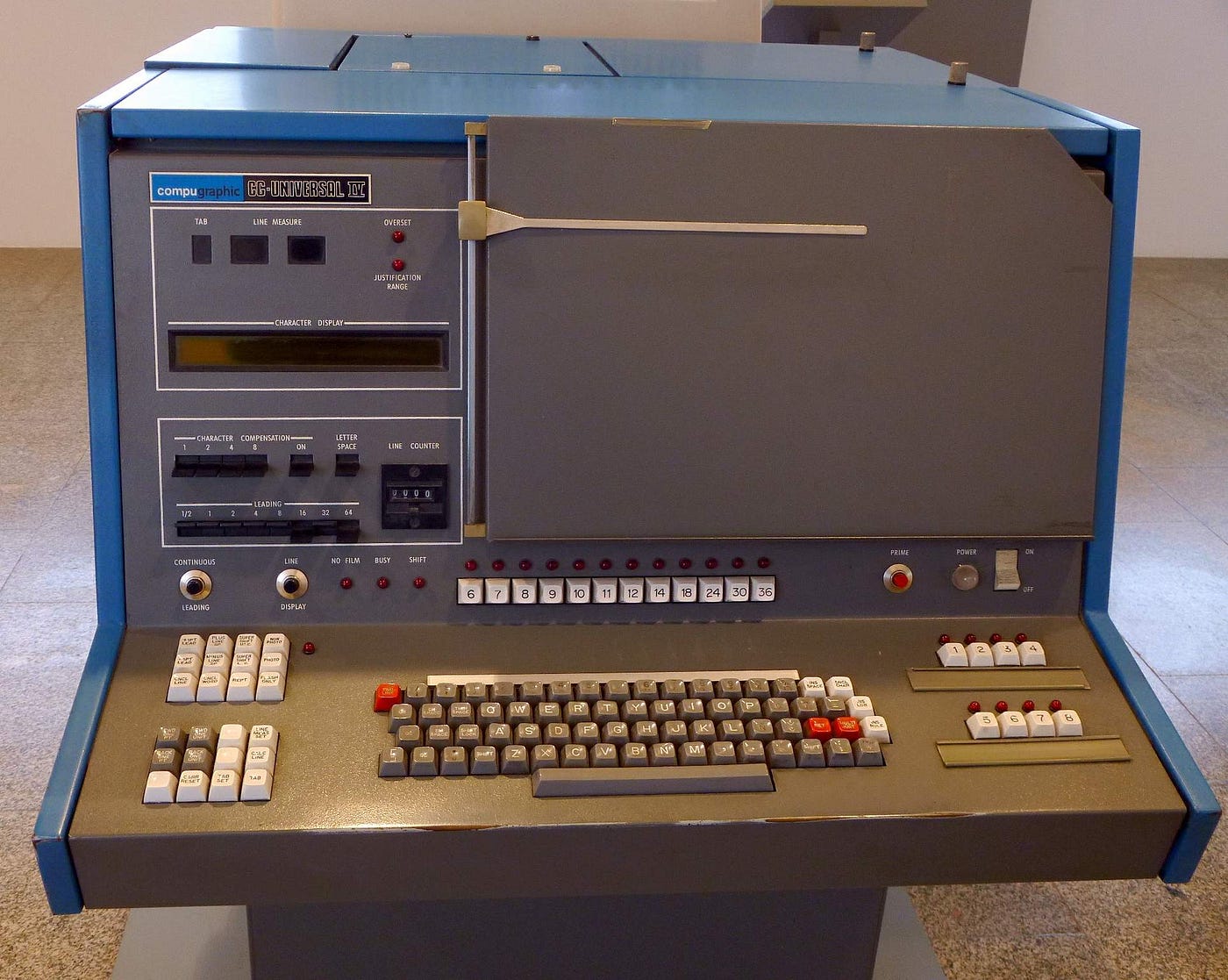
There was a whole typesetting industry doing this in the 70's, with a typographic quality still unsurpassed by today's computers: AutoLogic APS-5, Compugraphic, the Pegasus font system running on DataGeneral minis.
My mother owner two Compugraphic machines. Boy was it ever fun playing with what looked kinda like the bridge of the Enterprise as a boy.
> In some of the fancier fonts on macOS, the characters actually change slightly if there are other characters nearby.
Do you mean kerning and ligature or something else?
My wife spent two years with a Surface Pro running Windows 10, and when it recently croaked we got her a new MacBook Pro. The degree of relief she had is remarkable.
It’s the little stuff like this that is just so frustrating that we can’t do this better on all platform. macOS has similar sets of flaws, it just does it better than the others. I just wish we could have a few years without new above ground features and more cleaning up quality and consistency of UI/UX features. I’d take more of that on any platform.
I think newer versions of mac os x might have messed with your font rendering again.
They turned off subpixel anti-aliasing and it looks worse on older displays.
(I can't help but think of the "slowing down older iphones" thing)
search for "fix blurry fonts mojave"
I managed to fix the font rendering on my Mojave Hackintosh, but everything is still fucked on my 16-inch MacBook Pro running Catalina.
Honestly, on the high-dpi MacBooks (my 2015 13" rMBP and the 16" MBP), I decided to run 100% rendering (which needs to be done with Retina Display Manager). Chrome on 150% default zoom, and VSCode on zoomed in + shortcut to +/- font size easily. Most other electron based apps (Spotify/Todoist) zooms pretty well too. Pixel alignment with round scaling means much better font rendering. UI elements are a bit too small though. But worth the tradeoff to me.
I think that’s sorted now. I had some weird issues when the last OS dropped but not seen it for months.
Yep. Mojave really messed up the font rendering of my 2013 Macbook Air.
I’m on a 1440p ultrawide from this year on mojave vs latest windows 10.
Mac rendering only looks good on retina though. On "normal" monitors windows looks way better.
I recently made the switch from Mac to Windows and have been using MacType - https://github.com/snowie2000/mactype to ease the transition.
Did you just use defaults or one of the profiles? Will mess with this thanks for the tip!
- Ctrl + Cmd + Shift + 4 will let you take a screenshot of a region of your screen and copy it to the clipboard. It can then be pasted directly into most applications, from email clients to chat clients. No random screenshots sitting around. If you want to capture a whole window, press Space after the initial shortcut, then click the window.
- While a menu is open, hold Option; if you're lucky, you'll get some additional options. This works after right-clicking an item in Finder, for example, or after right-clicking an icon in the Dock.
- Magnet for window management. This is a third-party application, but you'll wonder how you lived without it. If you've used Spectacle, Magnet is similar, but I find Magnet to be a bit more graceful.
- Sidecar and AirPlay. Want a second screen? Got an iPad or Apple TV? You can effortless treat it as a second screen with very low latency. It "just works."
- Cmd + Space to open Spotlight. Most power users are already familiar with this; if you're not, try it.
- Cmd + Shift + G in Finder to go to a folder by path. You can also use it to copy the path to the current folder.
- Return/Enter to rename the currently-selected file in Finder. If you're coming from Windows/Linux and are accustomed to pressing F2, you might not know about this one.
- Similarly, to open the currently selected item in Finder, press Cmd + O. To navigate up a directory, press Cmd + Up.
- Ever installed a new drive in your Mac? You don't need to manually download macOS installation media beforehand; with the right key combination at boot, you can install it via the internet. There are a few different related combinations with differing functionality; it's worth looking them up and choosing the right one for your situation: https://support.apple.com/en-us/HT201255
After you press Ctrl + Cmd + Shift + 4 and start dragging a region, if you hold the space bar, you can move this region around the screen so you're not trapped with where you originally started dragging.
In addition to pressing space to move the selected region, you can also press:
- Option, to move all four corners symmetrically around the region's center
- Shift, to constrain expansion to a single axis
- Option + Shift, to move the edges on a single axis symmetrically around the center
- Space + Shift, to move the entire region along a single axis
I love you
Cmd-Shift-5 for some more nice screenshot options, including disabling that floating window that appears before your screenshot gets saved to the Desktop
Cmd-Down also opens in Finder, just like Cmd-O
⌘-Shift-5 to disable that floating screen shot thing... I love you. That thing is _so slow_ and distracting I always worry my screen shot didn't actually save until that slow window popped up on some random screen.
I used to hate the screenshot preview, but then discovered I could drag it into applications and websites, or into the trash if it was a mistake.
Also, with the preview in the foreground, Command-C will copy the screenshot to the clipboard (e.g., before putting it into the trash).
Or double click for some quick editing and annotation.
You can even have it automatically open on an iPad to annotate on– I cannot overstate how useful this is when you're trying to write instructions for something.
One more tip about the screenshot functionality:
If you're using a Macbook with a Touch bar, you can press Cmd + Shift + 4 to enter a screenshot selection mode, and then use Touch bar to adjust screenshot mode (full screen, window or selection) and destination (Desktop, Clipboard, Preview, Documents etc) on the fly.
After pressing Cmd + Shift + 4, press Space and then click on a window or alert to screenshot it entirely, instead of having to drag out a rectangular region. It works at the level of the compositor so the screenshot includes its chrome and translucent drop shadow, and nothing behind or overlapping the window,
ctrl + cmd + shift + 4 was what first came to mind. For the longest time I did cmd + shift + 3 and did the rest manually.
cmd + ctrl + o to open another tab in Finder in the same folder that's current open. In my opinion this should be the default for cmd + t, which opens a new tab but in your home folder.
> - While a menu is open, hold Option;
For the app icons in the top right, clicking while Option is pressed also shows different menus. For example, the wifi icon now has options for diagnostics or the battery icon has a battery quality indicator.
Alternatively, press Cmd + Down to open the currently selected file.
Marking a file as "Stationary Pad" will create and open a copy every time you open the original. Good for templates or any other file you don't want to accidentally save changes to.
- Get Info on file. - Check Stationary Pad box.
That's a strange name/label for an awesome feature.
It'd make sense if the label were actually "Stationery", which is practically a paper template.
Fortunately, that is how it's spelled.
It should be Stationery. At least it was back in System 7.
I know, right? Been using Macs for 25 years and discovered it a few months ago on accident. Not sure how long it's been there, but definitely a dumb name!
I remember this from the classic Mac OS days (i.e. System 7) circa 1994. It’s probably even older than that.
I think it originated with the Lisa. It's mentioned in that context on folklore.org (1):
> Lisa users never dealt with Lisa applications directly (these were called tools in Lisa parlance) but instead always manipulated stationery pads which produced documents.
(1) https://www.folklore.org/ProjectView.py?project=Macintosh&in...
It's been there for a very long time. I used to teach DTP with QuarkExpress back in 92 and this feature was gold. It helped to preserve and not destroy the page templates of the magazine. The fine folks at this publisher had a hard time adjusting to the new world and it saved me so much time when they messed around with the layout and page settings
This is so incredibly useful! I also remember it from those days as a kid. I wish I knew it was still a thing all this time!
Interesting feature, but it seems to work only when opening the file from Finder.
If you open the file from within the application itself (I tested with Pages) or via an external app (Terminal, LaunchBar, etc) then it opens the original.
I did not know that feature was still around. I just got a work MacBook after not owning a Mac for years. That was a feature of System 7 - in 1992.
This has been around for a long time but most people don’t know about it:
Dragging and dropping files from the finder into an file selector window (ie. Open File in most programs) will navigate to that file and select it. As others mentioned this works in terminal as well to give you a path, but actually this generally works in any text box (unless it specifically handles paths being drag ‘n dropped). This also works with multiple files / multi file selection, and in the case of inserting the path as text, they are space delimited and auto quoted (convenient for shell use).
Edit: This icon can include the one at the top of a finder window (the window title). That’s actually interactable and can be dragged and dropped for the directory itself.
> this works in terminal as well to give you a path
I'll add that if you want the path of a file and the destination application doesn't support drag 'n' drop, right click on a file in finder, then hold the Option key and you'll see the copy command changes from "Copy" to "Copy as Pathname".
Oh my god this is so useful! I've known about the 'drag into your terminal' thing for ages but not needing to use the mouse and just doing command-option-c is so much nicer!
And if, for example, a webpage has a button to select files through the open file dialog, you can just drag and drop a file to the button and not go through the open dialog at all.
Dragging and dropping files from the finder into an file selector window
You can also drag a file or folder's icon from a Finder window title bar.
When it doesn't work, that's a good indication of a program that's using Electron, Carbon, some old framework, or poorly maintained.
Adobe and Audacity are both guilty of this.
And... command-click on the proxy icon to show its location.
Didn't realize until this comment, but I use this feature all the time. Open file in a program, then use spotlight to find the file I want, drag it into the open modal.
I use the path version of this all the time for some really long path names :) . I keep those folders open just for that particular purpose. Very handy. It also works for selected text. Works on linux too. I honestly don't know about windows.
Speaking of space delimited, you can also grab a whole directory full of any item and drop into numbers or excel and it will create a list of said files. Tab delimited. Great for inventorying media etc.
This doesn't work for me. Are you dropping the full folder or all the items in it? And you are dropping onto a table in Numbers?
Related: Cmd + Mission Control (F3) temporarily shows your desktop.
Hit it once, start dragging, then hit it again to bring back your apps to drop into.
A variant of this is dragging to the terminal. I drag stuff from Finder to a terminal window all the time to get the full pathname.
The nicest thing is that it auto-escapes the path too so you can safely type a command and then drag any file as an argument without worrying about spaces and shell characters.
Mouse keys -- as an anti-feature. (press option 5 times)
My daughter enabled it while I wasn't at the computer and then thought my keyboard had died. Even took it in to get repaired, and got a new keyboard.
There is no permanent indicator that it's enabled, and it persists after reboots (once logged in)... when I figured out my brand new keyboard still had several broken keys I started looking for S/W level issues. Hard facepalm. It didn't help diagnosis that I did have some physically affected keys too.
At least I got a new keyboard out of it...
Years ago, my nephew somehow stumbled across the accessibility shortcut for invert colors and "broke his computer"
I think it was either persistent, or he only sleep/woke his computer and never tried rebooting it.
Looking at my keyboard shortcuts it's cmd-alt-ctrl-8, and it is presently disabled.
What happened? What does mouse keys do?
See [1]
In short, it makes the keys on a numerical keypad allow you to control the mouse (move up/down/left/right and click)
[1] https://etc.usf.edu/techease/4all/input-devices/what-are-mou...
It lets you use keyboard keys to move the cursor.
Three-finger drag is the one thing I just can't live without.[0]
Finder: Cmd+Shift+G to navigate wherever I want (with autocomplete)
Text input: Control+Command+Space for the emoji list and search
Text input (switching keyboards for Japanese input): Control+Space for quick toggles
Text input (accents in my native language): all the accents and letters of various European languages are usually made by using Option+[key] for the accent, and Option+[key]+letter for the proper letter. The [key] maps are e -> ´, `` -> `` (I'm messing up the rendering of the quotes here despite my best efforts), i -> ˆ, u -> ¨ and some keys Option+[key] directly give a character when it's unique, such as Option+a=å and Option+o=ø, and Option+1=¡ (because it's the key for ! otherwise, which makes sense - and can help with Spanish)
For the longer examples, Option+e+e = é, Option+e+a = á, Option+`+a = à, Option+u+u = ü, Option+i+u = û, Option+n+n = ñ, etc.
Holding Option in menus also shows extra options and their shortcuts (although this is less and less the case outside of the Apple apps themselves). An example using Finder -> Edit and pressing/releasing the Option key[1]
Oh and one more: the app "Stickies", which allows you to have "post-it notes" with color coding and collapsing the note by double-clicking on the title, saving to file, etc. I use it to take quick notes or set casual reminders.
Last but not least, not an Apple app but a very helpful tool I've used to make the gif in this post: Kap is incredibly convenient to records bits of the screen and save to various formats, and it's been improving a lot since its early releases[2] (I have no stake in this, I'm just thankful for such a cool piece of free software)
[0] https://support.apple.com/en-us/HT204609

> all the accents and letters
Nowadays, holding down a key will show a pop-up with all the accent options, which you can then select by mouse or by typing the number under it, much like on iOS. The option route is my preferred one, as it's faster, but the new one is much more accessible to people without keyboard prowess.
Is there a way to shut off the long press functionality? Sometimes I just want to type “byeeeeeeeeeeeeeeee!”, and I have already made the effort to learn accent key combos.
Pretty much this: https://www.howtogeek.com/267463/how-to-enable-key-repeating...
I agree. It's great to see that there are different paths a user can take towards being satisfied.
If I remember correctly, once you hold the key you can also use the number underneath to select the character (as in "long press e, press 2"). I've since disabled that long-hold thing because this allows me faster text repetition (eeeeeeeeeeeeeeeeeee... in all its glorious uselessness), but I am glad Apple thought about the UX for different types of users there.
Three finger drag is nice, but I wish it worked on any part of the window not just the title bar. Also, there should be a warning that enabling 3 finger drag automatically increases the "Mission Control" gesture from 3 fingers to 4 fingers (swiping up).
Three-finger drag is waaay better than drag lock. I wish it was available on Windows as well.
Three finger drag :-(
Thank you so much for telling us about it, but I expected that I can drag the window anywhere. Turns out I can only drag it where it could also be dragged by clicking normally.
But I turned it on anyway, we'll see if I'll use it.
It also works to do text selection without clicking+dragging, same with moving files or folders. I've mostly stopped clicking outside of browsers thanks to the 3-finger drag option.
The great thing about three-finger drag is when you reach the end of the trackpad, you can lift one finger and put another finger to continue the drag. Tap and drag on Windows couldn't do that.
I think you can actually lift two fingers as soon as you've started the 3-finger drag and it'll continue dragging. If you're quick enough you can lift all three fingers and reposition them, too. They really put in a lot of work into the software behind the trackpad, which is still a major selling point for macbooks in my opinion.
interesting, I've been using quicktime's native screen recording feature. Converting from mov to gif would probably take another tool though, probably ffmpeg
Show hidden files (dotfiles) inside any finder window or file open dialog: Cmd + Shift + .
Discovered after ~10 years
Why would they not put this in the View menu? I can even imagine someone invoking it by mistake and not working out how to undo it.
Exactly, it's also a needless pain point for those switching from Windows, where the checkbox is relatively accessible, if a few clicks away.
Not even temporarily, it’s a permanent, system-wide setting.
snap, I never realized it was permanent. Guess I just kept turning it off. Thanks! Updated parent comment
That’s wild. I’ll leave it off, though. I don’t trust Finder to handle file operations safely and effectively (too many dangling files, partial copies, and littered indexing files in my history).
If I have dot files, I’m gonna go all grey beard and handle them in a terminal.
This is one of the most useful ones here that I didn't already know, thank you
This is awesome.
I’ve been using `defaults write com.apple.finder AppleShowAllFiles YES; killall dock` for at least 15 years. A quick DDG search, indicated this shortcut arrived in High Sierra. Has it been around longer?
No, this new added recent years. Before that I have to use software like xtrafinder (Cmd+Shift+/)
---
https://www.macworld.co.uk/how-to/mac-software/show-hidden-f... added since sierra
It has been around for as long as I can remember, and I have been using Mac since 10.3.
—
Edit: Thinking about it a bit more, it might not be that long since I wasn’t into programming back then and hidden files meant little to me. The first time I used it was probably around Leopard.
—
Edit 2: It seems like the feature debuted in Lion (10.7). This would make sense since Finder was overhauled in that version to add several features.
Remember this is a toggle, so you can toggle hide/unhide with the same shortcut. I use it pretty often.
This doesn't work on my Mac. Only Cmd + Shift + Fn + . works. Don't know why, tbh.
Thank you!
Also, it works in open/save dialog boxes.
Setting most (but not all) system preference using the terminal. It made doing clean installs every year so much easier. https://github.com/mathiasbynens/dotfiles/blob/main/.macos
Super curious about your yearly clean installs. Could you do a short breakdown of your process and the tools you use to manage it?
Also, what do you use for backups?
Thank you.
Why do you do clean installs? I've been moving the same MacOS image since 2006. Four machines, without any issues using whatever MacOS provides at the time.
Do you have a good way of discovering these keys / syncing them with the UI? I like to do the same thing but sometimes change a setting in the UI and don’t know what to update in my script without diffing the entire prefs directory before and after the change.
AFAIK diffing is the only way, I'd love to hear if anyone has a better technique
Dotfiles are wizard AF. Been using them on my departmental deployments for a while now and will never go back.
are you mathiasbynens? If so, thank you. I've been using that script as a reference for my own clean install script. Not sure where else I could have found the information, seems like Apple themselves are against documenting it and have in fact deprecated some of the settings in later macOS versions.
This is gold. Thanks!
my favourite feature is how the title bar icon in any app that’s editing a file (textmate/ word etc) is a pointer to the actual file unlike windows.
- you can drag that file anywhere to move it.
- CMD click it to see a breadcrumb menu showing where it is and navigate to the folder
on a similar vein, dragging a file into an open file modal box makes it browse to the containing folder. In windows, dragging a file would move the file into that folder.
I combine the above two quite a bit. Editing a file in app A, need to upload it somewhere via browser. Drag file from title bar into open dialog box, done.
> my favourite feature is how the title bar icon in any app that’s editing a file (textmate/ word etc) is a pointer to the actual file unlike windows.
This behaviour seems to come 'for free', so, when it breaks, I can only assume that it's intentionally broken. One of the many ways that Adobe Acrobat violates the design language on macOS is by making this somehow not work. (They also break print to PDF–I guess because otherwise you wouldn't pay for the PDF creation capabilities—and do their absolute best to make sure you don't access the native print settings, which is fun because Adobe's own print settings don't play well with the printer accounting software at $WORK).
Demos of all the drag and drop behavior can be seen in the Aqua keynote. Lots of people don’t know how powerful it is on macOS even though it was THE big feature at launch.
>- CMD click it to see a breadcrumb menu showing where it is and navigate to the folder
Similarly you can right click the window title (click with two fingers on the touchpad) for this functionality. It's very useful to navigating up in the folder hierarchy in Finder without adding any new icons to the toolbar.
You can even drag the file into a terminal window to turn it into the full path.
Also works with copy-paste from Finder into Terminal (or iTerm). Love that feature
I hate hate hate that they're hiding proxy icons in Big Sur.
Damn, what a bummer. Is there any way to re-enable it?
It appears almost instantly when you mouse over where it used to be. I've been living on it for the past few weeks and haven't changed my muscle memory at all.
I've read that you can hover over the spot and it'll appear.
Proxy icons?
The icon in the window title bar is often referred to as the proxy icon. I thought this was Apple's official name for it, but I can't find any evidence to support that in Apple's documentation.
> my favourite feature is how the title bar icon in any app that’s editing a file (textmate/ word etc) is a pointer to the actual file unlike windows. you can drag that file anywhere to move it.
I knew about this feature but it took me about a year or two of using macOS every day and the feature only working about 50% of the time before I understood how to get it to work reliably.
For those, like me, who were having problems: You have to click and hold the mouse button over the window, then hold the mouse there for a short period of time (e.g. half a second), then drag. If you drag too quickly it'll move the window instead.
I also like how you can usually rename or move an open file and the app that has it open updates itself.
Cmd-R (R for "reveal") in the open/save file dialog opens the present directory in Finder. This is useful as I commonly want to do some additional janitory tasks in the directory.
A complimentary feature: when you want to “open” a file from some file open dialog box, instead of navigating through the dialog, go find the file some other way and drag-n-drop it onto the dialog. The file won’t open, BUT it’ll pop over to the directory and select the file for you to then open in the context of the application.
I use this all the time when I either have something handy in Finder or can find it more quickly with alfred.
This works in Spotlight too!
While this isn't a generic feature, I want to say that everyone should try embracing the non-keyboard nature of macOS (as it always has been done), not just complaining that some of the elements are not reachable in the keyboard.[0] Try using the mouse, trackpad (which is top-quality), and the Touch Bar (which I guess will be the most controversial?).
Especially drag-n-drop. I'm not sure if it's already mentioned, but the proxy icon (the icon in the title bar) is super-useful in situations when you need to find (e.g. upload/attach the file in Safari, opening the file with another app) the file somewhere else. Just drag the proxy icon and drop it to the destination, and it usually will do what you want.
Also the Touch Bar. Everybody complains about it while not even trying to take advantage of it...[1] Customize your Touch Bar so that the buttons are in a consistent way, e.g. I always put the new tab button (if it exists) in the far right, where I can reach without looking, and I put the most useful actions (like getting information, trashing files in Finder, tab switching in Safari, text suggestion, etc...) in the middle, and put the less-useful but somewhat frequent actions (like toggling the sidebar, emojis, etc..) in the left. If you consciously try using them for a week or two, you realize you're much productive using the Touch Bar than using obscure shortcuts or moving the mouse.
[0]: BTW, good news for people who were complaining - macOS Big Sur greatly increases the amount of controls reachable with the keyboard, although I dislike the fact that I have to bang more tabs to reach some button.
[1]: There's definitely Apple's fault here too, if you're using a Touch Bar equipped Mac, 'brew cask install haptickey' so that you get haptic feedback on your Touch Bar touches.
Isn't the touchbar explicitly a "keyboard nature" type of interaction? You mentioned Mac OS having a non-keyboard nature, and then tout the touchbar?
I know what they meant here. The touch bar seems like a keyboard but it's not, because of the sliders and customization.
My original touch bar layout mirrored the pre-touch bar layout out of familiarity. Recently I've learned how to use it as intended (sliders instead of up and down buttons, using application-custom buttons). I realized that I was just being an old man about the touch bar before.
I think one of the key advantages of a non-keyboard interaction is that you don't have to look at the pointing device to see what you're doing. Touch-bar precisely needs that, especially given that there is no tactile feedback. And it's the main reason why I think the Touch-bar destroys productivity.
Maybe it is a zen koan, designed to find the nature of the keyboard within and without.
As the apple keyboard strokes become shorter, and the gestures become more numerous, we become one. ;)
The touch bar is a no-go for me. I really use the F-keys a lot, so I have it on F-key all the time.
My ideal setup would be to make the trackpad a tad smaller, add the physical function keys again and the touch bar above.
I don't think it was a good tradeoff for many use cases.
I’m curious, what do you use F-keys for? I’ve moved to a mech keyboard with no F-keys, as I've never had much use for them. I do have a few choice custom shortcuts, using Command-Option-based shortcuts.
Coding mostly. I know by heart most of IntelliJ shortcuts. Things like find usages, type safe move and copy of code, rename of entities, etc. are F-key bound by default. I don’t customize because customization of defaults makes it harder to work on other people’s computers.
With the pandemic is kind of a non issue, but at the office it’s quite common.
I agree about the usefulness of doing mouse/keyboard combination manoeuvres, as an advanced user. Saves time for sure, and keeps you in the flow to keep up more with your brain speed.
An excellent example I discovered only the other day: in Finder, press spacebar to speed up drag-and-drop spring-loading. (It finally makes spring-loading USEFUL!)
Everything explained and shown here:
https://www.youtube.com/watch?v=w1izlhicjvQ&t=67
E.g. move file into a folder in another Finder tab, now made quick via this action.
And yet you can't select and drag text like you can on Windows...
What do you mean? I can select and drag text fine.
Batch renaming files in Finder.[1] It's quite useful and one of the few GUI-based looping operations that takes me less time than fat-fingering the shell incantation.
[1] https://osxdaily.com/2015/05/28/batch-rename-files-mac-os-x-...
What in the world, that's been here the entire time? I've been looking up how to do it in bash every time I've needed to do it. It's so strange how macOS has this appearance of simplicity but just below the surface you have stuff like this
No, it was added in OS X 10.10 Yosemite. Before that you needed to either use Terminal or "A Better Finder Rename" which still offers more options than Finder, including the use of metadata to rename your files.
what the hell that's really useful. I used to open emacs (I'm a vim user) just for the bulk rename
so awesome for renaming photos.
I recently discovered some nice helpers to resize windows:
- Hold down the option key while resizing a windows (with the mouse) to also resize the opposite side. This also works when resizing the window on a corner to resize all edges at once.
- Double click a window border to enlarge this side of the window up to the edge of the scereen. Hold down the option key to enlarge also the opposite site.
- Double-click the title bar of a window to maximize it
Try divvy. Works for both Mac and Windows.
It's the first app I install on any fresh box.
Here are some divvy shortcut ideas for the XDR Pro display: https://i.imgur.com/Tf4c6yo.png
+1 for Divvy.
I didn’t know about the first one. But I learned about the last 2 within the last year because I can’t install software on my work computer.
On my personal computer I use Better Touch Tools.
I have saved days and much effort by using `SHIFT + ALT + CMD + X` to resize my windows. https://github.com/kreeble/SimpleWindowResizer
Had no idea. This is great, thank you.

You can assign a folder full of images to the background of Terminal.app, and it will choose background images at random, so a folder full of dark solid colors gives you random dark backgrounds, enabling you to tell your terminal windows apart easily.
Oh. That’s really neat. I have used macOS for seven years and I had no idea that this feature exists.
This does not seem to be supported in iTerm, if anyone else is wondering.
In fairness, it's barely supported in Terminal.app --- in that I had to make a bunch of solid-colored images to make it work! It should be a first-class feature of all terminal applications. I had no idea how much I want this feature day-to-day until I got fed up with a 27" monitor display crammed with overlapping identical-looking tcpdump windows a few weeks ago.
You can likely achieve something similar using iTerm's Python API.
For example, this script[0] picks a random color preset each time a new session is created, and this one[1] picks a preset based on the hostname.
[0] https://www.iterm2.com/python-api/examples/random_color.html
[1] https://www.iterm2.com/python-api/examples/colorhost.html
Wait until you find out you can change which directory screenshots save to. I have a dedicated "screenshots" directory in my home directory. And then a stack in the Dock for it similar to the one for the Downloads folder.
Any idea if there is a way to remove the preview that shows up in the bottom right corner? OSX doesn't write the screenshot until after that disappears which is annoying
Shift + Command + 5… click "Options" in the bar down the bottom of the screen.
(Also, try hitting space a couple of times in that mode.)
Wait ... you can RECORD !
While recording your screen, you can also record your microphone by choosing it in the Options menu. However, there is no way to record audio that is output to your speakers unless you first create a custom audio source using Soundflower (https://github.com/mattingalls/Soundflower) or Loopback (https://rogueamoeba.com/loopback/).
Since Mojave https://support.apple.com/en-us/HT208721
The preview thing is really handy as you can directly drag and drop it into a document or chat window or whatever.
After you’ve done that it won’t be saved, which is great as you can quickly snap and use a screenshot without having to switch to the Finder - and the desktop doesn’t get cluttered with hundreds of images.
A huge problem with this is that some apps don't "accept" this drag and drop, and the preview just disappears without saving the screenshot file. I can't remember the exact apps which behave that way, but I've been burned and irritated multiple times because of this. As a result, I disabled the preview feature and added the screenshot folder to the dock just like OP did.
I’ve seen this with most cross platform apps - like Slack and Skype.
What I found you can do instead is use Cmd-C to copy it and then paste it into the app. That generally works.
And folks wonder why people get annoyed with non-native apps on Mac.
You can also do it using commandline
`defaults write com.apple.screencapture show-thumbnail -bool false`
> Another good tip for screenshots is disabling the floating thumbnail. Just open the screenshot app and disable it in the options menu.
Found out the other day that you can drag and drop this into a document...
Hmm, it must be something special in certain apps. I've tried that into the Slack desktop app and it didn't accept it
That’s odd that was my exact learning example
Even better, you can just have those screenshots save to only your clipboard. Just add ctrl to your combo, _or_ you can remap it in Keyboard under System Preferences.
Whoops, just posted that too. Definitely one of the most time-saving shortcuts I found in the last few years.
Shift + Command + 4, then space-bar -> capture windows.
Wait until you find out you don't even have to save screenshots (most of the time) and can copy them straight to clipboard, and Cmd-V them where you need them. Cmd-Ctrl-Shift-3/4.
Yeah this is what I do 98% of the time. I'm usually not taking a bunch of screen shots. Just 1 or 2, usually because copy/paste from slack is such a PITA
Onyx, and some other utilities from Titanium centralize some handy tweaks like this in a simple GUI.
Thanks, I did that now. I hate all the screenshots on my desktop.
I need this.
Three-finger dragging on laptops with touchpads: https://support.apple.com/en-us/HT204609 It says it's for dragging windows, but it works for all dragging, including files in Finder etc. Couldn't do without it now.
Increase Contrast, which I prefer not just for aesthetic reasons (it gives a slightly old-school feel to the interface), but because it delineates areas of windows / apps more clearly: Preferences > Accessibility > Display > Increase Contrast. This will automatically turn on Reduce Transparency, but I used that setting anyway, to reduce distracting detail.
You can also get this behavior with “double tap to grab”, which allows you to pick up your finger and put it back down repeatedly as you are dragging something around. Same idea, different (turned-off by default) gesture.
Focusing the menubar with Control-F2.
You can then navigate by arrow keys or typing. Space bar activates the highlighted menu/submenu.
It makes life so much better.
Control-F2 itself was slightly broken in 10.14 (IIRC), so I hacked up a dumb workaround in my Hammerspoon config:
https://github.com/NateEag/dotfiles/blob/99f6b641151f85f6f78...
Command-Shift-? is the better version of this imho, directly opens the help menu and you can just type the name of the menu item and hit enter. Way quicker than navigating to it.
Yep this is what I came to say - OSX's help menu automatically searches all menu commands and if you hover over them it will open up the menu, show you the location, and if you hit enter just use it for you.
This is also something you can generally call from Applescript as well, if you want to automate application behaviors.
Mind sharing an example AppleScript of that? Every time I’ve dug in there, it’s never had quite what I wanted. But this seems like an especially leverage-able idea.
It's been about 10 years since I touched that code, so apologies if these are all things you know.
I am pretty sure most of the work was just extending the documentation in https://developer.apple.com/library/archive/documentation/La... with looking up application "dictionaries" (iirc, a box of supported commands) and all menu items being accessible by default.
https://developer.apple.com/library/archive/documentation/Ap...
Very cool. Thanks for sharing!
Thanks so much, it has been a constant annoyance for me that _sometimes_ Ctrl+F2 just doesn't do anything. It did not occur to me to check if that's a known issue, I just wrote it off as a glitch in the matrix. Your workaround is going to make my daily menu usage go much more smoothly, thanks!
note that ctrl-F1 by default toggles keyboard access, which breaks (some of) the other ctrl-Fn bindings (which i just found out by testing this). you can disable this in keyboard shortcuts of course.
I have long used Shift-Command-4 to take screenshots, but I only recently discovered Shift-Command-5, which provides finer control (and it's much easier to use when I'm working at my treadmill desk).
Also, Command-K to clear out a terminal window (also often works in similar places, such as the MAMP error log viewer).
My favourite hidden function: Pressing space after Shift-Cmd-4 toggles window mode. In window mode, only the window you select will be captured.
Note also that menus are treated like windows, so you can screenshot a menu as well.
that is awesome. So awesome maybe it should be the default.
The various screenshot features are good, and also one of the best uses of the touchbar I've seen. Use any of the variations on taking a screenshot, and you will get a menu to take a screenshot of an area, window, full desktop, etc.
You can configure that to whatever you want, by the way. Just check out the System preferences -> Keyboard shortcuts[0]

That you can hold down certain keys, like i and o, to access a list of similar characters that aren't found on the keyboard.
My 1 year old taught me that one.
I actually turn that off - https://osxdaily.com/2011/08/04/enable-key-repeat-mac-os-x-l... - so it's easier to write things like noooooooooooooooooooooooooooooooo!
May not produce the same feel, but there is:
> This default controls the numeric argument binding. The default is for numeric arguments not to be supported. If you provide a binding for this default you enable the feature. This allows you to repeat a keyboard command a given number of times. For instance “Control-U 10 Control-F” means move forward ten characters.defaults write -g NSRepeatCountBinding -string "^u"— https://developer.apple.com/library/archive/documentation/Co...
It's one of the first things I turn off. annoying.
I also have repeat set to fastest and delay until repeat the shortest.
There are also easily memorable keyboard shortcuts for common accents in languages that use roman script. E.g. Opt+e followed by any character places an acute accent on that character. Opt+u adds an umlaut, etc. etc.
I've switched that off many years ago so I forgot that's even a thing. In my opinion the best way is to get hold of those characters with the option key. So if you need ñ you can just type option-n + n, or option-o for ø.
One can be forgiven for finding this after long years of useage, because it didn't used to be the case. I'm not sure when it was introduced, but it was in a (to this oldster) recent version.
It was introduced sometime after that feature became standard in the iOS keyboard. So yes, it is a relatively new feature.
I found these after years, although it's been years since I found it. Preview is pretty good for merging PDFs, deleting pages from PDFs, and adding annotations. Whenever I have to do these things on a windows machine, I struggle to find software to do it. Most importantly, preview can add your signature via trackpad, or by holding up your signature to a webcam.
I have seen pdf files swell to ~ ten times the original size when I edit them with Preview. Apparently, Preview will reencode images upon saving, often choosing a less efficient encoding than original. The most extreme cases I encountered would be files scanned in black and white, with Fax or JBIG2 encoding. Since I use such files a lot, I use pdfpen instead for all my pdf editing tasks.
I've only ever seen that happen when re-exporting using Quartz filters, where the whole point is to re-encode, and saving an e.g. 300-page PDF will take several minutes, with a progress bar.
If you're just using Preview to rearrange/combine/etc. pages, no re-encoding happens and file size stays the same.
Believe me, I do a lot of PDF management in Preview. Even to the point of creating my own Quartz filters in the ColorSync Utility precisely so that I can intentionally re-encode images when I want to. (Because the Apple-provided Quartz filters are hard-coded to abusrdly high or absurdly low resoltions.)
It’s been years since I stopped using Preview for PDF files, generally using Skim for reading and pdfpen for editing them. Perhaps something changed since then? That is good news, if so.
I should have tried it before replying, but did not have easy access to my laptop. Now I redid the experiment. Starting with a 24 page scanned pdf, I deleted the first page using Preview, then saved and closed the file. It swelled from 2 MB to 6.7 MB. Looking into the file, I see that all the images in the original are encoded with CCITTFaxDecode, while the images in the edited file are encoded using FlateDecode. I cannot see anything relevant to the issue in the preferences.
You can also save your signature (draw it with a mouse or take a picture of it) and use it to sign PDFs
Does an app have shortcut you don't like? Go to System Preferences > Keyboard > Shortcuts > App Shortcuts and click the plus. As prompted, enter the exact title of menu action you want trigger and the new shortcut. I use the on all my machines to rebind Quit Safari / Chrome / Firefox /Mail to Cmd + Option + Q to avoid killing the application when I fat-finger Cmd + Q instead of Cmd + W.
Others already mentioned:
- three-finger drag is indispensable. Anytime I touch someone else's laptop I turn it on and blow their minds
- hold Cmd in Spotlight to reavel the path containing the selected item, Cmd + Enter opens that folder in Finder.
- readline keys work in basically every text input on the machine. Want to delete a line? C-a C-k. Delete the word preceding the cursor? M-Backspace.
- Cmd + Down opens the selected item in finder, Cmd + Up jumps one level up the folder hierarchy Cmd + Left/Right expand/collapse
That's a really neat trick!
Worth noting: Chrome actually no longer dies when you fat-finger cmd-w. It shows a "hold cmd-q to quit" overlay and only dies if you keep holding the keys down.
That's a setting you enable in the app menu, not the default
Is it? Oh man, must've been a long time since I enabled it. They should make it the default.
Not built into macOS, but you can use this app to get the Chrome-style quit delay for every app:
You can hover/long press on the green traffic light item to tile your screen.
literally just discovered this yesterday myself for the first time - still prefer Spectacle, but nice that it’s there.
Spectacle is no longer being maintained. Rectangle [0] offers the same functionally and is OSS
Oh nice, it looks good! Gonna try it out.
I’ve never had even a single issue with Spectacle so not really a big deal to me that it’s no longer maintained. It Just Works, from my experience - with that said who knows for how long, I guess.
When I first saw Rectangle, I thought I saw there was one Spectacle feature it was missing due to APIs. I'm looking now and it looks like it has everything I use, which is great.
You can tell Finder to show actual folder sizes instead of just "--". Right click in a folder -> Show View Options -> Calculate all sizes. I'm not sure why it's not the default, it's not like Finder needs to traverse the folders hierarchy to calculate the size (I hope!).
It does have to traverse the complete filesystem to calculate the sizes. That is how most filesystems work (files have sizes, folders do not - so a folder size doesn't exist and is just a sum of whatever it contains)
Interesting, I thought it uses the Spotlight index to get this information and that the index already contains these aggregates, but you're probably right considering that it works even in folders that I've explicitly excluded (I wonder how many millions of node_modules folders are indexed for no reason).
It does traverse the folders to do just that; look at your CPU usage with that option on.
What I like better than this is the free OmniDiskSweeper
https://www.omnigroup.com/more
I'm a big fan of the Omni group, and run my life on omnifocus
Cmd-Ctrl-Space (⌘⌃␣) for the character/emoji picker. Also, under Keyboard in preferences, check the "Show keyboard and emoji viewers in menu bar" option to get it as a menu-bar icon. This also includes the keyboard viewer, which is handy to figure certain Shift-Opt-Whaterver combos for seldom-used characters.
EDIT: Updated with the actual default command.
> Ctrl-Opt-Space for the character/emoji picker.
I think this may not be the default; it doesn't work for me.
While speaking of the character picker, does anyone know a way to get less broken search in the picker? For example, I frequently find myself looking for math italic characters in Unicode. Despite the description being, say, "MATHEMATICAL ITALIC SMALL A", it doesn't come up when I search for 'small'. In this case searching for 'mathematical' or 'italic' works, but there are other cases where I just have to guess search terms randomly (or go look up Unicode tables elsewhere).
It is ctrl+cmd+space for me and I don't remember changing it.
Completely agree about the search. E.g., I sometimes want the cmd sign (⌘), which is named "place of interest". Sure, that makes sense from unicode and in other contexts but I would expect to find it as cmd or command in macos.
Oops! Sorry! I meant Cmd-Opt-Space here. Also, yeah, the search is pretty janky in my usage as well.
> Oops! Sorry! I meant Cmd-Opt-Space here. Also, yeah, the search is pretty janky in my usage as well.
Indeed, I thought that might be what you meant … but that opens the Finder search window for me, so I think that that shortcut also is not universal. Probably some of these differ depending on whether you've got a fresh install or an updated system that may carry along shortcuts from an older release.
EDIT: adsche (https://news.ycombinator.com/item?id=24092377) suggests ⌘⌃␣, and that works for me.
If you go to the Edit menu in finder (or any application) all the way at the bottom of the dropdown menu you’ll see “Emoji & Symbols” and to the right it should tell you the shortcut keys.
Yeah, looks like ⌘⌃␣ is the actual default command.
This is so useful and I really hate that some chat clients use their own text input box where it doesn't work.
There are a LOT more sets of characters available in the picker, hit the gear menu in the upper left and select "Customize List".
How do you close it? Cmd-W doesn't work for this type of window.
I don’t know of a keyboard-only way, but I see that ⌘W does work after you focus the floating window by clicking on its title bar. Of course, you can also click the tiny red close button to close the window directly.
Hit the same key combo that invoked the character picker (⌘⌃Space in my case).
Doesn't work for me. It opens the emoji picker, but doesn't close it. :(
Tried in both Chrome and TextEdit.
windows recently got this feature as well, it's Win + ;
The `say` command line tool. It will cause a synthesized voice to speak out loud whatever follows that command via text-to-speech.
This is especially useful for pranking your loved ones for whom you have remote shell access. ssh in and cause the other person’s computer to start talking to them... by name... asking for help... to be let out of the small metal box they’ve been trapped in for SO long...
This has been available in Mac OS for at least 15 years, and probably longer.
This incredibly useful to get alerted to some long-running job finishing or the like, e.g.
Back when I did lots of Apache Spark on a underpowered cluster, I had a script to lower Spotify volume, tell me the outcome (success, failure), then set Spotify back to original volume../some-lengthy-job | say DoneI still use this as a kitchen timer all the time when cooking while on my Macbook with utimer, which is basically a count-down timer for the shell (available via brew install utimer), e.g.
utimer -c 10m | say Pasta is doneThat redirects the output to say's stdin. You probably want '&&' and '||'.
./some-lengthy-job && say Done || say Failed
It was available on the Apple IIe, I remember loving that feature when I was just a little kid. I'm still amazed Woz was able to synthesize speech with hardware back then.
Serial Experiments Lain (1998) used PlainTalk for its title cards.
You can still recreate the title card voices in macOS.
say -v Whisper "Weird: Layer zero one"That doesn't seem to work on the latest Catalina ("Voice Whisper not found.") – do I need to install them separately?
Yeah. You can customise the available voices in Preferences > Accessibility > Speech
Whisper can definitely be installed on Catalina still. It's a 34 MB download.
You can use image capture app to copy pictures when you connect camera via usb.
If you create a "Developer" folder in your ~ it's gonna have a different icon and is canonical place to put all your code in mac world.
Clicking wifi tray icon while holding option is going to give you a lot more info and some hidden tools.
Damn that option-click one is HUGE. Thank you. Where are these things enumerated? Everything in this thread is such tribal knowledge. I’ve gone looking for this information in the actual help docs and it frequently isn’t there. Is there a canonical source for Apple shortcuts/gestures in any of their ecosystems? Many of these things make life so much better.
> Clicking wifi tray icon while holding option is going to give you a lot more info and some hidden tools.
Same for the Bluetooth icon: you can see for example your BT audio codec used, signal levels, MAC addresses and other info.
Most of the the system icons give you extra info if you hold option- dock icons as well.
I think one of the most magical moments was when I sent a job to print to one printer that was out of paper at the office, and it failed. I just used spotlight to open another printer and dragged the job from one printer to the other and it just worked!
I once discovered a way to restore a minimized window without using the mouse. It requires a bit of practice:
1. Press Command-Tab to show your running apps. Keep holding Command.
2. Press Tab until you've selected the minimized app.
3. Press the Option key, and let go of the Command key. You must release the Command key after pressing the Option key! The minimized app is now unminimized.
Note that this only works for an app with all of its windows minimized. If there is already a visible window of the app you won't be able to get to the minimized one with this trick.
I posted it once to Super User where it’s still getting attention after 9 years: https://superuser.com/questions/196141/keyboard-shortcut-to-...
Another way to restore a minimized wondow would be to use Ctrl+F3 to focus the dock (Ctrl+F1 to enable that shortcut), press Up repeatedly until the minimized window is selected, then press Return to open it.
Option + Click
And
Command + Option + Shift + Click
Works on most default OS things you can click on. Reveals a whole new set of amazing functionality.
Example: Doing so on the bluetooth icon on your menu bar, gives you the debug option for you to reset / restart bluetooth module.
Yes. My newest find is that you can option-click on the scaling options in Display prefs and sometimes get more choices.
If you run:
defaults write -g NSWindowShouldDragOnGesture yes
My goodness, I could kiss you. I never wanted to run a separate app just for this but have always loved it. Had no idea it was available system-wide.
We call these three button cmds "smash"
e.g. "smash"+h moves the window left with shiftit
Using the Touch Bar to adjust volume, brightness, etc. doesn’t have to be a two-step process... no need to tap, lift and re-position your finger to the slider that appears. Instead, just touch-and-hold the icon of the thing you want to adjust, and slide from there.
Be warned, though, that if you slide your finger before the slider finishes animating in, that movement is ignored. Too many times I tried a quick adjustment like that only for the volume to remain the same after my movement. It’s why I added separate volume buttons to my Touch Bar and switched to using those primarily.
The sad thing is there’s no good reason for the slider to ignore your input during the animation. I think Apple just didn’t care enough to test it thoroughly. They only tested the Touch Bar with computer newbies who press every key slowly.
You can also increment/decrement by one by quickly swiping your finger to the right or left.
Nice touch (sry, pun was unintended).
Every time you do a screen recordin with quicktime, encode it to h264 to save a LOT of space and make it playable on any device.
To do that use Handbrake, whick is open source and the go-to app for any encoding.
ffmpeg -i <original> -o out.mp4 also a super easy way to do this too since it'll get re-encoded. I don't know why screen recordings aren't handled this way automatically
I learned recently that in any terminal you can option click to move the cursor to a specific location in a command. It’s really great when you want to reuse a command but with a small change.
In zsh you can C-x, C-e and it will open whatever is on the command line in $EDITOR.
When you save it the changes will be on the command line.
This is my top discovery this year, been using it for a few months now.
Creating one-file pdf from large pdf file with simple page drag to the home screen using Preview.
yes, and you can compose all sorts of decks by showing the sidebar and dragging images/pages between window sidebars.
i sometimes compose quick-and-dirty UX flows from mockups this way.
Mac has a storage explorer called "Storage management app". I found it great for making space as it can sort by categories and file size. Before realising this, it was a pain to find decent software for the MacOS.
I imagine this was added recently.
The Omni Group has had a free storage space app on the Mac for a long time called OmniDiskSweeper.
I’ve long used GrandPerspective (http://grandperspectiv.sourceforge.net/) for this. It shows you how big each file and folder is visually, so you can more easily estimate the impact of deleting those files.
You can drag the folder icon from the top of a finder window into an apps open/save dialog and the dialog will navigate right to it. This also works with files.
Cmd + Shift + ? = Easy way to access menus via keyboard
For me, it just opens the application's "Help".
From there, you can use the arrow keys to navigate to the menu option you'd like.
No, it opens the actual help window or link. The menu doesn't get selected.
or Ctrl+F2 if you prefer to start at the Apple menu
dope. thank you.
If you are taking a partial screenshot but you want to change the position of the selection then press and hold space to pan the selected area.
macOS has a very good built-in text-to-speech engine with real voices that sound good (i.e. not annoying to read).
It's part of the Accessibility > Speech menu in Settings.
I wrote up a little info doc for how to enable keyboard shortcut for it so you can use with any text you can select: https://docs.google.com/document/d/1mApa60zJA8rgEm6T6GF0yIem...
Use cases: - read blog posts and news articles while doing dishes (basically turn anything into an podcast at the press of a button) - read hacker news comments - proofreading text (you can hear the typos much easier than you can see them in a text you have written)
I'm even creating my own audiobooks from ebook text, as a way to consume books not officially available in audiobook!
I haven't tested it much yet but the 'Samantha' voice actually seems listenable and intelligible for long periods.
Do you think there will come a time when audiobooks are generated via sequence model using celebrity voices?
I gave it a go with LSTM's.
Each sentence is intelligible, but it feels so dry without the emotion of a human voice actor.
I have a meta tip for everybody.
I only recently discovered the Youtube channel 'MacMost':
https://www.youtube.com/user/macmostvideo
As a long-time macOS user, I am astounded at the things I'm currently learning from this guy, they're not just 'cool' things, they're seriously productivity-boosting things! They're small but sometimes impactful.
This is the best tip I can give anyone here.
After doing cmd + c a file, you can use option + cmd + V to move/cut it instead of copying.
I think you can hold cmd or option when dragging and dropping a file to do something similar.
using option will duplicate
using cmd will move
So the default for dragging on the same disk is move. option+drag will make a copy.
The default for dragging to a different disk is copy. cmd+drag will move instead.
pbcopy / pbpaste (command line tool to access the clipboard)
Not builtin on macOS but iTerm2 is a must (together with oh-my-ZSH it's been a game changer)
The "time machine" on apps has been useful as well, rolling back to a previous version of a doc is great.
Some "unexpected feature" I found the other day. I accidentally dropped my MBP (and it seems it is engineered to close itself on drops but I knew that already ahem so it fell shut and upside down) and it started making a siren-like noise, as I began to get worried, I opened the screen and it was showing only glitches and it restarted (well sh1t). But then it restarted just fine and crisis averted.
"Reduce Motion" in Settings > Accessibility.
At some point in the last 8 years, Apple changed the animation for how a window becomes full screen. The default behavior is to expand while simultaneously shifting the window to the right, or conversely expand while the desktop shifts to the left.
Enabling "Reduce Motion" eliminates that behavior, and the full screen window fades in and out instead, which personally I prefer.
The keyboard shortcut in finder to take you to your home directory, cmd + shift + h if I recall correctly. Makes it trivial to keyboard navigate to anything when you can easily start from the same place every time!
cmd + shift + h = home directory
cmd + shift + a = applications directory
cmd + shift + d = desktop directory
Semi-related, type `open .` in terminal to open that directory in Finder
And when you are in terminal and want to change dir to some different path, just drag and drop it from finder (either a file or just a icon from the title bar)
If you cmd-drop a file icon into Terminal, it will automatically cd into the parent directory, it prefixes the path with cd and appends ; at the end and executes it. If the icon is a folder, it will automatically cd into that directory.
If you shift-drop a file icon into Terminal, it will paste the file path to the command line without escaping spaces.
Is there a reverse version of that last one? For navigation I prefer Finder over `cd; ls`, but once I end up where I want to be I generally need a terminal.
edit: Another user replied with what I want as I typed this! Thank you haddr.
You’re referring to the tip to drag the Finder folder onto the Terminal window. There’s another way that is easier if you don’t already have a Terminal window open:
Install the app “cd to…” (https://github.com/jbtule/cdto) and add it to your Finder toolbar. Now clicking that icon will open a new Terminal (or iTerm) window within the selected folder.
I use cmd+shift+u all the time.
It's great when you don't have a mouse, or don't want to use it:
cmd+tab: pulls up app switcher, keep clicking until you select Finder
cmd+shift+u: opens utility menu t: highlights Terminal.app cmd+o: opens a terminal
type
Could also spotlight search for Terminal
cmd-space, terminal, return
`xdg-open .` is the Linux equivalent.
There are a whole bunch of these as well! If you open a Finder window, and look at the Go menu, you'll see all the options. You can also use Cmd-Shift-G to open a path entry dialog with tab completion.
There are dozens of these shortcuts -- I use the ones for the Applications (cmd + shift + a) and Desktop (cmd + shift + d) most often, but you can find many others listed here: https://support.apple.com/en-us/HT201236
If you don't know, that shortcut also works in Open/Save dialogs. The same is true for nearly all the shortcuts in the Finder > Go menu (go to Desktop switches to Command-D in those dialogs).
You can also set which folder (downnloads/documents/desktop) to open by default when you open a new Finder Window.
Cmd + D : Desktop, that's the one I use.
I wonder how someone can read this thread and NOT realize that macOS is probably the most advanced desktop operating system out there.
Uhh... By hiding a bunch of functionality in obscure keyboard shortcuts that professional users don't discover after years, sometimes decades of use?
I have thought Macs were pretty cool since I first used system 7. But I would not apply such blinders. This thread could also be taken as criticism even if nobody intends it to be so.
When you Cmd-Tab to an application with no open windows, press option as you release Cmd, and it will open that application's default window (as if you clicked on it on the Dock.)
Useful when you like to leave apps "open" even with all their windows closed (ie. not using Cmd-Q), but still want to use Cmd-Tab to get to the app instead having to click something.
Double click text to select a word. Triple click text to select the whole paragraph.
For decades I assumed that there’s some weird fluky behavior when trying to select a word and accidentally selecting the paragraph.
You can also double click a word, keep the mouse button down, and drag. This will select whole words. I use this a lot.
I didn’t know that either, thank you! It works with triple-click paragraphs too.
Along the same lines for text navigation and manipulation:
opt + [arrow keys]: To move through text respecting word boundaries.
cmd + [arrow keys]: To move through text respecting line boundaries.
Add shift to either of those and now instead of navigating, you're selecting the text.
opt + delete: deletes full word behind cursor
cmd + delete: deletes full line behind cursor
This is same in Windows and Linux as well
This feature is present everywhere.
Windows, Android, all browsers I use, inside apps, etc
For anyone who hasn't already rebound Caps Lock to Ctrl - try to accidentally hit Caps Lock really quickly, and it won't activate. Press it normally and it will activate.
Psh. Caps Lock is to be mapped to Esc.
It's also a great fn key on external keyboards that lack it.
Re-enable the boot chime on the latest Macs with the following command in terminal:
sudo nvram StartupMute=%00
sudo nvram StartupMute=%01After searching for an item in Spotlight, hitting `Return` will open the file, but hitting `Cmd` + `Return` will open a Finder window to the directory where that file lives.
Command + R also does this.
Aaaaah!
Yes!
Wanted this for ages!
Smart Folders + Tags = you move a file between folders by (un)tagging it.
Very handy i. e. for project management (Kanban…)
Cmd + tab to quit applications
Instead of releasing cmd to switch to the application, you can press q to quit it.
You can use the mouse to hover over entries while keeping Cmd held down, and q will quit whatever your mouse is over.
Useful for "I just want to quit every app": just move the mouse left and right over the icons while pressing Q repeatedly until everything's dead.
Command+q is the standard to quit in all well-behaving macOS apps. No need for tab.
Obviously. This lets you quit an app without switching to it or right clicking it on the dock -> quit.
You can delete files immediately (i.e., skip moving to the trash) in Finder by holding the Option key in addition to Command + Delete (or Backspace).
Toggle Do Not Disturb with a single click:
https://taoofmac.com/space/til/2020/06/11/1915 (has animated GIF explainer)
A little late to the party, but hopefully these are useful if anyone sees them:
- If you need to make a quick screen recording video, open QuickTime Player. There’s an option to record the screen in the menu.
- (This one’s been extremely useful to me, and hardly anyone seems to know about it!) — If you need to provide tech support to another macOS user, open iMessage on your Mac, and start a conversation with the other person’s Apple ID. Click the dropdown caret beside their name in the recipient list, and click “Ask to share screen”. A VNC request will be sent straight to their Mac (with built-in microphone audio, so you can chat to them), plus options to control their computer remotely.
I found out lately that you can even record the screen of a brand new iOS device using QuickTime when plugged via USB.
You can easily record the initial setup that way, which helped immensely with users working from home getting phone upgrades during the pandemic.
I didn’t know about that, thanks for the tip!
Command + double click a search item in spotlight to open the containing folder in finder.
Cmd + Enter opens the containing folder too - no clicking required!
neat, just pressing cmd while a search item is focused gives you a little path preview popup as well. something i want often enough to be slightly annoyed but not often enough to have wanted to seek out specifically before. =)
Press Cmd to reveal the path
Not a Mac built-in feature, but life-changing nonetheless: Amethyst window manager. You can install it with brew cask install amethyst.
It's a tiling window manager. If you've used tmux, i3 or awesomewm you'll feel right at home.
⌘⌃⇧4 – for screenshots that go directly into your clipboard
⌘O – open file/folder in Finder
⌘J in Finder, Set as Defaults — sets default view options for all folders (struggled a lot with Finder inconsistencies before finding this out)
I use the first one so often. So super-convenient to compose emails or Keynote presentations with some additional graphics plopped in directly from another window through the clipboard.
OPTION + CMD + V to cut and paste files (found this today here: https://news.ycombinator.com/item?id=24080378)
Hold down OPTION to vertically select text (works in the terminal at least)
CMD + SHIFT + . in Finder to show/hide hidden files
CMD + CTRL + D on a selected word to open the dictionary
I'll sometimes use the `say` command to let me know when a long-running command on the terminal finishes (e.g., `say Done`)
Has anyone found a way to name desktop spaces anything other than Desktop 1, Desktop 2 etc?
Not a built in feature:
https://apple.stackexchange.com/questions/211954/how-can-i-n...
Some people on this post are using ‘Stickies’ app to put a label on each one?
Otherwise, there are 3rd party apps that do it.
Thanks for this. I did look into this a while back and both Total Spaces and the github project require at least temporary disabling SIP.
I may go for that commercial app anyway because it really is costly to lose context built up in a space. Especially when you have a lot of completely unrelated projects you want to task switch between.
I’d go so far as to say lack of Spaces feature polish in MacOS is impacting my ability to efficiently maintain open source code. Because those projects only get special extra time from me these days.
Apple should make more spaces API open to developers if Apple won’t improve this important macOS feature.
This may or may not work for you: each space dedicated to a project has a desktop image related to the project - a logo, an important visual asset, etc. It mostly works for me. Wish you could name the damn things out of the box though.
This is a good idea. I started testing this previously by just choosing different wallpapers, but didn't take a step further to photoshop in some text.
I may yet in addition to the space naming. It feels like it would be helpful to see on the wallpaper using expose, and also from the three finger swipe up.
Really, Apple should allow this meta to be overlayed on a wallpaper instead of having to photoshop it in. I'm perplexed on why Spaces has gotten zero improvements for so long.
I never bother adding in text. It's just a matter of choosing images that are obviously-related for me.
Working on the graphic novel? Go to the desktop with a model sheet of one of the characters/props. Working on the Mastodon instance? It's the desktop with the image I drew for the front of the site. Drawing furry porn commissions? Hello, desktop with an endless rotation of Doug Winger's work.
I used to use stickies years ago but it became too cumbersome. Something would happen and I would have the individual stickies back to their workspace.
I wish there was a workspace-specific description - big letters describing the workspace that fade, or a watermark for the background image.
I mean something designed into the window switching.
Fn-Fn turns on speech dictation (if you have it enabled in settings). It is pretty accurate.
Ability to remap the Caps Lock key to Control
Shift+control+command+4 = screen capture to clipboard
Preview can modify images. There's a button with a pencil icon that toggles a toolbar for simple image editing, such as adding lines, shapes, or texts.
I've been using the Markup in Preview since they went system-wide in macOS Mojave. (Today I learned that Markup debuted as an extension in Mac OS X 10.10 Yosemite. [0])
This comment and its children sent me on a spelunking mission and the treasures I found. Markup has a Loupe tool and Speech Bubbles.!
Such features are many, various, and somewhat obscure, akin to Easter Eggs. (Both undiscoverable and handy to know.)
[0] https://tidbits.com/2018/11/19/macos-hidden-treasures-the-ma...
There’s a little prism icon too which opens a panel for Lightroom-type modifications like exposure, shadows, highlights, levels, sharpness, etc.
I mean I thought I was a Preview power user, but had never clicked that little toolbar button.
Blows me away I can do that stuff in Preview. Wow.
It's got a good solid-color-to-alpha tool too!
Cmd + Shift + A : To show the bar.
Change the cursor movement speed (repeat rate) in the terminal. On the CLI you can go higher than the menu.
defaults write NSGlobalDomain KeyRepeat -int 5
Hold down the option key when selecting text (in some editors) and it enables columnar selection. Can be very useful for certain editing tasks.
This depend on softwares not OS features. Vscode can do that in all OS
Forget MacOS, I was practically living on the web for ages before finding out that you can select link text in browsers if you hold down alt.
Adjust volume by finer increments: hold option+shift while changing volume.
System Preferences>Keyboard>Text. I use this to create trigger letter combinations that auto complete things I type frequently, particularly for business correspondence- for example if I type "FRA-", in any application, it prompts me with the option to autocomplete "For routing/assignment" I actually have someones difficult to spell's name in there too but have omitted it here. It"s useful to use ALL CAPS as the trigger. You can even stack the triggers, I have several individuals whom I may send a message to with "FOR ROUTING/ASSIGNMENT". to and I have them all triggered by the same capital letter combo, and I am presented with a dropdown list that use the down arrow to select which I want to use.
I believe desktop Stacks is only a version old (10.14) so you probably haven't been missing it for too long fortunately. Another good tip for screenshots is disabling the floating thumbnail. Just open the screenshot app and disable it in the options menu.
On the topic of screenshots, one I didn’t know was hitting space before you take a screenshot will make it capture an entire Window, including the shadow instead of having to drag a region
Plus holding option while you click takes a screenshot without the shadow, which I find vastly preferable. I only found out about that a couple of months ago, after a long time being annoyed.
This one is a true pro tip
You can move other windows without losing focus by holding command and move window's title.
It's not just limited to dragging windows around. The mouse-clicks get passed to the background app. You can use it with anything. It's called click-through and has been around for a long time.
I first learned about it here: https://duckduckgo.com/?q=click-through+site%3Adaringfirebal...
Double clicking the title bar of a window to maximize it (without going into full screen mode). I used to install Spectacle on every computer, but this was really the only feature I needed from it.
Somehow it took me 12 years of using macOS to learn how to maximize windows.
This is settings dependent.
You can choose between "zoom" and "minimise" in System Preferences > Dock > Double-click a window's title to…
Also double-clicking the edges of windows (when the resize cursor shows) will expand the window in that direction.
The caffeinate command: https://brettterpstra.com/2014/02/20/quick-tip-caffeinate-yo...
CMD + UP to up one dir in finder. Maybe I've got messed up settings or something, I don't know, but when I want to go up a folder I don't see a button or a an item called ".." that can be clicked. Did this drive anyone else nuts?
I have generally made the 3-pane view my default for this very reason (which has obvious left-right semantics for hierarchy traversal). I think maybe you can also command click the folder-name header? I think I once knew about CMD+Up but my general workflow is in the terminal these days, so Finder is mostly only used for selective-file-move/copy operations, and even then, called from terminal. It’s usually `open path1; open path2` then select and drag.
Dictionary word lookup with a single gesture.
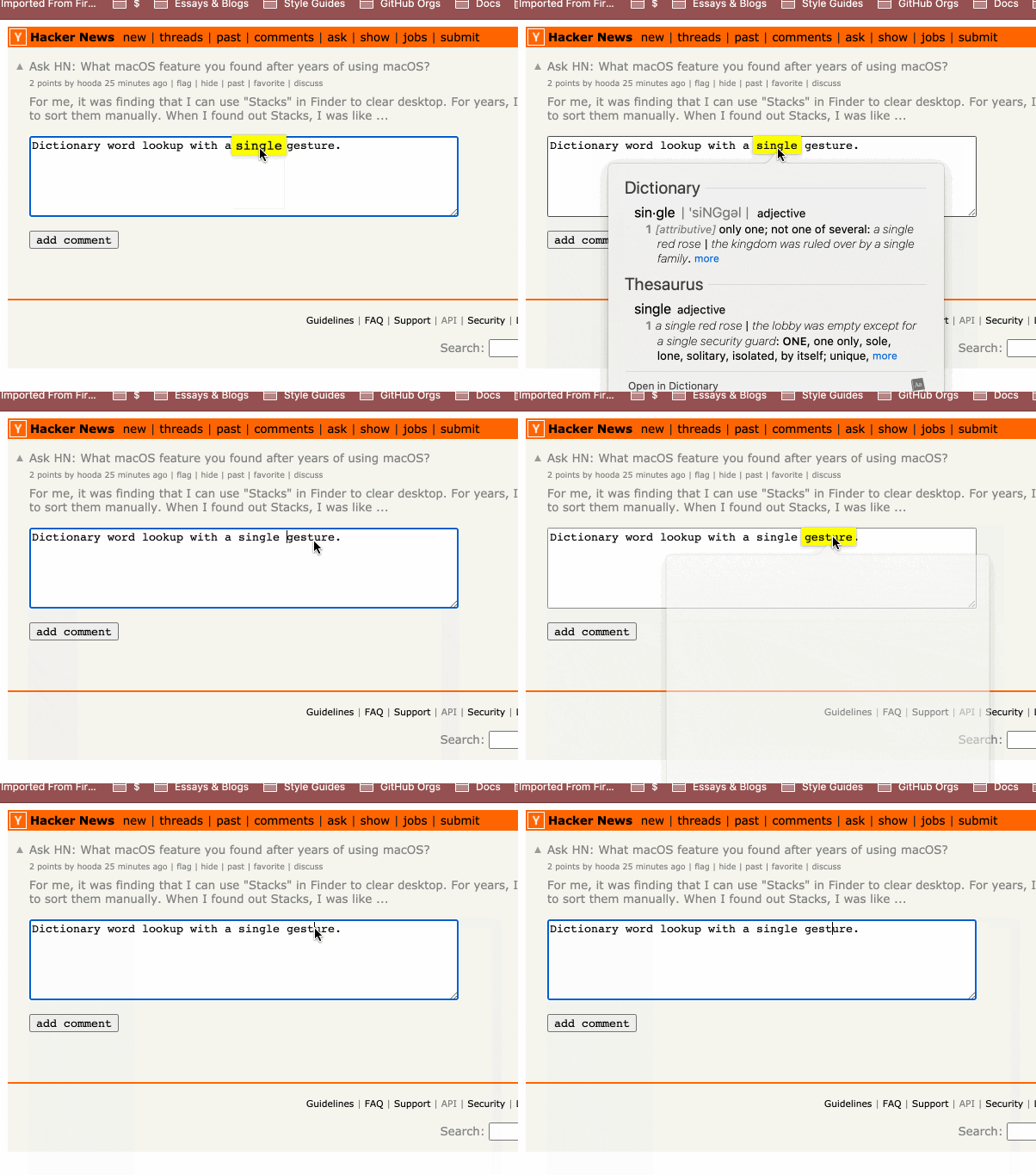
Sadly, that used to work better than it does now. From some versions ago, it was upgraded to be "smarter" and do google searches and link lookups and whatnot. I'm nowadays struggling to get the dictionary lookup shown. That's a shame; as a non-native speaker it's a super helpful feature. I've been trying to disable the other shenanigans, but without much success.
Woah, I found a way to fix it! You need to remove the checkbox "Show Spotlight results in <whatever the feature's name is in English>" in Spotlight settings. I wouldn't thought that I need to go look for settings elsewhere to fix that.
That used to send whatever word (possibly a password, or some other confidential thing) you deep-clicked on out to the lookup server unencrypted. If you happened to be on open wifi (like in a coffeeshop), it would broadcast it totally unencrypted to everyone within radio range. I reported it and now it uses TLS. :)
Tap on a word with 3 fingers.
You can also hover over the word and hit Command-Shift-D for people not using a trackpad.
This is a neat hack for reducing PDF file sizes. As you may know, macOS already has a built-in filter to reduce file size, but for me, it often results in almost unreadable documents. This stackexchange question shows how to create a custom filter which delivers way better results, i.e. small files and very good quality:
https://apple.stackexchange.com/questions/297417/how-to-decr...
I've been using Apple devices for ~25 years now and I think the best feature I have used was the summarizer service (actually I would think that services in general in macOS you should look through). What it does is if you select some text it will summarize it.
While I was in Brazilian jujitsu class they had an MMA brand that needed "organic content" based on articles from wikipedia and I bartered with them so that I would receive a Jujitsu Gi for summarizing 150 articles. This allowed me to accomplish the above task in only a few hours.
Unmounting/ejecting a drive by dragging its desktop icon to the trash. I know you did this in really old macs to eject a floppy, but it's cool they keep that feature around on modern macOS
Option click on the upper right corner hamburger menu toggles Do Not Disturb mode without having to open the whole right panel notifications section. Helpful for presentations and screen sharing.
I have the system volume in the menubar too.
Option-click the volume icon will allow you to change your sound input and output devices.
You can also change the default directory where screenshots are stored, so they never end up on the desktop in the first place. I have mine set to ~/Pictures/screenshots
The functionality of menu extras hidden in /System/Library/CoreServices/Menu Extras
Also, show files / packages on Logic Pro projects which are packed as a file.
How to use menu extras - I'd never heard of them before https://methodshop.com/gadgets/tutorials/osx-menuextras/inde...
Using the exposé command to show desktop grab a file from finder then pressing the exposé command to show all windows of the current application and dropping the file I grabbed from the finder into the desired window, saves me a TON of time in photoshop and other design apps, and for attachments in files. I custom map mine the way they were in 10.4 when tis feature was released, f11 desktop, f12 all windows, f13 current applications windows.
1. Accessibility > Zoom > "Use scroll gesture with modifier keys to zoom" > Ctrl
So you press "Ctrl" and then scroll down on the trackpad and it will zoom in anywhere/on anything. Use it quite often and love it :)
2. Accessibility > Pointer Control > Trackpad options > Enable dragging > Without dragg lock
This one takes some time getting used to but it's awesome once you get the hang of it
3. Control–Shift–Power button
To put the display to sleep
Scroll zoom is also great for giving live technical demos! I picked this up after watching some WWDC videos and it's so much better for drawing focus during a live demo than using something like a laser pointer.
Menu-bar search.
Press CMD + Shift + / to open a search over all Menubar-actions for the current app.
If you're used to action-search in IntelliJ or VSCode, this will feel familiar to you. It's for those countless features that you use often, but not often enough to remember their proper shortcuts.
There are Launchbar- and Alfred plugins that provide a nicer interface.
(Germans need to reconfigure the shortcut in the settings, because our keyboards are weird)
Drag and drop a file to the terminal to get its path.
Right click then hold down option key, no need terminal
Might be mentioned below but:
In the terminal you can use pbcopy and pbpaste to use your clipboard: cat my.txt | pbcopy.
In the terminal you can use the open command to open a file or a folder in finder: open . and open foo.pdf.
Double tap the window frame to maximize it correctly (not to a new screen and not just on one axis but the way Windows maximize works).
Multiple virtual desktops and swiping between them with gestures.
The cat command is unnecessary when all you want to do is copy a file's contents to clipboard. Just do
pbcopy < my.txt
When typing with fancy characters: - Alt-command-space brings up a window where you can select arbitrary Unicode characters - Go to your keyboard settings in System Preferences and add the “Greek” keyboard. Then you can press ctrl-command-space to switch your keyboard and quickly type in Greek symbols (e.g. “a” becomes alpha). Press ctrl-command-space again to switch back.
Option-clicking the sound menubar item to adjust input/output devices, or option-clicking the wifi menu to see additional wifi info.
I usually have multiple Bash tabs open in Terminal, and I needed a quick way to see what each tab contained. The following bash script will set the Title of the tab.
  #!/bin/bash
  # Sets the title of the Terminal Window / Tab.
  # title foo => Sets the title of the Terminal Window / Tab to foo.
echo -n -e "\033]0;$1\007"Should anyone be wondering why this doesn't work in fish, it seems it overwrites the title back to the default pretty much instantly. So no custom tab names with fish, it seems!
If you drag a window's corner, the adjoining edges resize. If you hold down Option while you do this, all four sizes resize about the center. Even better, you can press and release Option during a single drag to turn this behavior on and off incrementally, which means you can arbitrarily adjust a window with one drag (if you're persistent enough).
That, in terminal you can move cursor to any position in command by holding Option-key & clicking wherever you want.
You can create a screenshots folder and default all of the screenshots straight into it. That’s been a lifesaver for me.
I solved the screenshot on the desktop problem by using a program called Hazel. It can automatically move and sort files based on any number of criteria. I set it up to move all screenshots on my desktop to a ~/tmp directory. This has worked pretty well for keeping my desktop completely empty which is my preference.
You can actually just change where they go in the Command-Shift-5 option menu.
You can change your MAC address. I always thought this was permanent. Regus (OG wework) offices have finicky WiFi and one day it refused to connect to my laptop. Eventually I googled how to change MAC address and there was an ifconfig command.
Suffice to say I had to change my MAC address every week to fight their shitty system.
Scroll with vim keys in Safari Reader Mode.
Nice!
I didn't see this one anywhere. You can use modifier keys in combination with Hot Corners.
Go to [System Preferences > Mission Control > Hot Corners] and when you make your selection just press the modifier you'd like to use.
I've always found hot corners too easily triggered, for me this strikes the right balance.
I recently discovered the Bluetooth device debugging menu.
Hold Shift + Option and click on the Bluetooth icon in the menu bar.
That's really useful, I didn't know that! BTW, there's a similar one: holding Option while clicking on the Wifi icon reveals some extra information about reception
I don’t believe you need the shift. You just need to Option + click
Shit + Option gives you the extra debug option that option + click does not.
You can do basic screensharing with Messages on macOS. Open Messages, select a message thread with an existing contact, then from the menu bar, select Buddies > Invite to Share My Screen (or Ask to Share Screen).
Doesn't work for groups (last time I tried at least), and hideously undiscoverable.
If you took a screenshot to your clipboard but want it saved as a file you can open preview and hit cmd N.
If you use spotlight and type in a word, you can press command + L, to jump to the dictionary definition
Some of these are amazing. I'm currently a Windows user mostly, I added the same thread but for windows here: https://news.ycombinator.com/item?id=24099633
Cmd + ~ (tilde)
Cycles between the windows of the same app. Similar to cmd + tab.
Saved me so much when reading multiple pdfs in preview
Oh this is a live saver that I have been looking for since forever.
Thank you so much.
If you’re in Terminal and want to open a Finder window with the current path, just type “open .”
`open` is really useful in general. You can also use it to open apps!
`open ./someFile.foo -a App\ Name`
or even just
`open -a App\ Name`
Wow, thank you! I start my day off by launching 10 or more applications and have always procrastinated on my plans to automate this.
I was about to reply that stacks is a new feature, but I googled it and found it's been a feature since 2007. I could have sworn it was announced a year or two ago. Anyone know if there was an improvement announced recently that I seem to be recalling?
Hold Option key while clicking to unlock all kinds of more detailed informtion and options
eg, Option-click the menubar wifi icon and you get all the details of your wifi connection including BSSID of the router you're actually connected to, RSSI, your assigned IP, etc.
For those with older Macs, this is the Alt key. There's this symbol on both: ⌥ Always have to think about that one!
command + space launches the spotlight search. In here, not only can you search, but you can also do some math to use it as a calculator. Real handy if I need to do a quick calculation. For example, entering in `243*2/4` will spit out `121.5`.
Open a pdf in preview. Select pages, press Copy, then Cmd + N.
You get a new PDF with the pages you copied.
You can add blank spaces on the dock using:
defaults write http://com.apple.dock persistent-apps -array-add '{tile-data={}; tile-type="spacer-tile";}'
Very useful for organizing icons.
It has been so very long since I’ve used the Dock that it always comes as a surprise when it comes up in macOS UX discussion as I forget that it exists. Can someone explain how it is useful to their workflow?
I have it hidden on the left so it does not take space. Even though I have shortcuts to open all apps. It is helpful for managing windows when I have many windows of the same app minimized.
Increase Finder window size by dragging (in home directory), then press Cmd + Shift + E to make Finder open new windows with the new size. Works until a reboot. Why? Because those stupid windows are too small by default.
You can also do this by opening a new window, resizing/positioning it how you'd like, then immediately closing it. Next time you create a new window it will be exactly the same.
So many nice things here - and nearly all of them missing from iOS/iPad OS!
Using the space bar to quickly look into the contents of any file: pdf, images, txt files.
And this works also within other apps like spark where I can use the space bar to quickly verify what attachements are present.
Don’t think windows does this.
You can write low level code to interject all keystrokes and program keys.
When Cmd+Tab'ing press and hold the Option key before letting go of Cmd to unminimize/create a window for the selected application (assuming it doesn't already have unminimized windows open).
Not doin anythin for me
Make sure you release Cmd after pressing the Option key.
Spaces. Including "Displays have separate Spaces". I kinda knew it was there all the time but never really used it until recently. It fits very nice with the Chrome "People" feature.
Emacs key bindings work in all standard text boxes and views. For example ctrl-A to go to the beginning of the line and ctrl-E to go to the end.
Also, damn you Microsoft for using non-standard views in your macOS apps.
I was able to use software that I installed without a problem for years, but now Gatekeeper makes installing software from outside of the Mac App Store a chore for little to no gain.
I’m curious what this complaint is about, since the only thing I’ve experienced is an annoying pop up window that you must approve similar to what one gets in Windows.
If the developer didn't pay Apple $99/year and also notarize their software, you need to jump through settings panes to launch the application "for your own good".
When typing or editing text, Option-arrow to move the cursor one word to the left or right
Command-arrow to move to the beginning or end of the line
Combine either of these with the shift key to quickly select text.
Wow, I use these all the time in VSCode but didn’t realize it wasn’t specific to that application. This works especially well when combined with multi-cursor selection: place whatever 10 cursors for 10 sets of like information, Option-Shift-Arrow to select multiple like-code blocks by word.
This experience alone was enough to convince me it was time to learn vim.
Ive always found it frustrating there aren't quite the same number of tricks here as windows/visual studio.
Home/ctrl+home (Or end, to jump lines/doc) Ctrl+up (or down, to scroll without moving cursor)
I forget these others, but I keep trying to use these in osx.
This is exactly how I feel in windows coming from a mac, super-constrained due to lack of hotkeys to navigate.
Ctrl+A = start of line, ctrl+e = end, ctrl+n = next line, ctrl+v = next page
By default, in macOS, this isn't enabled everywhere, but you can do it easily https://forum.keyboardmaestro.com/t/os-x-text-system-keybind...
Is there a method to the modifier key "madness"? I'd like to form a mental model of when to use Shift vs Ctrl vs Option in various shortcuts being mentioned.
In the beginning there was a sort of hierarchy with the addition of modifier keys, it goes cmd, shift, option, control.
Basic commands use the command key with a letter. Adding the shift key usually reverses the command, like cmd-Z in Finder is Undo, cmd-shift-Z is Redo.
The addition of the option key is supposed to add an alternative or extension to the basic command like when you see commands whose text contains an ellipsis (which means that the command will bring up a dialog for more information before executing). Adding the option key can remove the ellipse and just execute the command with the last parameters that were set. In the Finder, cmd-W closes a window, cmd-option-W closes all windows.
Rarely would you find a command that uses all four modifier keys, it's just hard to press them all at the same time.
Of course over the years and the proliferation of apps and developers, these ideas have faded and don't always hold up, but that was the general idea.
One way to discover this is to open a menu, then try hitting modifier keys.
Some functions will change, and some of the functions with shortcuts will add the modifier.
For example, open the Apple menu and press and release Option.
Some menu items that say "Foo..." which means they will have an "are you sure" dialog will change to "Foo" which means they will not confirm.
Option + Command + Spacebar opens a Finder search window. It is a fast way to open a new Finder window from anywhere in the system regardless of your currently active app.
Ctrl+Shift+Esc (hold) to force-quit a locked up fullscreen app.
How easy it is to move between various OS's now. I thought a mac user was mac user, but I think it is trivial for most users to swap to Linux and Windows now.
My favorite anti-feature is copying a screenshot from the desktop with cmd+c, then pasting into gimp gives a high resolution png of the mac mime-type icon for pngs.
In any native text field, try a few CTRL-hotkeys you'd type in Terminal:
CTRL + K (delete to end of line)
CTRL + D (delete in place aka delete key (not backspace))
CTRL + A (go to start of line)
CTRL + E (go to end of line)
[Ctrl] Right/Left arrows
as an alternative to 3 finger swipe, to move across multiple desktop spaces. Especially helpful when when you have multiple editors and layouts
double click the edge of a window to expand it to the edge of the screen. hold alt while double clicking to get the opposite edge to also expand.
My favorite feature is the help menu, where you can search the menu for a command. I'm not aware of any other OS doing this so consistently.
i posted mine yesterday[0], about being able to alt-tab between windows of all applications, not just between applications or tabs. i remapped that to opt-cmd-tab for easier access.
does anyone know how to turn off wifi on startup via scripting?
I found this one annoying enough to install Contexts[0]. The free demo immediately sold me on their approach.
Yeah... I haven't been using Stacks this whole time from 2006 until today. Thanks for the nudge. It really is an improvement.
Not macOS specific, but it took me too long to find out the tab key changed the focused text field in a web browser.
Hopefully I soon discover how to cut/paste files to move them... Surely there must be a way!
⌘C to Copy then ⌥⌘V to Move Item Here.
If you open menus on macOS and hold down various modifiers and combinations of modifiers you'll discover tons of hidden gems.
Try it with Finder > Edit then ⌥ Option, ⌃Control, and ⇧Shift.
Dragging a file from Finder into the terminal will insert the absolute path of that file.
`pbcopy` and `pbpaste` for copying to / pasting from clipboard. Nice time savers!
In a similar vein, I have a shell script (fish, in my case) that combines these to let me quickly modify the contents of the clipboard:
  function pbedit
      set tmpfile (mktemp /tmp/pbedit.XXXXX)
      pbpaste > $tmpfile
      if vim -c "set nofixeol" $tmpfile
          pbcopy < $tmpfile
      end
      rm $tmpfile
  end
⌘ + Down for dbl click to open ⌘ + [, ⌘ + ] to go back/forwards in finder history
The forwards and backwards in finder history shortcut also works in a large number of other apps :)
Indeed. The only reason I discovered it was because of the muscle memory from using it with a browser!
Same here, actually!
Oh, press alt when minimising/maximising a window for an additional surprise.
To open a Finder window from the command line in the current folder type: open .
I find my mac periodically turns off its WiFi and starts spamming the airwaves on a private channel looking for partners in a protocol nothing else in the house depends on.
This makes servers running on the mac unreliable (sometimes it's not listening to the net) and adds interference to other devices.
I can do a PIP on Netflix by tapping in volume icon on the Safari search bar.
Right-clicking worked for me. Also works with YouTube. Lovely tip.
Control + two finger swipe/mouse wheel to smoothly zoom in and out.
⌘⇧/ — focuses current application help search field, this is gold
Going to the key above tab to switch windows within the same program
You can also just long press
Install Alfred to replace spotlight, such a good utility.
shift-ctrl-command-4 to crop a section of the screen to the clipboard.
Then "File"->"New From Clipboard" in Preview to be able to save it as a file.
Cmd-shift-5 does this even better: it allows you to select a part of the screen with 4 drag handles, and gives you the option to capture to disk, clipboard, mail, with a timer, etc.
sounds great but doesn't work for me on 10.12.6
If you omit 'ctrl', macOS will save it as a file right away.
I've changed the destination to the downloads folder, so I can drag the file from the dock where I want it to be.
Control-shift+power key to turn display off immediately.
Be careful of Control-Command-Power which will immediately reboot the computer (losing any unsaved changes, potentially creating FS corruption).
Cmd-` inside the Cmd-Tab modal cycles apps in reverse
Digital color meter to get colors from webpages.
Right click on Launchpad gives you a start menu.
tmutil and pbcopy (cli utilities)
cmd + k to clear the terminal
And cmd + r to just clear the view (keep the current buffer)
[cmd] `
open .
The picture-in-picture window can be precisely placed by holding down the Cmd key while dragging.
If a web site doesn't have a PiP button, press and hold the speaker icon.
Mine is not a core os feature but rather a 3rd party add on. A window manager with keyboard shortcuts. Life changing and perplexing it's not the default that ships with the os.
Would be great with better builtins for this. I use yabai and skhd, but have to disable SIP to utilize fully. The instant spaces switching with no animation is so good!