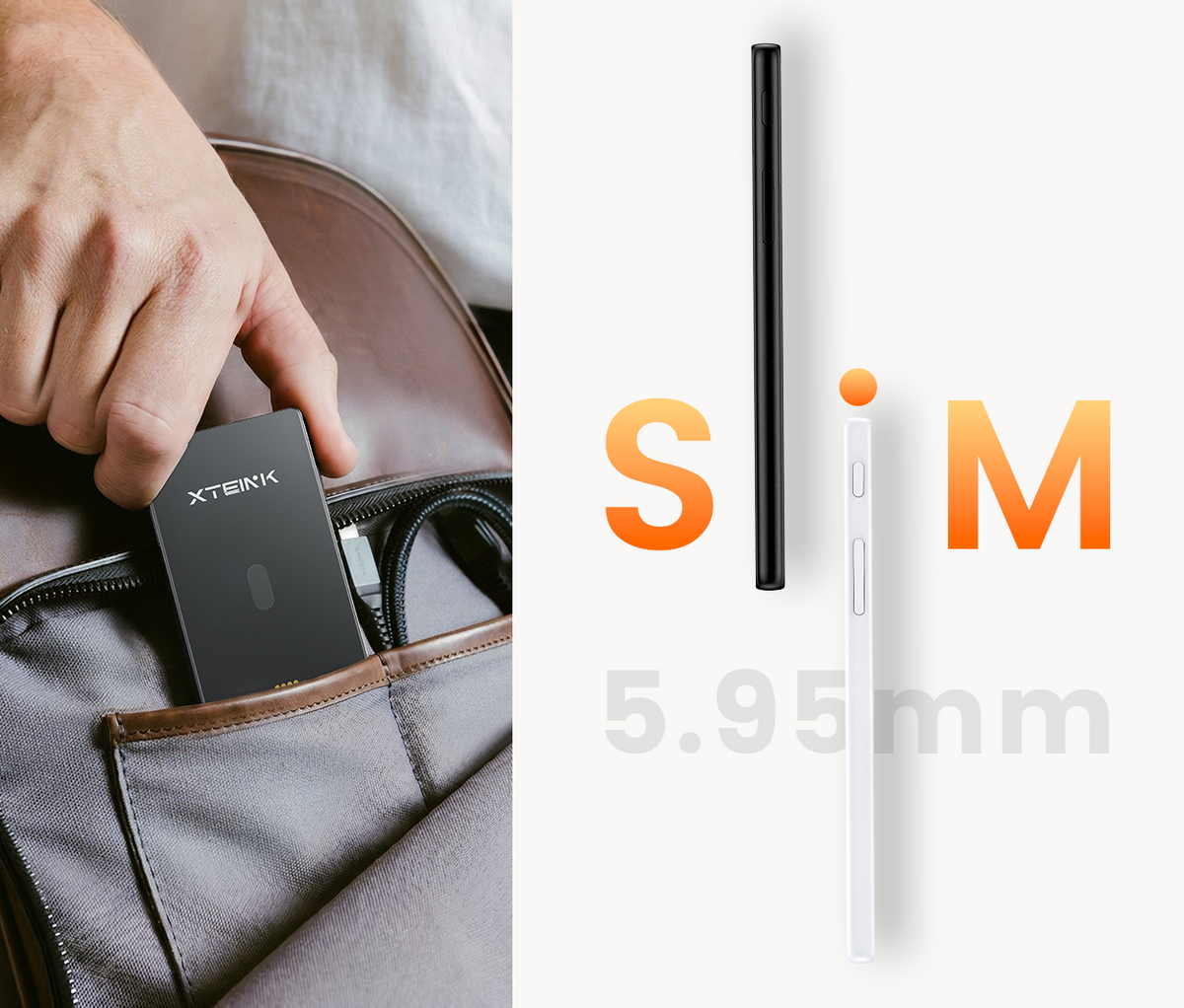
5.95mm Slim. Pocket-Ready
Ultra-slim and lightweight, made to slip into your day with ease.

Turn Spare Moments into Reading Time
No distractions. Just a cleaner, calmer way to stay with your books.
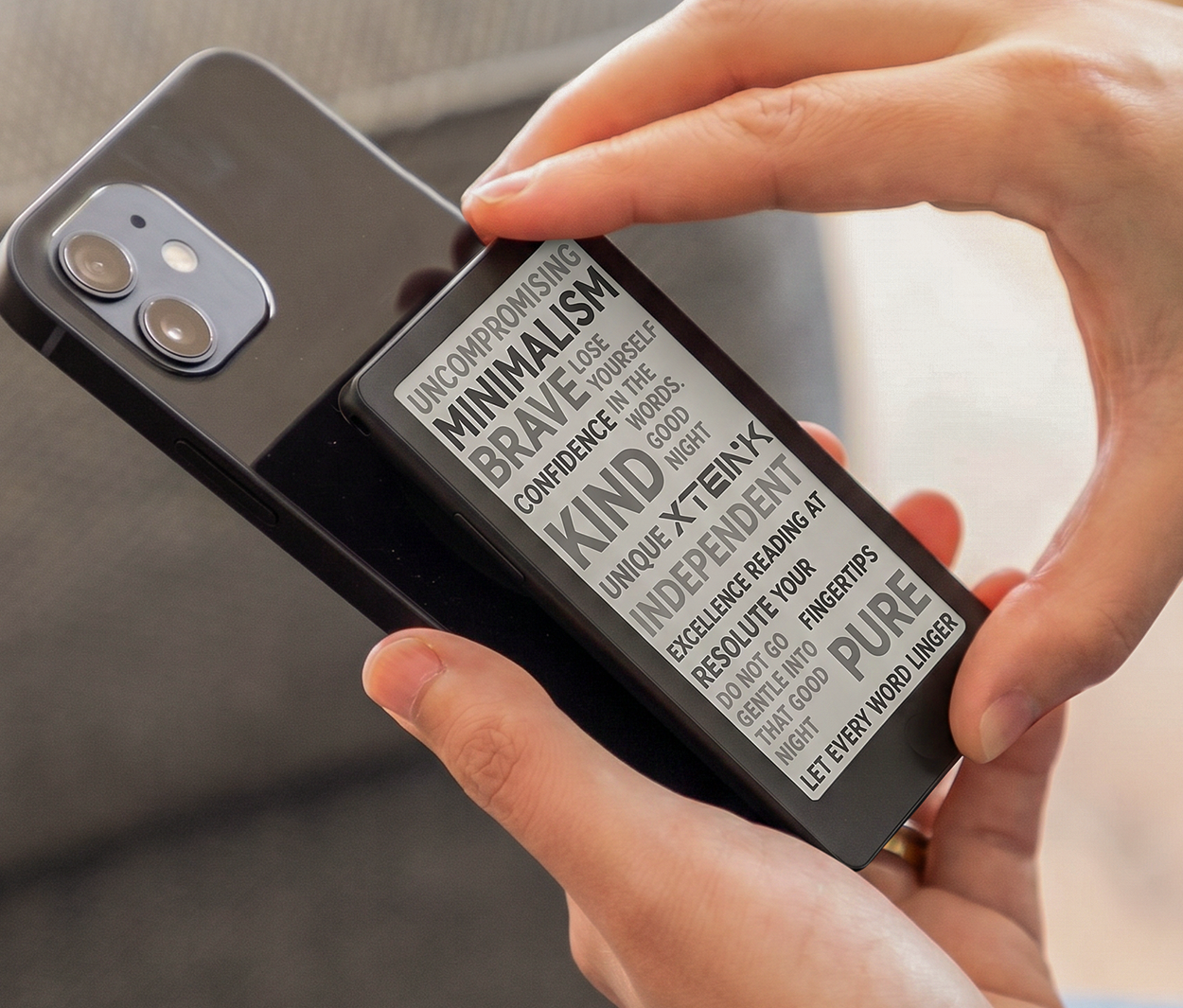
Snap Into Your Day
Built-in magnets pair with compatible phones on the go.

Display 4.3 inch
Resolution 219 PPI
Dimensions 111 × 69 × 5.95 mm
Weight 72g
Storage Comes with 16 GB microSD card, supports expansion up to 256 GB
Connectivity Wi-Fi 2.4 GHz & Bluetooth® wireless technology
Ports Pogo Pin
Battery 1100 mAh
Supported Formats Document: EPUB, TXT / Image: JPG, BMP / Fonts: BIN / XTF
Color Options Space Black
Firmware Languages English, Japanese, Simplified/Traditional Chinese. More availability of certain languages may vary and will be rolled out via future firmware updates: Korean, Turkish, German, French, Spanish, Italian, Portuguese, Dutch, Russian, Polish, Czech, Hungarian, Vietnamese, Malay, Indonesian, Thai, and Greek.
Front light Yes
Touchscreen Yes
Battery 1100 mAh
Connectivity Wi-Fi 2.4 GHz
Ports Pogo pin
1 × X4 Pro E-Reader
1× Quick Start Guide
1× MicroSD Card
1× Matte Screen Protector
2× E-Reader Adhesive Metal Ring
1× Magnetic Charging Adapter
FAQs
You can import books using either the Xteink app or a USB cable. Using the Xteink App:
- Bind your X4 Pro to the Xteink app and connect the device to a Wi-Fi network.
- Open the Devices tab in the app and select X4 Pro.
- Tap Import, select the file type, and choose the book file from your phone.
- On the X4 Pro Home screen, tap the upper-right corner to open the menu.
- Select Cloud Sync to receive the file.
Using a USB cable:
- Connect X4 Pro to your computer using a USB cable.
- On the X4 Pro Home screen, tap the upper-right corner to open the menu.
- Select USB Mode.
- Once X4 Pro appears on your computer, copy the book file to the device.
You can import custom fonts using either the Xteink app or a USB cable.Using the Xteink app:
- Bind your X4 Pro to the Xteink app and connect the device to a Wi-Fi network.
- Open the Devices tab in the app and select X4 Pro.
- Tap Import, select the font file type, and choose a font file from your phone.
- On the X4 Pro Home screen, tap the upper-right corner to open the menu.
- Select Cloud Sync to receive the font file.
Using a USB cable:
- Connect X4 Pro to your computer using a USB cable.
- On the X4 Pro Home screen, tap the upper-right corner to open the menu.
- Select USB Mode.
- Once X4 Pro appears on your computer, copy the font file to the Font folder.
- Exit USB Mode and open a book.
- On the reading screen, select Font, then choose the font you want to use.
X4 Pro currently supports the following font formats:
- XTF
- BIN
TTF font support will be added in a future firmware update.
You can add wallpapers using the Xteink app, a USB cable, or the Discover section in the app.Using the Xteink app:
- Bind your X4 Pro to the Xteink app and connect the device to a Wi-Fi network.
- Open the Devices tab in the app and select X4 Pro.
- Tap Import, select the wallpaper file type, and choose an image from your phone.
- On the X4 Pro Home screen, tap the upper-right corner to open the menu.
- Select Cloud Sync to receive the wallpaper.
Using a USB cable:
- Connect X4 Pro to your computer using a USB cable.
- On the X4 Pro Home screen, tap the upper-right corner to open the menu.
- Select USB Mode.
- Once X4 Pro appears on your computer, copy the image to the wallpaper folder.
- Exit USB Mode.
- Go to All Files > Wallpapers and find the image.
- Press and hold the image, then select Set as Wallpaper.
- Turn off the device to view the wallpaper.
Using wallpapers from Discover:
- Open the Xteink app and go to the Discover tab.
- Browse wallpapers shared by other users.
- Select a wallpaper to open its details page.
- Tap Use This Template in the lower-right corner.
- Select X4 Pro and confirm.
- On X4 Pro, open Cloud Sync to receive the wallpaper.
This feature will be supported in a future app update.
Tap the upper-right corner on the X4 Pro Home screen to open the menu.
Select Settings.
Select the first option, Log In to Account, to open the device binding page.
Open the Xteink app on your phone.
Scan the QR code displayed on X4 Pro.
Follow the on-screen instructions to complete the binding process.
First, make sure X4 Pro is connected to a working Wi-Fi network.If the displayed time is incorrect for your country or region:
- Go to Settings > Time > Time Zone.
- Select the appropriate time zone for your location.
The device will then display the correct local time.
No. A charging cable is not included in the box.