Microsoft is testing a “fix” to Windows 11’s File Explorer, which is supposed to improve its launch performance by preloading it in the background. But how fast is the ‘faster’ File Explorer?
The move came after years of user complaints about the slow File Explorer, especially after coming from the now-retired Windows 10 File Explorer, which was snappier every time you launch it. However, Microsoft’s solution to preload the File Explorer instead of fixing the underlying code is being scoffed at by users online.
Windows Latest tested if Microsoft’s band-aid solution of preloading File Explorer is enough to justify it as an “improvement”, and we found some interesting results.
What is File Explorer background preloading?
Microsoft confirmed that they are “exploring preloading File Explorer in the background”, with the goal of launching it quicker. It essentially means that Windows 11 will pre-cache the File Explorer.
What is pre-caching or preloading?
Pre-caching is the loading of data or resources ahead of time, before the user explicitly requests them, so that when the request does come, the system delivers it instantly from local memory.
To be clear, preloading isn’t something new for Microsoft. The company has been doing it since the days of Office 95 with the Office Startup Assistant. The newer ones are the likes of Startup Boost for Edge.
However, the issue with preloading File Explorer is that the program’s sluggishness isn’t limited to just launching it, as our tests also prove.
Testing the File Explorer before and after the preload update
I’m using a virtual machine with 4GB RAM to check how much of it gets used up while the File Explorer preloads every time I use my PC.
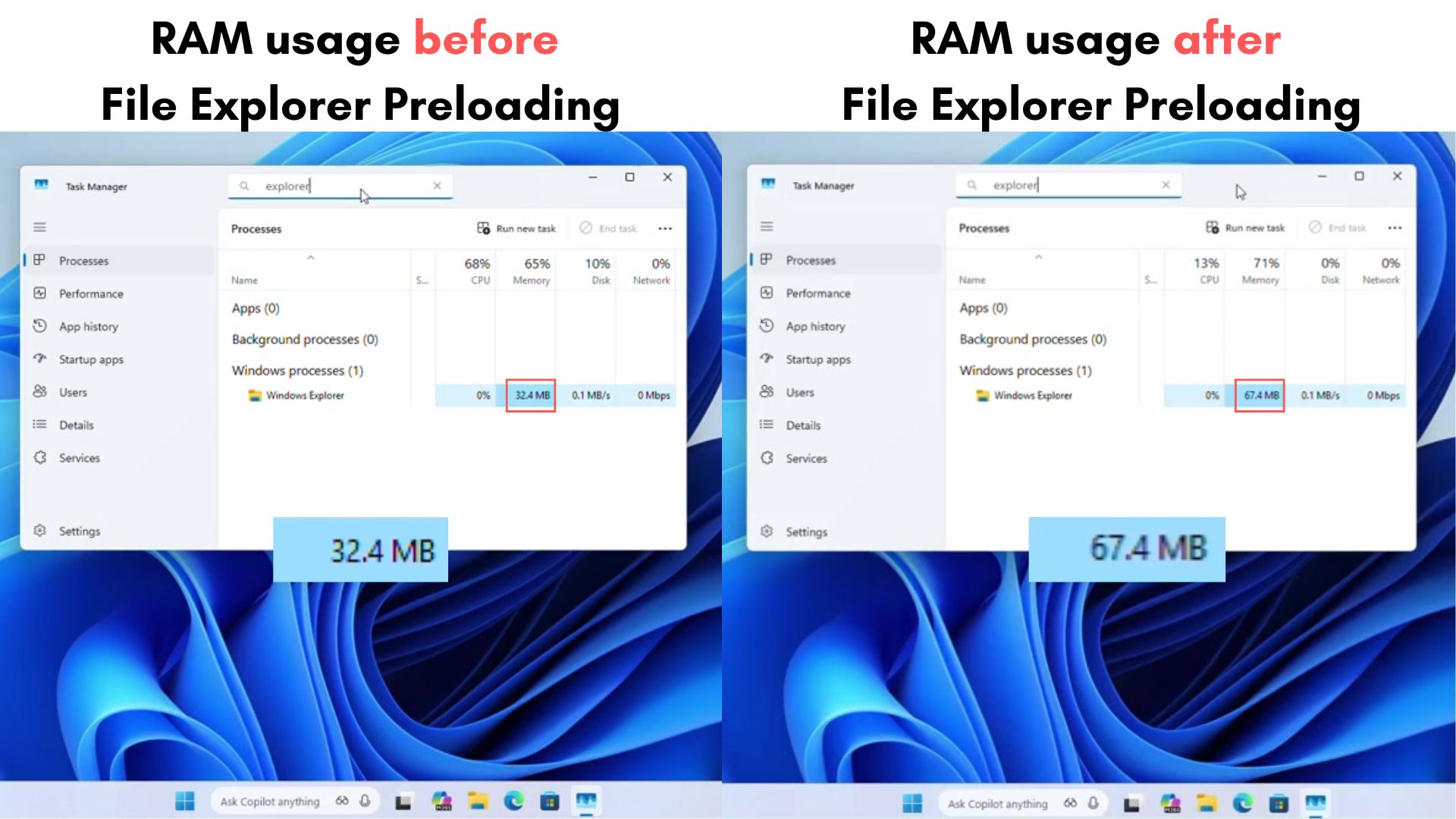
For starters, I checked the Task Manager soon after restarting the PC to find out how much RAM the File Explorer consumes even before getting the preloading feature. My findings show that it uses 32.4MB of RAM.
After enabling the File Manager preloading, I restarted my PC and checked the RAM usage in Task Manager. I have done the same steps multiple times, and every time I found that preloading uses almost 35MB of RAM, bringing the total RAM usage to 67.4MB while the File Explorer preloads in the background.
Of course, 35MB is nothing, and it has zero chances of memory hogging your PC. But the point is, how much of a difference does preloading make while launching the File Explorer?
To test that, I restarted my PC, opened Edge, Microsoft Store, and kept using it for 2 minutes, after which I opened the File Explorer. I continued opening Edge and Store randomly in between.
Here is what it looks like without File Explorer preloading enabled:
And here is what it looks like with File Explorer preloading enabled:
There wasn’t a noticeable difference until I slowed down the footage to 0.25x. In slow motion, the preloaded File Explorer launches much quicker than the one without preloading.
As you can see, the preloaded File Explorer has time to close and open again, which is when the File Explorer without preloading closes.
But you can argue here that since no other app is running in the foreground, preloading becomes a natural winner. So, what if the system is in full load? Would preloading still work, and would the File Explorer launch faster?
Well, I have opened 16 tabs in Edge, all with different reports from windowslatest.com, and the same tabs were opened on the PCs with and without File Explorer Preloading enabled.
Here is what it looks like when File Explorer opens in full load, without preloading:
And here is what it looks like when File Explorer opens in full load, with preloading:
Yeah, there isn’t a need for slowing down the video here. The difference is very clear. Preloading does make the File Explorer faster, even while under full load. So, the 35MB RAM usage is actually worth it here.
That being said, is it enough? Sure, the File Explorer now launches faster, but that doesn’t solve its sluggishness.
Preloading the File Explorer isn’t enough
Even with preloading, File Explorer still isn’t as smooth as it should be. Unfortunately, preloading only helps with launching it. There is no improvement in how fast (or slow) the context menu loads.
Here, when the PC is under full load, the context menu takes an annoyingly high amount of time to load fully. And it’s the parts that users don’t want that take time to load, specifically Ask Copilot, Edit with Clipchamp, Edit in Notepad, Edit with Paint, and Photos, which shows up again at the bottom even though double-clicking it just opens in the Photos app by default.
Note that the context menu has received a massive upgrade with the same Insider Build, but these supposedly smart parts of the context menu are the ones that are still slow.
While we don’t have a fix for the slow context menu, there are easy hacks to make the File Explorer launch even faster and almost instantaneous.
First, go to Settings > Accessibility > Visual effects. Then turn off Transparency effects and Animation effects. Turning off any kind of animation can potentially make the File Explorer load faster.
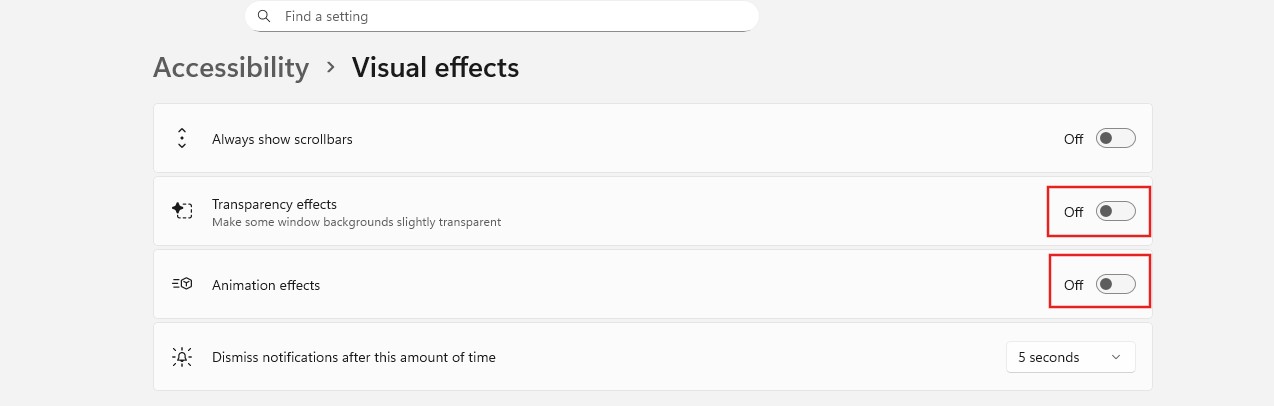
The caveat here is that Windows 11 may not look as fluid as it did, but everything in Windows will feel slightly faster, including the File Explorer.
It’s a whole lot faster than it used to be. But if you check closely, it is the Home page that loads the slowest. The good news here is that Windows actually allows you to launch straight into a different folder, like This PC.
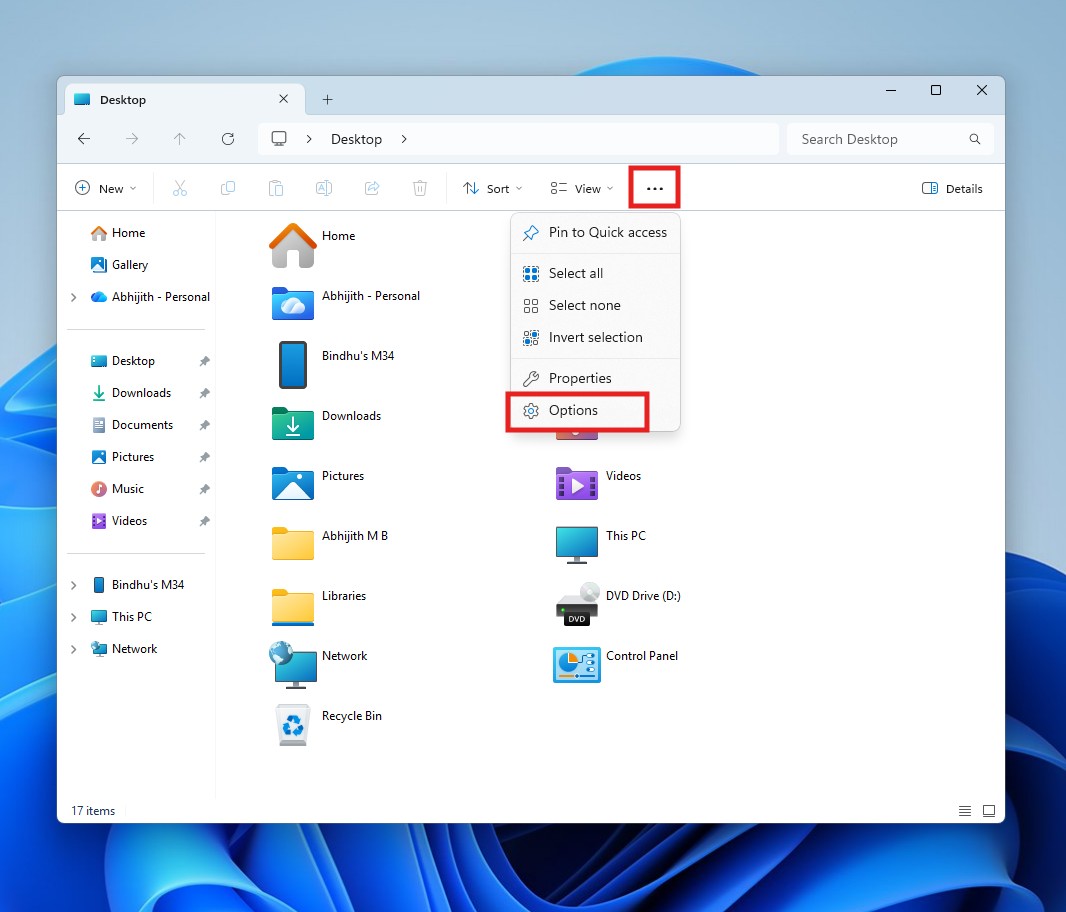
To do that, click the three dots on the File Explorer ribbon and click Options. From the General tab, select the drop-down menu that shows “Open File Explorer to:” and from the options, select This PC.
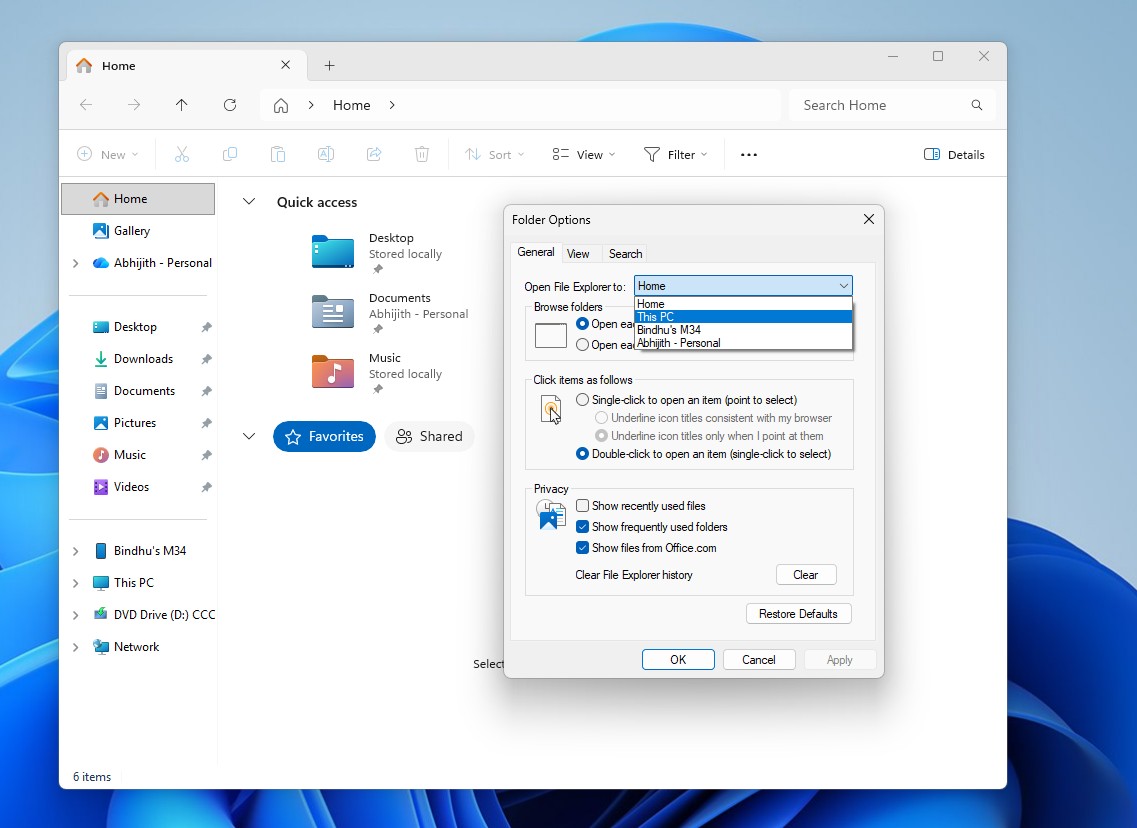
Now, when you launch the File Explorer, it will show This PC by default, avoiding the slow-loading Home page, and the results speak for themselves.
I’ve never seen Windows 11 File Explorer launch this fast before. However, we lose out on animations and transparency effects, which is something that I like, although you can get good results by setting the default folder to “This PC” alone.
That being said, the context menu is still slow, as shown in the video.
For users who have migrated from Windows 10 to Windows 11, the issue is even more annoying because the File Explorer in the now-retired OS is much faster and more stable than in Windows 11.
The truth is that both versions run on the same Win32/COM shell foundation (explorer.exe, shell32). Microsoft never rewrote the core file‑management engine. Windows 10 uses the classic Win32 UI, while Windows 11 overlays this legacy core with modern WinUI/XAML elements.
At launch and through 22H2, Windows 11 relied on private XAML Islands to host WinUI 2 controls inside the old app. From 2023 onward, Explorer began migrating to WinUI 3 via the Windows App SDK (WASDK). Toolbars, context menus, title bars, and panes are all rendered with WinUI rather than native Win32 widgets.
Mixing Win32 with WinUI/XAML adds extra rendering layers, which is why Explorer in Windows 11 can feel slower than Windows 10’s.
To make it clearer, here is a side-by-side comparison of opening the preloaded File Explorer in Windows 11 and the regular File Explorer in Windows 10. I consciously didn’t try harder in Windows 10, but still, it opens quicker. Remember that my Windows 10 device has only 2GB of RAM and 1.5GB of storage. Windows 11 has 4GB RAM and about 25GB of storage remaining.
If that wasn’t clear enough, here is a slow-motion comparison with the video slowed to 0.25x.
Now, let’s see how the context menu loads on each.
See the difference? Here’s a slow-motion version. It’s honestly depressing.
However, all that is needed is some hardcore optimization to the File Explorer, and it is not something that the Redmond software giant can’t solve, especially since there are third-party developers who have done a better job at creating a file manager.
File Pilot is a new third-party file manager that’s still in Beta, but it launches and loads faster than Microsoft’s File Explorer with Preloading turned on.
Even the context menu in File Explorer is embarrassingly slow compared to File Pilot, which even has all the slow-loading smart actions in the File Explorer, and it loads them instantly.
We are not sure if Microsoft can reach these levels of optimization anytime soon in File Explorer.
Meanwhile, you can test the preloading feature with the Windows 11 Insider Preview Build 26220.7271 (KB5070307) on the Dev or Beta Channels. The feature is gradually rolling out and will be turned on by default.
You can turn it off by going to the File Explorer, clicking the three dots, selecting Options, going to View, and turning off the “Enable window preloading for faster launch times” toggle.
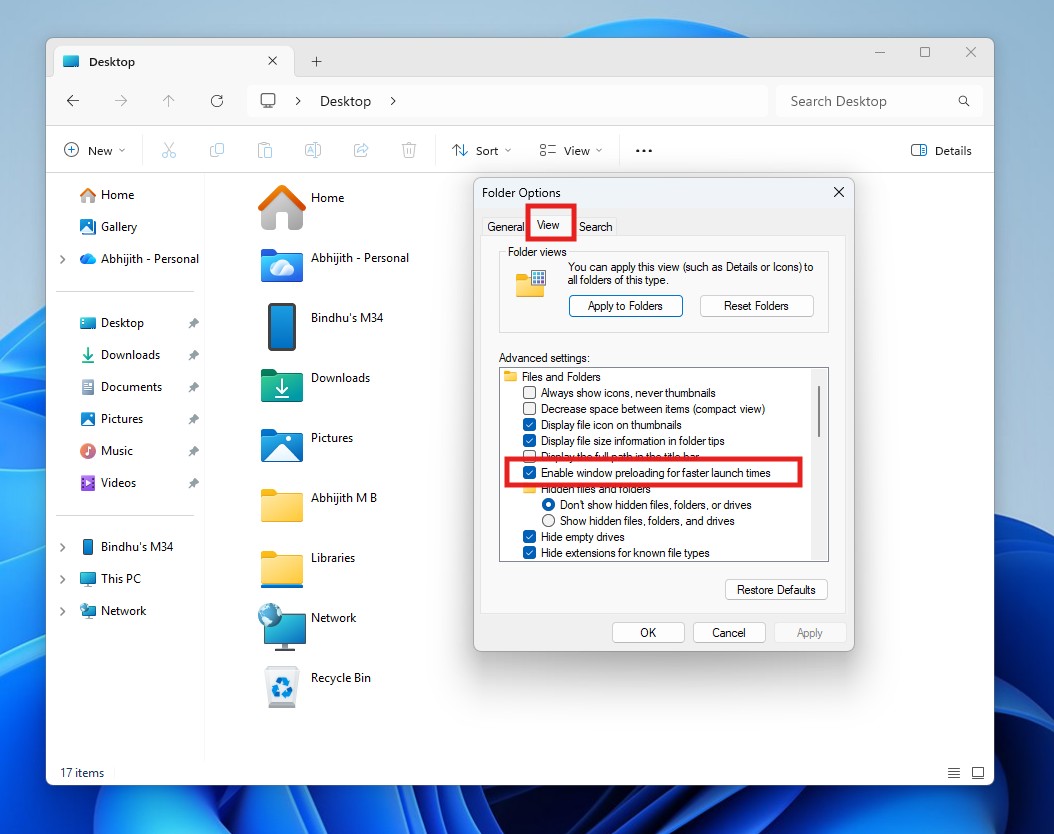
We expect the File Explorer preloading feature to roll out to everyone in early 2026. However, there is no word on when or if Microsoft fixes the slow File Explorer in Windows 11.