1. Same setup pattern for ChatGPT, Mistral, and other clients
StewReads does not need a different server URL or a special provider-specific setup for each AI client. If your client supports custom MCP servers, connectors, or integrations with OAuth, use the same connection values everywhere:
- ChatGPT: open its connectors, integrations, or MCP settings and add StewReads as a custom connector or MCP server.
- Mistral: open its integrations or MCP settings and add the same StewReads server URL.
- Claude: use the claude.ai connector flow shown below as the current screenshot example.
- Other MCP-compatible apps: choose the option closest to custom connector, custom integration, or custom MCP server.
The exact menu names vary by product, but the StewReads side stays the same: name it StewReads, use the MCP URL above, leave manual OAuth Client ID and Secret fields blank when the client allows it, complete the OAuth authorization flow, then confirm StewReads appears in the client's available tools.
If an AI product does not expose MCP, connector, or custom server settings yet, there is nothing extra to configure in StewReads for that product.
2. Example: connect through claude.ai
Use your AI client's connector, integration, or MCP settings to add StewReads. The steps and screenshots below show claude.ai as a reference flow; other MCP-compatible clients use the same server URL and OAuth pattern.
- Visit claude.ai settings → connectors.
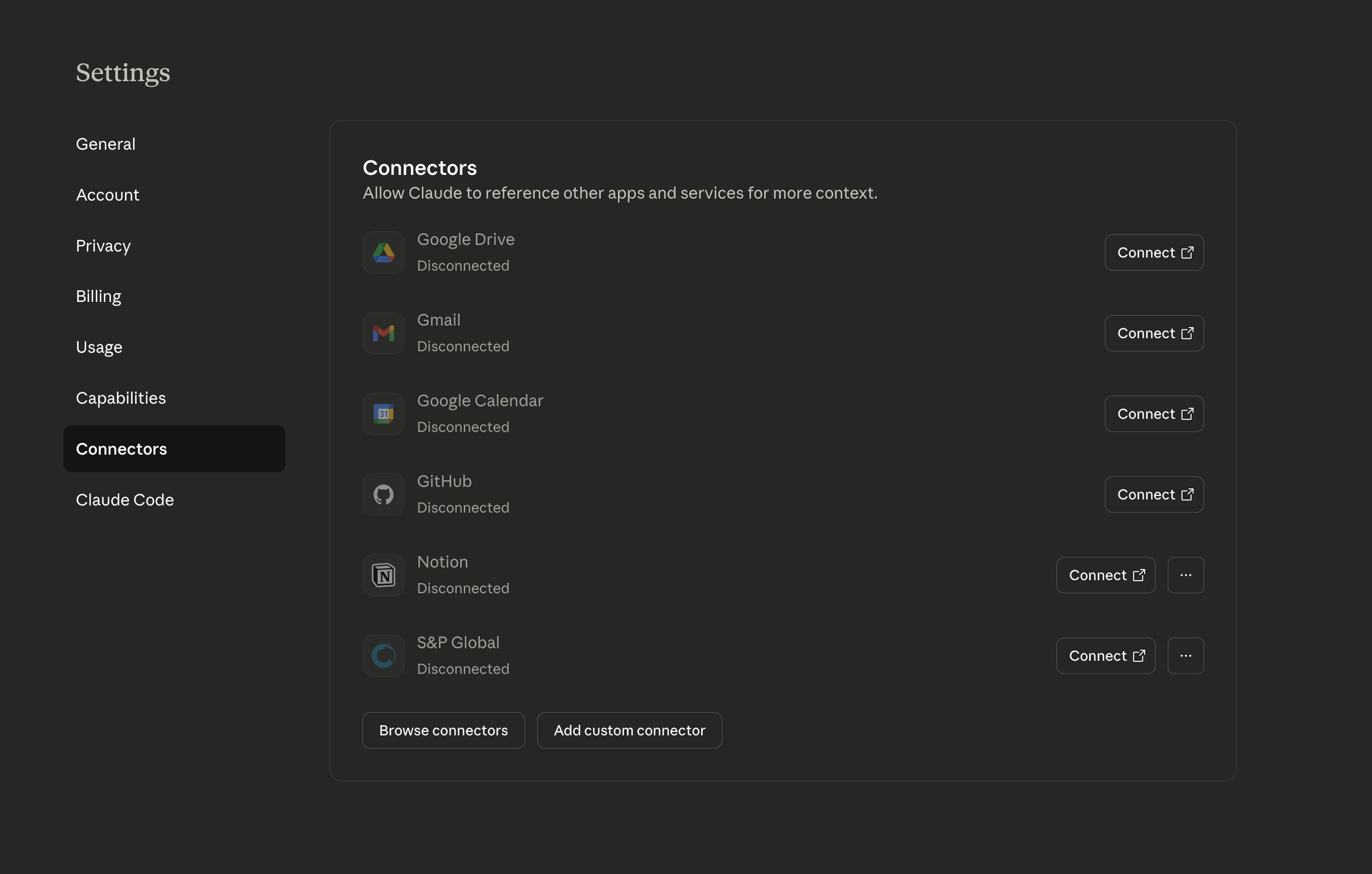
- Click Add custom connector button.
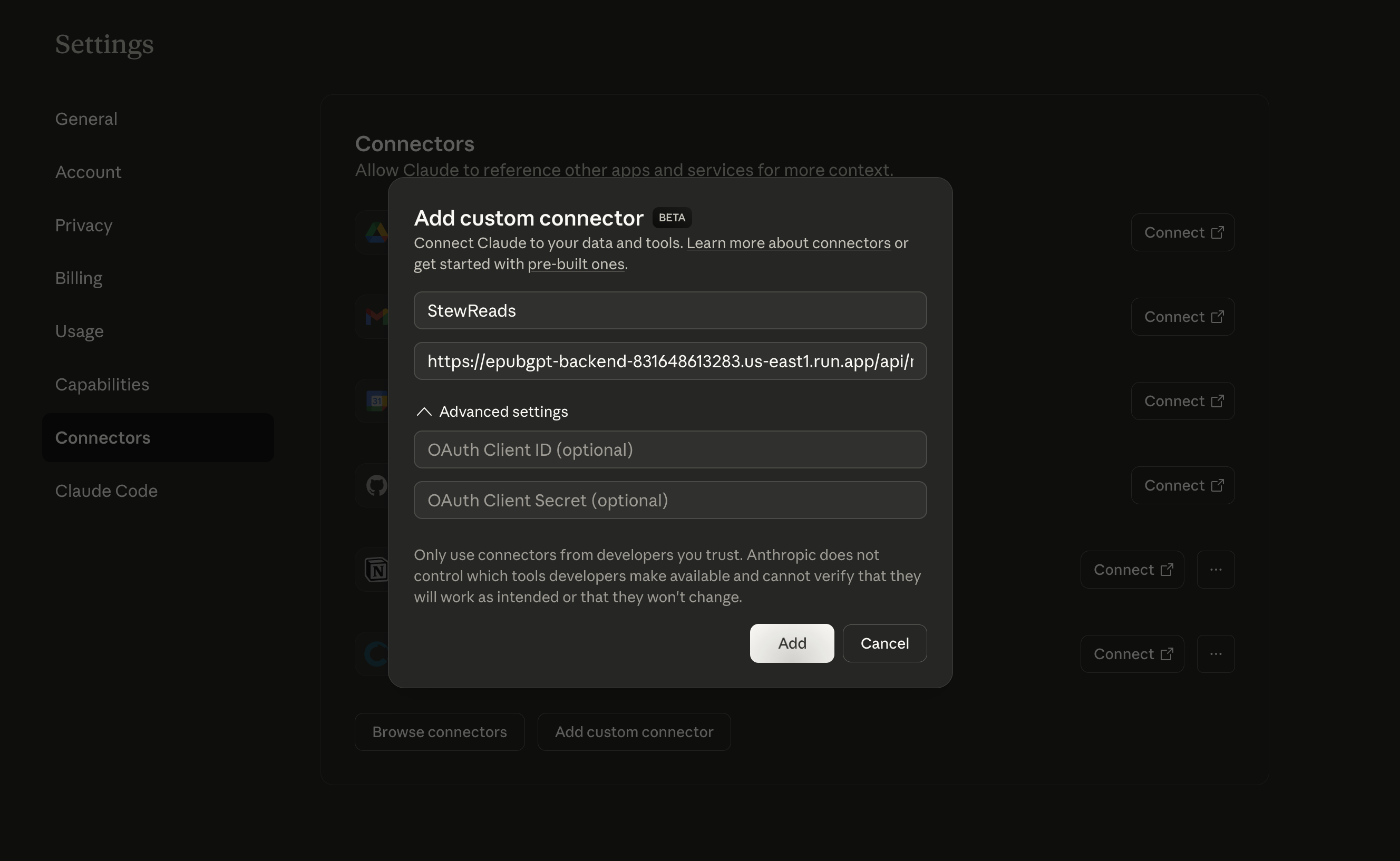
- Enter Name for Connector: StewReads
- Enter the StewReads MCP server URL:
- Leave the OAuth Client ID and Secret fields blank under Advanced Settings. StewReads MCP server uses Dynamic Client Registration. Click Add to create new connector.
- Complete the OAuth flow by clicking Connect to authorize this AI client to access StewReads on your behalf.
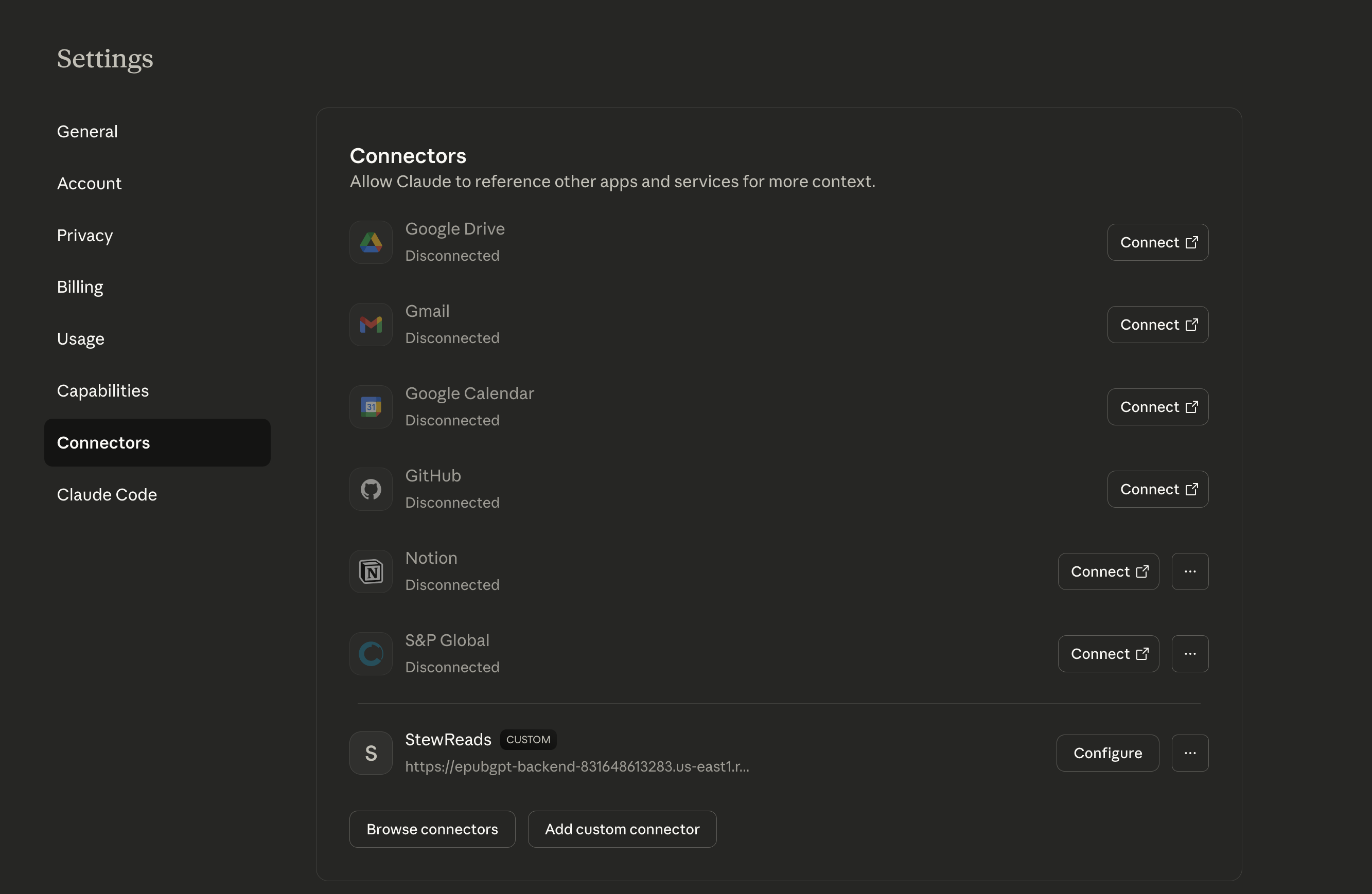
After completing these steps, your AI client will be able to access StewReads tools for generating and managing ebooks. You can confirm this by starting a new chat and checking that StewReads appears under available tools.
3. Quick start
Your MCP connection is complete. You can now start creating ebooks directly from your connected AI client.
- Open a chat in your connected AI client
- Type
/stewto convert the conversation into an ebook - Provide your delivery email when prompted (personal inbox or
@kindle.com)
Note: StewReads uses your connected client's model and tool-call usage, so choose the model that gives you the right balance of quality and cost.
Use StewReads from your AI client
Once connected, you can ask your AI client to perform StewReads tasks directly in your conversation:
- Consolidate chat: "Can you use StewReads to consolidate my learnings from this chat into an ebook and email it to me?" or simply type "/stew". This is our most powerful feature for focused learning away from distractions.
- Generate ebooks: "Create an ebook about quantum physics for beginners"
- Convert to EPUB: "Convert this content to an EPUB file"
- Email delivery: "Email this ebook to me" (with auto-send enabled) or "Email this ebook to mykindle@kindle.com" (without auto-send)
Your AI client can use the StewReads tools automatically when appropriate, giving you a seamless ebook creation experience.
4. Client-specific sync across devices
Some AI clients sync connected MCP tools across their web, mobile, and desktop apps. In the claude.ai example above, setting up the connection can make StewReads available on:
- Claude mobile apps (iOS and Android)
- Claude Desktop (macOS, Windows, Linux)
- claude.ai web interface
Other clients may handle device sync differently. Check your AI client's connector or MCP settings to confirm where the StewReads connection is available.
5. FAQ
What is MCP?
The Model Context Protocol (MCP) lets AI clients connect with external services like StewReads. With this connection, you can ask your AI client to create ebooks on any topic, convert content to EPUB format, and send books directly to your delivery email.
StewReads supports MCP. Availability inside a specific AI product depends on that client's support for MCP, connectors, integrations, and OAuth. The setup example above uses claude.ai because those screenshots are currently available, but the StewReads server URL and OAuth flow are not Claude-specific.
Learn more about MCP at the official Model Context Protocol documentation.
What does StewReads MCP provide?
1 Prompt: /stew instantly transforms your current AI conversation into a beautifully formatted ebook and sends it to your e-reader. Perfect for capturing valuable discussions and learning away from distractions.
2 Core Tools:
get_content_guidelinesretrieves specialized formatting guidelines that ensure your ebooks are optimized for e-readers with proper structure, chapters, and readability.savepersists generated content and handles delivery when applicable.
Your connected AI client can use these tools behind the scenes when needed—you just ask naturally and it handles the details.
Connection not working?
- Make sure you completed the OAuth flow and authorized StewReads
- Check that you're using the correct MCP server URL
- Try disconnecting and reconnecting the integration in your AI client's settings
How do I disconnect MCP?
Open your AI client's connector, integration, or MCP settings and remove the StewReads MCP connection. If you used the claude.ai example above, you can visit claude.ai settings → connectors.
Are ChatGPT, Mistral, and other clients different?
The StewReads setup values are the same. Add StewReads as the connector or MCP server, use https://mcp.stewreads.com/mcp, complete OAuth, and verify StewReads appears in the client's tools. The only difference is where each product places its connector or MCP settings.
Does MCP work with different AI clients?
StewReads provides a standard MCP server. Whether you can connect it from a given AI product depends on that product's current MCP, connector, integration, and OAuth support.