How to Fix AI-Generated Pixel Art | Pixel Snapper

1 min read Original article ↗

Open Source

Convert AI pixel art into clean, grid-aligned pixel art while preserving the original shapes and details.

Workflow to clean up AI-generated pixel art

Pixel Snapper is the number one repository of the day

From AI mixels to a clean pixel art

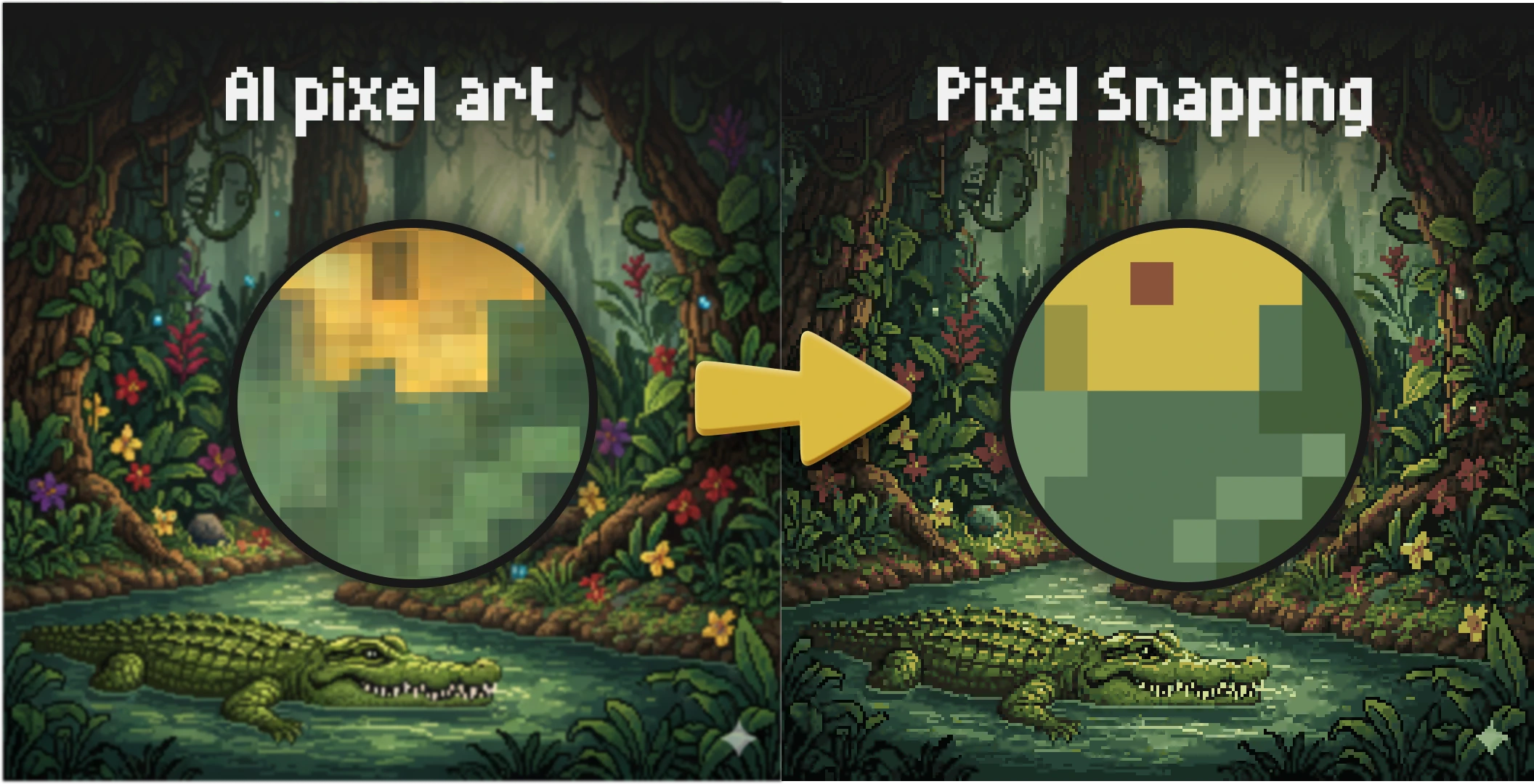
AI image models often produce blurry, inconsistent, off-grid pixels. Pixel Snapper finds the underlying grid and rebuilds the image on a consistent pixel grid.

1. Quantize colors

Read the color of every source pixel
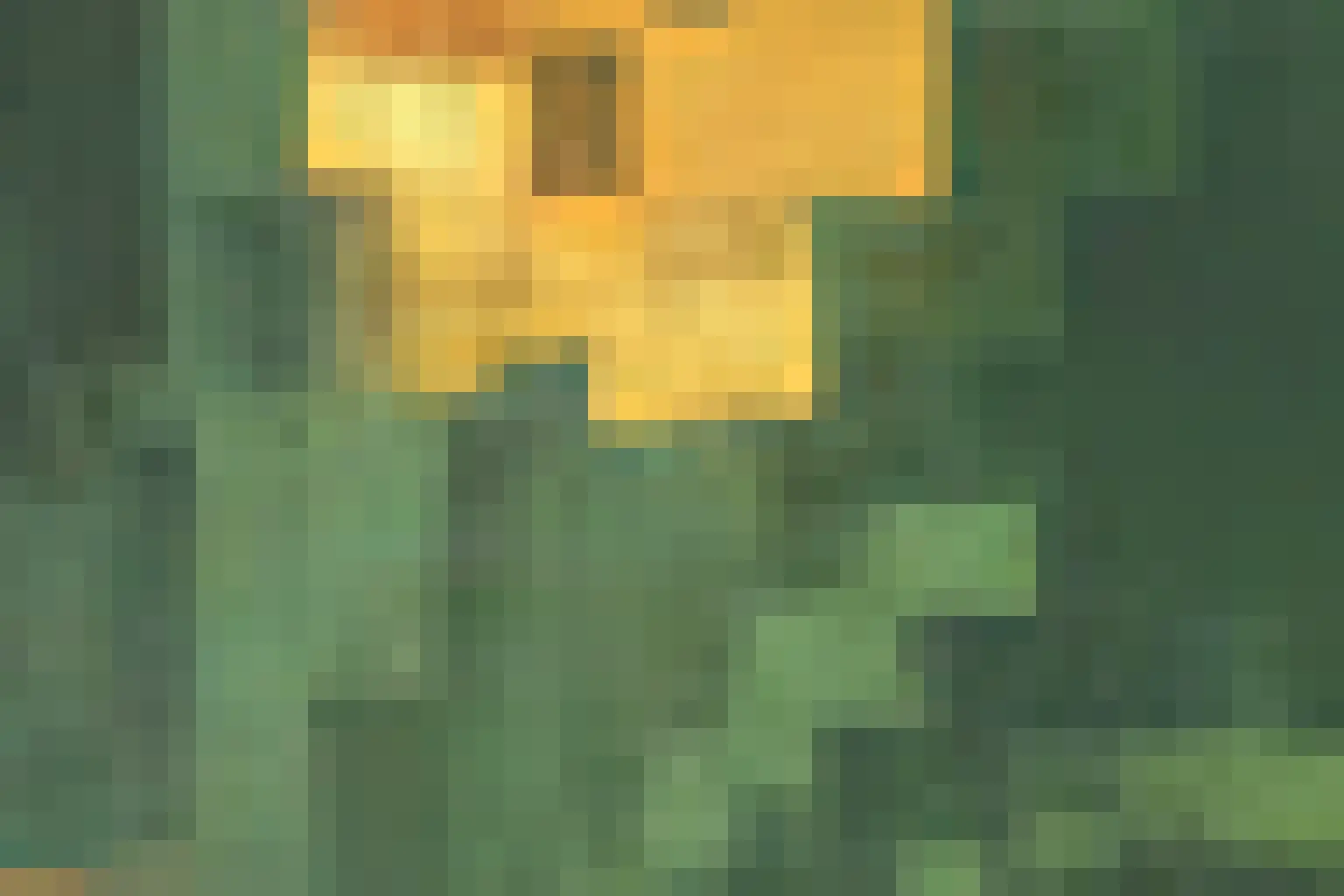
Blurry AI-generated pixel art with uneven pixel sizes

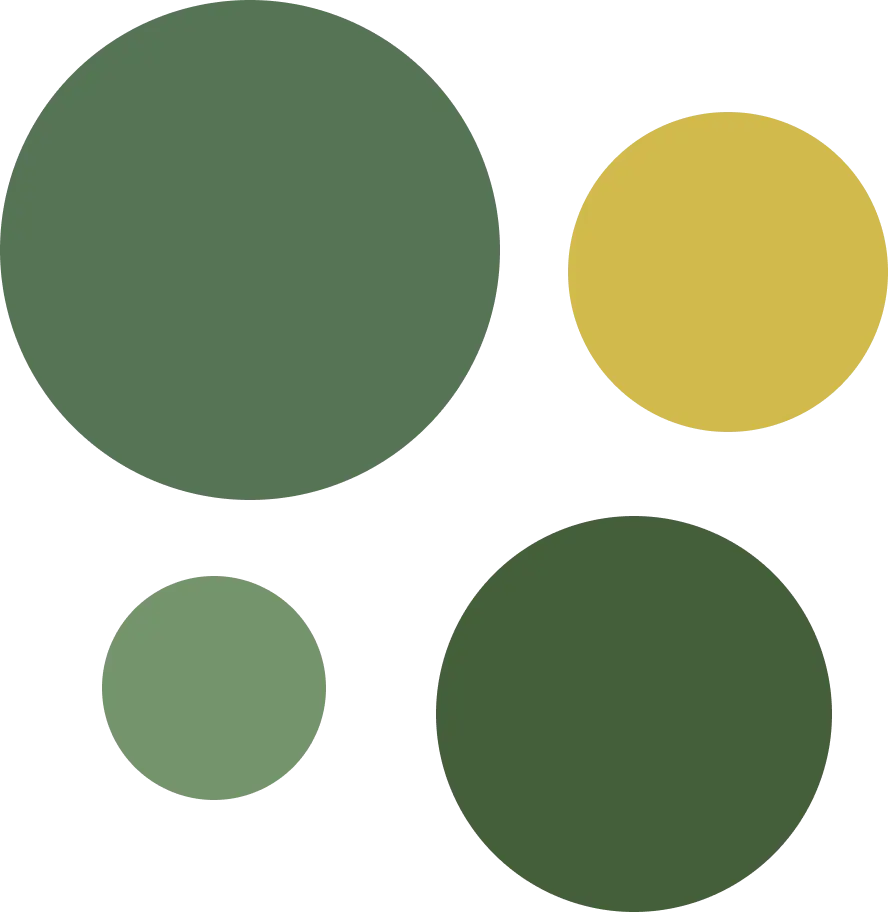
Find representative colors

Four representative green and yellow colors selected with K-means

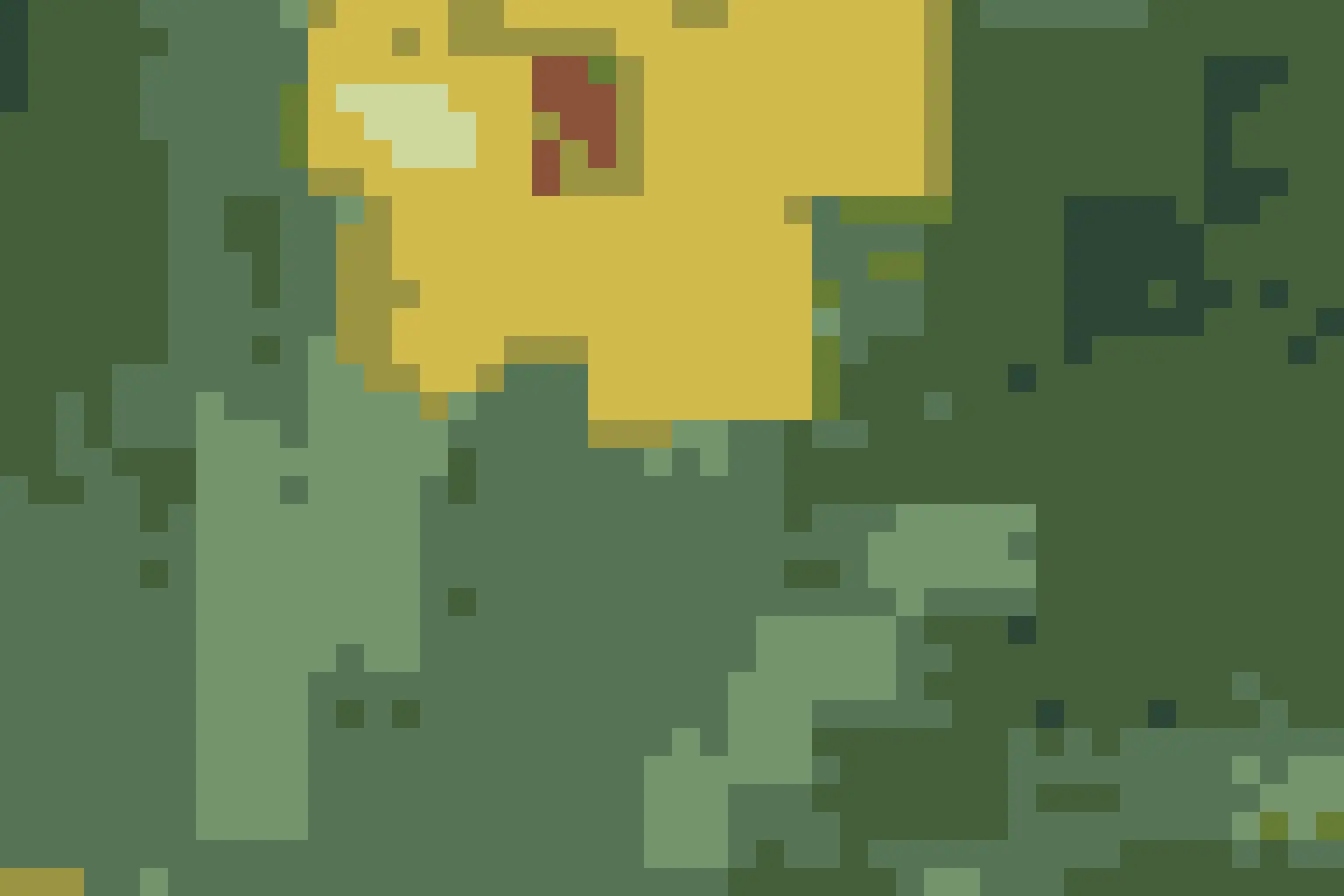
Build a limited, consistent palette

AI-generated pixel art reduced to a consistent green and yellow palette

2. Edge profiles

Measure the strength of each brightness change
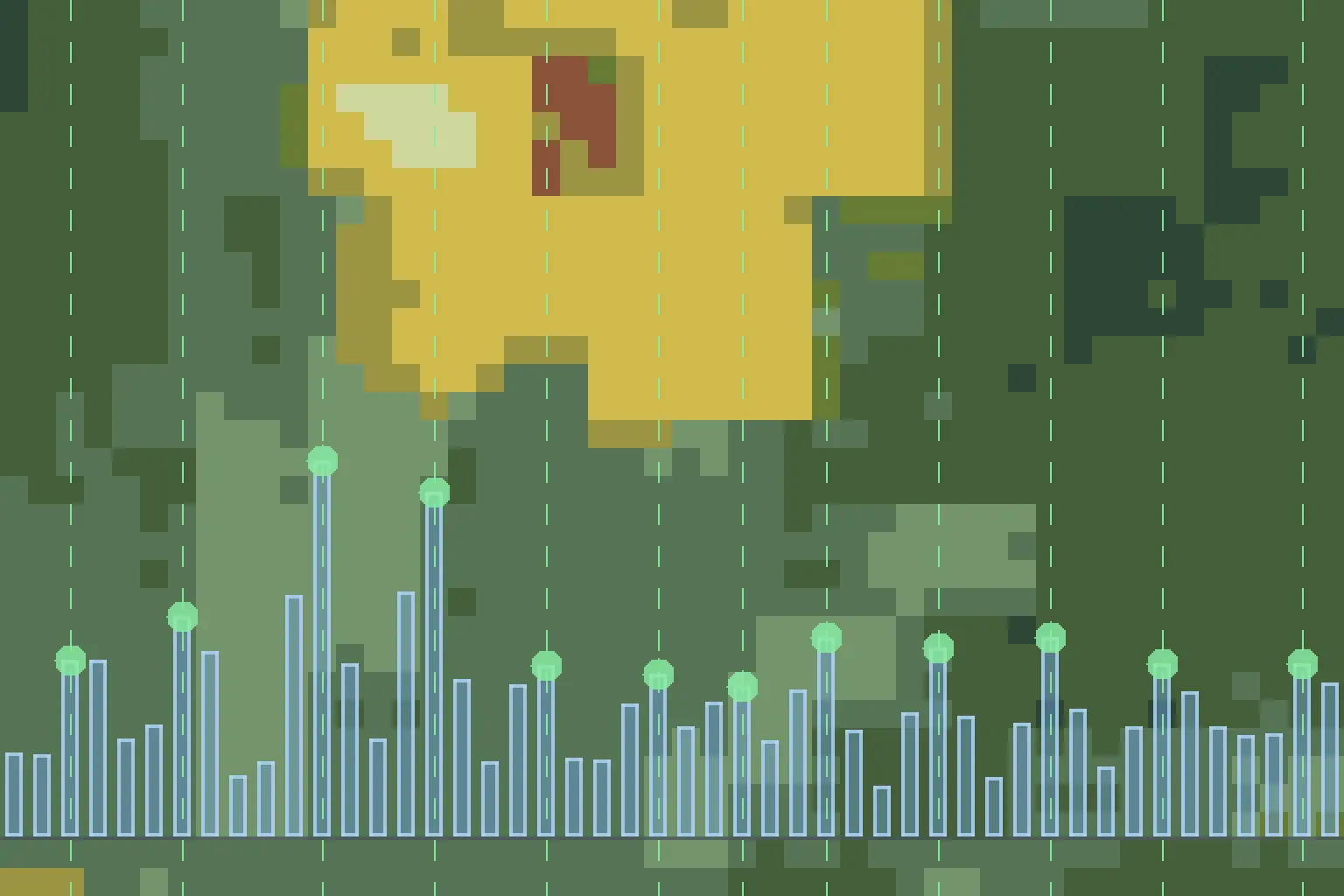
Brightness-change profile over quantized pixel art with detected peaks

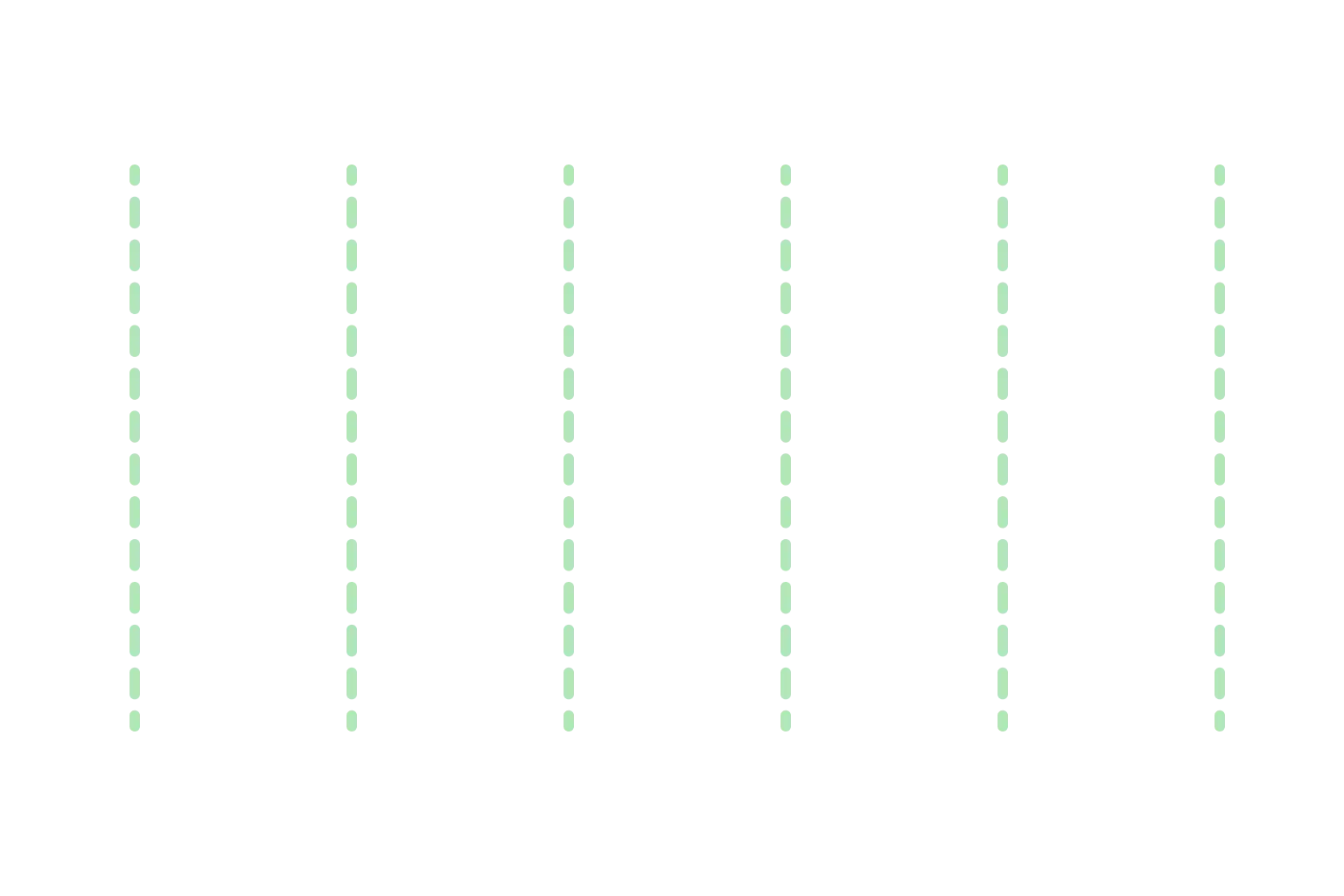
Find the median gap between peaks

Evenly spaced vertical guides showing the estimated pixel step size

3. Walk cuts

Set the expected distance between cuts
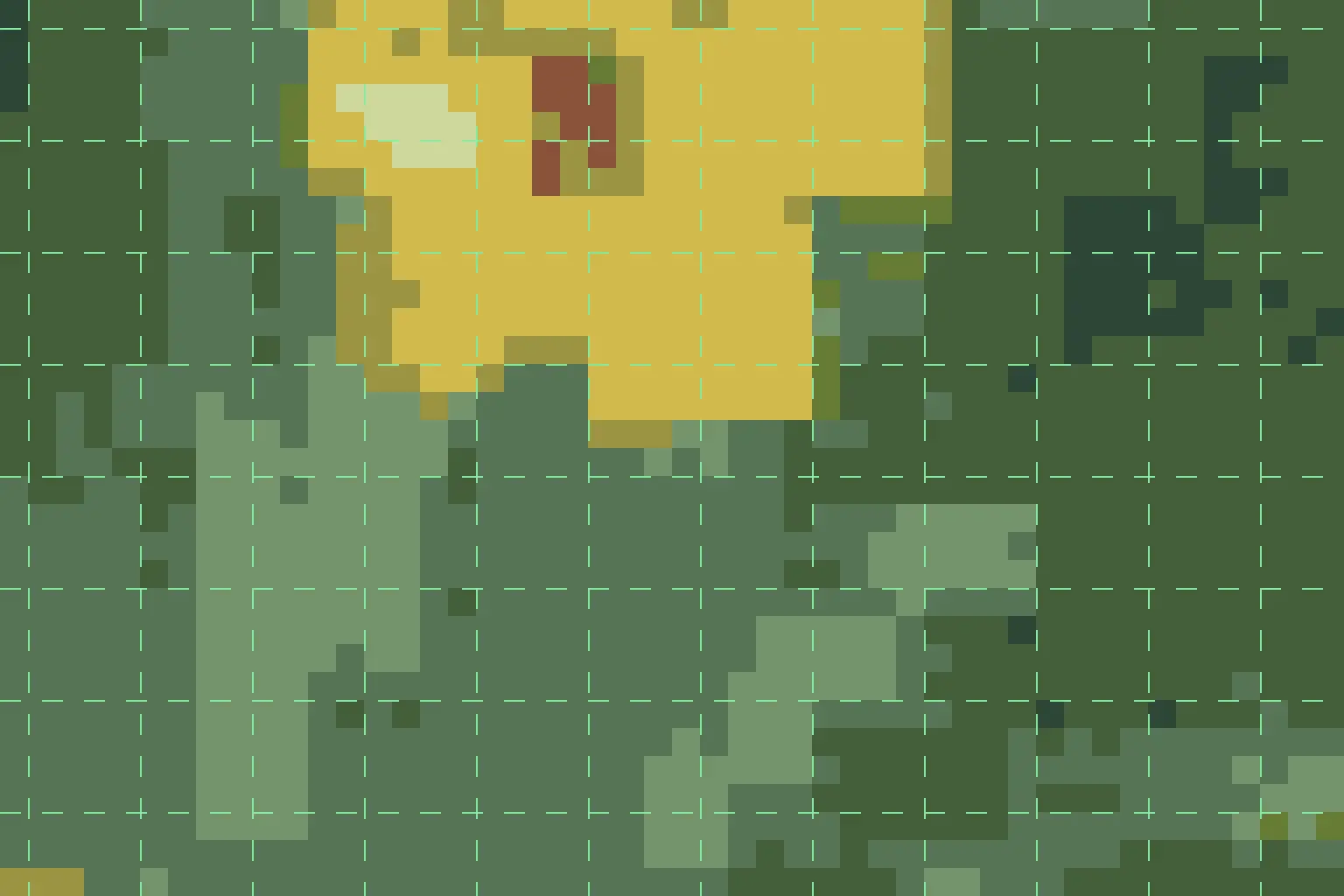
Horizontal and vertical spacing guides over quantized pixel art

Follow the strongest nearby edge peaks
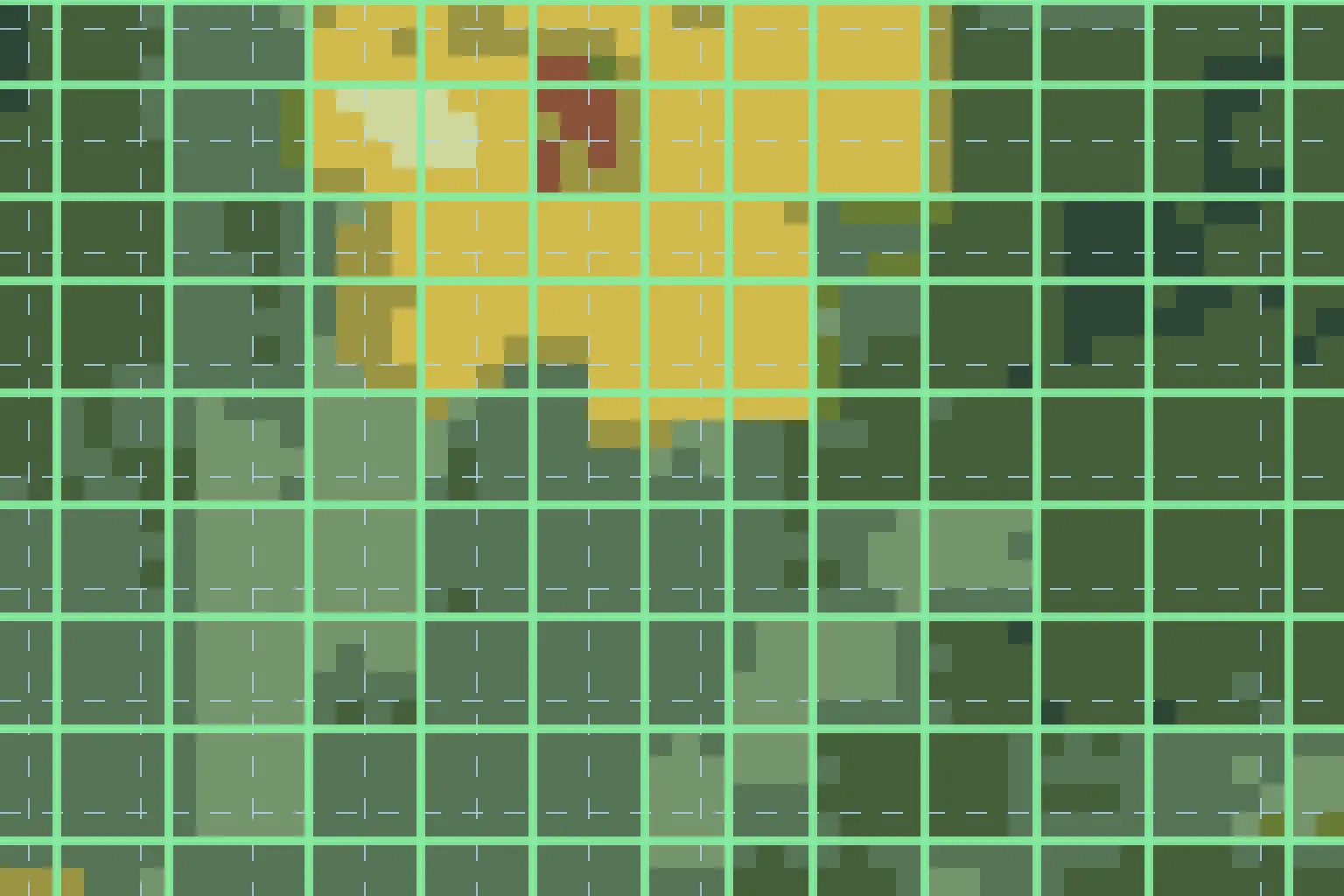
Grid lines adjusted to follow the detected edges in the pixel art

4. Resampling

Use each cell as a color voting area

Detected grid dividing the source image into color-voting cells

Keep the winning color from each cell

Resampled pixel art with one palette color assigned to each output cell

Result

Blurry, inconsistent, off-grid pixels

Blurry AI-generated pixel art with inconsistent and off-grid pixels

Clean, grid-aligned pixel art
Clean pixel art rebuilt on a consistent grid

Making a game? Try our Pixel Art Generator

Pixel Art Generator Editor screenshot Animated pixel art pineapple generated with AI