- Windows 10
- Windows 8.1
- Windows 7

Windows 10 reached end of support on October 14, 2025
For ten years, Windows 10 has been the go-to operating system for building, creating, and connecting. Now, like any trusted tool, it’s time for an upgrade.
|
| Feature | Windows 11 | Windows 10 |
|---|---|---|
Windows BackupYou’ve got important stuff on your PC. Windows Backup helps you save your files, settings, and apps, and then restore them on your new Windows 11 device.8 |
Available Backup and restore |
Available Backup only |
Smart App ControlSmart App Control provides a layer of security by only permitting apps with good reputations to be installed on your Windows 11 PC. |
Available | Not available |
Snap AssistSnap assist makes the most of your screen space by arranging your open windows into perfectly aligned grids.12 On Windows 11, Snap remembers your layout, so you can seamlessly stay in your flow. |
Available | Available |
Sync your PC and phoneWindows 11 PCs let you seamlessly access your content and conversations all in one place with Phone Link. You can make and take calls, reply to texts, check and dismiss notifications, and more. Available for Android™ and iPhone™ devices.13 |
Available Android and iPhone |
Available Android only |
Compare Windows 10 & 11
See new Windows features and get help selecting the best PC for your needs.
The most secure Windows yet
Windows 11 can help protect your data, making it more difficult to hack, from chip-to-cloud, to you. Say hello to built-in peace of mind.
How to shop for a laptop
Use our simple guide to start shopping for your new laptop.
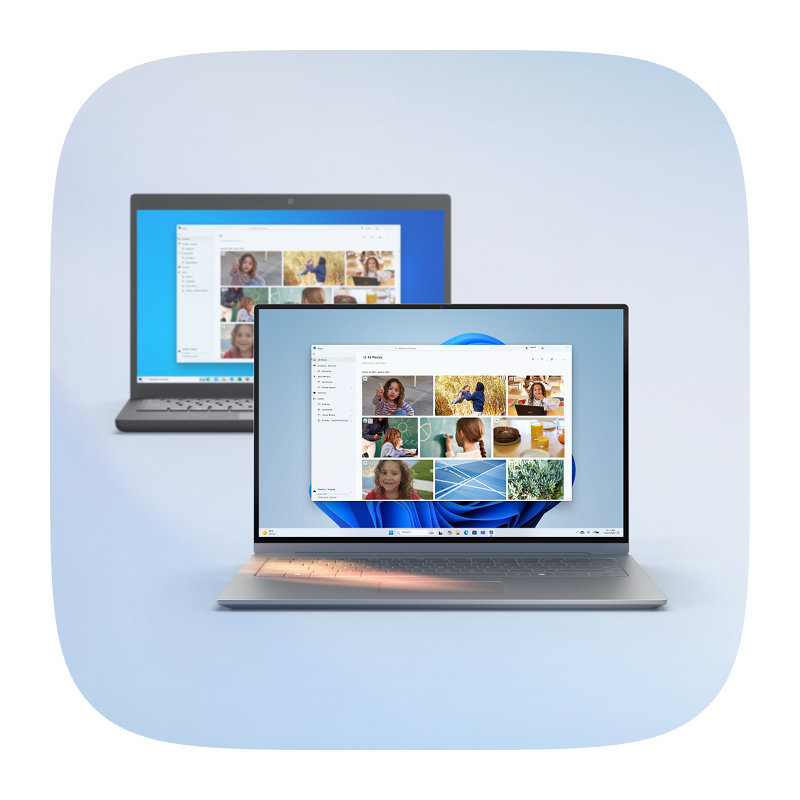
Save and transfer your stuff
Windows Backup lets you set up things to your liking on your new PC by easily transferring some of your favorite settings, files, and apps from your old device.8
Trade-in or recycle your PC
Learn about trade-in offers from Microsoft19 and our retail partners below or find a Microsoft-approved recycling program18 in your region that will responsibly dispose of your old device.




Keep your device protected
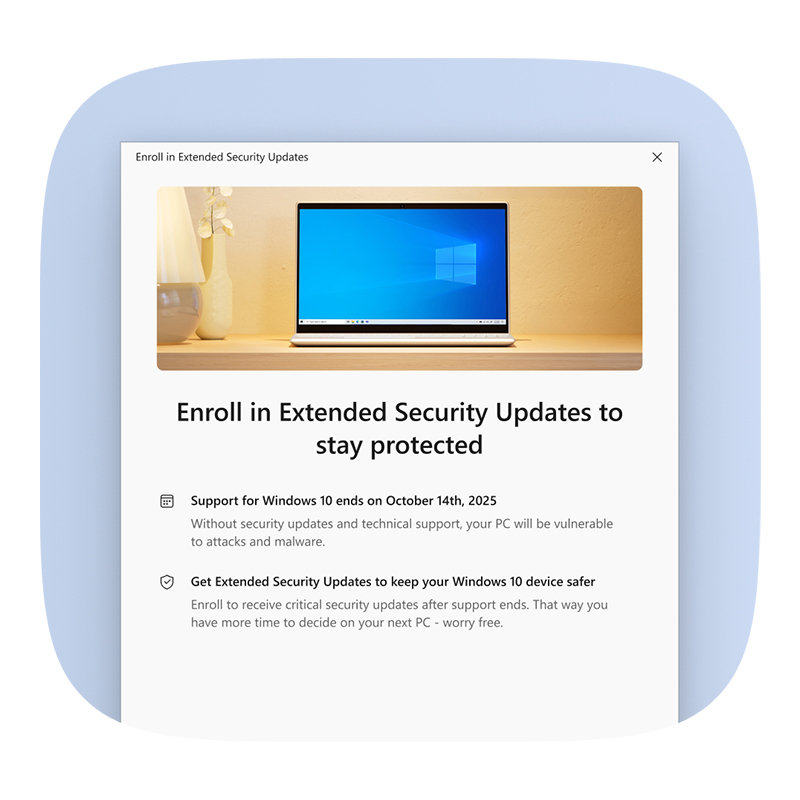
Extended Security Updates (ESU) will ensure your Windows 10 PC continues to receive important security updates until October 12, 2027.
Protect what’s important
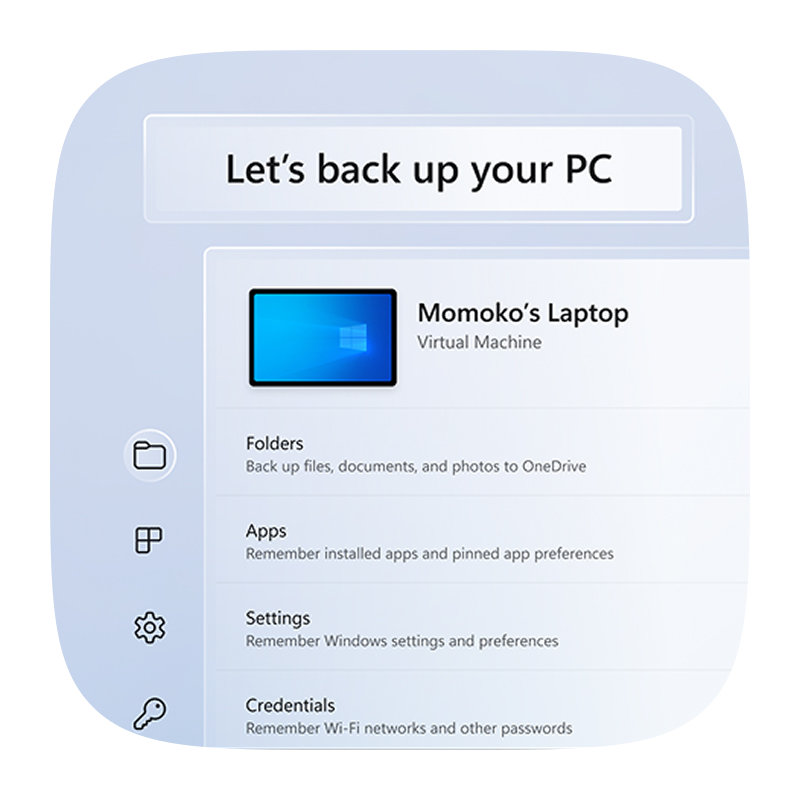
Now that Windows 10 no longer receives security updates, it's a good time to back up your files to OneDrive using Windows Backup.8 This saves your documents, photos, settings, and your favorite apps to a secure cloud storage service—so when you're ready to upgrade to Windows 11 or move to a new Windows device, everything transfers smoothly. You'll get a fresh start without starting over.
Support for Windows 10 ended on October 14, 2025. Microsoft no longer provides software updates, security fixes, or technical assistance to Windows 10 PCs.
PCs running Windows 10 will continue to function, however they will no longer receive software and feature updates, security updates and fixes, or technical support.
While your Windows 10 PC will continue to function, it will no longer receive regular security updates, making the device more vulnerable and susceptible to viruses and malware. Windows 10 PCs may also experience slower performance and functionality across the device and applications.
Support for Windows 10 ended on October 14, 2025. To stay protected:
- If your PC is eligible, upgrade to Windows for free via Settings > Privacy and Security > Windows Update.
- If your PC isn’t eligible or you’re ready for a new device, consider purchasing a Windows 11 PC. Find a PC that is right for you here.
- If you need more time, an Extended Security Updates (ESU) program is available on eligible Windows 10 PCs. Learn more.
When you are ready to purchase a new Windows 11 PC, we encourage you to leverage trade-in and recycling programs available at many of our Windows ecosystem partners including, OEMs such as Acer, ASUS, Dell, HP, Lenovo, Samsung and global retailers like Best Buy, Boulanger, Costco, Currys, Elkjøp, Fnac, Harvey Norman, JB Hi-Fi, MediaMarkt & SATURN, officeworks and Sharaf DG.
If you have an eligible device, you can also take advantage of the Microsoft trade-in program18 in qualifying markets to securely and responsibly recycle19 your PC—and get some extra cash. This resource can help you learn the trade-in value of your used device. You can also return and recycle your device responsibly with our end-of-life management and recycling initiatives.
Support for Windows 10 ended on October 14, 2025. If you're running Microsoft 365 Apps on a Windows 10 device, the applications will continue to function as before. However, we strongly recommend upgrading to Windows 11 to avoid performance and reliability issues over time.
In the interest of maintaining your security while you upgrade to Windows 11, we will continue providing security updates for Microsoft 365 on Windows 10 for a total of three years after Windows 10 end of support, ending on October 10, 2028.
Support for non-subscription versions of Office are affected in the following ways:
- Office 2016 & 2019: Support has ended across all operating systems. Office 2016 & 2019 will continue to run, but no longer receive support.
- Office 2021, Office LTSC (Long Term Servicing Channel) 2021:
- On devices running Windows 10, Office 2021 and Office LTSC 2021 will continue to run, but no longer receive support.
- On devices running Windows 11, Office 2021 and Office LTSC 2021 are still supported through October 2026.
- Office 2024, Office LTSC 2024:
- On devices running Windows 10, Office 2024 and Office LTSC 2024 will continue to run, but no longer receive support.
- On devices running Windows 11, Office 2024 and Office LTSC 2024 are still supported through October 2029.
To maintain a supported configuration, we recommend that you upgrade your device to Windows 11 and consider subscribing to Microsoft 365. To learn more, see What Windows end of support means for Office and Microsoft 365.
Windows 11 is the most secure Windows ever built, with comprehensive end-to-end security that covers antivirus, firewall, internet protections, and more. This means more security features, dashboard displays, and ongoing updates to help safeguard against future threats—all built-in at no extra cost. To receive updates, internet access is required, and service fees may apply. Read more about Windows security.
If you use assistive technologies or legacy peripherals, upgrading to a supported device can significantly enhance your experience. Windows 11—especially on Copilot+ PCs—offers the most advanced accessibility features ever built into Windows.
Key accessibility improvements on Copilot+ PCs:
- Voice Access: Control your PC and dictate text using your voice—navigate apps, browse the web, and write emails hands-free with voice commands.20
- Enhanced Narrator: The built-in screen reader now offers more natural voices, better web navigation, and improved responsiveness for reading apps and documents.
- Live Captions: Automatically generate captions for any audio content—whether it’s a video, a call, or a podcast—making content more accessible in real time.21
If your current device doesn’t meet the requirements for Windows 11, we recommend checking with your PC manufacturer or a local hardware expert to explore upgrade options. Many external devices, including DVD drives and specialized input tools, can still be used with adapters or updated drivers.
Windows 11 Home is the perfect operating system for personal and household use, while Windows 11 Pro offers all the familiar features of Windows 11 Home, plus additional features such as BitLocker, remote desktop, and domain join to support professionals. Compare versions of Windows 11.
We have a website designed to help you with a decision-making process for selecting a new PC.
The upgrade to Windows 11 from Windows 10 Home or Windows 10 Pro to the equivalent edition of Windows 11 is free (for example, Windows 10 Pro to Windows 11 Pro). Check to see if this is an option for you by opening Settings > Privacy and Security > Windows Update. If your PC meets the minimum system requirements and is able to upgrade, you should see an option in Windows Update to upgrade from Windows 10 to Windows 11. Learn more.
For S mode users, the upgrade to Windows 11 from Windows 10 Home edition in S mode and Windows 10 Pro edition in S mode is free. If your PC meets the minimum system specifications, the Windows 10 Home edition in S mode can upgrade to the Windows 11 Home edition in S mode. If your Windows 10 PC is running the Pro edition in S mode, you will need to switch out of S mode to upgrade to Windows 11 Pro. Windows 11 Pro edition is not available in S mode. Learn more about S mode here.
Microsoft announced the Extended Security Updates (ESU) consumer program that gives the option to receive security updates for eligible Windows 10 PCs enrolled in the program. The program provides customers more time before moving to a Copilot+ PC or other Windows 11 device.
For additional information on Consumer ESU options, please visit ESU Settings or the ESU support page.
For additional information on Consumer ESU program, please visit the ESU support page.
For additional information on Commercial ESU program, please visit the Microsoft Learn page.
ESU includes critical and important security updates only. It does not include new features, customer-requested non-security updates, or design change requests. ESU does not include technical support for Windows 10, except for assistance with ESU license activation and installation of ESU updates. No other technical support is available.
The ESU program for personal use devices is available in most markets where Windows is available. In those markets, any individual using a Windows 10 device on version 22H2 for personal use is eligible. This excludes devices managed by an organization or enrolled in enterprise licensing programs.
Enrollment is available on Windows 10 devices running 22H2 through a built-in tool available in Settings for eligible devices. You can enroll in ESU any time until the program ends, although ESU updates will only be provided through October 12, 2027, regardless of when you enroll.
Windows 10 devices enrolled in the ESU program will continue to receive critical and important security updates through October 12, 2027.
You can enroll in ESU in one of the following three ways:
- At no additional cost if you are syncing your PC Settings.
- Redeem 1,000 Microsoft Rewards points.
- One-time purchase of $30 USD or local currency equivalent plus applicable tax.
Both enrollment options provide extended security updates through October 12, 2027. You can enroll in ESU any time until the program ends on October 12, 2027; however, devices will be more vulnerable and susceptible to viruses and malware before enrollment. If you’re already enrolled, your coverage will automatically continue through that date—no action needed. You will need to sign in to your Microsoft account to enroll in ESU. You’ll be given these options to choose from when you enroll in the ESU program. You can use your existing ESU license on up to 10 devices.
Yes, consumer ESU program enrollment options and timing may vary by region, such as in the European Economic Area (EEA). However, updates are applied consistently across all supported areas. A version of this page with details about ESU in your region is available in the languages listed here and will display for you based on the location of where it is accessed.
Windows 10 PCs will continue to function. However, Microsoft no longer provides the following for Windows 10 devices:
- Technical support
- Feature updates or new features
- Quality updates (including security and reliability fixes)
While antivirus software—like Microsoft Defender or third-party tools—can help, it’s not enough on its own. Without regular security updates from Microsoft, the operating system remains exposed to new threats. Think of antivirus as a lock on a door, but without ongoing security updates, the doorframe itself may be weak.
Get Microsoft news and updates
Subscribe to our newsletter to get the latest news, feature updates, how-to tips, deals and more for Windows and other Microsoft products.
Tips & tricks for Windows 11
Use our simple guide to make the most of Windows 11. From accessibility to personalization, shortcuts, and security, find the information you need.
Windows help & support
Get easy-to-follow information to help you install and update programs, connect to networks, troubleshoot issues, and more.