This post is a step-by-step guide to accessing a Next.js local dev server via HTTPS (e.g., https://localhost:3000).
We will be using create-next-app to get a simple Next.js app set up, mkcert to generate a locally-trusted SSL certificate, and local-ssl-proxy to access our Next.js app’s local dev server via HTTPS.
Next.js now supports generating self-signed certificates for use with local development when running next dev. It uses mkcert under the hood, as described in this blog post. If you're using a version of Next.js that supports the --experimental-https flag, you can run next dev --experimental-https and that's it! You can find more info in the Next.js docs.
Running a Next.js app locally and accessing it with HTTP
The easiest way to get started with Next.js is by using create-next-app. Let’s create a Next.js app in the next-https directory:
Once that’s done we can change our working directory and start our local dev server:
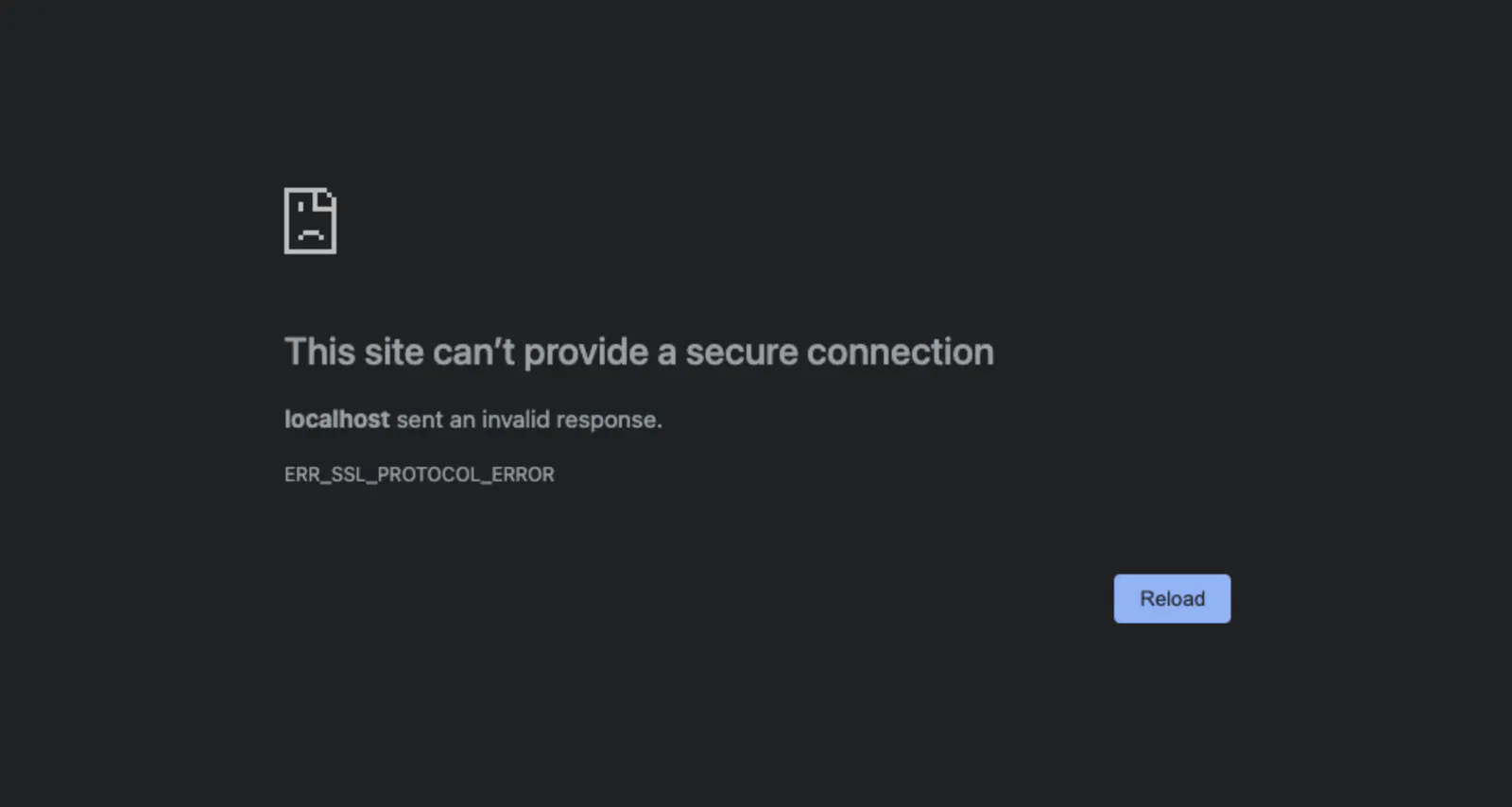
Let's fix that!
Creating a locally-trusted SSL certificate
To use HTTPS to access our local dev server, we’ll need a locally-trusted SSL certificate.
So what does “locally-trusted” mean?
In very simple terms, when a browser attempts to establish an HTTPS connection with a server, it will request an SSL certificate from the server, check if the certificate has been signed by a trusted Certificate Authority (CA), and if so, establish the connection.
So how does the browser know which CAs to trust? Your operating system keeps a list of trusted CAs in a “trust store”.
If you’re on macOS, the following command will list all the certificates of the CAs trusted by the system, hence the -s flag.
These are the first 20 lines I see on my macOS device when I run that command:
What “locally-trusted” means is that we’ve added a CA to the system’s trust store so that our browsers will accept certificates signed by it. Browsers running on other machines won’t trust this CA which is why it’s “local”.
We can run dump-trust-settings again but this time with the -d flag to display trusted admin certificates, as opposed to system trusted certificates with -s.
On my macOS device I see the following output:
So how do we create a locally-trusted CA and install it into our system’s trust store? For this post, we’ll be using mkcert.
mkcert is a tool that makes it very easy to make locally-trusted certs for use in development. It is not intended for production use and is optimized for simplicity and zero-configuration. This makes it perfect for our use case and saves us from wrangling with other more comprehensive, production-grade, and necessarily complicated tools, like OpenSSL.
We’ll start by installing mkcert. On macOS, you can install mkcert using Homebrew.
Now that we’ve got mkcert installed, we’ll create a CA and add it to the local list of trusted CAs. Note that you might be asked for your password so that mkcert can modify the system trust store.
After running that command, mkcert should have created a CA and added its certificate to the system’s trust store. If you’re following along on macOS, we can verify that by running dump-trust-settings again.
This is the output I get now:
Now we’re ready to create our SSL cert. All we have to do is run `mkcert` with the desired hostname:
This should result in two files being created in the current working directory. The certificate, localhost.pem and the key, localhost-key.pem.
The .gitignore file generated by create-next-app ignores .pem files so no need to worry about it being checked in to version control.
We can now use this SSL certificate to access our Next.js app via HTTPS!
Accessing the Next.js app locally with HTTPS
So how do we use our certificate with our Next.js development server? Next.js doesn’t support adding an SSL certificate to the development server, so we’ll need something other than Next.js to help us out here.
What we’ll do is run an HTTPS server that will proxy all requests to our Next.js development server. The local-ssl-proxy NPM package makes this a breeze.
With our Next.js app running on localhost:3000, run the following command in a separate terminal:
This will proxy HTTPS traffic from localhost:3001 to localhost:3000 as HTTP. local-ssl-proxy is acting as an “SSL termination proxy”.
And that’s it! You should be able to visit https://localhost:3001 and access your Next.js app via HTTPS.
If you’re planning on doing this often it might be worth installing local-ssl-proxy as a development dependency and adding a package.json script to start the HTTPS server. Also, if you want to use different ports, the Next.js CLI provides options to override the default port.