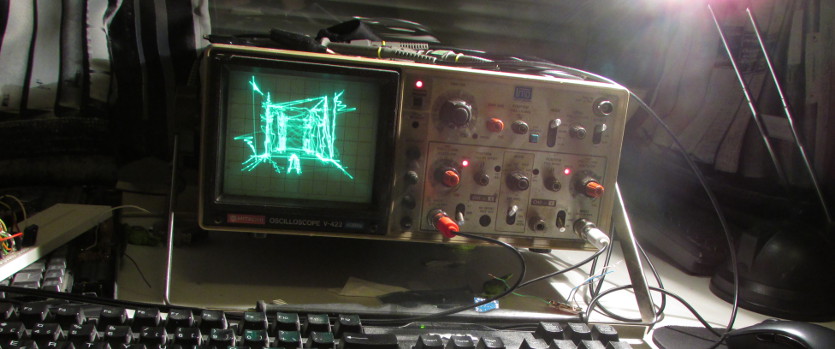
Quake 1 rendered on a Hitachi V-422 oscilloscope.
A summary of some problems I faced when tinkering with Quake to get it play nicely on an oscilloscope.
After seeing some cool clips like this mushroom thing and of course Youscope, playing Quake on a scope seemed like a great idea. It ticks all the marks that make me happy: low-poly, realtime rendered and open source.
Testing, testing
First I wrote a simple XY-oscilloscope simulator in Processing. Youscope rendered cleanly in it after I added some phosphorus decay simulation so that longer lines are rendered dimmer. So far so good.
Rendering lines
The XY-mode of an oscilloscope is pretty straightforward. Two voltages specify the horizontal and vertical position of the ray, so by varying these as a function of time you can draw shapes. Basically you output a set of 2D points with coordinates in range [-1, 1], view it in XY-mode on the oscilloscope and Bob’s your uncle.
Drawing a line segment is linearly interpolating between two points during some time interval. It’s important to keep the drawing speed constant between lines of different lengths because otherwise you’ll end up having lines with varying intensities. According to a great page by Jed Margolin, you don’t actually need to calculate the length of the line to keep the intensities at bay since an approximation will be enough because of the non-linear gamma curve of the monitor. I went with the correct solution though.
In order to line draw line segments that are not connected together, you need to move the ray quickly across the screen without actually tracing a visible line. This can be done by spending more time drawing the visible lines and then scaling the monitor intensity accordingly to hide unwanted artefacts.
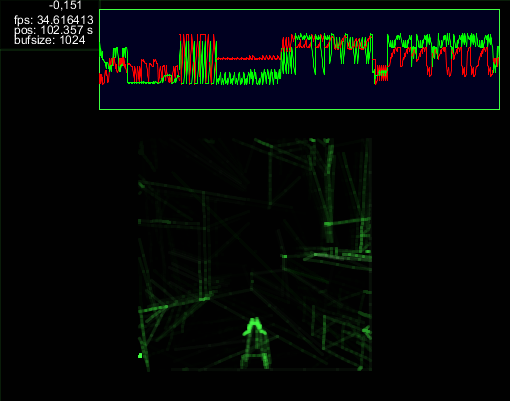
A simple XY-scope simulator written in Processing.
I whipped up a toy where you could draw a single line with a mouse and it would get played back as audio from the speakers. Then I hooked up system audio output to line-in and verified it looked OK in the scope simulator.
Output
Using audio for outputting the two voltages is natural, this is what tejeez did in Youscope.
Quake is a game, games are realtime, so my audio generation routines better be quick too. That’s why I picked ASIO as the audio backend. First I spent a couple of nights hacking with the Steinberg ASIO SDK, but I just couldn’t get any sound out of it. Finally I resorted to using PortAudio which worked just fine for my needs.
The Youscope recording is a 48 kHz audio file and it seems to work great on tape. The catch here is that apparently the soundcard used on the video doesn’t apply any low-pass filtering to the output, which pretty uncommon.
All sound cards I own apply a filter, so bandwidth was pretty limited. In practice this means less lines can be drawn per frame. I thought the problem could be solved with a higher sampling rate so I picked 96 kHz, the highest number my Swissonic EASY USB supports. Seems like this didn’t make any difference in the end as the picture looks almost the same at 44.1 kHz too.
PortAudio on Windows
The stable v19 release of PortAudio didn’t compile out of the box on Windows. I had to manually remove ksguid.lib from portaudio.vxcproj with a text editor. Installing the ASIO SDK was also necessary.
Getting vectorized
There are two different processes: the Darkplaces Quake game and the audio synthesizer. Interprocess communication is done via a WinAPI named pipe.
My favourite Quake source port, Darkplaces has an excellent software renderer I abused to get access to projected scene geometry. The engine was patched to save all the clip-space triangle edges sent for drawing, and then transfer these to a synthesizer process via a named pipe.
This geometry extraction phase doesn’t affect normal rendering, and a proper depth buffer is actually required for the last culling stage to function.
The pipeline on the Quake side is basically this:
- for each object being drawn
- for each triangle
- clip the edges to screen borders
- if edge is visible
- and not already saved this frame
- save it to a list
- render the triangle normally, even though color isn’t used
- for each triangle
- if the synth process has requested more geometry, then:
- check if lines are in front of geometry via z-buffer sampling
- submit all visible lines of this frame to the synth via pipe
Culling
Getting rid of duplicate and unseen line geometry is important, because the time budget per frame is tight and all time spent on redundant lines is totally wasted effort.
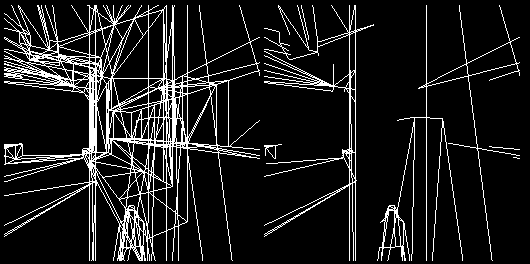
Hiding occluded lines with depth buffer checks is very important.
Regular back face, frustum and precalculated BSP visibility culling are done first. I also limited the draw distance by discarding all triangles whose all vertices were far enough from the camera.
To cull the duplicates a std::unordered_set of the C++ standard library is used. The indices of the triangle edges are saved in pairs, packed in a single uint64_t, the lower index being first. The set is cleared between each object, so the same line could still be drawn twice or more if the same vertices are stored in different meshes. Before saving a line for end-of-the-frame-submit, its indices in the mesh are checked against the set, and discarded if already saved this frame.
At the end of each frame all saved lines are checked against the depth buffer of the rendered scene. If a line lies completely behind the depth buffer, it can be safely discarded because it shouldn’t be visible. This happens if it’s behind a wall or something. These checks must be done after all draw calls are processed since geometry isn’t drawn in a back-to-front order. I implemented this as a series of ten or so depth buffer samples along the line and discarded the line if all of them were occluded. This worked well enough but left still some stray “spikes” peeking behind the corner in some cases.
A synth rasterizer
The line synthesizer audio thread has a queue of lines to be drawn. New lines are requested from the Quake engine (by writing an integer to pipe) in the main thread if it notices we are running short on stuff to draw. The audio thread consumes this line data on its own pace - longer lines take a while to draw.
The audio is synthesized as stereo 96 kHz 32-bit IEEE floating point data, but internally in PortAudio it’s converted to 32-bit signed integers before getting submitted to the ASIO output.
On average, 1800 lines per frame are transferred to the synth process, and if no new data is received on time the latest frame will be shown again.
On speed
On the video, about 5-20 samples are allocated to each line depending on the length of the segment. This means the frequencies emitted are very high (5 samples per period is 19.2 kHz) and it seems the audio output is being low pass filtered resulting in silly wobbly lines.
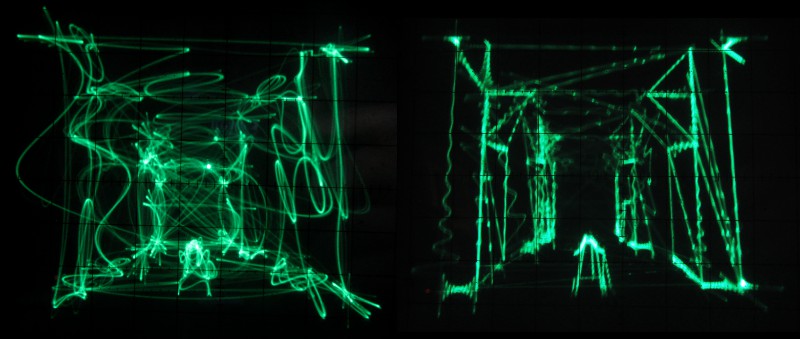
Image quality increases as the lines are drawn slower.
Audio synthesis takes some CPU time, but most of it is spent on Quake depth buffer rasterization. Triangle filling is slow when you do it with just one thread on a modest laptop processor :)
The total latency is passable and short enough to play comfortably with keyboard and mouse. This can be adjusted by tweaking audio synthesis parameters.
Open problems
To be honest, I was quite disappointed by the performance I got out of this. Merely 1000 lines on screen simultaneously, usually not even that. Any higher numbers end up being represented as such high frequencies the audio output can’t keep up. One can increase the time spent on each line but this causes additional latency and the image starts to flicker. Speeding up the drawing speed allows more stuff per frame, but the quality degrades quickly as can be seen in the comparison image shown earlier.
There’s also some mysterious low frequency noise generated in the process. This is clearly visible when rotating the view quickly and the whole screen moves on the oscilloscope monitor screen. I assume this is some annoying bass boost equalization happening inside the sound card.
Mystery solved: It’s the cheap sound card. (Thanks Antti!) With another USB sound card the low frequency movement is gone. Too bad there’s no proper ASIO drivers (ASIO4ALL isn’t enough) for it, making it unsuitable for realtime use because of additional latency.
Possible improvements
I’ve gotten some excellent ideas via email for improving the stability and quality of the rendering. I’m probably not going the develop this project further but I’m listing the suggestions here for future reference.
- An audio-interface with DC-coupled outputs
- A regular sound card can be modified by removing capacitors before the analog output.
- For example, see ESI Gigaport HD DC-Coupling Mod.
- Now the low frequencies aren’t filtered away and the picture stays stable.
- Use VGA as DAC
- Really fast 8-bit digital to analog converter, precision can be increased with e.g. dithering.
- Use red and green channels as X and Y signals.
- Low latency and DC coupled.
- No signal during vertical blanking interval, probably not a problem since it’s so short.
- It actually looks pretty good!
- Resample the signal to higher sampling rate with nearest neighbour filtering.
- This keeps the lines straight, I’m not sure why.
- An example rendering by rpocc.
- Use intensity modulation (Z-channel) to hide the beam when moving between lines.
- Usually this input channel is on the rear panel.
- Would use three audio channels instead of two.
- Add an extra sample to the beginning and end of each line drawn.
- Decreases wobbliness because of slightly reduced high frequency content. (thanks Andrew!)
- On Windows, WASAPI might reduce audio latency.
- A good candidate if your audio-interface doesn’t have ASIO drivers.
- Supported by PortAudio.
- Sort the lines before rendering to minimize beam travel distance.
- More geometry per frame can be drawn.
- Travelling Salesman Problem reduces into this.
- NP-hard, so an approximation is needed:
- A generic solver on the GPU
- Dividing the screen into buckets and populate them with lines according start/end points
- Just draw the longest lines first
- More time spent on drawing actual visible content.
- Bias the selection with line distance in camera space.
- NP-hard, so an approximation is needed:
- Decrease line draw time according to camera space distance.
- Less time spent on far away lines so more can be fit in per frame.
- Split the lines to multiple segments when performing Z-buffer checks.
- Picture is clearer with less line segments visible through walls.
- Use Quake level brush geometry instead of the mesh used in rendering.
- Eliminates unnecessary lines since quads are rendered instead of triangles.
- Works at least in Quake 2 (thanks Jay!)
- See this screenshot from Quake2World engine
- Hardware accelerated rendering, current system runs in software mode.

Video
Playing through the first level E1M1 of Quake.
Audio recordings
If you want to watch this on your own hardware, here are recordings of the same playthrough that’s on the video. Try the fast one first and then the slow one if it doesn’t seem right. The difference is very small. I didn’t test these on the oscilloscope, I hope they work well.
Code
Source code for the line renderer and the modified Quake are available. Visual Studio 2013 is required to compile the projects.
Article history
- November 12, 2016
- Added link to NP-hardness article.
- Added link to VGA oscilloscope video.
- July 13, 2015
- Added source code links
- January 6, 2015
- Added Possible improvements section. Thanks for the suggestions people!
- December 29, 2014
- Low frequency noise explanation
- Added audio recordings
- Small additions to culling part
- Added picture of the simulator
References
- The Darkplaces source port web site
- The Secret Life of Vector Generators by Jed Margolin