Posted by Anthony Goubard, Utrecht (NL) on February 27, 2024
In this article, we will show how you can control your Android device or a remote Android devices from Android Studio.
At the moment, there are mostly 2 solutions to test and debug your Android applications :
- The Android Emulator. It will start a separate window with Android emulated. This solution has many drawbacks :
- Switch between development environment and emulator window
- The emulator is missing files and other applications you might need for your application
- Connect to real device. This has also some drawbacks :
- Switch between looking at the device and the development environment
- Interaction with the application should be done on the device, so someone (mostly the developer) should have the device close.
A new way: no more separate window
Let me introduce you to a new free way to do Android development : Control Android device(s) from within your development environment.
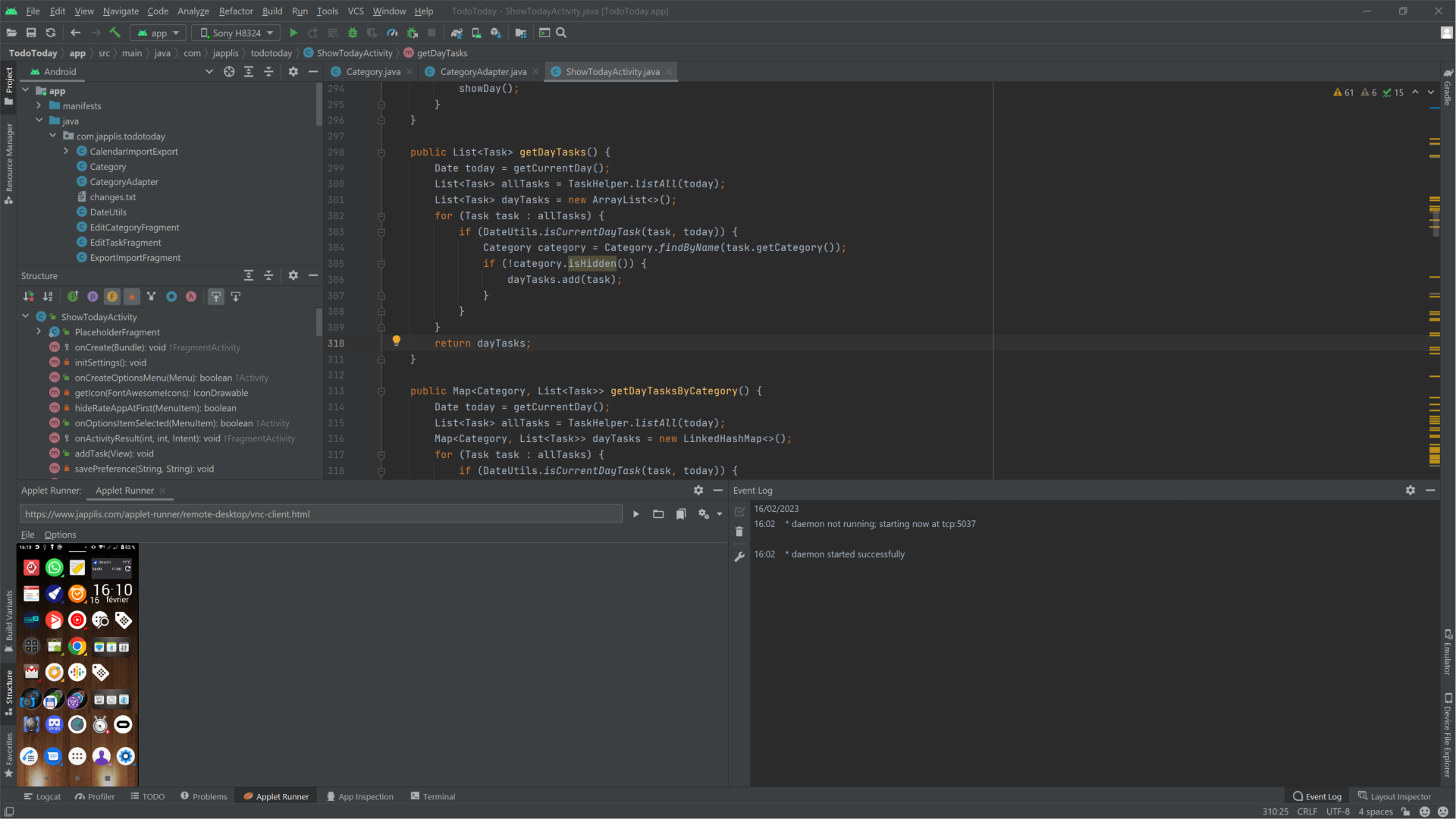
What do you need for it:
How to use it:
- Install the 3 applications
- Start droidVNC-NG on the Android device
- Select a port, a password and click start
- Start Android Studio and Applet Runner plug-in (if not already started)
- In Applet Runner, click on the bookmark icon and select Remove Desktop → Vernacular VNC
- Fill in the host and port number, then the password
- You now have control of an Android device in your development environment
Video