
Even though I prefer GNOME over KDE, I have made a habit of installing KDE Connect on all of my Linux PCs. Yet for the primary task of sending files between my PC and my phone, KDE Connect is no longer necessary. There's an app in Flathub that takes advantage of Android's built-in Quick Share feature, making KDE Connect redundant for those who are only using the app for sending files.
It's time to download Packet
This Flatpak app makes your PC visible from any modern Android phone

iPhone users have long enjoyed the way Apple's AirDrop makes file-sharing simple. You don't need to think about where files are located on your device or how much data it will take to upload them to the cloud. Just tap a share icon and select the contact you wish to send the file to. With their approval, it will then appear on their phone.
Android's Quick Share feature arrived years later, but it's here now, and it works in largely the same way—Quick Share is now even compatible with AirDrop on some phones. Thing is, Quick Share isn't built into PCs the way Apple's AirDrop is a key feature in MacBooks. Fortunately, adding Quick Share to a Linux PC is now as simple as downloading a single app from an app store.

Unihertz Titan 2 Elite

9/10
- Brand
- Unihertz
- SoC
- MediaTek Dimensity 7400
The Unihertz Titan 2 Elite is a refined follow-up to the Titan 2, with a more pocketable design and quality of life improvements throughout. It's one of the best phones with a physical keyboard on the market today.
All you need to do is head to Flathub, search for Packet, and tap the download button.
Packet is as simple as it gets
This is not your old-fashioned FOSS app
As soon as you open Packet, it's ready to go. You don't need to create an account, nor do you need to configure any network settings. As long as the Packet window is open on your desktop, your computer is now visible to any Android phones and tablets that support Quick Share. All that matters is that your Linux PC supports Bluetooth and is connected to a Wi-Fi network with mDNS.
If you're not familiar with Quick Share, here's how it works.
- Open a photo, website, file, or anything on your phone that allows you to tap the share icon.
- Tap the share icon.
- Tap Quick Share.
- Tap the contact or device you wish to send your selection to. In this case, you want to select your Linux PC.
At this point, you will receive a pop-up on your computer. Just like on an Android device, it will display a numerical code and ask if you want to accept the shared item. As long as the numbers match, it's safe to tap yes.
Packet can share text just as easily as it sends files. If you copy text on your phone and tap the share icon, that text will appear in a pop-up window on your computer. This feature is helpful for me, since I can write initial drafts using voice dictation on my phone and quickly get that text over to my computer for editing without having to store that text in the cloud. It also eliminates the need for my other go-tos: emailing or texting the text to myself.
Packet is just as useful for connecting Linux devices
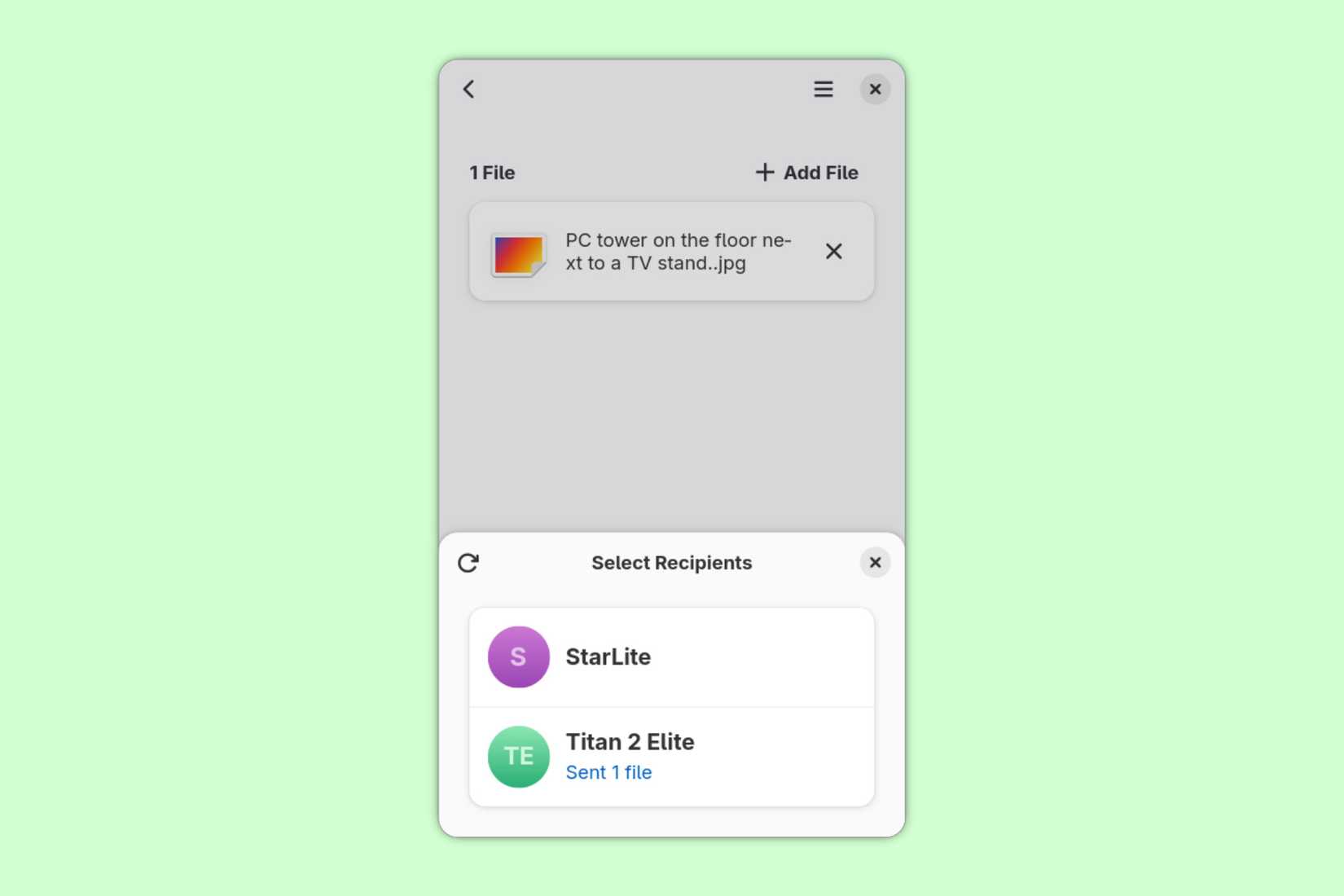
While I have Packet installed on my desktop and my phone, that isn't all. Packet also runs on my Linux-powered tablet. If I need to quickly share something between one device and another, Packet is an option that I don't need to think about. After all, while I have KDE Connect on all of these same devices, I don't bother to install KDE Connect on devices that I test for work, nor is it on other people's phones. Packet doesn't have that problem.
While you don't need to configure Packet for it to work, there are a few options available for you to tweak. For starters, if you find working with multiple Linux PCs, you have the option to change the name under which each appears. This can be helpful if you have multiple computers made of similar hardware, such as a couple of Intel NUCs running Linux on the same network.
Inversely, if you don't want your computer to be visible on the network at all, you can set it to be invisible. This way, a computer can function as a server of sorts without cluttering up your Quick Share menu on other devices.
Lastly, you don't need to keep Packet open in order for it to function. You can set it to run in the background, and you can also tell Packet to automatically run at startup. To replicate the KDE Connect experience even further, you can have Packet appear as a System Tray icon, though this option doesn't do anything on GNOME desktops unless you have a System Tray extension installed.
Packet is not a complete replacement for KDE Connect if you rely on the full range of the latter's features, such as syncing notifications, responding to incoming texts from your PCs, or using either device to remotely control the other. But if you only use KDE Connect for moving files around, Packet gets the job done without needing to install anything extra on your Android phone.