Finder
Sujeevan • •
#finder#macos#tips
Finder has a bad reputation as the worst software in MacOS. Still, it never ceases to amaze with its hidden features. Here are some gems that most users don’t know about.
Mission Control for Finder Tabs
When there are multiple Finder windows, Mission Control helps to manage them. Ever wondered how to handle multiple Finder tabs opened in the same window? If you have a few tabs, you can cycle through them using Control + Tab, but what if you have tons of tabs open?
Press Cmd + Shift + \ to display all tabs in a grid. You can easily select or close any tab, and if you have too many, simply start typing to filter them by name.
Show Current Path
Ever get lost in Finder, wondering which folder you’re in? Those familiar with Windows File Explorer know there’s an address bar. Finder doesn’t have an address bar, but it has a Path bar that shows your current location.
Press Cmd + Option + P to toggle the Path bar at the bottom of your screen.
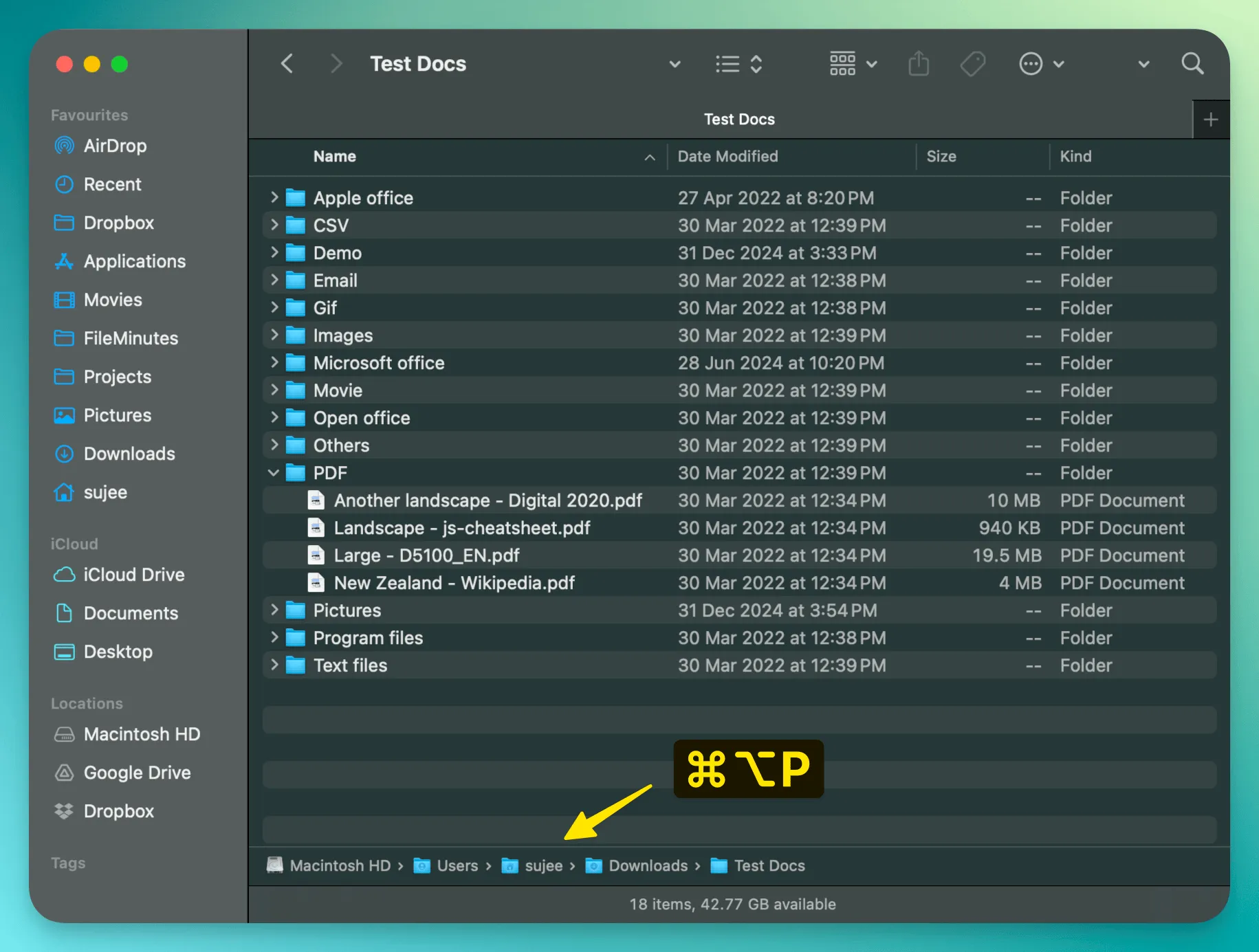
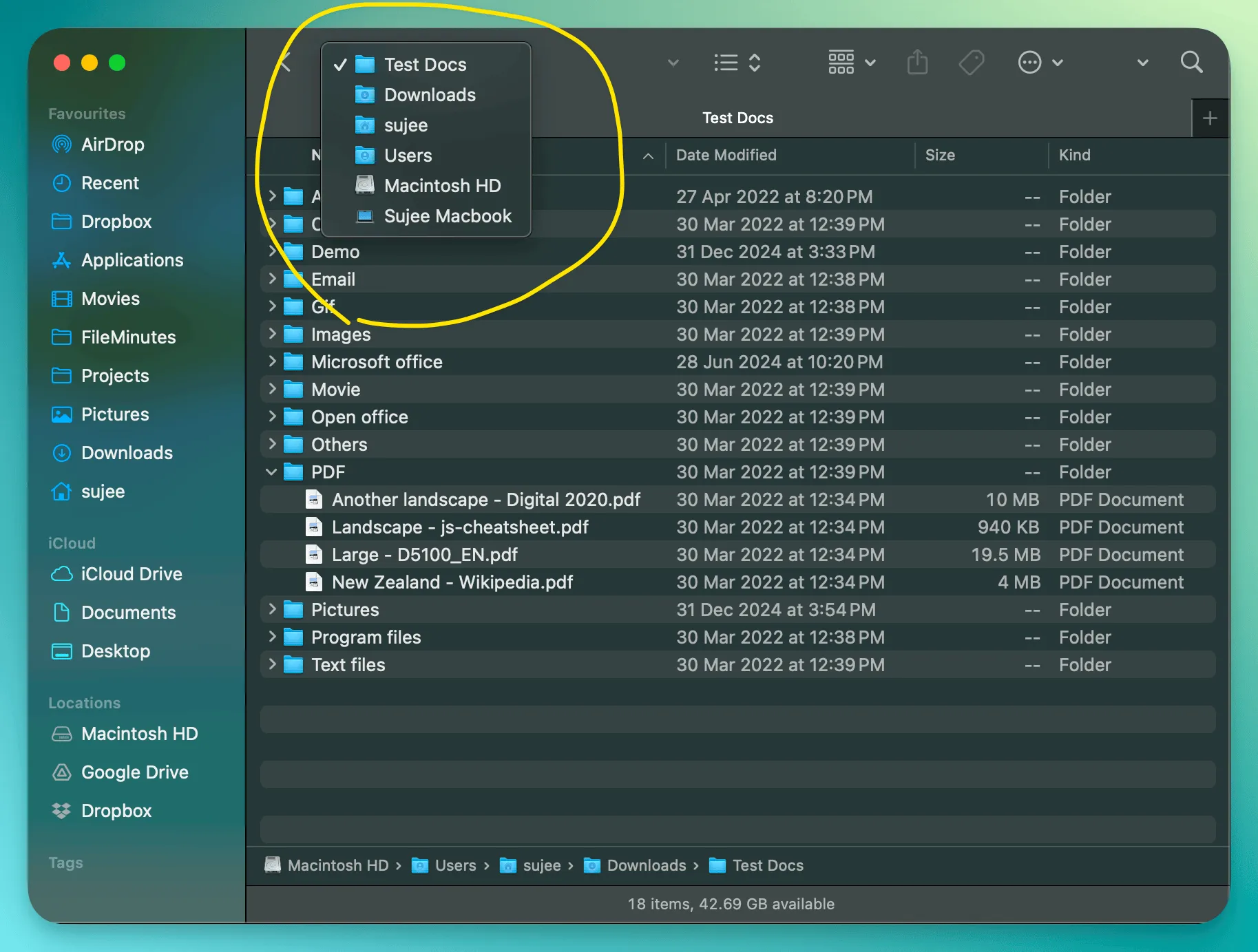
There’s also another way to see the current path. Right-click or Cmd + Click on the window title to see your path in a dropdown menu.
Use QuickLook as a File Browser
We all use QuickLook to preview files in Finder. But it can do more than that. You can browse your file system entirely in QuickLook - navigate through folders, and even flip through pages in documents - all without leaving QuickLook.
This feature works fully in Column view (Cmd + 3), and has limited support in other views. Here’s how:
- Select any folder and press
Spaceto open QuickLook - Keep the preview open and use arrow keys to:
- Left/Right arrows to move between folders
- Up/Down arrows to browse current folder
- When viewing documents like PDFs:
Fn + Up/Down(PageUp/PageDown) to browse pagesFn + Left/Rightto jump to start/end
Show File Preview in List View
Finder’s Gallery view isn’t the only view that can show a large file preview. You can enable the preview panel in any view, including List view.
Press Cmd + Shift + P to toggle the preview panel. If it’s too small, drag left to make it larger.
Open Specific Files with Different Apps
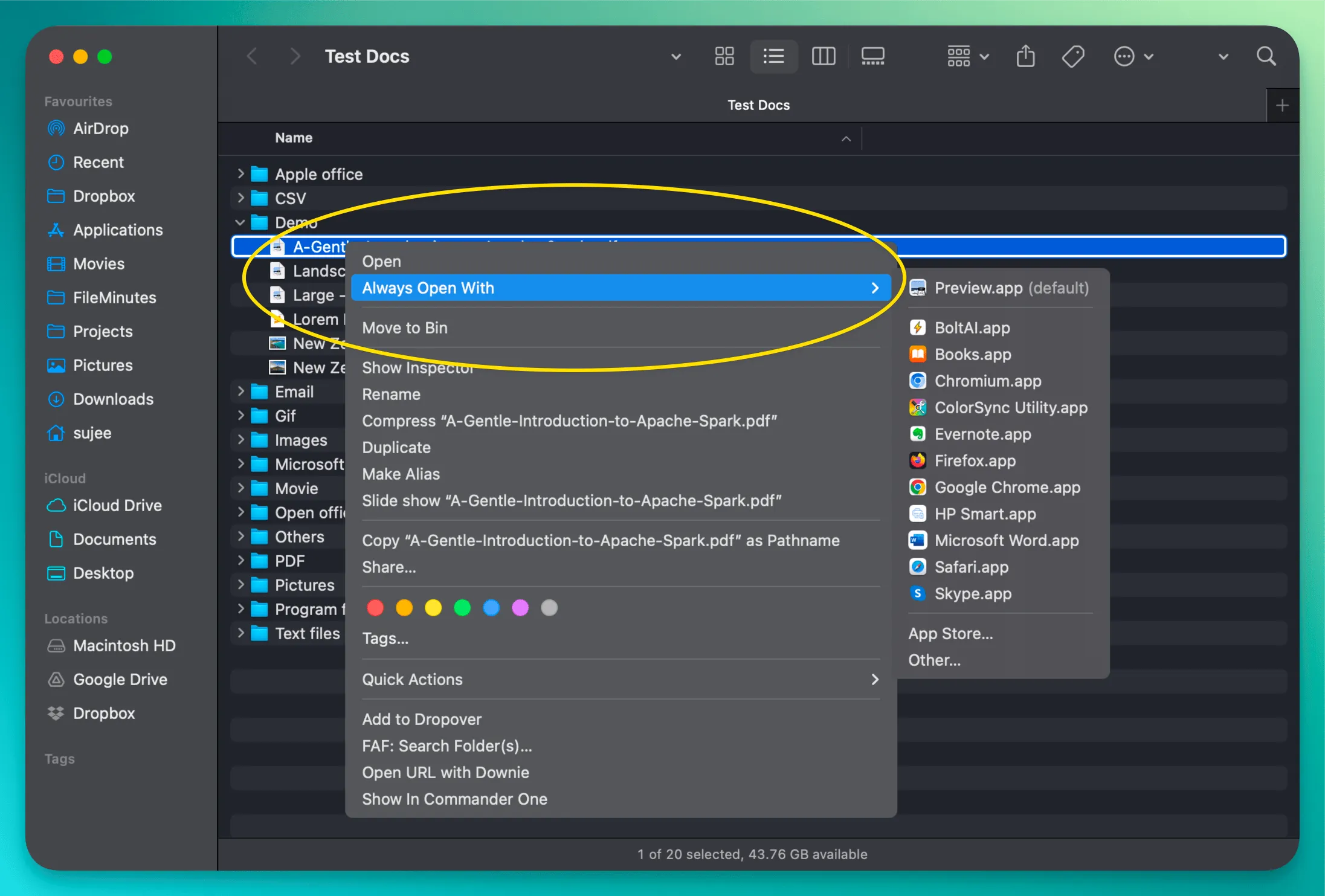
While macOS lets you set default apps for file types (like Preview app for PDFs), sometimes you want certain files to always open in a different app. Instead of right-clicking and choosing Open With every time, here’s a better way:
- Right-click on the file while holding the
Optionkey - Select
Always Open With(instead of regularOpen With) - Choose your preferred app, for example Google Chrome
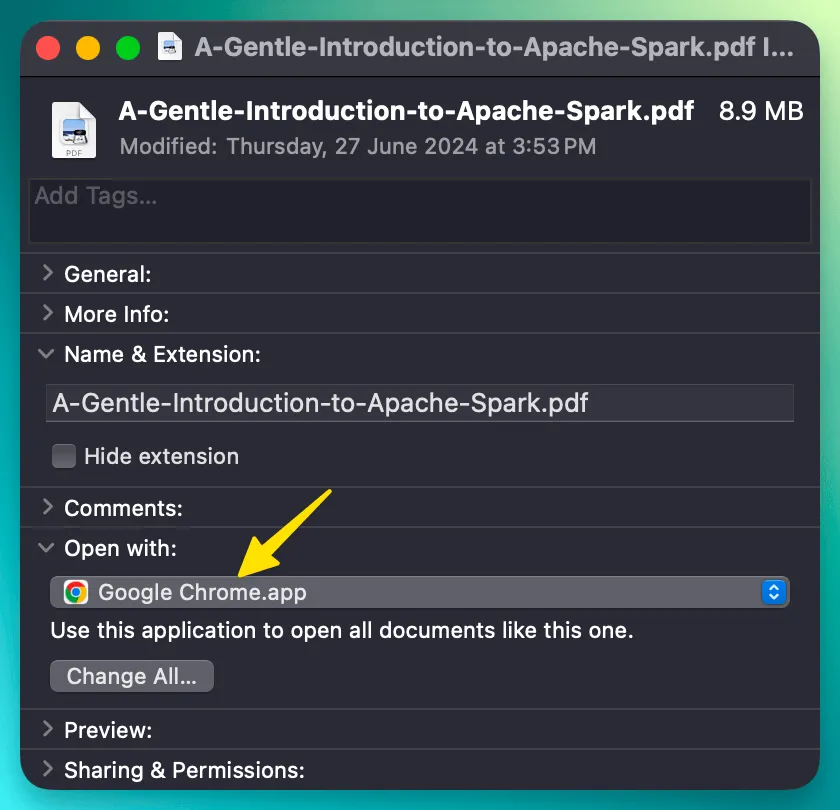
Next time you open this file, it opens by default in Google Chrome, while keeping Preview as the default for all other PDFs.
This can also be done in the Get Info panel (Cmd + I):
One More Thing
If you’ve read this far, you might be interested in FileMinutes - a macOS app I’m building to make working with files even easier. Check it out here →