Like so many disciplines across the product development process, the role of PMs is evolving. As traditional product workflows collapse, today's PMs find themselves prompting and prototyping with their team rather than sharing static documents for review.
By turning early directions into interactive, high-fidelity prototypes, you can more easily explore multiple concepts and take ideas further. Instead of spending time writing documentation that may not capture the nuances of a product, prototypes enable you to show, rather than tell—creating working examples that illustrate intent and spark discussion. Here’s how PM teams at Figma are creating prototypes using Figma Make in every stage of their workflows, and why prototypes have started to replace Product Requirements Documents (PRDs) altogether.
Exploration
Early concept exploration has traditionally relied on mocks, diagrams, or slide decks. Because these documents can’t show real behavior, teams have to imagine the experience, which can make alignment slow. But when you’re scoping a project, prototypes can paint a more complete picture and offer something you can react to.
Define the problem space
When there are too many unknowns or ill-defined constraints, you can use Figma Make to drive more clarity. “I use Figma Make when I don’t feel like I understand a problem space very well,” says Figma Product Manager Tara Nadella. When her team began exploring potential features in Check designs—a design system linter that surfaces raw values and recommends the right variables—her engineering counterpart shared a feature prototype and tech spec, excited to bring their early thinking to life. The design team had also started thinking about the nuances of the product feature, suggesting potential visual approaches. But because Tara was still working to understand the shape of the problem, she couldn’t align on a solution. “People were starting to run with it, and I realized I needed to form an opinion. But I didn’t know where to start.”
To get her bearings, Tara opened Figma Make and began prompting. Working through rough flows and interactions helped her articulate the ideas and questions she needed to bring back to the team, from weighing in on whether to use wraparound plugins to suggesting design tweaks that would make the end-to-end experience more intuitive.
Riff on early ideas
When you’re shaping initial concepts, Figma Make lets you generate several approaches in minutes to see which are worth pursuing in earnest. “Figma Make helps you solve the blank-canvas problem by giving you something to riff on,” Tara says. And with Make kits, those explorations stay grounded in real product components, producing outputs that look and behave closer to something you might actually be able to ship. “[Figma Make] lowers the barrier to entry for idea generation—there’s no need to rely on hand sketches or text alone,” says Figma Product Manager Summer Wang.
Figma Make helps you solve the blank-canvas problem by giving you something to riff on.
The Copy design feature converts a Figma Make preview into editable layers in Figma Design, helping teams spin out variations, explore multiple directions faster, and manually add more visual refinement. After you update the design in Figma Design, you can attach it back to Figma Make to update the prototype.
Recently, Figma Product Manager Sean Lee was exploring how AI in Figma Slides might automatically apply a user’s brand colors when their prompt indicates they’re creating a branded deck. He turned to Figma Make to prototype what that experience could look like in practice. Sean duplicated existing Figma Slides templates and prompted Figma Make to remix their color palettes based on prompt cues, simulating how an automated system might behave. “It helped us build confidence in the approach and demonstrate it in action, rather than just describing it,” Sean says.
AI-powered image features in Figma Make accelerate visual exploration. You can remove backgrounds, isolate objects, or reframe images directly on the canvas.
Tips from Figma PMs
- Ground your prototype in your design system: Use Make kits to connect your team’s design libraries, ensuring that whatever Make generates feels grounded in your actual product, not a generic mockup. “When prompting, always start from a base UI and attach libraries so you can simulate your real product,” Summer says.
- Let your Figma Make rest: Step away from your prototype and return with a fresh perspective. “A lot of my Figma Make sessions tend to be multiple hours in one go, so revisiting it later is helpful because you’re coming out of that rabbit hole and coming back to it fresh,” Tara says. This can help you notice small inconsistencies or details you may have otherwise missed.
Make templates let you set a high-quality baseline for exploration. After building a polished prototype, you can publish it as a template with guidelines that control what teammates can change. This ensures everyone explores from the same foundation while maintaining brand consistency.
Validation
It can be tough to go from being generative and exploring early ideas to validating which ones are worth dedicating resources to. The key is getting buy-in from internal stakeholders and feedback from users—prototypes avoid misleading feedback and confirm you’re on the right track.
Gather user feedback
Prototyping with Figma Make gets working examples in front of users quickly, giving you fast, reliable feedback that ensures you’re tackling real user problems. “Figma Make’s output quality is good enough that you can have a real conversation with users about a feature or an idea,” says Figma Product Manager Ezra Mechaber. “You’re not shipping the code, but you’re tightening the build-measure-learn loop dramatically.” And, when Figma Make is connected to a design system, prototypes not only look polished but also stay on brand, giving PMs confidence that what users see reflects the real product.
When preparing for the recent launch of ChatGPT in Figma Slides, Sean had just two days to collect user insights. He quickly used Figma Make to merge ChatGPT’s interface with Figma’s own design patterns to prototype a sample flow. Within a day, he had a functional prototype ready for five user interviews. “The insights directly shaped our quality criteria for evals and gave us the confidence to make a clear go/no-go call,” he says.
[Figma Make] quality is good enough that you can have a real conversation with users about a feature.
Win buy-in
When you’re pushing an idea and not everyone is convinced, a quick prototype can help you get the buy-in you need by showing how it meets user needs. Seeing concepts in context helps your team prioritize with confidence and even bring dormant ideas back onto the roadmap. “[Figma Make] is a very powerful tool for alignment,” Tara says. “We often have theoretical conversations about theoretical features somewhere in the product. But if you're showing a visual, it's so much faster to get everyone on the same page. That way, we're all speaking the same language and can move forward.”
Supabase integration adds backend functionality to Figma Make prototypes, enabling features like working login screens, forms that actually save data, and apps that remember information across sessions. Instead of simulating user flows with clickable mockups, you can test prototypes that function like real apps—making user research more realistic and revealing how features perform under actual use.
Figma Make is equally useful for revisiting ideas that fell off the roadmap. Features that once felt too vague or risky can get a second look when you can prototype a quick version. “For ideas in the backlog, I can quickly show what I’m envisioning—helping us revisit ideas with more context,” Summer says.
Tips from Figma PMs:
- Don’t be afraid to share an unfinished prototype: View prototypes as conversation starters, not final deliverables. “The biggest trap is thinking your Make project needs to be 'ready' before sharing. Use it early and often—even for messy, half-baked ideas,” Sean says.
- Add realistic interactions: Ensure the UI mirrors your current product as closely as possible. "Ask Make to create linked pages, buttons, and other interactions to make it feel real," Summer says. This helps users and stakeholders engage with the prototype as if it were the actual product.
Decision making
Product decisions often hinge on details that are hard to imagine until you can actually interact with them. How fast should a loading state appear? Does a layout actually make sense when you start clicking through it? Communicating these nuances is essential when evaluating multiple approaches.
Get the details right
“The challenge between product, design, and engineering on how to describe and articulate specific product behaviors is always a tough area,” says Figma Product Manager Holly Li. “Figma Make has condensed and simplified that problem for us immensely.” Instead of asking teams to imagine how different options might work, you can put working prototypes in front of them to compare. “PMs constantly live in that space between describing a product idea and showing it,” Ezra says. “When someone brings a working prototype into a pillar workshop, the discussion changes completely. You can immediately tell what works in practice versus what only sounds good in theory.”
PMs constantly live in that space between describing an idea and showing it.
For example, when Holly’s team was evaluating different scrolling behaviors for a feature, she found it difficult to capture the trade-offs for each option in words. “I know it’s something that everyone cares about because it greatly impacts the quality of the experience, but it is an almost impossible thing to describe,” she says. Rather than explaining the nuances of speed, direction, and timing for every approach, Holly and her team used Figma Make to prototype each version. Seeing the options in motion side-by-side made it easier to understand how they worked in context and choose the one that felt right for their use case.
Once a prototype exists, it becomes a shared artifact for gathering team input and refining ideas. But how you share that prototype matters. “It's not just about the artifact, but also about wrapping a narrative around it,” Tara says. “Sometimes just dropping a link to your Figma Make creation into a chat is overwhelming.” Instead, many PMs will record Loom videos where they walk through a demo of their prototype, or walk through it live in meetings.
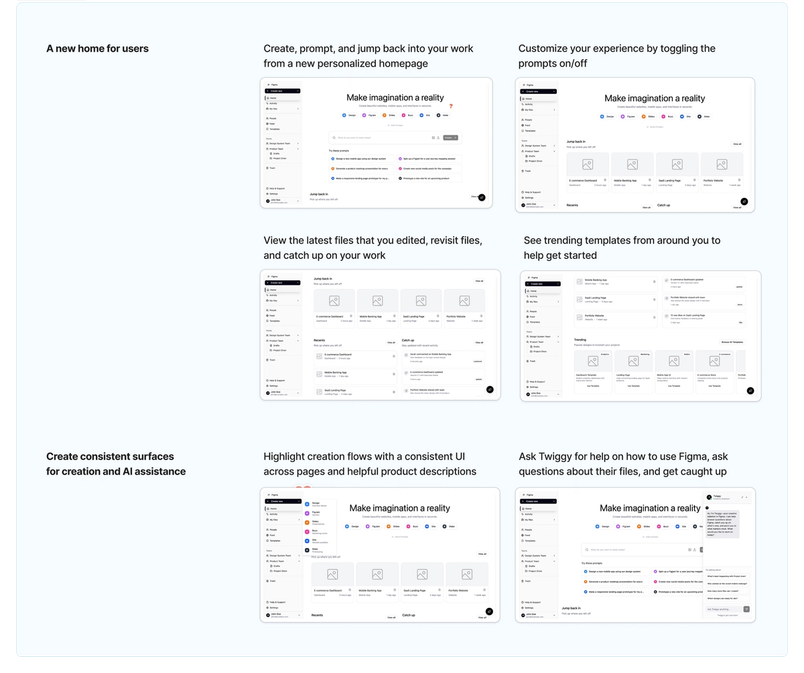
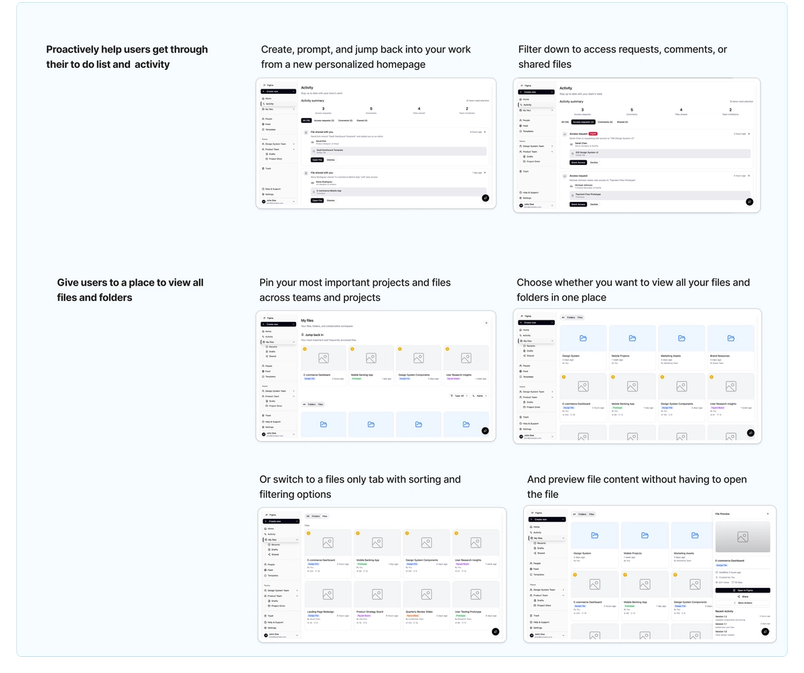
For example, when Summer was narrowing down the direction for a new homepage and activity feed, she used Figma Make to prototype several variations of her leading concepts and pulled them into a FigJam to share with her team. By laying out screenshots of each flow and annotating how the interactions might work, she created a clear, visual narrative that made it easier for stakeholders to evaluate the trade-offs and provide targeted feedback.


Figma Make gives teams flexible ways to share prototypes securely. You can publish a Make project internally—restricted to people logged into their Figma organization—or add password protection for external reviews, making it easy to collaborate on work and gather feedback without exposing prototypes to the open web.
Once you get all the right inputs, keeping prototypes aligned with evolving decisions and feedback is another challenge. To streamline this process, you can use Make Connectors to sync context from tools like Coda, Notion, or Linear directly into your prototypes. This ensures that feedback loops stay tight and everyone is working from the same source of truth without having to leave their workflow.
Make space for refinement
When you use Figma Make as a playground for prototypes, you’ve already worked through many of the critical details—flows, logic, and edge cases—before a feature reaches production. What follows is refinement, where the focus shifts to craft and polishing the details. "Figma Make frees up time for the fun part of product management: making calls based on taste and making workflow decisions with much higher confidence,” Holly says.
Figma Make frees up time for the fun part of product management: making calls based on taste and making workflow decisions with much higher confidence.
As prototypes move closer to production, teams can connect React npm packages to Figma Make to ensure consistency with their live codebase. This allows engineers to work with real components from the start and helps product managers see how features will behave once implemented—closing the gap between prototype and production.
This stronger starting point also reshapes handoff. “The spec to our engineering teams today is often a Figma Make file plus designs,” Holly says. Engineers can use the Figma Make prototype as a reference for how interactions should work, or push the code directly to GitHub to use as a foundation for continued development. They can also use Figma's MCP server to pull design context—components, variables, and structure—into their coding environment. By connecting to the same Figma files PMs work from, MCP helps engineers generate code that aligns with the prototype’s intent.
Tips from Figma PMs:
- Workshop prompts with ChatGPT: Use it to help you structure ideas into clear prompts. “Sometimes I just want to brain dump and I’ll ask, ‘How would you break this up?’” Tara says.
- Be thorough and specific: Add as much detail as possible, even if it’s over the course of several smaller prompts.“You have to be specific and do a little explaining,” Holly says. “This way, you and the model are on the same page about your goals.”
As product development continues to evolve alongside AI, prototypes offer a faster, clearer way to explore ideas and align your team. In this new landscape, the PMs who thrive will be those who embrace real-time iteration, moving fluidly across traditional role boundaries.