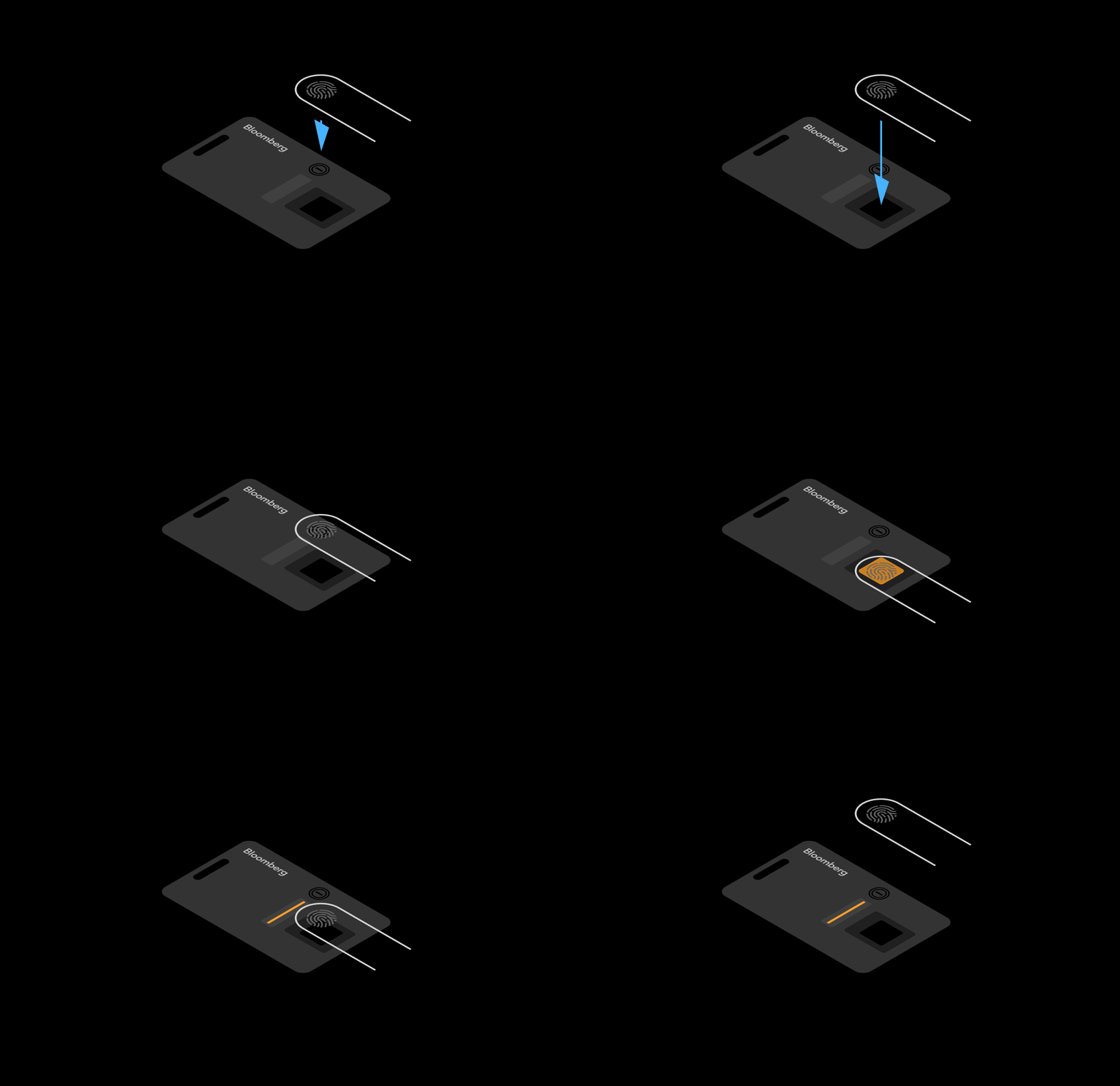
Step 1: Login
- Open the Bloomberg Terminal and press Enter or <GO> to begin.
- Enter your login name and password and press Enter or <GO>. You will be directed to a screen that instructs you to setup your B-Unit Device.
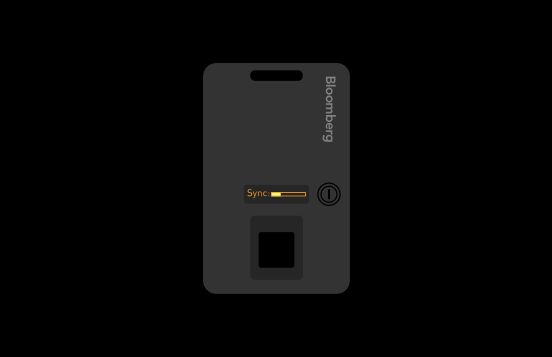
Step 2: Serial Number
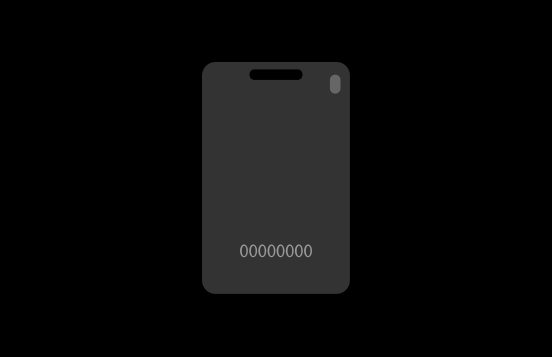
- Enter the eight-digit serial number located on the back of the B-Unit Device.
Step 3: Powering on
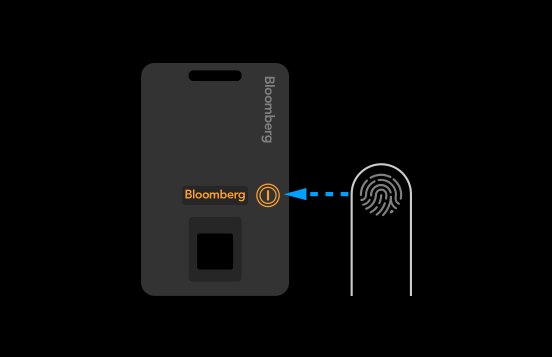
- Turn on the B-Unit Device by pressing the power button. The Bloomberg logo will appear in the OLED screen.
Step 4: Resetting
- Now press the power button three times. With each press, a dot will appear on the B-Unit Device screen.
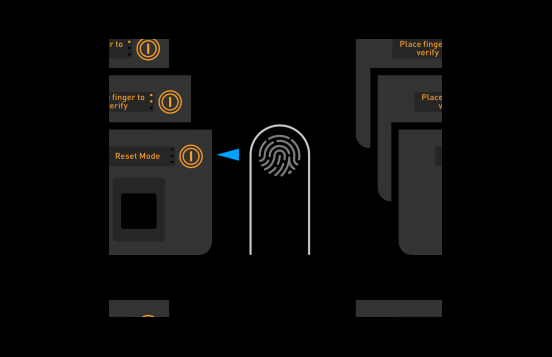
- When reset is successful, the B-Unit Device will display “Reset Mode” and then “Ready to Sync.”
Step 5: Syncing
- Now you’re ready to sync and enroll your B-Unit Device. Your B-Unit Device will act as your unique key to unlock the Terminal from virtually anywhere.
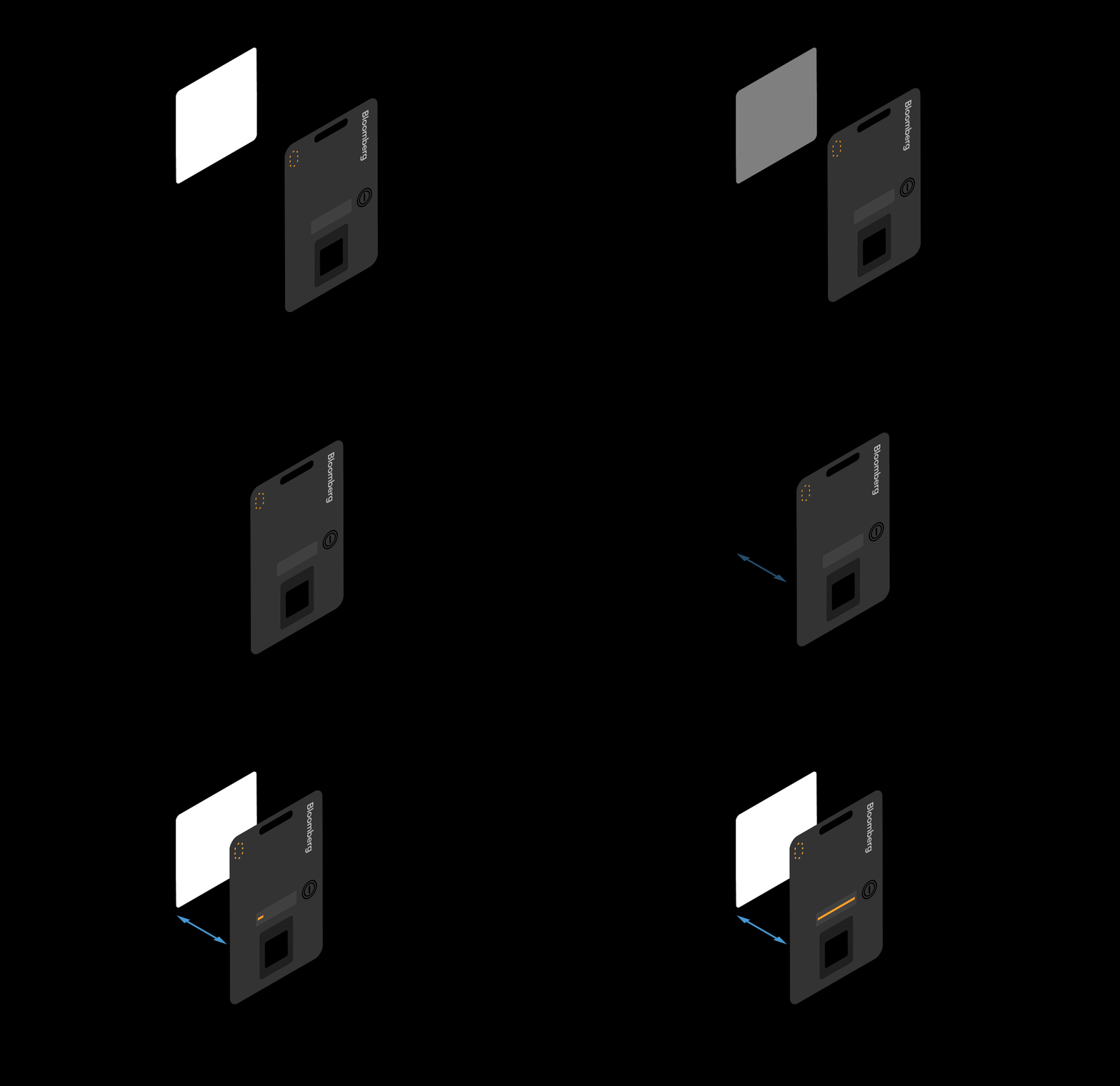
- Hold that light sensor – about an inch or 2.5cm – from the flashing box on your computer screen, so the flashing light and the light sensor are aligned but not touching.
- On the OLED screen– on the front of the B-Unit Device, facing you now – you will see a scrolling progress bar.
Step 6: Registering
- Once your B-Unit Device is synced, the OLED screen will display “Place Finger to Enroll.” This is your cue to decide which finger you will use from this day onward to log in to the Terminal. Place your selected finger on the scanner.
- If the placement is successful, the B-Unit Device screen will display “Quality OK.” Pause for a moment, and then repeat this placement, as prompted, until you have made sufficient “Quality OK” placements to complete the enrollment.
- Once enrolled, the B-Unit Device screen displays a four-digit code that you will need to enter in the Bloomberg application.