Architect Ryan
📅 March 17, 2018 ⏱ 1 min read
Hello fellow internet citizens! Here is a concise guide to modifying the PATH on Windows 10 and Windows 11!
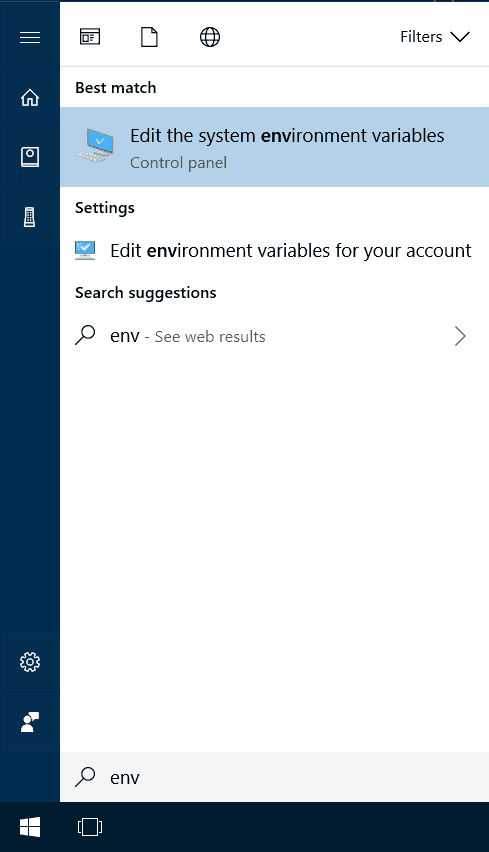
- Open the Start Search, type in “env”, and choose “Edit the system environment variables”:
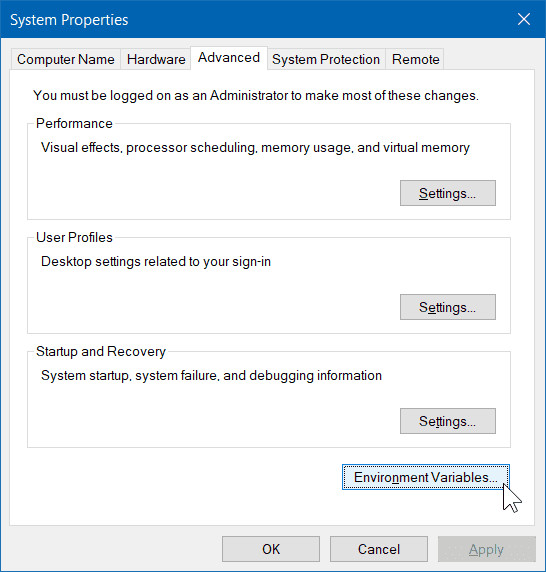
- Click the “Environment Variables…” button.
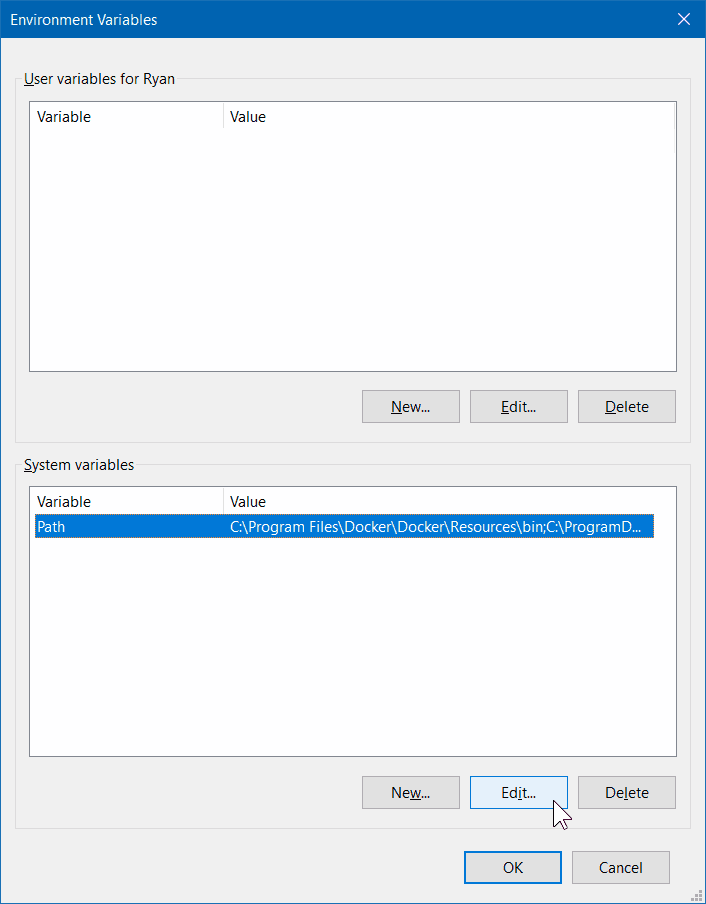
- Under the “System Variables” section (the lower half), find the row with “Path” in the first column, and click edit.
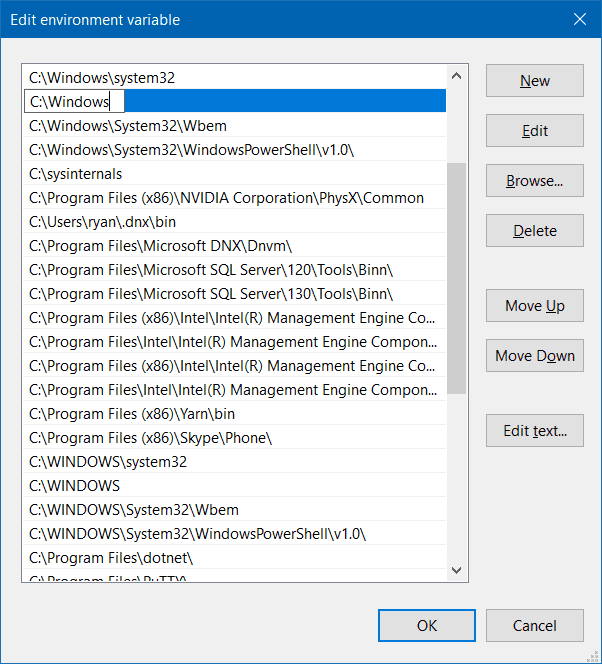
- The “Edit environment variable” UI will appear. Here, you can click “New” and type in the new path you want to add. From this screen you can also edit or reorder them.
- Dismiss all of the dialogs by choosing “OK”. Your changes are saved!
- You will probably need to restart apps for them to pick up the change. Restarting the machine would ensure all apps are run with the PATH change.
- To test it, in new PowerShell window, type:

- ← Configure Cassette to Bundle Twitter Bootstrap Javascript
- How to change environment variables on Windows 10 →
The postings on this site are my own and I am not speaking as a representative of my employer, any company or organization.