The file manager built around filtering
Narrow any folder by type, date, and size all at once. Jump anywhere with fuzzy folder search, hover to preview without opening, and browse two folders side by side. No more digging through endless Finder windows.
Native macOS · App size only around 9 MB · 30-day free trial · One-time purchase · Apple Silicon with macOS 12 or later
Explore the features
Powerful filters
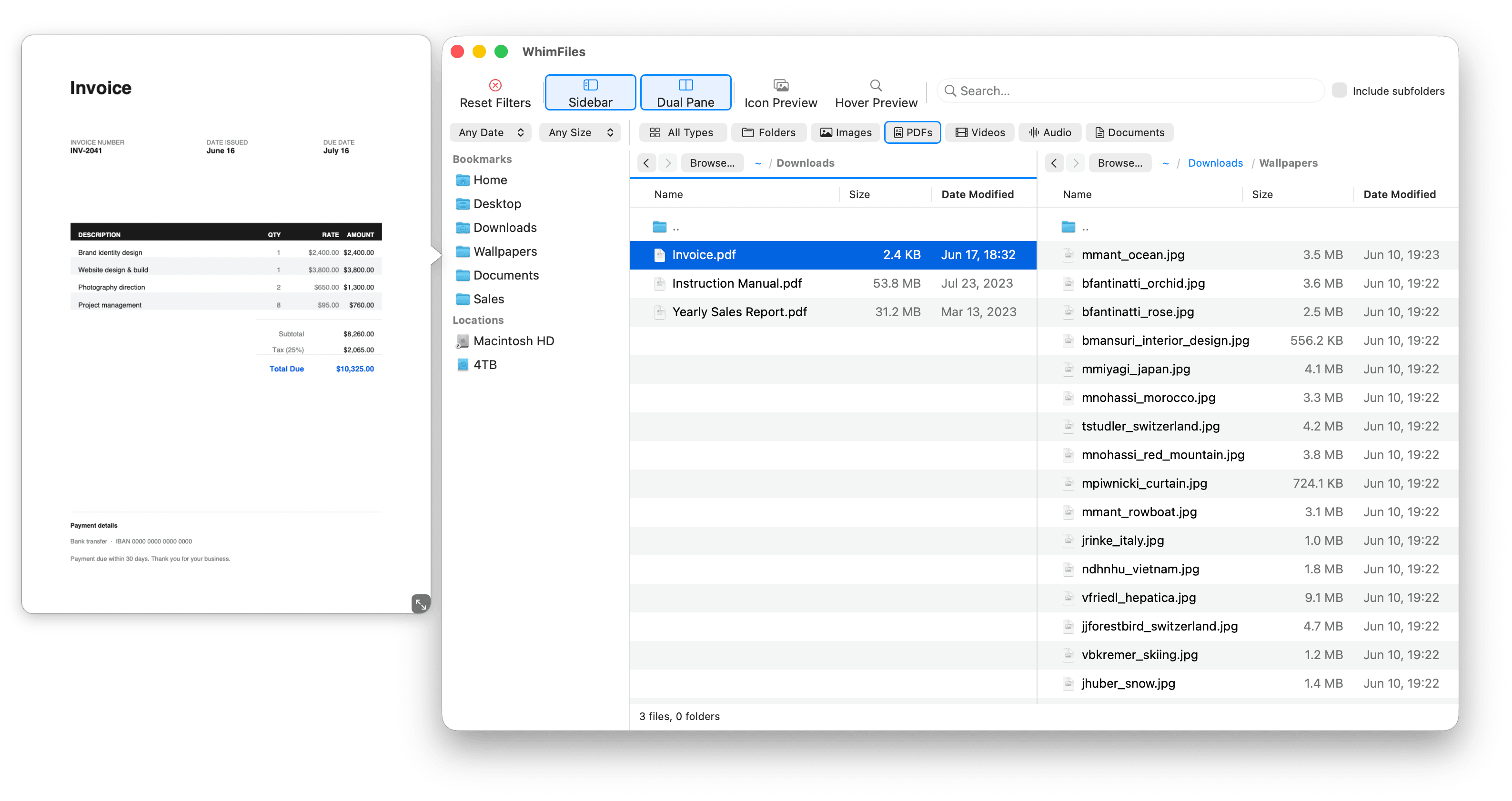
Filter your files in real time by type, date, and size, all at once. Choose from preset categories like Images, PDFs, Videos, and Documents, or define your own custom filters by file extension.
Add a date range, a size limit, and a search term simultaneously. Results update instantly as you type. Toggle recursive search to look inside every subfolder at once.
Two folders. One window
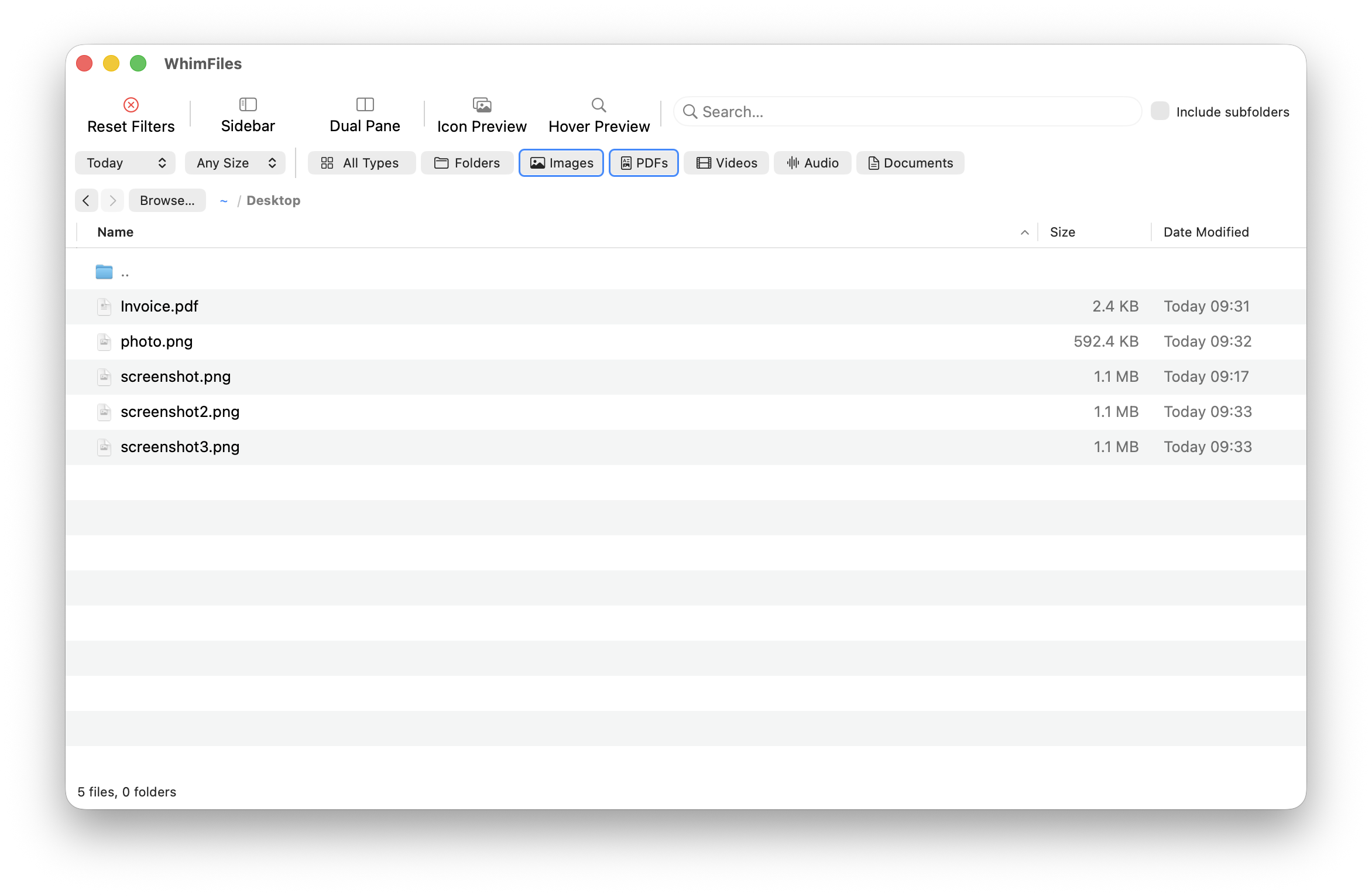
Open two folders side by side and work between them directly. Copy or move files from one pane to the other with a single right-click or use the command palette.
Each pane has its own folder, filters, search, and navigation history.
Get anywhere in seconds
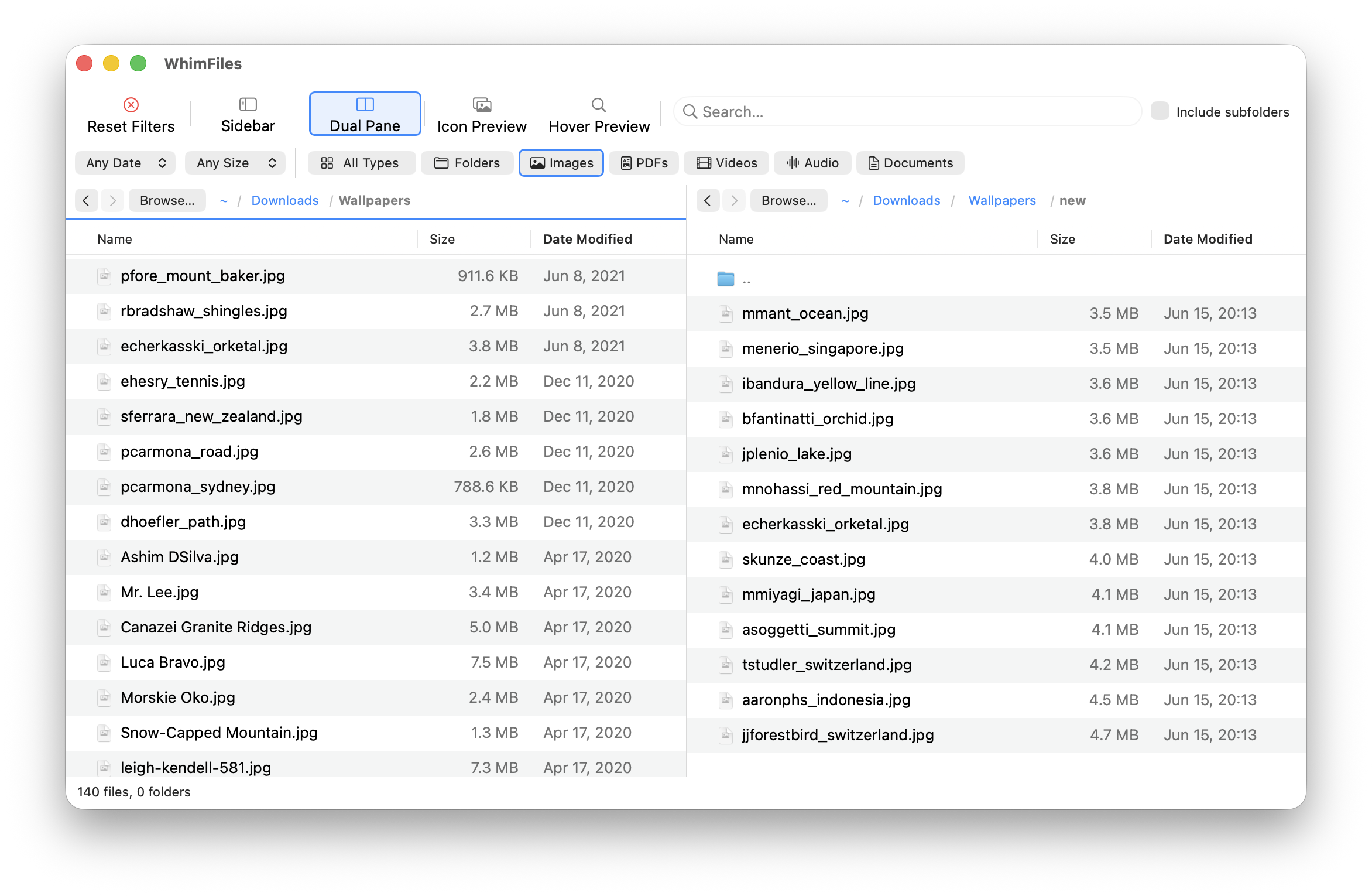
Fuzzy Go to Folder (⌘G) lets you jump to any folder by typing a few letters from the path. Type “downwallnew” to jump to ~/Downloads/Wallpapers/new instantly.
Go to a folder in the other pane with ⌥⌘G. Jump to a specific file with ⌘P.
The sidebar shows your bookmarks and all mounted volumes. The breadcrumb path bar lets you click any parent folder to jump up.
See your files without opening them
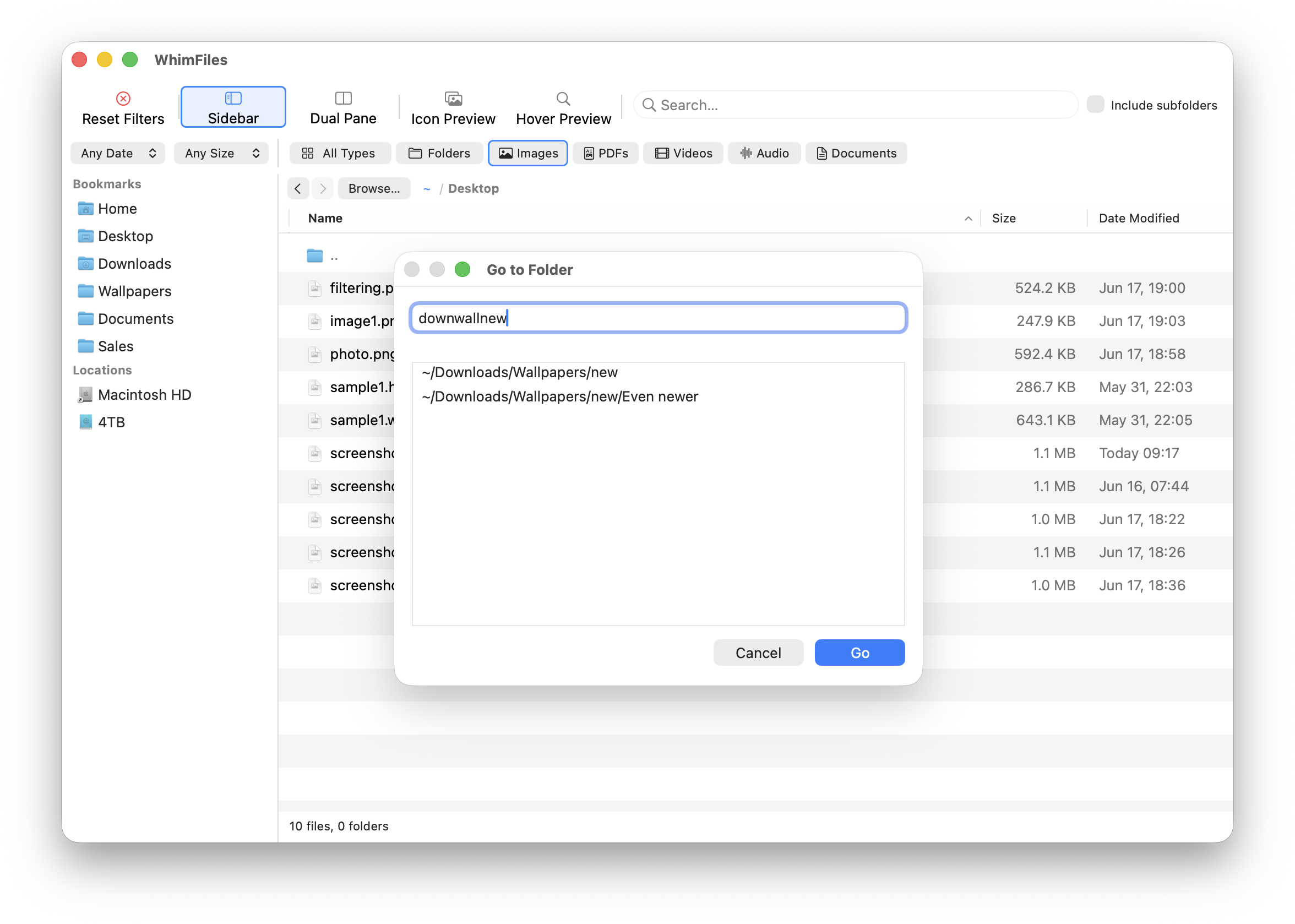
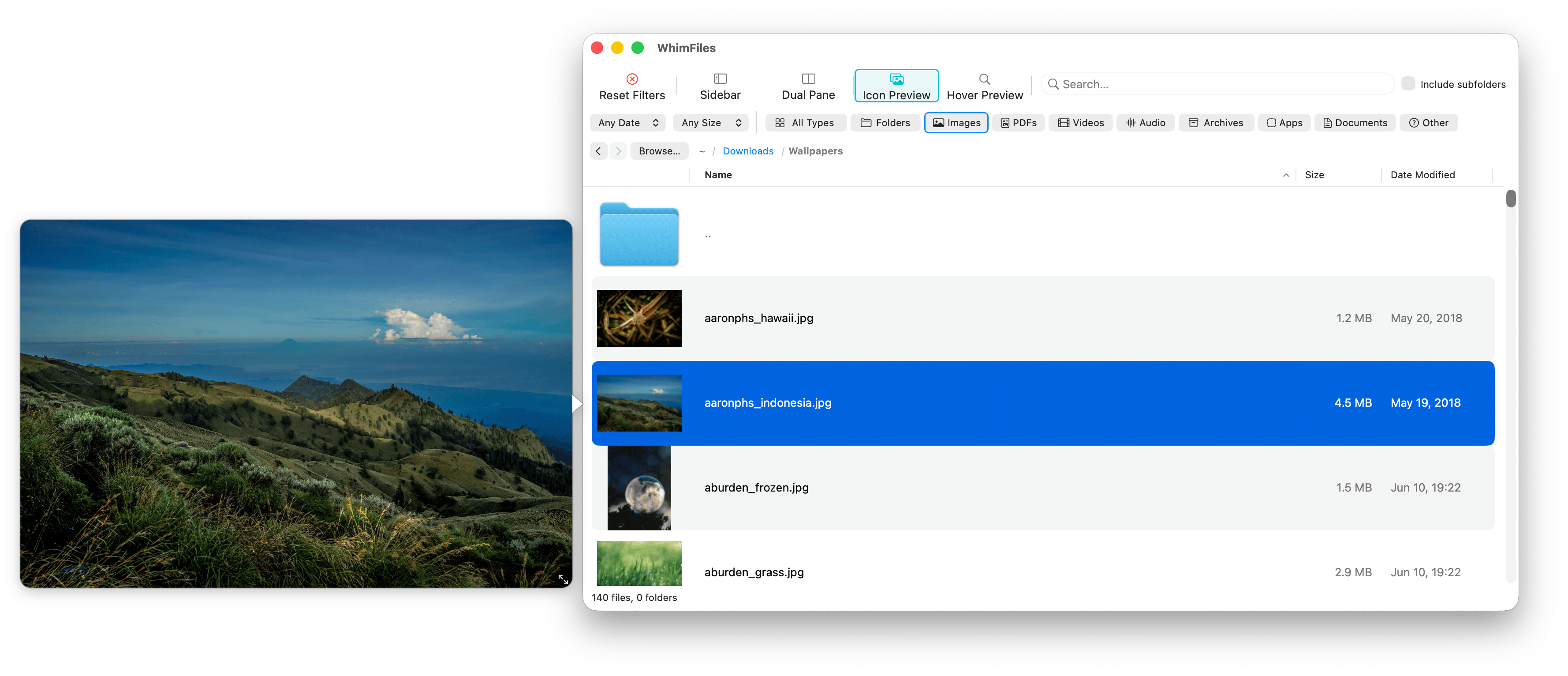
Hover over any image or PDF to see a large floating preview, without clicking or opening another app. Click the file icon to show a preview. Toggle icon preview mode to see thumbnails directly in the file list.
Press Space for native Quick Look with arrow key navigation through the whole list.
One window, many places
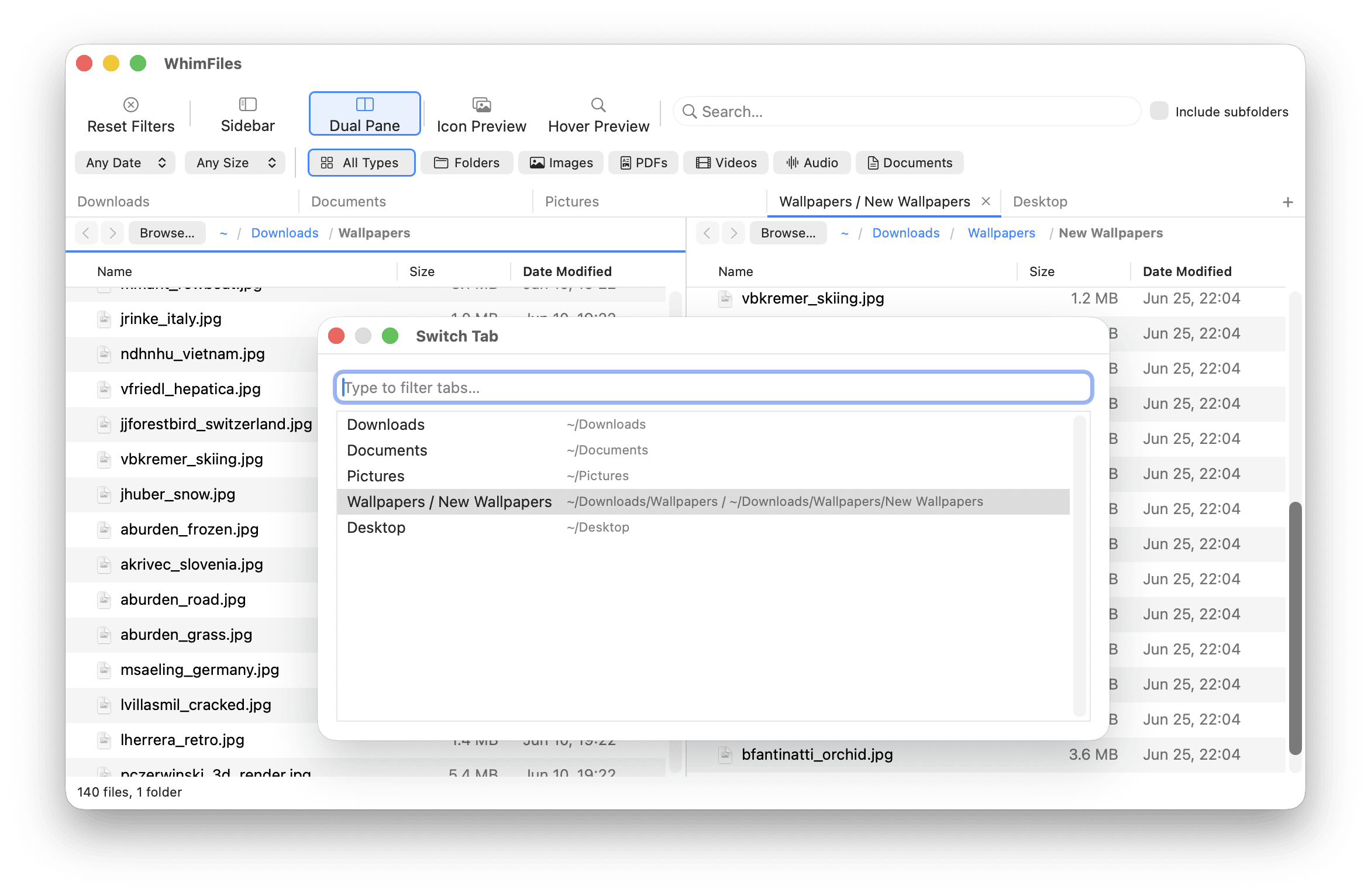
Open as many tabs as you need, each remembering its own folders, filters, and dual-pane layout. Jump between a download folder, a project directory, and an external drive without losing your place in any of them.
New tab with ⌘T, close with ⌘W, jump straight to any tab with ⌘1 – ⌘9, cycle with ⌥⌘← / ⌥⌘→, or fuzzy-jump to any open tab with ⇧⌘T. Drag to reorder. Tabs come back exactly as you left them after a restart.
Everything you need, right where you are
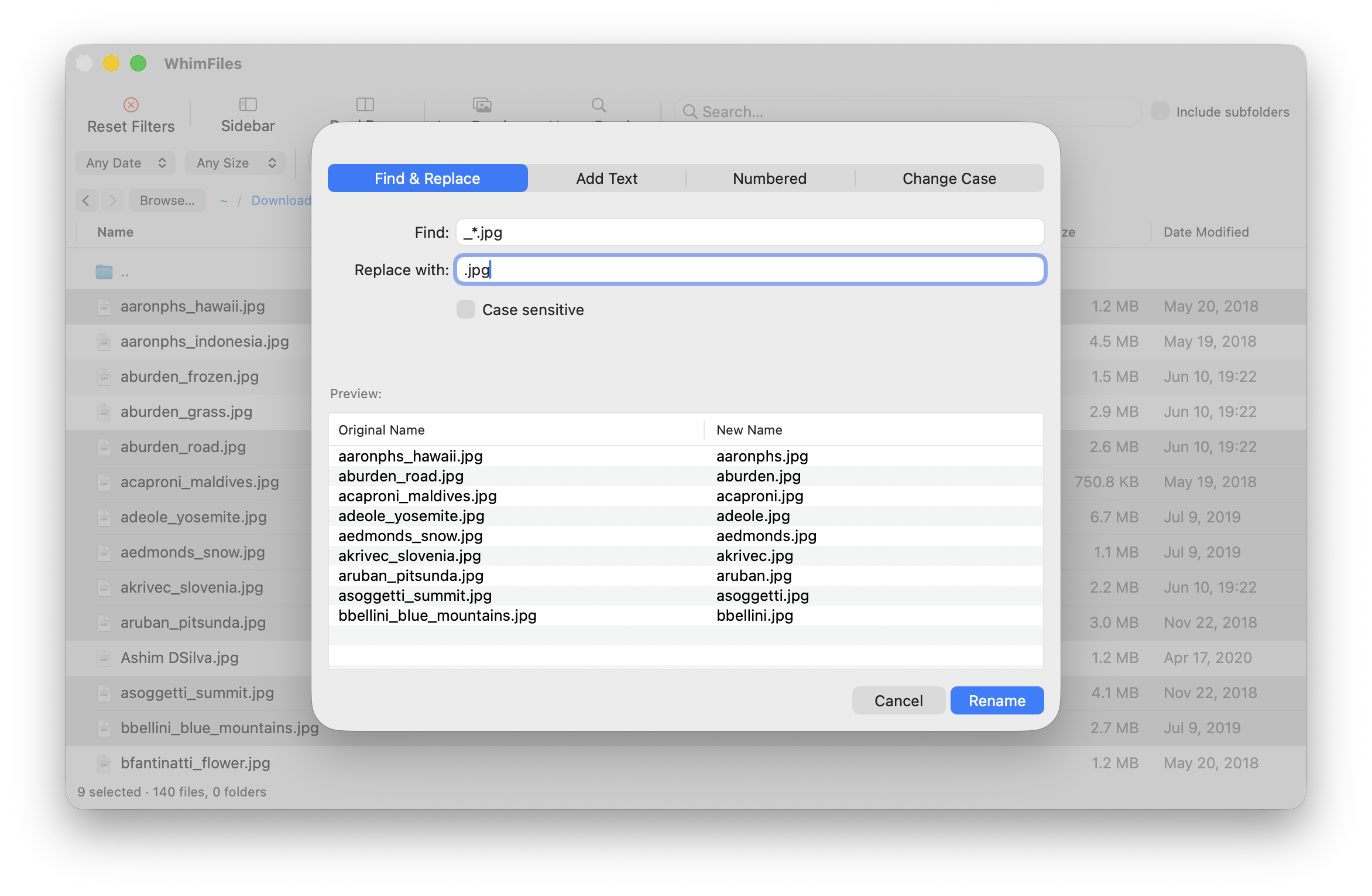
Batch rename multiple files with Find & Replace, sequential numbering, text prefix/suffix, or case change, with a live preview before you commit.
Convert HEIC, WebP, and AVIF images to JPG or PNG directly from the right-click menu. Compress files to ZIP. Undo moves and trash operations. Cut, copy and paste with Finder-style conflict handling.
Built for power users who live in their folders
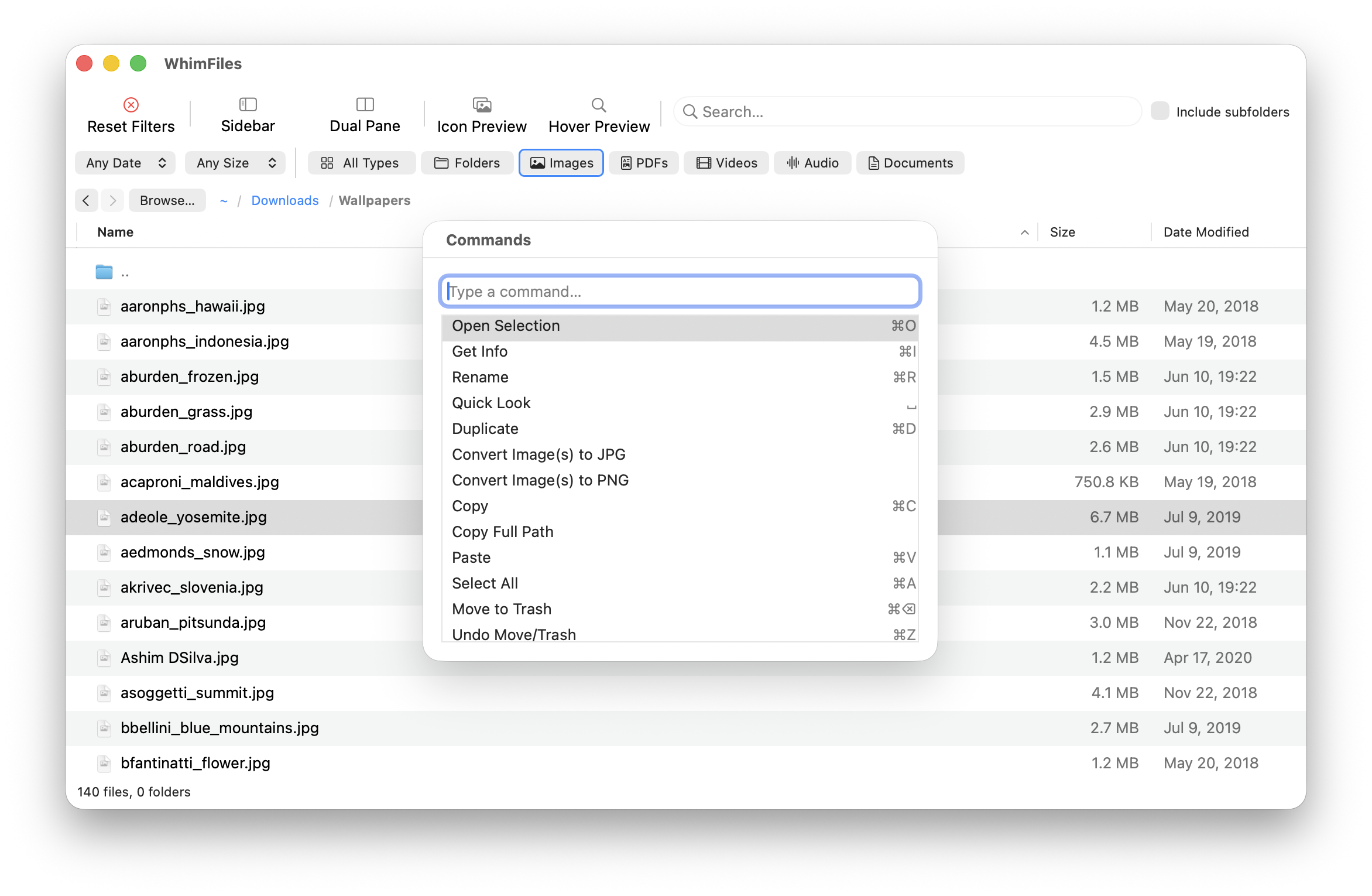
A command palette (⇧⌘A) gives keyboard access to all common actions. Custom type filters let you define your own named file categories. Calculate folder sizes recursively, or enable Always Calculate Folder Sizes to fill the size column automatically. Show hidden files, toggle folders first.
Who is WhimFiles for?
Whether you manage assets, wrangle code, or just can't find anything. WhimFiles gets out of your way and helps you work faster.
🗂Your Downloads folder has 847 files. Let's fix that
You know the feeling. You saved something six months ago and now you can't find it. Finder search is useless and scrolling takes forever. WhimFiles lets you filter by type, date, and size simultaneously, search recursively across every subfolder, and see exactly what's taking up space.
- Filter by type, date, and size at the same time
- See file sizes and folder totals at a glance
- Recursive search finds files buried anywhere
- Move, rename, or send to trash directly without a Finder round-trip
🎨Your assets, finally under control
You work with hundreds of images, PSDs, fonts, and project files scattered across folders. WhimFiles shows large image thumbnails directly in the file list, converts HEIC, WebP, and AVIF to JPG or PNG with a right-click, and keeps your source folder and export folder open side by side in dual pane. No more hunting through Finder for that one asset.
- Large image thumbnails directly in the file list
- Hover preview for images and PDFs without opening them
- Convert HEIC / WebP / AVIF → JPG or PNG instantly
- Dual pane keeps source and destination open at once
- Custom file type filters for your asset types
💻Built for people who live in the terminal
You navigate deep folder structures, jump between project directories constantly, and want keyboard shortcuts for everything. WhimFiles has fuzzy Go to Folder/Go to File so you can jump anywhere by typing a few letters, Open in Terminal on any folder, a command palette, and keyboard shortcuts throughout. Your hands stay on the keyboard.
- Fuzzy Go to Folder/File: type a few letters, jump anywhere
- Open in Terminal (iTerm-aware) from any folder
- Command palette (⇧⌘A) for common actions
- Full keyboard navigation throughout
- Show hidden files toggle (⇧⌘.)
📸Find the right shot without importing anything
You have thousands of photos across multiple drives and folders. WhimFiles lets you browse any folder with large thumbnails, filter by date to find shots from a specific shoot, preview images instantly on hover, and convert HEIC photos from your iPhone to JPG, all without importing into Photos or Lightroom.
- Large image thumbnails in the file list
- Hover preview shows images instantly
- Filter by date to find shots from any time period
- Convert HEIC → JPG in one right-click
- Browse external drives and network volumes from the sidebar
⚡File operations made fast and easy
You've outgrown Finder but don't need FTP or remote servers. You want a fast, native file manager for streamlined local file management, with batch rename, command palette, folder size calculation, and a sidebar that shows all your volumes. WhimFiles is that app.
- Batch rename with Find & Replace, numbering, case change
- Undo moves and trash operations
- Command palette for common actions (⇧⌘A)
- Always-calculate folder sizes mode
- Get Info with SHA-256 checksum
- Cut, copy and paste with Finder-style conflict handling
Simple. Fair. Yours forever.
Try it free for 30 days. No credit card required.
Launch price · One-time purchase
$19.99$24.99
Pay once. Use forever. No subscription, ever.
- ✓ 30-day free trial, no credit card needed
- ✓ Real-time filtering by type, date & size
- ✓ Dual-pane browsing with cut, copy & paste
- ✓ Batch rename, image conversion & ZIP
- ✓ All future updates included
- ✓ Apple Silicon native - M1 or later
Native macOS · Apple Silicon with macOS 12 or later