Use a Video Quality Enhancer Safely
Use our powerful video quality enhancer in the browser without installing editing software. Processing runs in the cloud, and your original file stays unchanged.
Vezur AI
Blurry footage and compression artifacts can hide the details that matter. Use our AI video quality enhancer to improve clarity in the clips you want to edit, keep, or share.
Use a Video Quality Enhancer Safely
Use our powerful video quality enhancer in the browser without installing editing software. Processing runs in the cloud, and your original file stays unchanged.
Review the Details
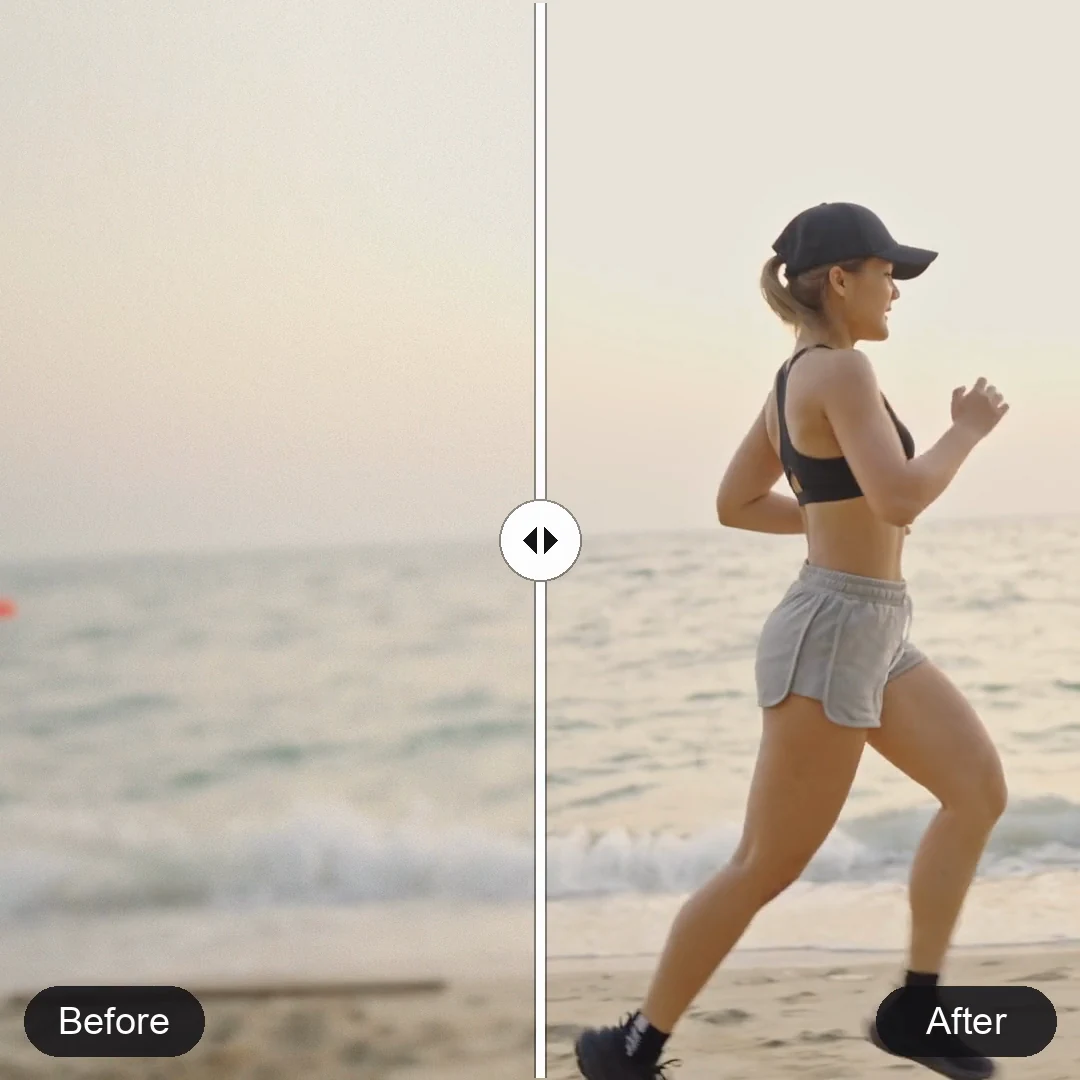
Compare the processed preview with your original. Check faces, text, and fine textures before using the result in your next edit.
Scalable Processing Plans
Working through several clips? Choose a plan with a batch limit that suits your workflow, and follow each task from your account.
4×Upscaling
Upscale your video by up to 4×.
60 FPSOutput Frame Rate
Choose an output frame rate up to 60 FPS.
3Video Formats
Upload MP4, MOV, or WebM videos.
200 MBPer Upload
Maximum file size for each uploaded video.
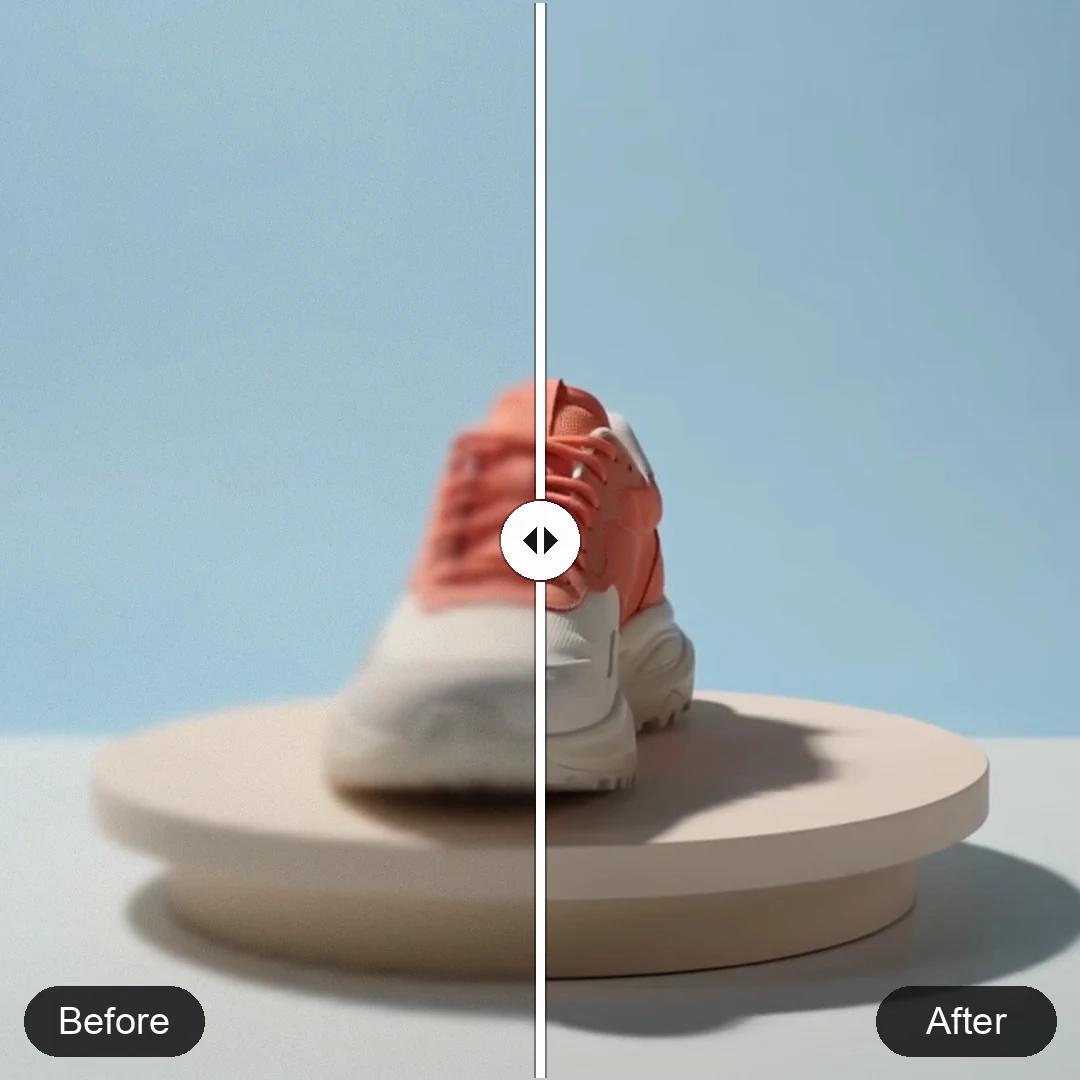
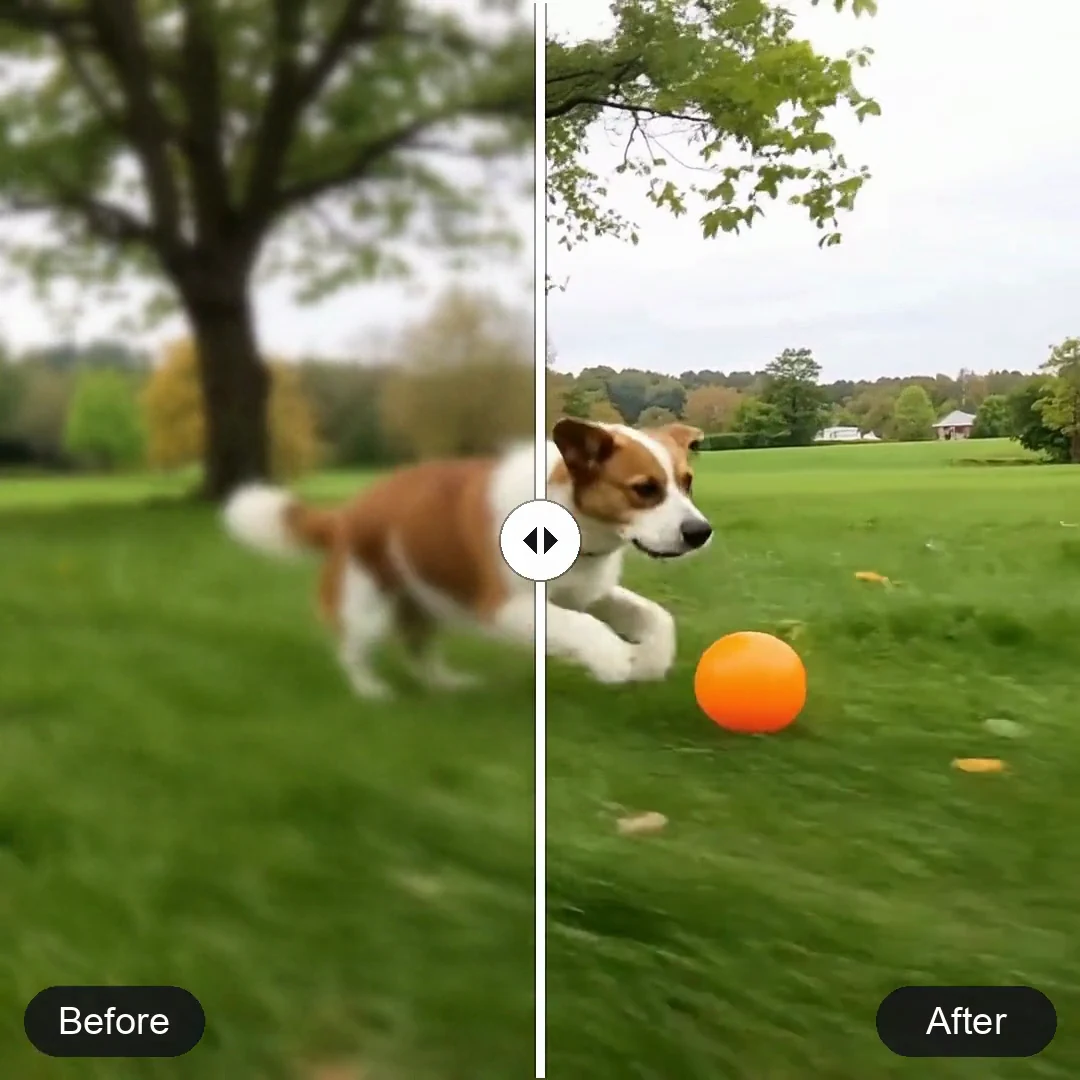
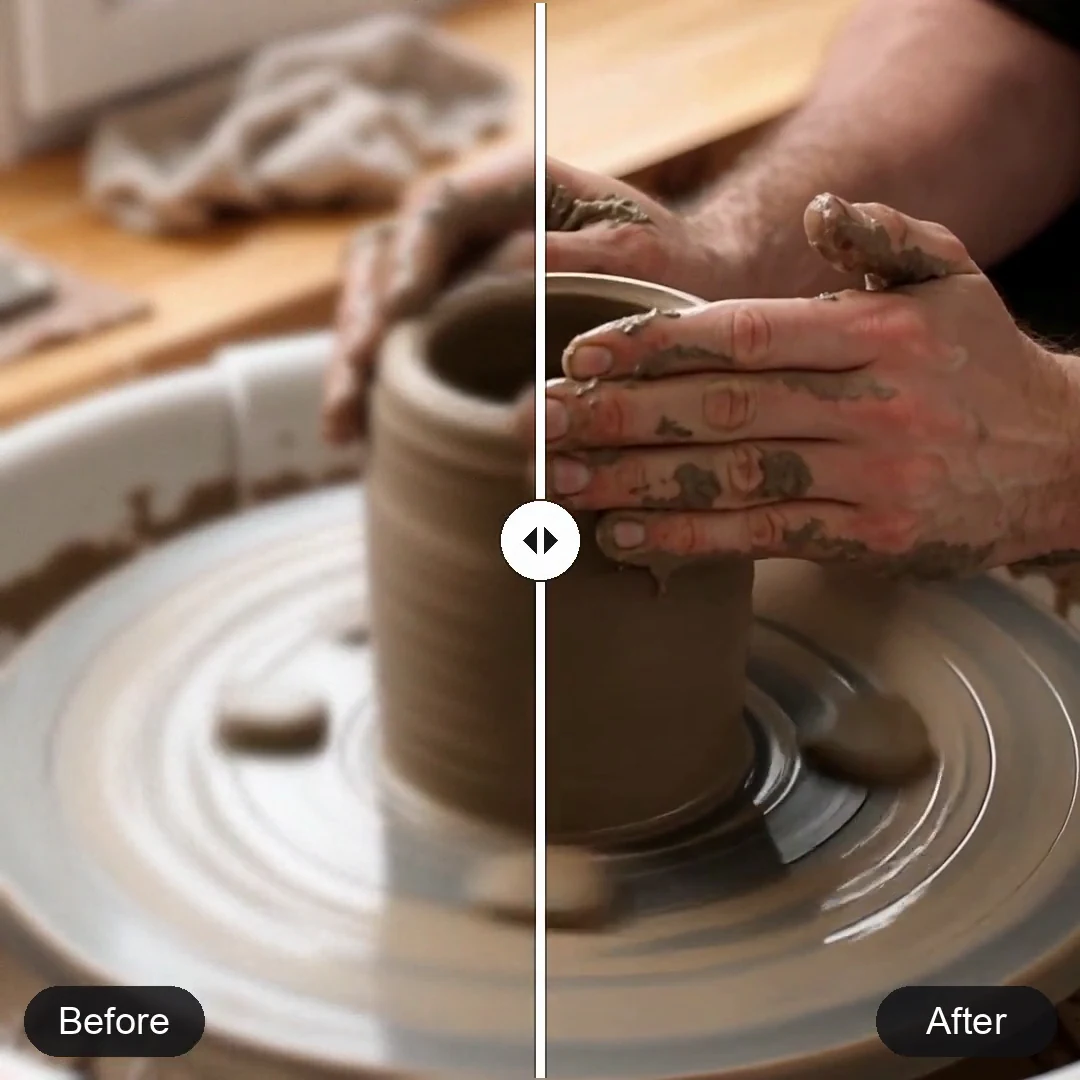
Repeated uploads and downloads can leave social clips looking blocky. Try enhancement on compressed footage, then check that faces, captions, and fast movement still look natural.
 Before

After
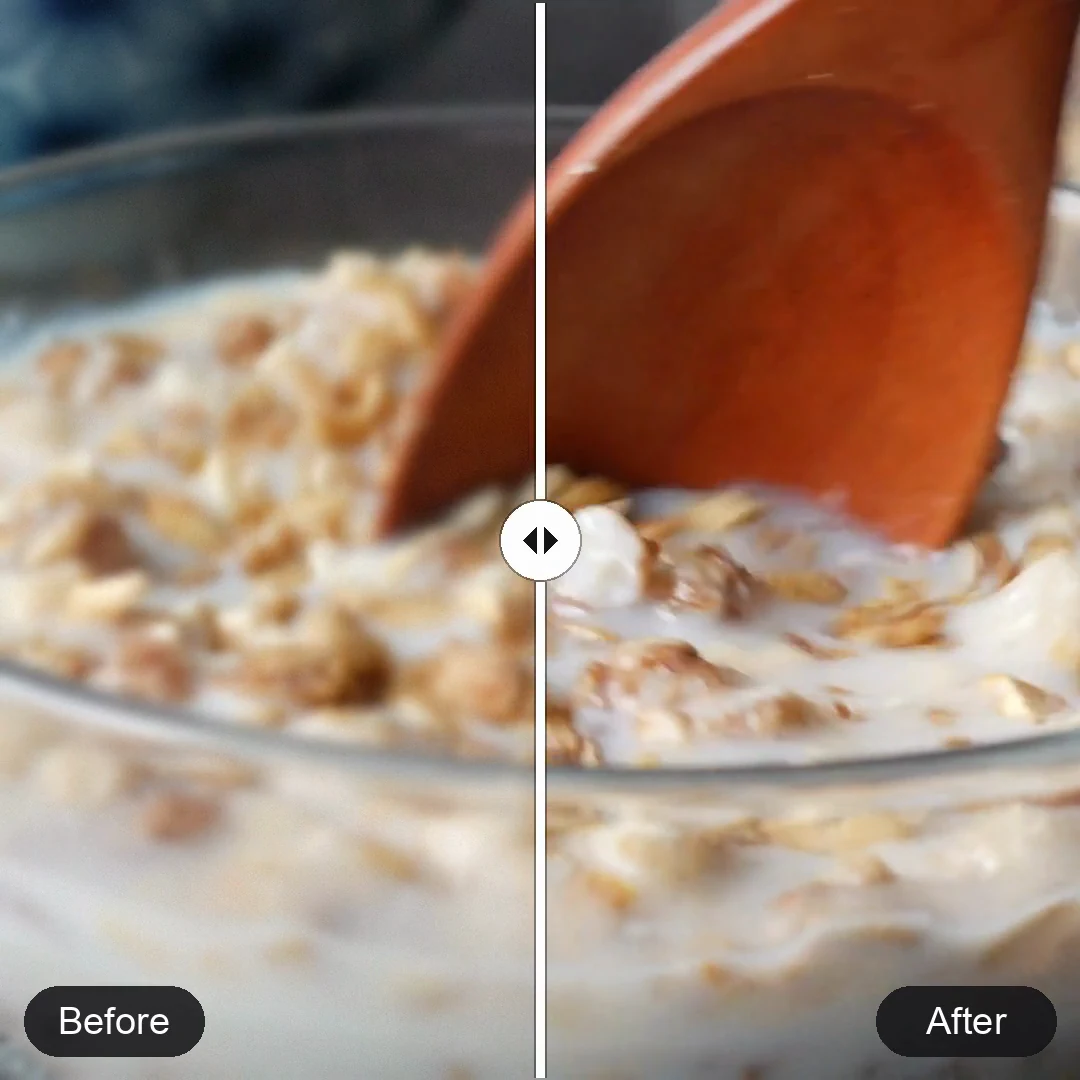
Understand the technical specifications, processing costs, and real-world results of our AI video quality enhancer engine.

Upscaling increases pixel count up to 4K. Enhancement uses AI to rebuild textures, reduce noise, and sharpen edges—delivering true high-definition clarity, not just a larger video.

Highly effective for mild blur, compression artifacts, and low-light noise. Note that AI cannot reliably restore severely out-of-focus footage where original details are completely absent.

Use free starter credits to check your preview. Subscriptions and credit packs unlock full-result playback and downloads; processing credits cover the entire original video.

Costs depend on original video length and the displayed credits-per-second rate, rounded up to whole credits. Review the estimate before submitting. Processing time varies with source footage and queue.

Upload MP4, MOV, or WebM files (up to 200 MB each). The engine supports up to 4× resolution upscaling and frame rate interpolation up to 60 FPS.

Enhance multiple clips at once. Our system handles each task independently, so you can track progress, review, and download completed videos while others are still processing.

New users get free credits to test the service. Choose Starter, Pro or Ultra subscriptions or credit packs for full results and each tier’s batch allowance.