Slide 1 / 25
Learn TypeScript by building a todo app
In 2011, Backbone.js was one of the most popular JavaScript libraries (React came out in 2013; Vue in 2014). When people were learning Backbone.js, many (including myself) learned it by building a todo app. The official documentation included an example todo app built in Backbone.js, and many learned by reading its beautifully annotated source code.
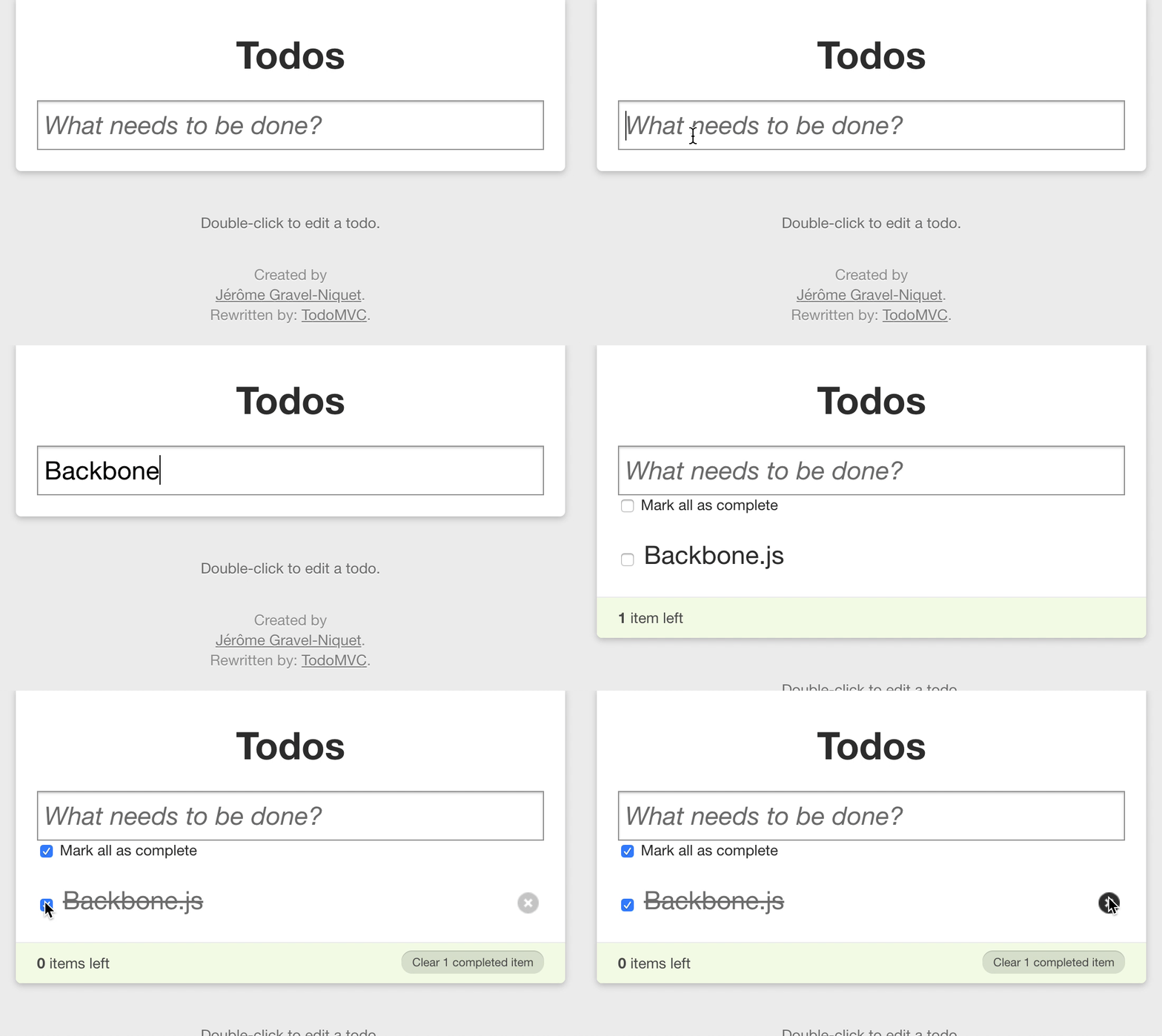
As far as I know, learning a JavaScript library by building a todo app was a new idea at the time and was popularized by Backbone.js (and other libraries that followed). It inspired TodoMVC, which showcases todo apps built using different JS libraries. Today, many tutorials, such as Redux’s official tutorial, involve building a todo app.
But what about TypeScript tutorials? When it comes to TypeScript, there aren’t many tutorials that involve building a todo app. I think there are missed opportunities here. Building a todo app is a great way to learn something in frontend engineering, and many JS programmers already know how to build one. There should be more TypeScript tutorials featuring a todo app.
In this tutorial, I’ll teach some of the interesting parts of TypeScript through an example todo app shown below. It’s interactive: Try checking and unchecking the checkboxes.
We’ll learn TypeScript using this todo app:
↑ Check and uncheck the checkboxes!
Here are some details before we begin:
- This tutorial doesn’t rely on any specific frontend library, so it doesn’t matter whether you know React, Vue, or some other libraries. You’ll be able to follow as long as you have basic JS knowledge. No prior TypeScript knowledge is necessary.
- To save time, I’m not going to talk about how to set up a TypeScript project—you should read other tutorials for that. For React, check out React+TypeScript Cheatsheets.
- Also to save time, I’m only going to cover the most essential concepts in TypeScript. My goal is not to be exhaustive but to make you want to learn more.
There are 3 sections total in this article. Here are the topics covered in each section:
- Section 1: Types, Read-only Properties, and Mapped Types
- Section 2: Array Types, Literal Types, and Intersection Types
- Section 3: Union Types and Optional Properties
Let’s get started!
Side Note
If you already know TypeScript basics, you won’t find anything new in this tutorial. However, you might know someone (maybe one of your Twitter followers) who’re interested in learning TypeScript. I’d appreciate it if you could share this article with them. You can click here to tweet this article.
The source code for this site is on GitHub:
Slide 2 / 25
Section 1 of 3
Types, Read-only Properties, and Mapped Types
Slide 3 / 25
Transform data into UI
Let’s first talk about data. What UI libraries like React or Vue essentially do is to transform data into UI. For example, in React, you specify data as props or state, and it renders UI based on this data.
UI libraries transform data into UI
Now, let’s take a look at the following todo app. Can you guess what data is associated with this UI?
What data is associated with this UI?
Answer: Here’s the associated data. It’s an array of objects, each having id, text, and done.
[
{ id: 1, text: 'First todo', done: false },
{ id: 2, text: 'Second todo', done: false }
]
Here’s what’s inside each todo object:
idis the ID of each todo item. This is usually generated by a backend database.textcontains the text of each todo item.- And most importantly,
doneistruefor completed items and isfalseotherwise.
Let’s display the app together with its associated data. Try checking and unchecking each checkbox, and take a look at how done changes.
↓ Check and uncheck the checkboxes,
and take a look at how done changes
[
{ id: 1, text: 'First todo', done: false },
{ id: 2, text: 'Second todo', done: false }
]
As you can see, when you check/uncheck a checkbox, it updates the underlying data (the done property), and in turn, the UI gets updated. This is how UI libraries like React and Vue work.
When a user interacts with the UI, the data gets updated, and in turn, the UI gets updated
Next, let’s take a look at how the data gets updated.
Slide 4 / 25
Let’s implement toggleTodo()
To implement the check/uncheck functionality, we need to write code that toggles the done property of a single todo item.
Let’s name this function toggleTodo(). Here’s how it should work:
- When you call
toggleTodo()on a single todo object… - …it needs to return a new todo object with the opposite boolean value for the
doneproperty.
function toggleTodo(todo) {
}
toggleTodo({ id: …, text: '…', done: true })
toggleTodo({ id: …, text: '…', done: false })
Now, let me introduce our junior developer, Little Duckling. He’s going to implement toggleTodo() for us.
I’m Little Duckling, and I’m a junior developer!
I’ve implemented toggleTodo() for you. Could you take a look?
Little Duckling’s
toggleTodo() implementation
function toggleTodo(todo) {
return {
text: todo.text,
done: !todo.done
}
}
Let’s check if Little Duckling’s implementation is correct. Take a look at the following test case. What do you think the output would be? Try to guess first and press Run below.
const result = toggleTodo({
id: 1,
text: '…',
done: true
})
console.log('Expected:')
console.log(`{ id: 1, text: '…', done: false }`)
console.log('Actual:')
console.log(result)
done correctly became false, but it’s missing the id property. So Little Duckling’s implementation was incorrect.
Oops! I forgot about the id property!
No worries, Little Duckling! Here’s the correct implementation:
The correct implementation
function toggleTodo(todo) {
return {
id: todo.id,
text: todo.text,
done: !todo.done
}
}
Now, here’s a question: How can we prevent Little Duckling from making mistakes like this?
How can we prevent Little Duckling from making mistakes like this?
This is where TypeScript comes in.
Slide 5 / 25
Type checking
By using TypeScript, we can prevent the mistake Little Duckling made by doing something called type checking.
First, we create a type for the data we use. In our case, we need to create a type for a todo item. We’ll call this type Todo and define it using the following TypeScript syntax:
type Todo = {
id: number
text: string
done: boolean
}
We can then use this type to check if a variable is indeed a todo item. The TypeScript syntax to do this check is: variableName: Todo. Here’s an example below—press Compile
const foo: Todo = {
id: 1,
text: '…',
done: true
}
It successfully compiled because the type of foo matches the Todo type.
Now, how about this one? Try pressing Compile .
const bar: Todo = {
text: '…',
done: true
}
This one failed to compile because the id property was missing.
The bottom line: TypeScript lets you type check a variable against a specified type, which helps you catch mistakes early.
Slide 6 / 25
Using TypeScript for toggleTodo()
Now, let’s use TypeScript to prevent the mistake Little Duckling made. To recap, here’s the Todo type we created earlier (id is required):
type Todo = {
id: number
text: string
done: boolean
}
First, we specify that the input to toggleTodo() must be Todo. We do this by adding : Todo next to the parameter todo.
function toggleTodo(todo: Todo) {
}
Next, we specify that the return type of toggleTodo() must also be Todo. We do this by adding : Todo after the parameter list.
function toggleTodo(todo: Todo): Todo {
}
Now, let’s copy and paste the code Little Duckling wrote—the one without the id property—see what happens. Press Compile below.
function toggleTodo(todo: Todo): Todo {
return {
text: todo.text,
done: !todo.done
}
}
It failed because the returned object is missing the id property and therefore does not match the Todo type. So TypeScript can prevent the mistake Little Duckling made!
Just to make sure, let’s try again with the correct code. I’ve added the id property to the returned object. Press Compile below.
function toggleTodo(todo: Todo): Todo {
return {
id: todo.id,
text: todo.text,
done: !todo.done
}
}
It compiled! As you can see, TypeScript is great at preventing mistakes AND letting you know when everything has the correct type.
Slide 7 / 25
Bad refactoring
Now that the code is working, Little Duckling decided to refactor toggleTodo().
I think I can refactor toggleTodo() as follows. Could you take a look?
Try pressing Compile to see if it compiles!
function toggleTodo(todo: Todo): Todo {
todo.done = !todo.done
return todo
}
It compiled successfully, but it’s actually a bad refactoring. Why? Because it changes the original todo object. Run the following code:
const argument = {
id: 1,
text: '…',
done: true
}
console.log('Before toggleTodo(), argument is:')
console.log(argument)
toggleTodo(argument)
console.log('After toggleTodo(), argument is:')
console.log(argument)
argument changed after running toggleTodo() on it. This is NOT good because we’ve said earlier that toggleTodo() must return a new todo object. It should NOT modify the argument (input) todo object.
function toggleTodo(todo) {
}
That’s why Little Duckling’s refactoring is a bad refactoring—even though it compiles correctly.
function toggleTodo(todo: Todo): Todo {
todo.done = !todo.done
return todo
}
No worries, Little Duckling! The question is, how can we use TypeScript to prevent a mistake like this?
Slide 8 / 25
readonly properties
To prevent a function from modifying its input, you can use the readonly keyword in TypeScript. Here, the readonly keyword is added to all of the properties of Todo.
type Todo = {
readonly id: number
readonly text: string
readonly done: boolean
}
Now, let’s try to compile Little Duckling’s code again using the above definition of Todo. What happens this time?
function toggleTodo(todo: Todo): Todo {
todo.done = !todo.done
return todo
}
It failed to compile! This is because done was defined as a readonly property, and TypeScript prevents you from updating readonly properties.
Once again, we saw that TypeScript can prevent the mistake Little Duckling made!
By the way, the earlier implementation we used will continue to work because it does NOT modify the input todo item.
type Todo = {
readonly id: number
readonly text: string
readonly done: boolean
}
function toggleTodo(todo: Todo): Todo {
return {
id: todo.id,
text: todo.text,
done: !todo.done
}
}
Slide 9 / 25
The ReadOnly<...> mapped type
In TypeScript, there’s another way to make all properties of an object type read-only. First, here’s our read-only version of Todo:
type Todo = {
readonly id: number
readonly text: string
readonly done: boolean
}
The above code is equivalent to the following version:
type Todo = Readonly<{
id: number
text: string
done: boolean
}>
In TypeScript, if you use the Readonly<...> keyword on an object type, it makes all of its properties readonly. This is often easier than manually adding readonly to every property.
Here’s another example:
type Foo = {
bar: number
}
type ReadonlyFoo = Readonly<Foo>
In TypeScript, you can use keywords like Readonly<...> to convert one type into another type. In this case, Readonly<...> takes an object type (like Todo) and creates a new object type with readonly properties.
TypeScript lets you convert one type into another type
And the keywords like Readonly<...> are called mapped types. Mapped types are kind of like functions, except the input/output are TypeScript types.
There are many built-in mapped types (like Required<...>, Partial<...>, etc). You can also create your own mapped types. I won’t cover these topics here—you can google them.
Slide 10 / 25
Section 1 Summary:
Types are like lightweight, automatic unit tests
So far, we’ve learned the following:
1. We can define a type to make sure that the input and the output of a function are of the correct type.
type Todo = {
id: number
text: string
done: boolean
}
function toggleTodo(todo: Todo): Todo {
}
2. We can use the readonly keyword to make sure that an object’s properties are not modified.
type Todo = {
readonly id: number
readonly text: string
readonly done: boolean
}
function toggleTodo(todo: Todo): Todo {
todo.done = !todo.done
return todo
}
In JavaScript, you needed to write unit tests to test these things. But TypeScript can check them automatically. So in a sense, TypeScript’s types act as lightweight unit tests that run every time you save (compile) the code. (Of course, this analogy is a simplification. You should still write tests in TypeScript!)
This is especially useful when you’re using a UI library and need to transform data. For example, if you’re using React, you’ll need to transform data in state updates. You might also need to transform data when passing data from a parent component to its children. TypeScript can reduce bugs arising from these situations.
TypeScript can reduce bugs when transforming/passing data
Finally, we learned that we can use mapped types like Readonly to convert one type to another type.
type Todo = Readonly<{
id: number
text: string
done: boolean
}>
Next, let’s take a look at more non-trivial examples!
Slide 11 / 25
Section 2 of 3
Array Types, Literal Types, and Intersection Types
Slide 12 / 25
Mark all as completed
Let’s talk about a new feature of our todo app: “Mark all as completed”. Try pressing “Mark all as completed” below:
↓ Try pressing “Mark all as completed”
[
{ id: 1, text: 'First todo', done: false },
{ id: 2, text: 'Second todo', done: false }
]
After pressing “Mark all as completed”, all items end up with done: true.
Let’s implement this functionality using TypeScript. We’ll write a function called completeAll() which takes an array of todo items and returns a new array of todos where done is all true.
function completeAll(todos) {
}
Before implementing it, let’s specify the input/output types for this function to prevent mistakes!
Slide 13 / 25
Adding types for completeAll()
For completeAll(), we’ll use the Readonly version of the Todo type:
type Todo = Readonly<{
id: number
text: string
done: boolean
}>
First, we’ll specify the parameter type of completeAll(), which is an array of Todo items. To specify an array type, we add [] next to the type as follows:
function completeAll(todos: Todo[]) {
}
Second, let’s specify the return type. It’ll also be an array of Todo items, so we’ll use the same syntax as above:
function completeAll(todos: Todo[]): Todo[] {
}
Third, we want to make sure that completeAll() returns a new array and does NOT modify the original array.
function completeAll(todos: Todo[]): Todo[] {
}
Because we defined Todo earlier using Readonly<...>, each todo item in the array is already readonly. However, the array itself is NOT readonly yet.
To make the array itself readonly, we need to add the readonly keyword to Todo[] like so:
function completeAll(
todos: readonly Todo[]
): Todo[] {
}
So for arrays, we use the readonly keyword instead of the Readonly<...> mapped type?
Yes, Little Duckling! We use the readonly keyword for arrays. And by doing so, TypeScript will prevent you from accidentally modifying the array.
todos[0] = { id: 1, text: '…', done: true }
todos.push({ id: 1, text: '…', done: true })
Awesome! So, can we start implementing completeAll() now?
Actually: There’s one more thing we’d like to do before we implement completeAll(). Let’s take a look at what that is!
Slide 14 / 25
The CompletedTodo type
Take a look at the following code. In addition to the Todo type, we’ve defined a new type called CompletedTodo.
type Todo = Readonly<{
id: number
text: string
done: boolean
}>
type CompletedTodo = Readonly<{
id: number
text: string
done: true
}>
The new CompletedTodo is almost identical to Todo, except it has done: true instead of done: boolean.
In TypeScript, you can use exact values (like true or false) when specifying a type. This is called literal types.
You can use exact values when specifying a type. This is called literal types.
Let’s take a look at an example. In the following code, we’ve added CompletedTodo to a todo item that has done: false. Let’s see what happens when you Compile it:
const testTodo: CompletedTodo = {
id: 1,
text: '…',
done: false
}
It failed to compile because done is not true. By using literal types, you can specify exactly what value is allowed for a property.
Coming back to completeAll(), we can specify the return type of completeAll() to be an array of CompletedTodo’s:
function completeAll(
todos: readonly Todo[]
): CompletedTodo[] {
}
By doing this, TypeScript will force you to return an array of todo items where done is all true—if not, it will result in a compile error.
Slide 15 / 25
Intersection types
Question: There seems to be some duplicate code between Todo and CompletedTodo. Can we refactor this?
Good question, Little Duckling! If you look closely, Todo and CompletedTodo have identical id and text types.
type Todo = Readonly<{
id: number
text: string
done: boolean
}>
type CompletedTodo = Readonly<{
id: number
text: string
done: true
}>
We can deduplicate the code by using a TypeScript feature called intersection types.
In TypeScript, you can use the & sign to create an intersection type of two types.
& creates an
intersection type of two types.
The intersection type A & B is a type that has all of the properties of A and B. Here’s an example:
type A = { a: number }
type B = { b: string }
type AandB = A & B
type AandB = {
a: number
b: string
}
Furthermore, if the second type is more specific than the first type, the second type overrides the first. Here’s an example:
type A = { foo: boolean }
type B = { foo: true }
type AandB = A & B
type AandB = { foo: true }
We can apply this idea to update the definition of CompletedTodo. We’ll define CompletedTodo using Todo like this:
type Todo = Readonly<{
id: number
text: string
done: boolean
}>
type CompletedTodo = Todo & {
readonly done: true
}
By doing the above, you can define CompletedTodo to have the same properties as Todo except for done—without duplicating code.
Summary: Just like JavaScript has boolean operators like &&, TypeScript has type operators like & which lets you combine two types.
Slide 16 / 25
Finally implementing completeAll()
We’re finally ready to implement completeAll(). Here’s the code—try pressing Compile !
function completeAll(
todos: readonly Todo[]
): CompletedTodo[] {
return todos.map(todo => ({
...todo,
done: true
}))
}
It compiled! Let’s run this function on an example todo list. Press Run :
console.log(
completeAll([
{ id: 1, text: '…', done: false },
{ id: 2, text: '…', done: true }
])
)
done all became true, as expected!
Now, let’s see what happens if we make a mistake and set done to false:
function completeAll(
todos: readonly Todo[]
): CompletedTodo[] {
return todos.map(todo => ({
...todo,
done: false
}))
}
It failed because CompletedTodo must have done: true. Once again, TypeScript caught an error early.
That’s all for this section! By using completeAll() with a UI library like React, we can build the “Mark all as completed” feature we saw earlier.
[
{ id: 1, text: 'First todo', done: false },
{ id: 2, text: 'Second todo', done: false }
]
Slide 17 / 25
Section 2 Summary:
TypeScript can handle arrays and exact values
In this section, we’ve learned that TypeScript can handle arrays and exact values:
1. We can specify an array type by adding []. We can also set an array as readonly.
function completeAll(
todos: readonly Todo[]
): CompletedTodo[] {
}
2. We can use literal types to specify exactly which value is allowed for a property.
type CompletedTodo = Readonly<{
id: number
text: string
done: true
}>
Finally, we learned that we can use intersection types to override some properties and remove code duplication.
type Todo = Readonly<{
id: number
text: string
done: boolean
}>
type CompletedTodo = Todo & {
readonly done: true
}
In the next (and final) section, we’ll take a look at one of the most powerful features of TypeScript: Unions.
Slide 18 / 25
Section 3 of 3
Union Types and Optional Properties
Slide 19 / 25
New Feature: Place tags
Let’s add a new feature to our todo app: Place tags.
Each todo item can now optionally be tagged with one of the following pre-defined tags:
- Home
- Work
Each todo item can also be tagged with a custom, user-defined tags:
- Gym, Supermarket, etc—the user can create any custom place they want.
Users can use this feature to identify which tasks need to be done at home, at work, or elsewhere. It’s optional, so there can be a todo item without a place tag.
Here’s an example:
Each todo item can now optionally be tagged with a
place tag
Let’s take a look at the associated data. Each todo can now have an optional place property, which determines the place tag:
place: 'home'→ Homeplace: 'work'→ Work
For custom places, the place property will be an object containing a string custom property:
place: { custom: 'Gym' }→ Gymplace: { custom: 'Supermarket' }→ Supermarket
The place property can also be missing if there’s no place tag.
Here’s the associated data for our previous example:
[
{
id: 1,
text: 'Do laundry',
done: false,
place: 'home'
},
{
id: 2,
text: 'Email boss',
done: false,
place: 'work'
},
{
id: 3,
text: 'Go to gym',
done: false,
place: { custom: 'Gym' }
},
{
id: 4,
text: 'Buy milk',
done: false,
place: { custom: 'Supermarket' }
},
{ id: 5, text: 'Read a book', done: false }
]
To implement this in TypeScript, we first need to update our definition of the Todo type. Let’s take a look at this next!
type Todo = Readonly<{
id: number
text: string
done: boolean
}>
Slide 20 / 25
Union types
To implement place tags, we can use a TypeScript feature called union types.
In TypeScript, you can use the syntax A | B to create a union type, which represents a type that’s either A or B.
A | B is a union type, which means either A or B.
For example, if you create a type that’s equal to number | string, it can be either number OR string:
type Foo = number | string
const a: Foo = 1
const b: Foo = 'hello'
In our todo app, we’ll first create a new Place type as a union type as follows:
Place can be either 'home',
'work', or an object containing a string
custom property
type Place = 'home' | 'work' | { custom: string }
Here’s an example usage of the Place type:
type Place = 'home' | 'work' | { custom: string }
const place1: Place = 'home'
const place2: Place = 'work'
const place3: Place = { custom: 'Gym' }
const place4: Place = { custom: 'Supermarket' }
We can now assign the Place type to the place property of Todo:
Assign Place to Todo’s
place property
type Todo = Readonly<{
id: number
text: string
done: boolean
place: Place
}>
That’s it! Next, we’ll take a look at optional properties.
Slide 21 / 25
Optional properties
We briefly mentioned that place tags like Home or Work are optional—we can have todo items without a place tag.
In our previous example, “Read a book” didn’t have any place tag, so it didn’t have any place property:
Place tags are optional: “Read a book” didn’t have any place tag, so NO place property
[
{ id: 5, text: 'Read a book', done: false }
]
Can TypeScript describe these optional properties? Of course it can. In TypeScript, you can add a question mark (?) after a property name to make the property optional:
type Foo = {
bar?: number
}
const a: Foo = {}
const b: Foo = { bar: 1 }
In our example, instead of place: Place, we can use place?: Place to make it optional:
type Place = 'home' | 'work' | { custom: string }
type Todo = Readonly<{
id: number
text: string
done: boolean
place?: Place
}>
That’s it! We’re now ready to use these types in a function.
Slide 22 / 25
Implementing placeToString()
As mentioned before, UI libraries like React or Vue transform data into UI.
UI libraries transform data into UI
For place labels, we need to transform each Place data into a place label UI:
'home' Home
'work' Work
{ custom: 'Gym' } Gym
Transform Place into a place label UI
To do this, we’d like to implement a function called placeToString(), which has the following input and output:
- Input should be a
Place. Example:'work'. - Return value should be a string (with an emoji) that will be used for the label UI. Example:
' Work'.
Here are the examples:
placeToString('home')
placeToString('work')
placeToString({ custom: 'Gym' })
placeToString({ custom: 'Supermarket' })
We can then use its return value to render place label UIs: Home, Work, Gym, etc in any UI library. For example, in React, you can define a functional component and call placeToString() inside it.
Let’s now implement placeToString(). Here’s the starter code—can you figure out what goes inside?
function placeToString(place: Place): string {
}
Slide 23 / 25
Little Duckling’s implementation
I tried to implement placeToString(). Could you take a look?
Let’s see if Little Duckling’s implementation compiles. Press Compile !
type Place = 'home' | 'work' | { custom: string }
function placeToString(place: Place): string {
if (place === 'home') {
return ' Home'
} else {
return ' ' + place.custom
}
}
It failed! TypeScript noticed that there’s a logic error here. Specifically, inside else, TypeScript knows that place is either 'work' or { custom: string }:
type Place = 'home' | 'work' | { custom: string }
function placeToString(place: Place): string {
if (place === 'home') {
return ' Home'
} else {
return ' ' + place.custom
}
}
Here’s what happened:
placeis either'work'or{ custom: string }insideelse.- And
place.customis invalid ifplaceis'work'.
That’s why TypeScript gave you a compile error.
else {
return ' ' + place.custom
}
Of course, the fix is to add else if (place === 'work'). Press Compile !
function placeToString(place: Place): string {
if (place === 'home') {
return ' Home'
} else if (place === 'work') {
return ' Work'
} else {
return ' ' + place.custom
}
}
Oops! I forgot to check for place === 'work'!
No worries, Little Duckling! TypeScript was able to catch the error early.
Summary: As we just saw, union types are powerful when combined with conditional statements (e.g. if/else):
- If we have a variable that’s a union type (e.g.
place)… - And check for its value in
if/else… - Then TypeScript is smart about what the variable’s possible values are for each branch of
if/else.
type Place = 'home' | 'work' | { custom: string }
function placeToString(place: Place): string {
if (place === 'home') {
} else if (place === 'work') {
} else {
}
}
That’s everything! Let’s quickly summarize what we’ve learned.
Slide 24 / 25
Section 3 Summary:
Union types are powerful
In this section, we’ve learned about union types and optional properties:
1. We can use the syntax A | B to create a union type, which represents a type that’s either A or B.
Place can be either 'home',
'work', or an object containing a string
custom property
type Place = 'home' | 'work' | { custom: string }
2. We can add a question mark (?) after a property name to make the property optional.
type Todo = Readonly<{
id: number
text: string
done: boolean
place?: Place
}>
Finally, union types are powerful when combined with conditional statements (e.g. if/else).
- If we have a variable that’s a union type (e.g.
place)… - And check for its value in
if/else… - Then TypeScript is smart about what the variable’s possible values are for each branch of
if/else.
type Place = 'home' | 'work' | { custom: string }
function placeToString(place: Place): string {
if (place === 'home') {
} else if (place === 'work') {
} else {
}
}
Union types are one of the best ideas of TypeScript. You should use them often. There are other powerful features of union types (discriminated unions, combining them with mapped types, etc) which I won’t cover here.
Slide 25 / 25
Conclusion and next steps
Thanks for reading! You should now know enough TypeScript to get started with a project.
- Using React? If you’re using React, React+TypeScript Cheatsheets is a good reference.
- What to learn next: Once you become more familiar with TypeScript, you should learn generics next. I’ve written an article on it called “TypeScript Generics for People Who Gave Up on Understanding Generics”.
- Source code: The source code for this site is on GitHub:
I plan to write more TypeScript articles by continuing on the todo app example I used here. To get notified when I publish a new article, follow me on Twitter at @chibicode.