2.17.0
Version 2.17.0
Recording compression and an overhauled Ask
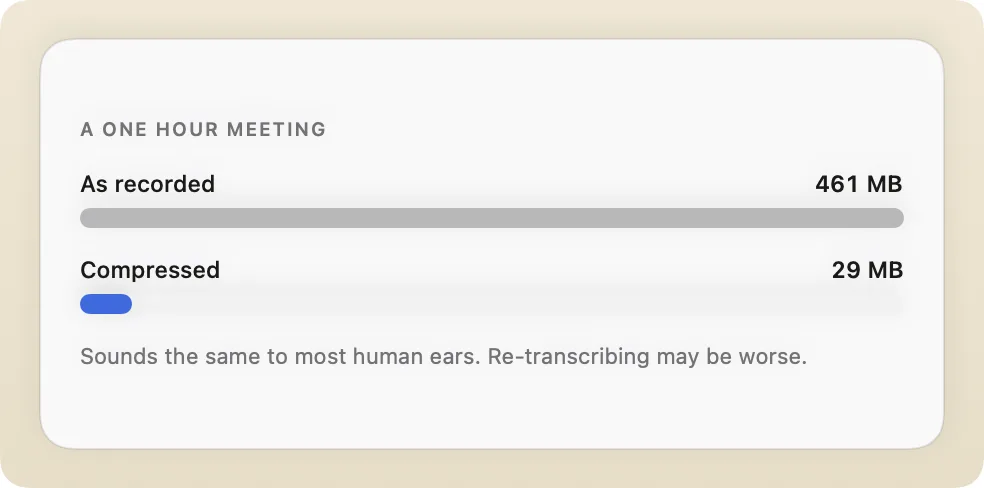
Trace 2.17 introduces recording compression to save disk space and an overhauled Ask, resulting in better, more suitable responses to your questions.
Ask has been rebuilt to work through your library the way a person would, looking things up and opening what it needs before it answers, rather than answering from a single search. We have also added a way to throw away a recording you did not mean to keep, from wherever you happen to be when you realise. There are also a couple of dozen smaller fixes. As always, thanks for using Trace.
Compress your recordings to save disk space
A compressed recording takes about a sixteenth of the space. It sounds the same to most human ears, but re-transcribing it may give a worse result.
An overhauled Ask
Ask now works through your library the way a person would, looking things up and opening what it needs before it answers, resulting in better, more suitable responses to your questions.
Discard a recording you did not mean to keep
Discard a recording from the meeting-ended prompt, the pill, or History.
Improvements9
- AIThe brief before a meeting now properly understands your recordings and tells you what matters.
- AIYou can now dismiss the brief shown before a meeting.
- AIA reference in an Ask answer now plays the audio at that timestamp and only shows it in the transcript on a second press.
- SummariesSummaries are now written in the language that was spoken and are unaffected by foreign-sounding names.
- SummariesSummaries now include a timestamp for each point.
- HistoryThe home screen has had a tidy-up, and What's New only shows a badge when there is something unread.
- ExportTrace now tells you when saving to a folder has stopped working.
- TranscriptionOn a new install Trace now says the speech model is downloading, shows how far it has got, and tells you that you can record while it finishes.
- AISuggested tags now name the things that came up, so a tag fits more than one recording.
Fixes4
- SummariesThe summary template menu now opens correctly.
- ExportThe title of a note is no longer duplicated when exporting a note to Obsidian.
- TranscriptionThe speech model no longer downloads twice at once on a new install.
- SettingsConnecting a Google Calendar account no longer fails when the sign-in takes more than a few minutes.
2.16.0
Version 2.16.0
A new home screen, folders, and search by meaning
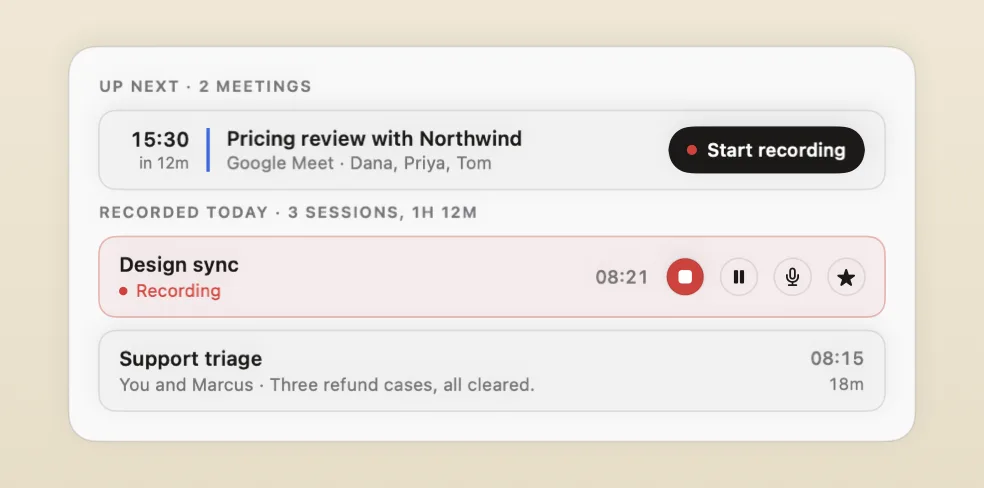
Trace 2.16 rebuilds the whole browsing side of the app. The complaint we kept hearing, and felt ourselves, was that Trace got messier the more you used it. The window opened on whichever recording you made last and every recording sat in one flat list, which is fine at ten recordings and hopeless at two hundred. There is now a home screen that opens on today, folders to file recordings into, a rebuilt reader, and one Ask that can look at everything, one folder, or one recording.
Search has been rebuilt underneath it too. Results are ranked by how well they match rather than by date, and with AI features on it finds meetings by meaning, so you can search for a topic in your own words. Alongside that, you can now choose what Trace does when a transcript is ready, from asking for a name to a quiet notice to nothing at all, and Trace no longer touches your clipboard unless you ask it to. As always, thanks for using Trace.
A new Today view
Trace now opens on the Today screen. Today's meetings sit at the top with a Start recording button on the one about to begin, recent recordings are grouped by day, and the ones you opened last are in the sidebar. A recording that is running has its controls on its row, so you can stop, pause, mute or mark a moment from here.
File recordings by project, client or team
Organise recordings by folders and tags. Every folder has its own page listing its recordings, a summary of the folder, and its own Ask interface that is scoped to only that folder, so a question about one client is answered from that client's calls and nothing else. Anything you have not filed is in Unfiled, so you can see what is still to sort.
Get around a long recording faster
Click any line of the transcript to play from there, or click the waveform to jump about. The transcript follows the audio as it plays and stops following the moment you scroll away. The speakers panel shows who spoke and for how long, and everything you can do to a speaker, from naming to merging to hearing a snippet of their voice, is in the same place, but better designed.
Ask a question when you can't remember which meeting
A new global Ask chat interface looks through every recording to help you find the answer. Ask from a folder's page and it reads only that folder. Ask from a recording's own tab and it reads only that session. Answers cite the moments they came from and references take you straight to them.
Better navigation
Navigate back and forward to quickly get around, just like in a web browser. ⌘P opens a command palette to jump anywhere by typing, and ⌘K opens Ask. All four shortcuts can be changed in Settings under Shortcuts.
Search that puts the right meeting first
Search used to list every recording containing the exact words you typed, newest first. Results are now ordered by how well they match, with the line that matched shown under each row, so the right meeting is usually at the top. With AI features on, search also understands meaning, so "the budget conversation" finds the meeting even if nobody said "budget".
Choose what happens when a transcription completes
The pill used to always show when a transcription has completed, even if you had already named it. Now you can customise what Trace does when a transcript is ready, from asking every time to nothing at all. Also, transcriptions and summaries are no longer automatically copied to your clipboard when they are generated.
Automatic name suggestions
The Suggest name button is gone. Now, Trace suggests three names when you click in the empty field to name a recording.
Improvements5
- RecordingDismissing the offer to follow an app that took the microphone now stops Trace asking whether that call has ended, and a new Never button turns the offer off for that app for good. A Never can be undone in Settings under Meetings.
- TranscriptionDropping several files in at once now shows which one is transcribing and which are waiting, rather than three progress rings stuck at zero.
- SummariesA summary that is still being written can be stopped.
- TranscriptionTrace no longer guesses the language of a recording only a few words long, which was putting screenshot descriptions in the wrong language.
- SettingsAsk, the command palette, and back and forward each have a shortcut of their own in Settings under Shortcuts.
Fixes5
- HistoryNaming a speaker Trace had heard as several voices no longer leaves an extra speaker behind.
- HistoryRenaming a recording no longer loses the conversation you had about it.
- PillChoosing a suggested name with the mouse now closes the suggestions, as choosing one from the keyboard already did.
- AITrace no longer crashes when two AI jobs start at the same time. A summary, a set of suggested names and a question all drive the same on-device model, and they take turns now. Anything that has to wait says so instead of showing the same spinner as something that is working.
- Moreand a number of smaller fixes under the hood
2.15.0
Version 2.15.0
Improved echo cancellation and tag suggestions you approve
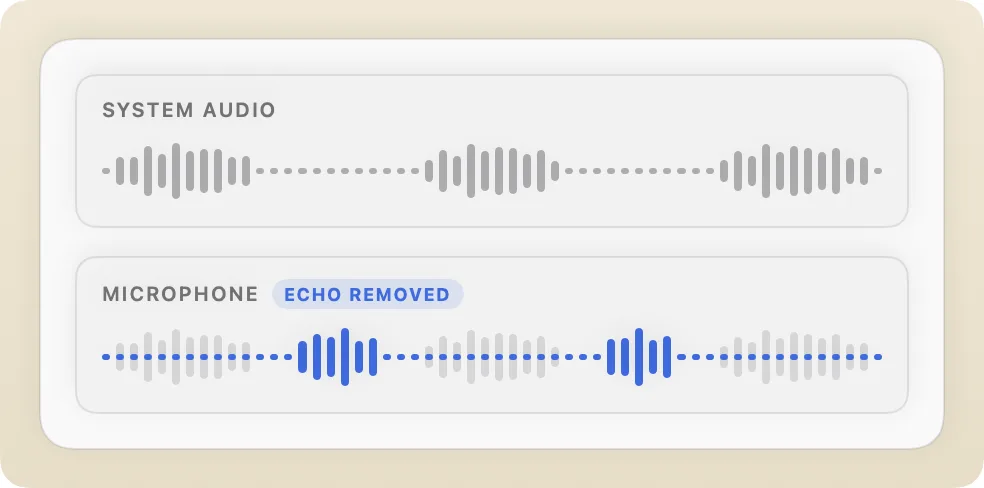
Trace 2.15 has a brand new echo-cancellation engine, so if you record on speakers you should notice a real difference in transcription quality.
We have also reworked tagging, so tags are suggested for you to accept rather than applied quietly in the background, and the Summary tab no longer starts writing a summary the moment you select it. Alongside those there are a handful of smaller improvements, including keyboard shortcuts that no longer prevent other apps using them while you are not recording.
Improved echo cancellation
Trace's echo cancellation algorithm has been completely overhauled. Meetings that play out of speakers and get picked up by the microphone are now properly cleaned up before transcription. If you use speakers, you should notice a clear improvement in transcription quality.
Tag suggestions you accept
Meeting tagging has been redesigned to be more effective. Tags can be either suggested or applied automatically, depending on your preference.
Check for a summary without starting one
Opening the Summary tab no longer automatically starts a summary. Now, selecting the tab shows you the summary if one exists, or prompts you to create one if it doesn't.
Improvements3
- SettingsKeyboard shortcuts that only work during a recording are no longer active while Trace is idle. This allows other apps to use them when they're not being used by Trace.
- SummariesThe Summary tab no longer automatically starts summarising when you click on it.
- Moreand a number of smaller fixes under the hood
2.14.0
Version 2.14.0
Choose where recordings are kept, plus two settings
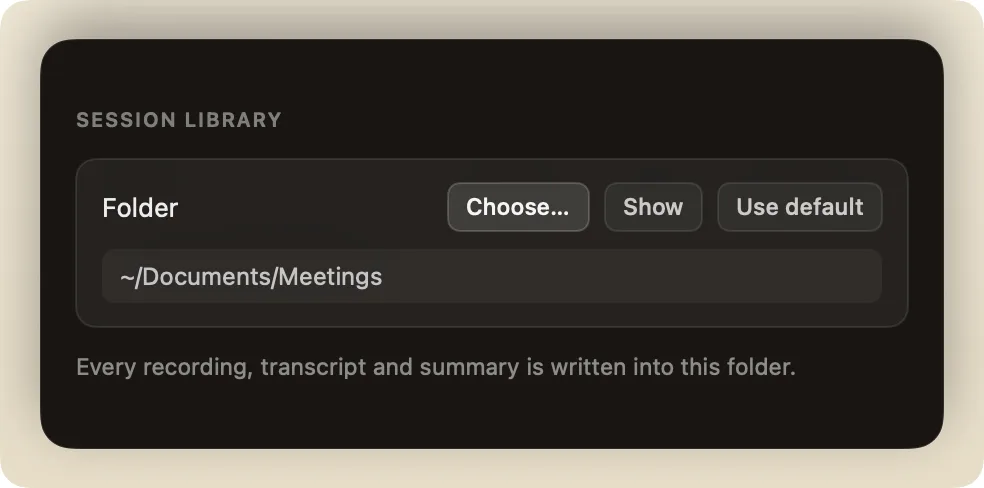
Trace 2.14 is a smaller release. The main change is that you can now choose where Trace keeps your recordings, instead of having them locked away in the app's own storage. Point it at Documents, an external disk, or a folder your sync tool already watches. It will offer to migrate your existing sessions automatically.
The pill no longer takes your keyboard while you're typing somewhere else, and you can now stop Trace copying summaries to your clipboard automatically at the end of sessions.
Choose where recordings are kept
Trace has always kept recordings in its own storage. You can now point it at any folder and Trace will automatically migrate your existing recordings.
The pill leaves your keyboard alone
The pill used to take the keyboard whenever it needed input (like a name), so whatever you were typing in another app could end up as the title of your meeting. It now no longer steals focus and waits for you to click on the pill manually.
Stop summaries taking your clipboard
Trace automatically copies a finished summary to your clipboard. If you'd rather it didn't, there's now a setting to disable the behaviour.
2.13.0
Version 2.13.0
Erase the last few seconds, plus a Speakers fix
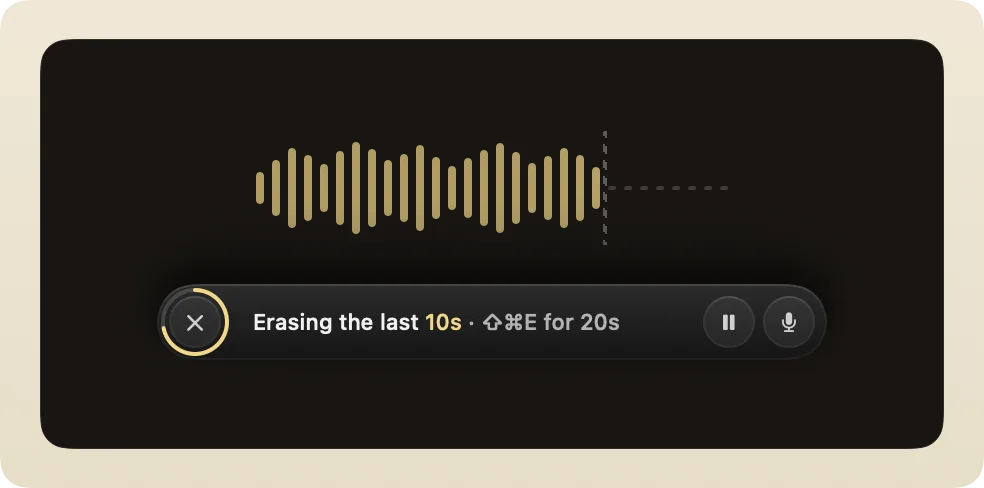
Trace 2.13 adds a new privacy feature. If something gets said in a meeting that should not have been recorded, you can now erase it without losing the recording. We have also fixed a fiddly problem in the Speakers panel where picking someone Trace already knew would quietly do nothing.
Erase the last few seconds
If something is said that should not be on the record, press the erase shortcut. Trace silences the last ten seconds of the recording, audio and transcript both. Press again to erase further back.
Picking a known person is now fixed
Choosing someone Trace already knows from the Speakers panel now saves properly.
2.12.0
Version 2.12.0
Drag the pill anywhere
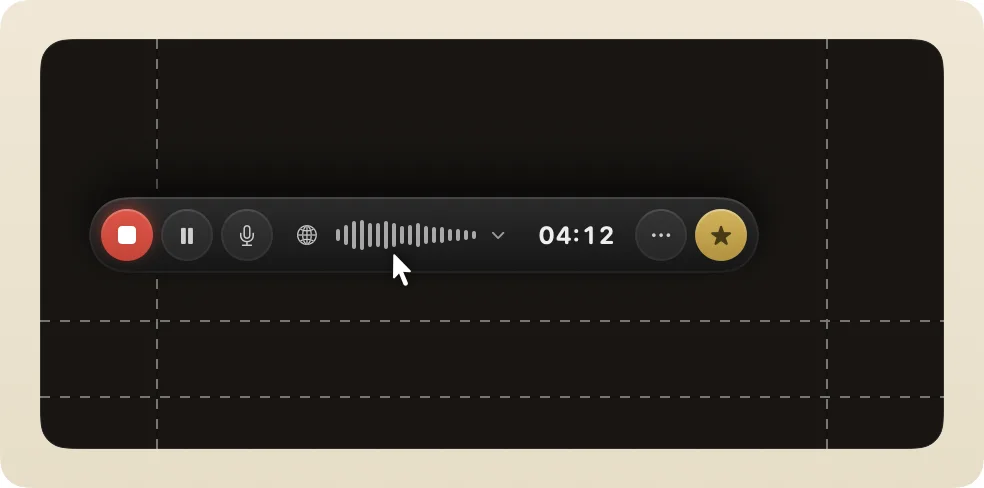
Trace 2.12 contains a single quality of life improvement. The pill has always sat at the bottom of your screen, which is fine right up until it covers something you need to see. You can now drag it around and put it wherever suits you.
While you drag, faint guides show where the pill normally sits, and it snaps back onto them if you drop it close. Trace remembers the spot for each display, so reconnecting a monitor puts the pill back where you left it on that screen. There is a reset in Settings if you want it back in the middle.
Move the pill where you want it
Drag the pill anywhere on the screen. Dashed guides show where it normally sits, and it snaps back if you drop it close to them. Trace remembers the spot for each display.
2.11.0
Version 2.11.0
Live recap in other languages, and on-device translation
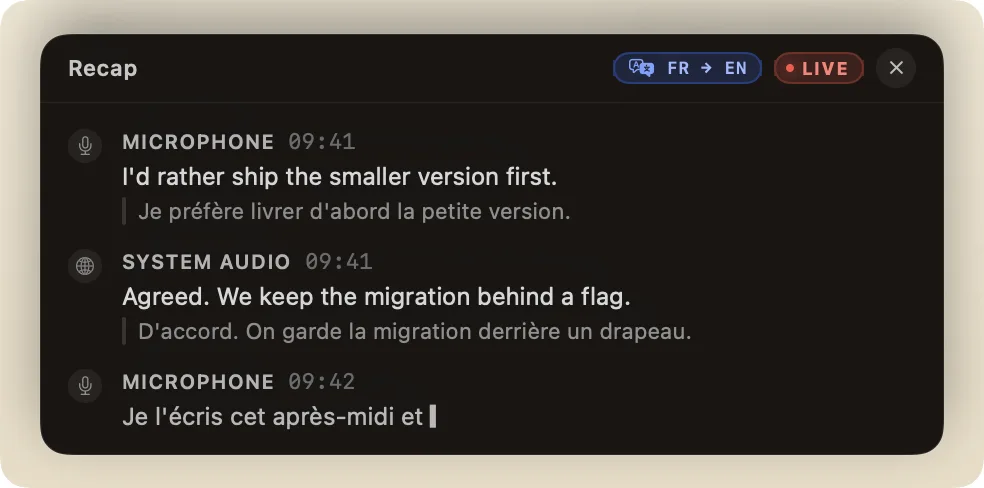
Trace 2.11 is all about other languages. Trace now detects whatever language your meeting happens in, and can translate meetings into your own language, both live during the call and after it has finished. It all runs on your Mac using Apple's on-device translation models, so nothing you say leaves the machine. As always, thanks for using Trace.
The live recap in other languages
The Live Recap now understands 40 languages, including French, German, Spanish, Japanese and Mandarin, and switches to the meeting's language automatically.
Live translation
When a meeting happens in a language that isn't yours, a translate button appears on the Pill. Turn it on and the Live Recap translates the meeting into your native language in real time.
Translate finished transcripts
A new Translate button on a finished session translates the whole transcript into any language.
Choose your language
Trace remembers your native language so that the new translation features can work effectively. You can change it at any time in Settings.
Improvements1
- AISummarise and Ask now read the translated transcript when one exists, so their output comes out in your language.
2.10.2
Version 2.10.2
Improved reliability when using AirPods
This release contains a few small fixes. The main one being a bug where under certain conditions when using Bluetooth headphones like AirPods the audio engine would stop capturing your microphone for the whole session, leaving an empty mic track. Trace now recovers from that and it also warns you if the microphone ever stops being captured for whatever reason. There's also a couple of fixes for screenshots and improved hint notifications.
- Reliable microphone capture with Bluetooth headsets
Fixes5
- RecordingRecording with AirPods or another Bluetooth headset no longer risks silently losing the microphone track. If the microphone ever stops being captured mid-recording, Trace warns you above the pill.
- TranscriptionA session whose mic track is empty now still transcribes the system audio instead of failing entirely.
- RecordingCapturing the screen during a recording no longer brings the Trace window to the front or steals keyboard focus from the app you were in.
- RecordingSystem-audio capture recovers more gently after audio-device problems.
- PillTwo-line hint bubbles are bigger and easier to read, and the keyboard shortcut now sits at the end of the sentence that introduces it.
2.10.1
Version 2.10.1
A much better live recap that you can scroll back through
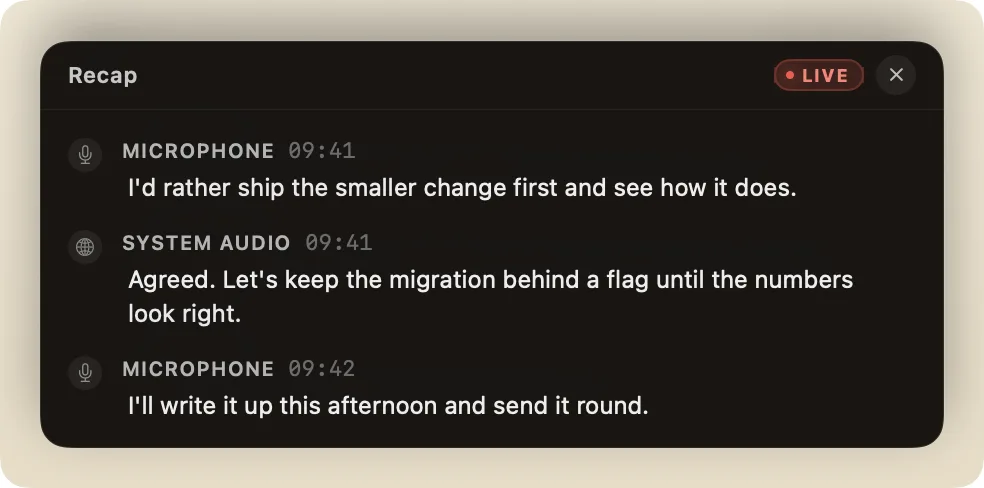
Trace 2.10 is mostly about the Live Recap, the running transcript that appears while you are still in the meeting. We have moved it onto a much more capable speech model, so what you read during a call is far closer to what was actually said, and you can now scroll back through the conversation without it pulling you to the bottom every time somebody speaks.
There are a few other things in here too. You can hide the progress pill while a long transcription finishes, browsers finally show their real name in the audio source picker, and the command line tool can tell your own scripts the moment a meeting is ready. As always, thanks for using Trace.
A much better live recap
The Live Recap feature now uses a much more capable speech model, so the transcription is significantly more accurate. It also fixes the system audio track repeating the same phrase over and over.
Scroll back through the recap
Scroll up in the Live Recap and it now stays where you put it instead of automatically scrolling back down to the latest line. You can select and copy text in the recap now too. Press ⌘⇧? to open and close the drawer.
Hide a transcription in progress
Stopping a long meeting used to leave the progress pill on screen for as long as the transcription took. You can now hide it away and let the transcription finish in the background. The completion pill pops back up when it’s done.
Chrome and Firefox in the source picker
The audio source picker used to list “Google Chrome Helper” with a blank icon. Chrome, Firefox and anything built the same way now show their real name and icon, and scoping a recording to one of them works properly.
Watch for finished meetings
Trace’s CLI tool has a new "tracecli watch" command that waits for a meeting to transcribe and allows you to pipe the transcription anywhere you like.
Improvements3
- PillThe pill takes the keyboard while you read back through the live recap, so ⌘C copies the line you selected.
- CLItracecli list --json now includes each meeting’s gist and the paths of any copies Trace exported for you.
- CLIReleased tracecli binaries are signed, so macOS no longer questions them on first run.
Fixes3
- TranscriptionA sudden loud noise during a meeting no longer garbles the live recap.
- RecordingScoping a recording to a browser now captures it, rather than the helper process macOS reports.
- MoreAnd a number of smaller changes under the hood.
2.9.4
Version 2.9.4
The referral program now pays 25%
If you share Trace with someone and they buy it, you now earn 25% of that sale rather than 10%. The program is also open to everyone.
Earn cash for sharing Trace
Share your personal link and you earn 25% of every sale it brings in, up from 10%. The friend who uses it gets 10% off. We pay by PayPal or Wise once you reach £25.
Improvements1
- SiteBuying Trace direct is now priced by how many Macs you need, from £29 for one. Every licence bought before today still covers 2 Macs.
Fixes2
- PillThe pill no longer offers a pause while it is still getting the model ready, when pausing could not work yet.
- PillA short meeting name no longer leaves a stretched gap in the pill.
2.9.0
Version 2.9.0
Screenshots, mid-meeting transcripts, and a lick of paint
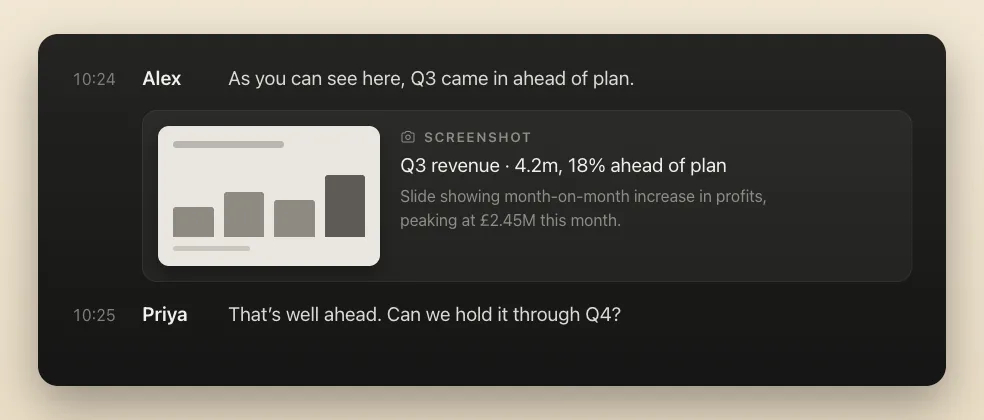
Trace 2.9 includes a few exciting new features and a redesign of the pill that sits at the bottom of your screen. You can now also take screenshots of specific parts of your screen and have them saved with the transcript, just like key moments. Here's a more in-depth look at what's changed.
Transcribe so far
You don't have to wait for a meeting to end to see what's happened. The new “Copy Transcript So Far” option in the menu bar gives you everything said up to that point, using the same on-device engine as your final transcript. Additionally, Trace's CLI tool now has a new "tracecli transcript --live --follow" option that continuously produces a live, accurate transcript to whatever called it, letting an AI agent follow along while the meeting is still going.
Screenshots
Trace can now save screenshots. Press ⌘⇧S to snap a screenshot and Trace performs OCR on the image and saves the text alongside the transcript, just like key moments.
A new look for the pill
The recording pill has been redesigned so that less-used actions are out of the way until you need them.
Speakers and dictionary
Typing a name Trace already knows no longer quietly creates a second copy of that person. Remembered voices and the word dictionary are both in alphabetical order now, and both grow a search field once the list is long enough to need one.
Improvements5
- PillThe waveform now reacts to voices more accurately.
- RecordingTrace remembers where you captured the screen for screenshots each recording, so you don't need to constantly redefine it during a call.
- ExportYou can now choose subfolders to save notes to when sharing with Obsidian.
- CLItracecli's help reads more clearly.
- HistoryThe shortcut bar now responds to the width of the window.
Fixes5
- ExportWhen you save a copy of a session to a folder it now carries the session’s real title, instead of “Untitled”.
- TranscriptionIf a speaker model gets corrupt, it will now repair itself rather than leaving speakers unidentified.
- RecordingOn calls with long silences, Trace no longer keeps restarting its audio capture and dropping snippets of the call.
- PillThe completed pill that shows after a successful transcription stays on screen while a summary is being generated.
- MoreAnd a handful of smaller fixes and polish.
2.8.0
Version 2.8.0
Custom AI endpoint, in-person speakers, and more
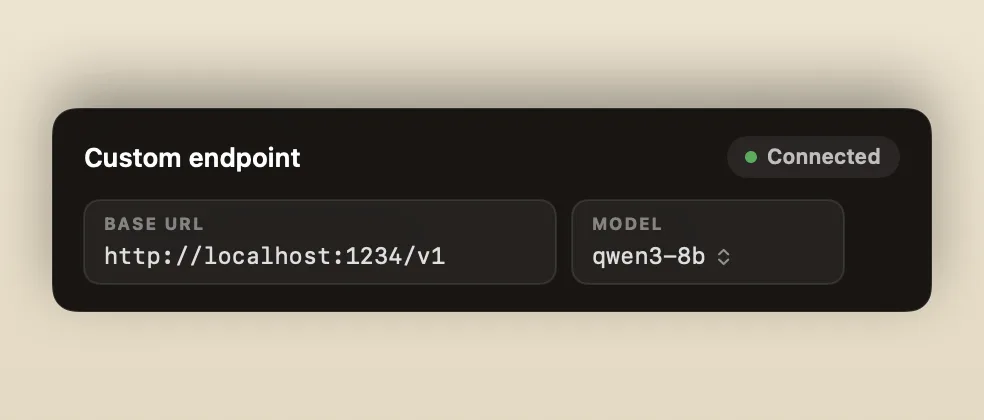
Trace 2.8 is mostly about giving you more control over the AI features. You can now point Trace at any OpenAI-compatible server, like LM Studio or Ollama, so summaries, naming, tags and Ask run through a model you choose, and everything the AI writes now comes out in the language the meeting was in. We've also taught Trace to separate speakers in in-person meetings, which used to come out as one long monologue.
Beyond that it's quality-of-life. You can pause a transcription when you need your Mac's power back, copy a summary a section at a time, and Cmd-Q now checks before it quits the app. Here's a more in-depth look at what's changed.
Custom AI endpoint
Trace's AI features can now run through any OpenAI-compatible server, like LM Studio or Ollama on your own machine, or a hosted API. Summaries, naming, tags and Ask all use the endpoint you choose; live transcription always stays on-device. Set it up in Settings under AI by switching the model to Custom endpoint.
Pause transcription
Transcribing a long recording puts your Mac to work, and sometimes you want that power back. You can now pause a running transcription to free things up, then resume from the menu bar when you're ready.
Summaries in the meeting's language
If your meeting was in German, the summary is now in German. Summaries, suggested names, tags and Ask replies follow the language of the transcript instead of defaulting to English.
In-person speaker separation
When you record a meeting in the room rather than on a call, every voice arrives through your microphone. Trace now separates those voices into speakers, so an in-person recording reads like a conversation instead of one long monologue.
Copyable summaries
Summary text is now selectable, so you can highlight exactly what you need. Each section also has its own copy button, for when you only want the action items or a single part.
Confirm before quitting
Cmd-Q now checks before Trace closes, so a stray keystroke can't quit the app ahead of your next meeting. If a recording or transcription is running, Trace tells you before it quits. On by default. Turn it off in Settings.
Quality-of-life touches
Speaker voice clips are longer, so it's easier to tell who's who when you tidy up speakers after a call. The Transcript, Summary and Ask tabs also stay where you left them, so a session opens on the tab you last used.
Improvements2
- HistoryClicking anywhere on the Transcript, Summary or Ask tab switches to it, not just the label.
- AISlow or long summaries from a custom endpoint are no longer cut off, and reasoning models that think before they answer are handled properly.
Fixes4
- PillThe floating pill sits above the Dock reliably, including after switching Spaces or when the Dock is hidden.
- PillThe pill no longer steals keyboard focus when you switch Spaces.
- SummariesThe summary controls sit in their own strip, so they never cover the text.
- MoreAnd a stack of smaller fixes and polish.
2.7.0
Version 2.7.0
Auto-start, echo cancellation, tags, and exports
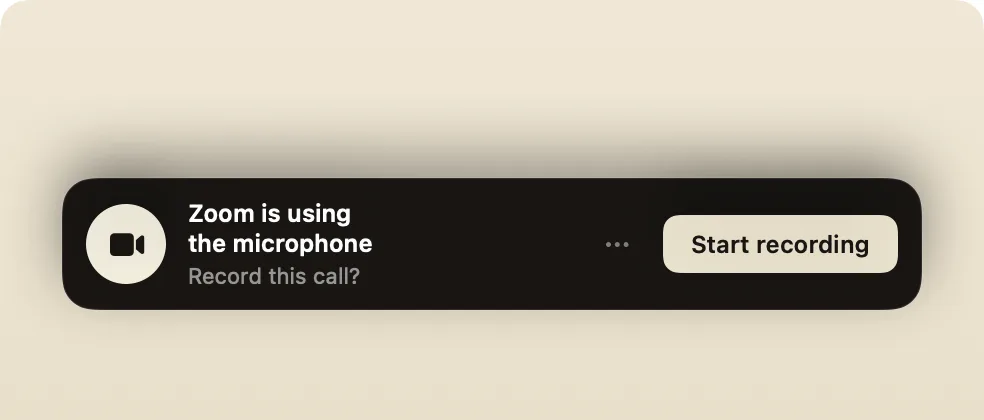
Trace 2.7 is our biggest update so far. We’ve made a few big changes to how Trace starts and stops recordings, and it can now automatically detect when you’re entering and leaving a call, so you don’t forget to start or stop it. We’ve also overhauled the echo cancellation algorithm to be much more effective, and added the ability to chat with your existing transcripts and summaries if you’ve got Trace’s AI features turned on.
We’ve introduced a whole new suite of tools for exporting your data from Trace into other apps like Obsidian, a new way to organise your sessions with tags, and quite a few other quality-of-life fixes. Behind these headline features there are around sixty smaller improvements and fixes. Here’s a more in-depth look at what’s changed. As always, thanks for using Trace.
Auto-start
When an app starts using your microphone, Trace offers to record the call. From the prompt you can set any app to always record or never ask. On by default; turn it off in Settings under Meetings.
Much better echo cancellation
When you record without headphones, the system audio plays out of your speakers and back into your microphone, so it ends up in the transcript twice. Trace can now remove it from the microphone recording itself. It adds a little processing time after each recording, so it’s off by default. Turn it on in Settings under Recording if you record on speakers. The speech model also prepares in the background at launch, so a finished recording no longer waits on “Optimizing for your Mac”.
Ask questions about a meeting
Open a finished meeting and ask it a question. Answers cite the timestamps they came from, so you can jump straight to the moment. Before a meeting starts, Trace can also brief you from past meetings with the same people.
Tags
Give a recording as many tags as you like. Trace remembers them, autocompletes them, and filters History by them. There’s a manager in Settings, and AI can assign tags for you if you turn that on.
Search, edit, and stats
Press ⌘K for a command palette that finds sessions and actions. Find inside a transcript with ⌘F, fix a transcribed word by double-clicking it, and see who spoke how much on every recording.
Exporting and sharing
Export a transcript as PDF, Word, HTML, or subtitles. Shape the Markdown with an editable template, drag a session out as a file, save every transcript to a folder, or send finished recordings to Obsidian, Bear, Drafts, or Things.
Offline mode
One switch stops Trace making any network request it would start on its own, like calendar syncs and model downloads. While it’s on, a small pill shows by the Settings button in the History window.
Custom summary templates
Save a summary template for each kind of meeting and switch between them. The built-in templates are editable now too, and action items can come out as Markdown checkboxes.
Improvements18
- RecordingAn optional reminder to get consent shows as recording starts, and one click notes on the session that you announced it.
- RecordingWhen another app starts a meeting mid-recording, Trace offers to switch which app it captures instead of switching silently.
- ExportTimestamps in exported transcripts are clickable and jump straight to that point in the audio.
- ExportNames and personal details can be redacted before you share a transcript.
- ExportA key moment can be exported on its own as a short audio clip.
- ExportNamed speakers can come out as Obsidian wikilinks.
- ExportSend to an app is off by default and shows each app’s own icon.
- HistoryFinished recordings can show up in Spotlight search, once you turn that on.
- HistoryAutomatic cleanup is now opt-in, shows what it will remove first, and recently cleaned recordings can be recovered.
- HistoryOld recordings can be bulk-deleted by date range.
- SettingsSettings is reorganised into a sidebar of grouped panes, so each one is small enough to take in.
- AppOnboarding is reorganised into clearer cards, one decision at a time.
- TranscriptionTranscribing shows the same staged checklist as summarising, with each phase ticking off as it happens.
- AppThe download indicator names what it is downloading, and clicking it shows the progress of each download.
- AppThe speech model downloads and prepares itself in the background after onboarding, or when you change model.
- AppHeavy work moved off the main thread, so the app stays responsive while it transcribes.
- CLItracecli summarise now defaults to the most recent transcribed meeting.
- SiteThe website gained a library of ten how-to guides, five new comparison pages, and this changelog.
Fixes29
- RecordingThe microphone recovers when your audio devices change mid-recording and the rebuild fails.
- RecordingThe mic track stays aligned with the system track across an audio-device change.
- RecordingRemoving echo after a recording no longer freezes the app, and shows as its own phase.
- RecordingStopping a recording shows a Finishing state instead of freezing while the recorders wind down.
- RecordingA recording that fails to start keeps the name you had typed for it.
- TranscriptionWord replacements no longer bite into contractions at apostrophes.
- TranscriptionMade-up sign-off lines like “thanks for watching” are filtered out more reliably.
- TranscriptionRe-transcribing a meeting clears the old voice clips first, so speaker matching stays accurate.
- TranscriptionA glitchy disk read can no longer wipe the voices Trace has learned.
- SummariesSummary sizing now counts real tokens, so long meetings in other languages stop overflowing the model.
- SummariesA downloaded summary model loads without touching the network, so a firewall or Offline mode cannot break it.
- TranscriptionA failed transcription keeps the reason with the recording, so support can diagnose it later.
- AIAsking a question about a very long meeting no longer spikes memory.
- HistoryA recording still in progress no longer shows as needing a retry in the library.
- HistoryRefreshing mid-search no longer clears the search index.
- HistoryTwo imports with the same file name no longer end up in the same folder.
- HistoryA relaunch can no longer delete a recording that had finished importing.
- HistoryThe stats and speakers panel stopped over-bouncing when it expands.
- PillThe completion pill stays put while you are hovering over it.
- PillThe dismiss button moved to a corner badge, and the failed state fits its message.
- PillThe consent reminder no longer truncates its title.
- SettingsRebinding a keyboard shortcut no longer registers every hotkey twice.
- SettingsThe input level meter recovers after a failed device change.
- AppA temporary calendar sync failure no longer wipes the upcoming-meetings list.
- AppA one-off forward clock jump can no longer lock the trial.
- AppDeactivating this Mac only frees its licence seat once the server confirms it.
- AppA trial that starts offline on first launch recovers without a relaunch.
- CLItracecli no longer crashes on a negative --limit.
- MoreAnd a couple of dozen smaller corrections too far under the hood to explain in a sentence.
2.6.0
Version 2.6.0
Import files, scoped audio, naming, and auto-stop
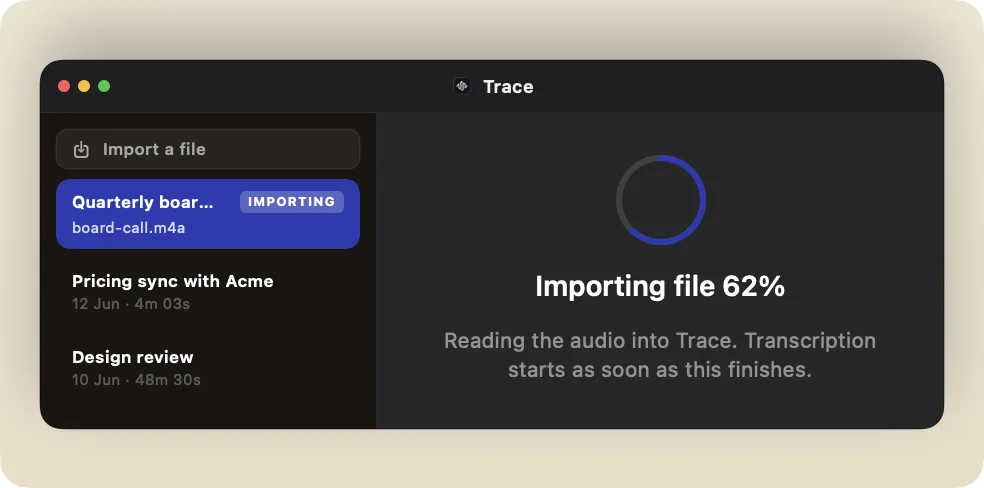
For 2.6 we focused on everything around the recording itself. You can now bring in audio you recorded elsewhere and have Trace transcribe it, Trace captures just your meeting so sound from other apps stays out of the transcript, it names a recording the moment it starts, and it nudges you to stop when the meeting ends.
Bring in your own recordings
You can now import an audio or video file you already have, and Trace transcribes it like one of its own recordings. Drop it onto the window or use the Import button, and it reads through the file and gives you the transcript and summary.
Record just the meeting, not everything
Trace now captures the audio from your meeting app on its own, so music or a video in another tab stays out of the transcript. It picks the meeting automatically, and you can switch which app it follows from the pill or set a default in Settings.
A nudge when the meeting’s over
When your meeting app releases the mic, Trace notices the meeting has likely ended and asks whether to stop. It never stops on its own, so you choose Stop or keep recording. You can turn it off in Settings under Meetings.
Name a recording as it starts
A small name field now opens on the pill when recording begins, and the name is saved the moment you press Return. If Trace is interrupted mid-meeting, the recording keeps its name instead of a timestamp. You can also rename at any point by clicking the pill’s timer.
Fixes5
- RecordingSwitching the system-audio source mid-recording no longer drops the audio.
- PillThe recording pill returns to normal after you stop from the meeting prompt.
- PillThe floating pill re-centres when you unplug a display.
- HistoryImporting a large file keeps the app responsive.
- SummariesA couple of summary-engine crashes and memory issues are gone.
2.5.0
Version 2.5.0
Turn off auto-copy, plus appearance and pill tweaks
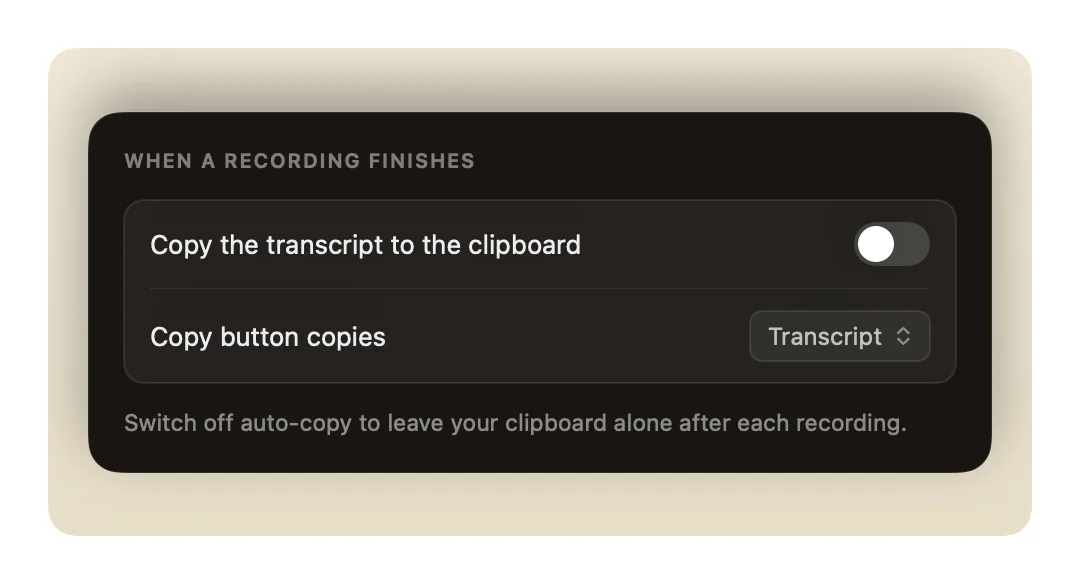
A small quality-of-life update, packed full of bug fixes. The one change worth calling out is that you can now turn off auto-copy, so a finished recording leaves your clipboard alone. The rest is in the list below.
Auto-copy is now optional
When a transcription finishes, Trace copies the result straight to your clipboard by default. You can now switch that off in Settings, so a finished recording leaves your clipboard alone until you copy it yourself.
Fixes4
- SettingsThe Appearance selector is more visually appealing.
- PillThe recording pill honours your visibility settings when a recording finishes or you flag a key moment.
- TranscriptionPicking a known name in the Speakers drawer reuses that person.
- AppWindows you open from the menu bar reliably come to the front.
2.4.0
Version 2.4.0
Customise appearance and browsable What’s New
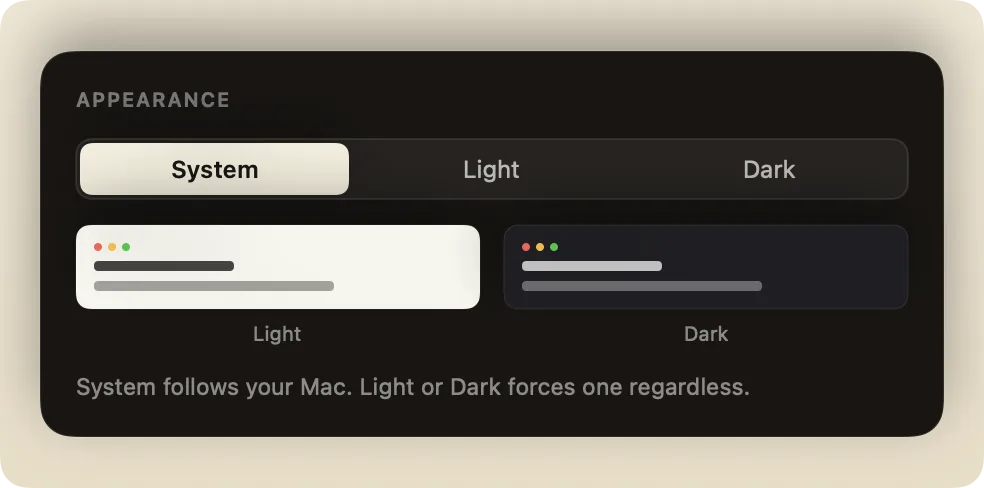
A short one, with two changes you’ll notice. You can now set Trace to light or dark, or let it follow your Mac, and update notes like this one are something you can look back through instead of a one-time popup.
Light, dark, or match your Mac
Trace can now follow your Mac’s appearance, or you can pin it to light or dark mode (the recording pill stays dark either way). Set it in Settings under General.
Look back at any update
A new window makes every changelog visible, not just the latest. Open it any time to scroll back through what each version added, with a dot marking the ones you haven’t read yet.
Fixes4
- SummariesA crash when the summary and speech engines ran at the same time is gone.
- SummariesThe summary no longer invents tags.
- AppThe menu bar stops highlighting Start Recording.
- SettingsThe Settings colours are tweaked so it is easier to read.
2.1.0
Version 2.1.0
Sharper summaries, AI controls, and crash recovery
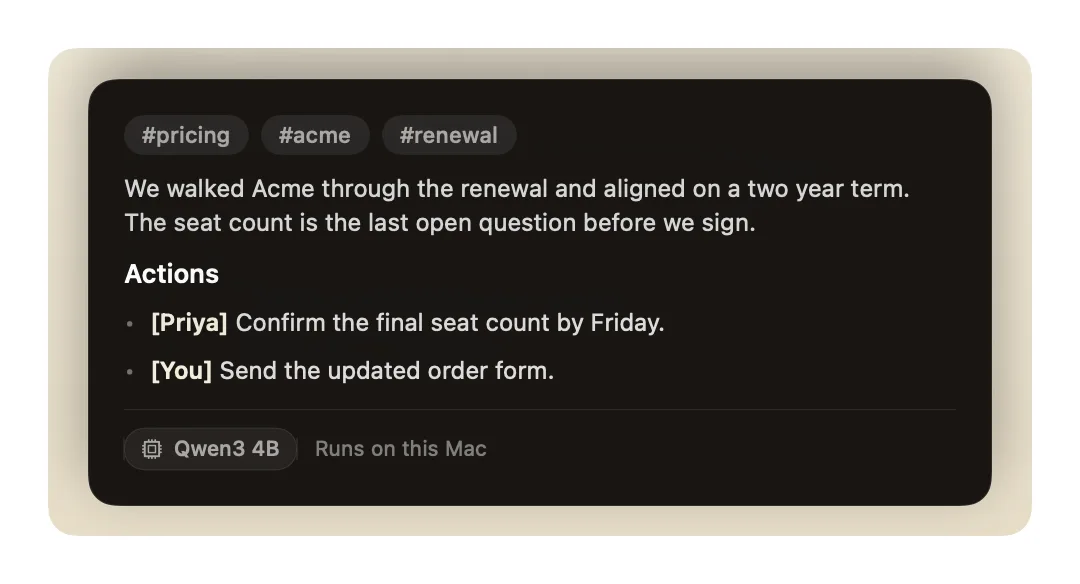
With 2.1 we put you in charge of the on-device AI. Summaries moved to a more capable model that reads the whole meeting at once, and turning the AI on is now a choice you make rather than something we switch on for you. We also made sure a crash can’t take a recording down with it.
Sharper summaries on your Mac
Trace now writes its meeting summaries with a more capable model, and still runs the whole thing on your Mac. It takes in the entire meeting at once, so the summary reads as one coherent piece, with a short recap, the points worth remembering, and who agreed to do what.
On-device AI, on your terms
The AI behind summaries and automatic naming runs on your Mac, and now switching it on is a clear choice you make. Turn it on when you want it, pick how powerful a model to run, and choose what happens on its own. Nothing about your meetings leaves your Mac.
A crash won’t lose your recording
If Trace ever quits or freezes in the middle of a meeting, the audio is safe. Trace saves it to disk as you record, then hands it back the next time you open the app, ready to transcribe. No more losing a long call to a crash.
Open Trace in one click
There’s now an Open Trace item right at the top of the menu, so the window with all your recordings is always one click away. A small thing, but it saves a trip every time you go looking for an old meeting.
Improvements1
- SummariesSummaries use a cleaner default layout.
Fixes2
- TranscriptionThe “Optimizing for your Mac” step no longer runs before every transcription.
- RecordingFixed a crash when AirPods came out mid-recording on a muted Mac.
2.0.0
Version 2.0.0
A home window to browse, replay, and search
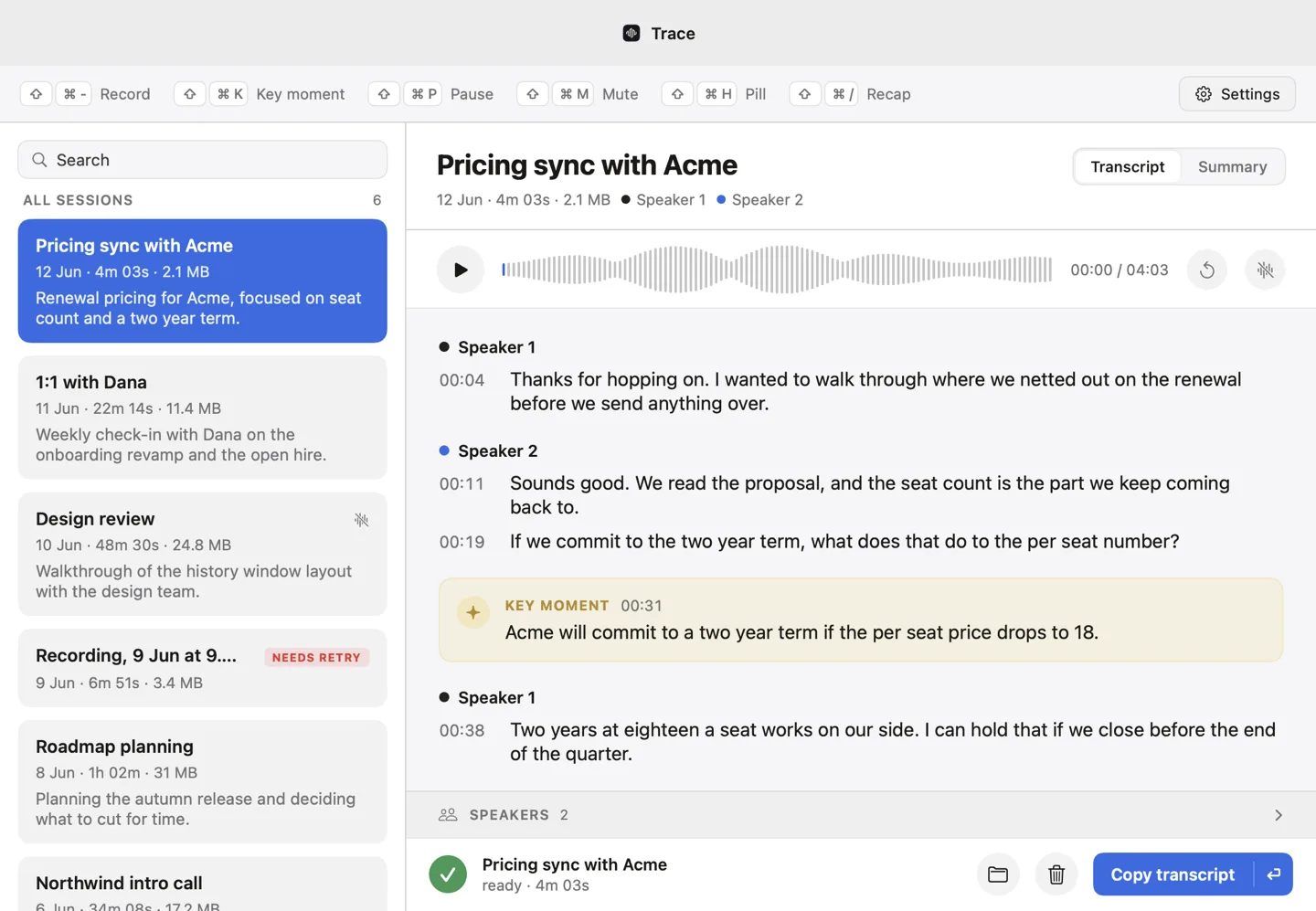
Trace 2.0 is a big one. Before this, Trace lived entirely in your menu bar and everything it recorded went out through the clipboard. Now it has a proper home. The History window keeps every recording in one place, plays them back with the transcript following along, and lets you search across all of them.
Most of the release is that window and the speaker tools inside it, so you can fix who said what inline and let Trace suggest names for voices it recognises from earlier meetings.
Everything in one window
Trace now has a home window that gathers all of your recordings in one place, with the ability to view transcripts and summaries in more detail. Settings have moved to this window too.
Play any meeting back
Open a past recording and you can replay the audio and watch the transcript highlight as things are said. Press play, scrub through the waveform to any point, or click a line in the transcript to jump straight there. When you no longer need the audio, you can delete just the recording and keep the transcript from here too.
Fix who said what, inline
Labels like “Speaker 2” sit right in the transcript. Click one, type the real name, and every line from that voice updates at once. No extra dialog, no hunting around.
Names you’ve used before
Start typing and Trace offers the people it already knows, so labelling a regular takes a single click. A small search button next to the field browses everyone Trace has met, for when a name won’t quite come to you.
Trace knows that voice
When Trace recognises someone from an earlier meeting, it suggests their name with a gold prompt beside the speaker. One tap accepts it, or wave it off if it’s wrong. The more you confirm, the sharper it gets.
Search across every meeting
Type a word and Trace searches the full text of all your recordings, then shows you the line where it turned up. Filter the list by date or by person, and sort it whichever way suits you.
Key moments in the right place
Flag a key moment mid-meeting and the live recap now shows where it happened, rather than after everything else.
Tab through tracecli
If you drive Trace from the terminal, tracecli now finishes your commands for you. Press Tab and the shell fills in the command or a recent meeting, so there’s less to remember and less to mistype.
Fixes3
- RecordingA crash when Bluetooth audio connected mid-recording is gone.
- TranscriptionVoice memory no longer saves the same person twice.
- MoreAnd a handful of smaller rough edges smoothed over.
1.5.0
Version 1.5.0
Summaries, speaker memory, and automation
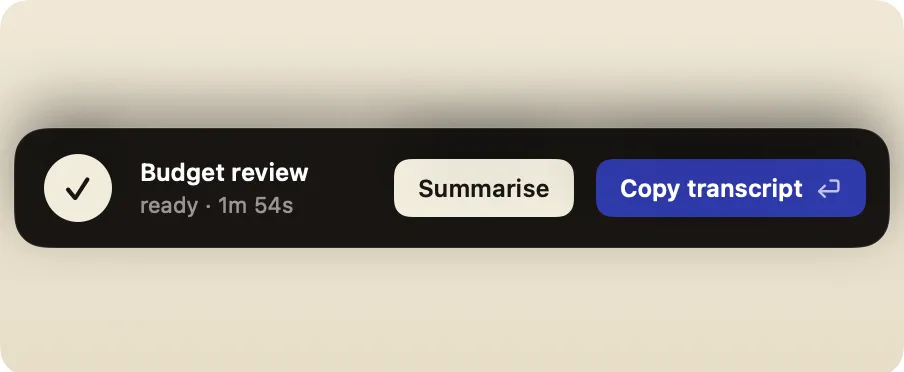
Trace 1.5 is where it stopped being just a recorder. Until then it captured a meeting and handed you the transcript. From this release Trace can also write the summary for you, remember who’s who by voice from one meeting to the next, and be driven from your terminal with tracecli.
Summaries, written on your Mac
Trace can turn a finished recording into a clean summary with the key points pulled out for you. It runs on your Mac using Trace’s own model. Look for the new Summarise button on any session, or call it from Shortcuts and App Intents.
Speakers Trace remembers
Name a speaker once and Trace recognises that voice in your future meetings, so you stop relabelling the same people every call. After a recording you can tidy up who said what, and a new People page holds the voices Trace has learned.
Drive Trace from the command line
A new tracecli tool looks up past meetings and can start, stop, or flag a recording from your terminal or scripts, built on a new trace:// control scheme. You can also run a script of your own automatically whenever a transcription finishes.
Straight into the next call
Coming out of one call straight into the next, you can start a fresh recording right away while the previous one is still transcribing. Nothing waits on the old meeting, so you never miss the top of the new one.
Teach Trace the tricky words
If Trace keeps misspelling a name or a piece of jargon, add it to a word-replacement list. From then on Trace corrects it for you automatically in every future transcript.
Plus a pile of smaller fixes and polish.