Last week OpenAI dropped ChatGPT Images 2.0, and it is nothing short of unbelievable. I was blown away by Nano Banana, and this makes that look like child’s play. A few examples for those who haven’t seen the full extent of what it can do yet:

Riley Goodside@goodside
ChatGPT Images 2.0 (Pro) generates a photo of a cake decorated with SVG that when transcribed to a file renders another cake
7:09 AM · Apr 23, 2026 · 435K Views
61 Replies · 275 Reposts · 6.51K Likes

Aleena Amir@aleenaamiir
Turn your favorite athlete’s story into one image using ChatGPT Image 2 ▼ “Cinematic portrait of [Athlete Name] showing his/her journey, with bold text of achievements and best performances”
2:42 PM · Apr 23, 2026 · 43.4K Views
47 Replies · 122 Reposts · 722 Likes
Riley Goodside@goodside
ChatGPT Images 2.0 generates a game die but instead of numbers it has working QR codes for each of their Wikipedia articles
3:46 PM · Apr 22, 2026 · 541K Views
58 Replies · 165 Reposts · 4.85K Likes
Take a moment to let those sink in — we’re now at a point where you can just describe more or less whatever you want to an incredibly specific level of detail, including any text, and get a perfect image on the first try. It’s only been ~3 years since people were chortling about how AI would never be able to get hands right. If that sounds like a long time, it’s only because the speed of AI progress has totally warped your understanding of what normal timeframes for technological advancement look like.
That said: you do not need to generate any of the images above. They’re neat, but they have no actual value for anything you’re doing.
If you’d like to figure out how AI image generation can actually be useful to your business, though, you’ve come to the right place. Here at The Automated Operator, we specialize in applying the most powerful technology ever created by man to boring business problems!
When I buy brands, I get design files for things like packaging and insert cards. Sometimes those are vector images, but since I buy from people who are not always the most sophisticated business owners, I will sometimes just get a JPG.
Case in point: This year I bought a brand that sells baby mobiles, and I got this JPG of their insert card:
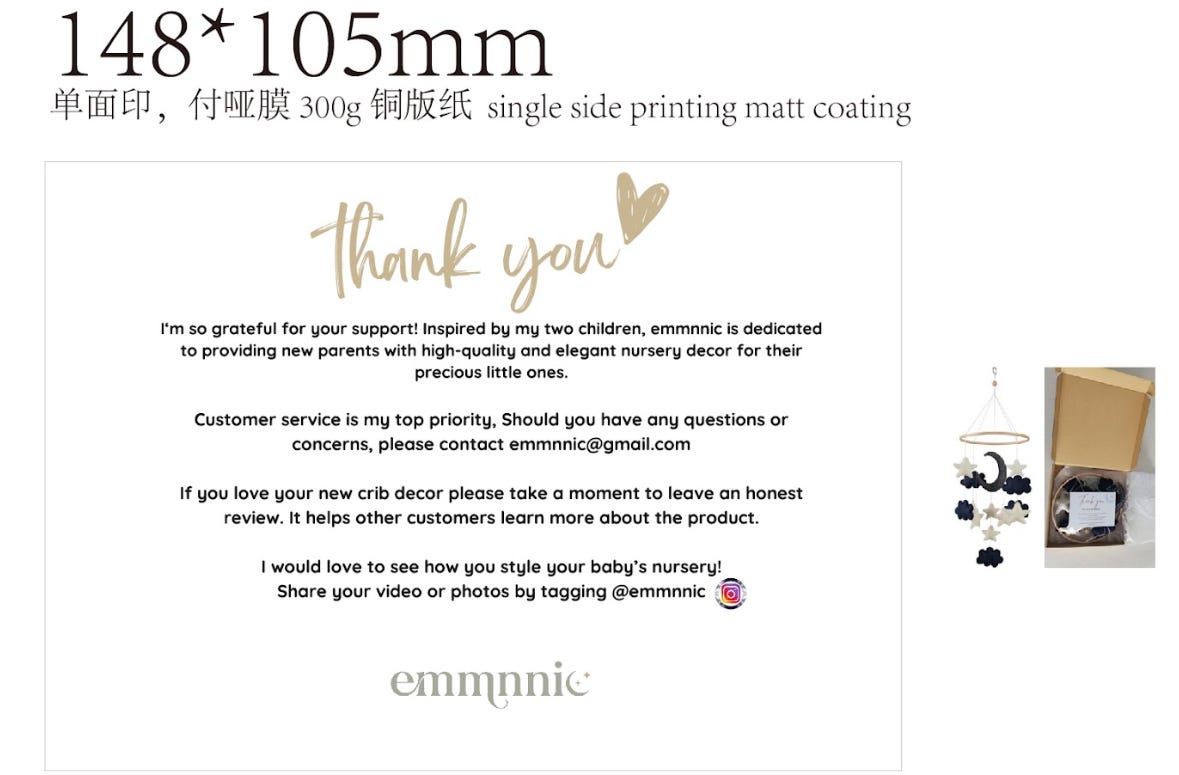
Post-acquisition, I always immediately shut down social media accounts and get rid of any email addresses to save myself the time of dealing with them, so I needed to update the card to get rid of those. I had been putting off doing that, but I just got to the point of needing to place my first order, which means it had to be done.
Normally, I’d just recreate this from scratch. Maybe 30–45 minutes of work, so not the end of the world. But Images 2.0 just dropped, and I’ll take any excuse to try out new models.
Prompt:
Can you modify this image to adjust some of the text? Change the second paragraph to say: "Customer service is my top priority. Should you have any questions or concerns, please send me a message through Amazon." Remove the last paragraph entirely (along with the Instagram logo). Shift the thank you text at the top and the three paragraphs down a bit so that there's similar spacing from thank you to the top of the card and the Emmnnic logo to the bottom of the card. No other changes. Keep the same image size.
(The actual prompt was riddled with typos that I have corrected out of embarrassment.)
Result:
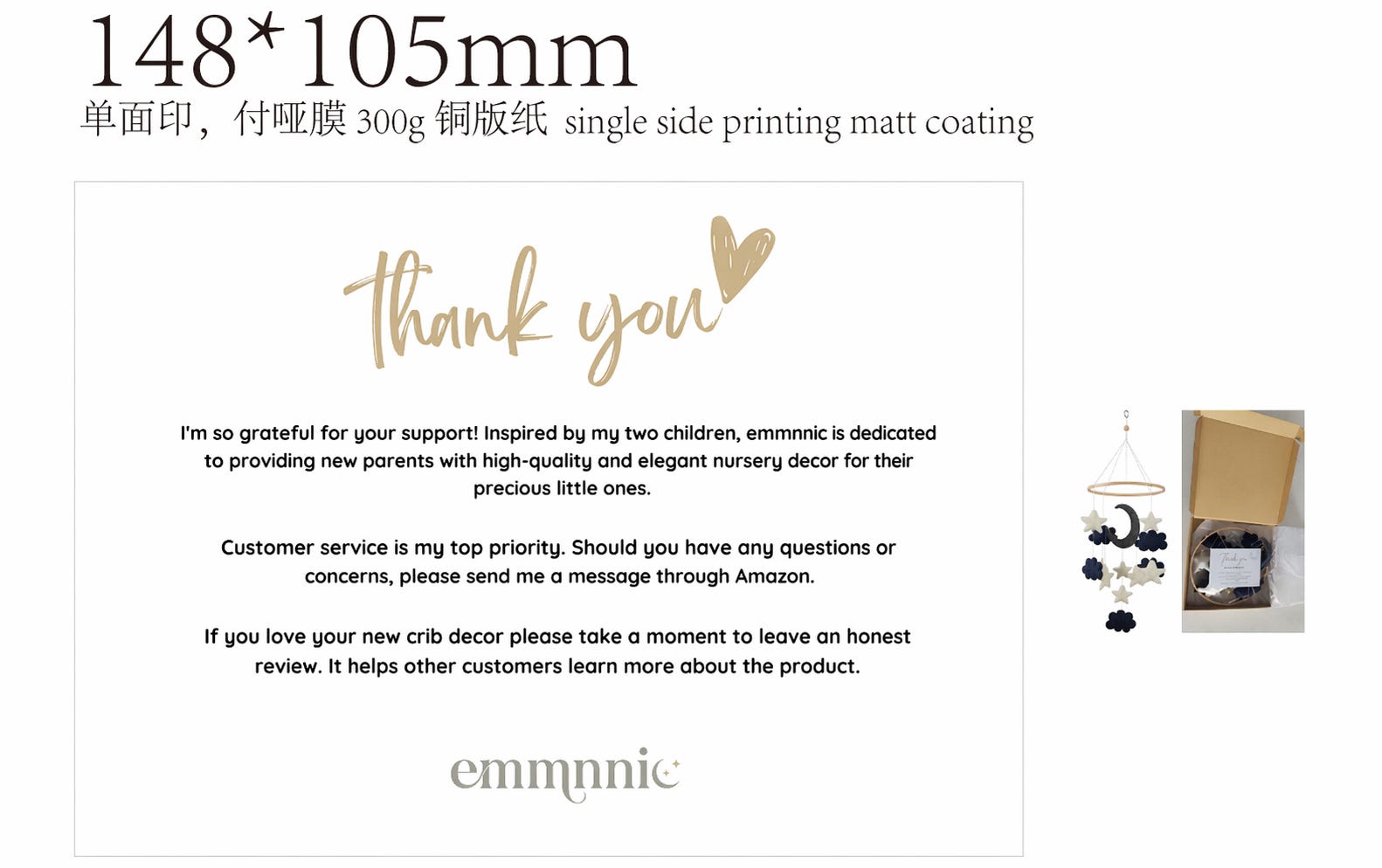
Even if I had an editable file, that’s a perfect result faster than it would’ve taken me to fire up an editor, make the changes and save it.
Last week’s post was about using Claude Design to help create a dashboard. I had mixed feelings about its performance, and I only got through one of the tasks I wanted to try before I hit my weekly limit. The second thing I was planning to attempt was a UI refresh of a useful-but-extremely-ugly dashboard I use to monitor the performance of my Amazon ads. Let’s see what Images 2.0 can do with it.
Prompt:
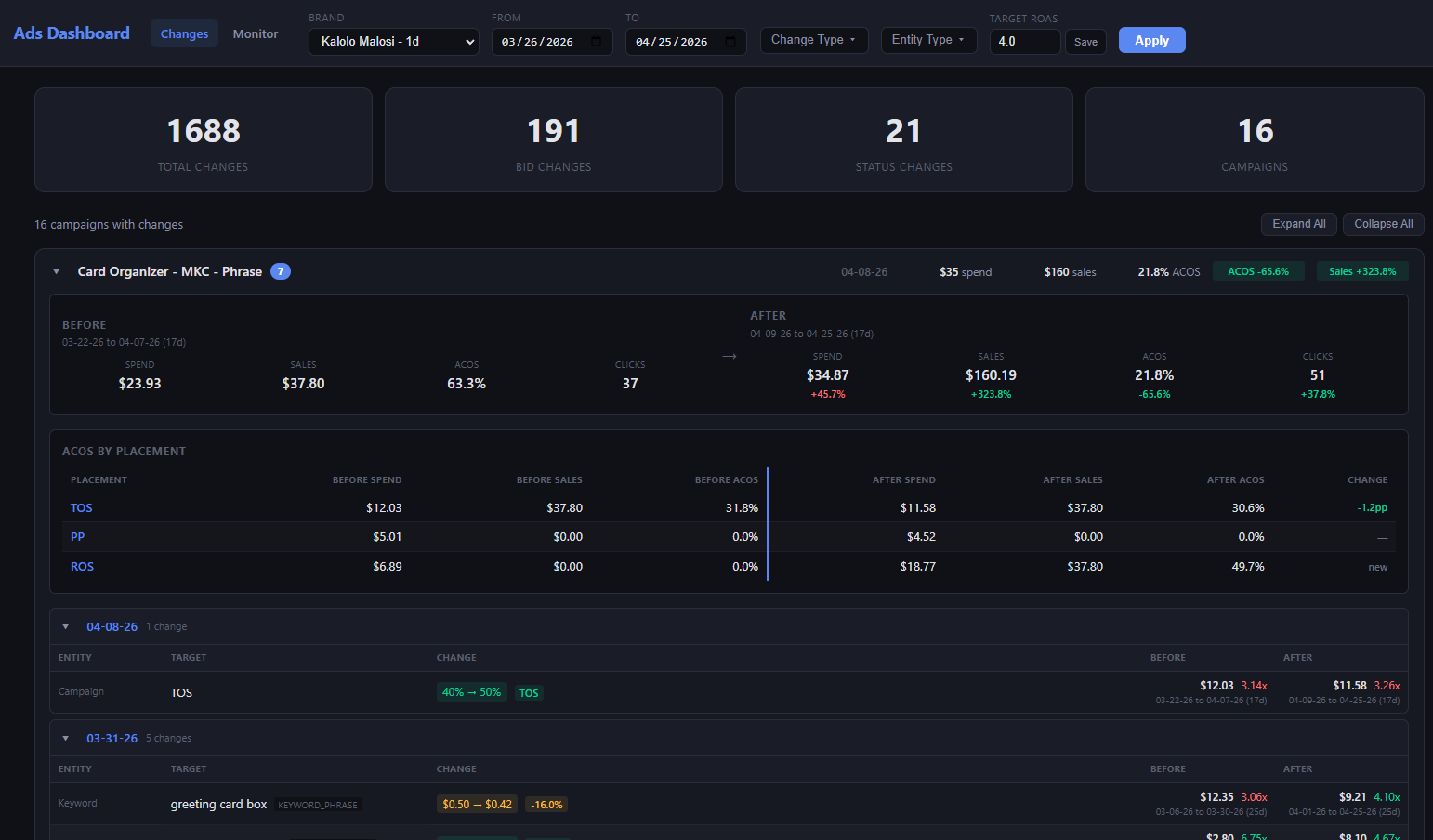
I have this dashboard that shows me the changes I've made to my Amazon ads. The objective is to make it easy to quickly see what changes have been made and what the effects of those changes were to help me assess the performance of my ads and inform future changes. It's functional but pretty ugly. I'd like you to create some designs that make it more readable, useable, and generally aesthetically pleasing. You should review it first and ask me any questions about the information on it, its functionality, or my preferences as a user that you need in order to do the best job with your redesign.
The first thing to note here is that it did a much better job of asking me questions than Claude Design. Lots of specific requests for input about exactly how I use this and what features are most valuable. Unlike Claude Design’s use of a static form to gather input, ChatGPT asked me in the normal chat UI, so I was much better able to give it thorough, detailed answers.
Result:
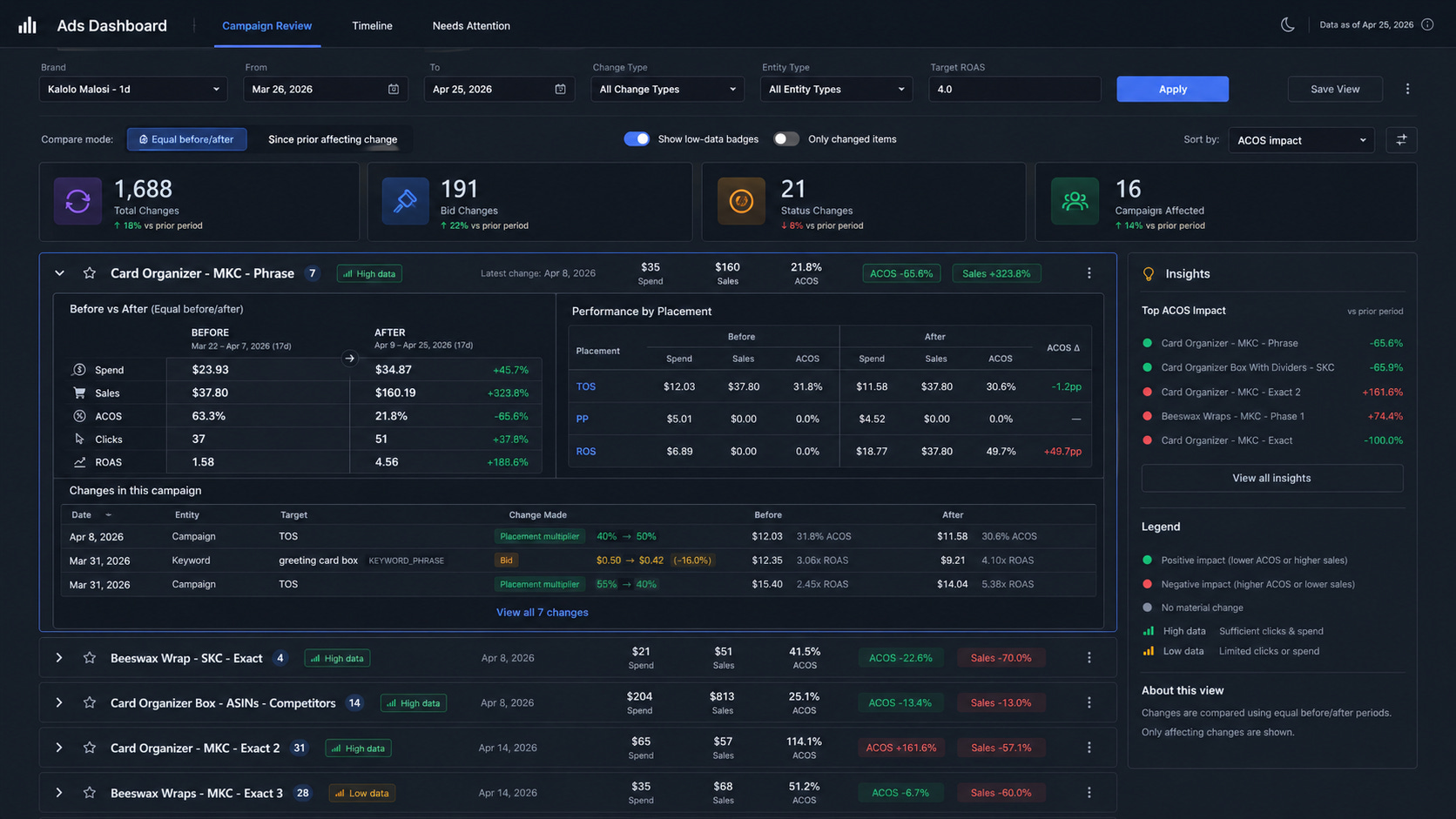
This is an improvement! Some obvious UI wins here, like moving the campaign-level before/after stats to a side-by-side view. It’s also more clearly surfacing which campaigns have sufficient data since their last change to be worth another look, which is helpful in directing my attention where it needs to be.
It does feel like there’s a little too much going on, but in ChatGPT’s defense, it was already working from something crowded and didn’t remove any functionality/information. Still, I suspect a great UX designer could’ve talked this through with me a bit more and helped me think through ways to reduce the amount of info shown at the top level.
One brand I own sells indoor swings that you have to mount from the ceiling. I am dealing with a relatively high return rate on that product, and I suspect one of the reasons is that the existing instructions are not that easy to follow and have no visuals. Improving those instructions has been on my to-do list for a while now, so I let ChatGPT give it a whirl.
First, I connected Google Drive and pointed it at the folders with product photos and the design file for the existing instructions. I told it to create an instruction sheet, pulling relevant photos and using them as visual aids.
Unfortunately, it failed spectacularly — the result was an instruction sheet for installing a swing, but it looked nothing like my swing and did not have the correct directions. When asked, ChatGPT admitted that it had not been able to open any of the images and just made something up.
So, for try number two, I downloaded a dozen relevant photos and uploaded those plus the existing instructions directly to ChatGPT. This time, it actually delivered:
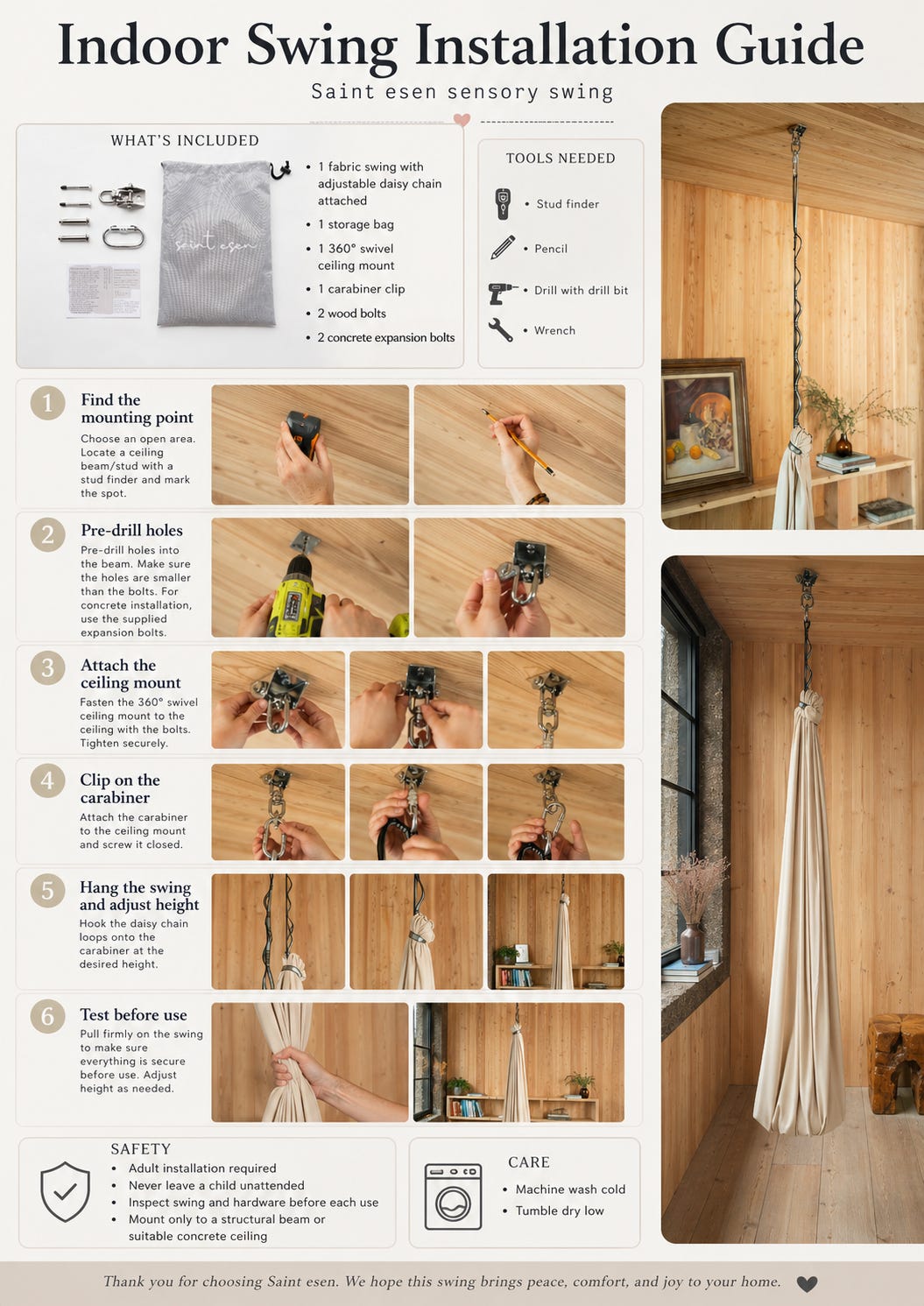
Coherent, well-structured and with the correct directions. Not bad!
That said, if you look closely, you’ll notice a few issues. The little heart at the top under the title is partially obscured, and the line to its left is lighter than the one to its right. More importantly, ChatGPT made some unhelpful edits to the photos I gave it. The left-hand one for step 2 doesn’t show the correct bracket, and the right-hand one has the hands holding some weird metal piece that doesn’t exist. Some of the photos in 3 and 4 don’t really illustrate the correct things, either.
Still, in the grand scheme this would honestly be fine to use as-is. Nobody’s going to notice the details in the pictures, and they’re illustrative enough that it’s an improvement over what I have.
I did take a pass at having it fix the issues, but it mostly didn’t work. It was able to correct the heart and adjacent lines at the top, but there was no getting it to use the right photos. I re-uploaded the images I wanted it to use and gave specific instructions about which slots to place them in, but it still made edits and put them in the wrong places. In the end, I had to drop the correct images in the old-fashioned way. So while this is a truly magical product, there’s still a little room for improvement.
All the way back in January, I vibe coded a whole app to help me generate listing images for my e-commerce brands. It went through a multi-step process of gathering information, checking reference styles and ultimately creating images.
As I was putting together the instructions for the swing, it occurred to me that it’d probably be helpful to have a listing image on Amazon showing what’s needed to install it, so as to avoid people ordering it, realizing they need a stud finder to install it, and then sending it back. Instead of breaking out the ol’ image generation app, I went to ChatGPT.
I uploaded the existing listing images and a photo for it to use in the new image, and I gave it this prompt:
These are some existing images from a listing I have for a swing on Amazon.
I need you to make one in the same with the following info:
Title: Safe, Secure Installation
Text:
One group of text titled "You'll need" with the list items: Stud finder, drill, socket wrench, pencil
Another group titled: "Instructions" with the list items: 1. Find a stud 2. Drill holes 3. Install the swivel mount 4. Hang the swing 5. Have fun swinging! Image: I attached an image of a drill - use that as the main photo for the image
Result:
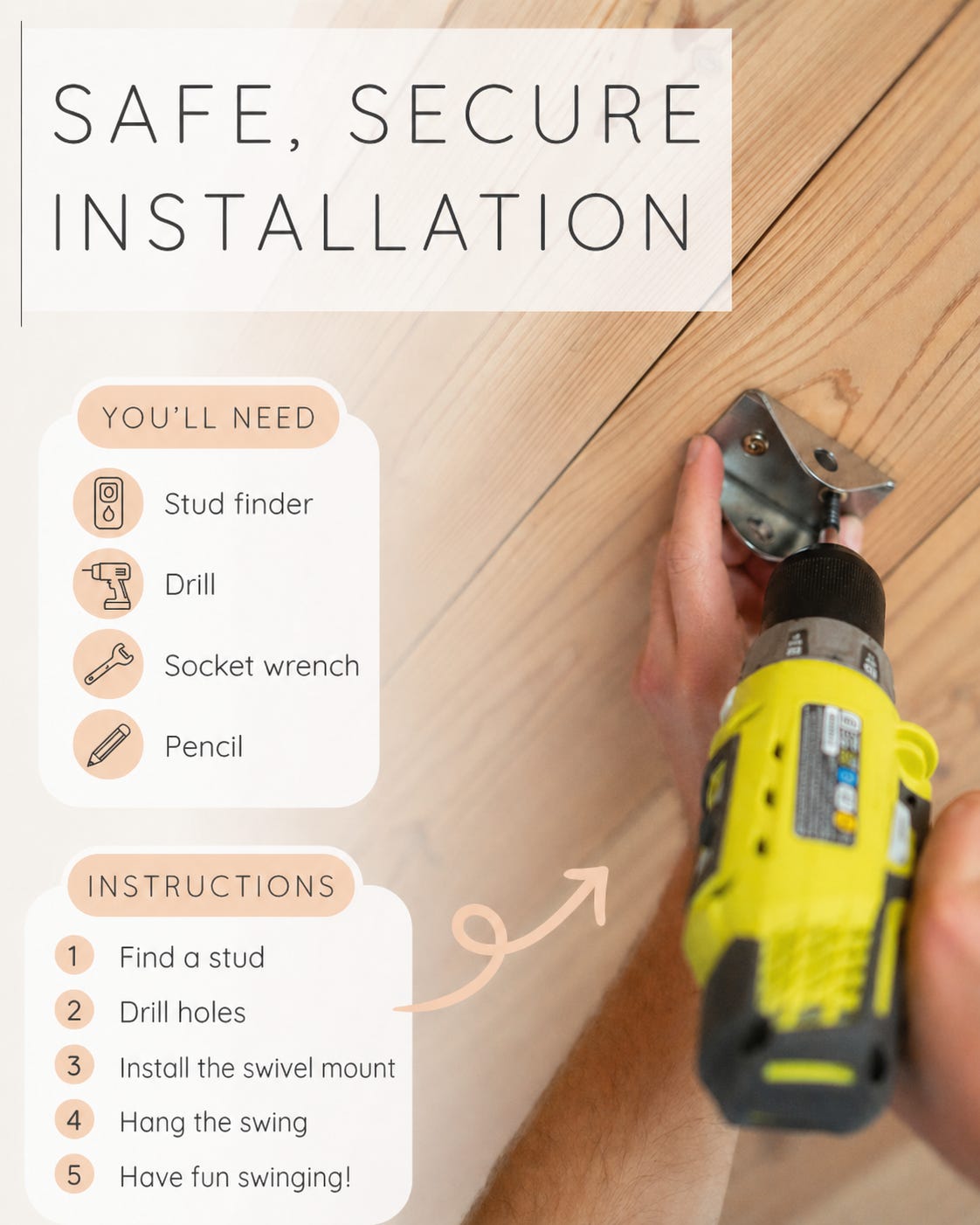
It matches the existing images perfectly! The big takeaway here is that as the core models get better, the need for scaffolding goes away. Expect this to continue — processes that you once had to orchestrate through a carefully designed flow of steps will be reduced to just asking your agent to take care of something.
So remember: it’s important not to get caught up in all the impressive demos you see when new AI products launch, lest you convince yourself to think of them only for grand, large-scale projects. You’ll get infinitely more value figuring out how you can use them to save yourself 30 minutes on a task you do a couple of times a week.