When you include manufacturers, inspectors and freight agents, I have about two dozen suppliers to deal with spread across four communication channels. Some are extremely proactive and reliable, but others need to be badgered regularly to make sure things stay on track.
Keeping everything straight has become a bit of a pain, so I decided to have Claude pull all of these conversations daily in order to create a dashboard that tracks the status of all in-flight orders and highlights anything I need to take action on. This turned out to be more trouble than initially expected.
In order of least to most challenging to implement:
Claude Code is already reading my email for other tasks, so I knew this would be a straightforward channel to start with. There are a few ways to give it access, but the easiest is just to get an app password. For security reasons I wouldn’t use this for any kind of public-facing software, but for an app that only exists on my local machine, it’s fine.
I gave Claude the password along with a list of all of the suppliers I communicate with by email that contained:
Email addresses
Names
Which brand(s) they’re associated with
Their role (manufacturer, freight, inspector)
It uses IMAP (Internet Message Access Protocol) to read my inbox, because it’s a very old, reliable protocol. First thing in the morning, it checks for emails from all of the addresses on the list, grabs any that are new since the last time it ran and saves the content of each to a JSON file. If there are attachments to those emails, it downloads and saves those as well.
WhatsApp doesn’t make it quite as easy to get access to your messages, but because it has a web app, it’s not too painful. Claude started by firing up WhatsApp Web, which I logged into, and it saved the authenticated session. I then gave it a list of suppliers to track.
Now each morning it uses a Node.js library called whatsapp-web.js to spin up a Chromium browser, load WhatsApp Web, and then gather the relevant messages. All of those, along with any attachments, get saved locally.
This is where it got a bit more challenging. There is no API or other protocol that would allow me to access my Alibaba messages in a Claude-friendly way. Their TOS prohibits bots/scraping/etc., and since it’s pretty important that I not get my account banned, we have to do this in a low-risk way.
We’ll have to access messages through the web app, which means using Playwright (a library that can be used to programmatically control a browser). Similar to WhatsApp, this started by launching Chromium and going to Alibaba, where I logged in, then saving the authenticated session. After that, I gave it the supplier list, this time including the URL for my conversation with each one.
Each morning, Claude fires up the same session, checks if it’s still authenticated (if not, it’ll notify me), then goes directly to the URL of my chat with each supplier, where it takes a screenshot of the page. I settled on this approach to minimize the possibility of detection by Alibaba — there’s no interaction with the page at all, just opening it, screenshotting it, and closing the tab.
Once all of the conversations have been screenshotted, Claude opens each image, extracts all messages and saves them in JSON format.
There are a couple of downsides. First, if the supplier has sent so many messages since the last time we scraped that they aren’t all visible on screen, it will only get the ones it can see in the screenshot. If this happens, Claude can tell because there are no duplicate messages from the prior run, so it notifies me. In practice no supplier ever sends that many messages in a row, so it’s never been an issue. The bigger problem is that Claude can’t download attachments. If any files have been attached, it will flag that to me so I can manually download and save them later. Not ideal, but fine for now.
This was the most painful. Like Alibaba, there’s no good way to access these messages programmatically and a TOS that frowns upon exactly what I’m trying to do. Claude laid out a few options for me.
First is memory scraping, which is to say going into WeChat’s working memory to copy messages from it. Second is database extraction, which entails pulling the messages out of the local database where WeChat Desktop stores them. These are both definitely doable, but Claude informed me that they’re also detectable by WeChat and could well get me banned. No dice.
So instead we’re left with option number three, which is Windows UIAutomation. That’s an accessibility API that screen readers use to see and interact with what’s on your monitor. It’s clunky, but it’s also indistinguishable from the way an actual blind person would use WeChat and thus highly unlikely to get me banned. (I will also note that Claude does have a computer use skill that would work here, but it’s Mac only and I’m a PC user.)
I gave Claude the WeChat supplier list, and it built out the flow through a bunch of trial and error interacting with the WeChat Desktop app. I asked Claude for interesting technical details, and it noted that one limitation of the accessibility tree (which is what it gets from Windows that tells it what’s on the screen) is that it doesn’t identify who a message is from. It could’ve attempted to infer it from context, but instead it samples a bunch of pixels on both sides of the screen on each message. My icon appears on the right and other people’s on the left, so it uses that to tell where the icon is and thus attribute the message.
A limitation is that if there are multiple people in the chat, it can’t tell the non-me participants apart with this method. I could’ve had it screenshot my screen and use the image to attribute messages, but I couldn’t come up with a scenario where it would really matter which of the other parties in a chat sent a message. All of my chats with multiple other parties are just two or three people from a manufacturer, and there’s no need to distinguish among them. If I had chats with, say, a manufacturer and a freight forwarder, I might need to implement this. It also can’t download files (or rather it could but in a brittle way with simulated clicks, so I skipped it for now), so it takes the same approach as with Alibaba.
Now that it’s up and running, I just have to leave WeChat open and logged in. Claude brings the window into focus, grabs the messages, dedupes them against the existing log and writes new ones to it. If the window’s not open, it flags that for me.
Now that we’re gathering all of the supplier messages, the next step is to turn those into something useful. What I ultimately want here is a UI that tracks the status of all of my orders and lets me know if I need to take action on any of them, either because they’re waiting on a response from me or because a step in the process has not happened by its expected completion date.
If you’ve been following my Substack, all of this may sound familiar to you, because this particular dashboard was the topic of my post about giving Claude Design a test run. I won’t rehash all of that, but the quick summary: we ended up with two views, one triage-style that shows me what I need to do, and a Kanban-style board that gives me an overview of where every order currently stands in the process.
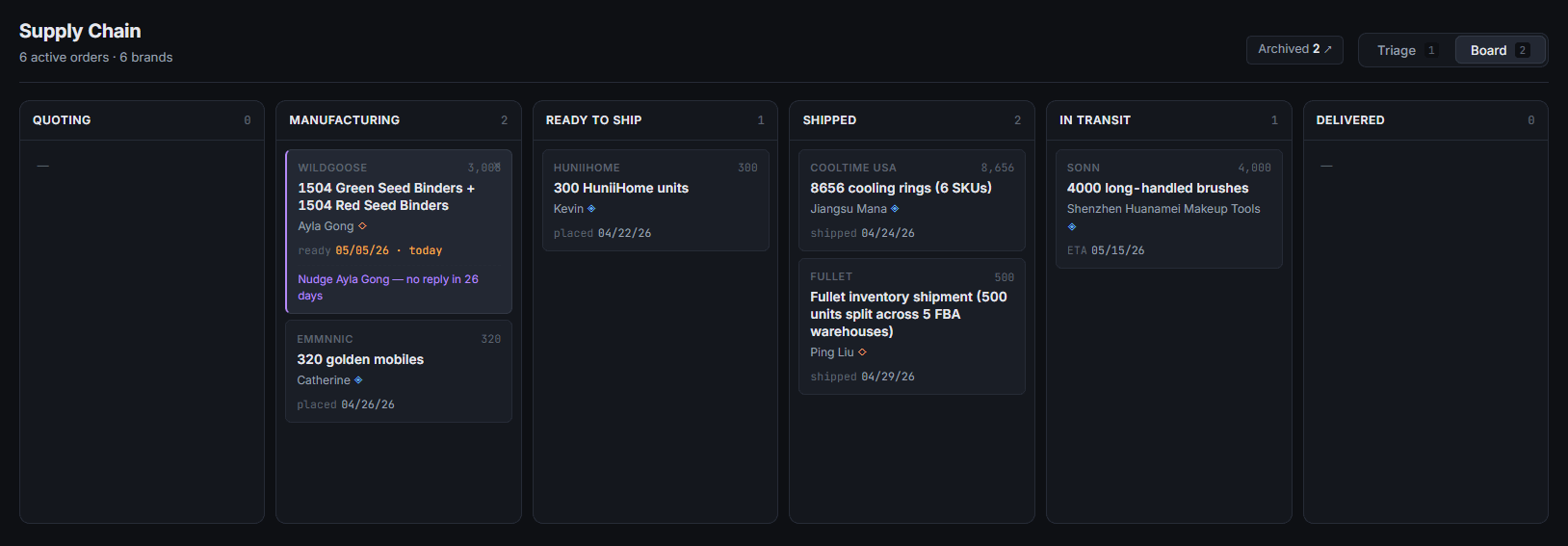
In order to translate messages into items on the board, Claude has a post-collection processing step, where it reviews everything that came in that day and determines if new orders need to be added, existing orders need to be updated, or action items need to be created for me.
This step is handled by a headless call to Claude Code (claude -p), and it runs through a fairly complex process to determine which actions to take:
Reviews all of the context files with information on suppliers, plus the database with the current state of all orders.
Determines which order each message should be attributed to. This is challenging, because each order might have messages from multiple platforms. A common scenario is I’ll place the order on Alibaba, then when it’s complete reach out to an inspection service via email, and when it’s inspected and ready to ship, get quotes from one freight forwarder via email and another via WeChat. When I’m getting quotes via email I always maintain one thread per shipment, but on WeChat a forwarder might send me an update on a shipment in transit and then quotes on a couple of different shipments I’ve inquired about. Claude has to use the message content to attribute each of them, and I have to say it’s impressively been 100% correct so far.
Determines if a message warrants the creation of a new order, a status transition on the board, and/or an action item for me. If a manufacturer has told me my order is ready, it should transition to Ready to Ship status and create an action item for me to get freight set up.
Extracts products, numbers, dates and shipment IDs. The orders are titled as <number of units> <product>, so if it’s creating a new one it needs to get those values. Dates are typically when the message was sent, not extracted from the message itself, and they’re used to track when status changes happened. Once I’ve created shipments in Amazon, I send those IDs to the freight forwarder. Claude looks for the specific Amazon shipment ID formats, so it can pull those out and put them at the top of the detail UI for easy reference if I need to find them in Seller Central later.
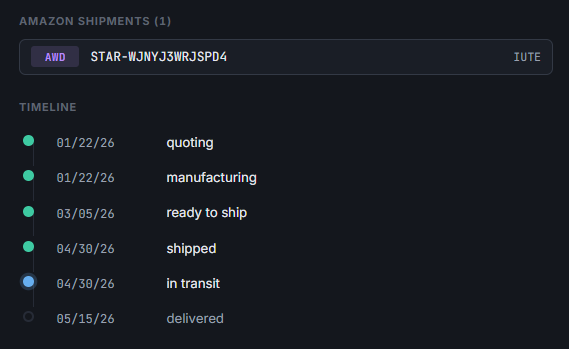
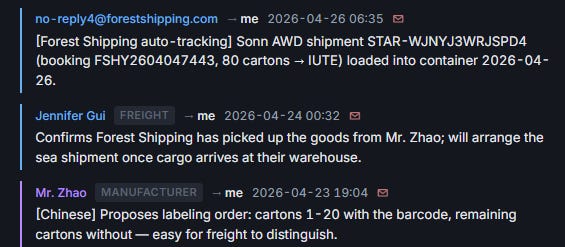
Tracks participants and records messages. The detail page has a list of every message with a brief summary, so Claude adds any new ones to the relevant order. Emails have a link to the thread in my inbox from the little red envelope icon.

Updates primary supplier. Each card on the board identifies the supplier currently responsible for the order. That changes as it goes from manufacturing to inspection to shipping, so Claude updates this when needed.
Adds supplier notes. The long-term goal here is to actually get Claude to interact with my suppliers and place orders when needed, so I have it keeping notes on each of them — things like whether they’re responsive or need to be chased, and whether they’re familiar with Amazon’s processes and requirements or should be given explicit instructions.
We had a few minor hiccups with the dashboard early on, but overall once we got the scraping figured out, the rest went very smoothly. Really the only things I have to do manually are grab attachments from WeChat and Alibaba, plus archive orders once they’re complete. The latter I intend to automate — I already have Claude running a daily script to check for orders whose status has updated to Closed on Amazon, so I just need to get that integrated here.
The big next feature is to have Claude start running my inventory skill across all brands once a week or so, in order to create action items for me when it’s coming up on time to place a new order. Once that’s reliable, I want to get Claude actually placing those orders and communicating throughout the process. To have it fully take that over, I’ll probably need a Windows computer use skill, so it can use WeChat Desktop without getting flagged as a bot. With the pace of AI progress, it probably won’t be long.