Announcing Native NVMe in Windows Server 2025: Ushering in a New Era of Storage Performance

12 min read Original article ↗

Blog Post

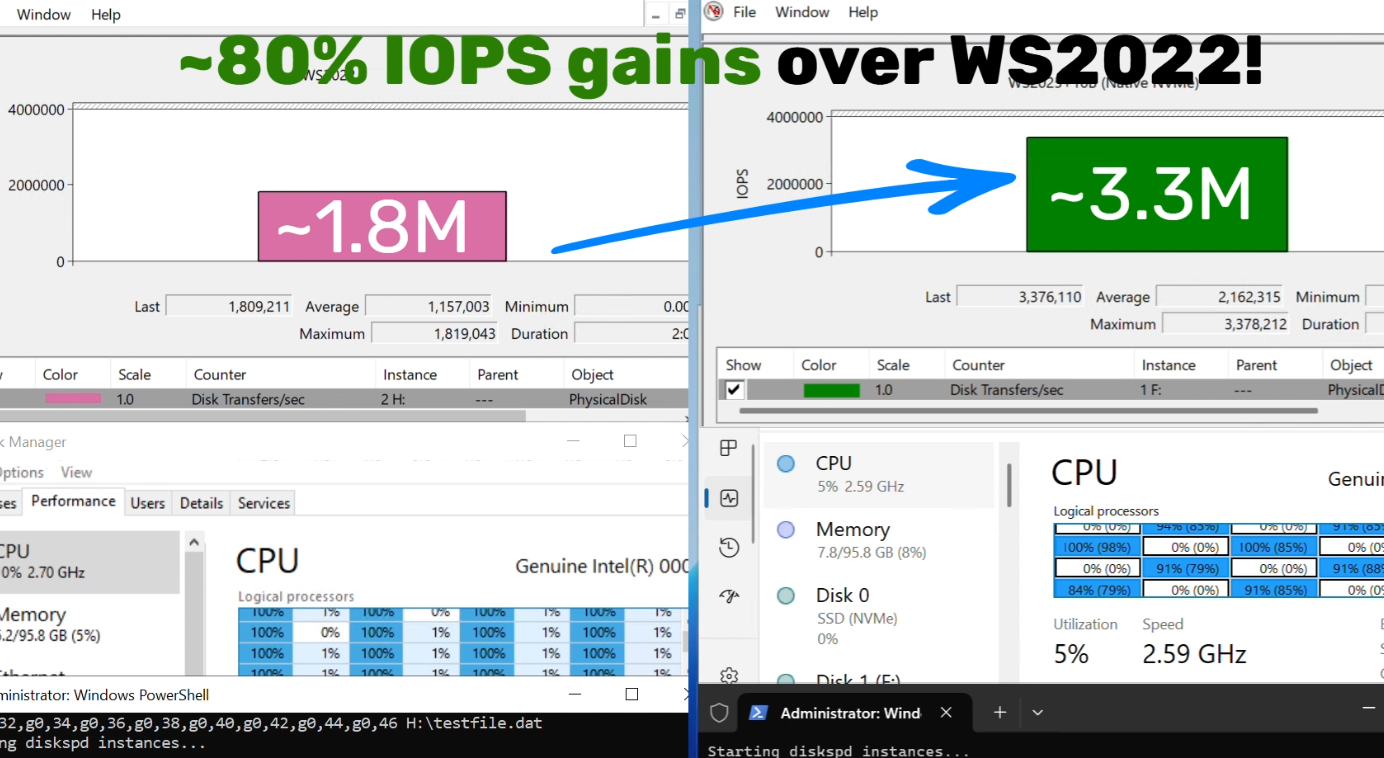
Screenshot of higher IOPS when running Native NVMe stack on Windows Server 2025.

Windows Server News and Best Practices

5 MIN READ

Yash_Shekar's avatar

Native NVMe support in Windows Server 2025 is a leap forward in storage innovation that will redefine what’s possible for your most demanding workloads. Enable Native NVMe today using a registry key after applying October’s latest cumulative update for WS2025!

We’re thrilled to announce the arrival of Native NVMe support in Windows Server 2025—a leap forward in storage innovation that will redefine what’s possible for your most demanding workloads. Modern NVMe (Non-Volatile Memory Express) SSDs now operate more efficiently with Windows Server. This improvement comes from a redesigned Windows storage stack that no longer treats all storage devices as SCSI (Small Computer System Interface) devices—a method traditionally used for older, slower drives. By eliminating the need to convert NVMe commands into SCSI commands, Windows Server reduces processing overhead and latency. Additionally, the whole I/O processing workflow is redesigned for extreme performance. This release is the result of close collaboration between our engineering teams and hardware partners, and it serves as a cornerstone in modernizing our storage stack. 

Native NVMe is now generally available (GA) with an opt-in model (disabled by default as of October’s latest cumulative update for WS2025). Switch onto Native NVMe as soon as possible or you are leaving performance gains on the table! Stay tuned for more updates from our team as we transition to a dramatically faster, more efficient storage future.

Why Native NVMe and why now?

Modern NVMe devices—like PCIe Gen5 enterprise SSDs capable of 3.3 million IOPS, or HBAs delivering over 10 million IOPS on a single disk—are pushing the boundaries of what storage can do. SCSI-based I/O processing can’t keep up because it uses a single-queue model, originally designed for rotational disks, where protocols like SATA support just one queue with up to 32 commands. In contrast, NVMe was designed from the ground up for flash storage and supports up to 64,000 queues, with each queue capable of handling up to 64,000 commands simultaneously.

With Native NVMe in Windows Server 2025, the storage stack is purpose-built for modern hardware—eliminating translation layers and legacy constraints. Here’s what that means for you:

  • Massive IOPS Gains: Direct, multi-queue access to NVMe devices means you can finally reach the true limits of your hardware.
  • Lower Latency: Traditional SCSI-based stacks rely on shared locks and synchronization mechanisms in the kernel I/O path to manage resources. Native NVMe enables streamlined, lock-free I/O paths that slash round-trip times for every operation.
  • CPU Efficiency: A leaner, optimized stack frees up compute for your workloads instead of storage overhead.
  • Future-Ready Features: Native support for advanced NVMe capabilities like multi-queue and direct submission ensures you’re ready for next-gen storage innovation.

Performance Data

Graph showing IOPS gains on WS2025 (with Native NVMe) compared to WS2022 on 1, 8, and 16-threaded 4K random read tests using an NTFS-formatted volume.Graph showing reduction in CPU cycles per I/O on WS2025 (with Native NVMe) compared to WS2022 on 8 and 16-threaded 4K random read tests using an NTFS-formatted volume.

Using DiskSpd.exe, basic performance testing shows that with Native NVMe enabled, WS2025 systems can deliver up to ~80% more IOPS and a ~45% savings in CPU cycles per I/O on 4K random read workloads on NTFS volumes when compared to WS2022. This test ran on a host with Intel Dual Socket CPU (208 logical processors, 128GB RAM) and a Solidigm SB5PH27X038T 3.5TB NVMe device. The test can be recreated by running "diskspd.exe -b4k -r -Su -t8 -L -o32 -W10 -d30 testfile1.dat > output.dat" and modifying the parameters as desired. Results may vary.

Top Use Cases: Where You’ll See the Difference

Try Native NVMe on servers running your enterprise applications. These gains are not just for synthetic benchmarks—they translate directly to faster database transactions, quicker VM operations, and more responsive file and analytics workloads.

  • SQL Server and OLTP: Shorter transaction times, higher IOPS, and lower tail latency under mixed read/write workloads.
  • Hyper‑V and virtualization: Faster VM boot, checkpoint operations, and live migration with reduced storage contention.
  • High‑performance file servers: Faster large‑file reads/writes and quicker metadata operations (copy, backup, restore).
  • AI/ML and analytics: Low‑latency access to large datasets and faster ETL, shuffle, and cache/scratch I/O.

How to Get Started

  1. Check your hardware: Ensure you have NVMe-capable devices that are currently using the Windows NVMe driver (StorNVMe.sys). Note that some NVMe device vendors provide their own drivers, so unless using the in-box Windows NVMe driver, you will not notice any differences.
  2. Enable Native NVMe: After applying the 2510-B Latest Cumulative Update (or most recent), add the registry key with the following PowerShell command: 
    reg add HKEY_LOCAL_MACHINE\SYSTEM\CurrentControlSet\Policies\Microsoft\FeatureManagement\Overrides /v 1176759950 /t REG_DWORD /d 1 /f
    Alternatively, use this Group Policy MSI to add the policy that controls the feature then run the local Group Policy Editor to enable the policy (found under Local Computer Policy > Computer Configuration > Administrative Templates > KB5066835 251014_21251 Feature Preview > Windows 11, version 24H2, 25H2). Once Native NVMe is enabled, open Device Manager and ensure that all attached NVMe devices are displayed under the “Storage disks” section. Screenshot of Device Manager where NVMe devices show up under the Storage disks section.
  3. Monitor and Validate: Use Performance Monitor and Windows Admin Center to see the gains for yourself. Or try DiskSpd.exe yourself to measure microbenchmarks in your own environment! A quick way to measure IOPS in Performance Monitor is to set up a histogram chart and add a counter for Physical Disk>Disk Transfers/sec (where the selected instance is a drive that corresponds to one of your attached NVMe devices) then run a synthetic workload with DiskSpd. Compare the numbers before and after enabling Native NVMe to see the realized difference in your real environment!

Screenshot of Performance Monitor, showing how to add a counter for Disk Transfers/sec to measure IOPS of an NVMe drive.Screenshot of higher IOPS when running Native NVMe stack on Windows Server 2025.

Join the Storage Revolution

This is more than just a feature—it’s a new foundation for Windows Server storage, built for the future. We can’t wait for you to experience the difference.

Share your feedback, ask questions, and join the conversation. Let’s build the future of high-performance Windows Server storage together. Send us your feedback or questions at nativenvme@microsoft.com!


Yash Shekar (and the Windows Server team)

Updated Jan 05, 2026

Version 2.0

Yash_Shekar's avatar

Joined

September 16, 2022

85 Comments

  • hoyty76's avatar

    When will this be enabled by default instead of needing to be manually turned on?

    • Elden_Christensen's avatar

      Since Windows Server 2025 is a shipped GA product, we have an Opt-in model.  You will see it is enabled by default in the Windows Server Insiders builds for vNext.   Thanks!  -Elden

  • vasekv's avatar

    A few things are boggling my mind.

    1. Why did you wait until the October update to announce this, when the nvmedisk.sys file has been in Windows Server 2025 since the beginning?
    2. Why are you announcing this now in December, when it was released in the October update, as you claim?
    3. Why is there no mention of this in the release notes for the October update?
    4. What exactly does the number 1176759950 in the registry mean?
    5. Why does enabling Windows 11 in the registry require three different and completely different numbers, and what do these numbers mean? (I know this isn't primarily a question for Microsoft, but I'd still like to know).

    Thanks.

    • Elden_Christensen's avatar

      This is a change to the existing driver that came in through servicing in the October update, so you need the October update or later for Windows Server 2025.  It's not a new driver.  The functionality is controlled by the users who choose to opt-in, it's enabled by default in the Windows Server Insider builds for vNext.   Thanks!

  • s32692124's avatar

    What is the reason that some system have preformance improvements while other not?

    My tested server uses local Windows Storage Spaces to build a mirror with two NVME disks.

    Is that that the reason? The drives show up in device manager under storage disks with following dirivers

  • RHCITC's avatar

    With these additional features enabled, I mange to get it running on Windows 11 (disk showing up under Storage Disks as NVMe) - but I can't measure any improvement, in fact I only get worse numbers after the change.
    The article only talks about WS2025, do any of you know if it actually is suppose to work on clients?

    Additional keys for Windows 11 - but I don't see any performance gains, so I might not work on clients at all - do you see a difference?

    reg add HKEY_LOCAL_MACHINE\SYSTEM\CurrentControlSet\Policies\Microsoft\FeatureManagement\Overrides /v 1853569164 /t REG_DWORD /d 1 /f
    reg add HKEY_LOCAL_MACHINE\SYSTEM\CurrentControlSet\Policies\Microsoft\FeatureManagement\Overrides /v 156965516 /t REG_DWORD /d 1 /f
    reg add HKEY_LOCAL_MACHINE\SYSTEM\CurrentControlSet\Policies\Microsoft\FeatureManagement\Overrides /v 735209102 /t REG_DWORD /d 1 /f

    • MSP_Knuckle_Dragger's avatar

      On one Win11 25H2 system, I saw 12% higher max read speeds, 2% higher max write speeds, 167% higher IOPS between 512b and 8KB IOs.  138% more performance between 512kb-8MB reads & writes.  It's a 4-year old OEM Samsung NVMe.  While these results won't be representative of all hardware out there, the new nvme driver improved responsiveness and reduced time to login to desktop.  Overall the results were improved across the board, with more consistent performance across a broad range of file sizes.  This driver hits the performance limitations of the NVMe controller.  

      • RHC's avatar

        Did you enable it by adding the 4 reg keys? Or did you do something else? 

    • hp18568's avatar

      I run 23H2, and I don't see that any of the 4 registry keys are having the desired effect.

    • Squall_Leonhart's avatar

      You need to register the class id's in these locations or safemode will be broken

      HKEY_LOCAL_MACHINE\SYSTEM\CurrentControlSet\Control\SafeBoot\Network\{75416E63-5912-4DFA-AE8F-3EFACCAFFB14}
      HKEY_LOCAL_MACHINE\SYSTEM\CurrentControlSet\Control\SafeBoot\Minimal\{75416E63-5912-4DFA-AE8F-3EFACCAFFB14}

      They aren't present on server either......

      • TeknikFreak1975's avatar

        How do I perform the registration of the class id's?
        Just add the registry values?
        What data should they contain?

  • Karl-WE's avatar

    Crystaldiskmark 9.0.1 was used to test it, along with the latest version of Diskspd, WS 2025 LCU 11-2025 and an Intel enterprise-class PCI-E NvMe in both cases.
    Mixed results. I cannot say exactly how much the measure tolerance is. The host was restarted before every test.
    Please note the test does 3 passes and does not match with the parameters provided by Microsoft in this article, so results may vary.

    NVMe mode 

     
    SCSI Mode

  • Karl-WE's avatar

    #list all devices that contain NVMe in their name, with the old driver (class -eq "DiskDrive" or new driver class -eq "NvMeDisk")
    #Note: Devices remain as stale devices in state "unknown"after switching drivers, unless deleted with pnputil or devmgr.
    
    Get-PnpDevice |
        Where-Object { $_.FriendlyName -match "NVMe" -or $_.InstanceId -match "NVMe" } |
        Select-Object Status, Class, FriendlyName, InstanceId |
        Format-Table -AutoSize 

    If you want to check the changed driver in Windows Server (GUI) at scale or in Windows Server (Core), this script should help you.

    Example:

  • Karl-WE's avatar

    Anyone seeing this an when copying the provided diskspd.exe command in PowerShell or cmd? 

    • Yash_Shekar's avatar

      Thanks for reporting the typo. Syntax has been corrected to use the correct dash.

    • Mashiro's avatar

      In fact, this is a typo in the command in the article. Notice the – in –t8, which is actually En Dash. You need to delete it and re-enter a correct Hyphen.

      • RHCITC's avatar

    • RHCITC's avatar

      Yes - I saw the same behavior, I just changed the command to this:
      .\diskspd.exe -c1g -r -Su -t8 -o32 -W10 -d30 -b4k -L testfile1.dat > output.txt

  • s32692124's avatar

    The disk shows now up under Storage Disks, but does not change performance of two NVMe drives configured as local storage spaces mirror. Used >Diskspd.exe -c100G -t6 -d100 -r -w20 -t8 -o8 -b64K  - Any other change needed? Thx!

    How can it be disabled? Can you please provide reg command to remove / undo the applied reg add cmd?

    reg add HKEY_LOCAL_MACHINE\SYSTEM\CurrentControlSet\Policies\Microsoft\FeatureManagement\Overrides /v 1176759950 /t REG_DWORD /d 1 /f

    • 俊玮 林's avatar

      reg delete HKEY_LOCAL_MACHINE\SYSTEM\CurrentControlSet\Policies\Microsoft\FeatureManagement\Overrides /v 1176759950 /f
  • RozinhaK's avatar

    It's almost 2026, and Microsoft is not following in Linux's footsteps by adopting NVMe natively on all systems.

    It should be standard on Windows 11, especially servers and for those who play games on home and pro editions.

    Microsoft has problems maintaining support for legacy technologies and forgetting to adopt new technologies, while hardware evolves every day.

    Direct X 12 for example, doesn't get a single update for years.

    • MSP_Knuckle_Dragger's avatar

      DX12 is constantly evolving - ray and path tracing, auto system rendering, work graphs, shader delivery, cooperative vectors... just because the major version number hasn't changed doesn't mean critically important features are not being added & refined.  The point of this article is about evolution.  As I'm responsible for thousands of endpoints, I laud the idea of an opt-in to the native nvme driver and to have the ability to test it out before real-world deployments.  I'd complain loudly if this was suddenly enabled across billions of endpoints worldwide.  It needs shakedown time.  I've already identified apps that don't work with it enabled.  MS has to lay the foundation and let software & hardware vendors to catch up.  

      • DanCuomo's avatar

        Could you please share the apps that don't work?

    • Squall_Leonhart's avatar

      nvmedisk currently veto's ByPassIO making it less optimal for directstorage.

  • Hans Odink's avatar

    I did enable it on my HomeLab server running Windows Server 2025 Datacenter, after the restart it was really quick also the VM's (running on (Hyper-V) where responding much better. Allthough after les then 15 minutes the VM's ran into BSOD, and would not boot succesfully.
    Rolled back the change, and restored backups of the VM's. All running like it should. 
    I suspect that it has something to doe with Data Deduplication which I have enabled on the NVMe disk where the VM's are stored.

    • Elden_Christensen's avatar

      Which Deduplication solution are you using?   The newer ReFS Dedup or the older Data Dedup? 

      • Hans Odink's avatar

        I suppose it is the older Data Dedup, because it was enabled on a the server when it was an older version (I suppose enabled on W2019).
        Is it possible to determine it? And can it be converted?

    • jotheman03's avatar

      Similar experience here.

      It looked like it was working initially, but all my VM's broke down shortly after. All of them are/were corrupt.

      95% was for testing, but still it's a bitter pill... I didn't have backups (Yep, that's my own choice, I know) so I had to do a UFO as they say in Dutch: Cry, Format, Start again (Uithuilen, Formatteren, Opnieuw beginnen).

      In seriousness though: Microsoft, please oh please do not start turning this on on systems that have Deduplication enabled on NVMe drives!

    • RozinhaK's avatar

      Maybe need to enable the fix before data duplication