You can switch between emails, chats, and meetings without the need to open a new tab or window in Gmail.
When you open Gmail, you can:
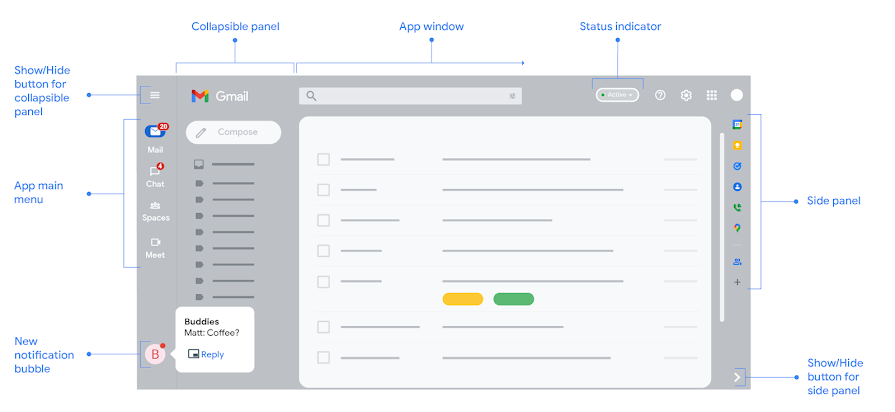
- Open Google Chat and Google Meet from the Gmail main menu.
- View specific app menus in the collapsible panel.
- Get notified of new chat messages through notification bubbles.
- Point to each app's icon to preview what's going on.
- Access other Workspace add-ons like Keep and Tasks from the side panel on the right.
Show or hide Chat or Meet
- On your computer, open Gmail.
- At the top right, click Settings
.
- In the "Quick settings" menu, under "Apps in Gmail," click Customize.
- Next to "Google Chat" or "Google Meet," click the checkbox.
- Click Done.
Switch between apps in the main menu
To the left of your inbox, in a collapsible panel, you can switch between Gmail, Chat, or Meet.
Manage Chat notification bubbles
When you get a new message in Chat, the notification appears on the bottom left corner in a bubble. When you point to the bubble, a message preview displays.
Reply to a message in a bubble
- To open the message and reply directly, click the bubble.
- To open the message in a pop-up window, click Reply.
Turn notification bubbles on or off
- At the top right of Gmail, click the status indicator
Chat notification settings.
- In the window that appears, check the boxes next to “Allow Chat notifications” and “Open chat bubbles for new messages.”
- At the bottom of the window, click Done.
Tips:
- To turn notification bubbles off, uncheck the box next to “Open chat bubbles for new messages.”
- To open chat bubbles in a pop-up window, uncheck the box “Open chat bubbles in full screen.”