I’ve been a happy customer of Cursor, but when Claude Code was announced, it piqued my curiosity. Before Cursor I was using GitHub Copilot, but switching to Cursor from GitHub Copilot was a step change. I could see the productivity gains and improved code quality by using Cursor. I was curious to see if Claude Code could deliver a similar step change compared to Cursor. I decided to test it out for myself.
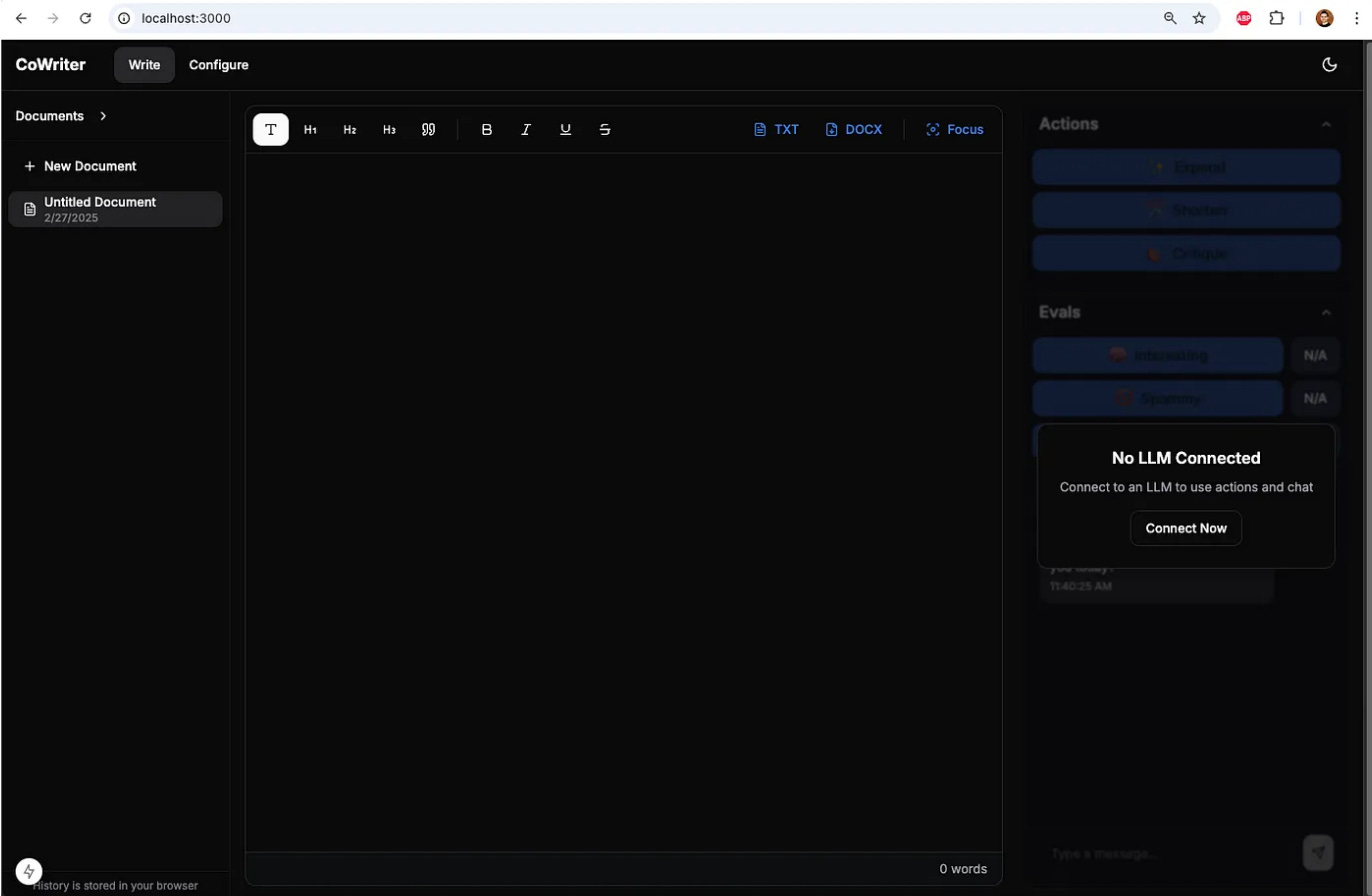
To conduct my tests, I decided to use my open source project, CoWriter. CoWriter is AI-powered writing assistant that helps you improve your writing through various actions like expanding, shortening, and critiquing. It also provides feedback on your text and let’s you chat with it. It provides an intuitive interface for real-time writing enhancement. The project combines a React frontend with a Python backend and provided a good mix of challenges to test both tools. Here’s the repo for the project — https://github.com/aadityaubhat/co_writer
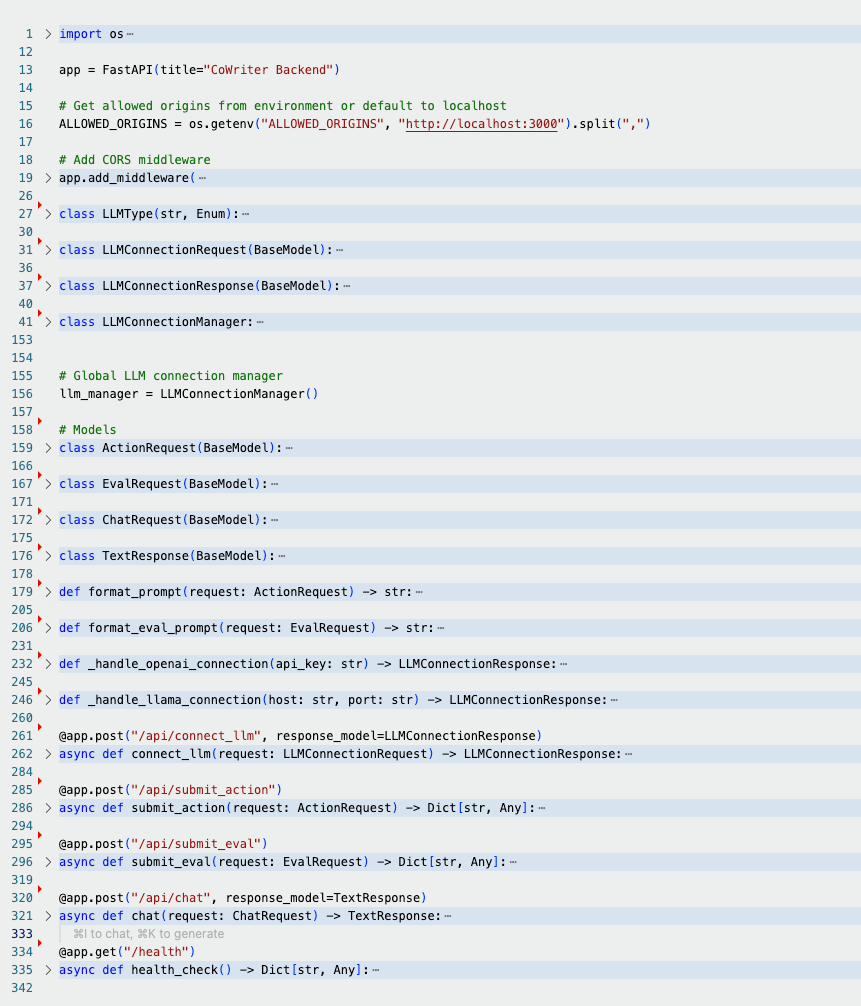
For the first test, I wanted to make a pure backend change. I asked each tool to refactor main.py for better extensibility and scalability. My main.py file was a mess with models, middleware, connection manager in a single Python file. Here’s how main.py looked.
I used the following prompt to refactor this file.
Let’s improve main.py by refactoring for extensibility & scalability
Claude Code
Claude Code reorganized the file by restructuring the existing code within the same file. However, it did not split the code into modular components as I expected, and it overlooked some of mypy compliance rules. Final commit by Claude: GitHub commit
Cursor
Cursor took a more ambitious approach by breaking the monolithic main.py into dedicated model and service files. Although the initial refactor encountered minor issues with Python import paths, Cursor resolved them in one go and the resulting code passed both linting and type checks. Final commit by Cursor: GitHub commit
Winner: Cursor
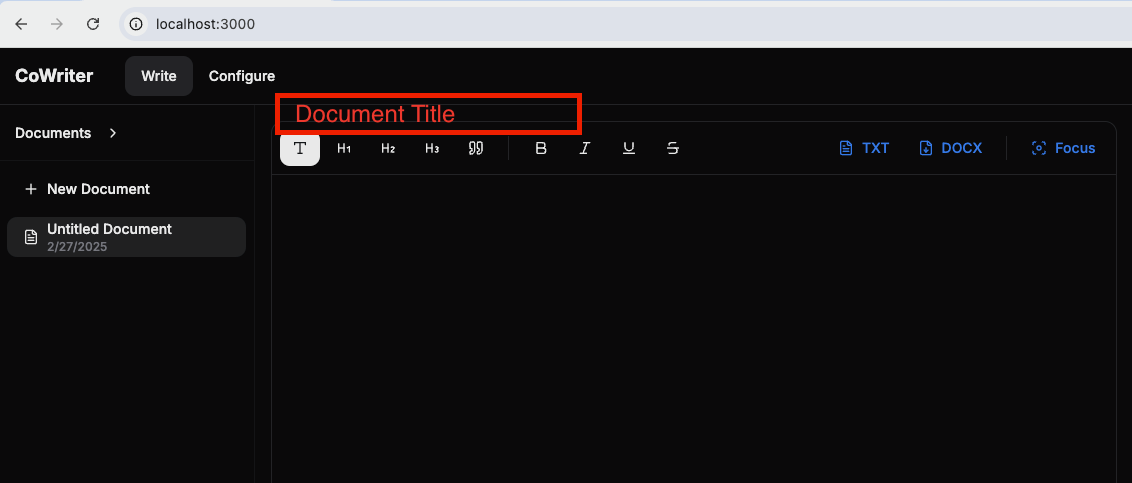
Next, I introduced a simple UI change: adding a “Document Title” box in the Write tab that syncs with the document title in the left-hand Documents menu. I provided the following prompt (without an accompanying image):
Let’s add Document Title box in the Write tab of the UI. This title should be synced with the document title in the Documents collapsible menu on the left.
Claude Code
Claude Code implemented the new functionality in a single iteration. However, it did not run the linting script automatically, requiring me to manually address some linting issues. Final commit by Claude Code: GitHub commit
Cursor
Cursor also added the Document Title box in one shot — and it executed the linting script as part of the process, resulting in clean, production-ready code. Final commit by Cursor: GitHub commit
Winner: Tie
For the final test, I challenged both tools to implement a feature that required coordinated changes on both the frontend and backend. The goal was to introduce a “document type” selector in the UI next to the title. The dropdown should offer options such as Custom, Blog, Essay, LinkedIn, X, Threads, and Reddit. When action buttons (expand, shorten, critique) are pressed, the selected document type should be included in the API call and incorporated into the prompt sent to the language model. Here’s the exact prompt I used
Let’s add document type in the frontend next to Title, Document type should be a dropdown with options Custom, Blog, Essay, LinkedIn, X, Threads, Reddit. When action buttons are pressed we should pass the selected document type in the api call. On the backend we should update the prompt sent to the LLM to include the document type.
Claude Code
Claude Code updated both frontend and backend files in one go. The initial implementation, however, did not produce the desired output. For instance, when expanding brief points for a tweet (X post), the tool returned a verbose block of text instead of a tweet-friendly snippet. After I pointed out to Claude that the output should adhere to tweet constraints, it quickly adjusted its implementation and achieved the intended behavior. Final commit by Claude Code: GitHub commit
Cursor
Cursor also made the necessary changes across the frontend and backend in a single iteration. However, its initial attempt suffered from a similar issue: a tweet expansion either returned excessive text or, after a prompt adjustment, became overly terse. After several iterations, I finally obtained somewhat desired output. Despite eventually achieving the correct behavior, Claude Code did it better and required fewer attempts. Final commit by Cursor: GitHub commit
Winner: Claude Code
In my three tests, Cursor and Claude Code each demonstrated unique strengths:
Cursor excelled in backend refactoring by delivering robust modularization and automated linting.
Claude Code shone in integrated frontend and backend enhancements, particularly after fine-tuning its prompts.
Overall, both tools are roughly tied (1.5 points each), highlighting that the best choice ultimately depends on your workflow and environment preferences. Developers who favor a traditional IDE setup with seamless terminal integration may lean towards Cursor, while those who prefer a streamlined, terminal-based experience might find Claude Code more appealing. Additionally, if you’re just starting out or are a non-technical user looking for an accessible coding solution, Cursor’s user-friendly interface could be the ideal option. Notably, while Claude Code charged $4.69 for three simple changes, this per-change pricing can add up quickly. Potentially making it more expensive than Cursor’s $20/month subscription, which offers unlimited modifications.
Both tools are impressive in their own right, so your decision may ultimately come down to whether you value the conventional IDE experience or the efficiency of a terminal-based workflow.