Joining the team at Atomic Object was especially exciting when learning that test-driven development (TDD) is a deeply held value for engineering here. I have been working on my own TDD methodology, while also using AI to help me with my test scaffolding. I recently worked through a sticky authentication problem using TDD (or you might call it test-driven debugging) to guide and speed up my progress. It takes some rigor to get AI to play nicely by TDD principles though. Let me tell you a little about what I learned.
The Problem
I was debugging a gnarly error in a Python application. A non-existent function called “verify” was being called, halting the application. That function name wasn’t anywhere in my own code, so it was being called somewhere in my dependencies. My AI agent kept diving down rabbit holes, thinking that dependency versions needed to be updated. Nothing helped, and my dependencies were already up to date anyway. Rebuilding and running this application between each iteration was slow. I was getting nowhere. I needed to reproduce the issue via tests to understand it better.
Force the Agent to write broken tests
I wrote tests to cover this exact issue, coaching the AI that I wanted to see it fail with that same error. AI models have been trained to write “working code”. If you don’t ask it explicitly, it will likely write a test, run it, then adjust the test to make it pass – with your broken code! Here is an example prompt I used while working on this, to force the agent to stick to writing broken tests:
I want to write a test to reproduce the issue. DO NOT FIX THE CODE YET. I want to see the test fail because of this same “verify” bug so I can see it succeed after we fix the problem.
Use real data to gain clarity
The thing is, all the tests passed! I was baffled. Then, I copied in the value from our environment variables into the test. Suddenly, the notorious “verify” function was being called, and the test I expected to fail was failing. That’s when I realized the issue was with the environment variable, not my code. I swapped it out with the right variable, and the tests started working. Next, I ran the application with confidence and saw it succeed in real life.
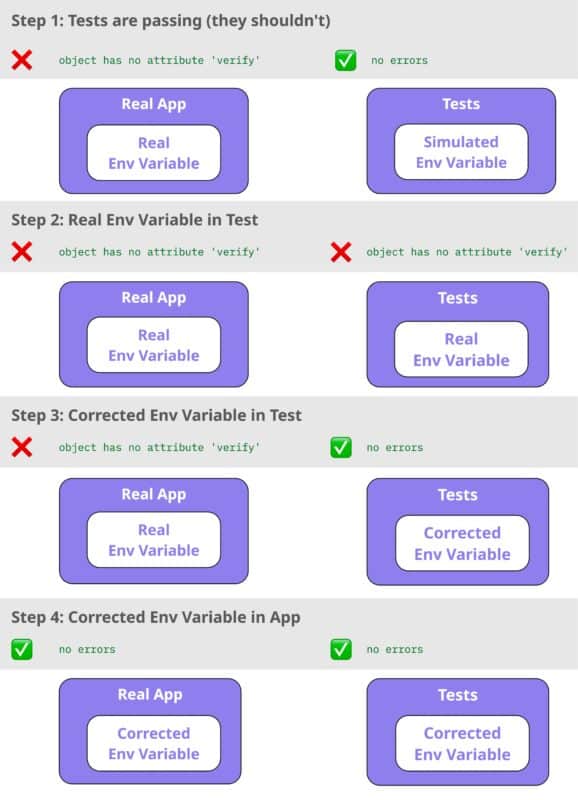
But beware! If the data you’re pasting into your test is sensitive (mine was), do not commit it to your source control. Just use it locally to test things out.
Pause the AI and run the tests yourself
I’ve had a model get itself into a loop trying to install testing tools over and over, burning through AI tokens and achieving nothing. Besides, I want to look at my error messages myself! I’ll keep a terminal open on one side, run the tests, and copy over the error messages into my agent window to work through what needs to happen next. This keeps me in the loop and makes sure we’re solving the right problem.
Cycle between running your application and writing tests
Once I fixed the environment variable issue, I tested other layers of my application and found further issues I wanted to write tests for. My workflow looked like this.
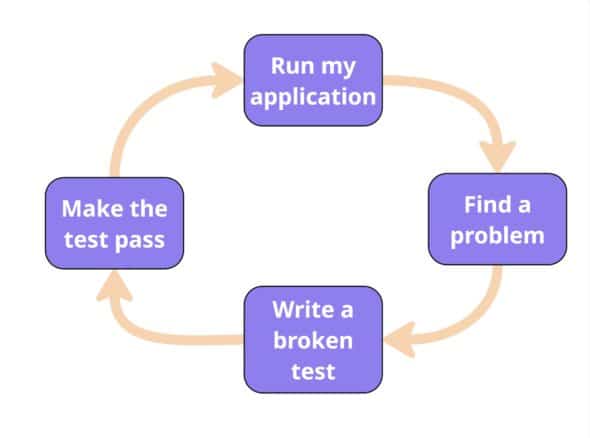
If you’re a full-stack engineer, “Run my application” may mean running the web app in the browser or testing API endpoints with Postman. Multifaceted manual testing helps you get a clearer picture of what you need in your automated tests.
By forcing the problem to show up in a failing test, I could see what was actually wrong and fix it with confidence. That’s the difference between letting AI drive and making it work for you. Tests put you back in control and give AI a clear problem to solve.