A native Mac terminal that keeps projects, sessions, and attention organized.
Run shells, dev servers, tests, and coding agents across several projects while Saggar tracks what is working, waiting, finished, and failed. Sessions that need a decision stay visible without pulling you away from the terminal you are using. Pair the Companion to check in and respond from your phone while you are away.
Mac only. Requires macOS 26 Tahoe or later on Apple silicon.
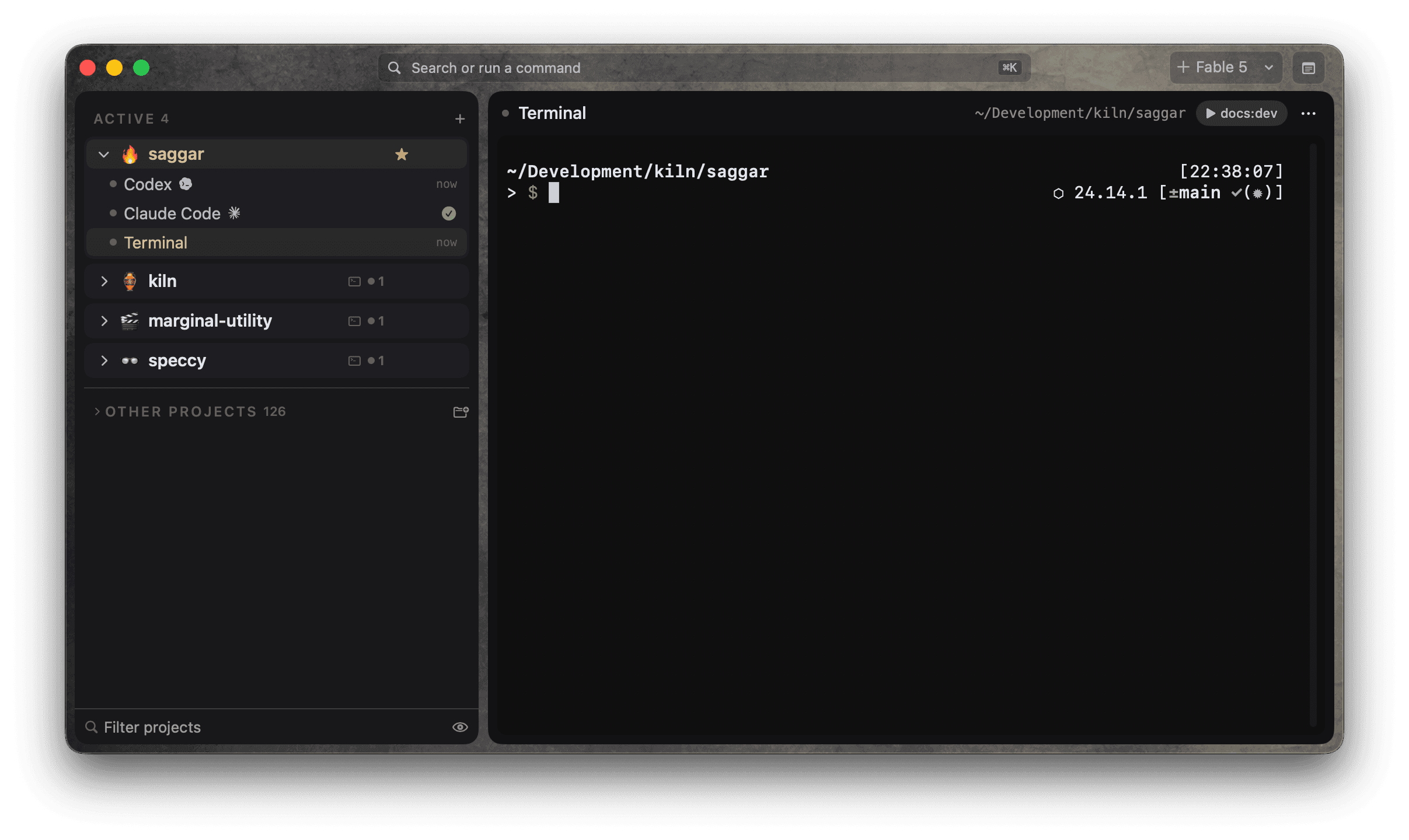
~/Development/kiln/saggar[main]
❯
Keep several agents moving
One agent is editing, another is running tests, and a third is waiting at a permission prompt. A fourth finished ten minutes ago. Ordinary terminals show four tabs, but not which one needs you.
Saggar keeps each status visible, moves active work out of the way, and collects sessions that need a decision into one queue.
The intro
The supervision loop
Start work across projects
Run agents, shells, dev servers, and tests across every codebase. Each session stays attached to its project, branch, and worktree.
Leave working agents alone
Sessions classify themselves as needs you, working, idle, finished, or failed. Working sessions stay out of the way. Prompts, failures, and finished work remain visible.
Handle what needs you
Waiting prompts and finished work form one ordered queue. Answer from the attention card, or press ⌘J to move through it by priority.
Step away without losing the thread
Pair the Companion to see what your sessions are doing while you are out. Inspect a terminal, answer its prompt, interrupt a runaway, or type into it.
Make it feel like your Mac
Choose from vibrant or neutral themes and leave your mark.


Use Saggar away from your Mac
- Sign in on both devices. Use the same Marginal Utility account on your Mac and phone. Saggar verifies the account during pairing and on every request.
- Scan the QR code. Find it under Saggar → Settings → Remote control. Scanning enters the Mac identifier and pairing code for you. After the account check, the Mac asks you to approve the device.
- Pair once. Pairing doesn't expire through inactivity. You can revoke one device, or sign out on the Mac to revoke them all.
Secure by default
Remote control is ready when you need it, but only devices signed into your Marginal Utility account can pair. The Mac checks the account again on every request.
your account, both ends
A device pairs only while it is signed into your account. The Mac checks every request.
nothing listens
The Mac dials out to the relay. It opens no port on your network.
one-time pairing
One scan, and it holds. Signing the Mac out revokes every device at once.
first-party relay
The Mac connects to Saggar's relay, so it doesn't open a port on your network.
Documentation
Start with the setup guide, learn the common workflows, or look up a command when you need it.
Already have Saggar?
Follow the setup guide, or open the remote client for a paired Mac.