Have you ever needed to create an empty folder structure with many levels of repetitively-named folders? This doesn't happen a lot, obviously, but if you try using Finder for this task, you'll quickly discover it's really tedious. But a quick trip to Terminal makes the task very fast, and it's not overly complicated.
Let's say you need a folder structure to handle reports that you'll be receiving weekly, but need to keep track of over both quarters and years. One way to handle that would be with a folder structure like this:
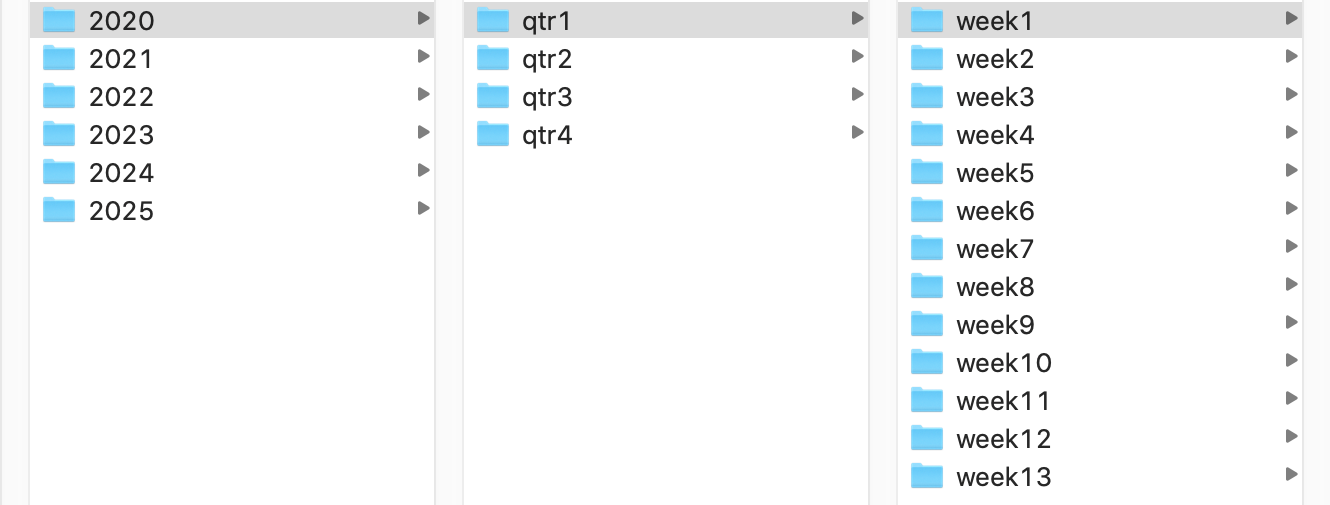
(Hopefully obviously, the same structure repeats within each separate year's folder.) Creating that many multi-leveled folders in Finder would be time consuming and tedious. But in Terminal, you can create the entire structure with just one command:
mkdir -p 202{0..5}/qtr{1..4}/week{1..13}
That command takes under a second on my iMac to create the entire directory structure (over 330 folders). Zoom! So how does this work?
Note: Before you play around with this, I suggest creating a test folder on your Desktop (or wherever), and then, in Terminal, execute cd ~/Desktop/testfolder before you do anything else—that way, the folder structures will be within one folder, and easily deleted if something doesn't go quite right.
In the shell (both bash in pre-Catalina, and zsh in Catalina), the curly braces have a number of uses. Here they're being used to generate sequences—you can use numbers or letters, and as long as they're separated by two dots, the shell will attempt to fill in the missing values—you can even reverse the order. Here are a few examples:
- {a..z} The letters a to z
- {p..d} The letters p back to d
- {A..C}{0..3} This sequence creates every combination of A to C and 0 to 3—i.e. A0, A1, A2, A3, B0, B1, etc.
You can test any of these with the echo command, which will output the result of the expansion:
$ echo {A..C}{0..3}
A0 A1 A2 A3 B0 B1 B2 B3 C0 C1 C2 C3
Braces are not reserved for mkdir; they're a shell feature, so you can use them in many places.
For example, touch demofile_{1..10000}.txt will quickly (as in only a few seconds) create 10,000 empty dummy files…in case you need a big batch to test with Name Mangler, for example.
But back to creating folders…the key to making this work is the -p flag on the mkdir, which tells mkdir to create any non-existing directories on the defined path. With that flag set, the shell expands the sequences and creates all the missing folders.
If you're adventurous, and don't mind using bash over zsh in Catalina, you can install a newer version of bash that supports more sequence options, most notably a skip feature:
$ echo {a..z..2}
a c e g i k m o q s u w y
The ..2 bit tells the expansion to only output every second letter. To make this work, though, you must be on a newer bash shell than ships with macOS. This how-to explains the steps involved in installing and switching to a newer version of bash.
You can do a lot more with curly braces; this guide provides many more examples. (Some of those examples take advantage of the above-described skip feature.)
The command line may be ancient and mostly supplanted by GUIs, but there are times when it really is the easiest and fastest way to get some things done.