Commissioning Music
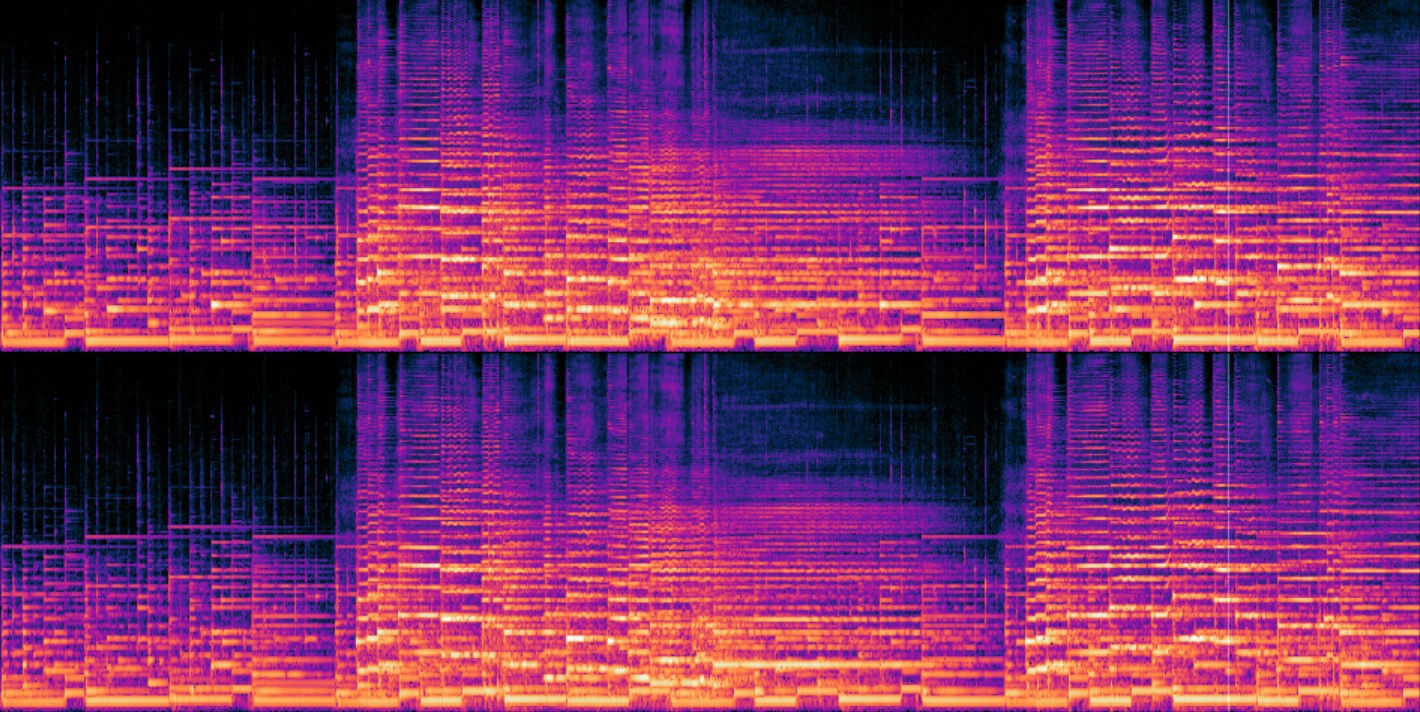
Because I have invested so much time into this project, I wanted to add music that would reflect the love and care that I put into it. Also, music and sound in general is more important than visuals. Bad music = Bad game.
This also presented an interesting opportunity to commission someone to make music for my game. Up to this point, I have created every asset for 'Let's Learn!'. I also wanted to challenge myself to collaborate with someone else. I really need to work on my leadership skills if I ever want to make anything interesting and fun.
Finding a Composer
You might ask, "Landen, how did you find a composer?" And the answer is quite simple: I didn't. I asked one of my friends if they knew any composers and they immediately gave me a great recommendation. I commissioned a single song with multiple tracks from Robert Mai. I listened to some of his works on his website and thought they sounded very nice and professional. I sent him an email asking if he would be interested and requested a quote.
I don't want to give an exact amount, but let's say it was less than $1,000 dollars for the single song. There were multiple tracks included, which allowed for enough variation between replays. Also, Robert was able to do some live recordings for this composition because it lined up with another project he was working on.
Please give 'Let's Learn!' a quick play-through to hear all the song variations!
Adding Music in Godot
As with any new feature I add to my game, this turned out to be way easier than I expected. This is thanks to how easy-to-use and flexible Godot is.
The current implementation is as follows:
- A new global scene called "BackgroundMusic" handles the current track and transitions.
- The piano track is looped on the main menu.
- Each level has a variable called 'Desired Song' which will loop after the current song.
- Each level has an option to force a transition to the 'Desired Song' after the level finishes loading.
That's about it. Its a very simple implementation that offers flexible track selection.
Fading Between Audio Tracks
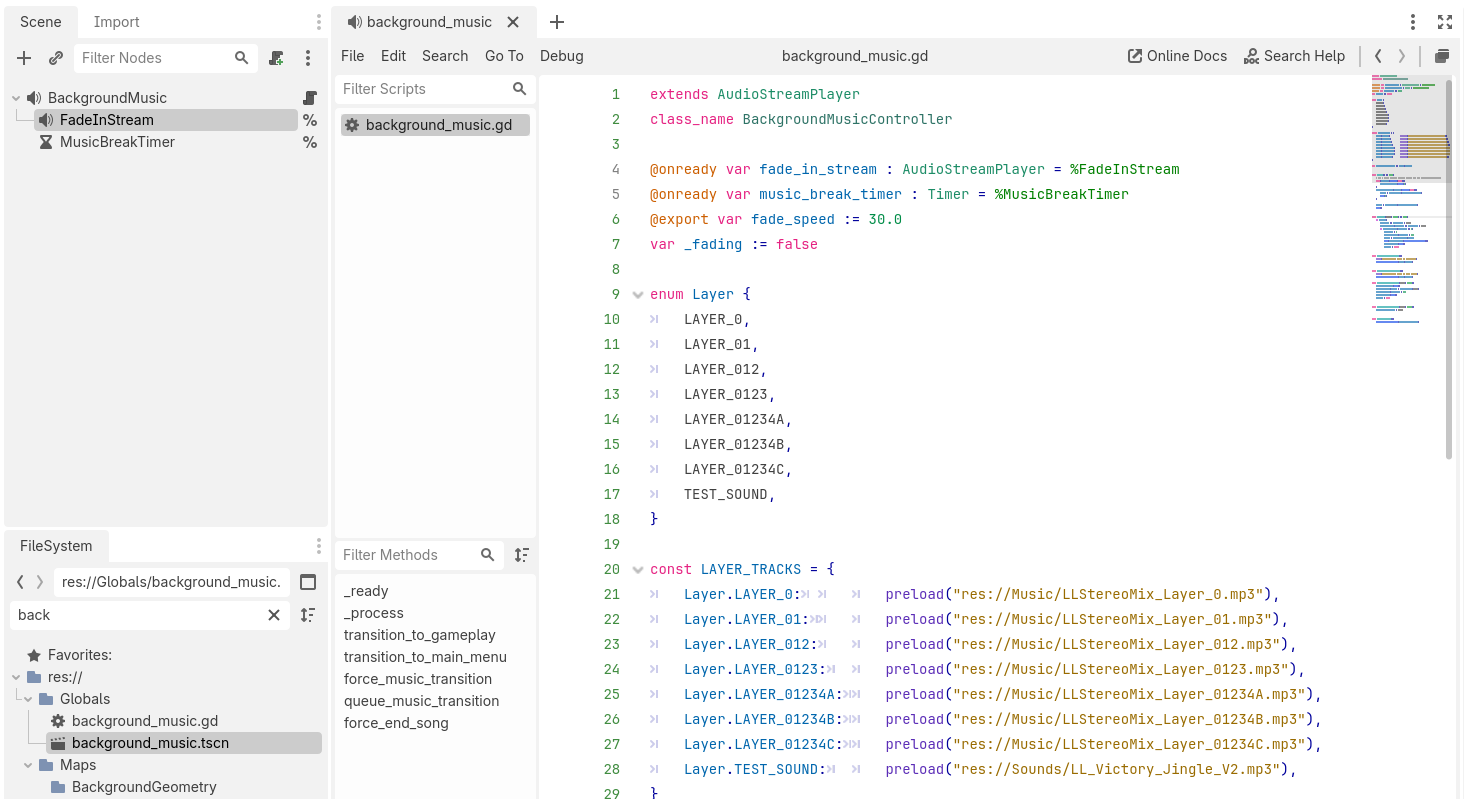
I borrowed the code for fading audio from a YouTube tutorial. It's very simple.
func _process(delta: float) -> void:
    if _fading:
        volume_db -= fade_speed * delta
        fade_in_stream.volume_db += fade_speed * delta
        if fade_in_stream.volume_db >= 0:
            volume_db = 0
            fade_in_stream.volume_db = -60
            stream = fade_in_stream.stream
            play(fade_in_stream.get_playback_position())
            fade_in_stream.stop()
            _fading = false
I also added a 15 second timer between track loops to prevent a single track from being too repetitive.
I have not had the chance to playtest this setup yet. I estimate it takes a new player around 20 minutes to complete all the current puzzles in the game. I decided to change audio tracks every 2 or 3 levels based on their difficulty. I also tried to place the most interesting audio tracks on the most difficult puzzles, because I wanted players to hear the whole composition while they are stuck solving the puzzle.
Audio Compression with FFmpeg
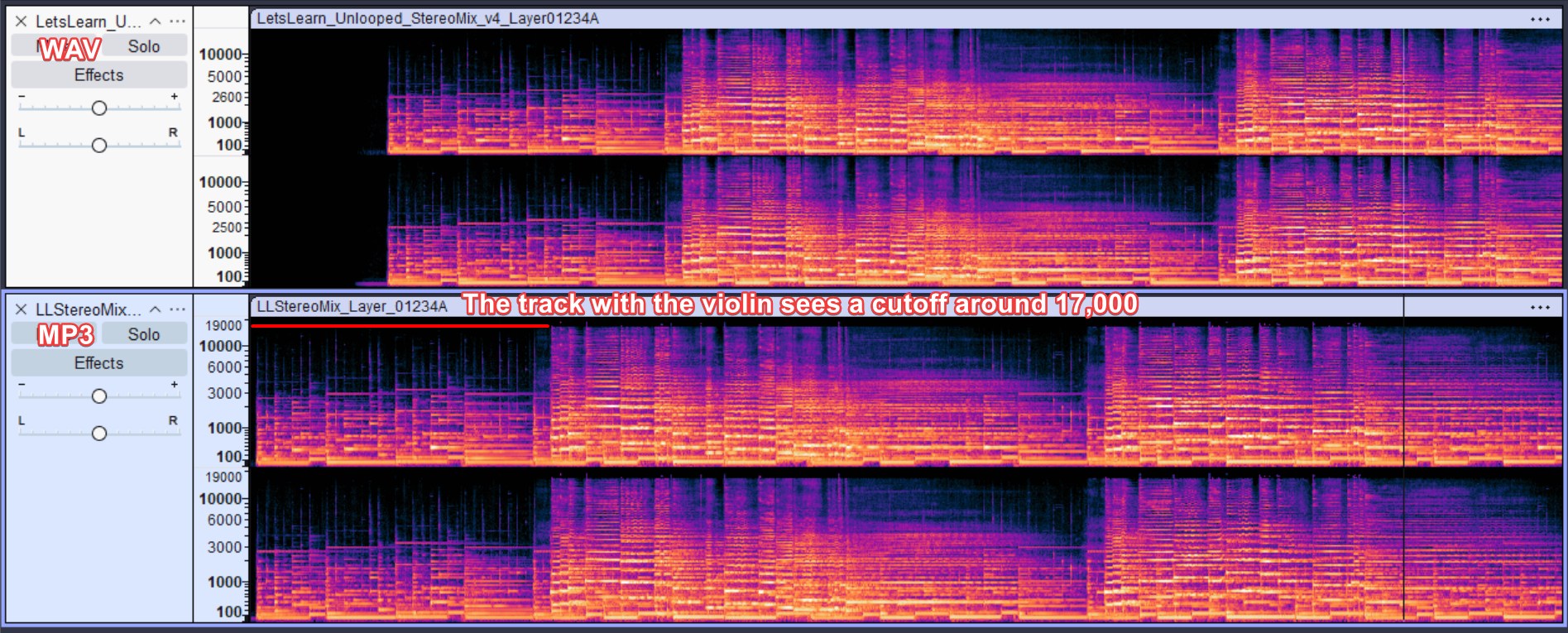
To minimize the game's file size with all the new music tracks, I used FFmpeg to transcode the original wav files to variable bitrate MP3s. Apparently, you can do this with FFmpeg.
ffmpeg.exe -i input.wav -c:a libmp3lame -q:a 2 output.mp3
This resulted in a single .wav file going from a hefty 35MB to only 2.5MB without any noticeable quality loss.
Adding a Settings Menu
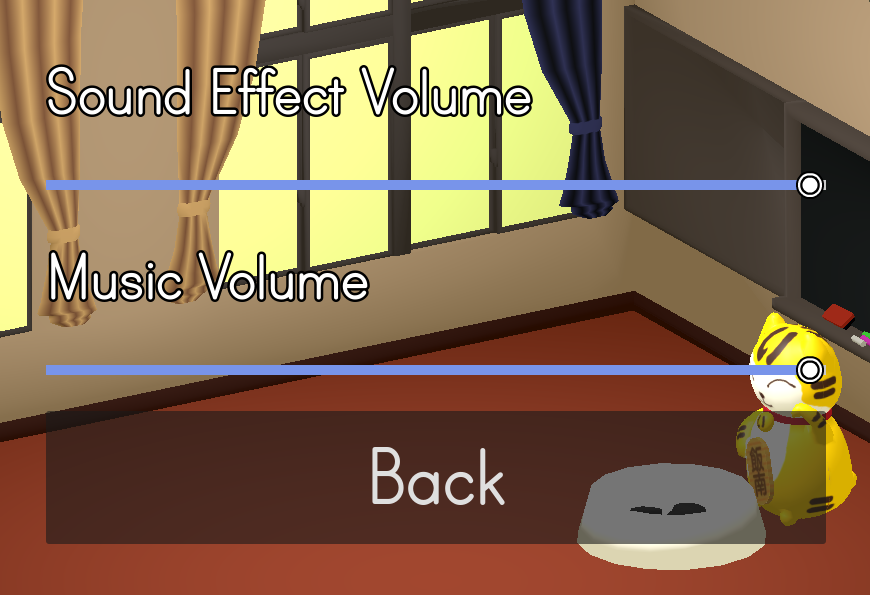
Now that our game has music, I wanted to add the ability to control the volume of music and sound effects separately. This can be done with dedicated audio buses.
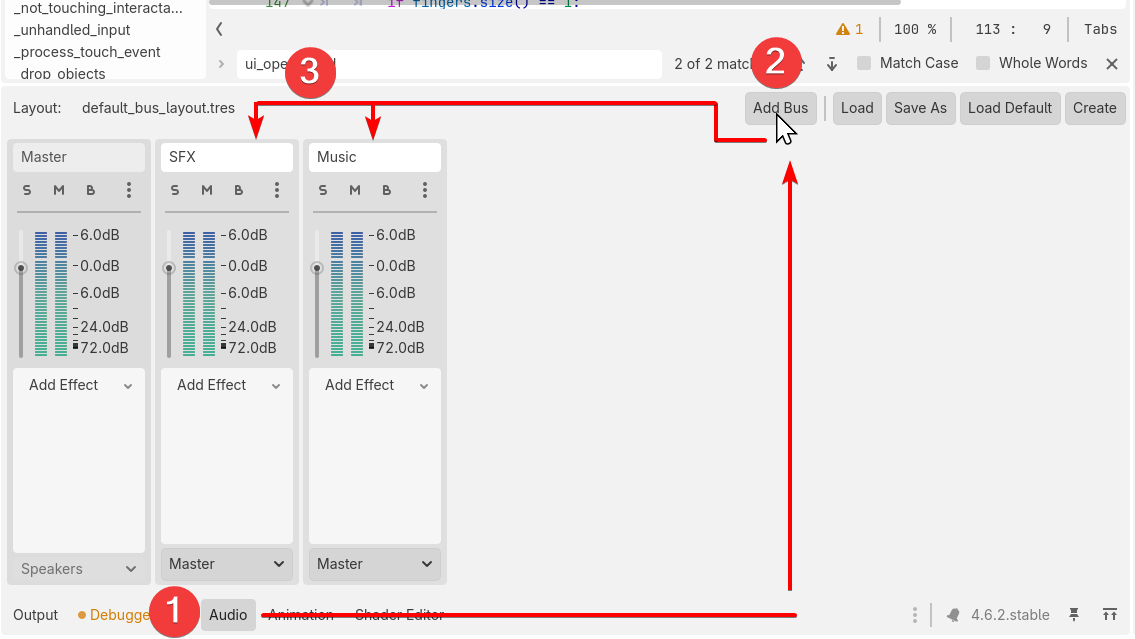
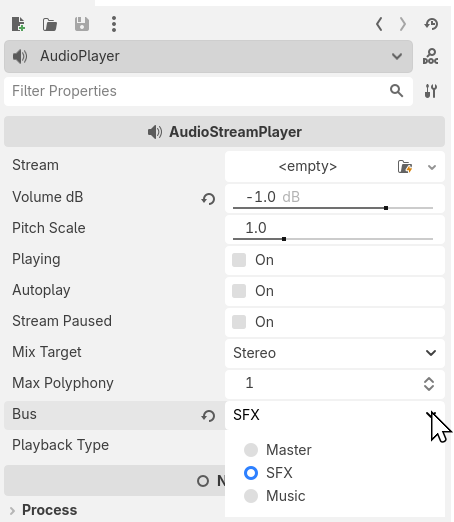
With every AudioStreamPlayer set to the correct bus, I can now control the audio levels via a horizontal slider on my settings menu.
@onready var sfx_bus := AudioServer.get_bus_index("SFX")
@onready var music_bus := AudioServer.get_bus_index("Music")

func _ready() -> void:
    %SFXSlider.value = AudioServer.get_bus_volume_linear(sfx_bus)
    %MusicSlider.value = AudioServer.get_bus_volume_linear(music_bus)

func _on_sfx_slider_value_changed(value: float) -> void:
    AudioServer.set_bus_volume_db(sfx_bus, linear_to_db(value))

func _on_music_slider_value_changed(value: float) -> void:
    AudioServer.set_bus_volume_db(music_bus, linear_to_db(value))
Making a New Campaign
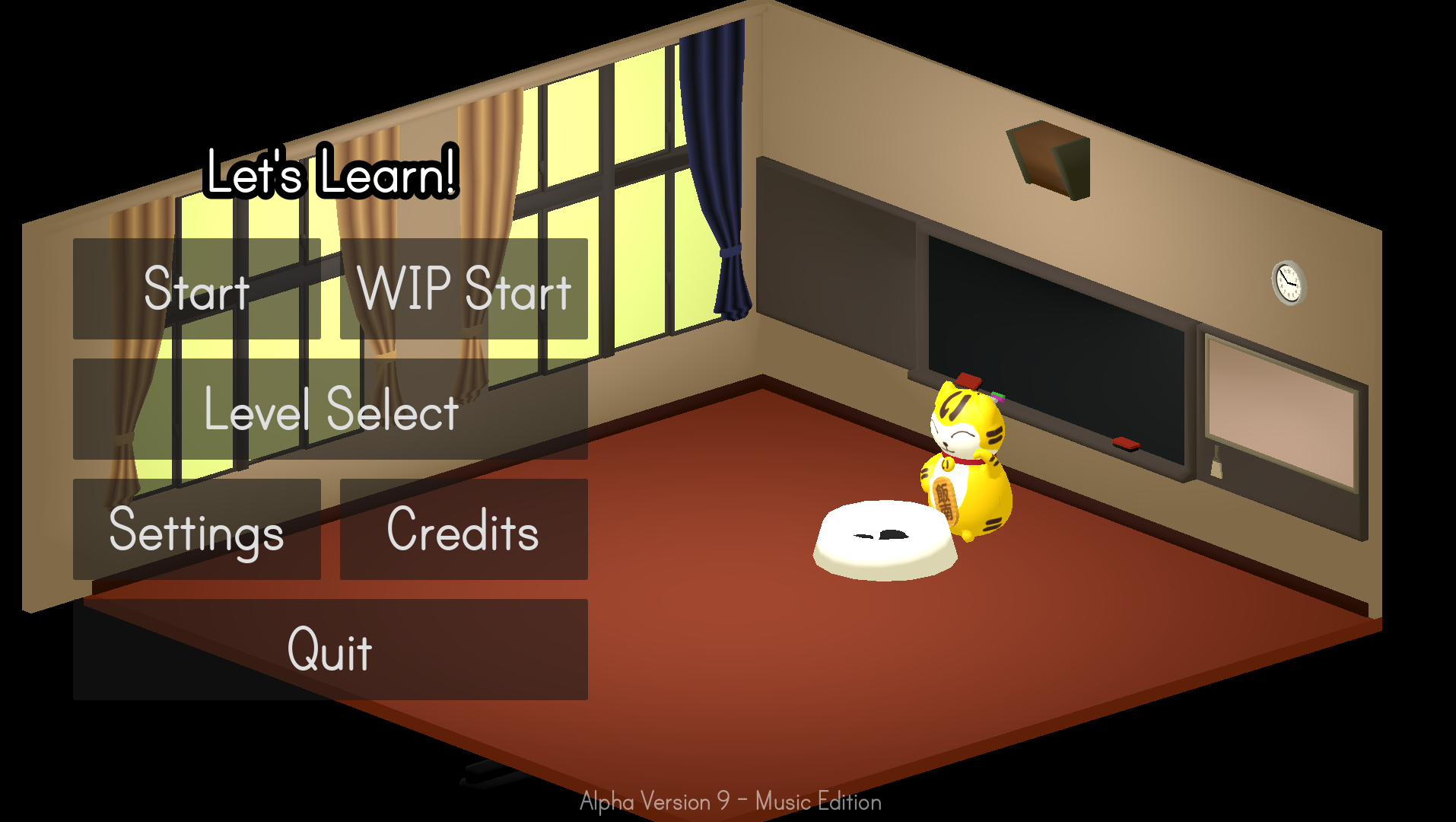
Astute observers might have noticed the new "WIP Start" button on the main menu. This button will let you play the new Work-In-Progress campaign.
I want to remake the campaign for the following reasons
- To add more elementary school level grammar points
- To add a basic story with more mascots from neighboring towns
- To give players a tangible story goal to work towards
Because these new levels are unfinished, I separated them from the more polished levels with the WIP button. Please give them a try and leave feedback via the form in the game's description.
More Intuitive UI
Previously, when holding physics objects, it was sometimes unclear which object you were holding. Because of the orthographic view, players sometimes didn't even realize that they were holding an object. To make this easier to understand, I added a small hand that will follow your held object.
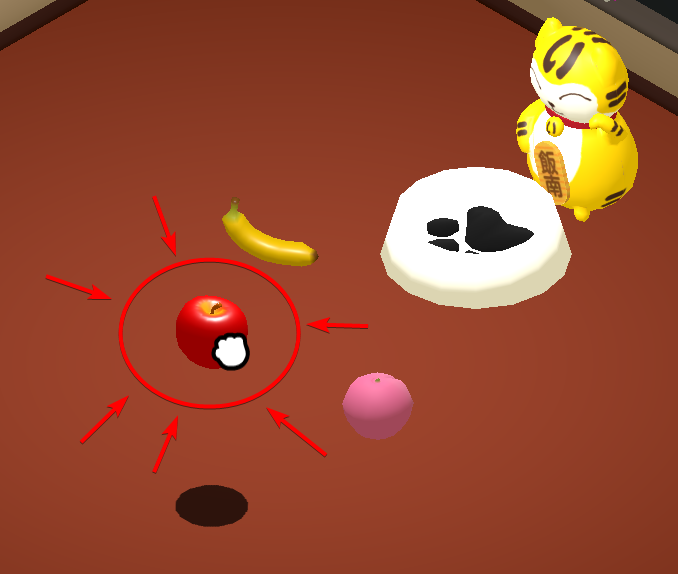
I also implemented custom mouse cursors that were provided in the same cursor pack by Kenny.
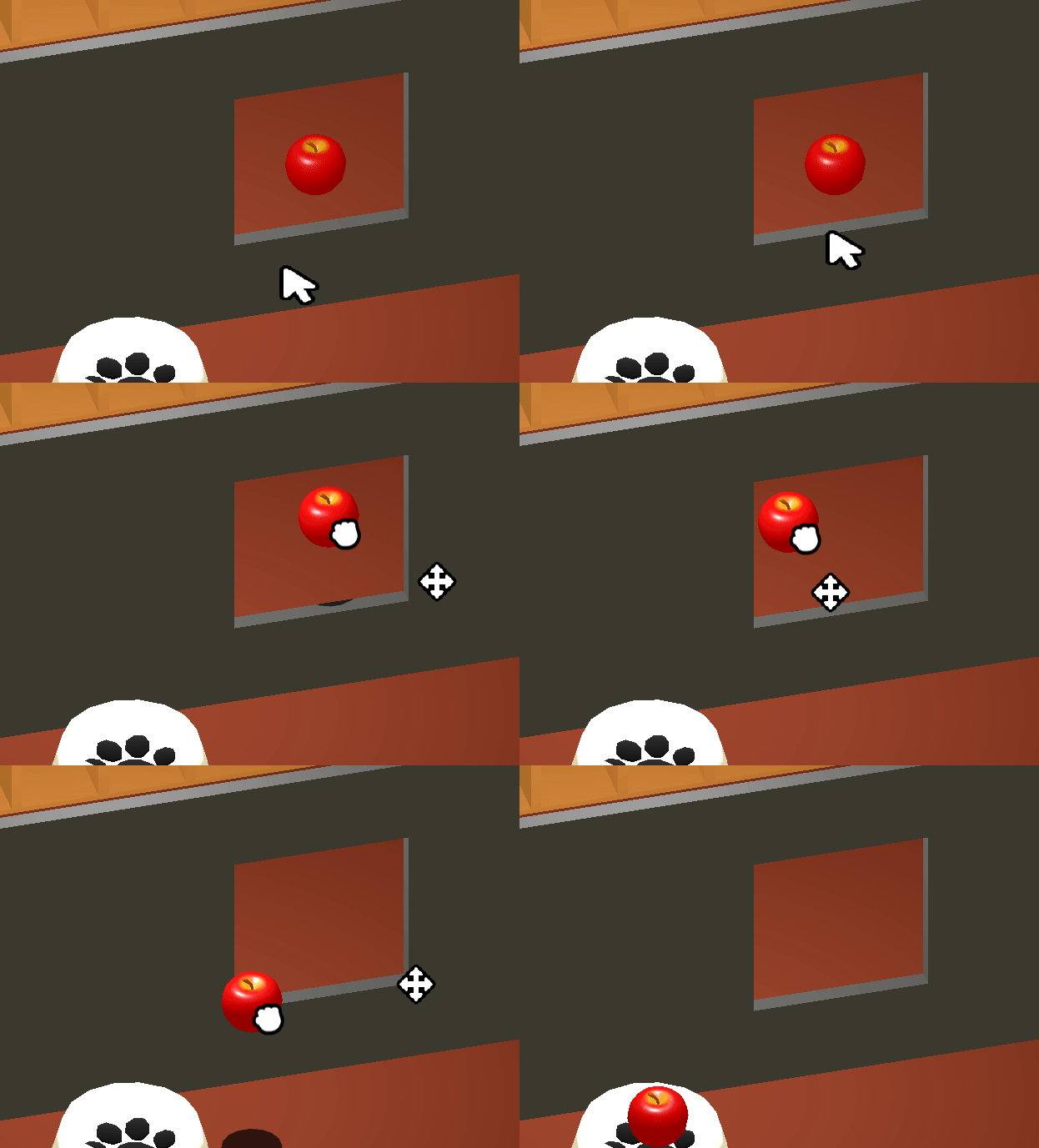
It is very easy to change the mouse cursor in Godot:
Input.set_custom_mouse_cursor(your_resource_here)
Simulating Physics In-Editor
On one of the new WIP levels, I added a lot more fruit that had to sit on shelves at odd angles.
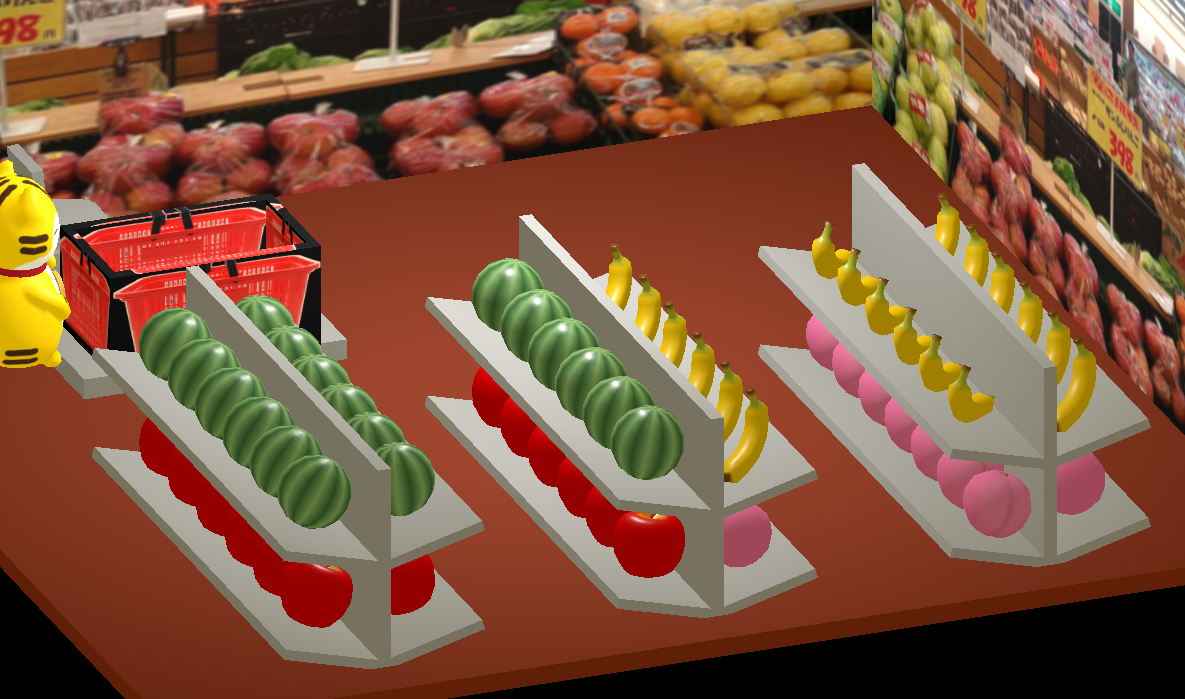
Instead of manually positioning and rotating all those objects, I wrote a one-off node that you can run in-editor via the @tool annotation. When I press the 'Enable Physics' button, the physics server will be set to 'Active'. After everything has settled, I click the 'Disable Physics' button and save the scene. It's quite handy!
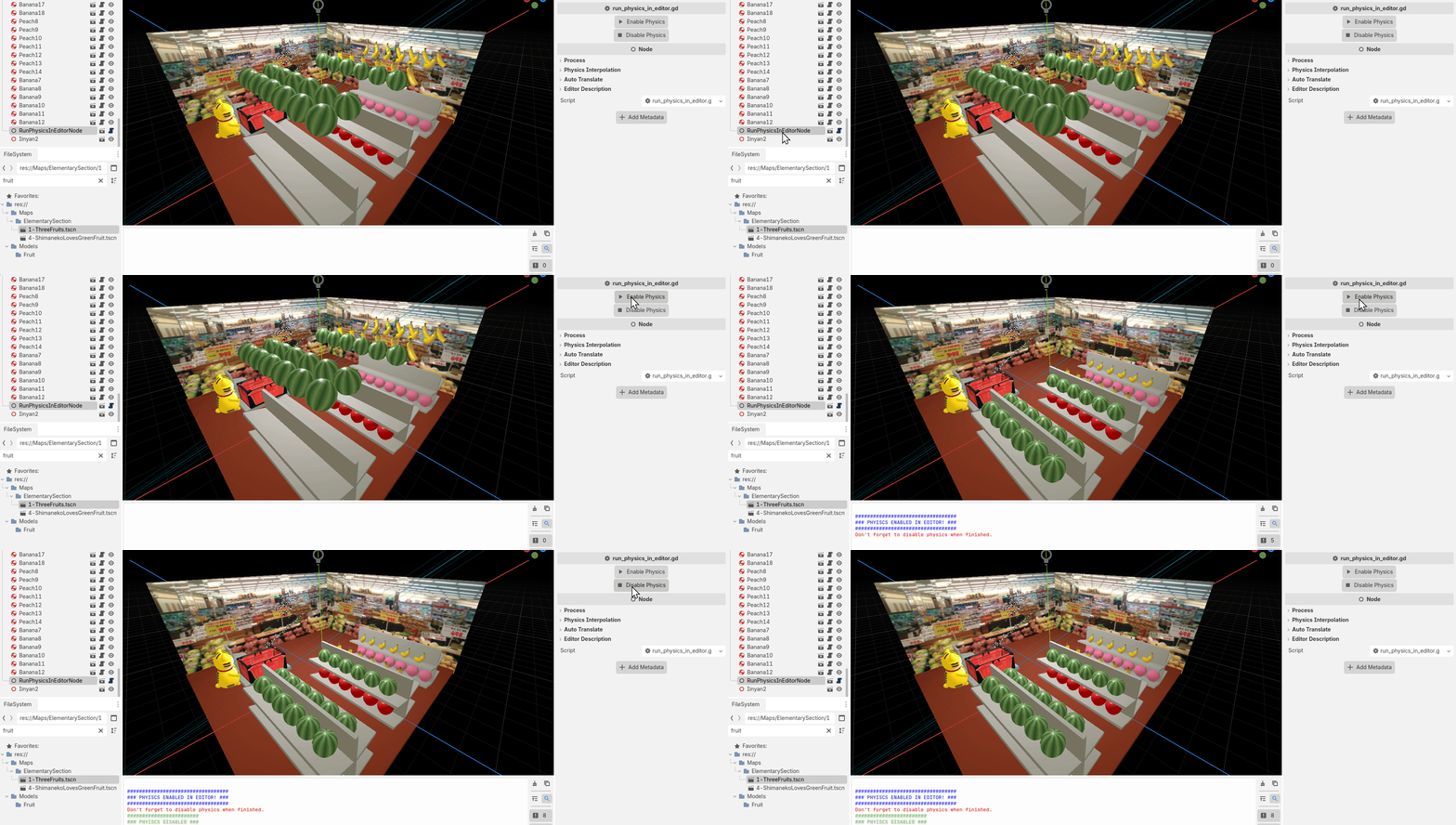
The script is dead simple. It's basically just 'PhysicsServer3D.set_active(boolean)'
@tool
extends Node

@export_tool_button("Enable Physics", "Play") var enable_physics_button = enable_physics
@export_tool_button("Disable Physics", "Stop") var disable_physics_button = disable_physics

func enable_physics() -> void:
    PhysicsServer3D.set_active(true)
    print()
    print_rich("[color=blue]##################################[/color]")
    print_rich("[color=blue]### PHYISCS ENABLED IN EDITOR! ###[/color]")
    print_rich("[color=blue]##################################[/color]")
    print_rich("[color=red]Don't forget to disable physics when finished.[/color]")


func disable_physics() -> void:
    PhysicsServer3D.set_active(false)
    print_rich("[color=#1DB954]########################[/color]")
    print_rich("[color=#1DB954]### PHYISCS DISABLED ###[/color]")
    print_rich("[color=#1DB954]########################[/color]")
NOTE: You might have to save the script and restart your editor for the tool to work properly. Godot's @tool annotation seems to be very fussy.
Removing Internationalization
Because I plan on doing heavy changes, I removed the internationalization that I mentioned in a previous dev log. I might add it back someday, but likely only for essential elements. I am not sure if anyone actually cared about the puzzles having a Japanese version. But it was fun to watch my friends try the Japanese version of the puzzles.
Additional Info
- There is a new Settings menu. For now, only for controlling audio.
- Limited fps to 60
- Known bug: Objects will no longer have shadows after being picked up. Waiting for Godot 4.8 to hopefully solve this.
- Fixed various bugs
That's all for now. Thanks for reading!