In this blog post, we will see what Meta’s brand new terminal coding agent, Muse Code, actually does, how its CLI is put together, and how you can go from zero to your first agent run in about five minutes.
Meta’s Muse Code is a terminal-only coding agent built on the Muse Spark 1.2 model, which was co-trained alongside the agent itself. It offers two primary modes: an interactive TUI for development work and a headless exec mode suited for CI pipelines. Key features include persistent background subagents and a replay-exact event log that enables crash recovery.
On benchmarks, Muse Code scores below Claude Code but above Codex CLI and Grok Build, and Meta positions it primarily on cost rather than raw performance. The CLI includes commands for session management, skill extensibility, sandboxing, and cross-session messaging, with safety defaults set to on-request approval mode.
Meta just threw its hat into the AI coding agent ring today, and given how much time I have already spent living inside Claude Code and Codex CLI, I could not resist pulling apart the muse --help output the moment it dropped.
If you have used any of the other terminal agents, a lot of this will feel familiar, but Muse Code has a few design choices of its own that are worth understanding before you point it at a real repository.
Table of Contents
What is Muse Code?
Muse Code is Meta’s first coding agent, rolled out as the company ramps up its AI investments to compete with Anthropic and OpenAI, and it is a release from Meta AI chief Alexandr Wang, who leads Meta Superintelligence Labs. It runs on a new model called Muse Spark 1.2, and this model was co-trained together with Muse Code itself, with training that included rejection sampled harness trajectories and recipe work specifically for goals, compaction, and subagents.
Two things stood out to me right away.
First, unlike Claude Code and ChatGPT Codex, Muse Code has no dedicated app interface. It lives entirely in your terminal, and that is a deliberate design choice on Meta’s part.
Second, it can run persistent background subagents that stay active for the whole session instead of spinning up fresh for every task, which Meta says cuts down on redundant information gathering and lets those subagents decide on their own when to report back to the main agent.
There is also a durability angle I really appreciate as someone who has lost long-running scripts to a bad crash before. Every model call, tool run, approval, and edit gets appended to a local event log that Meta calls replay-exact and restart-safe, so after a crash the agent picks up exactly where it left off.
On raw capability, Meta is not claiming the top spot.
On Terminal-Bench 2.1, Muse Spark 1.2 with Muse Code scored 82.9 percent, behind Claude Code on Opus 5 at 86.7 percent, but ahead of GPT-5.6 Terra on Codex at 81.8 percent and Grok Build at 81.6 percent.
On DeepSWE 1.1, the gap was similar, with Muse at 59.3 percent against 65.0 percent for Opus 5 and 64.8 percent for Codex. Meta’s pitch is not “we are smarter,” it is “we are cheaper.”
Wang described a contributor tier priced more than ten times cheaper than the pay-as-you-go tier, in exchange for developers opting in to let Meta use their data to improve the model.
Worth flagging for anyone comparing licensing postures too. Where OpenAI’s Codex CLI and Google’s Gemini CLI ship under the Apache 2.0 license, Muse Code stays proprietary, closer to how Anthropic runs Claude Code.
Two Ways to Run It: Interactive vs Headless
Muse Code gives you two entry points, and understanding this split early saves a lot of confusion later.
# Mode 1: Interactive TUI (no subcommand)
muse [OPTIONS] [PROMPT]

# Mode 2: Subcommand driven
muse [OPTIONS] <COMMAND> [COMMAND_OPTIONS] [ARGS]
Run muse on its own and you land in a full screen interactive terminal UI, which is where you will do most of your actual development work. Pass a prompt straight to it, like muse "Fix the failing tests", and it kicks off a session immediately with that prompt.
The other mode is subcommand driven, and this is where exec, resume, export, skills, and the rest of the fleet live. Think of the TUI as your workbench and the subcommands as the tools you reach for when scripting or automating.
CLI Anatomy
Every command in Muse Code follows the help system consistently, as shown below.
muse --help      # All commands + global options
muse --version   # e.g. Muse Code 0.1.0
muse exec --help # Help for a specific command
I always run muse <command> --help before trusting a new subcommand in a real project. It is a one second habit that has saved me from misreading a flag more than once with other CLIs.
Pro Tip: Start with
muse init
?  muse-demo muse init
Wrote AGENTS.md

?  muse-demo cat AGENTS.md
# AGENTS.md

Muse Code reads this file as project rules when it runs in this directory.

## Project

- Name: muse-demo
- Generated by `muse init`.

## Common Commands

- No standard build or test commands detected yet.

## Project Layout

- No common source, test, docs, or spec directories detected yet.
Core Commands at a Glance
Here is the full command table, condensed from the live help output on version 0.1.0 (build R708.1):
| Command | Syntax | Purpose |
|---|---|---|
| (default) | muse or muse "Fix the failing tests" | Launches the interactive TUI. Agent reads your repo, plans, edits files, and runs tests under tool approval. |
init | muse init [--dry-run] [--force] | Scaffolds agent config in the current workspace. |
login / logout | muse login / muse logout | Meta account auth. login opens a browser OAuth flow, logout clears stored credentials. META_API_KEY always wins over a logged in session. |
auth | muse auth set --api-key-stdin [--provider meta] | API key auth for CI or headless boxes. The key comes from stdin, never as a CLI argument, so it never lands in shell history. |
exec | muse exec [OPTIONS] [PROMPT] | Headless, non-interactive run. One prompt in, one exit out. Add --json for machine readable JSONL events, perfect for CI. |
resume | muse resume [--last|<session-uuid>] | Continues previous work. No argument opens a picker for the current workspace, --last jumps straight to your most recent session. |
export | muse export [--session <id|path>] [--last] [--out <file>] [--redacted] | Dumps an entire session (messages, tool calls, reasoning) as self-contained JSON, fully offline. Add --redacted before sharing publicly. |
skills | muse skills <list|inspect|enable|disable|validate|install|import|update|uninstall> | Extends the agent. list --json shows what is available, import --from claude|codex pulls in skills from other agents. |
trace | muse trace inspect [OPTIONS] | Debugs the agent by inspecting a recorded session or run trace, with --format text|json and adjustable render modes. |
sandbox | muse sandbox windows check|setup | Verifies or sets up OS level filesystem and network sandboxing, mainly relevant on WSL and Windows. |
session-message | muse session-message <send|serve> | Advanced IPC for cross-session messaging, useful when you are orchestrating subagents. |
Global Options Cheat Sheet
These options work with pretty much any command, and I have grouped them by intent so they are easier to remember.
Model and provider
--provider <meta|echo>          # default: meta
--model <MODEL_ID>              # Override the Muse model
--reasoning-effort <none|minimal|low|medium|high|xhigh|ultra> # default: high
--base-url <URL>                # Proxy or custom endpoint
--preset <native-basic|miniswe>
--parallel-tool-calls / --no-parallel-tool-calls
Context and attachments
--image <PATH>                  # Attach a local image, repeatable with exec
--workspace <PATH>               # Root policy gated workspace
-w, --worktree [<off|create|existing>] # Git worktree isolation
--worktree-base <REF>           # Base ref for create, default HEAD
Headless tuning, mostly for exec
--json                          # JSONL events on stdout
--prompt-file <PATH>             # Read prompt from a file
--max-model-steps <N>             # Cap agent loops
--max-tool-output-bytes <N>       # Truncate tool output shown to the model
--session-id <UUID>               # Pin a specific session id
Safety, on by default
--approval-mode <untrusted|on-request|never> # default: on-request
--yolo                           # Shorthand for --disable-approval --disable-sandbox --trust-workspace
--trust-workspace                # Load this workspace's skills and rules
--disable-approval / --disable-sandbox
--sandbox-network <restricted|enabled|proxy-only>
--disable-write / --disable-shell
That last group is doing a lot of quiet work. Approval mode defaults to on-request, which means Muse Code asks before it touches anything risky, and it stays that way until you explicitly override it.
Your First 5 Minute Workflow
Head to https://dev.meta.ai/docs/muse-code for the official reference, but here is the fast path to your first run.
- Install it. Muse Code installs with a single command,
curl -fsSL https://dev.meta.ai/install.sh | bash. There is no npm package for it, the curl script is the only supported install path Meta has published so far. So it works in Linux and MacOS. - Authenticate. Run
muse loginfor the browser OAuth flow, or pipe a key in headlessly withcat key.txt | muse auth set --api-key-stdin. - Scaffold the project.
cdinto your repo and runmuse initto generate the.commandcode/config. - Talk to it. Just run
museand type something like “Explain this repo and fix the failing test in src/auth.” - Automate it. For CI, use
muse exec --json "Run npm test and fix any failures" > result.jsonl. - Pick up where you left off.
muse resume --lastreopens yesterday’s session instantly. - Export for sharing or debugging.
muse export --last --out my-session.jsonwrites the full transcript.
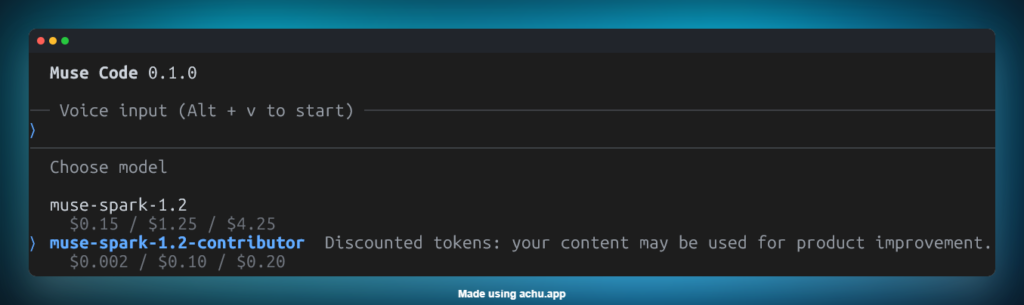
As shown below, that entire loop is only a handful of commands, which is honestly the same rhythm as Claude Code once you strip away the branding.
A Practical Example: Fixing a Failing Test
To keep this concrete, let’s walk through one real scenario end to end: a failing unit test in a Node backend service.
cd my-node-service
muse init
muse exec --json "Run npm test, find the failing test in tests/order.test.js, fix the underlying bug, and re-run the suite to confirm it passes" > fix-order-test.jsonl
Under the hood, exec runs a single non-interactive pass. It reads the failure, proposes an edit, and asks for approval before writing anything, because on-request is still the default approval mode. If you trust the sandbox completely, for example inside a disposable CI container, you could add --yolo to skip the prompts entirely, but I would not reach for that on my laptop with a real codebase attached.
Once the run finishes, fix-order-test.jsonl holds every tool call and model step as JSONL, which you can parse in a CI pipeline to decide whether to merge automatically or flag for human review.
Muse Code vs Claude Code vs Codex CLI
Here is the benchmark picture as Meta has presented it so far.
| Benchmark | Muse Code (Spark 1.2) | Claude Code (Opus 5) | Codex (GPT-5.6 Terra) | Grok Build |
|---|---|---|---|---|
| Terminal-Bench 2.1 | 82.9% | 86.7% | 81.8% | 81.6% |
| DeepSWE 1.1 | 59.3% | 65.0% | 64.8% | not published |
My personal read after going through the help output line by line is that Muse Code is not trying to out-benchmark Claude Code today. Wang himself framed it around cost, saying that for a lot of workflows and use cases this can be an incredibly good option, especially from a cost perspective. If your team is already deep in Claude Code and happy with the results, I do not see a compelling reason to switch yet. If you are cost sensitive and willing to opt into the contributor tier’s data sharing tradeoff, it is worth a pilot.
Pro Tips
- Do not start with
--yolo. The sandboxed,on-requestdefault is the safe path, save--yolofor trusted, disposable containers. - Use the TUI for actual development and
exec --jsonfor CI or bots that need to parse structured output. - Skills are the real extensibility story here. Run
muse skills listto see the built-ins, and usemuse skills import --from claude|codexif you already have skills defined for those agents. - Sessions are durable by design. Everything logs under
~/.local/share/muse/sessions/YYYY/MM/DD/, which makesresumeandexportgenuinely repeatable for debugging.
Wrapping Up
Muse Code is barely a day old as I write this, so treat everything here as a first look rather than a verdict. The CLI itself is tidy, the safety defaults are sensible, and the persistent subagent plus event log design is a genuinely interesting bet on long-running, crash-resilient tasks. Where it lands against Claude Code and Codex CLI in day to day use is something I plan to actually test rather than just read about, so expect a hands-on follow-up once I have pushed it against a real project.
Have you tried Muse Code yet, or are you sticking with Claude Code or Codex CLI for now? Let me know in the comments.
Happy Testing!
