Real-Time Interaction, Slide Sharing, and Presentation Management.
It's completely free!
Who is it for?

Solo
Presenters

Event
Organizations
Features
Share slides.
People track live.
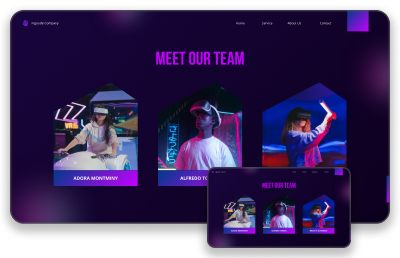
Share slides. People track live.
The Presenter panel is one of the most important part of the app. Here you can add slides, manage and share them. It supports uploading multiple slides that you can seamlessly switch between without interrupting process. Audience track slide pages live on their device.
Easy access for audience.
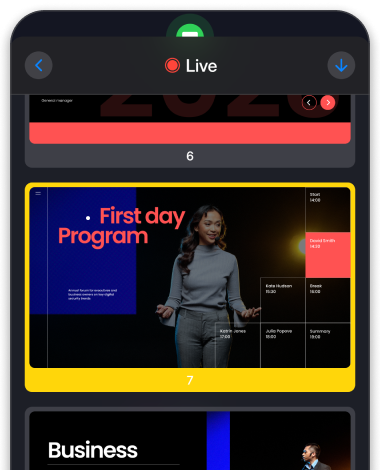
Easy access for audience.
When you start sharing, an indicator notify the audience. By touching indicator, you see active slide page. When Presenter navigate page, active page updates for all devices in real-time. Audience can see all slides and download them to deep dive into details later.
Send questions.
No interruption.
Send questions. No interruption.
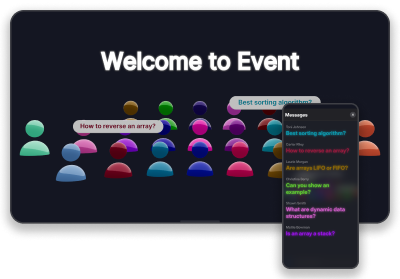
Audience can track all event updates like current event topic and asked questions in 3D virtual theatre. In the Messages panel, all messages can be seen for audience in real-time. They can ask questions or share their thoughts. Color customization is also available for messages.
Send resources
to everyone.
Send resources to everyone.
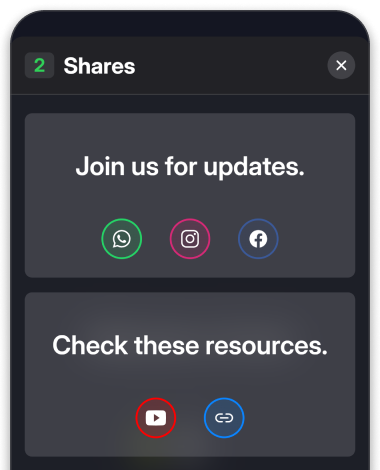
In the Shares tab, you can share useful resources, links and information with the audience. All shares displayed immediately on all devices and participants can see them later in the Shares section of menu. You can create multiple shares and send them whenever you want. It is advisable prepare and check all shares before event starts.
Add moderators
to approve
messages and
share resources.
Add moderators to approve messages and share resources.
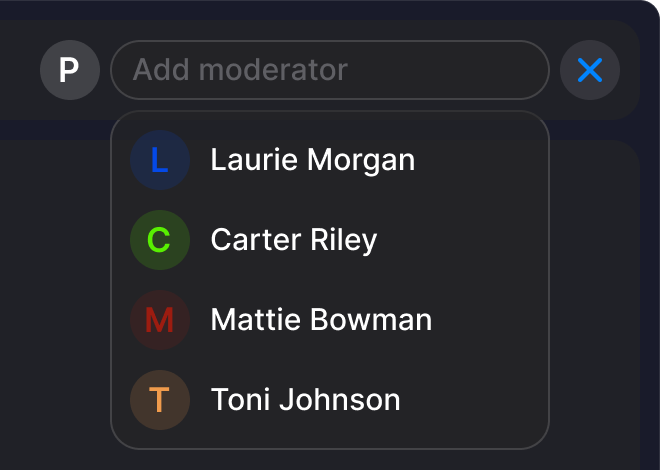
PresenterKit lets you add moderators to manage event topic and filter sent messages when you are on the pitch. At the top-left, you can update event topic. At the top-right, you can add or remove moderators.
Show messages
with filtering.
Show messages with filtering.
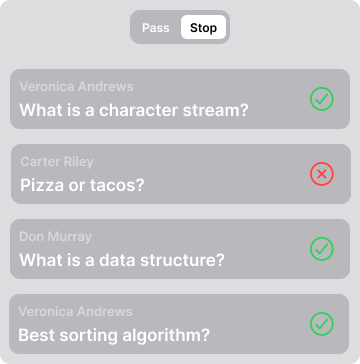
When you navigate Admin panel, first you see Messages tab. Here you can activate message filtering by clicking stop button on the top. You can delete spams and forward appropriate ones to all participants.
How to use?
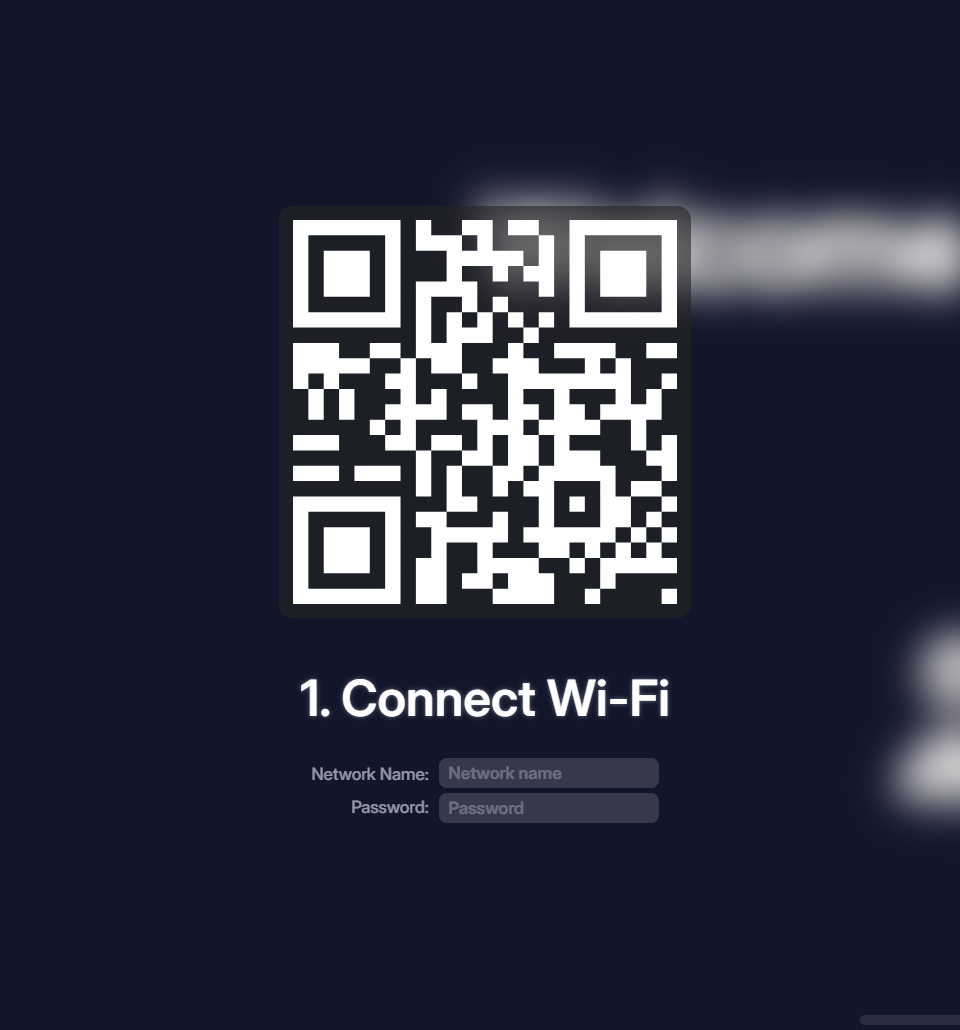
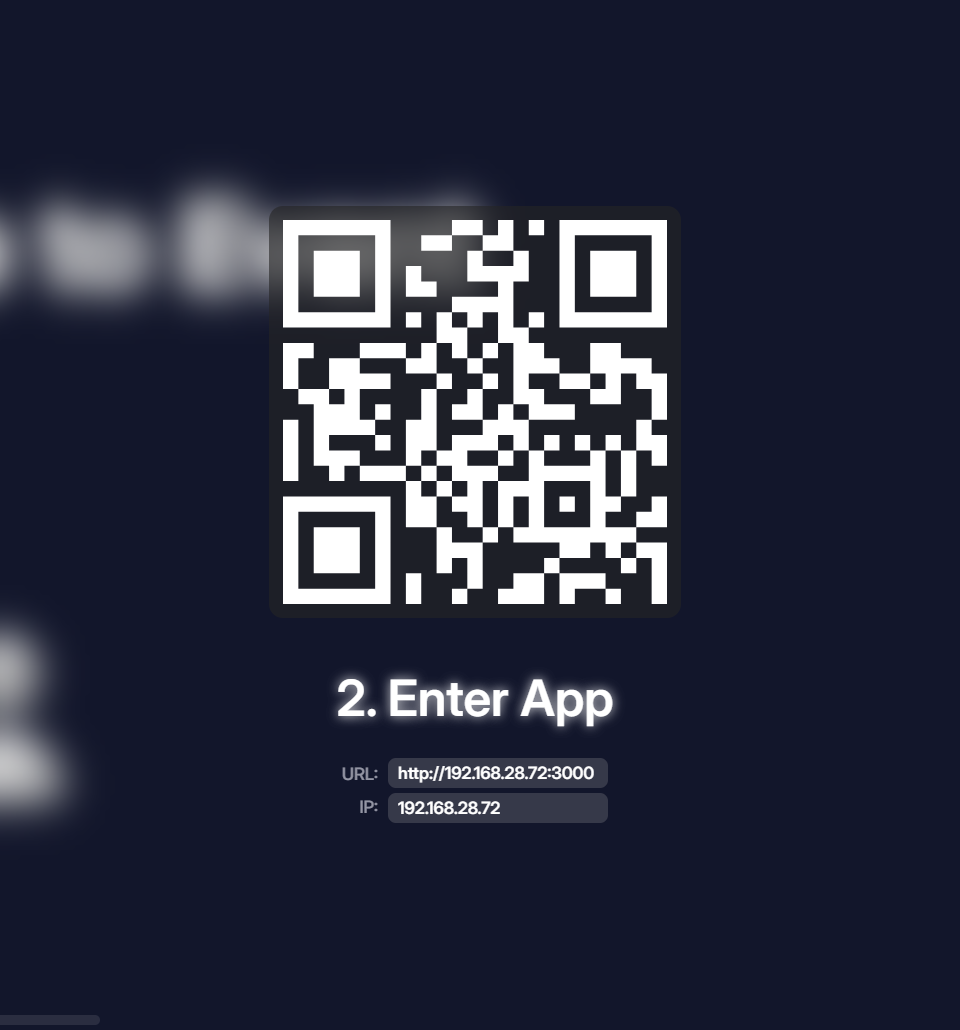
Enter connected
Wi-Fi credentials
for audience to
scan QR and join.