
v1.3.1 — 159 settings for macOS 26 Tahoe. Liquid Glass UI. Native SwiftUI.
The defaults write GUI
that macOS never shipped.
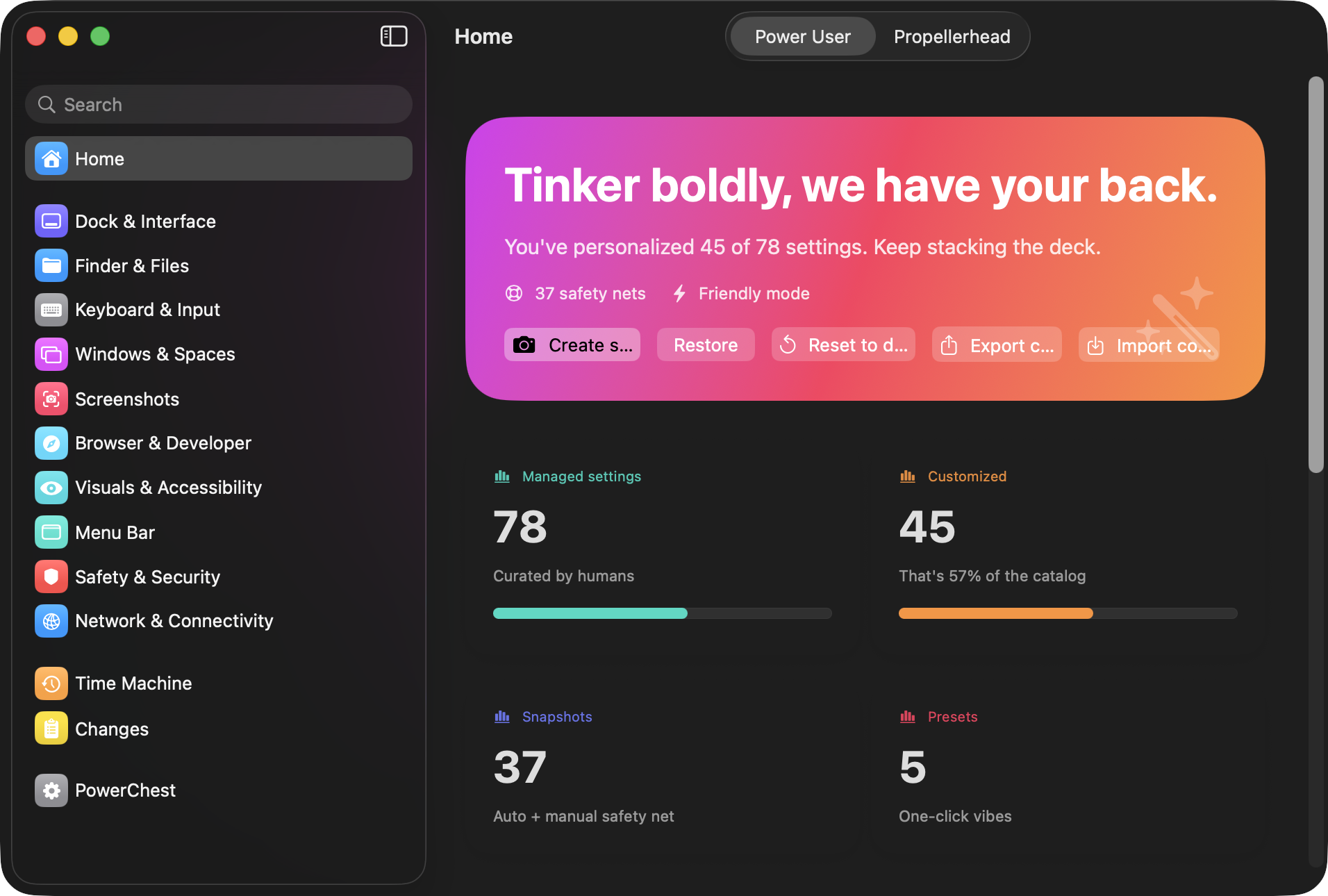
159 hidden macOS settings surfaced in a Liquid Glass-style interface. Trackpad, hot corners, Stage Manager, Apple Intelligence, Dock, Finder, firewall — all reversible, all logged, no terminal required.
Download for macOS Source on GitHub
You know this feeling.
$ defaults write com.apple.dock autohide-delay -float 0
$ defaults write com.apple.dock autohide-time-modifier -float 0.4
$ killall Dock
$ # wait, which blog post was that from?
$ # does this still work on Sequoia?
$ # how do I undo it?
→
Make the Dock feel faster
Remove the delay before the Dock appears, and speed up the slide-in animation.
Auto-snapshot created · Dock will restart
Built for people who read man pages for fun.
Everything you need. Nothing you don't.
⚙
159 curated settings
Dock, Finder, trackpad gestures, hot corners, Stage Manager, window tiling, Apple Intelligence, menu bar, Control Center, Activity Monitor, Xcode, Terminal, and more. Every setting hand-verified on macOS 26.
↺
Time Machine for settings
Auto-snapshot before every change. Browse by date, compare against current state, restore individual settings or entire snapshots. Never pruned.
⚡
One-click presets
Snappy Mac, Developer Desk, Clean Screenshots, Solid UI, Minimal Fuss. Apply a bundle of opinionated changes with one tap. Auto-snapshot first, obviously.
🔒
Admin settings with a lock
Firewall, stealth mode, SSH, captive portal, MAC spoofing. Uses the native macOS password prompt. Auth cached for ~5 minutes so bulk changes only ask once.
📋
Full audit trail
Every change logged with old value, new value, source, and timestamp. Grouped by day. You'll never wonder "wait, what did I change last Thursday?"
📦
Export / Import configs
Save your setup as a .powerchestprofile. Import on another Mac with a diff preview showing exactly what will change. Portable tinkering.
See it in action.
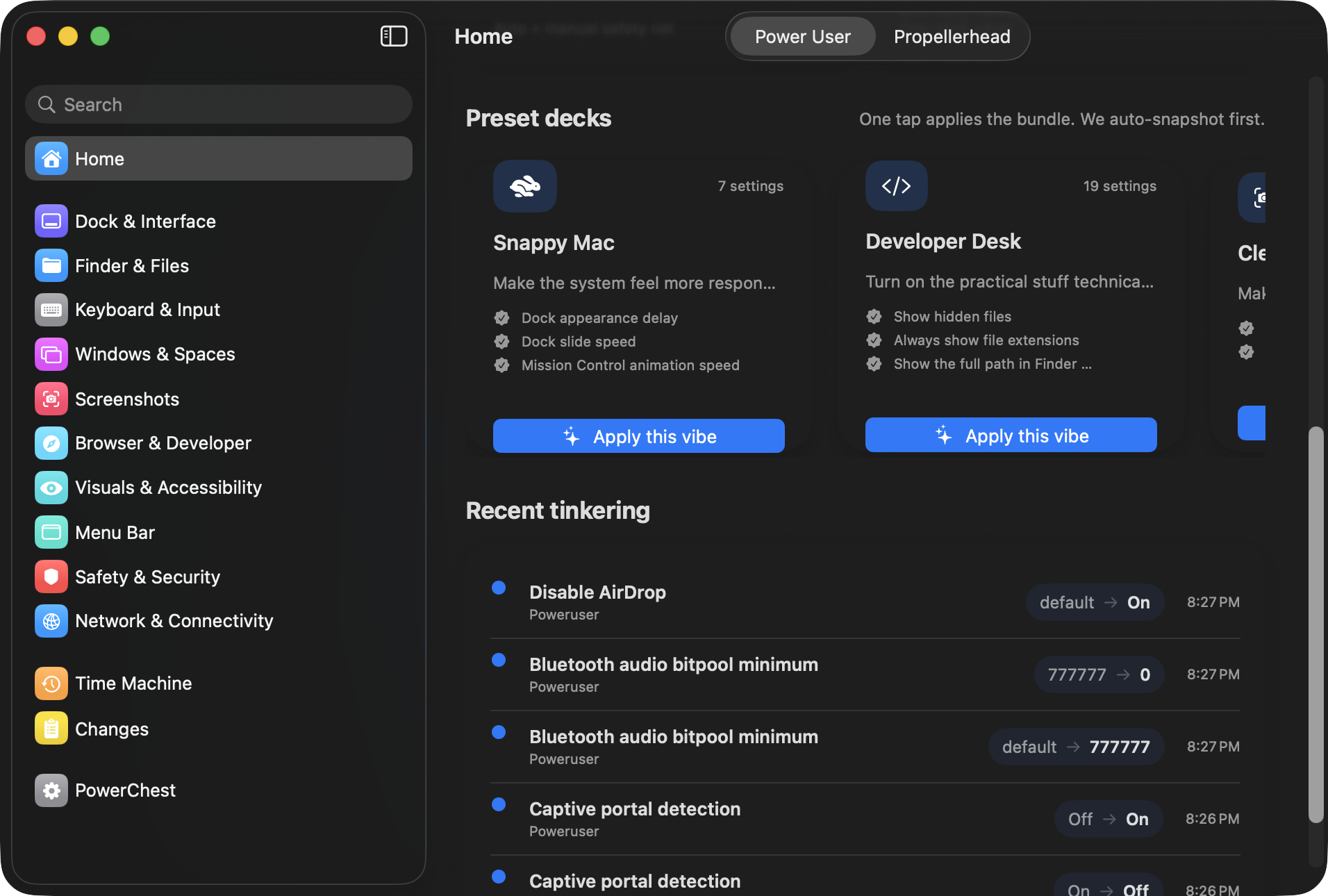
Presets & Activity
One-click preset bundles and a timeline of every change you've made.
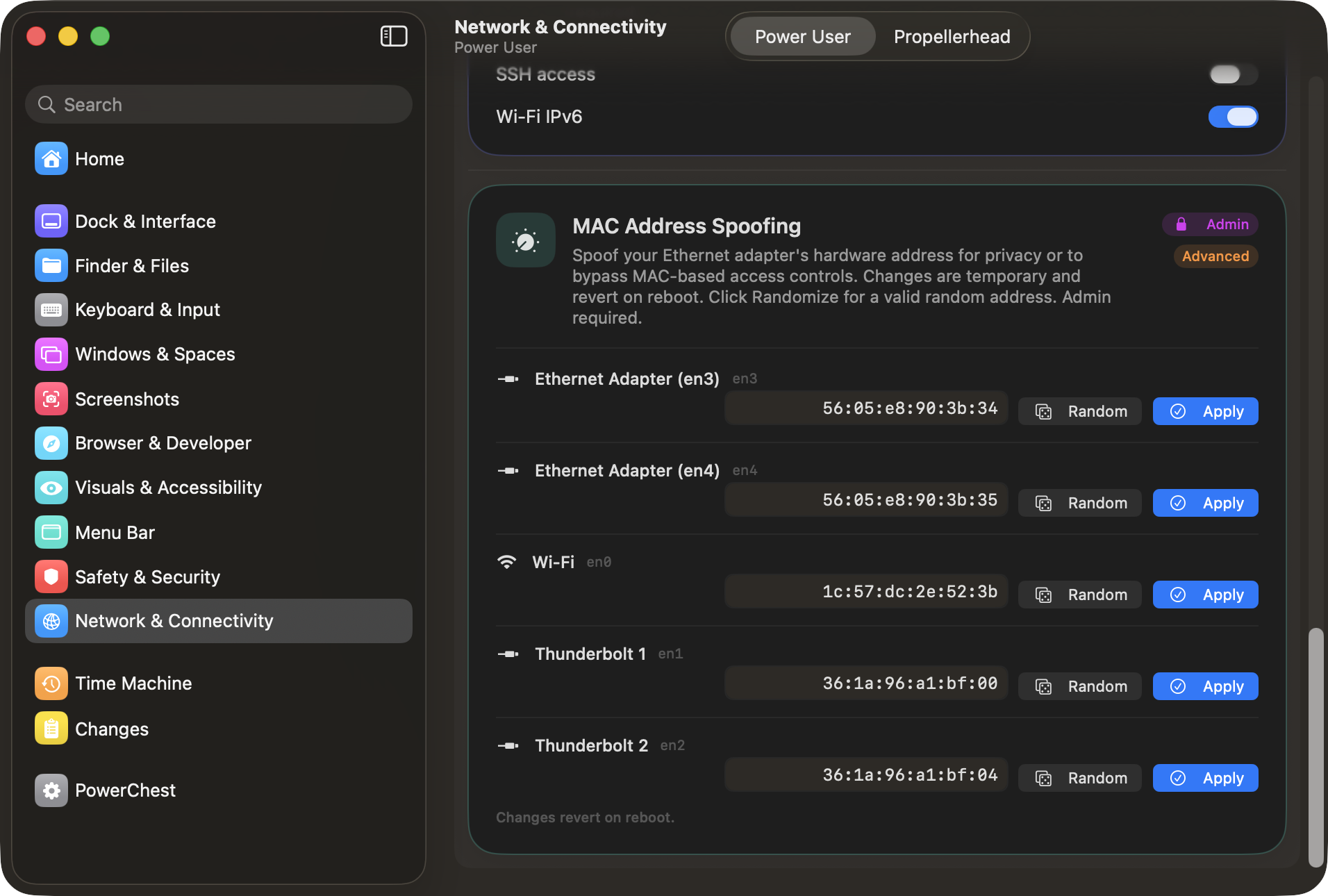
Network & Connectivity
Firewall, MAC spoofing, SSH, IPv6 — with admin badge and per-interface controls.
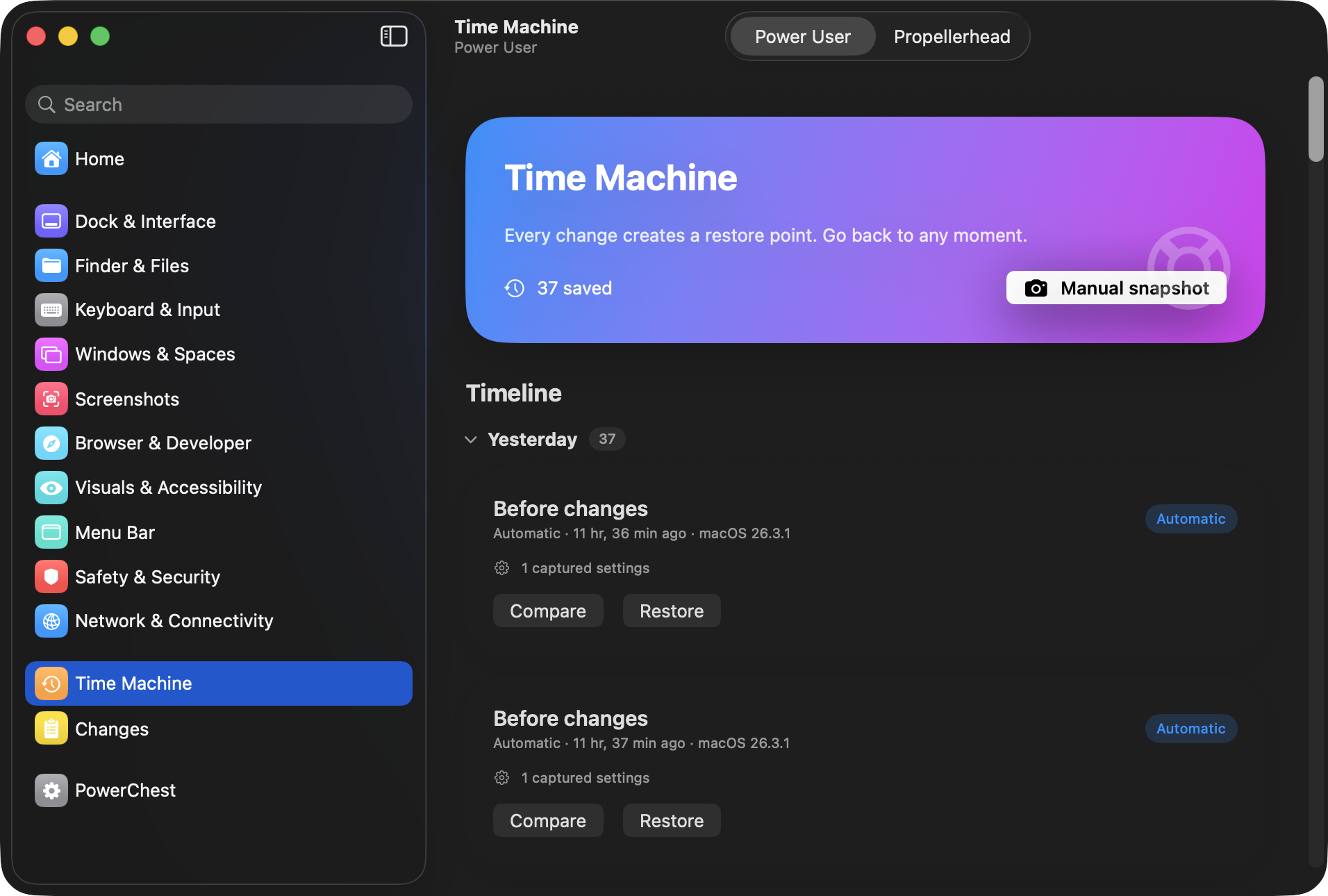
Time Machine
Every change auto-creates a restore point. Browse by date, compare, and roll back.
Dashboard
Stats at a glance — managed settings, customizations, snapshots, and quick actions.
Settings you won't find in System Settings.
These are the ones that justify the app's existence.
Disable mouse acceleration
Set com.apple.mouse.scaling to -1 for raw, unaccelerated input. Gamers and designers, this one's for you.
Firewall stealth mode
Makes your Mac invisible to pings and port scans. One toggle instead of digging through socketfilterfw.
Stop .DS_Store pollution
Prevent Finder from littering metadata files on every network share and USB drive you touch.
MAC address spoofing
Per-interface, with validation and one-click randomization. Reverts on reboot by design.
Captive portal detection
Stop macOS from phoning home to Apple every time you join a Wi-Fi network.
Font smoothing for non-Retina
Apple removed the checkbox in Mojave. The setting still works. If text looks thin on your external monitor, this fixes it.
Disable Liquid Glass
Turn off Tahoe's translucent glass rendering entirely. One toggle to revert to solid, opaque backgrounds like Sequoia.
Fix Electron app input lag
Tahoe's autofill heuristic causes keystroke delay in VS Code, Slack, and Discord. One toggle to kill the lag.
Speed up Stage Manager
Stage Manager's window-switching animations are painfully slow. Make them snappy or instant.
Clean up menu dropdowns
Tahoe added icons to every menu item. Strip them out for the clean, text-only look from Sequoia.
Toggle Apple Intelligence
Disable Apple Intelligence entirely from the command line. One toggle, requires reboot.
Three-finger trackpad drag
The beloved accessibility feature buried 5 menus deep. One toggle to enable it.
Hot corners
Assign any screen corner to Mission Control, Desktop, Lock Screen, Launchpad, Quick Note, and more.
Window tiling controls
Enable or disable Sequoia/Tahoe's edge-drag tiling, Option-key tiling, and top-edge fill.
Under the hood
For the people who read the architecture section of READMEs.
Apply Engine
Single mutation pipeline with 12-step transaction lifecycle. All changes — manual edits, presets, restores, imports — go through the same path. Auto-snapshot before every mutation. If the snapshot fails, the change aborts.
Four Adapters
DefaultsAdapter uses UserDefaults for fast reads, CLI for writes. CommandAdapter handles chflags. PrivilegedAdapter uses AppleScript for admin ops. RestartService does killall for Dock/Finder/SystemUIServer.
Curated, not scraped
Every setting is hand-picked, tested on current macOS, and bundled as Swift data. No runtime discovery, no parsing random plist files, no guessing what keys do.
Native SwiftUI
Built with SwiftUI and @Observable. No Electron, no web views, no Catalyst, no AppKit bridging hacks. System Settings-style layout because that's what your muscle memory expects.
Every setting in the catalog.
159 macOS settings across 11 categories. Every one tested on macOS 26 Tahoe, documented, and reversible.
🔍 Finder & Files
Control how Finder displays files, handles extensions, and manages folders.
Show hidden files Always show file extensions Show path bar Show status bar Keep folders on top Full POSIX path in title bar New Finder window location Show ~/Library folder Skip extension change warning Skip empty Trash warning Allow quitting Finder Save to local disk by default Folder spring-loading delay Disable .DS_Store on network volumes Disable .DS_Store on USB drives Default search scope Preferred view style Auto-resize columns in Column View Hide desktop icons Auto-empty Trash after 30 days External drives on desktop Internal drives on desktop Network servers on desktop Removable media on desktop Open folders in tabs Toolbar icon rollover delay
▣ Dock & Interface
Dock speed, size, position, window behavior, scroll bars, and app behavior.
Dock icon size Dock position (left/bottom/right) Dock auto-hide delay Dock auto-hide animation speed Hide recent apps from Dock Show only open apps in Dock Minimize windows into app icon Minimize animation (genie/scale) Title bar double-click action Scroll bar visibility Expand Save dialogs by default Expand Print dialogs by default Dock magnification Dock magnified size Bouncing launch animation Process indicator dots Hidden app translucency Spring-load all Dock items App Switcher on all displays Scroll to show app windows Sidebar icon size Scroll bar click behavior
⌨ Keyboard & Input
Key repeat, accent popup, autocorrect, smart punctuation, and mouse acceleration.
Key repeat instead of accent popup Key repeat rate Initial key repeat delay Disable smart quotes Disable smart dashes Disable auto-capitalization Disable auto-correct Disable double-space period Tab through all UI controls Disable mouse acceleration Mouse acceleration curve (-1 to 3) Disable autofill heuristic (fix Electron lag) Inline predictive text Fn/Globe key action F1-F12 as function keys Language indicator Tap to click Three-finger drag Disable force click Haptic feedback Click pressure Force click pressure Tracking speed
▦ Windows & Spaces
Mission Control, Spaces ordering, window grouping, and multi-display behavior.
Keep Spaces in fixed order Group windows by app in Mission Control Mission Control animation speed Stage Manager animation speed Enable Stage Manager Auto-hide Stage Manager strip Click wallpaper to show desktop Snap windows to edges Option-key tiling Drag to top to fill screen Tiled window margins Hide desktop icons (Stage Manager) Hide all desktop icons Switch Space on activate Window tabbing mode Drag windows from anywhere Keep windows on quit Save prompt on close Hot corner: top-left Hot corner: top-right Hot corner: bottom-left Hot corner: bottom-right
📷 Screenshots
Where screenshots go, what format they use, and how they look.
Screenshot save location Screenshot format (PNG/JPG/TIFF/PDF) Disable window shadow in screenshots Disable floating thumbnail Custom filename prefix Date in filenames Remember last selection
👁 Visuals & Accessibility
Transparency, contrast, motion, cursor size, and font rendering.
Disable Liquid Glass (Tahoe) Hide menu dropdown icons (Tahoe) Increase contrast Reduce motion Font smoothing for non-Retina displays Window animations
🕔 Menu Bar
Clock format, battery percentage, and status item visibility.
24-hour clock Flash time separators Show/hide date in menu bar Show AM/PM Show seconds Show day of week Analog clock Auto-hide menu bar Menu bar icon spacing Menu bar icon padding Bluetooth in menu bar Sound in menu bar Now Playing in menu bar Focus in menu bar Brightness in menu bar Music now-playing notifications
🛡 Safety & Security
Gatekeeper, quarantine behavior, and crash reporting.
Skip Gatekeeper quarantine prompts Crash reporter detail level Screen lock after screensaver Password delay Custom login screen message Toggle Apple Intelligence Stop Time Machine disk prompts
🌐 Network & Connectivity
Firewall, DNS privacy, AirDrop, Bluetooth, MAC addresses, and remote access. Some settings require admin.
Application firewall Firewall stealth mode Block all incoming connections Safari DNS prefetching Safari preload top hit Send Do Not Track header Captive portal detection Disable AirDrop Bluetooth audio bitpool quality Remote Login (SSH) IPv6 on Wi-Fi MAC address spoofing
💻 Apps & Developer
TextEdit, Help Viewer, Activity Monitor, Xcode, Terminal, and Safari developer tools.
TextEdit plain text mode Help Viewer non-floating Activity Monitor dock icon Activity Monitor process filter Activity Monitor update frequency Xcode build duration Terminal focus follows mouse Safari full URL Safari developer menu Stop auto-opening downloads Show link URLs in Safari
⚙ Internals
Low-level process behavior and system resource management.
Disable App Nap Stop auto-terminating idle apps
📦 Config Portability
Take your setup with you. PowerChest exports your entire configuration as a portable .powerchestprofile file you can import on any other Mac.
Export current config to file Import config from another Mac Diff preview before importing Reset all settings to macOS defaults Auto-snapshot before import Share configs with your team
Set up one Mac exactly how you like it, export the profile, and apply it to your next machine in seconds. The import screen shows a side-by-side diff of exactly what will change before you commit — no surprises.
Stop Googling defaults write
macOS 26+ · Free · No account required · No telemetry
Download for macOS Source on GitHub
SwiftUI macOS 26+ No Electron No telemetry No account