
macOS · SSH · SFTP · Serial
Three of them.
One window.
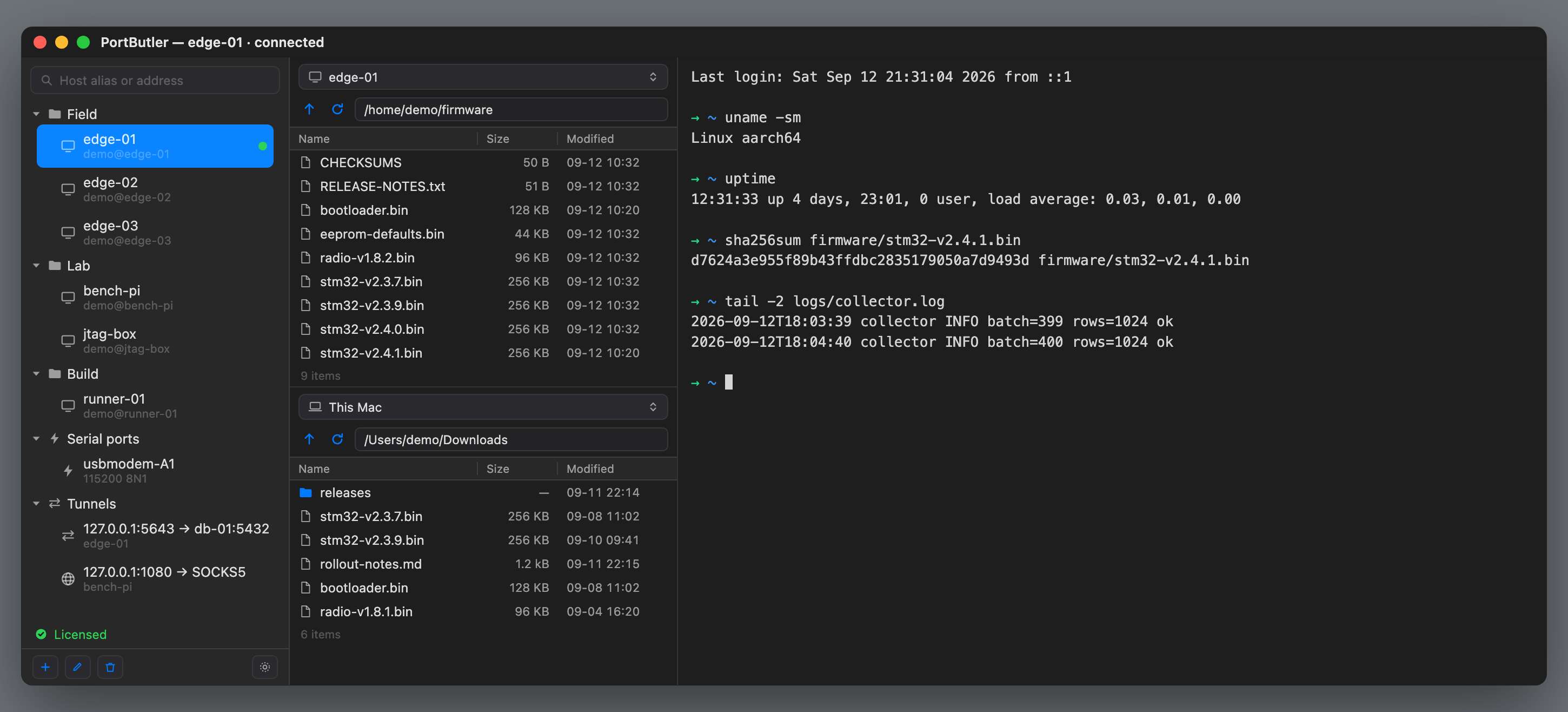
A terminal, a file manager and a serial monitor — three apps for one machine. Here a host is a tab, its files are the pane beside it, and the board on your desk sits in the same list as the servers.
No account, no card, nothing to enter · macOS 13+ · Apple silicon and Intel · Notarized by Apple
When it goes wrong
It tells you why it failed.
connection failed is not an error message. These five look identical on most
clients and each needs a completely different fix.
| What happened | What PortButler tells you |
|---|---|
| The port refused it | The machine is up. Check the port — many devices use 2222 |
| Nothing answered | Powered off, or a firewall dropping packets silently |
| The name will not resolve | Check spelling, or whether it only exists on a VPN |
| Connected, no SSH greeting | That port is not SSH, or sshd is stuck |
| Something answered, not SSH | A web server may be sitting on that port |
The third one
The board on your desk is in the same list.
A USB-serial adapter shows up beside your servers, not in another app. Speed and framing
are picked when you connect, and /dev/cu.* is found for you — minus the two
every Mac has and nobody wants to see.
Every line can carry the time it arrived. Watching a board boot is most of what a serial port is for, and "which step is slow" is unanswerable without it:
[12:34:56.789] Booting Linux on physical CPU 0x0
[12:34:56.812] Linux version 6.6.31-v8+
[12:34:57.104] Machine model: Raspberry Pi 5
[12:35:01.882] mmc0: error -110 whilst initialising SD card
[12:35:04.377] systemd[1]: Reached target Multi-User System
There are 4.8 seconds between the last two lines. That is the SD card timing out and the kernel waiting for it — the single most useful fact in that log, and it is invisible without the clock. Every other line looks the same either way.
And a pasted config block arrives whole. A switch at 9600 with no flow
control drops whatever overruns its input buffer, silently: half your configuration goes
in, the device says nothing, and you find out later from behaviour rather than from an
error. PortButler can pace the paste, per line or per character. Your bytes are
not touched — no \n → \r rewriting, same order — so
with the delay at zero the device receives exactly what it received before. Saved
snippets go out through the same paced path, so a long block never arrives half-eaten.
Milliseconds, because a boot log throws several lines into the same second. A partial
line gets one stamp, not one per fragment — serial always arrives in pieces. And a
\r is not a new line, so a progress bar redrawing itself does not fill your
screen with clocks.
Files down a console cable
A serial line has no idea what a file is.
It is a wire that carries bytes in a row. Nothing in it says this is a file, this is where it ends, or I got that. To move a file, both ends have to agree on a convention beforehand — and both ends have to know it. We know all of them. The question is always what is on the far side.
| Method | Needs on the device | You type there | When |
|---|---|---|---|
| XMODEM | lrzsz | rx | Very old equipment. 128-byte blocks |
| XMODEM-1K | lrzsz | rx | The same, eight times fewer round trips |
| YMODEM | lrzsz or U-Boot | rb | Carries the name and size. U-Boot calls it loady |
| ZMODEM | lrzsz | rz | Fastest on Linux. U-Boot cannot do it |
| Text | nothing | nothing | When none of the above is available |
lrzsz is the package that teaches a Linux box those conventions. The names
follow a rule worth knowing: r receives and s sends,
and the last letter is the method — b for YMODEM, z for ZMODEM,
x for XMODEM. Once you see that, you can pick the command yourself.
Which way, and where it lands
| Direction | Where the file ends up | |
|---|---|---|
| Send | Mac → device | The device's current directory — no path is attached |
| Receive | device → Mac | It asks. The default is Settings ▸ Files ▸ download location |
Yes, you can pull files back. The cable has a TX and an RX wire, so it goes both ways — and the reason you are on a console cable in the first place is usually that the box has no network. When that is true, the console is the only way out for a log, a config backup, or a crash dump.
Who speaks first — it depends on the method
The three behave differently here, and it changes what you do:
XMODEM and YMODEM — the device speaks first. It sends the letter
C over and over, meaning ready, and our end writes
nothing at all until it sees one. So press Send whenever you like: it
waits, and nothing is dumped into your console while it does. The green dot lights when
that C arrives.
ZMODEM — we speak first. Press Send and the app types
rz on the device for you, then begins. The device still needs
lrzsz installed — if it is not there you will see
-sh: rz: command not found and a burst of garbage, which is the receiver
talking to nobody.
Text — nobody needs to speak first, because there is no convention to agree on. The app types every line itself.
When the device has none of it
This is the one that is ours. The app turns the file into base64 text and types five lines for you — open a file on the device, paste the encoded bytes, close it, decode it, and compare the hash against the one measured here:
cat > /tmp/firmware.b64
…base64 text…
^D
base64 -d /tmp/firmware.b64 > firmware && rm /tmp/firmware.b64
sha256sum firmware      ← compared with the value measured on the Mac
It needs only base64 and sha256sum, which are
on essentially every Linux. The encoding is what makes it safe for real files: compressed
data and firmware always contain bytes like 0x03 and 0x11, which
a console reads as Ctrl-C and XOFF rather than as data. Base64 uses only 64 harmless
characters, so a .tar.gz or a .bin goes through intact.
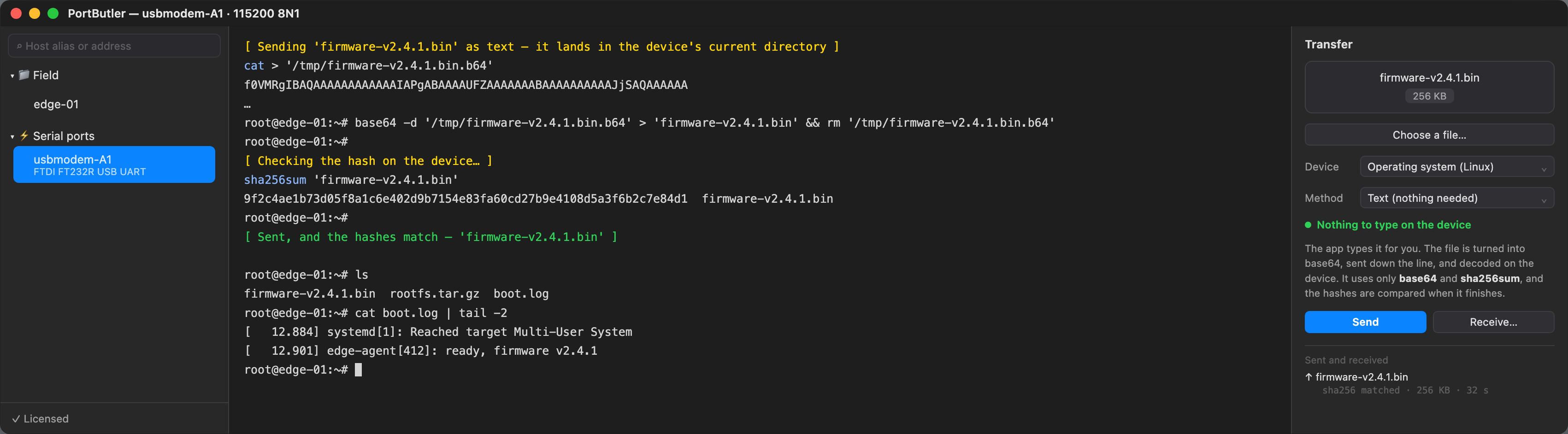
The hash check cannot be switched off. A device without flow control drops whatever overruns its buffer and says nothing, which leaves a file of exactly the right length with the wrong bytes inside. On firmware that is a brick.
Around 8 KB/s at 115200 — roughly two minutes per megabyte. That is arithmetic from the line rate and base64's one-third overhead, not a bench measurement. Either way the shape is right: generous for a log, a config or a small firmware image, and wrong for a root filesystem. Worth knowing before you start rather than after.
One thing to know: pressing a key during a paste or a text transfer stops it. That is deliberate — it keeps a stray keystroke from landing in the middle of a config line — but on a transfer that runs for minutes, one accidental key ends it, and a partial file is left on the device. The app tells you when that happens.
Where the device forgets
A console forgets. The terminal does not.
Some consoles remember nothing at all — a bootloader, a bare MCU prompt, a stripped BusyBox build. Others remember a little and then throw it away: Cisco IOS keeps ten lines by default, and they die with the session. Pull the cable, come back after lunch, and it is gone. None of it is on your Mac, none of it is searchable, and none of it survives the device being power-cycled — which, on a bench, it will be.
So an engineer types show interface gigabitethernet 0/1 by hand, forty
times a day.
PortButler remembers the lines you have typed on that port and offers the rest of one in
grey, in front of the cursor. → accepts it. Nothing else changes — with no
suggestion showing, → is just → and goes to the device like any other key. It switches
itself off inside vim and less, where a phantom character would
be worse than useless.
This is not a shell plugin like zsh-autosuggestions. Those run
inside the shell, which is fine when there is a shell to put one in — and on a
switch, a bootloader or an MCU there is not. Ours runs on this side of the cable, so what
it remembers is yours, on your Mac, per host, and still there next week.
Over SSH you may not need it: the shell you land in often does this already, and better.
That is why you can switch it off for a host.
We have not found another terminal that does this on a serial port. That is not the same as there being none — we looked, we did not survey. If you know one, tell us and this paragraph changes.
Tab stays with the device, on purpose. Every inline-suggestion tool
works this way — zsh-autosuggestions, fish, Warp, Amazon Q all
accept with → and leave Tab to completion, and Warp's own documentation admits that
binding Tab to suggestions means moving the completion menu somewhere else. We could not
make that trade even if we wanted to: the Tab we would be taking is not ours, it belongs
to your Cisco IOS, your U-Boot, your bash.
And the two are not the same thing. We only know what you typed before. Tab knows what is there now — the file you made five minutes ago, the branch you just created, the directory that exists only on that box. Taking Tab would trade the better one for the worse one.
Passwords are never remembered, and two separate rules make sure of it.
A password prompt is caught because the console stops echoing what you type. But
snmp-server community S3cr3t is echoed — it looks like an ordinary
command — so a second rule cuts the line at the word the secret follows. One rule alone
would leak; that is why there are two. You can switch the memory off per port, and clear
what it holds.
New
A tunnel is a session, not a side effect.
Everywhere else a port forward is a checkbox on a host, so it dies when you close the terminal it was riding on. Here it is its own thing in the list, next to your servers. Open a port for the afternoon with no terminal attached.
It does not ask you for the address, the account or the key a second time — it points at a host you already saved. Change that password next month and the tunnel follows.
| State | Local port | Goes to | Open now | Moved |
|---|---|---|---|---|
| open | 5163 | workstation:5163 | 2 | 3.2 MB |
| blocked | socks 1080 | whatever connects | — | — |
Watch the last column. A tunnel that is open and idle looks exactly like one that is quietly broken — both are a green dot. Other clients show you that dot and stop there. The bytes are how you tell the difference, and they are the reason this screen exists.
Measured, not quoted
108 MB/s, where scp gets 74.
Same Mac, same server, same 64 MB file. The reason is not micro-optimisation — it is the
shape of the transfer. scp waits for each 32 KiB chunk to be acknowledged
before asking for the next. PortButler keeps four streams in flight and writes each
256 KiB chunk in place.
| Download | Raspberry Pi 5 over 1GbE | Same machine (no wire limit) |
|---|---|---|
| PortButler | 108 MB/s | 465 MB/s |
| scp | 74 MB/s | 267 MB/s |
| sftp | 74 MB/s | 267 MB/s |
Uploads are not faster. They match scp — we measure
74 MB/s over the same gigabit link. Reading a file is where
several requests can be in the air at once; writing one is not, and writing to several
places in a remote file at the same time leaves a hole-ridden file if the transfer is
cut off. We would rather be slow than hand you a firmware image with a gap in it.
The same page lists the other conditions where the gap closes — small files, a server
whose CPU gives out first, a wire that is already full.
And when a big one dies at 90%, it picks up from there. A dropped Wi-Fi or a closed lid leaves a marked partial file, and the next attempt asks whether to resume it — never silently, in either direction. Parallel transfers make this harder than it sounds: four streams write to different offsets, so an interrupted piece has holes in it. Resuming from the file's size would append past those zeroed gaps and hand you a corrupt image. PortButler keeps only the part that is genuinely there.
And if the app is killed outright, the leftover piece is not trusted at all — nothing recorded how far it actually got, so the next attempt starts over rather than guess. You lose the progress, not the file. On a firmware image that is the only acceptable trade: a download that has to start again is an annoyance, and one that silently completes wrong is a brick.
The number is on screen while it runs. Megabytes per second and the time left, in the same units as the table — so you are not asked to take this page's word for it.
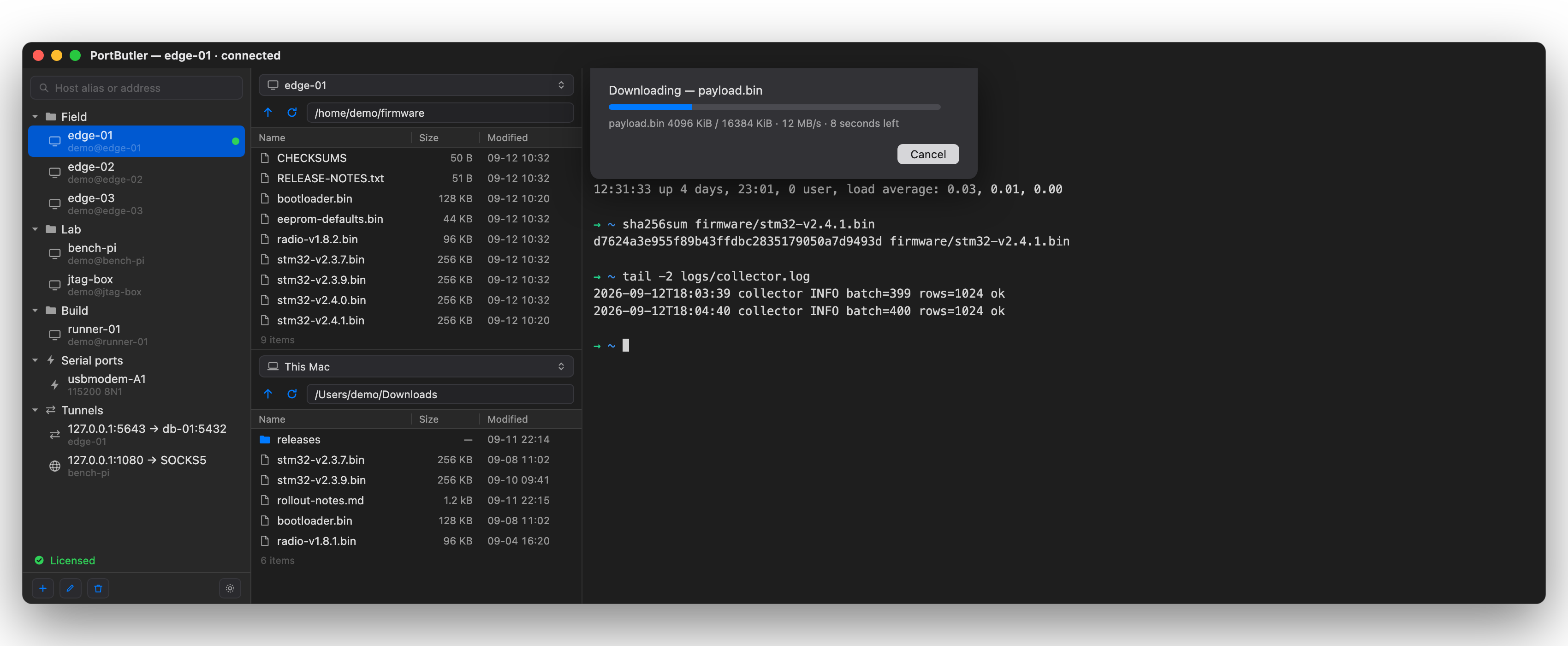
That 108 MB/s is 91% of the theoretical maximum of a gigabit wire. There is no room left to win on that cable, which is why the same-machine column exists. Every number here was measured on one Mac, and the method is published — BENCHMARK, in English, with the commands.
Built for fleets
Five thousand boards, one password.
That is what an embedded rollout looks like: the same account and the same password on every unit. Save it once as a credential and type an address — the login comes from there. Change the password later and every machine follows, because they point at the credential, not a copy of it.
The password never appears
The list shows names and accounts. The password lives in this Mac's Keychain, is read the instant you press Return, and goes straight to the session — it is not rendered, and it never leaves this device.
It will not lock you out
Servers count failed logins. Most clients offer every key in your agent and get cut off before you are ever asked for a password. PortButler offers at most four, so an attempt is always left — and when the credential says password, it offers none.
Before you buy
What it does not do.
Listed first, because you will find out anyway and it is better you find out here.
| PortButler | Where it exists | |
|---|---|---|
| Folder transfer and a queue | Not yet | Transmit, ForkLift |
| Same input to many sessions | Not yet | SecureCRT, iTerm |
| Split panes | Tabs only | iTerm, WindTerm |
| Serial in the same window | Yes | WindTerm, Termius |
| Tunnel that outlives the terminal | Yes | Termius too |
| Live throughput on that tunnel | Yes | We could not find it elsewhere |
| Saved command snippets | Yes | Termius, WindTerm |
Nothing on that list is a surprise waiting for you. The first two are being built, in that order. Everything else here is what you get today, and you have fourteen days to find out whether the gaps matter for your work — before any money changes hands.
It reads ~/.ssh/known_hosts and uses ssh-agent and the keys you
already have. It imports ~/.ssh/config when you ask it to, and
never writes to that file.
Where this is going
Three things that will not change.
No account. There is nothing to sign in to, so there is nothing to lock you out of. No telemetry. And your keys stay on this Mac — not as a policy we could revise, but because we run no server for them to go to. When a competitor moves your keys to their cloud on the paid tier, that is a thing we structurally cannot do.
You pay once. If we stop, the copy you have keeps working — it is a signed app on your disk, not a licence server that has to answer.
Next: the cable carries more than text
The same RS-485 pair you are reading a console on is usually carrying Modbus frames the rest of the day. Today that means two apps — and a serial port admits only one at a time, so you close one to open the other, and close it again to get back. We are putting the decoder in the window you are already in: a view mode beside hex, not a second application. It listens by default. Writing to a live bus is something you turn on deliberately.
And then: agents get hands, but not a free hand
Terminals are growing AI that runs commands for you. We are not going to do that, and we said so before it was a crowd: a command that runs on production hardware without someone reading it first is how you lose an afternoon or a factory.
What we will do is the other half. PortButler already holds the connection, knows whether it is talking to a bootloader or an OS, cuts secrets out of what it remembers, and refuses to rename a file it has not verified. An agent has none of that and needs all of it. So the agent gets to reach your board through us — and you get to watch, and press the button.
Your agent can reach the board. It still cannot touch it without you.
No dates on any of this. A date on a roadmap is a promise, and the only promises on this page are the ones about what the app does today.
Pricing
Try it for 14 days.
$29one-time · not a subscription
$29 through December 31. From January 1 it is $39 — and that is where it stays. Saying so now means buying early is buying early, not catching a discount that quietly vanishes.
When the trial ends it stops connecting — your session list stays. Major upgrades are $15. A ten-seat pack is $240.
For scale: Panic charges $45 for file transfer alone and $99 for SSH alone. Termius is $120 a year, and moves your SSH keys onto their servers when you upgrade. Ours never leave this Mac, on any plan, because there are no plans.
Download and use it for fourteen days first. Nothing to enter, no card.
macOS 13+ · Apple silicon and Intel · Notarized · Direct download, not the Mac App Store
Something not working, or missing? Open an issue — it is read by the person who wrote the code. The app has Help → Report an Issue… too, which fills in your macOS and app version.