Apple may be the last company to embrace AI. But wow, was it worth the wait.
The new AI Siri came out this week as part of OS 27 for iPhone, iPad, Apple Watch, and Mac, and it’s a life changer. A phone changer. It replaces most Google searches, most ChatGPT or Claude interactions, and cumulative hours of fumbling and searching and dragging and copying and finding and tapping and pasting.
Also, this is ethical AI: It deceives nobody, puts nobody out of work, and draws 100% of its power from renewable sources.
This Siri can see into your Apple apps: Mail, Messages, Notes, Files, Calendar, Contacts, Reminders, Photos, Music, and so on. (Of course, all of this data is locked on the phone. Nobody, not even Apple, has access to it.)
As a result, you can ChatGPT your own life. You can say things like, “What did my wife say I was supposed to do with the plants?” Or, “What was the show that Casey said I should watch?” Or, “What’s my flight number to Austin?” And it pops right up.
You may not even care where that information actually lives—some text message, some email, some note. All you know is that you didn’t have to go scrolling your messages back to A.D. 700 to find the answer.
The hardest part will be getting out of the habit of opening apps, and remembering that you have Siri. Give it a few tries. Learn to trust it. You’ll save incredible amounts of time and fumbling.
I used the beta-test version all summer, growing more and more excited. Now that the final version is out, I wanted to see how often it gets things right. It is AI, after all. So I ran it through 125 tests.
Some of these tasks are things Apple said are possible. Some ideas, I picked up from people on Reddit trying stuff. Some, I just wondered if Siri could do.
It failed a handful of times. But a few other times, it absolutely blew me away. It did amazing things I bet you never suspected Siri could do. Note, for example, items 24, 25, 28, 30, 61, 100, and 124.
(Note: To get started, open Settings → Siri and turn on Siri AI. For now, you may be told you’re on the waiting list; Apple can’t unleash it to 2.5 billion devices all at once.)
OK, here we go.
That business of answering questions about your own life’s data is actually only one of five new categories of things Siri can do—but to me, it’s the most magical. Here’s how it performed. The numbered query is what I said (you can speak it or type it); in parentheses, I’ve shown how Siri responded. Each Siri response is generally equipped with a link to the email, note, message, or other source of its answer.
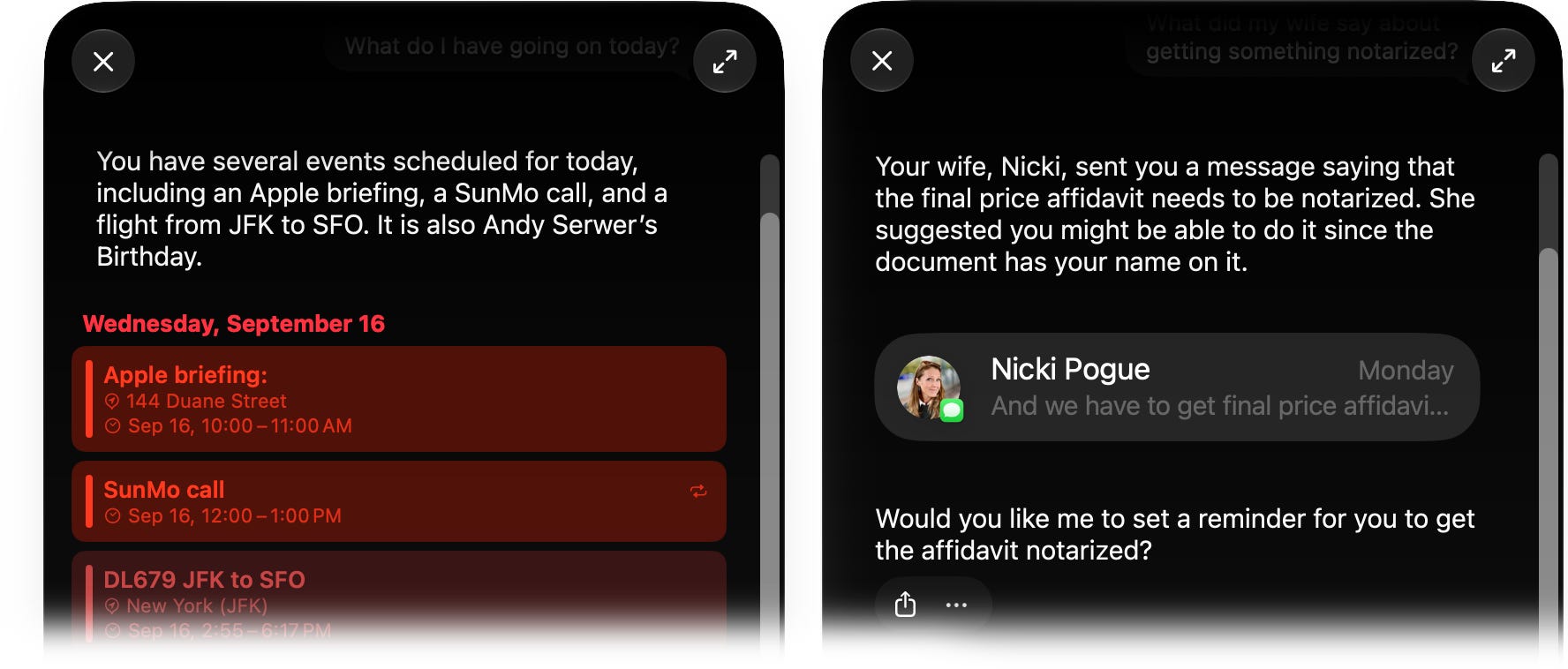
✅ 1. What do I have going on today? (Shows concise schedule)
✅ 2. What did my wife say about getting something notarized? (Shows gist of the conversation.)
❌ 3. How many steps did I take last week? (Says, “Would you like me to open the Health app so you can check there?” Unfortunately, the Health app is not yet Siri-fied.)
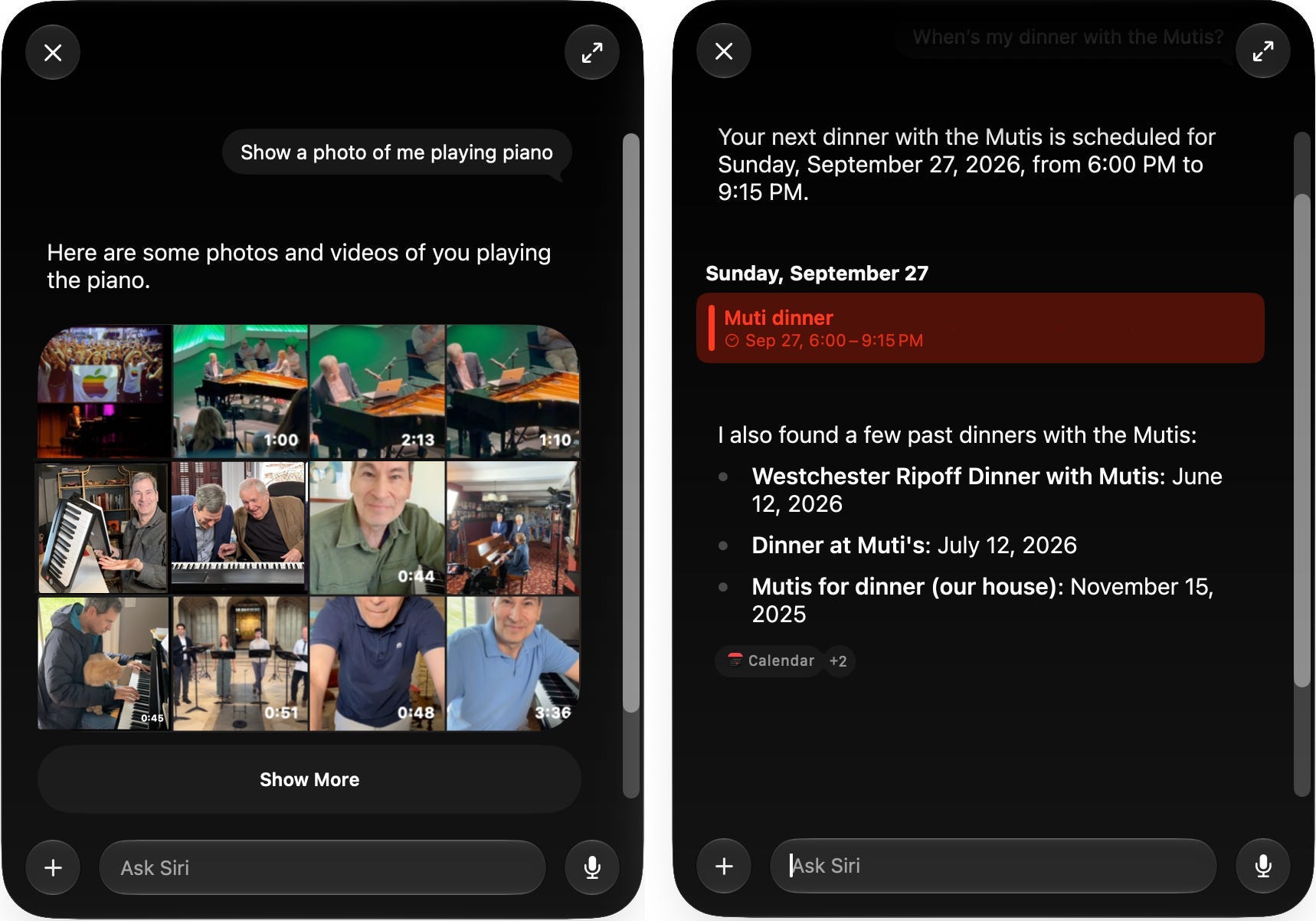
✅ 4. Show a photo of me playing piano.
✅ 5. When’s my dinner with the Mutis?
✅ 6. What’s that gluten-free restaurant in NY? (Pulls up answer from a text last June.)
✅ 7. What’s my Delta SkyMiles number?
✅ 8. Pull up the email from Chris Schmidt about the talking dogs show.
✅ 9. When’s my next dentist appointment?
✅ 10. (Viewing a package number in Mail:) Add this tracking number to a reminder for Friday.
✅ 11. Did Jeffrey’s box ever arrive? (“Yes, Jeffrey’s box arrived on September 9th.”)
✅ 12. Grab the PDF of my Apple book from Aileen’s email and attach it to this message. (Pastes Dropbox link into Messages box.)
✅ 13. What was that restaurant we ate at at SXSW? (“During your trip to Austin from March 17 to 19, 2026, you ate at Terry Black’s BBQ and Cooper’s Old Time Pit Bar-B-Que.”) What else did we do on that trip? (“You attended a ‘SXSW with Schiller’ event and participated in a ‘Sunday Morning staff call.’”)
✅ 14. How long does my Lemon Pork Chops recipe take to make? (“Your Lemon Pork Chops recipe takes about 35 minutes to make.”)
✅ 15. Confirmation number for my flight today? (“The confirmation number for your Delta flight 679 to San Francisco today is GPP2PS.”)
✅ 16. What’s the movie Kell recommended? Where can I stream it? (“Kell recommended ‘Nirvanna The Band The Show The Movie.’ You can stream it on Hulu, or rent or buy it on platforms like Amazon Prime Video and Apple TV.” Shows links to those services.)
✅ 17. Find me the spreadsheet of book titles I emailed. (“I found a few emails and spreadsheets related to your book titles. The most relevant ones appear to be ‘Al Book Intake Form’ and ‘69 books,’ both of which have spreadsheets attached.”)
✅ 18. When’s the last time I went to Illinois and where did I stay? (“The last time you went to Illinois was in November 2025, where you stayed at the Fairfield by Marriott Inn & Suites in O’Fallon.”)
✅ 19. When’s dad coming to visit? (“Dad is scheduled to visit from December 13 to December 15, 2026.”)
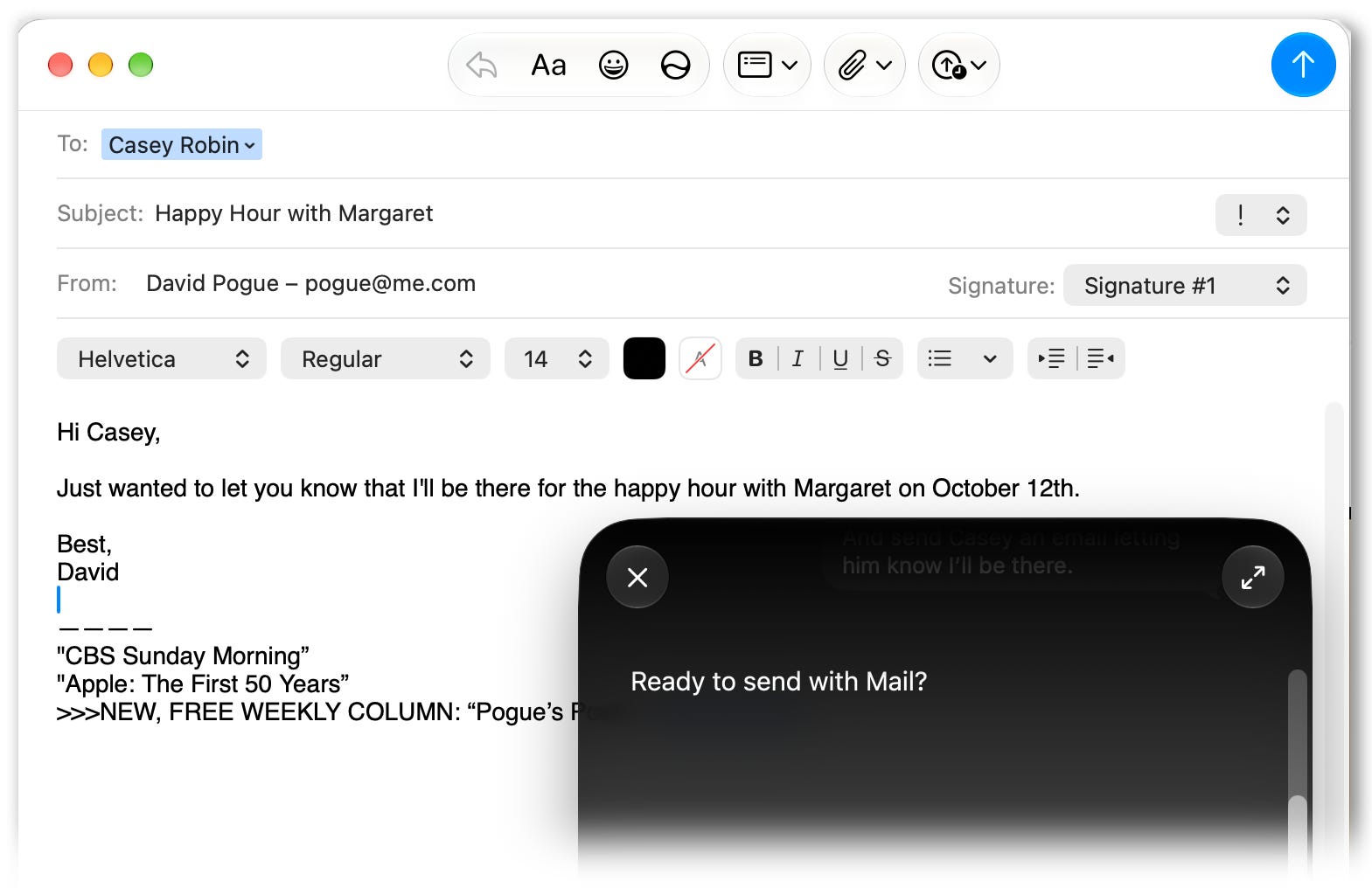
✅ 20. Doug mentioned some happy hour thing. Put the details on the calendar. And send Casey an email letting him know I’ll be there. (This kind of compound command is dazzling every time.)
✅ 21. Send my wife the Model 3’s VIN number.
✅ 22. Where do we stand with the Bedford Playhouse board cocktail party? (“Sarah mentioned she might be able to catch the latter half of the event.”)
❌ 23. Add Advil to my medication reminders. Two tablets, three times a day. (Adds it to Reminders, not to the Medication feature of the Health app. So yeah, confirmed: the Health app just isn’t updated.)
✅ 24. Did I reply to that email about the Italian printing of my book? (“Yes, you replied on September 5. You let them know it was ‘OK’ to proceed with black and white interior photos.”)
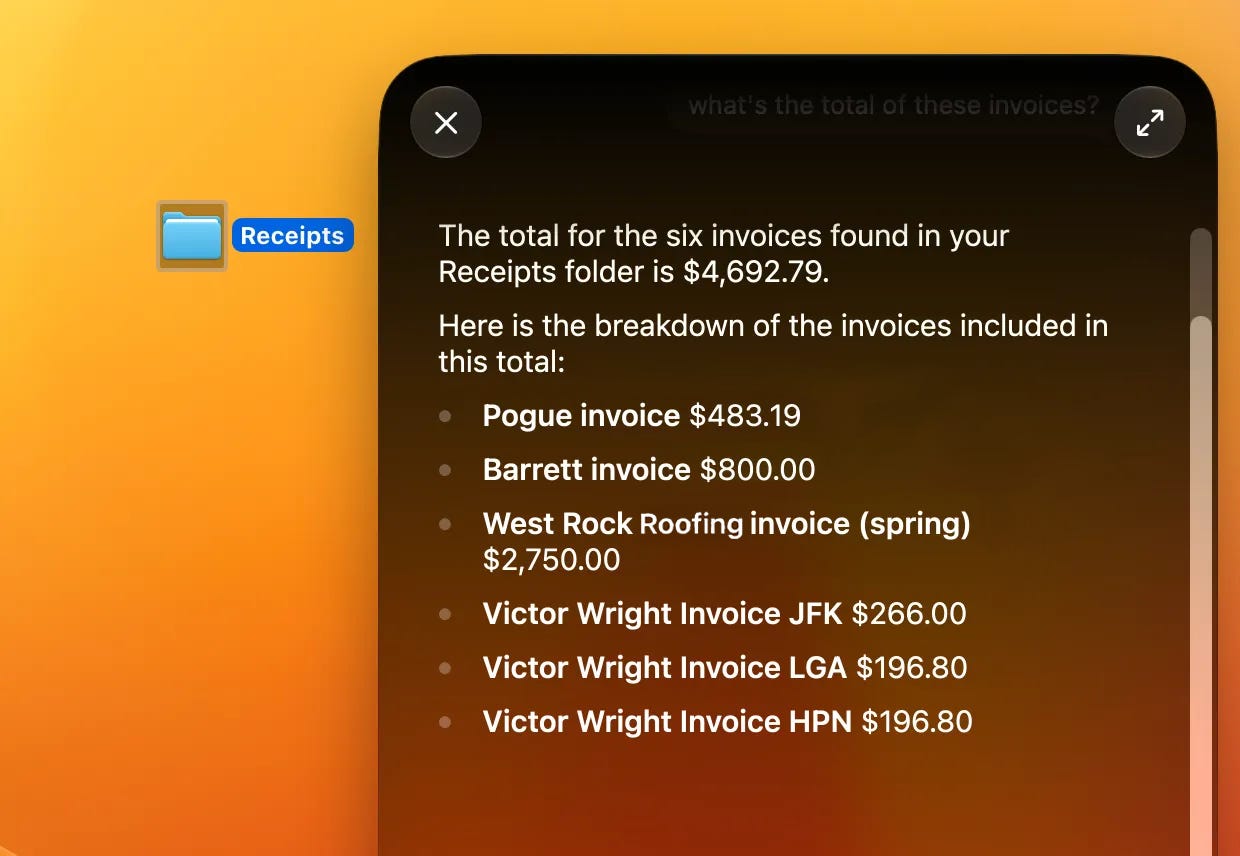
✅ 25. (Highlight a folder of files on the Mac, right-click:) What’s the total of these invoices? What’s the average? (“The total for the six invoices found in your Receipts folder is $4,692.79. The average amount is $782.13.”)
✅ 26. That call I just got from an unknown number? Save it as Eric Heller Transport. (Adds Heller and his number to Contacts.)
✅ 27. What gift should I give my wife? (This one blew my mind. “It looks like you recently celebrated her birthday in late August with a surprise “lighthouse adventure,” which she absolutely loved. However, if you are looking for another gift or planning ahead for the holidays, I found a note in your “Christmas 2026” list where you jotted down one specific idea for her:
A new [REDACTED. SHE READS THIS COLUMN!]
Additionally, past gifts she has appreciated include meaningful gestures, such as when you symbolically adopted a humpback whale in her name through Happywhale.”)
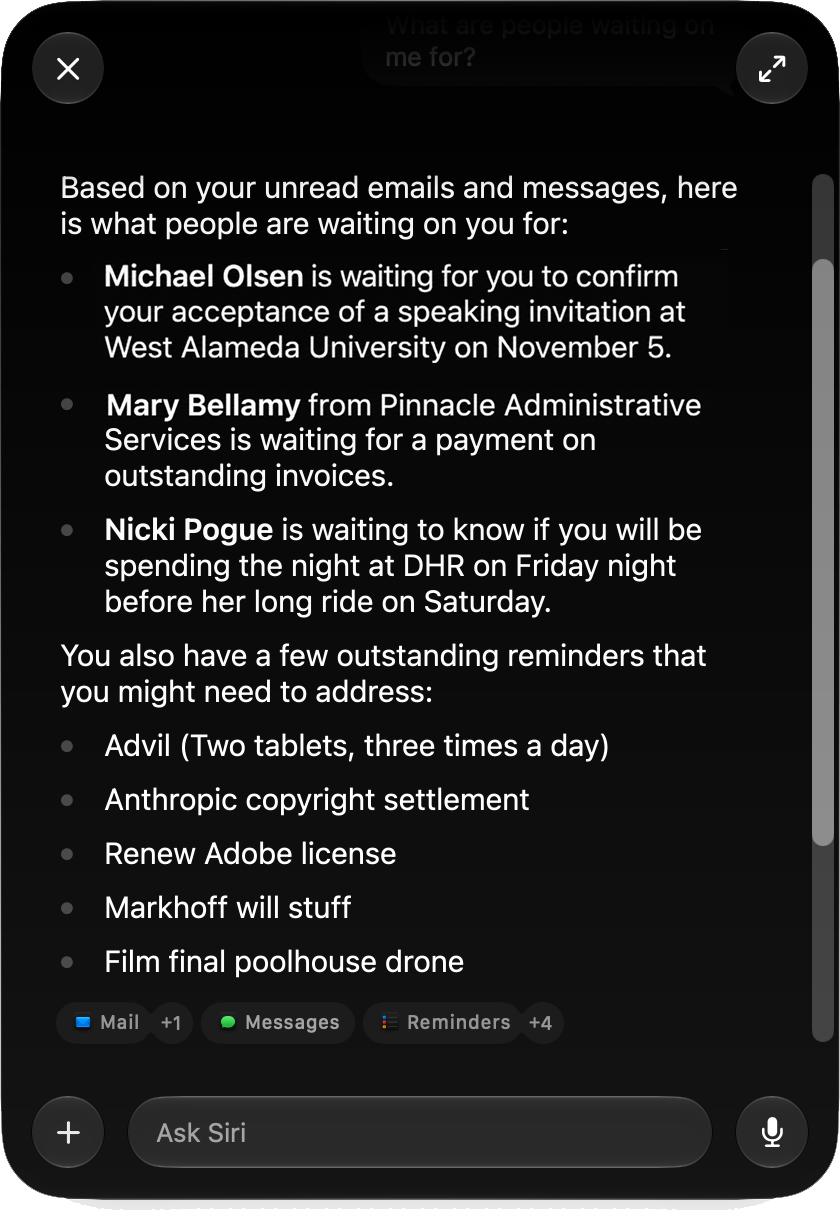
✅ 28. What are people waiting on me for? (Generates list from Mail, Messages, and Reminders. Incredible. Everything I did for this column was supposed to be for testing purposes only, but this one actually found stuff I’d forgotten I was supposed to do!)
✅ 29. Pull up all my emails from Pebble Beach Authors Festival.
✅ 30. (Running late to a party:) What’s the apartment number!? (“The apartment number for the Bynum party tonight is 10-F.” Note: I never said what party or what day!)
✅ 31. What time do I need to leave for the wedding? (“The drive from Norwalk to Hudson, New York, is 84 miles and typically takes 1 hour and 40 minutes. Since Casey’s wedding begins at 3:00 PM on Tuesday, September 29, you should plan to leave by 1:20 PM to arrive on time.” It figured out what wedding I meant, and where I would be starting from that day!)
✅ 32. How many days until Mark’s birthday? (“There are 59 days until Mark’s birthday.”)
✅ 33. How is my relationship with Gabriel? (“Based on your messages and emails, you have a professional relationship with Gabriel Falcon, likely related to your work at CBS.”)
✅ 34. What folder did I put my “Private Lives” review in? (“Your ‘Private Lives’ theater review is in The Recorder folder.”)
✅ 35. How many flights have I taken this year? (“You have taken 11 flights so far this year.” Lists them.)
✅ 36. What’s my driver’s license number? (Shows it, even though it’s not written down anywhere. It found it on a photo of my license in Notes.)
✅ 37. Where was I on July 8? (Correctly tells me that I was at home. What’s wild is that I picked a date with no clues! Nothing on my calendar, nothing in Notes, Reminders, Mail, or Messages. Siri still figured out where I was—based on the geodata of a photo I took that day!)
✅ 38. How much time until my flight? (“Your flight, Delta 679 from JFK to San Francisco, departs at 2:55 PM. That’s in about 54 minutes.”)
Siri can now operate the phone for you, which is especially efficient if you get into the habit of speaking commands. For example:
✅ 39. Take a selfie. (“Photo in 3, 2, 1.” Takes it.)
✅ ❌ 40. Record a video. Give me a ten-second countdown. (“Video in 3, 2, 1.” Starts rolling, but does not give a ten-second countdown.)
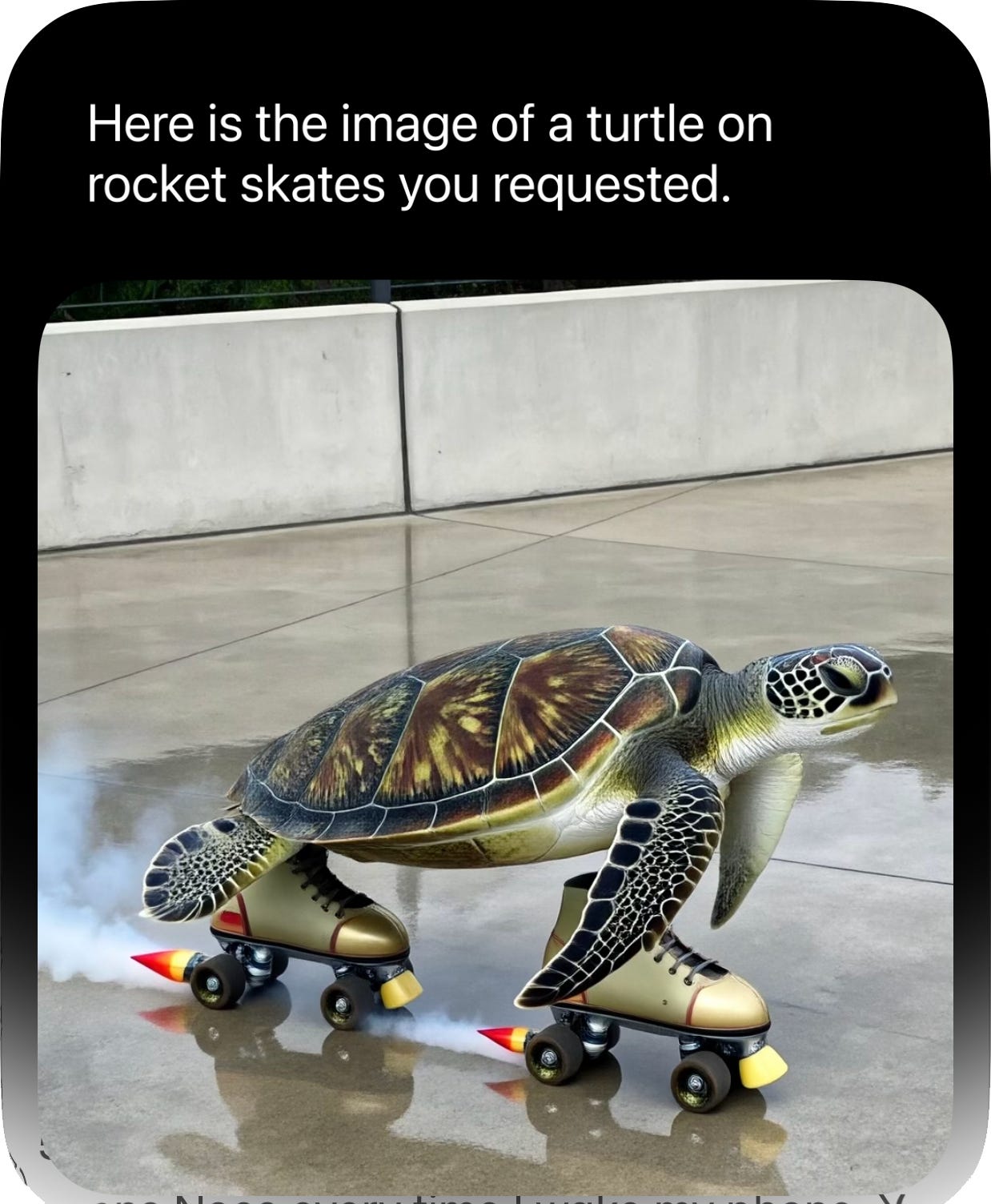
✅ 41. Make a photo of a turtle in rocket skates. (Opens Image Playground and makes it.)
❌ 42. (Viewing an email:) Unsubscribe from this. (“You can scroll to the bottom of the email and click the ‘Unsubscribe’ link.”)
✅ 43. Remind me to visit the ATM next time I’m at Westfield Mall. (Creates a place-based notification in Reminders.)
❌ 44. Favorite this photo. (Suggests using the heart icon on the screen.)
✅ 45. Wake me at 7:30. (Not new, but essential.)
✅ 46. Delete all my alarms. (“Do you want to delete 38 alarms in Clock?” Tap to confirm.)
❌ 47. Make a shortcut that opens Notes every time I wake my phone. (“While there isn’t a direct trigger for simply waking your phone, you can set up an automation to open Notes when you turn off your morning alarm or when you turn off a specific Focus mode, like Sleep.”)
✅ 48. (In Photos:) Add this photo to my For Instagram album.
✅ 49. Move my Lemon Pork Chops note into the Recipes folder.
✅ 50. (Right-click an Excel icon on the desktop:) How many rows are in this spreadsheet? (“There are 133 lines in the ‘Claims’ file.”)
✅ 51. Draft an email to Tracy listing the Saturdays in November that I’m free from 12-3pm, telling her to bring snacks. Include snack options that are gluten-free.
✅ 52. Call Tia. (Prepares to dial, but requires confirmation—the old Siri would just place the call.)
✅ 53. (In Photos:) Rotate photo left.
✅ 54. How do I get to 144 Duane Street on the subway from here? (Opens Maps, with instructions, time estimates, and number of stops.)
✅ 55. Send an email to myself, subject line “About Friday.” In the body say “Don’t forget the tickets.”
✅ 56. Resume my podcast.
❌ 57. (In a Books audiobook:) Skip to the next chapter. (Does nothing.)
✅ 58. Create a note called Movies List. Put “Weapons” and “Sheep Detective” on it.
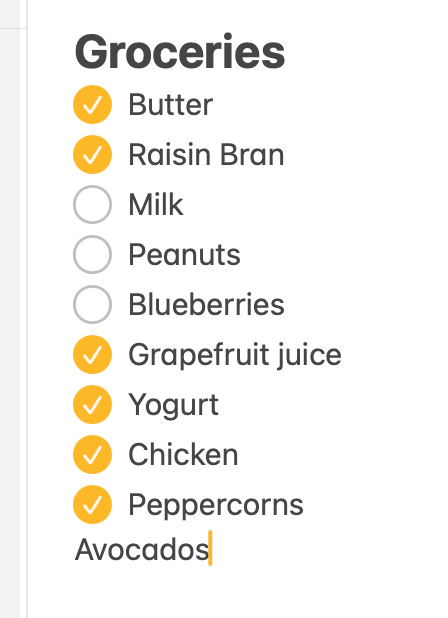
✅ ❌ 59. Add Avocados to my Groceries List note. (Does it—but our Groceries list is a checklist—and Siri adds new items as plain text. Even if I say “as a checklist item.”)
✅ 60. Proofread this. (Lets you flip back and forth between the original and the fixed version.)
✅ 61. Change pickle to nickel. (You can use this when you’ve dictated a text message, and realize that there’s an mistranscription. Now you can correct it by voice! So much simpler than fussing around with the insertion-point cursor.)
✅ 62. Put this photo into a new note called Wish List.
✅ 63. What’s this song? Also, add it to my Workouts playlist. (Listens to ambient music, identifies the song, and adds it to your Apple Music playlist.)
❌ 64. Delete the Facebook app from my phone. (Tells you how to do it the long way.)
✅ 65. How much have rides cost me this year? (“You have spent $656.29 on Uber rides this year.”)
✅ 66. Give me directions to the Golden’s Bridge train station, but make a stop at Blue Dolphin.
✅ 67. Create a home automation to lock all the doors at midnight each night.
❌ 68. Call an Uber. (“I can open the Uber app for you.” Oh dang! The old Siri could call an Uber directly. But Siri AI requires software companies to use different techniques, so some commands—like this one—no longer work.)
❌ 69. Pay Jeffrey $20 with Venmo. (“Venmo hasn’t added support for that with Siri.” Same problem. Well, give it time.)
✅ 70. Reply to this email. Say how sorry I was to miss the beginning of the meeting, and tell them they forgot to send the attachment. But make it sound professional.
✅ 71. Open WhatsApp. (Open any app by voice. A classic.)
✅ 72. (In Image Playground:) Change it to nighttime.
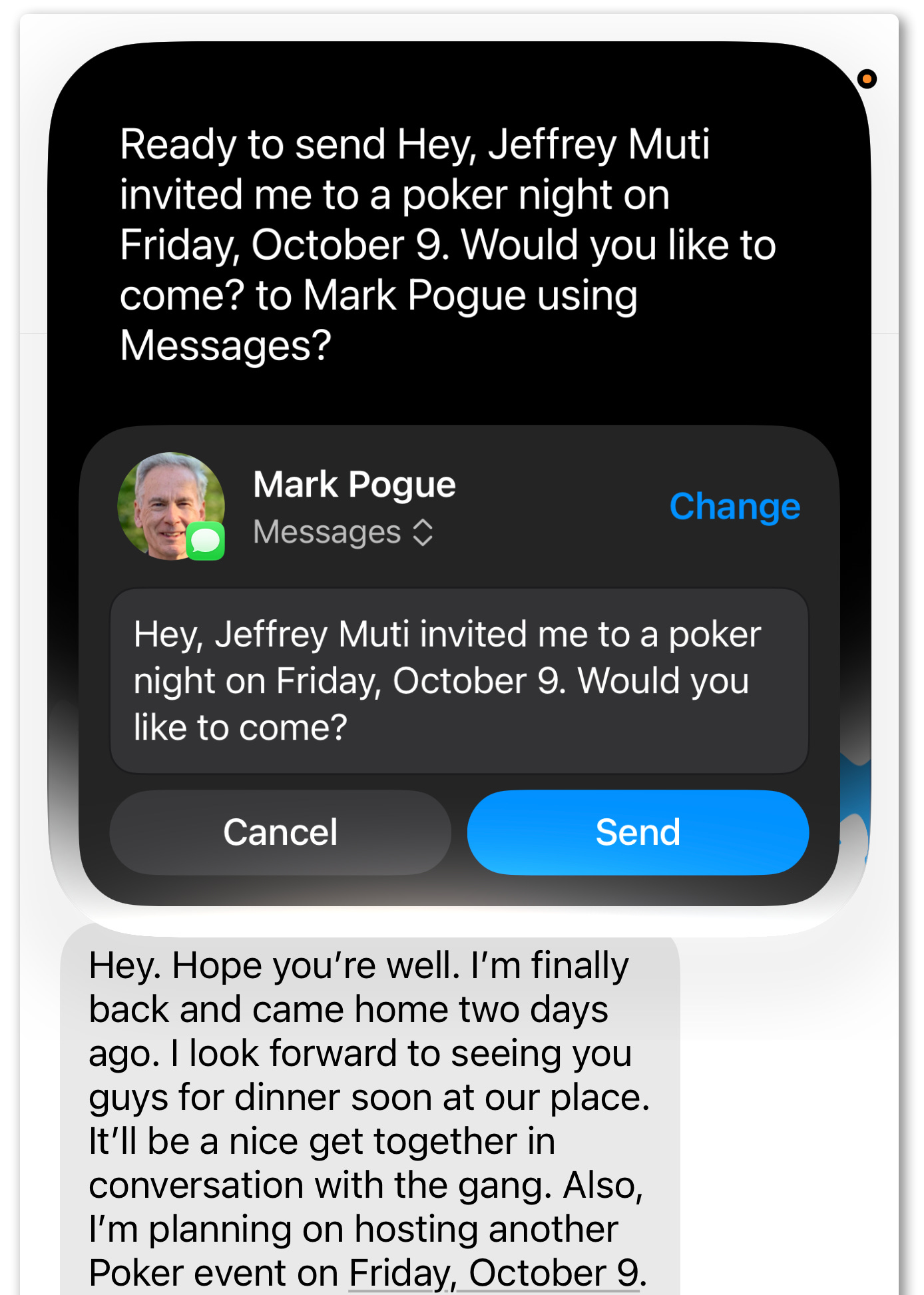
✅ 73. (Looking at a text message about poker night:) Invite my brother to this.
✅ 74. Find out when the next Mets game is, add it to my calendar, and ask Tracy if she wants to watch it at Hennessy’s.
✅ 75. Move my guitar lesson to Monday.
✅ 76. Paste my driver’s license number. (Did it, even though the number exists only in a photo of the license—it’s not written anywhere.)
✅ 77. Copy the text from this picture and put it into a note.
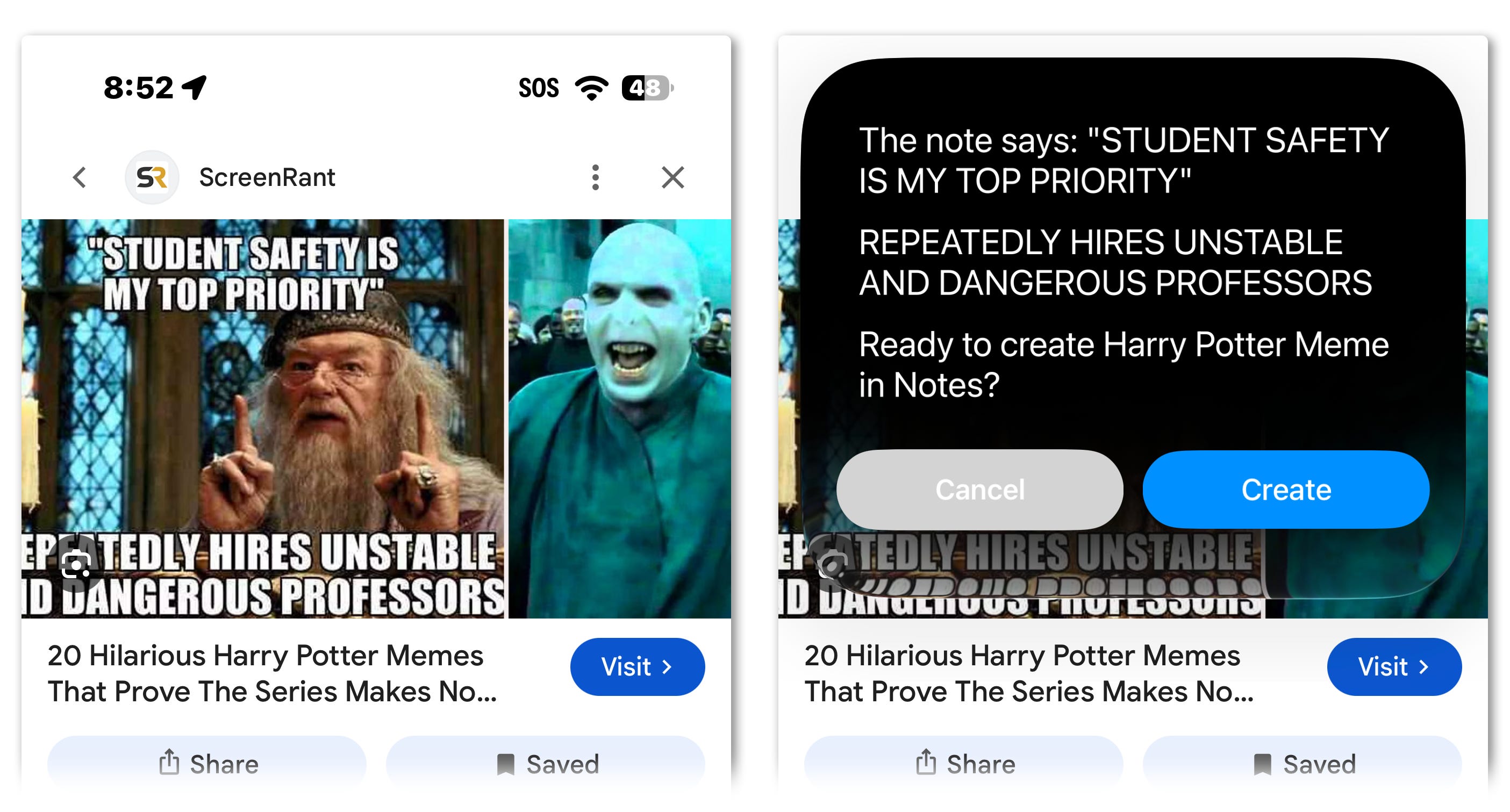
✅ 78. Set a timer for two minutes. Actually, wait—make it 2:30.
✅ 79. Add this Zoom link to my meeting tomorrow. (Combines the link you’re looking at with the existing appointment entry.)
✅ 80. Show me the last four pictures I took.
✅ 81. (On the Mac:) Show me recent files I’ve downloaded.
✅ 82. Volume to half.
✅ 83. Make the screen brighter.
✅ 84. Do I have blueberries on my Groceries list? If not, add them.
✅ 85. I wanna go for a run on Sunday. What’s a good time that’s not too hot?
Siri also does everything else you’d expect from Google searches or AI queries.
❌ 86. When’s the last flight to Chicago?
✅ 87. How many times have the Cubs been in the World Series? And how many times have they won?
✅ 88. What’s the Rotten Tomatoes score for “Obsession?” (Super useful on a plane, when you’re looking at a bunch of movie options but you have no idea if they’re any good.)
✅ 89. How long can cooked rice sit out?
✅ 90. Plan a 3-day trip to San Francisco. Recommend hotels, flights departing Monday, and activities. Add all this to a note.
✅ 91. What’s the cheapest way to get into the city from JFK?
✅ 92. Show me in a chart the difference between Oahu and Kauai.
✅ 93. Tell me a bedtime story about a near-sighted unicorn.
✅ 94. What’s that song that goes, “Doo doo doo... and dah, dah, dah…” (Apple products have Shazam built in, to identify recordings of songs. But to my amazement, I could also sing a song I wanted identified.)
✅ 95. Make a limerick thanking Maura for the wine. (“There once was a lady named Maura, / With a bright and a welcoming aura. / She brought us some wine / That was truly divine, / So we raise up a glass to adore ‘er!”)
✅ 96. I’ve got shrimp, cherry tomatoes, and limes in the fridge. What can I make?
Siri can now answer questions about things the camera sees, too. Use the new Siri mode in the Camera app:
✅ 97. (A flyer of upcoming tour dates, sports games, etc.:) Add all this to my calendar.
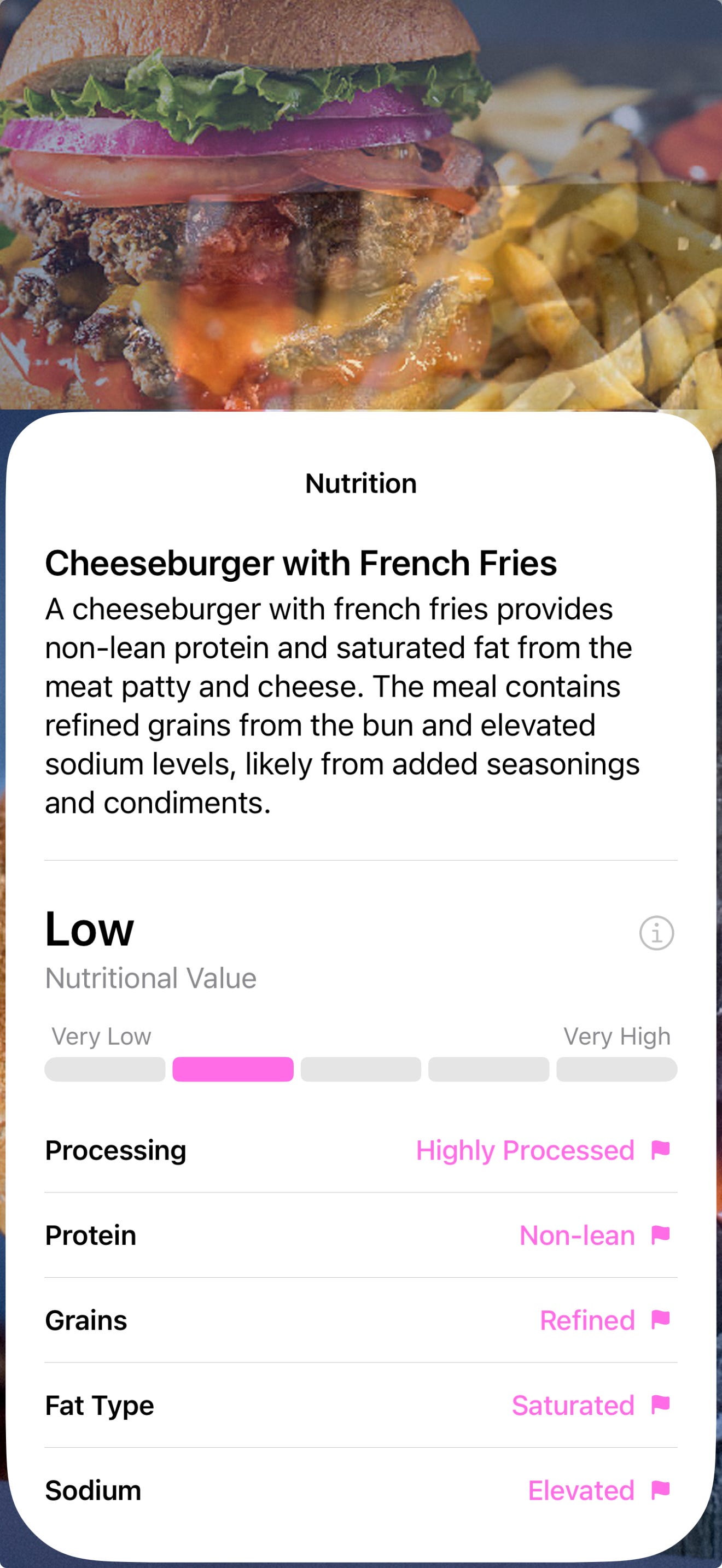
✅ 98. (Photo of food or food package:) How nutritious is this? (Shows Nutritional Value score and ratings for protein, fat, sugar, and how much it’s been processed.)
✅ 99. (Weird tool:) What is this thing? (Tries to identify the thing. Usually works.)
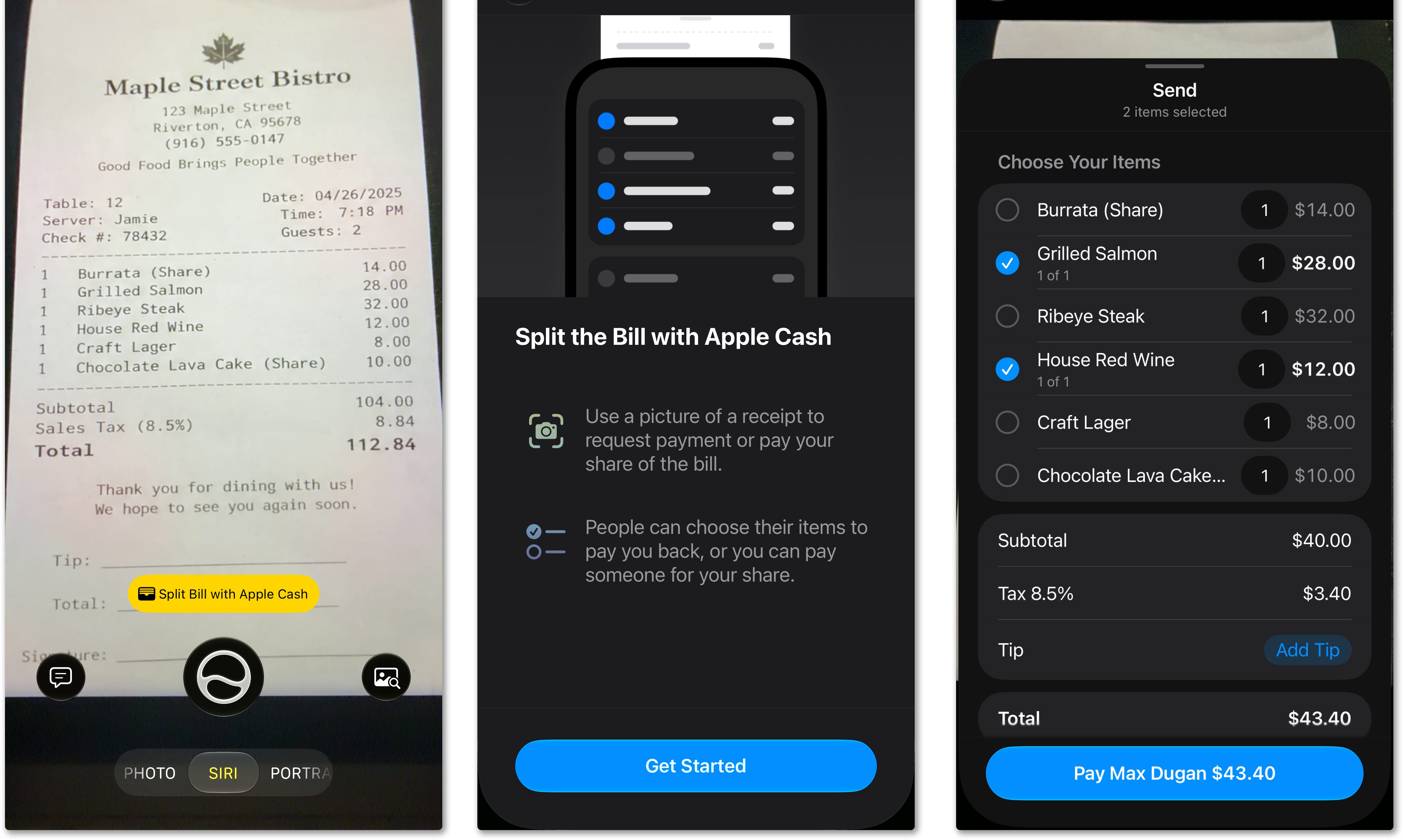
✅ 100. (Restaurant bill:) Split Bill. (Tap who ate what, then settle up using Apple Cash.)
✅ 101. (Food package:) Is this gluten free?
✅ 102. (Sign in another language:) Translate this.
✅ 103. (Info card for a restaurant, in any Maps app:) What’s good here?
✅ 104. What’s this plant (or animal, bug, landmark, artwork, book, product)?
✅ 105. Based on these surroundings, where am I?
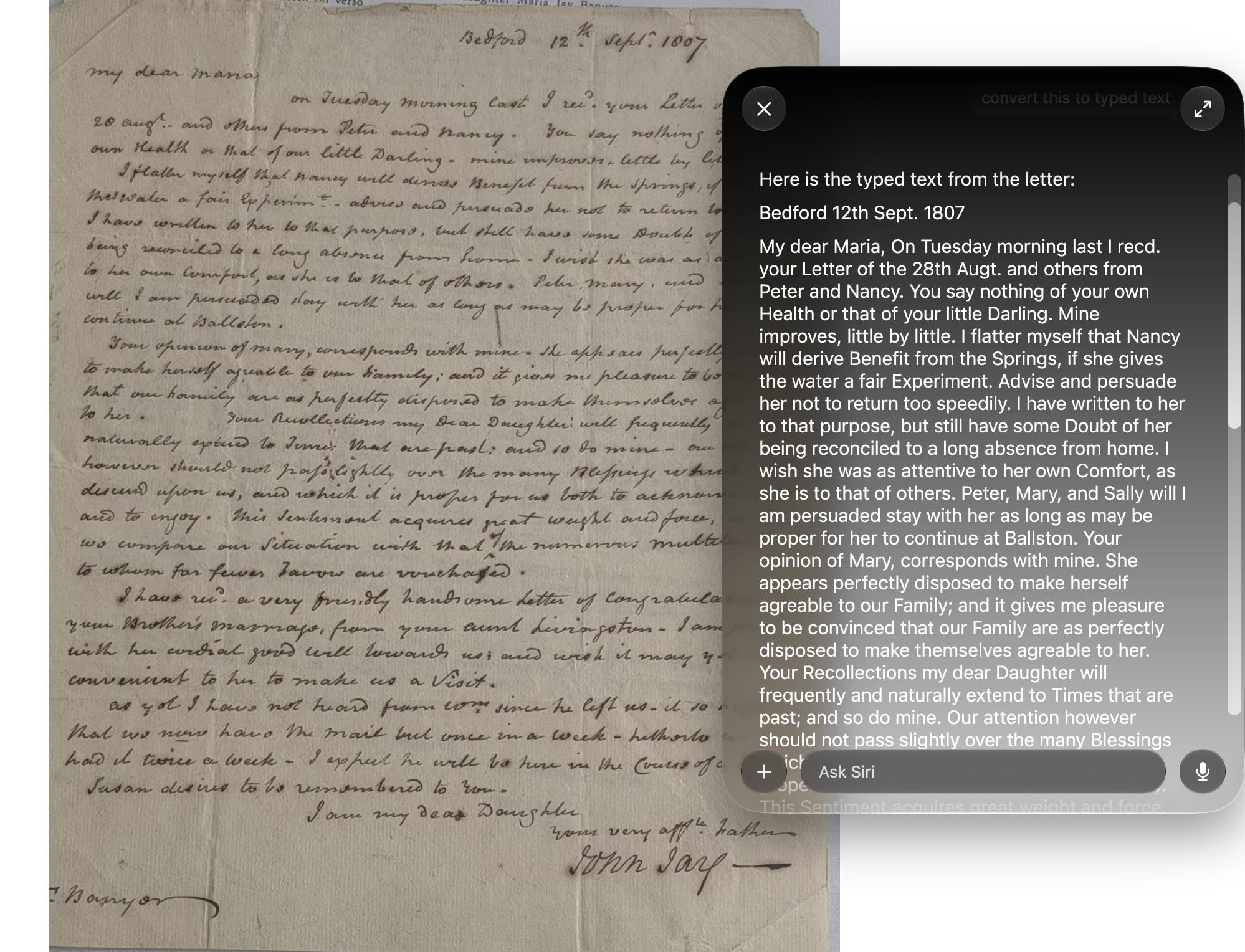
✅ 106. (Handwritten document:) Convert this into typing.
✅ 107. (Business card:) Put this guy in Contacts.
Siri knows what’s on the screen—an Instagram post, an email, a web page, anything—and can act on the data you see there. This feature saves you all kinds of fussing and fumbling and manipulating data. This is the category you’re most likely to miss, but it’s insane.
✅ 108. (Backpack screenshot:) Will this work as a carry-on for my flight next month?
✅ 109. (Social-media post about a restaurant:) Give me directions to this place.
✅ 110. Summarize this article in a new note. Add a heading at the bottom called Questions, and say, “When did this happen?” and “Who was involved?”
✅ 111. (YouTube TV clip:) What show is this from? (“This appears to be from the TV show ‘Friends.’”)
✅ 112. (In Photos:) Make this picture black-and-white.
✅ 113. (In Settings:) What does Live Captions do? (Explains any setting you see.)
✅ 114. (News article:) Is this true? How will the markets be affected?
✅ 115. (Recipe in Safari:) Add these ingredients to my grocery list, but double the recipe. And change chicken thighs from bone-in to boneless. I don’t need the salt, pepper, or oil; I have that stuff. Oh, but I do also need wheat bread. So add that. And then the next time I leave home, remind me to go grocery shopping.
✅ 116. Is this the best price for this?
✅ 117. (Flight details you booked:) Add this to my calendar.
✅ 119. (Someone’s address:) Add this guy to Contacts.
✅❌ 119. Read this out loud. (Works on iPhone, not on Mac.)
✅ 120. (Viewing a PDF or screenshot on the Mac:) What’s the gist?
✅ 121. (Viewing an ad for something on Instagram:) Add this to my wish list. (Creates a wish list in Reminders for future reference.)
✅ 122. (YouTube or Instagram video:) Is this real?
✅ 123. (Video of an interview:) Who is this?
✅ 124. Start the Zoom for my 1pm call. (This is super great. One quick utterance instead of fumbling with your calendar details to find the link.)
✅ 125. (Web article:) Summarize this. (Each such summary appears in the Siri app for retrieval later.)
Most of Apple’s own apps have been Siri-fied. But other software companies are welcome to make their apps compatible, too. Audible, WhatsApp, Spotify, Lightroom, and Notion have already been updated. (“Siri, play Billy Joel on Spotify.”)
An overwhelming side effect of AI Siri is that you don’t open apps anymore. You just ask and then read (or listen to) the answer. As a result, some app companies might not want to play ball. They want you to open their apps, so they can show you ads. That may be why the Gmail app, for example, isn’t Siri-compatible.
It’s also worth noting that in the European Union, Siri AI is available only on Macs, not phones. That’s because Apple is locked in a battle with the EU, which is engaged in a campaign to open up closed systems like Apple’s and Google’s. (Apple argues that opening up, for example, its Private Cloud Compute system would cripple its ability to keep your data private.)
Yes, I know: Android has had many of these features, some for years. Apple lost a lot of AI time.
But if you’re among the 2.5 billion Apple customers, you probably don’t care. People just don’t switch platforms—from iPhone to Android or vice versa. You’ve already bought your apps, equipped yourself with accessories, learned to use one company’s interface elements.
Siri is built in; it’s remarkably reliable (for AI); it’s super useful. And because it’s instantly in the pockets of 30 percent of the world’s population, I have a strong feeling that within months, it will be the most used AI on the planet.