Model Context Protocol (MCP) is an open protocol that’s becoming the industry standard for extending AI models with additional tools and knowledge. Remote MCP servers can be used to connect models over the Internet to new data sources and capabilities.
In this guide, we’ll cover how to build a remote MCP server that reads data from a private data source (a vector store) and makes it available through a plugin in ChatGPT and Codex, through ChatGPT deep research and company knowledge, and through the API.
Note: To build a plugin with an MCP server, start with the plugin docs: Quickstart, Build your MCP server, Connect and test your plugin, and Authentication. If your MCP server doesn’t need UI, you can expose tools without UI resources.
You can use data from any source to power a remote MCP server, but for simplicity, we will use vector stores in the OpenAI API. Begin by uploading a PDF document to a new vector store - you can use this public domain 19th century book about cats for an example.
You can upload files and create a vector store in the dashboard here, or you can create vector stores and upload files via API. Follow the vector store guide to set up a vector store and upload a file to it.
Make a note of the vector store’s unique ID to use in the example to follow.
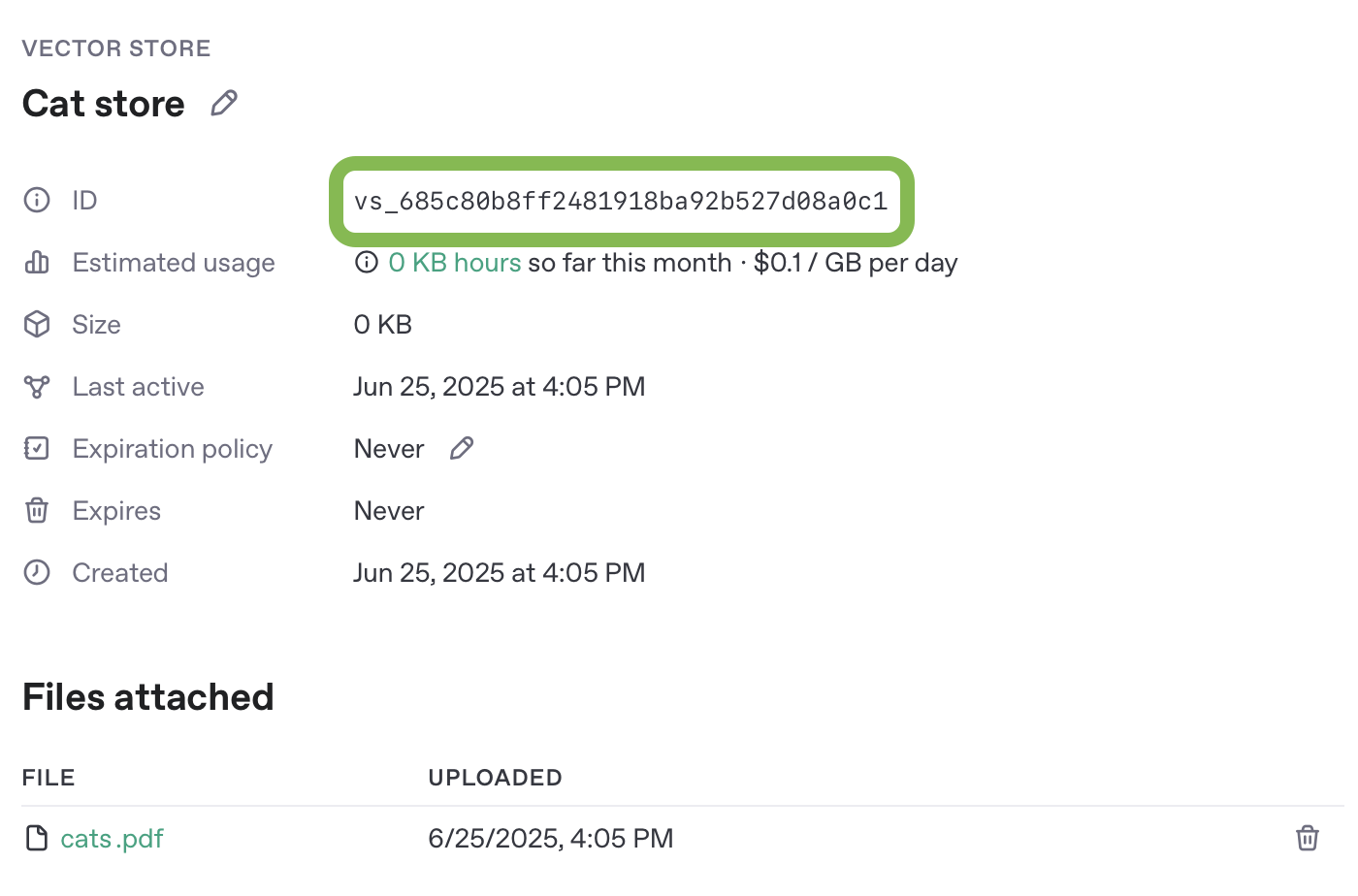
Next, let’s create a remote MCP server that will do search queries against our vector store, and be able to return document content for files with a given ID.
In this example, we are going to build our MCP server using Python and FastMCP. A full implementation of the server appears at the end of this section, along with instructions for running it in a browser-based development environment.
Note that there are a number of other MCP server frameworks you can use in a variety of programming languages. Whichever framework you use though, the tool definitions in your server will need to conform to the shape described here.
To work with ChatGPT deep research and company knowledge, your MCP server
should implement two read-only tools: search and fetch, using the
compatibility schema in Company knowledge compatibility.
The same interface is useful for research workflows via API.
Declare an output schema for each tool so clients can validate the result shape.
In FastMCP, typed return models can generate this schema automatically; the
example below passes output_schema explicitly from the same models.
search tool
The search tool is responsible for returning a list of relevant search results from your MCP server’s data source, given a user’s query.
Arguments:
A single query string.
Returns:
An object with a single key, results, whose value is an array of result objects. Each result object should include:
id- a unique ID for the document or search result itemtitle- human-readable title.url- canonical URL for citation.
In MCP, return this object as structuredContent and include the same value as
a JSON-encoded string in the content array
for compatibility.
The final tool response should look like:
      {
  "structuredContent": {
    "results": [{ "id": "doc-1", "title": "...", "url": "..." }]
  },
  "content": [
    {
      "type": "text",
      "text": "{\"results\":[{\"id\":\"doc-1\",\"title\":\"...\",\"url\":\"...\"}]}"
    }
  ]
}
fetch tool
The fetch tool is used to retrieve the full contents of a search result document or item.
Arguments:
A string which is a unique identifier for the search document.
Returns:
A single object with the following properties:
id- a unique ID for the document or search result itemtitle- a string title for the search result itemtext- The full text of the document or itemurl- a URL to the document or search result item. Useful for citing specific resources in research.metadata- an optional key/value pairing of data about the result
In MCP, return this object as structuredContent and include the same value as
a JSON-encoded string in the content array for compatibility.
The final tool response should look like:
      {
  "structuredContent": {
    "id": "doc-1",
    "title": "...",
    "text": "full text...",
    "url": "https://example.com/doc",
    "metadata": { "source": "vector_store" }
  },
  "content": [
    {
      "type": "text",
      "text": "{\"id\":\"doc-1\",\"title\":\"...\",\"text\":\"full text...\",\"url\":\"https://example.com/doc\",\"metadata\":{\"source\":\"vector_store\"}}"
    }
  ]
}
Citation behavior
For both search results and fetch responses, ChatGPT creates citation
metadata only when url is a non-empty string. A result with a title but no
usable url remains ordinary tool output instead of becoming an empty
citation. To make a result citable, return its canonical url.
For example, ChatGPT might call search with:
{ "query": "What is the quarterly plan?" }
The MCP server can respond with a URL-backed result:
      {
  "structuredContent": {
    "results": [
      {
        "id": "quarterly-plan",
        "title": "Quarterly plan",
        "url": "https://example.com/quarterly-plan"
      }
    ]
  },
  "content": [
    {
      "type": "text",
      "text": "{\"results\":[{\"id\":\"quarterly-plan\",\"title\":\"Quarterly plan\",\"url\":\"https://example.com/quarterly-plan\"}]}"
    }
  ]
}
In this response, the url field has a value, which makes the result eligible
for citation metadata. The query itself does not trigger citation handling. If
the result omits url, or provides an empty or non-string value, ChatGPT
preserves the result as ordinary tool output.
Server example
You can try this example MCP server in a browser-based development environment. Configure the sample with your own API credentials and vector store information.
Example MCP server on Replit
Remix the server example on Replit to test live.
A full implementation of both the search and fetch tools in FastMCP is below also for convenience.
"""
Sample MCP Server for ChatGPT Integration

This server implements the Model Context Protocol (MCP) with search and fetch
capabilities designed to work with ChatGPT's chat and deep research features.
"""

import logging
import os
from typing import Any

from fastmcp import FastMCP
from openai import OpenAI
from pydantic import BaseModel


class SearchResult(BaseModel):
    id: str
    title: str
    url: str


class SearchOutput(BaseModel):
    results: list[SearchResult]


class FetchOutput(BaseModel):
    id: str
    title: str
    text: str
    url: str
    metadata: dict[str, Any] | None = None


# Configure logging
logging.basicConfig(level=logging.INFO)
logger = logging.getLogger(__name__)

# OpenAI configuration
OPENAI_API_KEY = os.environ["OPENAI_API_KEY"]
VECTOR_STORE_ID = os.environ["VECTOR_STORE_ID"]

# Initialize OpenAI client
openai_client = OpenAI(api_key=OPENAI_API_KEY)

server_instructions = """
This MCP server provides search and document retrieval capabilities
for ChatGPT Apps and deep research. Use the search tool to find relevant documents
based on keywords, then use the fetch tool to retrieve complete
document content with citations.
"""


def create_server():
    """Create and configure the MCP server with search and fetch tools."""

    # Initialize the FastMCP server
    mcp = FastMCP(name="Sample MCP Server", instructions=server_instructions)

    @mcp.tool(output_schema=SearchOutput.model_json_schema())
    async def search(query: str) -> SearchOutput:
        """
        Search for documents using OpenAI Vector Store search.

        This tool searches through the vector store to find semantically relevant matches.
        Returns a list of search results with basic information. Use the fetch tool to get
        complete document content.

        Args:
            query: Search query string. Natural language queries work best for semantic search.

        Returns:
            Dictionary with 'results' key containing list of matching documents.
            Each result includes id, title, and URL.
        """
        if not query or not query.strip():
            return SearchOutput(results=[])

        if not openai_client:
            logger.error("OpenAI client not initialized - API key missing")
            raise ValueError("OpenAI API key is required for vector store search")

        # Search the vector store using OpenAI API
        logger.info(f"Searching {VECTOR_STORE_ID} for query: '{query}'")

        response = openai_client.vector_stores.search(
            vector_store_id=VECTOR_STORE_ID, query=query
        )

        results = []

        # Process the vector store search results
        if hasattr(response, "data") and response.data:
            for i, item in enumerate(response.data):
                # Extract file_id, filename, and content
                item_id = getattr(item, "file_id", f"vs_{i}")
                item_filename = getattr(item, "filename", f"Document {i + 1}")

                result = SearchResult(
                    id=item_id,
                    title=item_filename,
                    url=f"https://platform.openai.com/storage/files/{item_id}",
                )

                results.append(result)

        logger.info(f"Vector store search returned {len(results)} results")
        return SearchOutput(results=results)

    @mcp.tool(output_schema=FetchOutput.model_json_schema())
    async def fetch(id: str) -> FetchOutput:
        """
        Retrieve complete document content by ID for detailed
        analysis and citation. This tool fetches the full document
        content from OpenAI Vector Store. Use this after finding
        relevant documents with the search tool to get complete
        information for analysis and proper citation.

        Args:
            id: File ID from vector store (file-xxx) or local document ID

        Returns:
            Complete document with id, title, full text content,
            optional URL, and metadata

        Raises:
            ValueError: If the specified ID is not found
        """
        if not id:
            raise ValueError("Document ID is required")

        if not openai_client:
            logger.error("OpenAI client not initialized - API key missing")
            raise ValueError(
                "OpenAI API key is required for vector store file retrieval"
            )

        logger.info(f"Fetching content from vector store for file ID: {id}")

        # Fetch file content from vector store
        content_response = openai_client.vector_stores.files.content(
            vector_store_id=VECTOR_STORE_ID, file_id=id
        )

        # Get file metadata
        file_info = openai_client.vector_stores.files.retrieve(
            vector_store_id=VECTOR_STORE_ID, file_id=id
        )

        # Extract content from paginated response
        file_content = ""
        if hasattr(content_response, "data") and content_response.data:
            # Combine all content chunks from FileContentResponse objects
            content_parts = []
            for content_item in content_response.data:
                if hasattr(content_item, "text"):
                    content_parts.append(content_item.text)
            file_content = "\n".join(content_parts)
        else:
            file_content = "No content available"

        # Use filename as title and create proper URL for citations
        filename = getattr(file_info, "filename", f"Document {id}")

        result = FetchOutput(
            id=id,
            title=filename,
            text=file_content,
            url=f"https://platform.openai.com/storage/files/{id}",
        )

        # Add metadata if available from file info
        if hasattr(file_info, "attributes") and file_info.attributes:
            result.metadata = dict(file_info.attributes)

        logger.info(f"Fetched vector store file: {id}")
        return result

    return mcp


def main():
    """Main function to start the MCP server."""
    logger.info(f"Using vector store: {VECTOR_STORE_ID}")

    # Create the MCP server
    server = create_server()

    # Configure and start the server
    logger.info("Starting MCP server on 0.0.0.0:8000")
    logger.info("Server will be accessible via SSE transport")

    try:
        # Use FastMCP's built-in run method with SSE transport
        port = int(os.environ.get("OPENAI_EXAMPLE_PORT", "8000"))
        server.run(
            transport="sse",
            host="0.0.0.0",
            port=port,
            uvicorn_config={"loop": "asyncio"},
        )
    except KeyboardInterrupt:
        logger.info("Server stopped by user")
    except Exception as e:
        logger.error(f"Server error: {e}")
        raise


if __name__ == "__main__":
    main()
On Replit, you will need to configure two environment variables in the “Secrets” UI:
OPENAI_API_KEY- Your standard OpenAI API keyVECTOR_STORE_ID- The unique identifier of a vector store that can be used for search - the one you created earlier.
On free Replit accounts, server URLs are active for as long as the editor is active, so while you are testing, you’ll need to keep the browser tab open. You can get a URL for your MCP server by clicking on the chainlink icon:
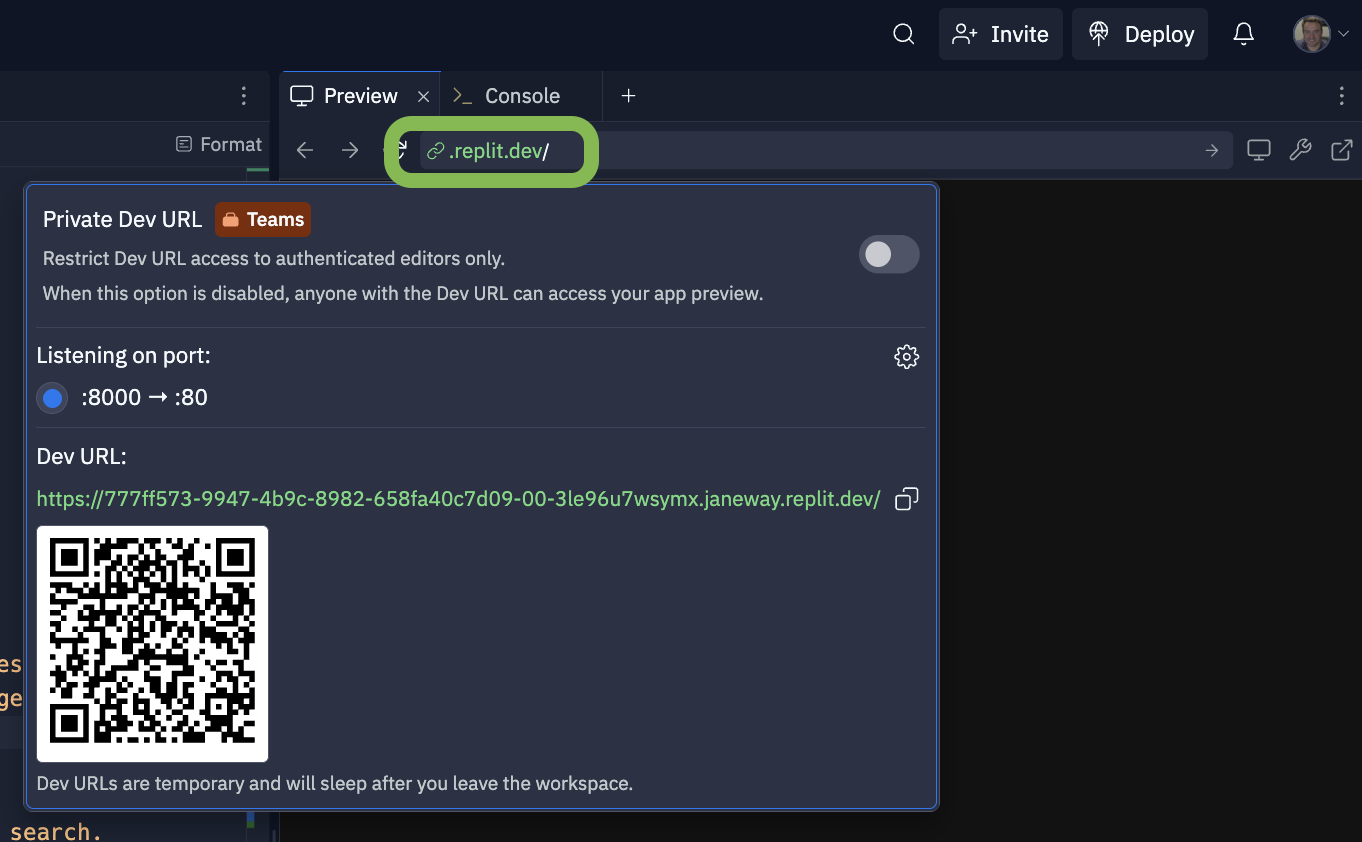
In the long dev URL, ensure it ends with /sse/, which is the server-sent events (streaming) interface to the MCP server. This is the URL you will use to connect your app in ChatGPT and call it via API. An example Replit URL looks like:
https://777xxx.janeway.replit.dev/sse/
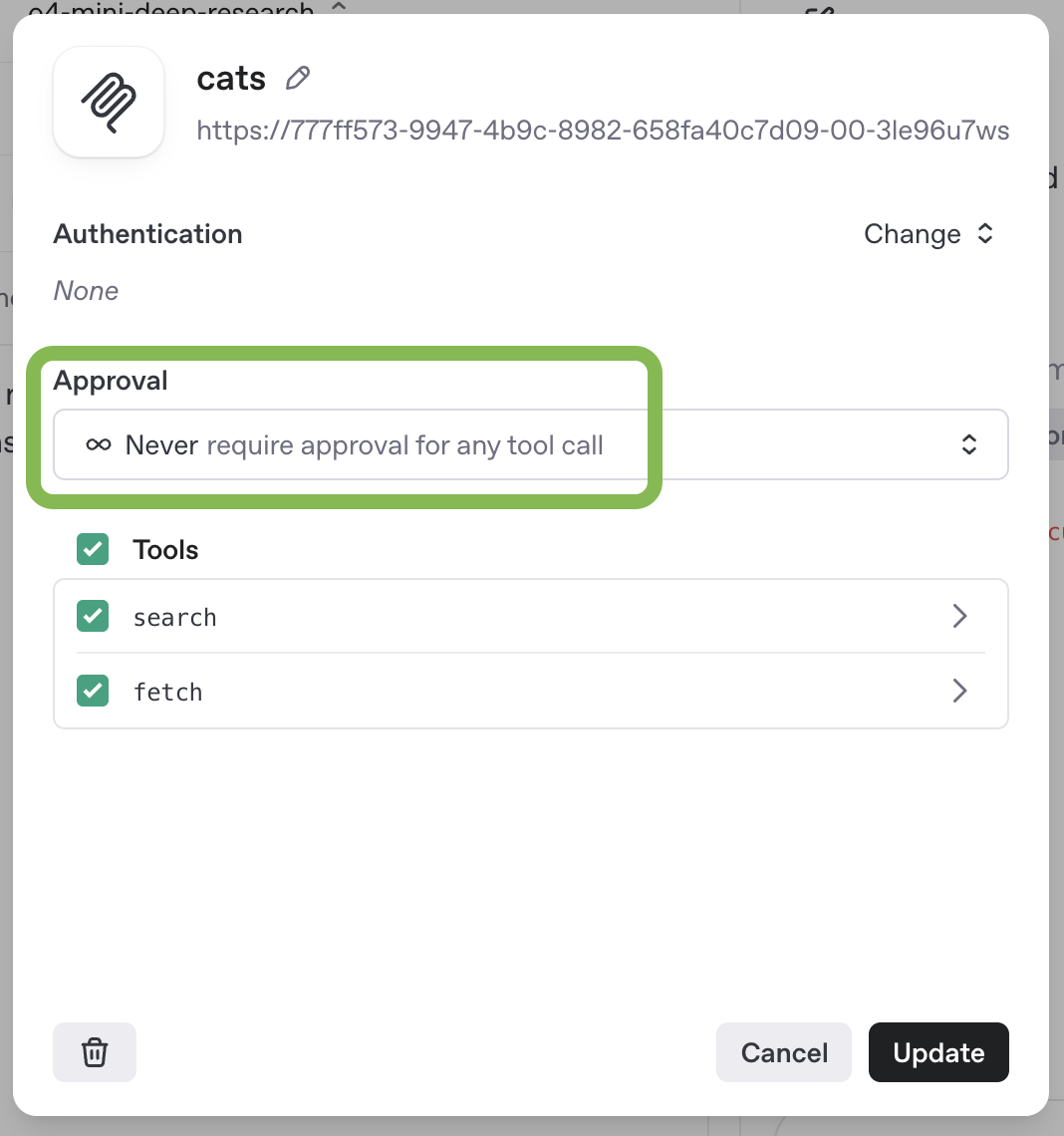
You can test your MCP server with a deep research model in the prompts dashboard. Create a new prompt, or edit an existing one, and add a new MCP tool to the prompt configuration. This compatibility example exposes only read-only search and fetch tools, so its API request skips approval for those tools. Keep approval enabled for tools that can modify data or take other consequential actions.
If you are testing this server as part of a plugin, follow Connect and test your plugin.
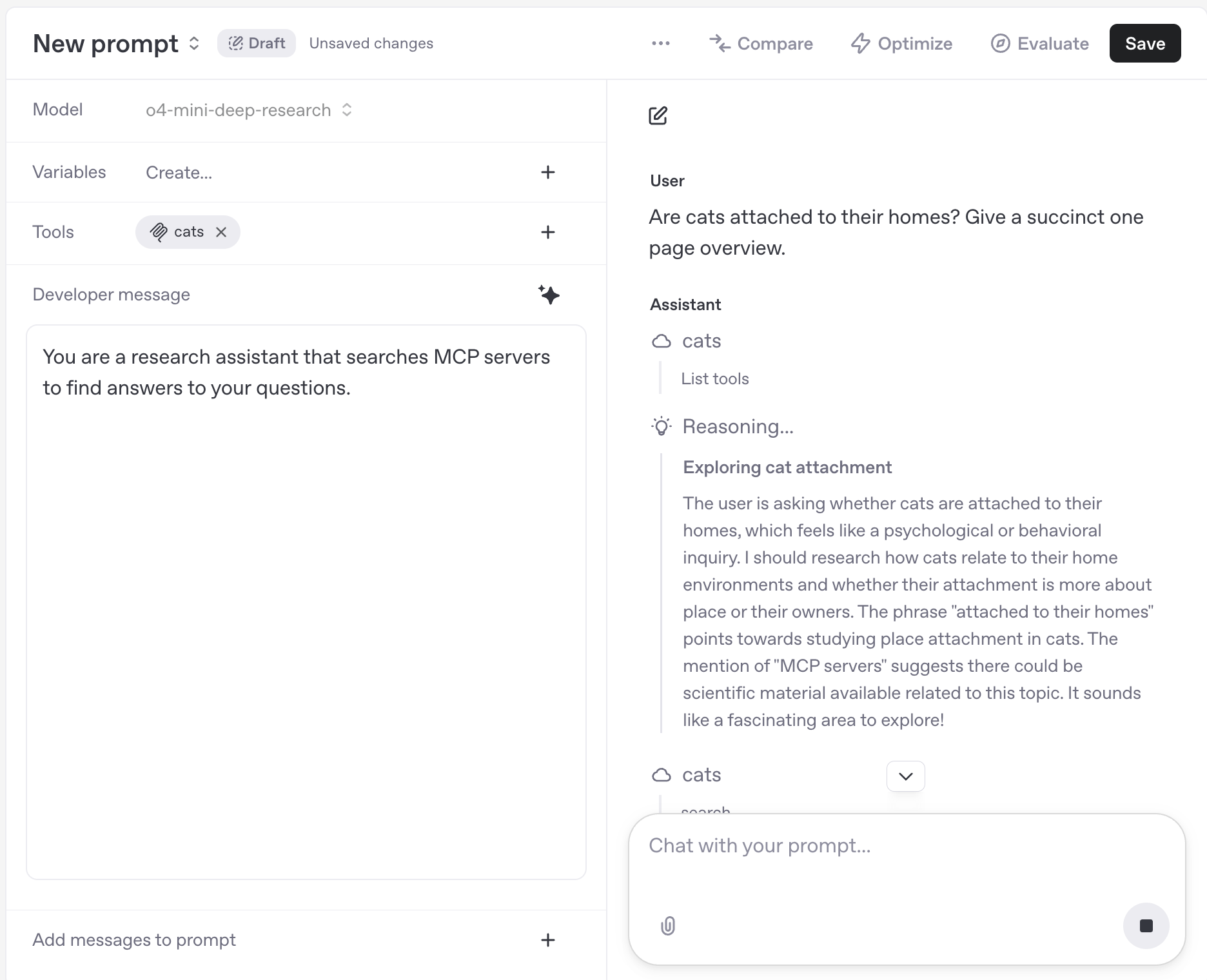
Once you have configured your MCP server, you can chat with a model using it via the Prompts UI.
You can test the MCP server using the Responses API directly with a request like this one:
curl https://api.openai.com/v1/responses \
  -H "Content-Type: application/json" \
  -H "Authorization: Bearer $OPENAI_API_KEY" \
  -d '{
  "model": "gpt-5.6-sol",
  "input": [
    {
      "role": "developer",
      "content": [
        {
          "type": "input_text",
          "text": "You are a research assistant that searches MCP servers to find answers to your questions."
        }
      ]
    },
    {
      "role": "user",
      "content": [
        {
          "type": "input_text",
          "text": "Are cats attached to their homes? Give a succinct one page overview."
        }
      ]
    }
  ],
  "reasoning": {
    "summary": "auto"
  },
  "tools": [
    {
      "type": "mcp",
      "server_label": "cats",
      "server_url": "https://777ff573-9947-4b9c-8982-658fa40c7d09-00-3le96u7wsymx.janeway.replit.dev/sse/",
      "allowed_tools": [
        "search",
        "fetch"
      ],
      "require_approval": "never"
    }
  ]
}'
Handle authentication
As someone building a custom remote MCP server, authorization and authentication help you protect your data. We recommend using OAuth with Client ID Metadata Documents for client registration when your authorization server supports CIMD and the plugin creator chooses it. ChatGPT supports CIMD with public-client token exchange (none) or signed client assertion token exchange (private_key_jwt). Dynamic client registration remains supported when configured. For plugin authentication requirements, see Authentication. For protocol details, read the MCP user guide or the authorization specification.
If you connect your custom remote MCP server through a plugin, users in your workspace will get an OAuth flow to your service.
Connect in ChatGPT
- In ChatGPT, open Settings → Security and login and turn on Developer mode.
- Go to ChatGPT Plugins, select the plus button, and connect your server URL in developer mode.
- Test your plugin by running prompts in chat and deep research.
For detailed setup steps, see Connect and test your plugin.
Custom MCP servers enable you to connect your ChatGPT workspace to external applications, which allows ChatGPT to access, send and receive data in these applications. Please note that custom MCP servers are not developed or verified by OpenAI, and are third-party services that are subject to their own terms and conditions.
If you come across a malicious MCP server, please report it to security@openai.com.
Prompt injections are a form of attack where an attacker embeds malicious instructions in content that one of our models is likely to encounter–such as a webpage–with the intention that the instructions override ChatGPT’s intended behavior. If the model obeys the injected instructions it may take actions the user and developer never intended—including sending private data to an external destination.
For example, you might ask ChatGPT to find a restaurant for a group dinner by checking your calendar and recent emails. While researching, it might encounter a malicious comment—essentially a harmful piece of content designed to trick the agent into performing unintended actions—directing it to retrieve a password reset code from Gmail and send it to a malicious website.
Below is a table of specific scenarios to consider. We recommend reviewing this table carefully to inform your decision about whether to use custom MCPs.
| Scenario / Risk | Is it safe if I trust the MCP’s developer? | What can I do to reduce risk? |
|---|---|---|
| An attacker may somehow insert a prompt injection attack into data accessible via the MCP. Examples: | Trusting a MCP’s developer does not make this safe. For this to be safe you need to trust all content that can be accessed within the MCP. | • Do not use a MCP if it could contain malicious or untrusted user input, even if you trust the developer of the MCP. • Configure access to minimize how many people have access to the MCP. |
| A malicious MCP may request excessive parameters to a read or write action. Example: | Trusting a MCP’s developer does not necessarily make this safe. A MCP’s developer may consider it reasonable to be requesting certain data that you do not consider acceptable to share. | • When installing MCP servers manually, review the parameters requested for each action and ensure there is no privacy overreach. |
| An attacker may use a prompt injection attack to trick ChatGPT into fetching sensitive data from a custom MCP, to then be sent to the attacker. Example: | Trusting a MCP’s developer does not make this safe. Everything within the new MCP could be safe and trusted since the risk is this data being stolen by attacks coming from a different malicious source. | • ChatGPT is designed to protect users, but attackers may attempt to steal your data, so be aware of the risk and consider whether taking it makes sense. • Configure access to minimize how many people have access to MCPs with particularly sensitive data. |
| An attacker may use a prompt injection attack to leak sensitive information through a write action to a custom MCP. Example: | Trusting a MCP’s developer does not make this safe. Even if you fully trust the MCP, if write actions have any consequences that can be observed by an attacker, they could attempt to take advantage of it. | • Users should review write actions carefully when they happen (to ensure they were intended and do not contain any data that shouldn’t be shared). |
| An attacker may use a prompt injection attack to leak sensitive information through a read action to a malicious custom MCP because the MCP can log these actions. | This attack only works if the MCP is malicious, or if the MCP incorrectly marks write actions as read actions. If you trust a MCP’s developer to correctly only mark read actions as read, and trust that developer to not attempt to steal data, then this risk is likely minimal. | • Only use MCPs from developers that you trust (though note this isn’t sufficient to make it safe). |
| An attacker may use a prompt injection attack to trick ChatGPT into taking a harmful or destructive write action via a custom MCP that users did not intend. | Trusting a MCP’s developer does not make this safe. Everything within the new MCP could be safe and trusted, and this risk still exists since the attack comes from a different malicious source. | • Users should carefully review write actions to ensure they are intended and correct. • ChatGPT is designed to protect users, but attackers may attempt to trick ChatGPT into taking unintended write actions. • Configure access to minimize how many people have access to MCPs with particularly sensitive data. |
Custom MCPs introduce other risks unrelated to prompt injection attacks:
- Write actions can increase both the usefulness and the risks of MCP servers, because they make it possible for the server to take potentially destructive actions rather than only providing information back to ChatGPT. ChatGPT currently requires manual confirmation in any conversation before write actions can be taken. The confirmation will flag potentially sensitive data but you should only use write actions in situations where you have carefully considered, and are comfortable with, the possibility that ChatGPT might make a mistake involving such an action. It is possible for write actions to occur even if the MCP server has tagged the action as read only, making it even more important that you trust the custom MCP server before deploying to ChatGPT.
- Any MCP server may receive sensitive data as part of querying. Even when the server is not malicious, it will have access to whatever data ChatGPT supplies during the interaction, potentially including sensitive data the user may earlier have provided to ChatGPT. For instance, such data could be included in queries ChatGPT sends to the MCP server when using deep research or chat app tools.
Connecting to trusted servers
We recommend that you do not connect to a custom MCP server unless you know and trust the underlying application.
For example, choose official servers hosted by the service providers themselves. Connect to the Stripe server hosted by Stripe at mcp.stripe.com instead of an unofficial Stripe MCP server hosted by a third party. Because few official MCP servers are available today, you may consider a server hosted by an organization that proxies requests to another service through an API. Only connect after you have reviewed how the organization uses your data and verified that you can trust the server. When building and connecting to your own MCP server, double-check that it’s the correct server. Be careful about the data you provide in response to requests and how you treat data sent to you when OpenAI calls your MCP server.
Your remote MCP server permits others to connect OpenAI to your services and allows OpenAI to access, send and receive data, and take action in these services. Avoid putting any sensitive information in the JSON for your tools, and avoid storing any sensitive information from ChatGPT users accessing your remote MCP server.
As someone building an MCP server, don’t put anything malicious in your tool definitions.