Published:
December 9, 2025
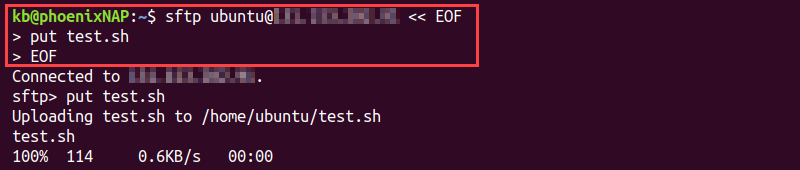
A here document (HereDoc) is a section of code that acts as a separate file. A HereDoc is a multiline string or a file literal for sending input streams to other commands and programs. HereDocs are especially useful for redirecting multiple commands at once, which helps make Bash scripts neater and easier to understand. This article introduces you to the basics of using HereDoc notation and some typical use cases. Prerequisites The syntax for writing a HereDoc is: It consists of the following elements: The HereDoc itself contains any number of lines with strings, variables, commands, and other inputs. This section showcases how to use the HereDoc notation in various situations. The most common use case is with the cat command. Open the terminal and enter the following text, pressing Enter after each line: The A HereDoc accepts the use of variables and reads them. To see how this works, create two variables in the terminal: Pass the HereDoc to a All the variables expand, and their respective values print to the terminal. HereDocs accept command substitution. Run the following code in the terminal line by line to see the results: Encompass each command in Add single or double quotes to the first delimiter to ignore variable and command expansion in a HereDoc. For example: Adding quotes to the delimiter treats the contents as a HereDoc literal. Use piping or redirecting to forward the command results to another command. For example, create a Bash script and add the following contents to pipe a command: Alternatively, use redirect notation to achieve the same result: Run the Bash script to see the results. In both cases, the output from the HereDoc allows writing multiline documents with a single command. To create a file and save the HereDoc contents, use the following format: If the document does not exist, the command creates it. Check the file contents to confirm: The console shows the file contents. Add a dash ( Without tab suppression, the message prints to the console with indentation. Adding the dash removes the tab indent and outputs the message without the leading spaces. Note: If the text shows up with the leading spaces, press TAB instead of copying and pasting the example code. When working with a HereDoc inside statements and loops, keep in mind the following behavior: Try the following example code to see how to use a HereDoc inside an if statement: The dash ensures the indents don't show up when the program runs. The ending delimiter is not indented, and adding spaces causes an error. A HereDoc with the null command ( For example: Using HereDoc notation as a block comment is unconventional. In general, Bash does not support block commenting. To avoid character interpretation, add a backslash ( Alternatively, avoid character interpretation completely by escaping the delimiter: Using quotation marks on the delimiter is equivalent in this case. Add parameters to a function by forwarding information through a HereDoc. For example, create a function to read lines and add information through the HereDoc: The function stores the information provided by the HereDoc into variables. Run the script to print the variable values to the terminal. A HereDoc is convenient for executing multiple commands on a remote machine. Pass a HereDoc to the SSH connection to run multiple commands. For example: The command prints the local and remote users to the console. SFTP enables secure data transfer via the SSH protocol. Forward a HereDoc to run multiple SFTP commands automatically: The code uploads a sample file to the remote machine. Conclusion After going through the examples in this guide, you know how to use HereDoc notation in various situations. HereDoc allows you to pass multiple commands at once as input for different commands. Next, learn about advanced text processing with the AWK command. Was this article helpful? YesNo
Bash HereDoc Syntax
[COMMAND] <<[-] 'DELIMITER'
  Line 1
  Line 2
  ...
DELIMITER
COMMAND is optional. Works for any command that accepts redirection.<< is the redirection operator for forwarding a HereDoc to the COMMAND.- is a parameter for tab suppression.DELIMITER in the first line defines a HereDoc delimiter token. END, EOT, and EOF are most common, but any multicharacter word that won't appear in the body works. Omit single quotes on the first line to allow command and variable expansion.DELIMITER in the last line indicates the end of a HereDoc. Use the same word from the first line without the leading whitespaces.Bash HereDoc Examples
Multiline String
cat << EOF
Hello
World
EOF
cat command reads the HereDoc and writes the contents to the terminal.Variable Expansion
var1="Hello"var2="World"cat command to print the two variables along with an environment variable:cat << END
$var1
$var2
$PWD
END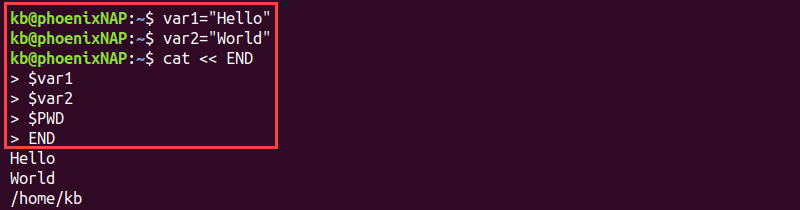
Command Expansion
cat << EOF
$(echo Hello)
$(whoami)
EOF
$() to evaluate a statement and fetch the results. Omitting $() treats the text as a string.Ignore Variable and Command Expansion
cat << "EOF"
$(echo Hello)
$(whoami)
$PWD
EOF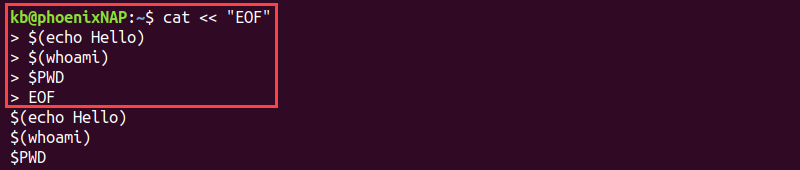
Piping and Redirecting
#!/bin/bash

cat << EOF | base64 -d
SGVsbG8KV29ybGQK
EOF#!/bin/bash
(base64 -d) < cat << EOF
SGVsbG8KV29ybGQK
EOF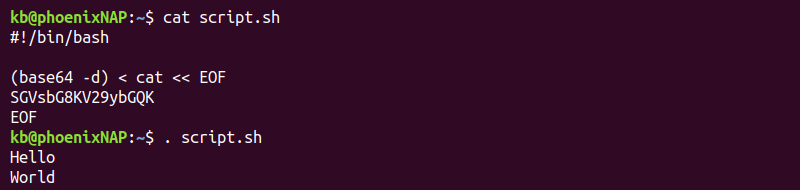
cat and a HereDoc command pipes (or redirects) to the base64 -d command. As a result, the script decodes the message from the HereDoc.Write to File
cat << EOF > hello_world.txt
Hello
World
EOFcat hello_world.txt
Tab Suppression
-) after redirection to suppress leading tabs. For example, create and run the following script:#!/bin/bash
cat <<- EOF
Hello
World
EOF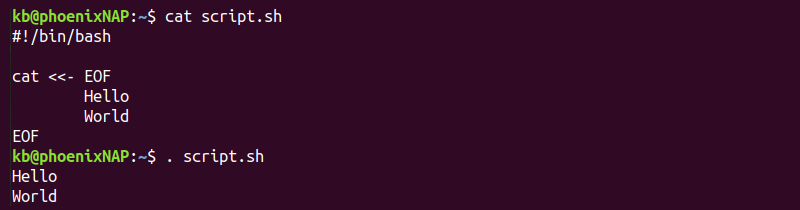
Inside Statements and Loops
#!/bin/bash

if true;
then
        cat <<- "END"
        Hello
        World
END
fi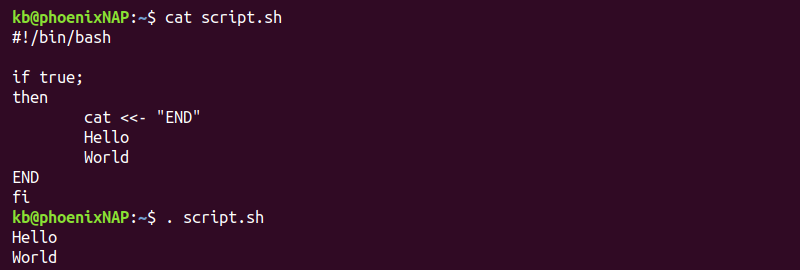
Multiline Comments
:) creates the effect of block comments in Bash scripts.#!/bin/bash
: << 'END'
This is a comment
ENDEscape Characters
\) before a character:cat << EOF
\$100
EOFcat << \EOF
$100
EOFFunctions
#!/bin/bash

readLines(){
        read greeting
        read name
}

readLines << EOF
Hello
$USER
EOF

echo $greeting
echo $name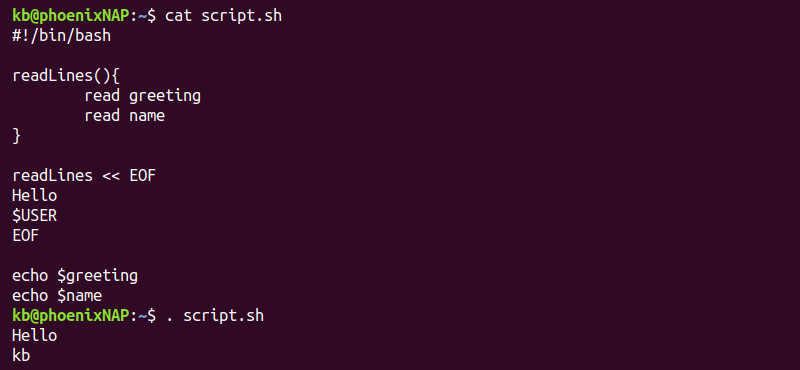
HereDoc and SSH
ssh username@host << EOF
echo "Local user: $USER"
echo "Remote user: \$USER"
EOF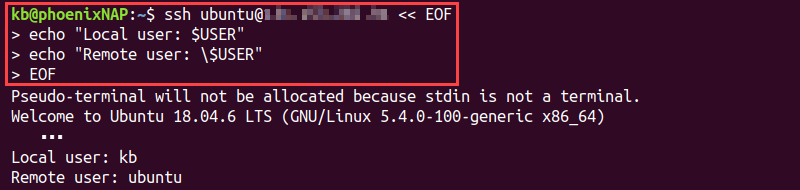
HereDoc and SFTP
sftp username@host << EOF
put test.sh
EOF