In this article I’m going to show the process I followed to migrate some of the services I used from Google Cloud to an European provider, in this case OVH. I won’t use their cloud solution, but their VPS offering instead, in order to have full control over the infrastructure.1
In particular, I will show how I moved out from Cloud SQL to a self hosted instance of PostgreSQL, how I moved the Cloud Run services to a more standard nginx setup, and how reached the same level of CI/CD I had with Google Cloud.
The migrated service is fitsleepinsights.app: a custom dashboard for Fitbit users, with RAG support (gemini-based) for chatting with your data and getting insights about your fitness activities and sleep data. The service is fully open source, and the code is available on GitHub.
The reasons
There are two main reasons why I decided to move the service from Google Cloud to OVH. The first one is purely economical: the costs of the Cloud SQL instance were too high. I was paying too much for the very minimal setup of the instance, which delivered very poor performance.
The second reason is political. It’s my first small step of “getting back to the EU” to reduce dependency on US companies.
The CI/CD pipeline
The CI/CD pipeline is similar to what I had with Google Cloud, but now it’s hosted on GitHub Actions. Instead of deploying to the cloud, I deploy the service on a VPS. The end result is the same: the service is deployed in seconds, but at a much lower cost. Additionally, since we are deploying a Go application that compiles to self-contained binaries, the deployment is very fast and doesn’t require any external dependencies or containerization.
For the sake of completeness, I’m going to show the Github Actions workflow for the Google Cloud and the OVH VPS.
The Google Cloud CI/CD pipeline
The Github Actions workflow is the following:
- Checkout the code
- Authenticate to Google Cloud Artifact Registry
- Build the application inside a Docker container
- Push the application to the Artifact Registry
- Deploy the application to the Cloud Run service
This of course requires a cloud side configuration, with a lot of clicks, and regions limitations.
e.g. for automatize the deploy of the cloud run service under the domain fitsleepinsights.app (registered on Google Domains), I had to re-configure the cloud run service in order to be in a region compatible with the domain (see the CLOUD_RUN_REGION variable in the YAML file below).
The cloud run service itself had to be configured by specifying all the parameters related to the cold start, the environment variables, the secrets, the VPC, the service account, etc.
So, the deploy is not the YAML file you see below, but a mix of YAML and clicks on the Google Cloud Console (and a ton of trial and error). Anyway, I leave the YAML file below for the sake of completeness.
name: Build and Deploy to Cloud Run

on:
  push:
    branches: [ main ]

# The secrets have been defined inside the Github settings
# The env vars MUST be defined here to be accessible with env.VAR
env:
  GAR_LOCATION: europe-west6
  PROJECT_ID: train-and-deploy-experiment
  CLOUD_RUN_REGION: europe-west1 # must be 1 to support google domain
  REPOSITORY: fitsleep-actions-repo
  SERVICE: fitsleep-actions-cloudrun-service

jobs:
  deploy:
    permissions:
      contents: 'read'
      id-token: 'write'

    runs-on: ubuntu-latest
    steps:
      - name: Checkout
        uses: actions/checkout@v4

      - name: Google Auth
        id: auth
        uses: 'google-github-actions/auth@v2'
        with:
          token_format: 'access_token'
          workload_identity_provider: '${{ secrets.WIF_PROVIDER }}'
          service_account: '${{ secrets.WIF_SERVICE_ACCOUNT }}'

      - name: Docker Auth
        id: docker-auth
        uses: 'docker/login-action@v3'
        with:
          username: 'oauth2accesstoken'
          password: '${{ steps.auth.outputs.access_token }}'
          registry: '${{ env.GAR_LOCATION }}-docker.pkg.dev'

      - name: Build and Push Container
        run: |-
          docker build -t "${{ env.GAR_LOCATION }}-docker.pkg.dev/${{ env.PROJECT_ID }}/${{ env.REPOSITORY }}/${{ env.SERVICE }}:${{ github.sha }}" ./
          docker push "${{ env.GAR_LOCATION }}-docker.pkg.dev/${{ env.PROJECT_ID }}/${{ env.REPOSITORY }}/${{ env.SERVICE }}:${{ github.sha }}"

      - name: Deploy to Cloud Run
        id: deploy
        uses: google-github-actions/deploy-cloudrun@v2
        with:
          service: ${{ env.SERVICE }}
          region: ${{ env.CLOUD_RUN_REGION }}
          image: ${{ env.GAR_LOCATION }}-docker.pkg.dev/${{ env.PROJECT_ID }}/${{ env.REPOSITORY }}/${{ env.SERVICE }}:${{ github.sha }}

      - name: Show Output
        run: echo ${{ steps.deploy.outputs.url }}
The OVH VPS CI/CD pipeline
Unlike cloud services where configuration is done through web interfaces with many clicks, the OVH VPS CI/CD pipeline requires some traditional Linux system administration.
The prerequisites
The prerequisite steps to run on the VPS are straightforward:
- Install Go
- Install PostgreSQL
- Install nginx
- Install Certbot (Optional, right now I’m still using Cloudflare for automatic HTTPS certificates)
May seem a lot, but in the end it’s just a single command (sudo apt install postgresql nginx certbot), and the configuration of the services at startup. Literally, 5 minutes.
Since this is a service migration, we need to migrate the database as well. Cloud SQL is a managed PostgreSQL instance, so we need to migrate it to a self hosted PostgreSQL instance. Luckily, the migration is very simple, because PostgreSQL is exceptional.
On Cloud SQL we can export the database with a click. Under the hood, it’s a simple pg_dump of the database. Once downloaded, the dump can be imported on a self hosted PostgreSQL instance.
# Follow the instructions in the README to create the user and the database and install pgvector
# after that, import the dump
psql -U $fitsleepinsights -d $fitsleepinsights < fitsleepinsights-dump.sql
After that, we need to create a systemd service that runs the application. I want this to run in the home directory of a non-root user, so I created the following service file (also available in the repository at [email protected]:
# /usr/lib/systemd/system/[email protected]
[Unit]
Description=fitsleepinsights.app
After=postgresql.service

[Service]
Restart=always
Type=simple
User=%I
WorkingDirectory=/home/%I/fitsleepinsights/
ExecStart=/home/%I/go/bin/fitsleepinsights

[Install]
WantedBy=multi-user.target
The %I is the username of the user that will run the service. We suppose that the user exists and has access to the fitsleepinsights directory.
The directory is going to be created by the Github Actions workflow (if it doesn’t exist), and the user will own it.
To be able to start and stop the service we need to call systemctl start fitsleepinsights@$USER.service and systemctl stop fitsleepinsights@$USER.service (this is going to be done by the Github Actions workflow).
To make it work, we need to invoke the commands with sudo without being asked for the password. To do that, we need to customize the sudoers file for the user.
# /etc/sudoers.d/$USER
%$USER ALL=(ALL) NOPASSWD:/usr/bin/systemctl start fitsleepinsights@*
%$USER ALL=(ALL) NOPASSWD:/usr/bin/systemctl stop fitsleepinsights@*
To deploy the service from Github actions, we need to create a ssh key and add it to the VPS.
ssh-keygen -t ed25519 -C "fitsleepinsights.app" -f ~/.ssh/id_ed25519 -N ""
cat ~/.ssh/id_ed25519.pub >> ~/.ssh/authorized_keys
In this way, the Github Actions workflow can connect to the VPS using the private ssh key that we just created, and that we’ll add to the repository secrets.
The last prerequisite is to configure nginx to proxy the requests to the service. fitsleepinsights.app is a Go application that listens on port 8989, so we need to configure nginx to proxy the requests to that port.
# /etc/nginx/sites-available/fitsleepinsights.app

server {
    server_name fitsleepinsights.app;
    listen 80;

    # turn base_url//resoruce into base_url/resource
    merge_slashes on;

    real_ip_header    X-Real-IP;
    real_ip_recursive on;

    location / {
        add_header Strict-Transport-Security "max-age=31536000; includeSubDomains";
        proxy_pass  http://127.0.0.1:8989;
        proxy_http_version 1.1;
        proxy_set_header Upgrade $http_upgrade;
        proxy_set_header Connection "upgrade";
        proxy_set_header Host $http_host;
        proxy_set_header X-Forwarded-Proto $scheme;
        proxy_set_header X-Forwarded-For $remote_addr;
        proxy_set_header X-Forwarded-Port $server_port;
        proxy_set_header X-Request-Start $msec;
    }
}
The very last step on the VPS is to enable the service to start at boot:
sudo systemctl enable fitsleepinsights@$USER.service
The Github Actions workflow
The Github Actions workflow is the following:
- Checkout the code
- Build the application
- Push the application to the VPS
- Restart the service
We just need to add the private ssh key to the repository secrets (together with the other secrets like the VPS username and the VPS address), and the Github Actions workflow will be able to connect to the VPS and deploy the application.
name: Build and Deploy to OVH SSH server

on:
  push:
    branches: [ main ]

env:
  SSH_HOST: ${{ secrets.SSH_HOST }}
  SSH_USERNAME: ${{ secrets.SSH_USERNAME }}
  SSH_PRIVATE_KEY: ${{ secrets.SSH_PRIVATE_KEY }}
  SSH_PORT: ${{ secrets.SSH_PORT }}

jobs:
  deploy:

    runs-on: ubuntu-latest
    steps:
      - name: Checkout
        uses: actions/checkout@v4

      - name: Setup SSH
        uses: webfactory/[email protected]
        with:
          ssh-private-key: ${{ env.SSH_PRIVATE_KEY }}

      - name: Build for SSH deployment
        uses: actions/setup-go@v4
        with:
          go-version-file: 'go.mod'
      - name: build
        run: |
           go build -o fitsleepinsights

      - name: Deploy to SSH server
        run: |
          # Ensure the remote directory exists
          ssh -o StrictHostKeyChecking=no -p ${{ env.SSH_PORT }} ${{ env.SSH_USERNAME }}@${{ env.SSH_HOST }} "mkdir -p ~/fitsleepinsights"

          # Stop the service if it's running
          ssh -o StrictHostKeyChecking=no -p ${{ env.SSH_PORT }} ${{ env.SSH_USERNAME }}@${{ env.SSH_HOST }} "sudo systemctl stop fitsleepinsights@${{ env.SSH_USERNAME }}.service || true"

          # Deploy the application: just the binary
          cat fitsleepinsights | ssh -o StrictHostKeyChecking=no -p ${{ env.SSH_PORT }} ${{ env.SSH_USERNAME }}@${{ env.SSH_HOST }} "cat > ~/go/bin/fitsleepinsights"

          # Deploy the application static files and templates (needed for runtime)
          rsync -avz -e "ssh -o StrictHostKeyChecking=no -p ${{ env.SSH_PORT }}" \
            --exclude='.git/' \
            --exclude='.github/' \
            ./ ${{ env.SSH_USERNAME }}@${{ env.SSH_HOST }}:fitsleepinsights/

          # Start the service
          ssh -o StrictHostKeyChecking=no -p ${{ env.SSH_PORT }} ${{ env.SSH_USERNAME }}@${{ env.SSH_HOST }} "sudo systemctl start fitsleepinsights@${{ env.SSH_USERNAME }}.service"
The workflow is live on the repository, so you can see it here.
The CI is working, and the service is deployed on the VPS in seconds. You can see the actions running here.
Moving out from Google Cloud: the cost savings
The configuration of the Cloud SQL was the minimal one, with the least amount of resources: 1 vCPU, 2GB of RAM, 100GB of storage. No high availability, and deployed on a single region.
With the configuration, the cost was around 50€/month - only for the database!
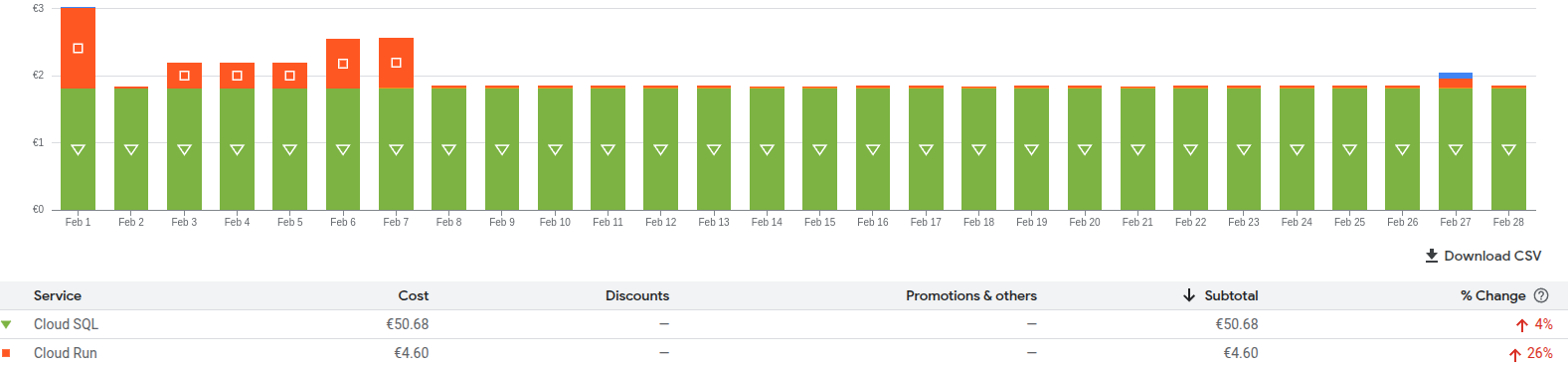
The performance were poor, and the cost was too high for the resources used.
With the VPS instead, I have the freedom to do whatever I want. I deployed the database together with the service, with a more powerful configuration: 4 vCPU, 4GB of RAM, 80GB of storage.

The cost is around 10€/month for the database and the service together.
The performance are great and the cost is much lower than the Cloud SQL.
Differently from a pure Cloud solution, I have no database lag at all, no problems of cold start, no issues at all. Of course the scalability is not the same, but even with the cloud solution I would have been constrained by the fixed resources allocated to the Cloud SQL instance, making the scalability a problem anyway.
Self-hosting vs Cloud: The trade-offs
It’s important to acknowledge that this self-hosted solution doesn’t offer the same theoretical scalability as a cloud platform. However, in practice, even the Google Cloud solution I was using had significant scalability limitations. The Cloud SQL instance with its fixed resources would have been a bottleneck regardless, requiring manual intervention and additional costs to scale up.
What surprised me most was the performance difference. The default VPS configuration significantly outperforms the basic Cloud SQL setup I was using. Database queries that took seconds on Cloud SQL now complete in milliseconds. The elimination of cold starts for the application has also improved the user experience dramatically.
For small to medium-sized applications with predictable traffic patterns, a well-configured VPS can provide better performance, more control, and substantial cost savings compared to cloud solutions. The cloud’s theoretical advantages in scalability and managed services often come with practical disadvantages: higher costs, performance compromises at entry-level tiers, and less control over your infrastructure.
In the end, the right choice depends on your specific needs, but don’t assume the cloud is always superior. Sometimes, a return to more traditional hosting approaches can yield better results for your particular use case.
The future
This migration represents just the first step in my journey to “get back to the EU.” My roadmap includes several additional phases:
- Domain migration: Moving from Google Domains to a European domain registrar
- DNS migration: Switching to a European DNS provider
- Analytics: Replacing Google Analytics with EU-hosted alternatives like Matomo
There are certain services that remain challenging to migrate, particularly the Gemini RAG used for Fitbit data analysis. For now, I’ll keep these on Google Cloud while monitoring the development of European AI alternatives.
This incremental approach allows me to balance practical considerations with the goal of digital sovereignty. Each migration step reduces dependency on non-EU providers while maintaining service quality for users.