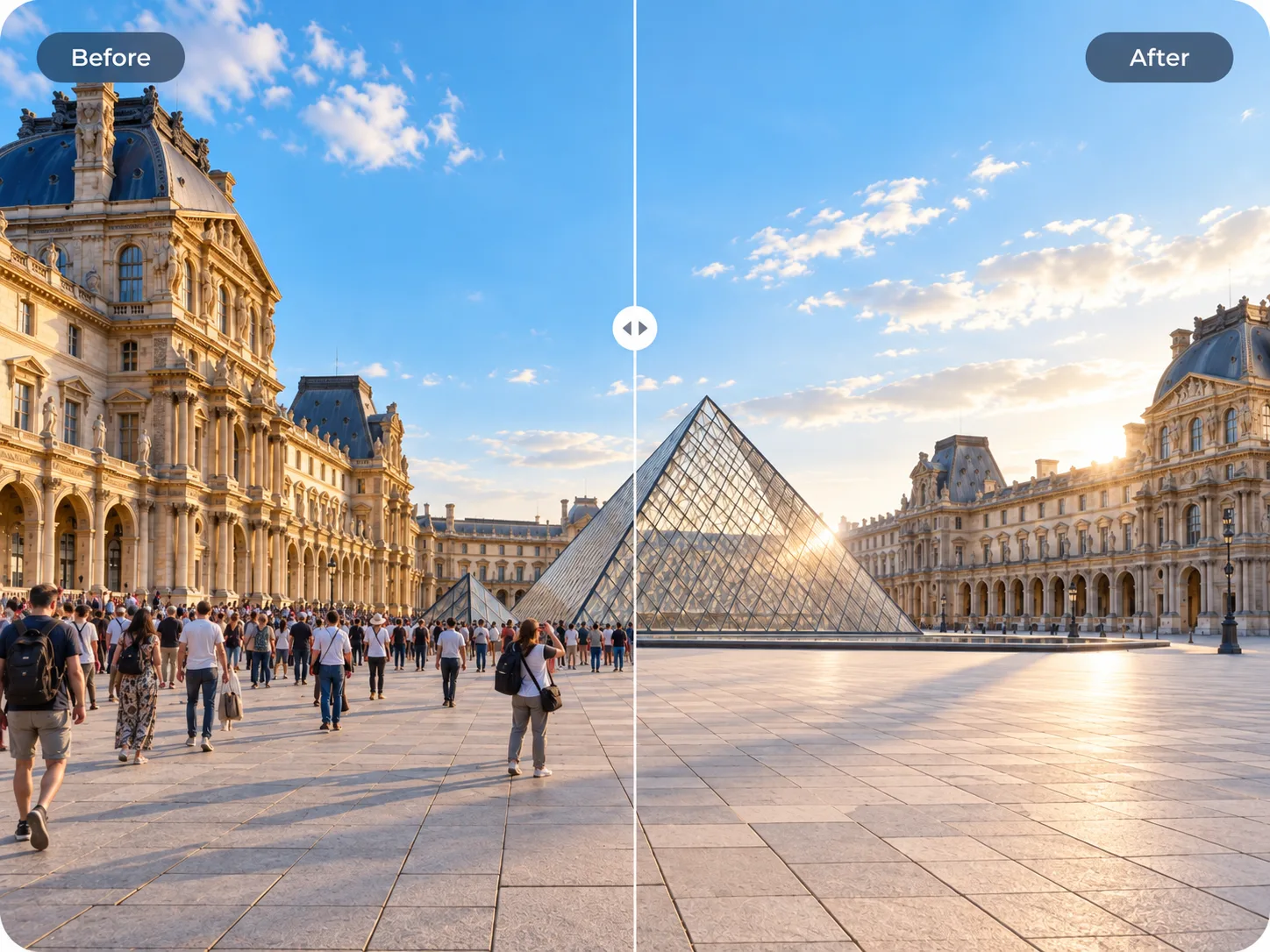
Travel photos without the crowd
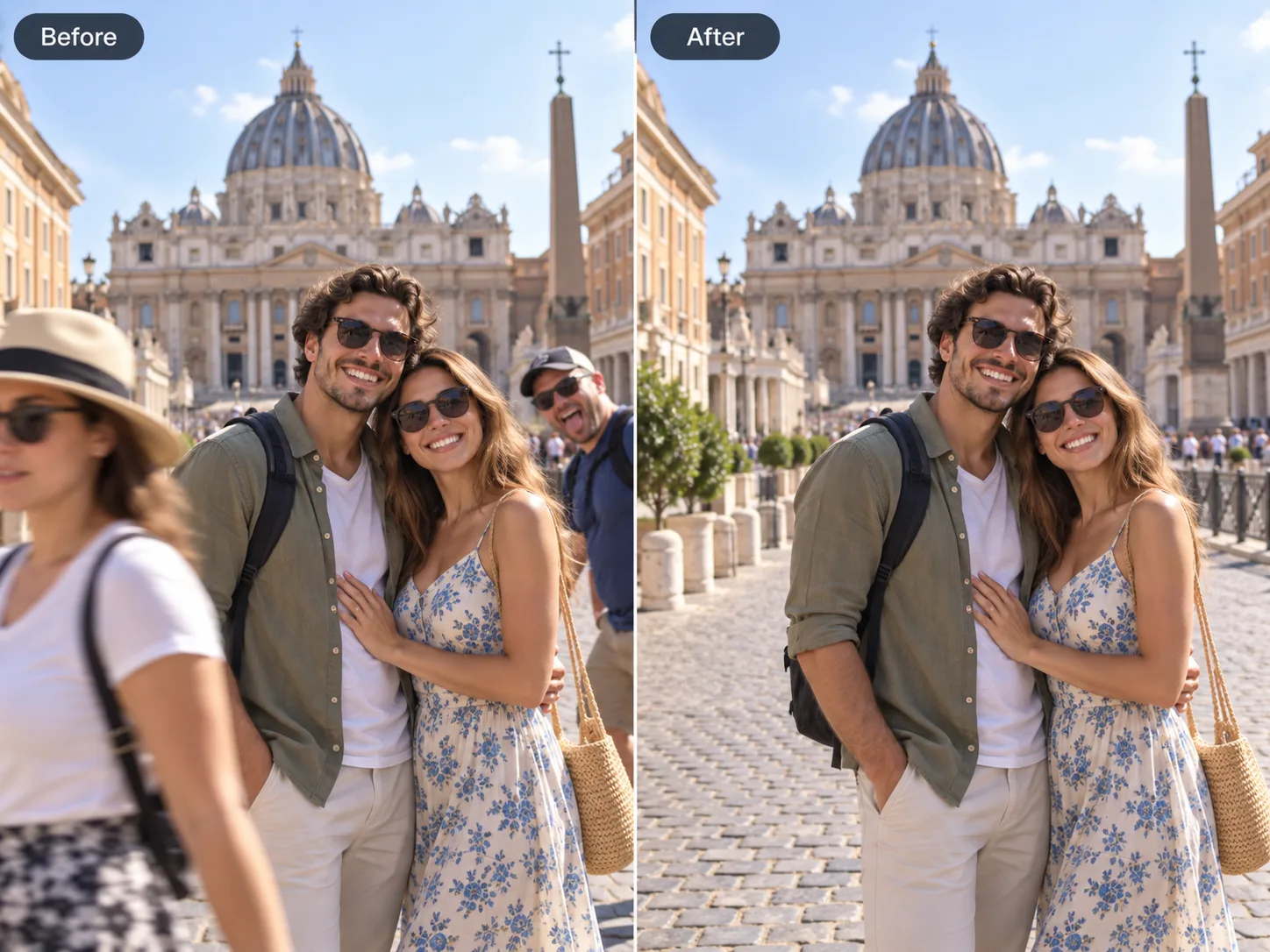
Clear tourists from landmark shots so it looks like you had the place to yourself. Sky, pavement, and architecture fill back in automatically.
100% automatic AI person remover — auto-detect people or brush them out in seconds. No signup. No watermark. 2 free edits a day, plus 2 more when you sign in.
Drop a photo hereor click to browse · JPG/PNG · up to ~10 MB
Free today 2/2
One tool, endless uses
From tourists in travel snaps to photobombers in group shots — remove anyone with one brush stroke.
Clear passers-by, tourists, and crowds out of any photo while keeping your subject sharp. The AI reconstructs the background behind removed people — sky, streets, and architecture fill back in cleanly.
Erase the stranger who jumped into your group selfie in seconds. Brush over them once — the AI fills the space behind them so it looks like they were never there.
Clean dense crowds out of landmark and street photos in one pass. Brush over multiple tourists at once — the AI rebuilds the scene behind them so your landmark stands alone.
Drop the extra person from any group shot without cropping the whole frame. Brush them out and the AI fills the gap — no awkward cutouts or missing shoulders.
Isolate one person from a busy background with a single brush stroke. Everything behind them vanishes — ready to paste into a new scene or use as a standalone portrait.
Clear tourists from landmark shots so it looks like you had the place to yourself. Sky, pavement, and architecture fill back in automatically.
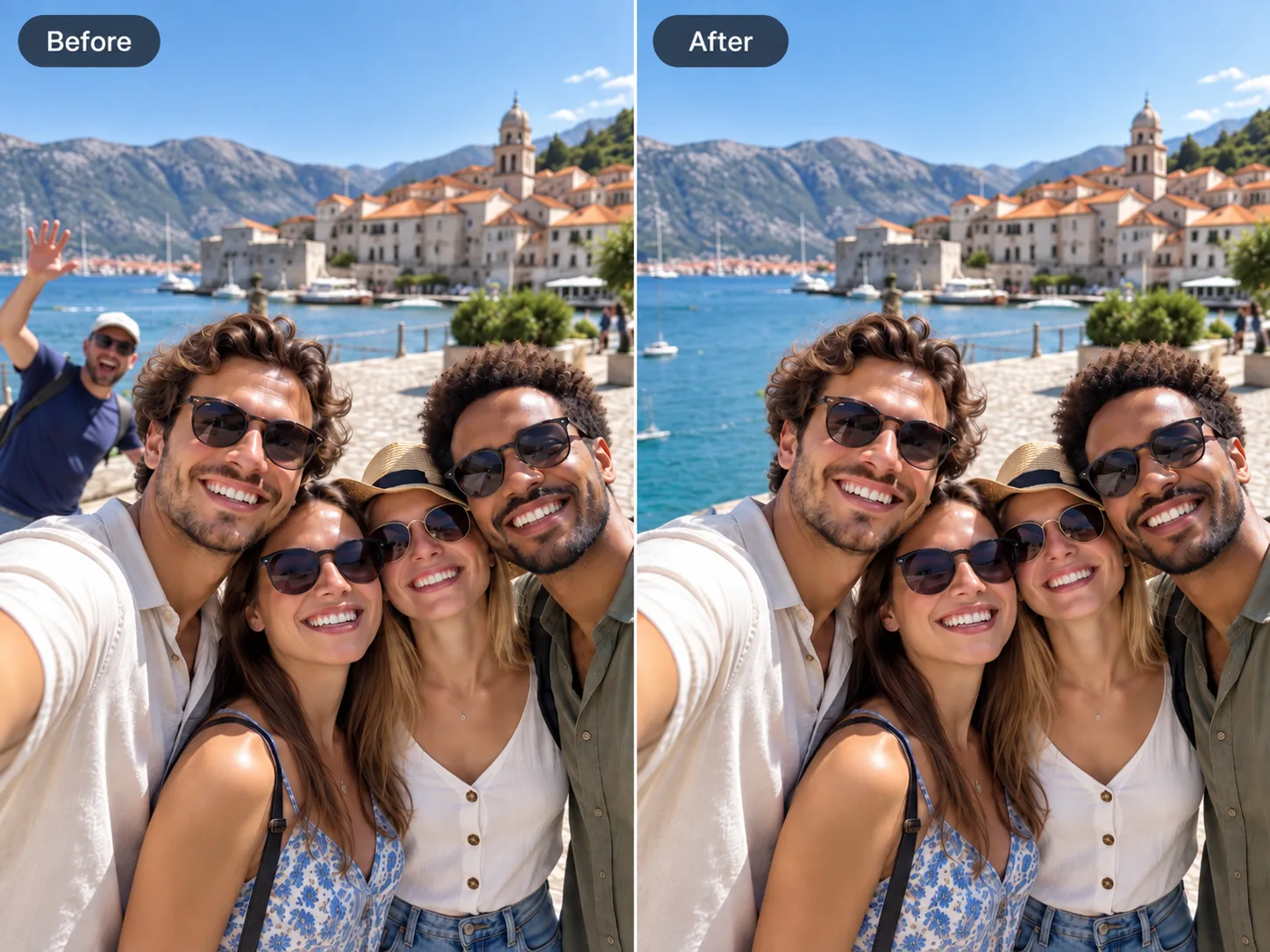
Someone wandered into your group shot. One brush stroke erases them — the AI rebuilds the background so your people stay front and center.
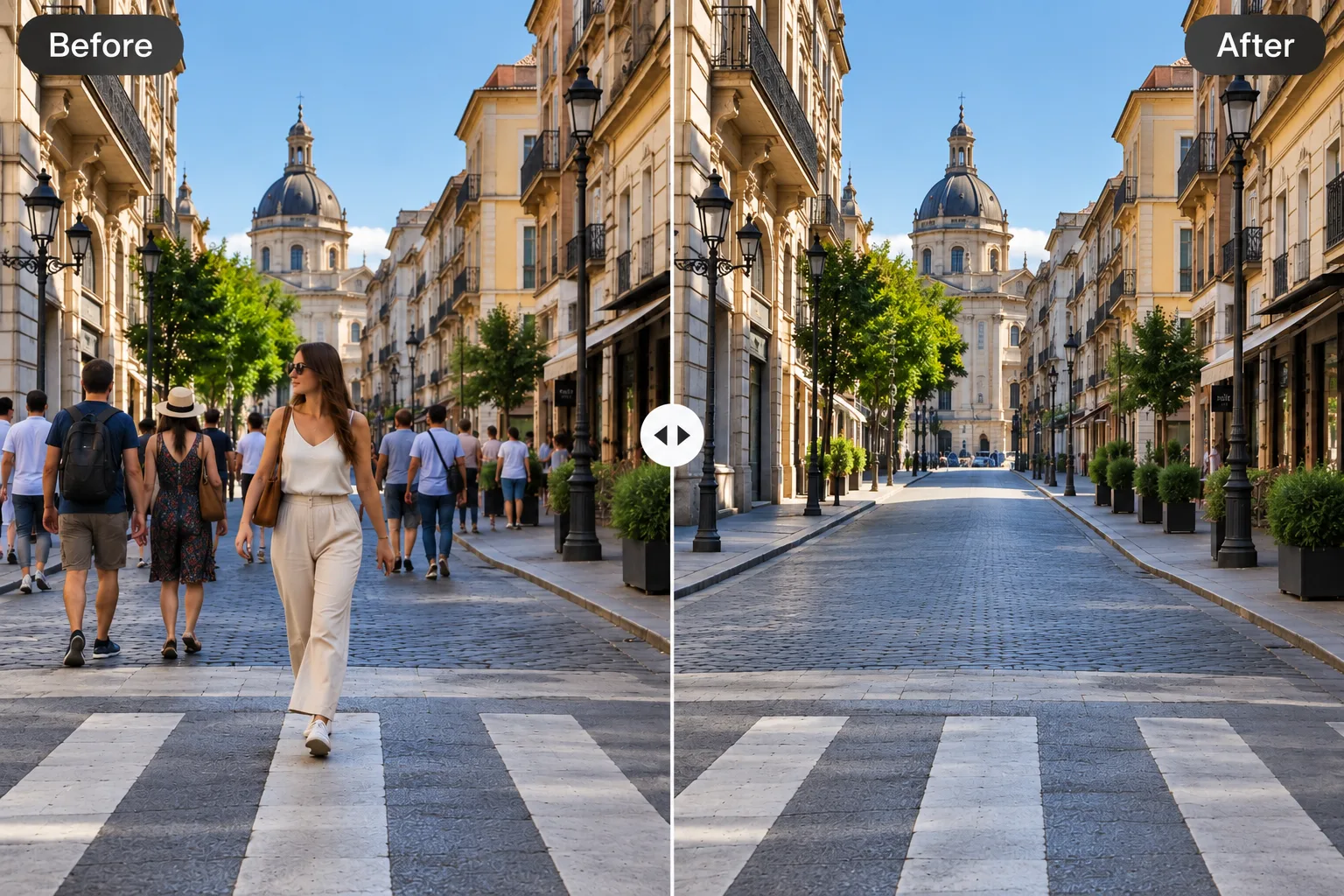
Street photography often means crowds. Remove the people you don’t want and reconstruct sky, road, and walls — no Photoshop session required.
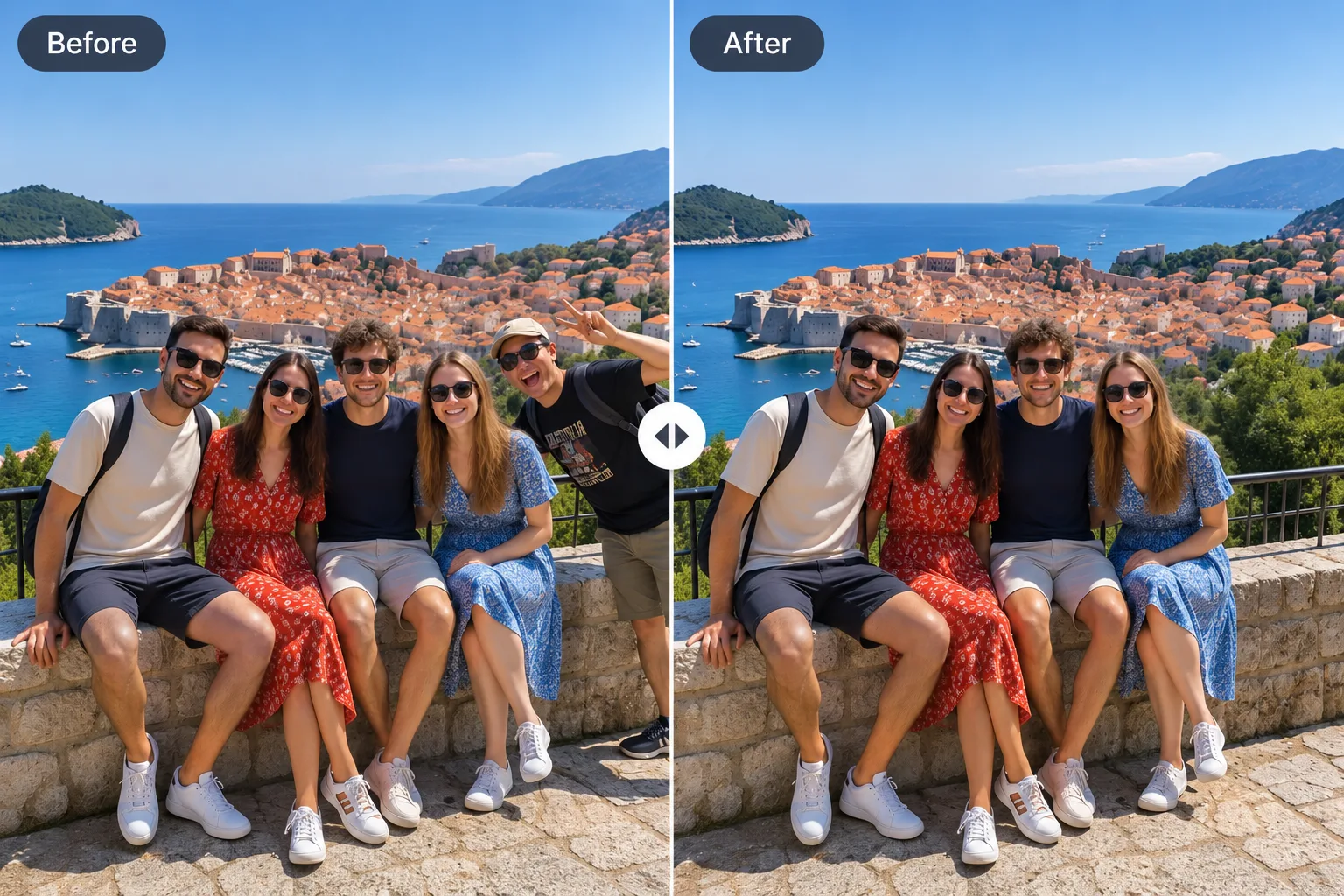
One extra face can throw off the whole frame. Brush them out, keep everyone else, and download a naturally composed group shot.
PersonRemover is a free AI tool that removes people from photos with one brush stroke. You upload a JPG or PNG, paint over anyone you want gone, and the AI rebuilds the background behind them in seconds. No signup. No watermark. You get 2 free edits a day, plus 2 more when you sign in. Works on tourists, photobombers, crowds, group shots, and anything with a person-shaped distraction.
Travel shots, street candids, and event photos almost always pick up strangers. A tourist walks through your landmark frame. A photobomber leans into a group selfie. Pedestrians fill the background of a portrait you loved.
The old fix meant Photoshop, clone stamps, and careful edge work — minutes or hours for a single frame. Miss a limb and you get a smear. Dense crowds meant starting over. Most people just kept the imperfect shot.
PersonRemover flips that. Auto-detect people or brush anyone you want gone, and the AI rebuilds the background in seconds.
Upload, select (or brush), download. PersonRemover detects people automatically or follows your brush, then rebuilds the scene — no Photoshop required.
1
Drop a JPG, PNG, or WebP — or click to browse. Files up to about 10 MB are supported. Large images resize automatically so processing stays fast.
2
People are detected automatically — click to select who stays out. Prefer manual control? Switch to brush mode to paint edges, hair, and limbs. Use Undo, Clear, and brush size to refine.
3
Hit remove and wait a few seconds. Download a clean, watermark-free PNG — ready to share or print.
PersonRemover is built on the latest AI inpainting models, but no tool is perfect. Here's what you should know before you upload:
Images over ~1 megapixel are automatically resized. The saved result will be 1MP regardless of input dimensions.
When the background behind the person is complex (textured walls, foliage, patterned surfaces), the AI may leave visible artifacts or repeat patterns.
NSFW images are blocked at the upload stage.
Before AI tools like PersonRemover, removing someone from a photo meant opening Photoshop and spending ten minutes with the Clone Stamp, Healing Brush, and Content-Aware Fill. Each person had to be painted out by hand, and getting the background to look natural — especially on textured surfaces like grass, brick, or water — took real skill. Not everyone has that skill. Not everyone wants to pay for Photoshop.
Smartphone apps like TouchRetouch and Snapseed made it easier — you could tap or brush on a person and the app would fill the space. But on a small screen, finger precision is low, and the healing algorithms in those apps were built years ago. They work for tiny distractions; they struggle on full-body people against complex backgrounds.
PersonRemover sits in the middle: it gives you brush-level control when you want it, with auto person detection for faster selection, and a modern diffusion-based inpainting model under the hood — the same class of model that powers the best AI image editors in 2026. You still choose who to remove; detection just highlights people so you can click or refine with the brush. The tradeoff is resolution: we resize large images to keep processing fast and free. If you need full-resolution output on a 24-megapixel photo today, you'll still want a desktop editor. For everything else — travel shots, group photos, street snaps, product images — PersonRemover is the faster way.
Upload one now — it takes 30 seconds, no credit card needed.