AI Sketch Studio
Turn Photos Into Pencil Art That Looks Hand Drawn.
Upload a photo, choose a pencil style, and review an AI interpretation of your image. Built for portraits, gifts, and creative projects.
Purchase credits when you are ready to create. Includes public tutorials for choosing better source photos, preparing files for print, and fixing common quality problems.
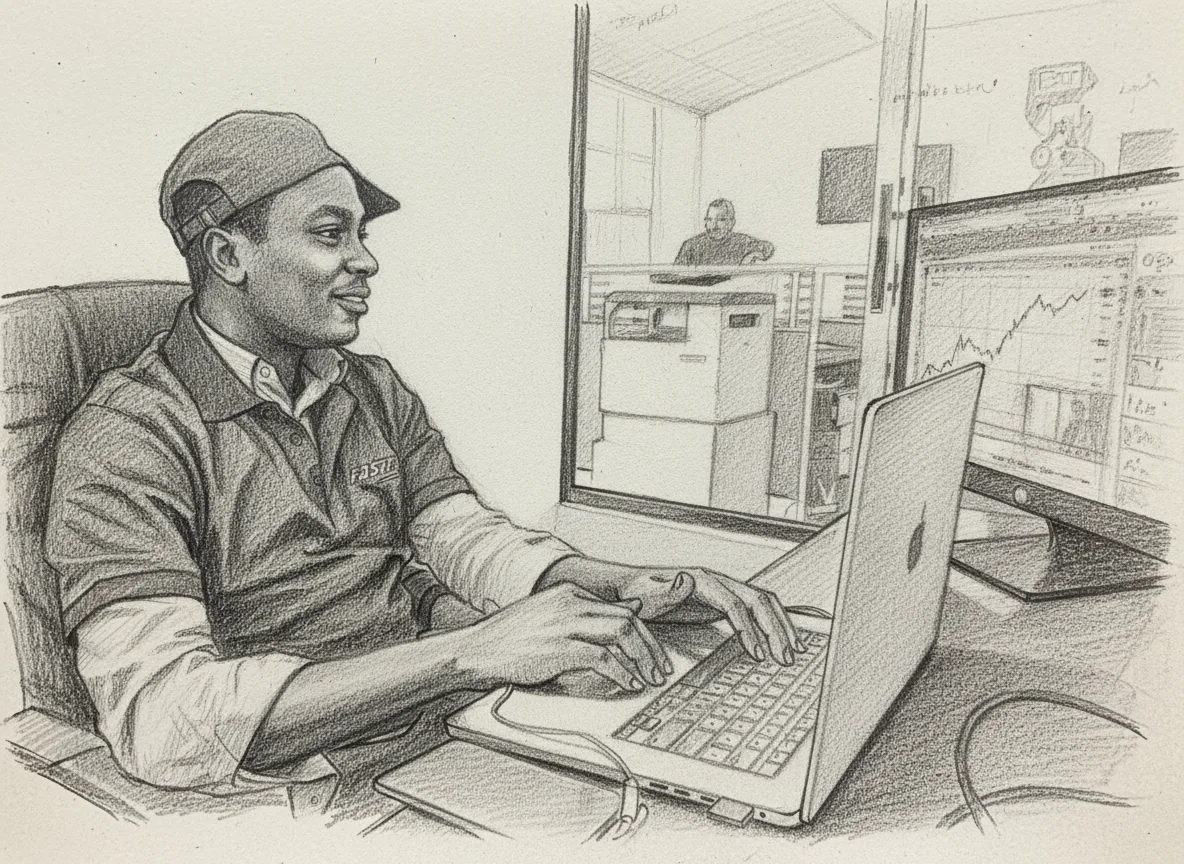
Before upload
Photo preparation
Guides explain crop, lighting, resolution, and background choices that improve sketch results.
Learning library
Original tutorials
Public articles cover portraits, pets, family keepsakes, wall art, printing, and common mistakes.
After generation
Print-focused output
Resources help users prepare sketches for matte paper, frames, gallery walls, and gifts.
Privacy first
Clear ownership
Users keep ownership of their photos and generated sketches, with privacy terms available publicly.
Interactive Demo
See the Transformation
Compare the original photo with the AI-generated pencil sketch. Drag across the image or use the slider below.
An existing site example, not a controlled test. Both images are cropped to the same display box; the complete files and specific differences are shown below. Results vary with the source image and settings.
Before you spend a generation credit
Read a sketch like a proof, not a thumbnail
The bridge photograph above is a useful example of what a pencil conversion keeps and what it changes. The composition remains recognisable, but that does not make it a faithful record. Here are observations you can check against the complete images.
What changed in this example?
The setting survives. The bridge tower, vertical cables, street lamp and two figures keep the overall scene readable. If the purpose is a loose illustration of a trip, that composition may matter more than individual surface details.
Clothing and accessories are reinterpreted. The red and grey shirt becomes a much simpler light shirt. Its lettering and the dark object in front of the torso are not faithfully preserved. Compare the shoes and raised hands too; a convincing outline does not mean every small shape matches.
The lighting changes. The bright sun at the right is absent from the sketch, and the dark road becomes mostly pale paper with directional shading. This creates a lighter drawing, but loses the photograph’s warm sky and low-sun atmosphere. Choose according to the memory you want to keep.
Check additions, not just omissions. A small vehicle-like shape appears on the left side of the sketched road that is not clearly present in the source. For a documentary use, that is a reason to reject the result. For decorative art, decide whether you accept the change before sharing it.
Inspection note · October 16, 2026. These observations concern the existing images shown here. Their generation settings and model version are not recorded, so this is not a preset comparison, performance benchmark or claim about every output. No new generation was made for this walkthrough.
Apply the same checks to your photo
1. Keep identity first
Compare eye spacing, the outline of the nose, and the corners of the mouth with the original. AI can reinterpret these shapes. If the person no longer looks like themselves, try a sharper, more frontal source photo; a darker style will not restore lost facial information.
2. Separate dark areas
Hair, clothing and the background should have distinguishable edges. When they merge into one dark patch, try Soft Shading or reduce intensity. Check again at the intended display size: tiny strands are less useful than a clear silhouette.
3. Plan the final crop
Leave space around the head and shoulders if a frame or mount will cover the edges. A square download cannot fill a tall frame without cropping. Use the downloaded file’s dimensions to estimate print resolution before ordering a large copy.
These are inspection steps, not a guarantee that a particular photo will convert accurately. For a keepsake, show the proof to the person or family before printing. Use images you own or have permission to edit and share.
Step-by-Step Guide
How to Create Your Pencil Drawing
Transform your photos into stunning pencil sketches with our AI-powered app in just 4 simple steps
01
Sign Up & Access Studio
Create your account, purchase credits, and access your personal Pencil Art Studio. Every finished drawing is saved to your gallery.
💡 Tip: Use Google Sign-In for quick and secure access
Click 'Upload & Convert' and select a clear, high-quality photo. The app works best with well-lit images where faces and details are clearly visible.
💡 Tip: JPEG and PNG formats work best, keep file size under 10MB
03
Customize Settings
Start with Classic Graphite, Realistic Pencil, Soft Shading, or Cross-Hatched. Advanced settings include intensity, fine-detail preservation, and additional pencil techniques.
💡 Tip: Start with realistic style and medium intensity for best results
04
Generate & Download
Click generate and watch as AI transforms your photo into a stunning pencil sketch. Preview the result in full-screen modal, then download your masterpiece.
💡 Tip: All your creations are automatically saved in your gallery
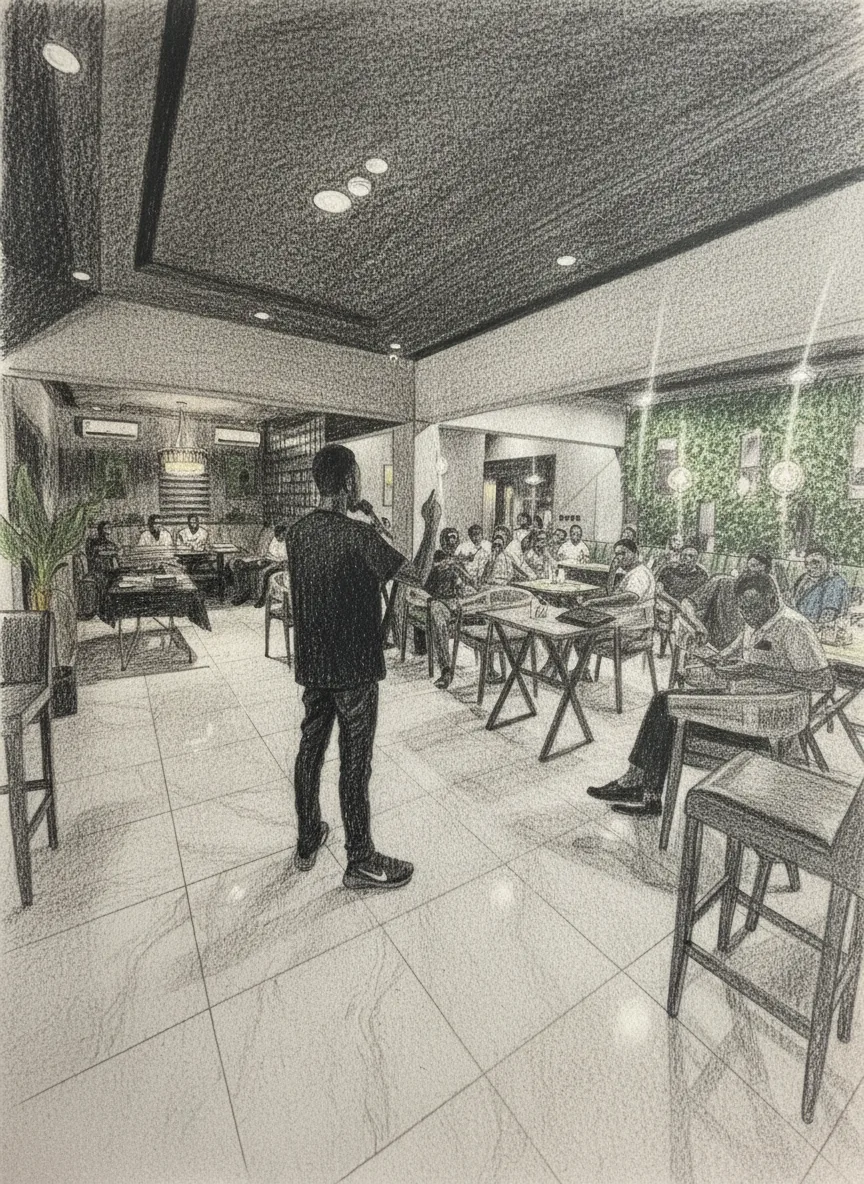
Use Cases
Plan a Personal Project
Choose a project, then check that the result suits its intended use.
Pet Portraits
Immortalize your furry friends with stunning pencil art. Perfect for wall displays or memorial keepsakes.
- Check distinctive markings
- Compare eye shape
- Proof before printing
Wedding & Anniversary
Transform your most romantic moments into timeless pencil sketches. The perfect paper anniversary gift.
- Couple portraits
- Check both faces
- Measure the download
Personalized Gifts
Create unique, heartfelt gifts for birthdays, holidays, or special occasions that show you care.
- Custom portraits
- Greeting cards
- Framed art
Professional Headshots
Stand out on LinkedIn, portfolios, and business cards with artistic pencil-style professional photos.
- Business-ready
- Unique branding
- Social media
Family Portraits
Unite generations in a cohesive art collection. Convert old and new photos to matching pencil style.
- Multi-generational
- Gallery walls
- Unified style
Memorial Artwork
Honor loved ones who have passed with gentle, timeless pencil portraits that capture their spirit.
- Review likeness with family
- Choose suitable print materials
- Ask your engraver about file needs
Create an account, choose a credit package, and start making pencil art
Gallery
Stunning Pencil ArtTransformations
Explore our collection of beautiful pencil drawings created from photos. See the incredible transformations possible with our AI-powered technology.
Ready to create your own pencil masterpiece?
Resource Guides
Learn the Full Sketch Workflow
PencilArt.app includes practical guides for preparing photos, choosing styles, printing, and turning finished sketches into gifts or wall art.
Portrait lighting
Learn why clear eyes, soft light, and simple backgrounds make pencil portraits more recognizable.
Read portrait guidePet sketches
Use eye-level photos and detailed styles to preserve fur texture, whiskers, and expression.
Plan a pet portraitHome printing
Choose matte paper, keep margins, and avoid heavy printer enhancements that damage graphite detail.
Print better sketchesOld family photos
Prepare scanned, faded, or low-resolution family photos before turning them into keepsake sketches.
Restore as artWall art sets
Build consistent portrait, travel, architecture, or family gallery walls from mixed source photos.
Explore wall art ideasPersonalized gifts
Turn meaningful images into framed portraits, cards, memorial pieces, and anniversary keepsakes.
Find gift ideasFAQ
Frequently Asked Questions
Everything you need to know about creating beautiful pencil sketches with AI
Still have questions? We're here to help!
Contact SupportCreate something timeless
Ready to turn your next photo into art?
Create your account, buy credits, and start turning your photos into pencil art.