Have you ever wanted to train a machine learning model on distributed private data without anyone sharing their raw data? In this tutorial, you’ll learn how to run a complete federated learning workflow directly from Google Colab—no local setup required.
We’ll use the PIMA Indians Diabetes dataset split across two data owners to train a diabetes prediction model collaboratively, all while keeping each party’s data private and secure.
Quick Demo
⬩⬩⬩
Overview: The Parties
In this federated learning flow, there are three key parties:
Data Owners (DO1 & DO2): Organizations that hold private data. Each runs their own Colab notebook to manage their data and approve training jobs.
Data Scientist (DS): The coordinator who proposes the ML project, submits jobs to data owners, and aggregates the results.
Each party runs in a separate Google Colab notebook. You can use three different Google accounts (emails)—or call two friends to join you for a real collaborative experience!
The magic? Raw data never leaves the data owner’s environment—only model updates are shared, no local setup is required!
⬩⬩⬩
Prerequisites
Before starting, you’ll need:
Three Google accounts (one for each party), or two friends willing to join
Each party downloads the notebook from the link provided, uploads and opens their respective notebook in Google Colab
That’s it! No local Python installation, no complex setup.
⬩⬩⬩
Step 1: Set Up the Data Owners and the Data Scientist
Each data owner runs their own notebook. Let’s start with DO1.
import syft_client as sc
import syft_flwr
print(f"{sc.__version__ =}")print(f"{syft_flwr.__version__ =}")
do_email =input("Enter the Data Owner's email: ")
do_client = sc.login_do(email=do_email)
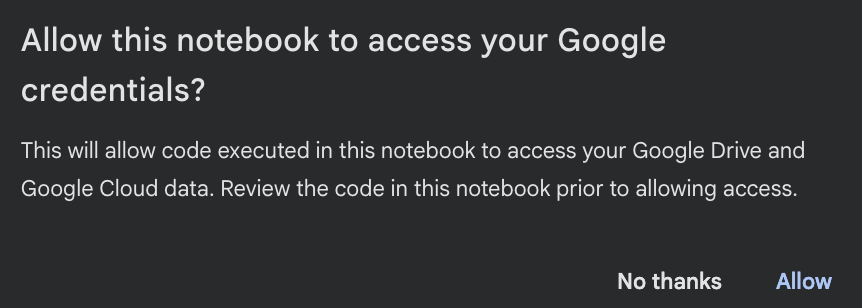
Here, Google will ask for your permission to allow the notebook to access your Google credentials.
Please click “Allow” and follow a few other pop-up windows to complete the process.
Switch to DO2 notebook and DS notebook to login similarly with respective emails, e.g.
ds_email = input("Enter the Data Scientist's email: ")
ds_client = sc.login_ds(email=ds_email)
⬩⬩⬩
Step 2: Data Scientist Adds Data Owner as Peers
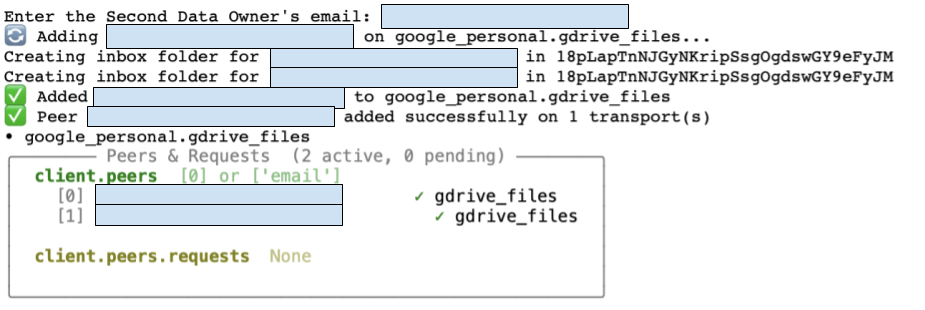
Add both data owners as peers:
do1_email = input("Enter the First Data Owner's email: ")
ds_client.add_peer(do1_email)

do2_email = input("Enter the Second Data Owner's email: ")
ds_client.add_peer(do2_email)

# check that the 2 DOs are added as peers
ds_client.peers
⬩⬩⬩
Step 3: Each Data Owner Creates A Diabetes Dataset
from pathlib import Path
from huggingface_hub import snapshot_download
DATASET_DIR = Path("./dataset/").expanduser().absolute()ifnot DATASET_DIR.exists():
snapshot_download(
repo_id="khoaguin/pima-indians-diabetes-database-partitions",
repo_type="dataset",
local_dir=DATASET_DIR,)
Next, DO creates a Syft dataset from a partition of the downloaded dataset (with mock and private path)
partition_number = 0
DATASET_PATH = DATASET_DIR /f"pima-indians-diabetes-database-{partition_number}"
do_client.create_dataset(
name="pima-indians-diabetes-database",
mock_path=DATASET_PATH /"mock",
private_path=DATASET_PATH /"private",
summary="This is a partition of the pima-indians-diabetes-database",
readme_path=DATASET_PATH /"README.md",
sync=True,)
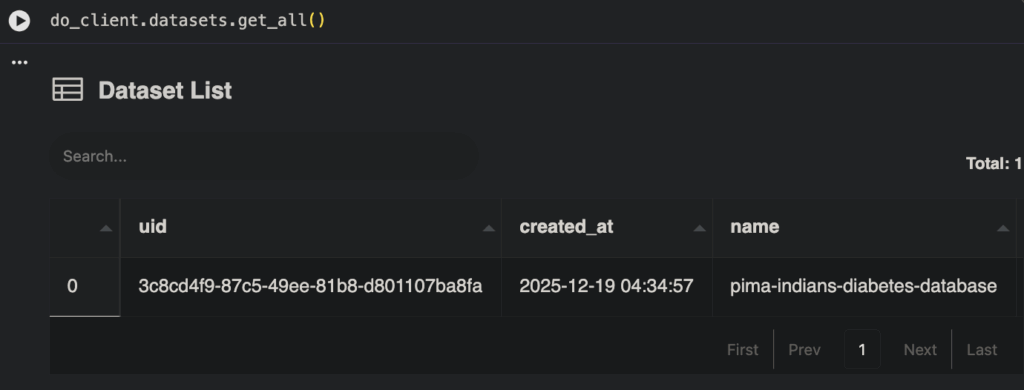
DO verifies that the dataset has been created
do_client.datasets.get_all()
Key concept: The mock_path contains synthetic/sample data that data scientists can explore and write code upon. The private_path contains the real data that never leaves this environment.
DO2 Notebook
Repeat the same steps in the DO2’s notebook, but change the partition number:
partition_number = 1 # DO2 uses partition 1 (or any other partition)
Everything else stays the same. Now you have two data owners, each holding a different slice of the diabetes dataset.
⬩⬩⬩
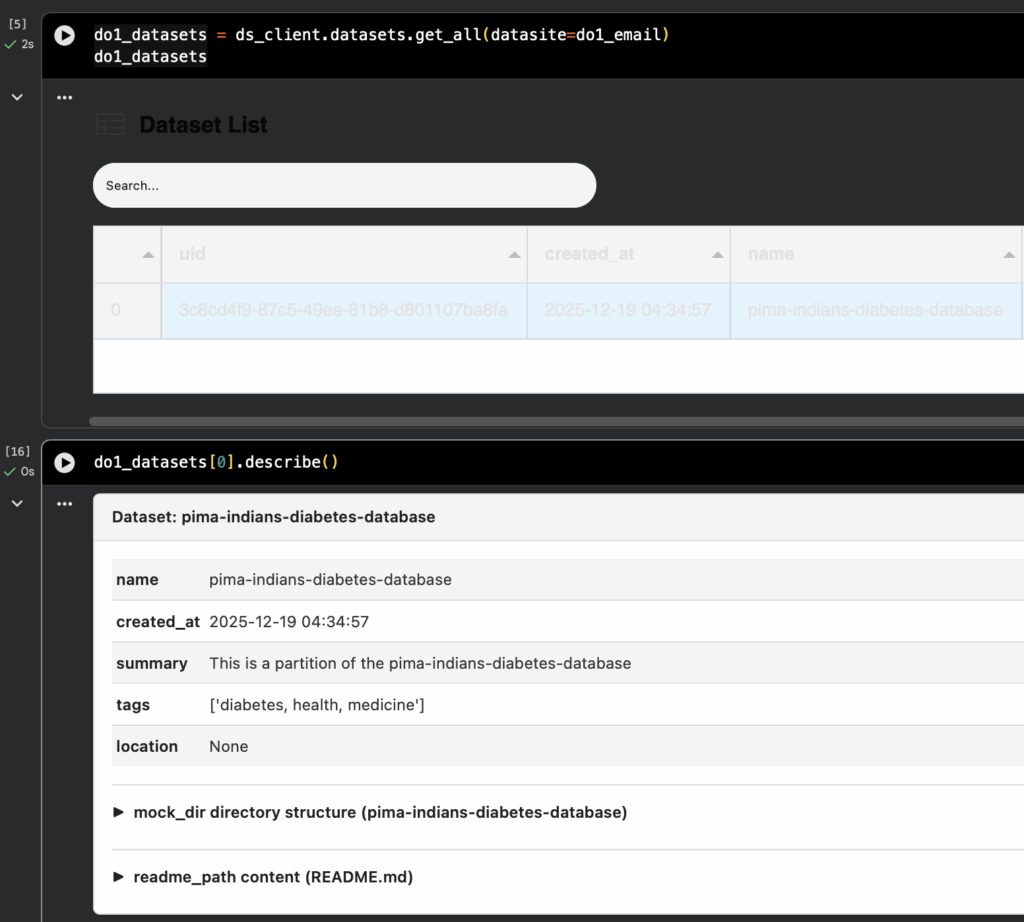
Step 4: Data Scientist Explores the Data Owner’s Datasets
Step 5: Data Scientist Proposes and Submits the FL Project
Clone the FL Project
The FL project is built using Flower, a popular open-source federated learning framework. It defines the model architecture, training logic, and client/server communication—all following Flower’s standard patterns. The syft-flwr integration handles the secure job submission, data governance and communication layer on top. We have already prepared the FL project here and you only need to clone it like below (in the DS’s notebook)
This configures the project with the aggregator (DS) and participating datasites (DOs), and generates the main.py entry point:
import syft_flwr

try:
    !rm -rf {SYFT_FLWR_PROJECT_PATH / "main.py"}
    print(f"syft_flwr version = {syft_flwr.__version__}")
    do_emails = [peer.email for peer in ds_client.peers]
    syft_flwr.bootstrap(
        SYFT_FLWR_PROJECT_PATH, aggregator=ds_email, datasites=do_emails
    )
    print("Bootstrapped project successfully ✅")
except Exception as e:
    print(e)
Submit Jobs to Data Owners
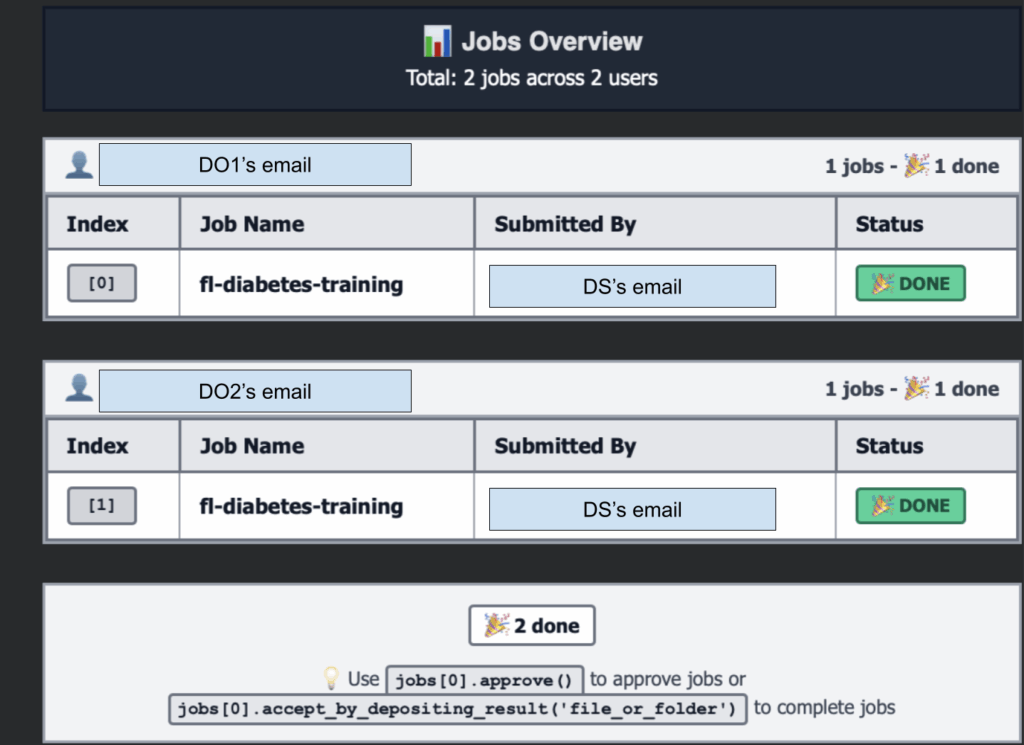
Now send the FL project to each data owner for review. The job contains the training code—data owners can inspect it before approving execution on their private data.
Stars help others discover these tools and keep our contributors motivated!
⬩⬩⬩
Next Steps
Ready to build production federated learning solutions?
We invite data scientists, researchers, and engineers working on production federated learning use cases to apply to our Federated Learning Co-Design Program. You’ll get direct support from the OpenMined team.