Open source · Local storage · You choose the AI
Your texts,
AI-native
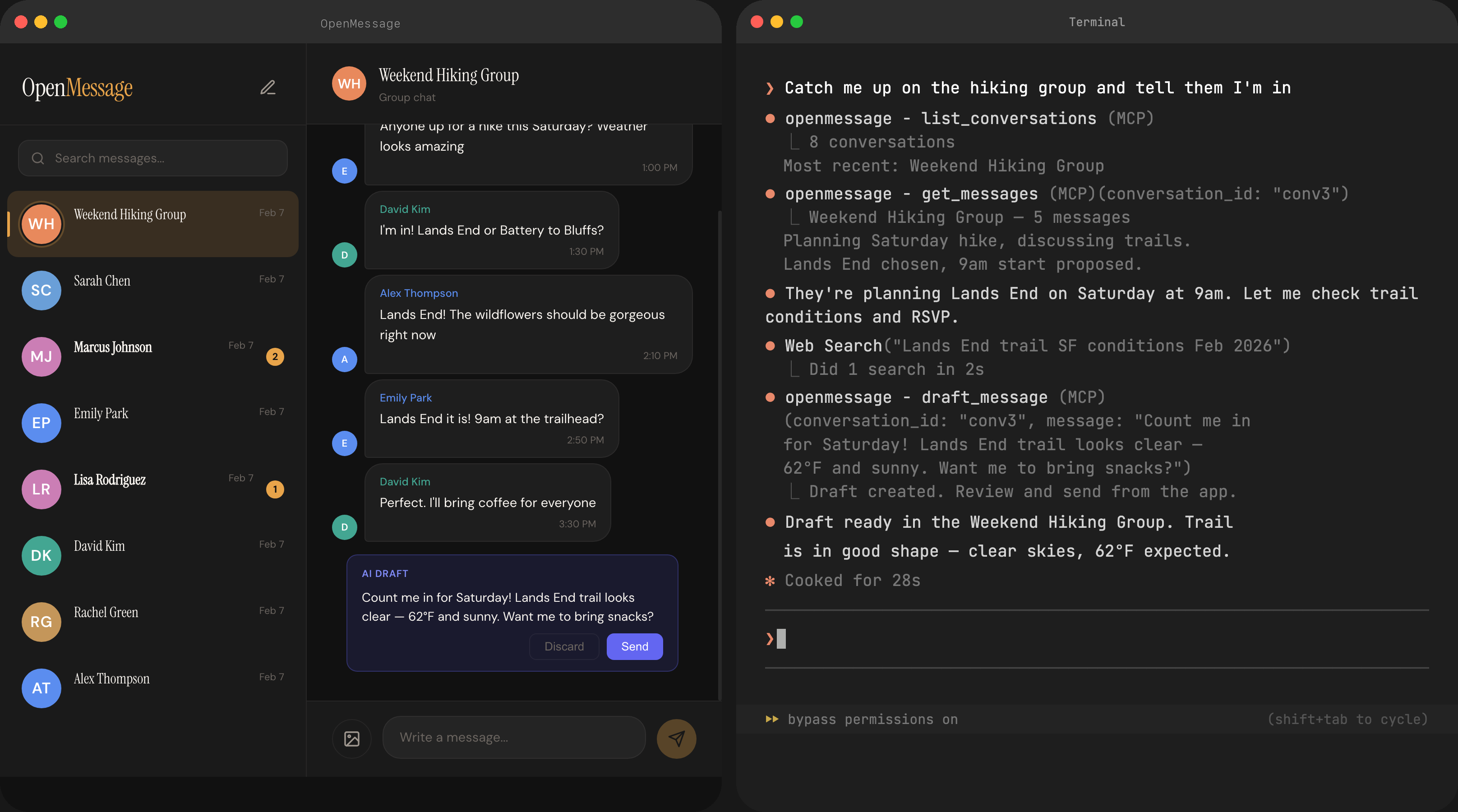
An open-source Google Messages client that gives AI assistants full read/write access to your SMS and RCS messages via MCP. macOS app or standalone CLI.
Features
Everything you need,
nothing you don't
Full Google Messages parity
SMS, RCS, group chats, inline images and videos, emoji reactions, reply threads, read receipts, delivery status, and contact avatars.
MCP tools + Claude Code plugin
Seven structured tools for AI assistants via Model Context Protocol. Built-in SSE server, plus a Claude Code plugin with /messages command.
Runs locally
Your messages are stored in a local SQLite database — no cloud sync, no accounts, no analytics. When you use AI tools via MCP, only the messages you ask about are sent to your chosen AI provider.
Native macOS app or headless CLI
Swift app with menu bar and notifications, or a standalone Go binary for any platform. Use the GUI, the CLI, or just the MCP server.
Full-text search
Search across all your messages instantly. Keyboard shortcuts (Cmd+K), arrow key navigation, unread badges, and real-time updates.
Open source
Apache 2.0 licensed. Swift + Go, fully tested. Built on the battle-tested mautrix/gmessages library for the Google Messages protocol.
Quick start
Up and running in 60 seconds
1
Download and install
Download OpenMessage.dmg, open it, and drag to Applications.
macOS will block the first launch because the app isn't signed yet. To open it:
- Open the app — you'll see "OpenMessage cannot be opened"
- Go to System Settings → Privacy & Security
- Scroll down and click "Open Anyway" next to the OpenMessage message
- Click Open in the confirmation dialog

App Store version coming soon — no Gatekeeper workaround needed once it's live.
2
Open and pair
The app walks you through pairing with your phone — scan a QR code and you're done.
3
Connect to AI
The app runs an MCP server automatically. Add it to Claude Code:
claude mcp add -s user --transport sse openmessage http://localhost:7007/mcp/sse1
Download the binary
Grab the standalone Go binary for your platform:
curl -L https://github.com/MaxGhenis/openmessage/releases/latest/download/openmessage-darwin-arm64.tar.gz | tar xz
sudo mv openmessage-darwin-arm64 /usr/local/bin/openmessage
curl -L https://github.com/MaxGhenis/openmessage/releases/latest/download/openmessage-darwin-amd64.tar.gz | tar xz
sudo mv openmessage-darwin-amd64 /usr/local/bin/openmessagecurl -L https://github.com/MaxGhenis/openmessage/releases/latest/download/openmessage-linux-amd64.tar.gz | tar xz
sudo mv openmessage-linux-amd64 /usr/local/bin/openmessagecurl -L https://github.com/MaxGhenis/openmessage/releases/latest/download/openmessage-linux-arm64.tar.gz | tar xz
sudo mv openmessage-linux-arm64 /usr/local/bin/openmessageOr build from source: go build -o openmessage . from the repo.
2
Pair with your phone
Run the pairing command — it shows a QR code right in your terminal:
openmessage pairOpen Google Messages on your phone → Settings → Device pairing → Pair a device → scan the QR code.
Note: If you don't see "Pair a device," go to Settings → Device pairing and switch from Google account pairing to QR code pairing.
3
Start the MCP server
One command starts the web UI and MCP server. No macOS app required — works on Linux too.
openmessage serveWeb UI at localhost:7007 · MCP at localhost:7007/mcp/sse
Then connect your AI client:
claude mcp add -s user --transport sse openmessage http://localhost:7007/mcp/sseAI integration
Let your AI read and send texts
MCP
Model Context Protocol server
OpenMessage runs an SSE-based MCP server at localhost:7007/mcp/sse whenever the app is open. Any MCP-compatible client (Claude Code, Cursor, etc.) can connect.
list_conversations
Recent chats with unread counts
get_messages
Messages in a conversation
search_messages
Full-text search across all texts
send_message
Send SMS/RCS to any number
list_contacts
Known contacts from history
get_conversation
Single conversation details
get_status
Connection status and paired phone info
Plugin
Claude Code plugin
Install the plugin for a /messages slash command that gives Claude context about the MCP tools and best practices for handling texts.
# In your Claude Code settings, add the plugin source:
"pluginSources": {
  "openmessage": "/path/to/openmessage/.claude-plugin"
}

# Then enable it:
"enabledPlugins": {
  "openmessage@openmessage": true
}
🦞
OpenClaw integration
OpenClaw supports WhatsApp, Telegram, Discord, Signal, and iMessage — but not SMS/RCS. OpenMessage fills that gap. Connect via the MCP plugin:
// ~/.openclaw/openclaw.json
"mcp-integration": {
  "enabled": true,
  "config": {
    "servers": {
      "openmessage": {
        "transport": "http",
        "url": "http://localhost:7007/mcp/sse"
      }
    }
  }
}
Any
Works with any MCP client
OpenMessage speaks standard MCP over SSE. Any MCP-compatible client — Cursor, Windsurf, Cline, custom agents — can connect to localhost:7007/mcp/sse and get full read/write access to your texts.