Today we’re introducing ChatGPT Atlas, a new web browser built with ChatGPT at its core.
AI gives us a rare moment to rethink what it means to use the web. Last year, we added search in ChatGPT so you could instantly find timely information from across the internet—and it quickly became one of our most-used features. But your browser is where all of your work, tools, and context come together. A browser built with ChatGPT takes us closer to a true super-assistant that understands your world and helps you achieve your goals.
With Atlas, ChatGPT can come with you anywhere across the web—helping you in the window right where you are, understanding what you’re trying to do, and completing tasks for you, all without copying and pasting or leaving the page. Your ChatGPT memory is built in, so conversations can draw on past chats and details to help you get new things done.
During lectures, I like using practice questions and real-world examples to really understand the material. I used to switch between my slides and ChatGPT, taking screenshots just to ask a question. Now ChatGPT instantly understands what I’m looking at, helping me improve my knowledge checks as I go." — Yogya Kalra, college student and early tester of ChatGPT Atlas
As you use Atlas, ChatGPT can get smarter and more helpful, too. Browser memories let ChatGPT remember context from the sites you visit and bring that context back when you need it. This means you can ask ChatGPT questions like: “Find all the job postings I was looking at last week and create a summary of industry trends so I can prepare for interviews.” Browser memories in Atlas are completely optional, and you’re always in control: you can view or archive them at any time in settings, and deleting browsing history deletes any associated browser memories.
ChatGPT can also do work for you in Atlas using agent mode, with improvements that make it faster and more useful by working with your browsing context. It’s now better at researching and analyzing, automating tasks, and planning events or booking appointments while you browse. Agent mode in Atlas is available today in preview for Plus, Pro, and Business users.
ChatGPT Atlas is launching worldwide on macOS today to Free, Plus, Pro, and Go users. Atlas is also available in beta for Business, and if enabled by their plan administrator, for Enterprise and Edu users. Experiences for Windows, iOS, and Android are coming soon.
Download at chatgpt.com/atlas(opens in a new window). Getting started is easy: when you open Atlas for the first time, sign in to ChatGPT and bring your bookmarks, saved passwords, and browsing history with you by importing them from your current browser.
Works in your flow
Built around you
More capability, more control
You’re in control of what ChatGPT can see and remember as you browse. You can clear specific pages, clear your entire browsing history, or open an incognito window to temporarily log out of ChatGPT.
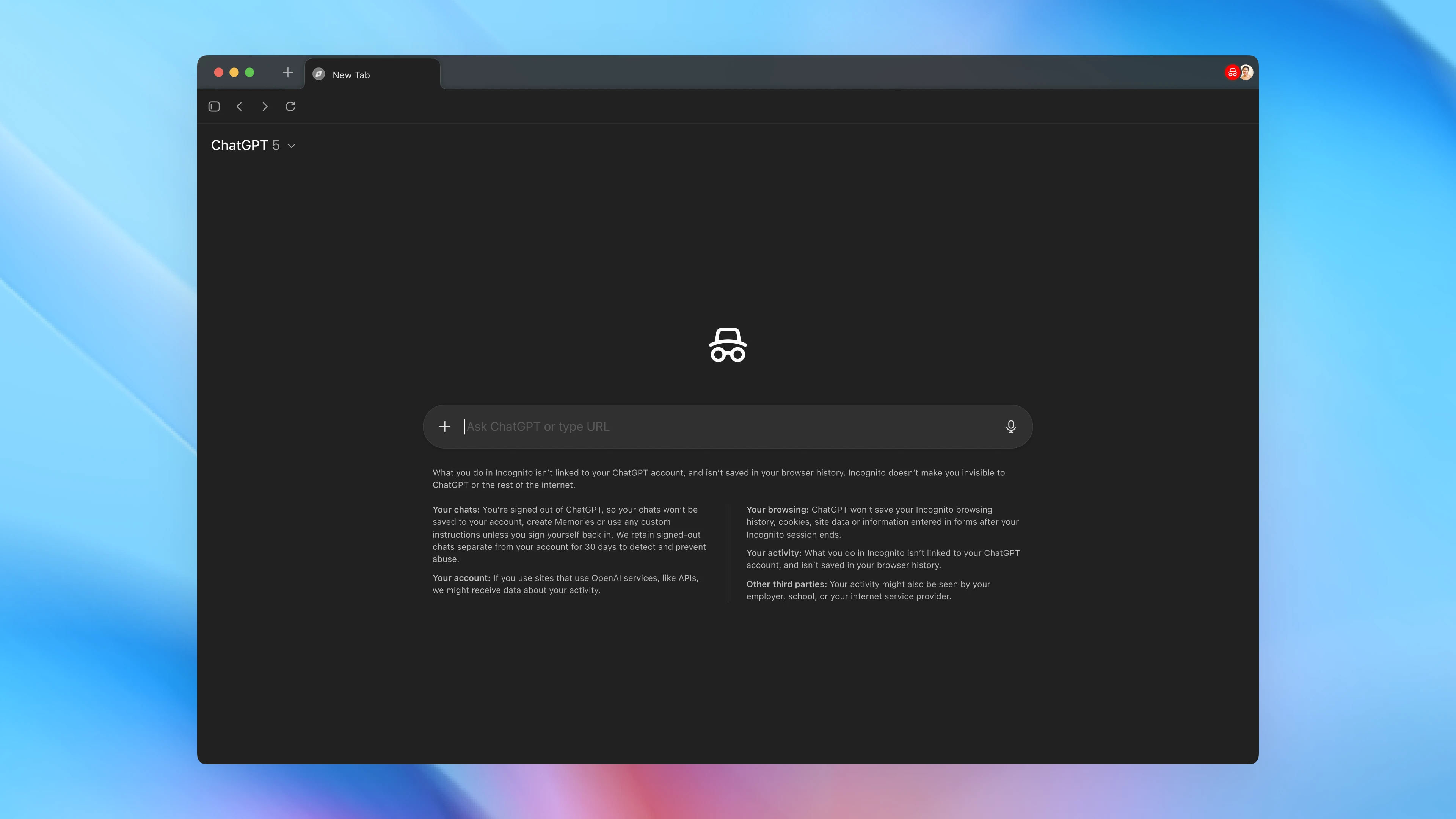
If you turn on browser memories, ChatGPT will remember key details from content you browse to improve chat responses and offer smarter suggestions—like creating a to-do list from your recent activity or continuing to research holiday gifts based on products you’ve viewed.
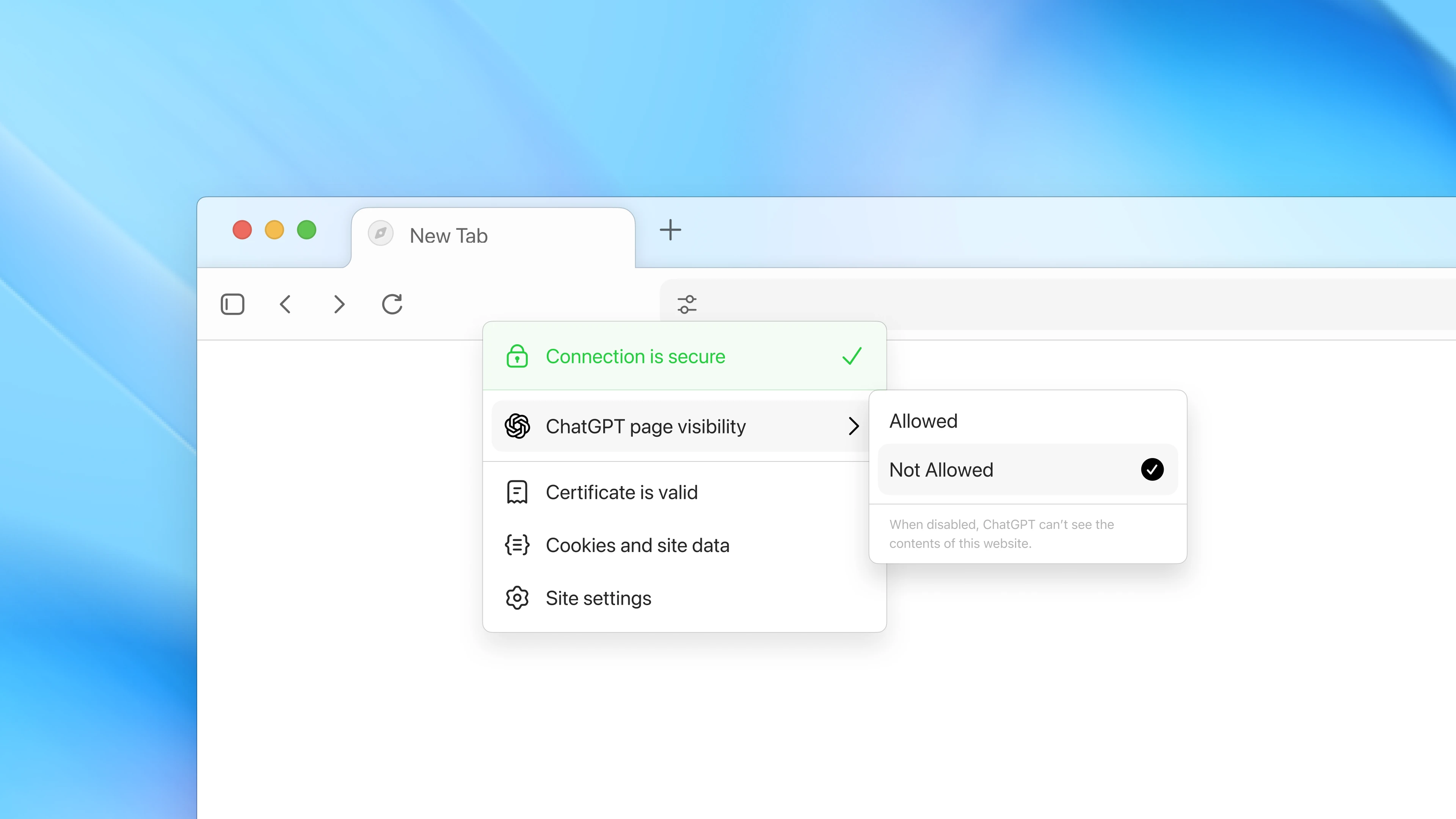
Browser memories are private to your ChatGPT account and under your control. You can view them all in settings, archive ones that are no longer relevant, and clear your browsing history to delete them. Even when browser memories are on, you can decide which sites ChatGPT can or can’t see using the toggle in the address bar. When visibility is off, ChatGPT can’t view the page content, and no memories are created from it.
By default, we don’t use the content you browse to train our models. If you choose to opt-in this content, you can enable “include web browsing” in your data controls settings. Note, even if you opt into training, webpages that opt out of GPTBot, will not be trained on. If you've enabled training for chats in your ChatGPT account, training will also be enabled for chats in Atlas. This includes website content you've attached when using the Ask ChatGPT sidebar and browser memories that inform your chats.
Parental controls work in Atlas, too. If a parent has set up parental controls for ChatGPT, these settings will carry over to conversations with ChatGPT in Atlas. We’re also introducing new parental controls in Atlas, including the option for parents to turn off browser memories and agent mode.
Get work done for you
In Atlas, you can now ask ChatGPT to take action and do things for you right in your own browser.
Earlier this year, we introduced ChatGPT agent, and now we've made it work faster and natively in Atlas.
Imagine you’re planning a dinner party and you have a recipe in mind. You can give the recipe to ChatGPT and ask it to find a grocery store, add all the ingredients to a cart, and order them to your house. At work, you can ask ChatGPT to open and read through past team documents, perform new competitive research, and compile insights into a team brief.
When you ask a question, ChatGPT may ask you if it should start opening tabs and clicking in your browser to complete the task. You can also select the agent mode button to have ChatGPT start.
Starting today, agent mode in Atlas is launching in preview to Plus, Pro and Business users. It is an early experience and may make mistakes on complex workflows. We're rapidly improving reliability, latency and complex task success.
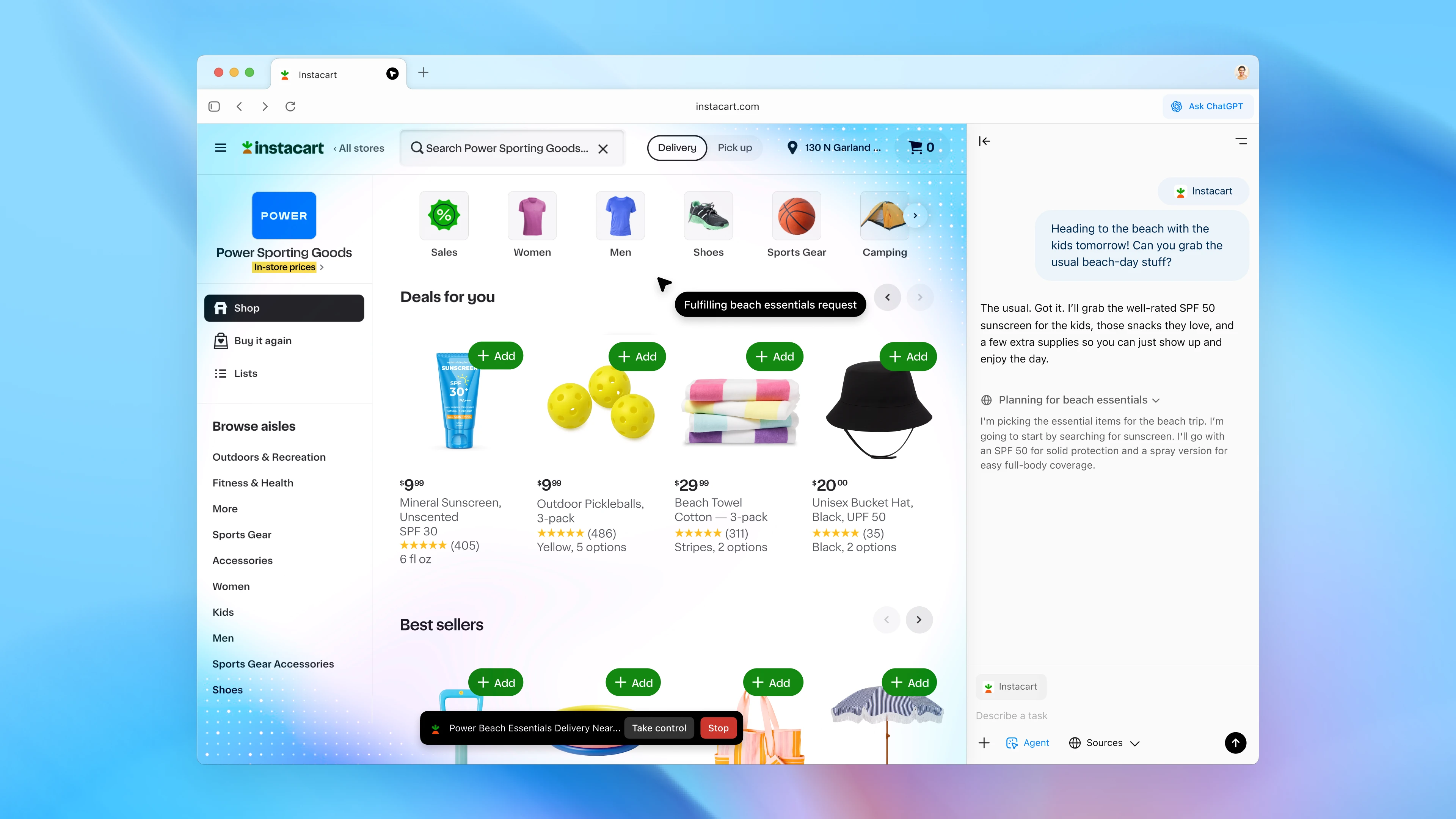
We prioritized safety as we built ChatGPT’s agent capabilities in Atlas, and added safeguards to address new risks that can come from access to logged-in sites and browsing history while taking actions on your behalf, for example:
- It cannot run code in the browser, download files, or install extensions
- It cannot access other apps on your computer or file system
- It will pause to ensure you're watching it take actions on specific sensitive sites such as financial institutions
- You can use agent in logged out mode to limit its access to sensitive data and the risk of it taking actions as you on websites
ChatGPT's agent capabilities still carry risk. Besides simply making mistakes when acting on your behalf, agents are susceptible to hidden malicious instructions, which may be hidden in places such as a webpage or email with the intention that the instructions override ChatGPT agent’s intended behavior. This could lead to stealing data from sites you're logged into or taking actions you didn't intend.
As outlined in the ChatGPT agent system card, we've run thousands of hours of focused red-teaming and have placed a particular emphasis on safeguarding ChatGPT from such attacks, including designing our safeguards so they can be quickly adapted to novel attacks, but our safeguards will not stop every attack that emerges as AI agents grow in popularity. Users should weigh the tradeoffs when deciding what information to provide to the agent, as well as take steps to minimize their exposure to these risks such as using ChatGPT agent in logged-out mode in Atlas and monitoring agent’s activities. We will continually monitor and patch any vulnerabilities that we discover.
This launch marks a step toward a future where most web use happens through agentic systems—where you can delegate the routine and stay focused on what matters most.
What’s next
We’ll continue to make Atlas better, and our roadmap includes multi-profile support, improved developer tools, and ways Apps SDK developers can increase discoverability of their apps in Atlas. Website owners can also add ARIA (opens in a new window)tags to improve how ChatGPT agent works for their websites in Atlas.