Nearly every application makes network connections. So does malware. LuLu is a free, open-source firewall that blocks unknown outgoing connections, protecting your privacy and your Mac.
Download
v4.3.2 · macOS 10.15+
· Changelog
· Source
·
SHA-256 ▾
DMG SHA-256
651D85539CB7008B33B8571215A8B8040F4F26D77306675E9C8972294A80F541
Installation
Note:
Otherwise you will receive a "LuLu.app is in use" error messages and installation will fail.
1️⃣ In the first prompt, click, 'Open System Settings':
Note:
Note:
For older versions, follow these instructions.
Note:
You can later change these settings via LuLu's Settings.
Alerts
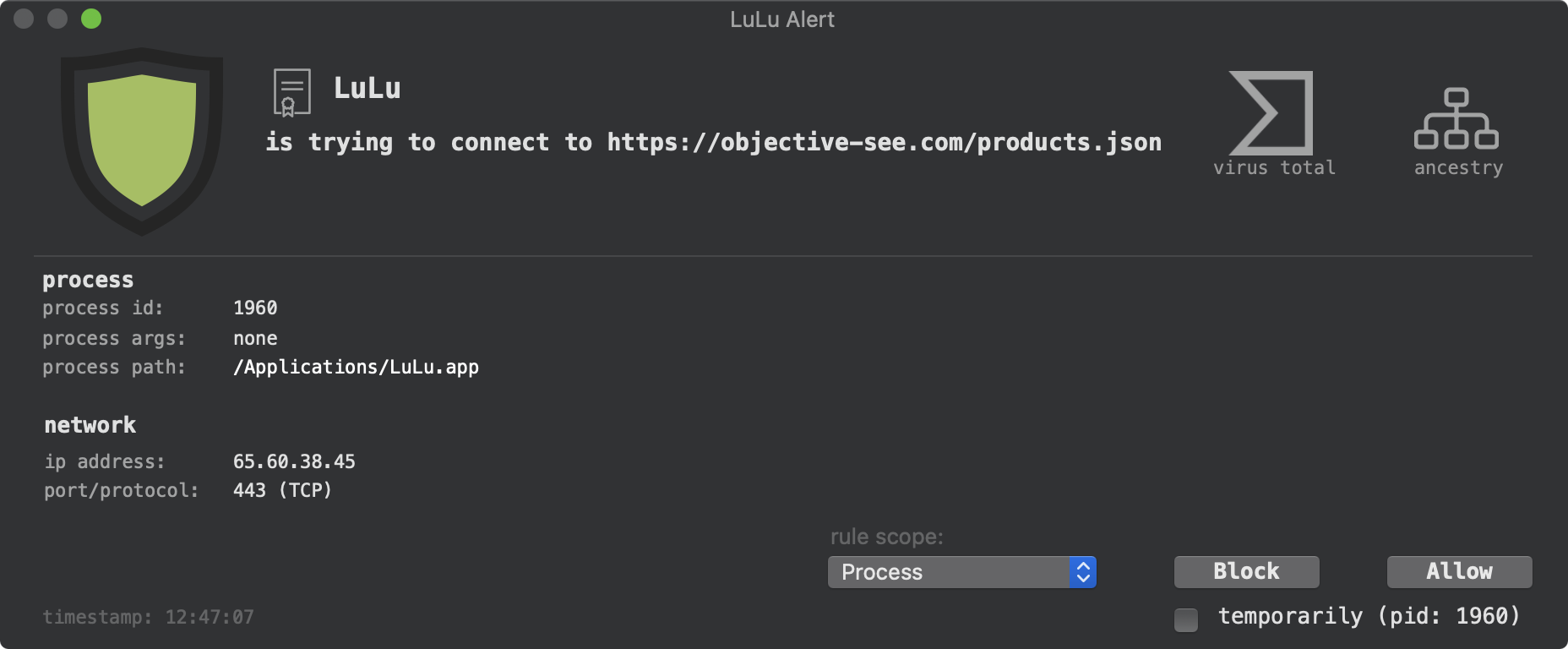
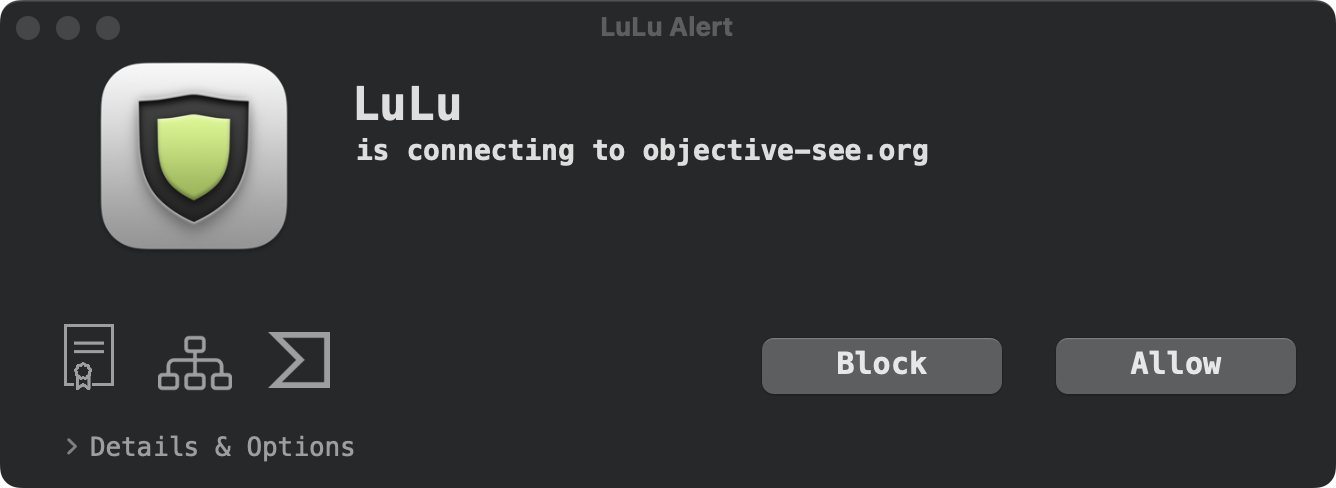
The following is a LuLu alert that appears when the program accesses the network to check for updates:
Note:
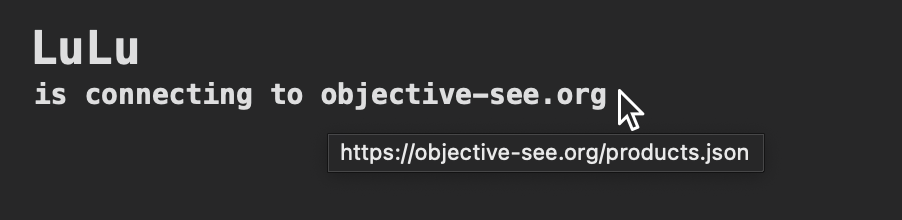
For example, here we can see LuLu is attempting to connect to https://objective-see.org/products.json (in order to see if there is a new version of LuLu):
In the alert, there are various elements that if clicked, will provide more information and context about the process.
For example, the code signing button, will display code signing information about the process that was responsible for triggering the LuLu alert:
Note:
Note:
In order to perform this check, when you click the VirusTotal button, a URL including the hash of the item it built, and then opened in your default browser.
By default, your decision (block or allow) applies to the entire program. That is to say, your decision will be applied to subsequent connections (regardless of their destination) for this process, and any other instances. However, using the 'Rule Scope' and 'Rule Duration' options, you can create fine-grained rules.
The 'Rule Scope' offers two options: apply the rule to the entire process, or just to the remote destination its currently attempting to connect to.
The 'Rule Duration' options allow you to specify whether the rule will last always, just for instance of this process' lifetime, or be valid up to some future time.
Note:
When the specified time is hit, the rule is automatically deleted.
Rules
The 'Rules' window displays these rules:
Note:
Using a code signing identifier (vs. a path), allows the rule to be applied even if the program is moved, or updated.
If you want to view a program's path(s), simply double-click (or click on the menu on the right hand side of the row "Display Path(s)") on any program in the Rules window:
Adding Rules
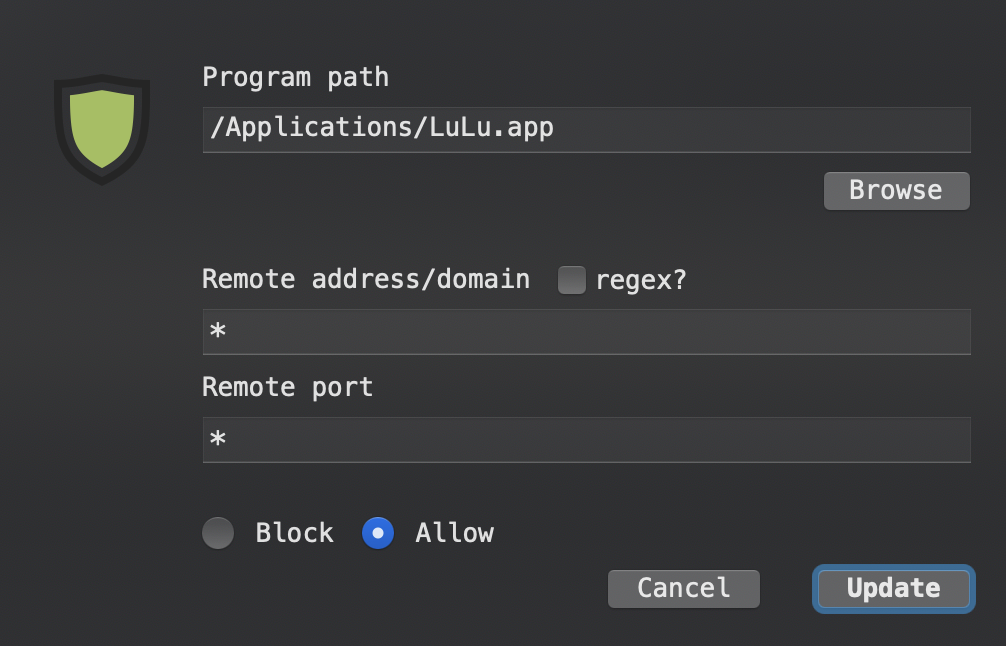
To manually add a rule, while in the 'All' or 'User' rules view, click on the 'Add Rule' button at the bottom of the rules window. This will bring up an 'Add Rule' dialog box:
Note:
The rule's remote address/domain can also be a regular expression (though make sure to check the "regex" checkbox if this is the case).
Also note that as LuLu only monitors outgoing traffic, rules only apply to outgoing connections.
Editing (Updating) Rules
Note:
Also note that is not recommended that you delete any default (system) rules, as this will impact legitimate functionality of the your computer!
Exporting / Importing Rules
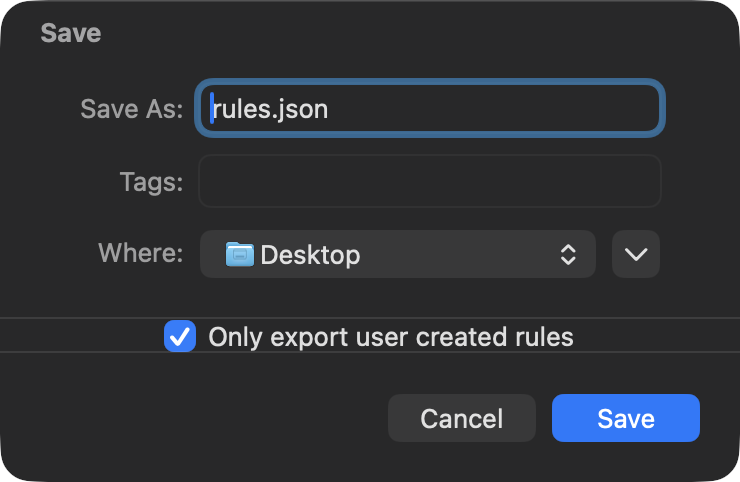
You can also choose to export only user-created rules by selecting the corresponding option in the Save dialog:
Settings
Settings: Rules
Note:
If you have specified an 'Allow List' (discussed shortly), traffic destined to locations on the allow list, will still be allowed.
Note:
It should contain a (newline-separated) list of hosts and/or IPs addresses.
If a local file is specified, LuLu will (re)load it whenever modifications are detected, whereas remote files will be (re)loaded once a day.
If both an allow and a block list are specified, items in the block list take priority.
Note:
As such, for browsers (such as Chrome), that do not leverage these frameworks, only ip address based blocking is supported.
...as Safari and Firefox leverage such frameworks, they are not subject to this limitation.
Profiles
Note:
Once activated, the profile's settings apply LuLu-wide and can be modified via LuLu's Settings panes. Any changes to settings or rules — as well as any new rules — will apply only to that profile.
Network Monitor
Note:
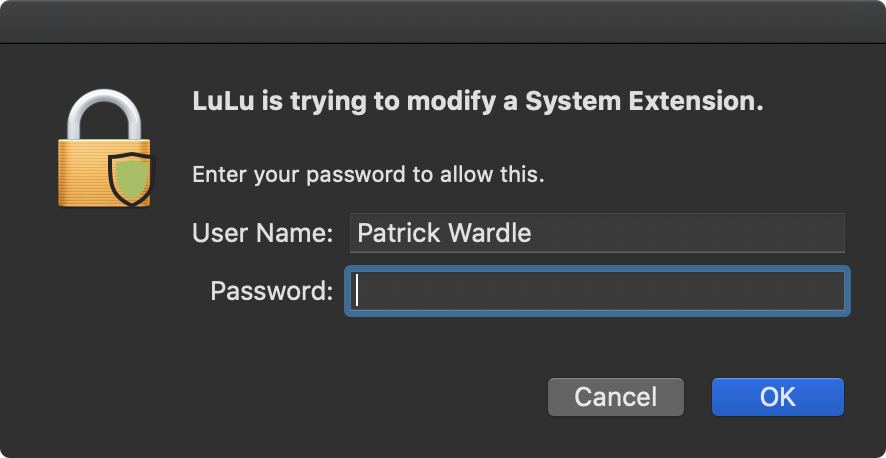
Exiting or Uninstalling
Note:
You can also uninstall older versions of LuLu, following these steps.
Frequently Asked Questions
Q: Does LuLu conflict with other (paid) macOS firewalls or security products?
Q: I found a bug (or issue) with LuLu. Can you fix it?
Q: Why does LuLu try to access the network?
LuLu may generate network traffic related to its integration with VirusTotal. As described above, when (only when) a user clicks the 'Virus Total' button in the alert window, this will generate a request which contains the file hash.
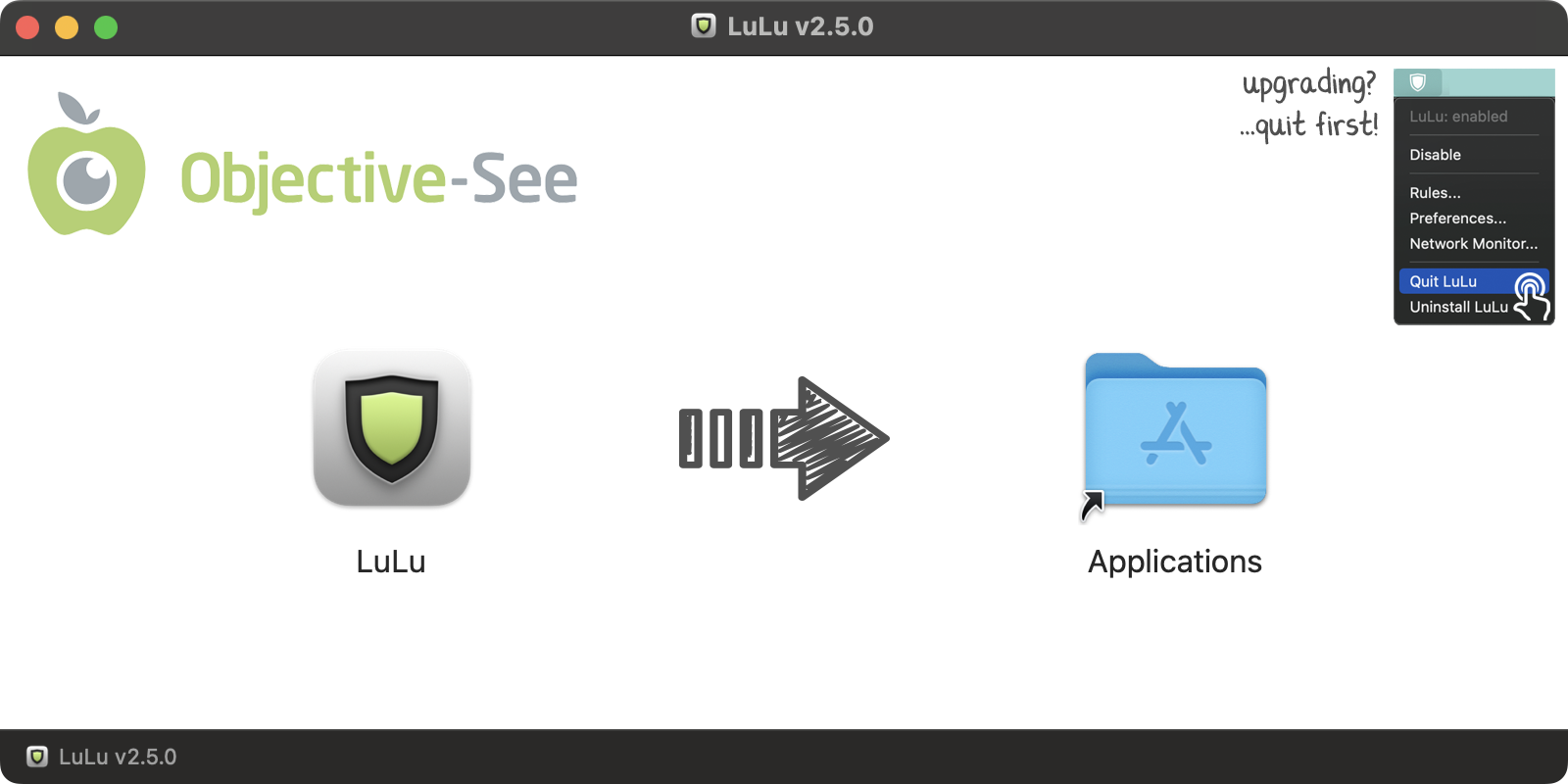
After copying LuLu.app to the /Applications folder, launch the copy in the /Applications folder to continue its installation.
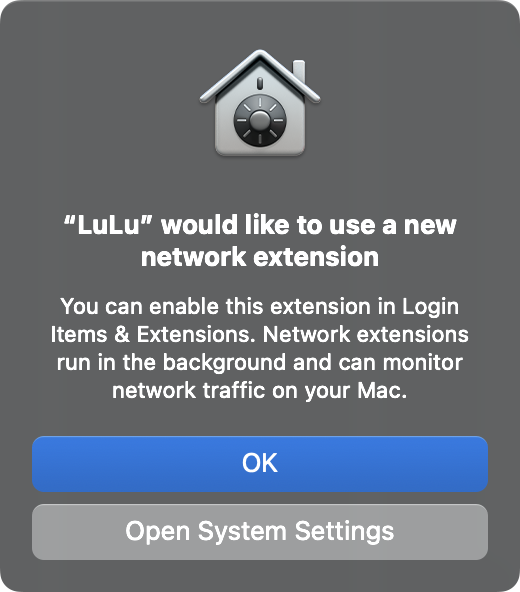
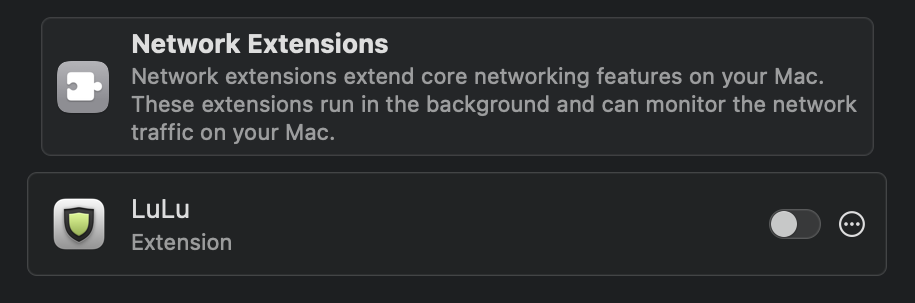
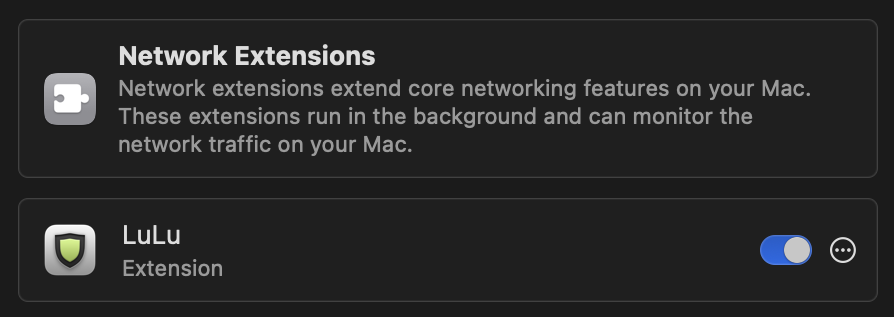
If LuLu is not showing up, go to the 'Login Items and Extensions' pane in the 'System Settings' and click on '(i)' button of the 'Network Extensions' row. LuLu should now appear, and can be toggled on.
3️⃣ Next, authenticate to approve the installation of LuLu's System Extension:
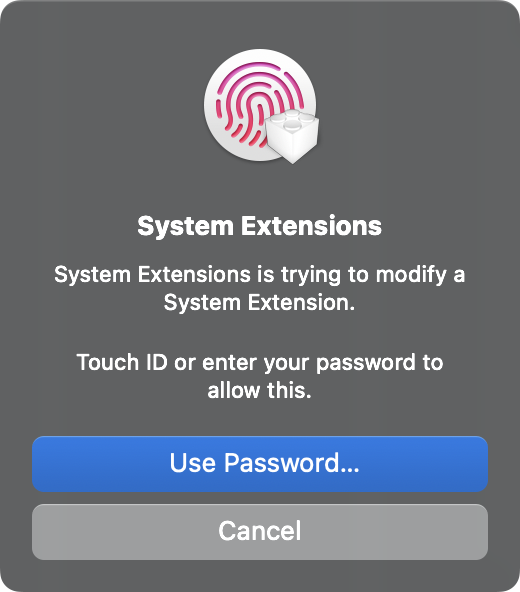
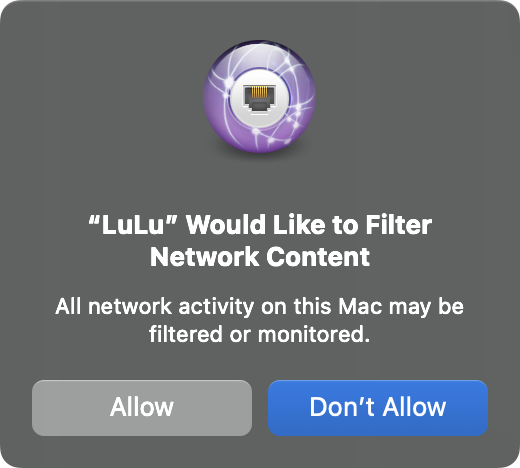
Depending on your version of macOS, the steps may vary slightly.
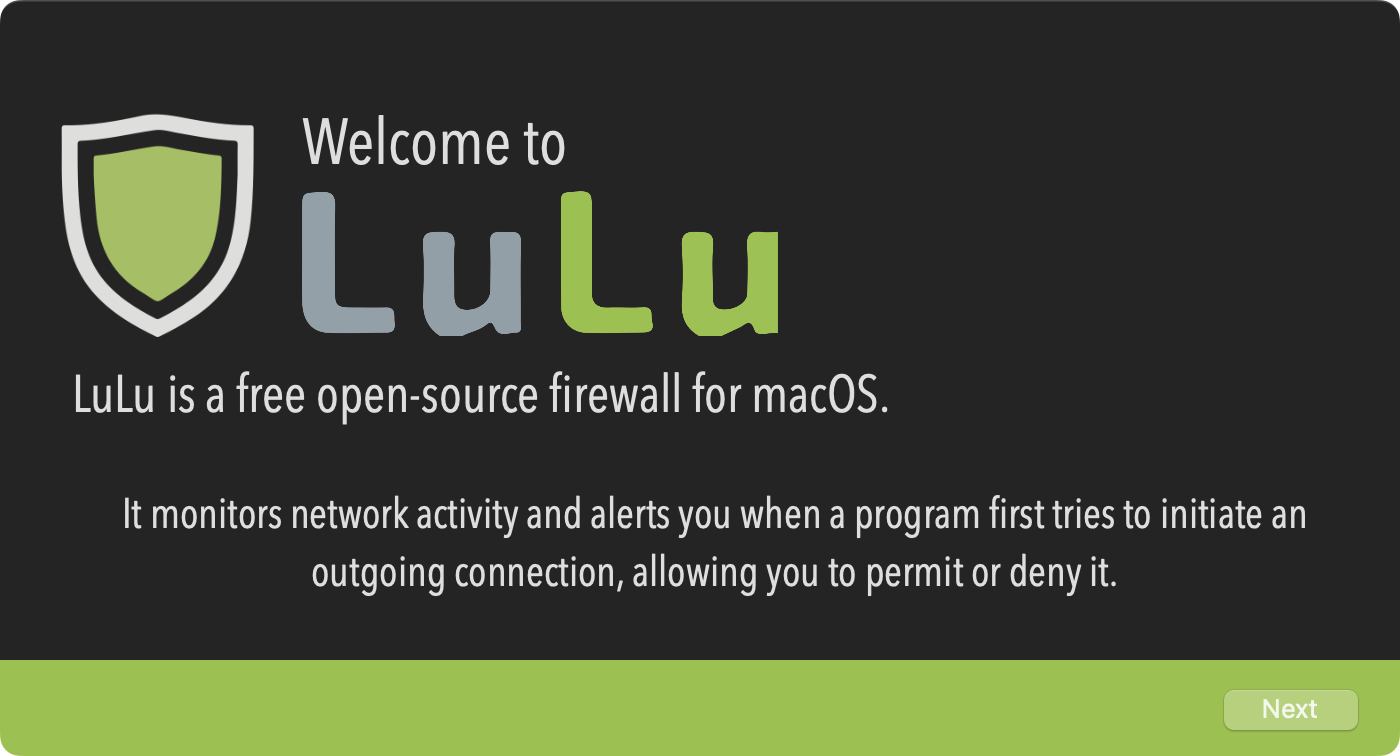
Once you have granted LuLu the required approvals, LuLu will display several initial configuration options.
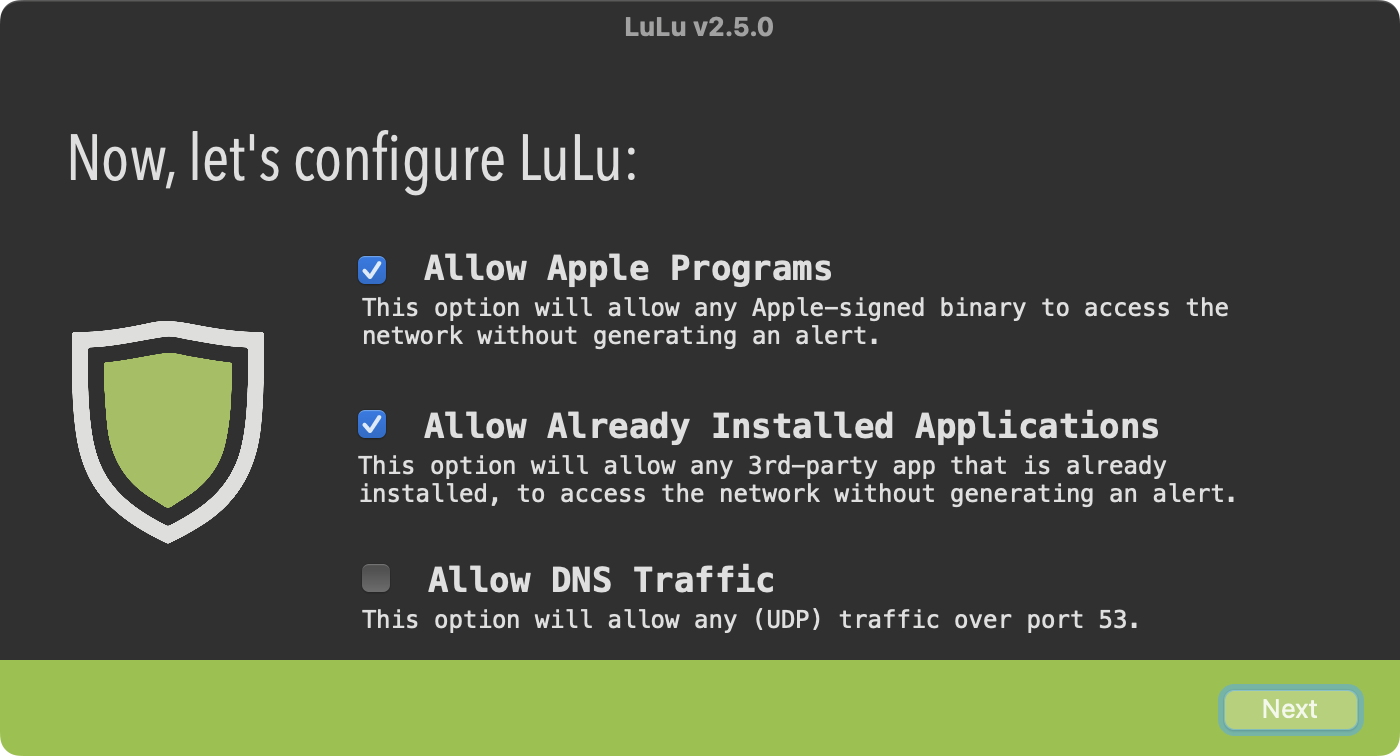
It is recommend you leave the default options selected which will, for example, allow Apple and already installed programs to (keep) accessing the network without alerting you.
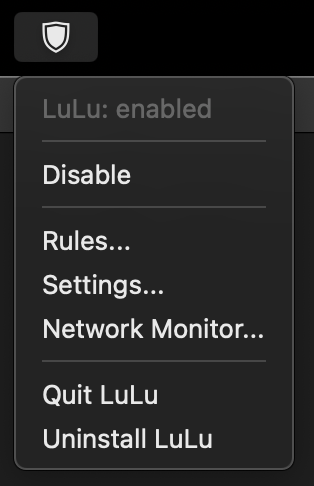
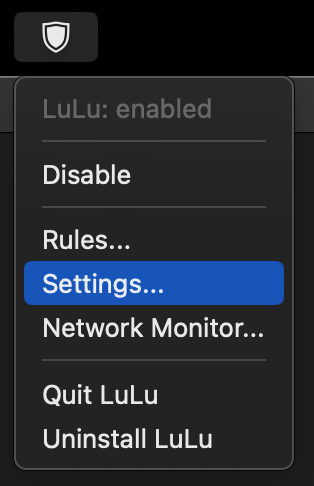
Now that LuLu is configured and installed, it will be running and set to automatically start each time you log in. It will appear in the status bar (unless configured otherwise):
If you "mouse over" the program's name or the connection, it will display either the program's full path, of the full URL that the program is attempting to connect to:
You can either block, or allow the connection, which by default, will create a general rule for the process either always blocking, or always allow it to access the network. (Shortly, we'll discuss rules in more detail, including how to create more fine-grained ones).
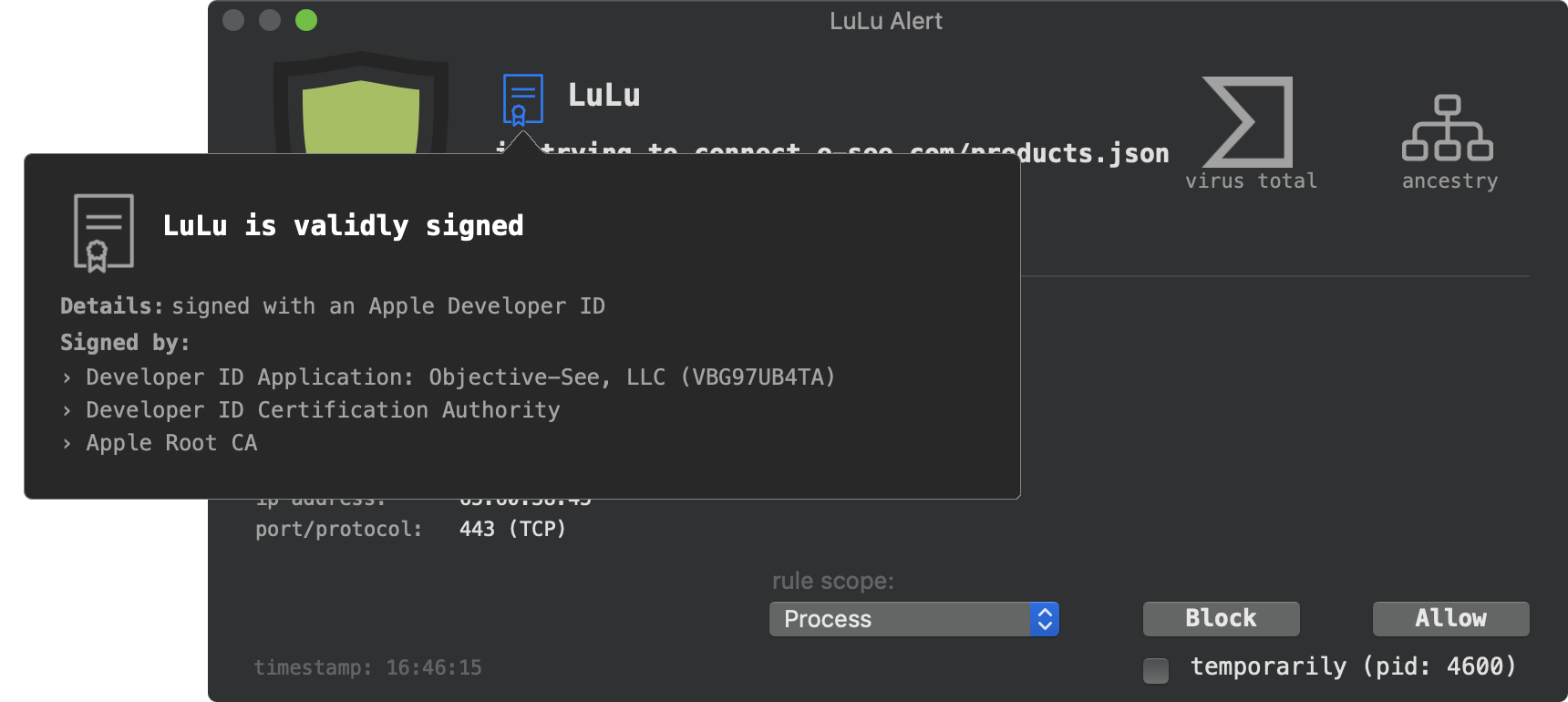
Code Signing information can help you determine if the process is trusted, as it shows who created the program, as well as ensuring that it has not been tampered with.
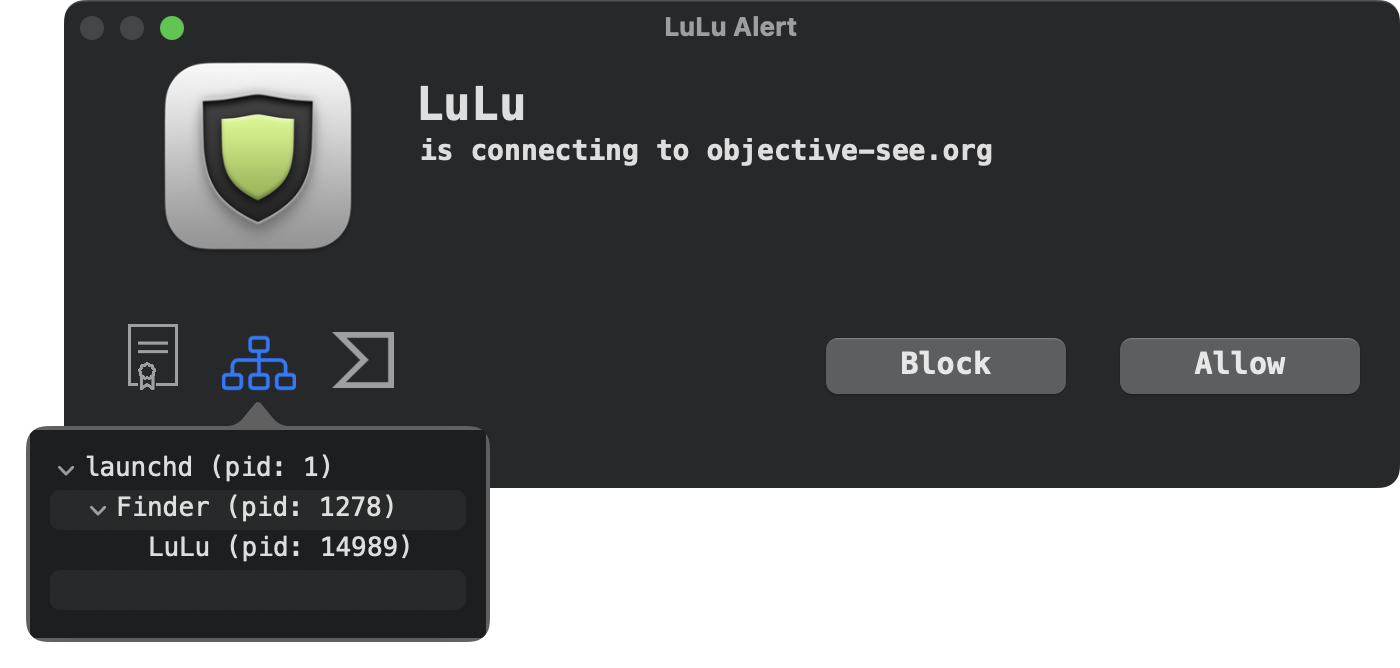
You can also click on the process hierarchy button to view the origins of the process:
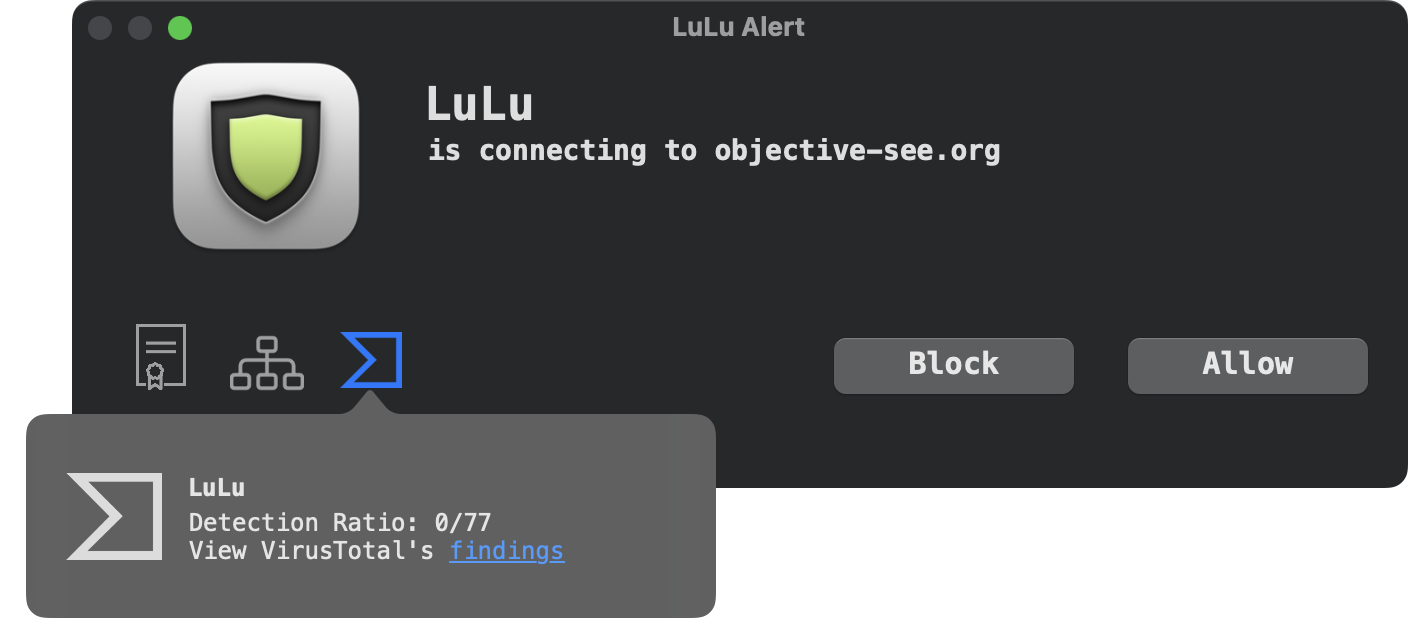
VirusTotal is an online service that analyzes files and URLs for malware by scanning them with multiple antivirus engines and security tools.
If you click on 'Details and Options' disclosure button, it will expand the alert:
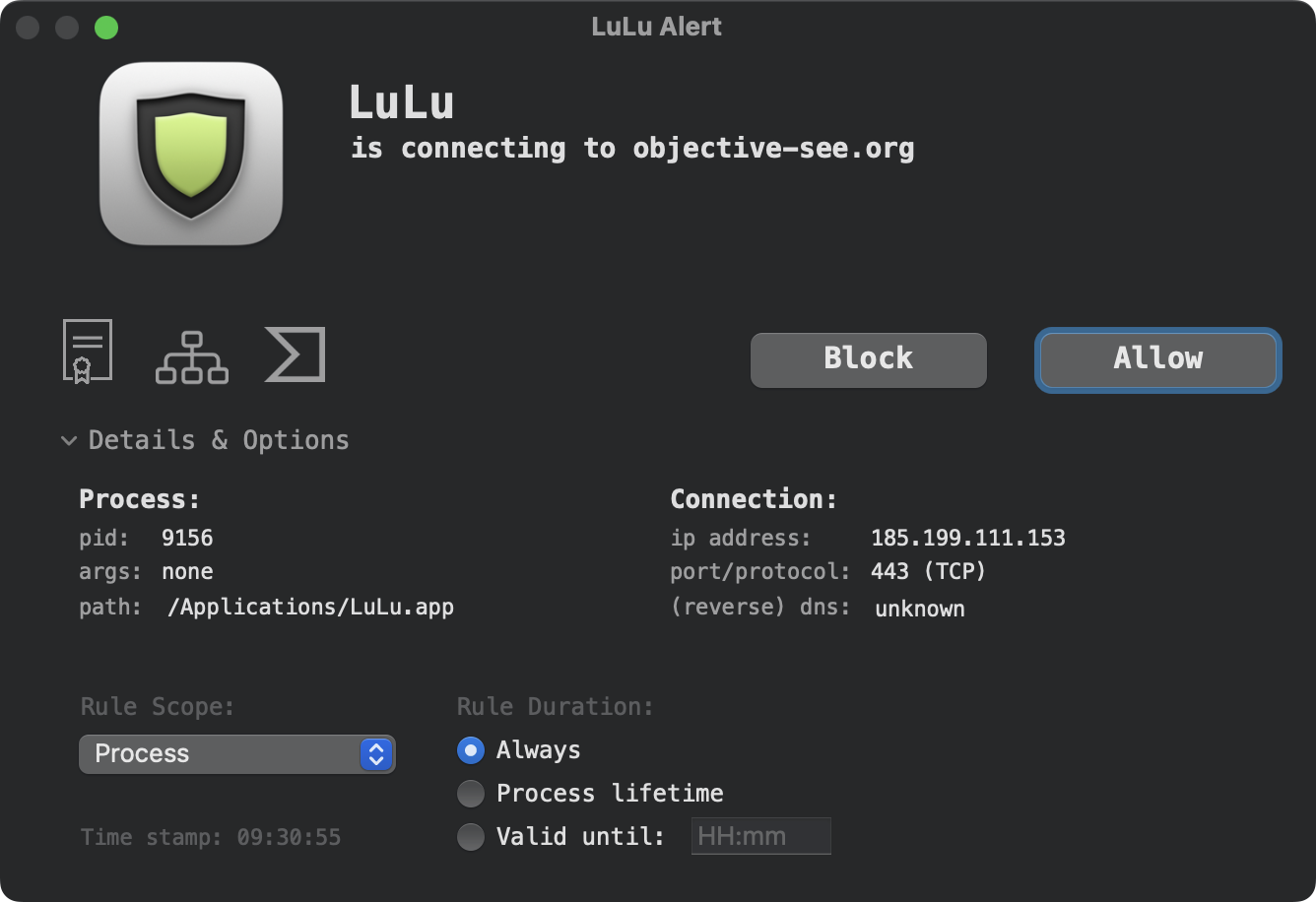

The 'Expires in' option expects an amount of time, in hours and minutes, that the rule should be valid until.
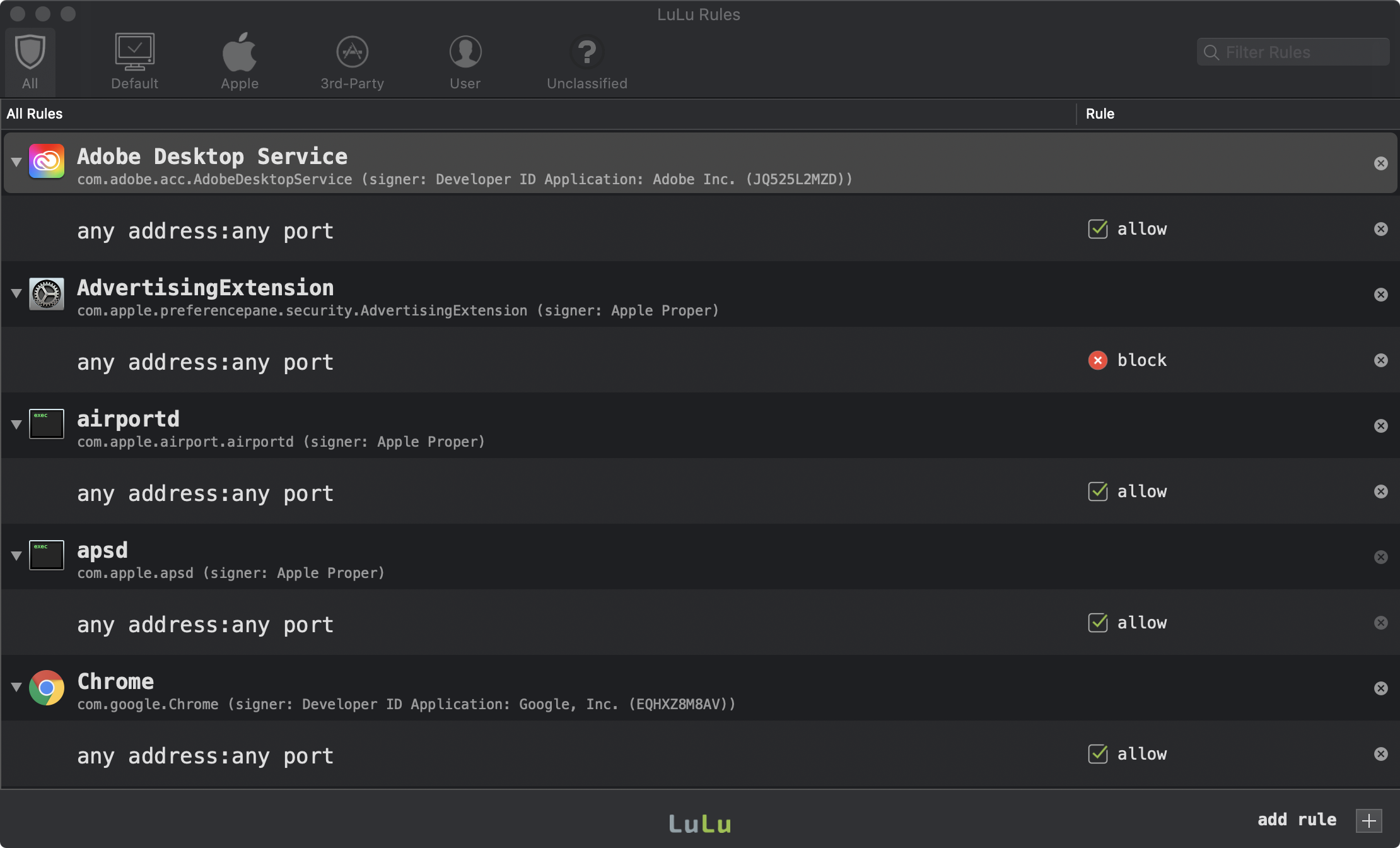
If signed, a program is identified in the Rules window by name and its code signing (bundle) identifier (e.g. com.objective-see.lulu).

The Rules Window
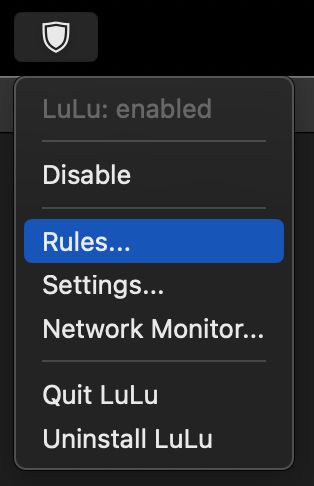
The Rules window can be accessed by clicking on 'Rules' and then 'Show...' in LuLu's status bar menu:

This shows all of LuLu's rules. In other words, it is a combination of the default, apple, baseline, user, and recent rules.
This view shows LuLu's default or system rules. These rules are for Apple/macOS processes that should be allowed to access to the network in order to preserve system functionality.
When the 'Allow Apple Programs' option has been selected (either during installation, or via LuLu's settings), any process that is signed (solely) by Apple proper will be automatically allowed to connect to the network. Also, an 'Allow' rule will be created, and will show up in this view.
When the 'Allow Installed Programs' option has been selected (either during installation, or via LuLu's settings), any applications or program that was (pre)installed will be automatically allowed to connect to the network. Also, an 'Allow' rule will be created, and will show in this view.
This view shows rules the user has created, either manually via the 'Add Rule' button, or by clicking 'Block' or 'Allow' in a LuLu alert.
This view shows all rules that have been created in the last 24 hours. In this view, you'll see each rule's creation time.
Via the Filter box, you can also filter rules by a custom string (for example, to match on certain program names, endpoints, etc).
Rules are created in response to an alert (unless the user has selected the "temporarily" button in the alert). However, you can also manually add rules.
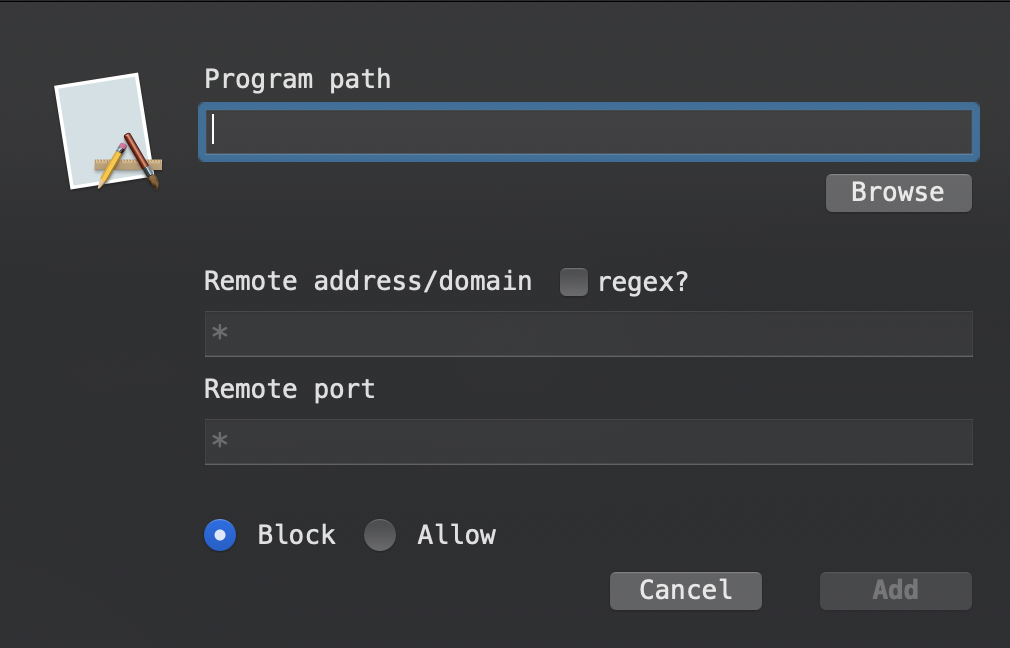
Enter * for "any" (e.g. a program path of * will globally match all programs).
To change a rule, either double-click on a rule, or click on the menu on the right hand side of the row, then "Edit Rule".
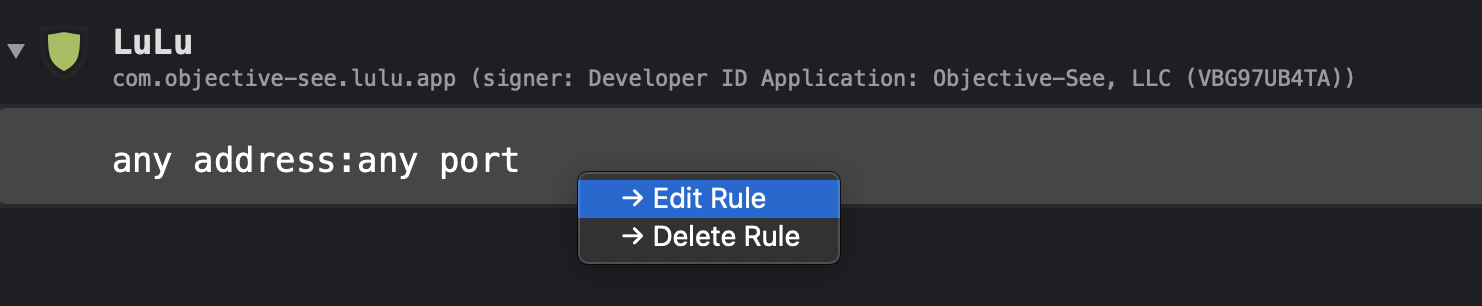
There are several ways to delete a rule. With the rule selected, simply press the "delete" on your keyboard or, click on the menu on the right hand side of the row, then "Delete Rule".
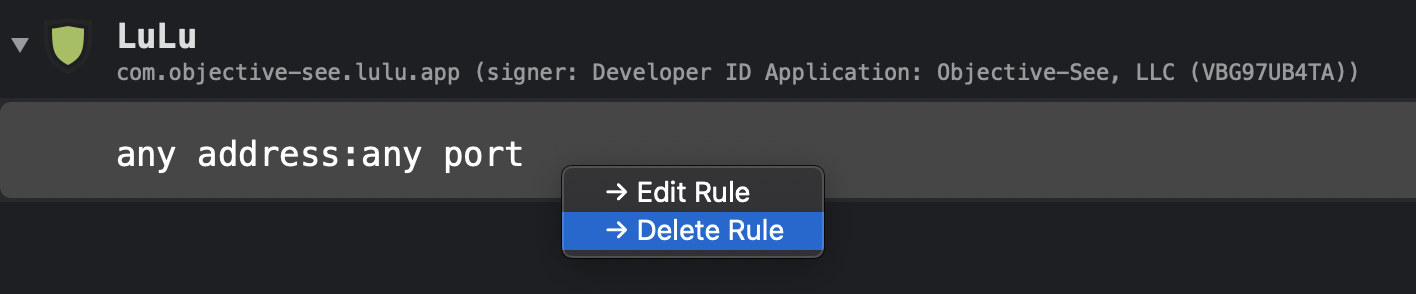
Deleting a row that contains program, will remove all its rules.
Using the Rules menu, you can export and import rules. By default, exporting saves all existing rules, and importing replaces the entire rule set.
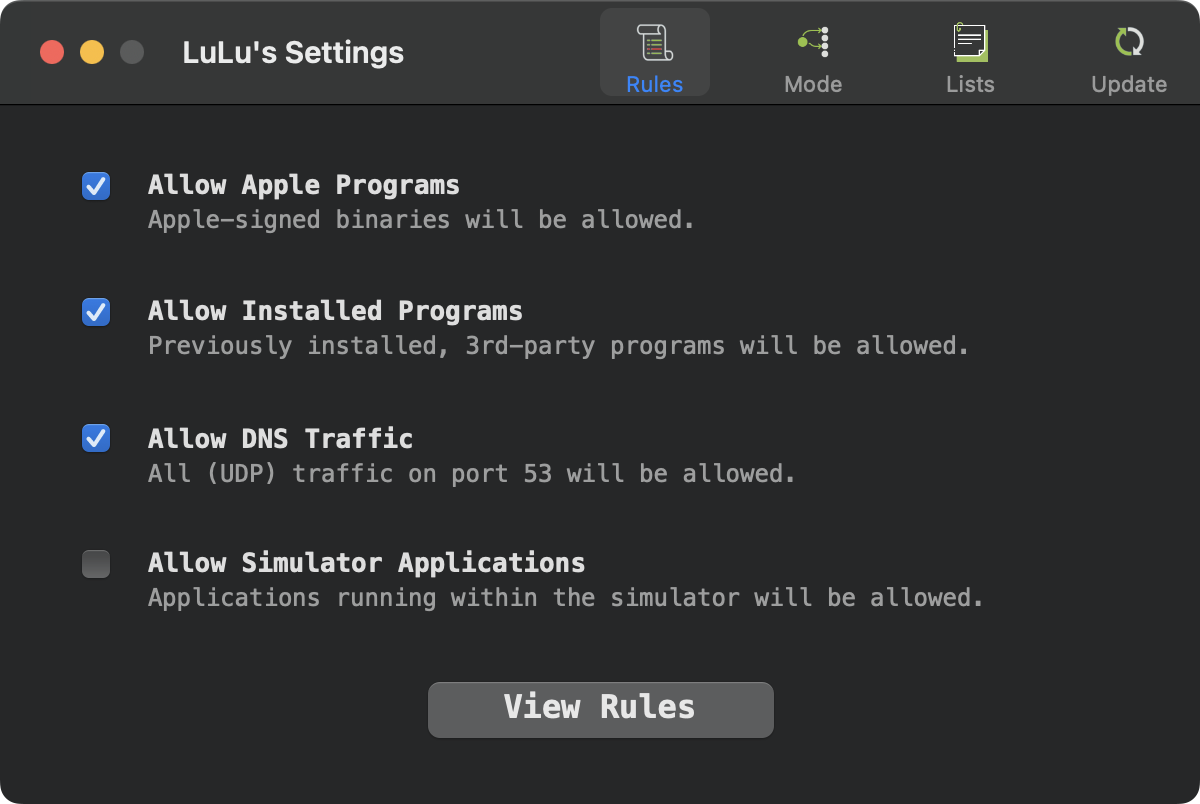
Via the Rules pane, you can configure how LuLu will (automatically) generate rules, as well as other rule-related settings:
Settings: Modes
When this option is selected any process that is signed solely by Apple will be automatically allowed to connect to the network. Also, an 'allow' rule will be created, and will show up in the Rules window, under 'Apple Rules'.
When this option is selected any applications (and their components) that were (pre)installed will be automatically allowed to connect to the network. Also, an 'allow' rule will be created, and will show up in the Rules window, under '3rd-party Rules'.
When this option is selected any UDP traffic over port 53 will be allowed.
When this option is selected, traffic any applications running within a simulator will be allowed. This is useful if you are developing applications and testing them within (iOS/iPad) simulator.
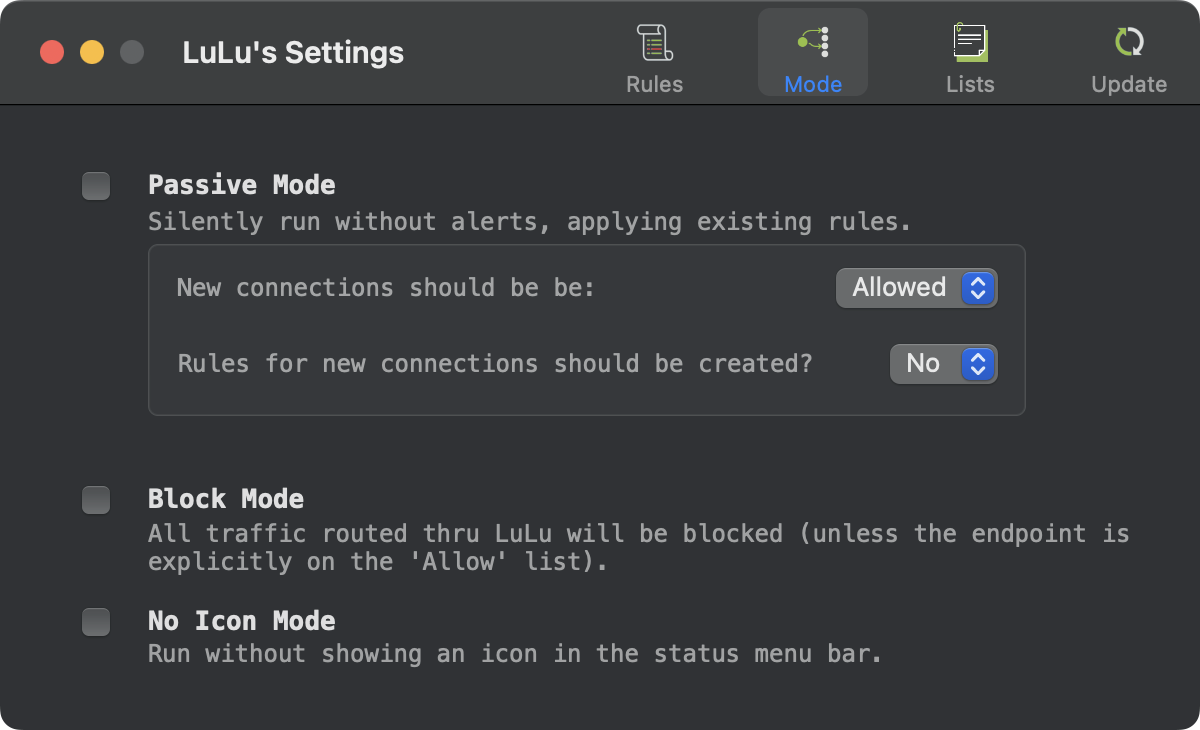
Via the 'Modes' pane, you can configure various modes that dictate how LuLu runs.
Settings: Lists
When 'Passive' mode is enabled, LuLu will run silently without alerts, applying existing rules. And what about for new connections? Well, via the drop down menu in the 'Passive Mode' pane, you can select whether they should allowed or denied, and also whether or not rules for these new connects should be automatically created (or not).
When this option is selected, all traffic (that is routed thru LuLu) will be blocked.
Some network traffic may not be routed through Network Extensions (such as LuLu). As such, such traffic is never seen by LuLu, and be cannot be blocked.
When this option is selected, LuLu will run without an icon in the status bar.
You can always manually run /Applications/LuLu.app to disable this preference if you'd like the status bar icon back.
Though nothing is sent to VirusTotal unless you click the VirusTotal button on an alert (in which case, a URL including the hash of the item it built, and then opened in your default browser), when this option is selected, the button will be disabled.
Via the 'List' pane, you specify 'Allow' or 'Block' lists that contain endpoints that supersede any rules.
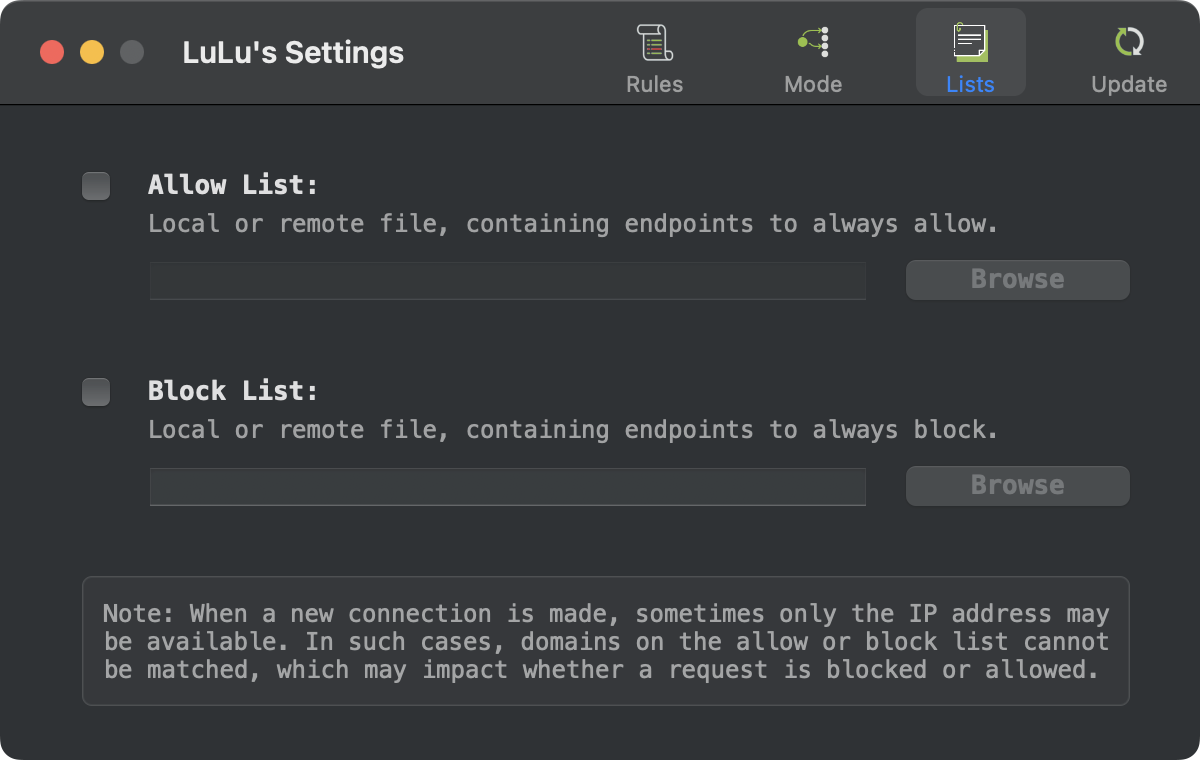
The list can be a local file, or remote url (e.g. https://ceadd.ca/blockyouxlist.txt).
Due to limitations of macOS, blocking via host name is only applicable to (as Apple notes) "Network.framework or NSURLSession connections".
Settings: Update
When an allow list is specified, any connection to any endpoint on the allow list will be allowed. A match, supersedes any rules, or even when the 'Block' mode is enabled.
When a block list is specified, any connection to any endpoint on the block list will be block. A match, supersedes any rules.
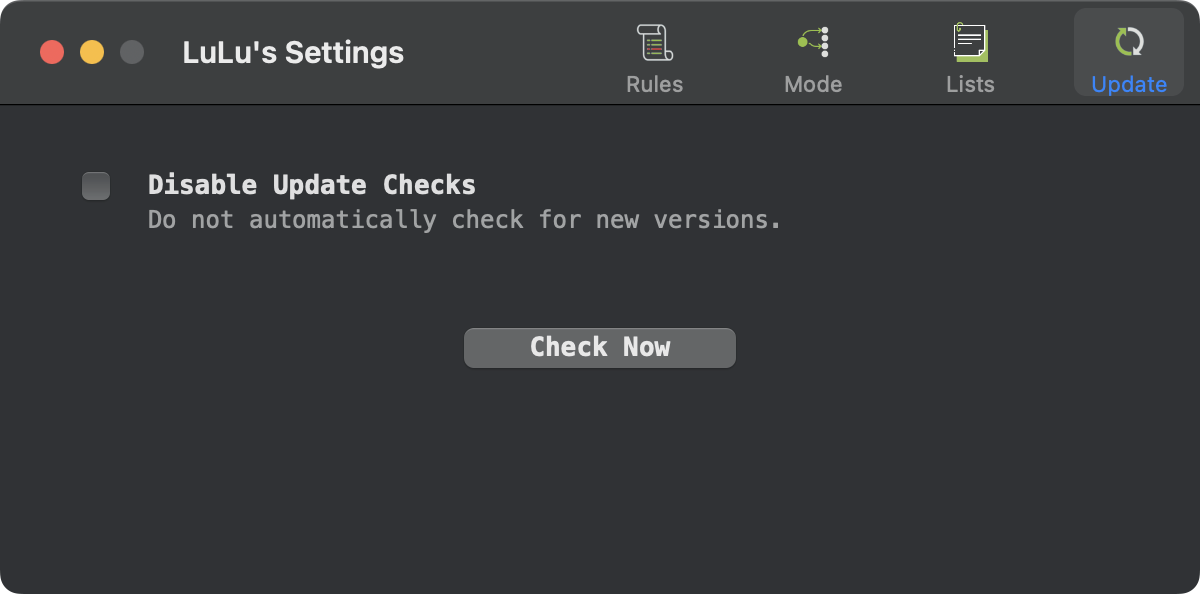
Via the 'Update' pane, allows one to check for new versions, as well as disable the automatic check for new versions of LuLu.
A profile defines a set of rules and settings.
You can manage (switch, create, or delete) profile via the 'Profiles' tab in the 'Setting' pane:
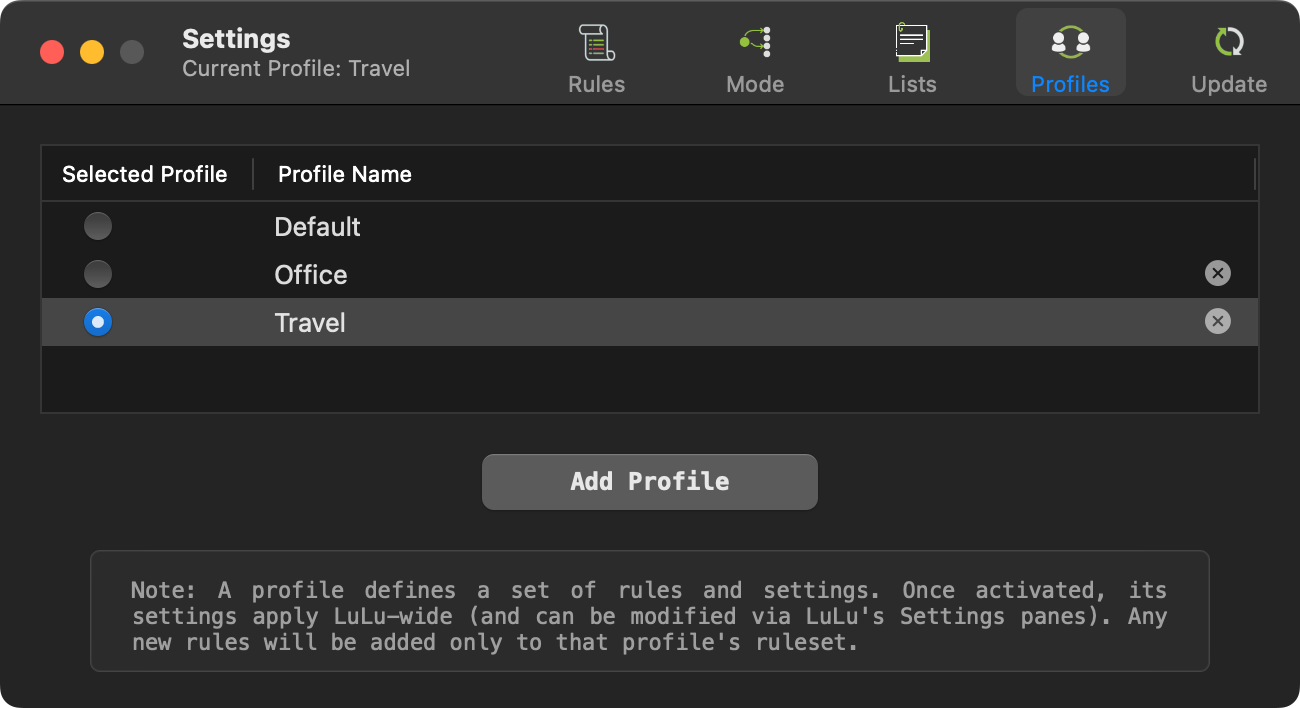
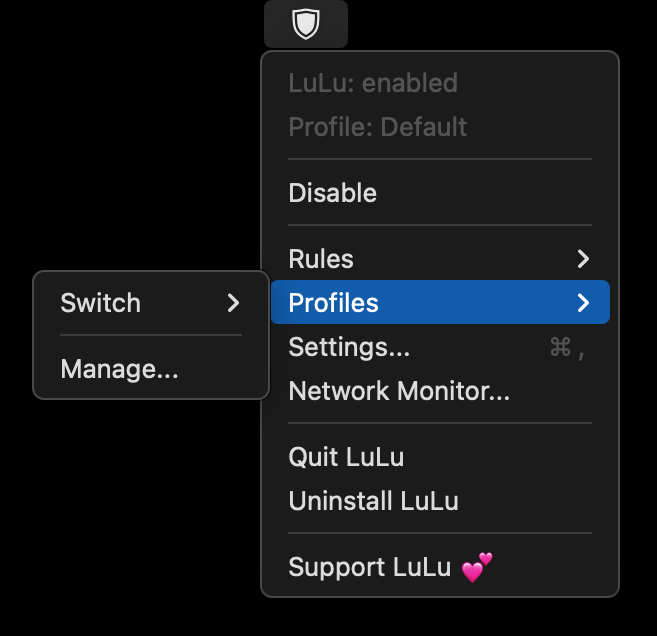
You can switch profiles either from the 'Profiles' pane or directly from LuLu's status bar menu. When a new profile is selected, its rules and settings are loaded, and LuLu will use only those when making future decisions. Moreover, and changes you make to either settings or rules will only be added to the current profile.
Click the 'Add Profile' button in the 'Profiles' pane to create a new profile. After prompting for a name, LuLu will walk you through several settings windows where you can configure the new profile. Note that aside from a few default (OS-required) rules, the profile will start with no existing rules (similar to a fresh LuLu installation). Once created, the profile is automatically activated.
You can delete a profile in the 'Profiles' pane by clicking the profile's 'x' button. This will remove the profile’s settings and rules, and switch LuLu back to the default profile. Note that you cannot delete the default profile.
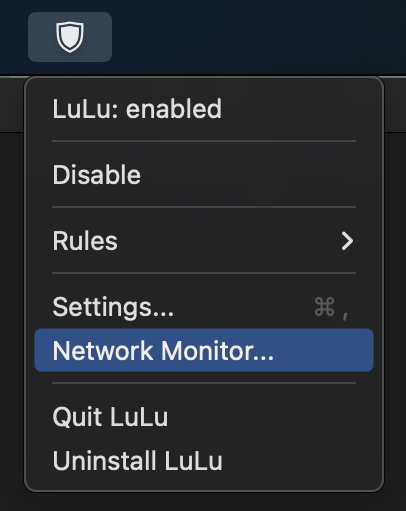
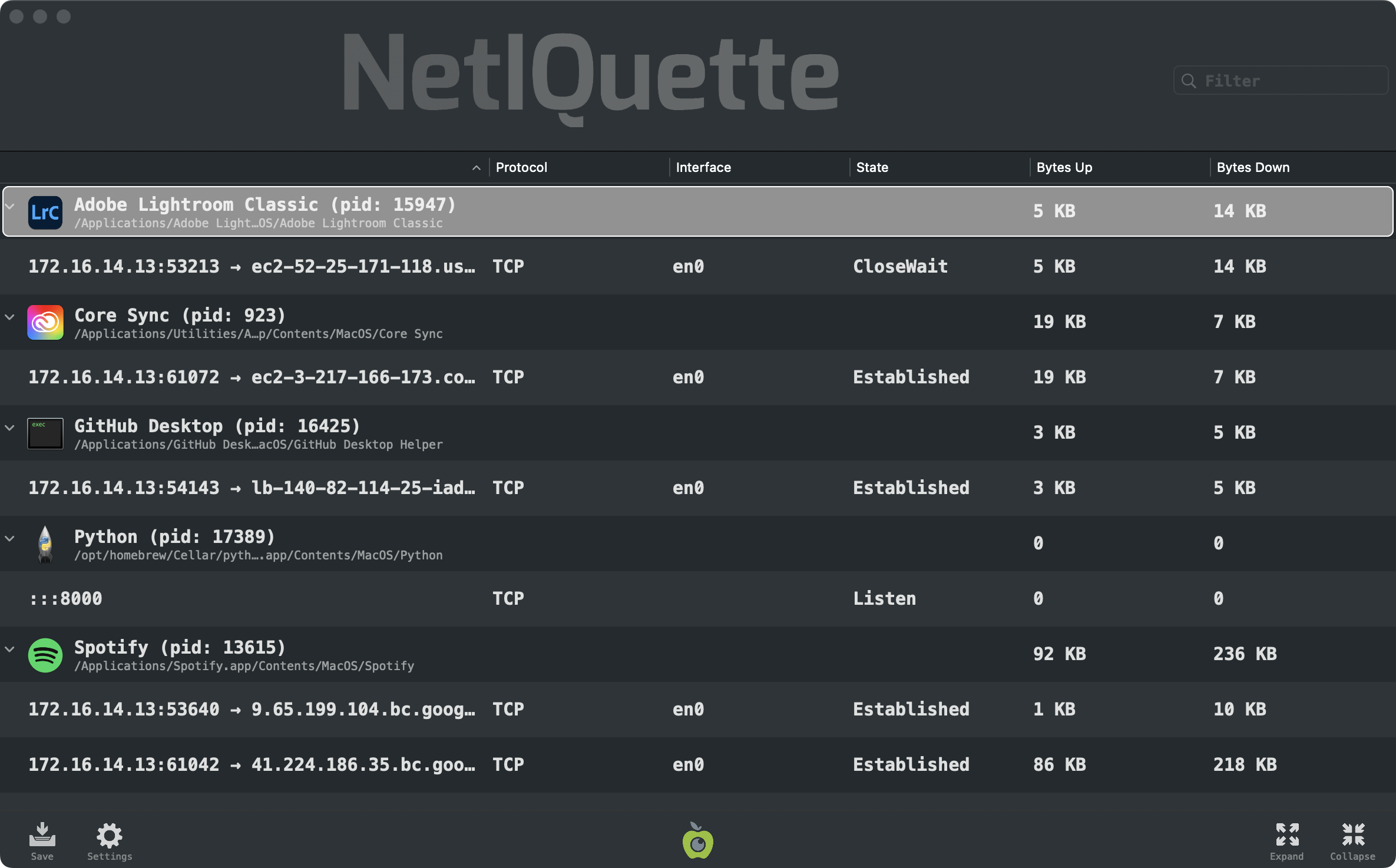
You read more about Netiquette (which also can be downloaded/run as a standalone application), on it's "tool page" on the Objective-See website.
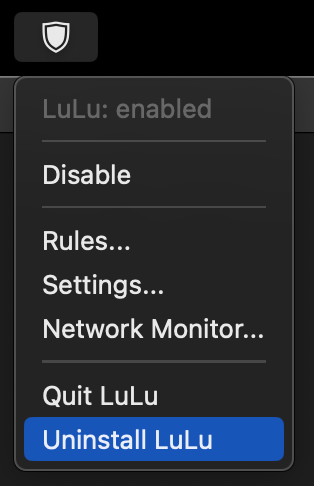
To either exit or unistall Lulu, you will be required to authenticate:
To uninstall an older version (v1.*), first download LuLu (v1.2.3). Then launch it and click "Uninstall".
Q: Do I need LuLu if I've turned on the built-in macOS firewall?
A: Yes! Apple's built-in firewall only blocks incoming connections. LuLu is designed to detect and block unauthorized outgoing connections, for example when malware attempts to connect to it's command & control server for tasking or exfiltrating data.
A: Although at this point testing has been limited, LuLu appears to play nice with other tools.
A: For sure! If you encounter any issues, create an bug report via GitHub.
A: When LuLu is started it connects to Objective-See.org to check if there is a new version of the product. Specifically, it reads the file products.json, which contains the latest version number of LuLu. No user or product information is collected nor transmitted. Note that this automated version checking can be disabled via the 'Disable Update Checks' option in LuLu's settings.