In this guide we'll build a fully autonomous AI podcast, combining an LLM for script writing and a text-to-speech model to produce the audio content. By the end of this guide we'll be able to produce podcast style audio content from simple text prompts like "a 10 minute podcast about [add your topic here]".
In this first part we'll focus on generating the audio content, here's a sample of what we'll be able to produce:
The Dead Internet Podcast
Episode 1: The Dead Internet Theory
Obviously, that example is a bit tongue-in-cheek, but the same features and techniques can be used to easily generate any number of outputs depending on your choice of models and how they're combined.
In this first part we'll using the suno/bark model from Hugging Face to generate the audio content. In part two we'll look at adding an LLM agent to our project to automatically generate scripts for our podcasts from small prompts.
Prerequisites
- uv - for Python dependency management
- The Nitric CLI
- (optional) An AWS account
Getting started
We'll start by creating a new project for our AI podcast using Nitric's python starter template.
Next, let's install our base dependencies, then add the extra dependencies we need specifically for this project including the transformers library from Hugging Face.
We add the extra dependencies to the 'ml' optional dependencies to keep them separate since they can be quite large. This lets us just install them in the containers that need them.
Designing the project
As you may know, Nitric helps with both cloud resource creation and interaction. We'll use Nitric to define the cloud resources our project needs. This includes an API to trigger new jobs, buckets for storing models and audio output, and the setup of our AI workloads to run as batch jobs.
To achieve this let's create a new python module which defines the resources for this project. We'll create this as common/resources.py in our project.
We'll also need an __init__.py file in the common directory to make it a package.
Create the audio generation job
Next we'll create the beginnings of our audio generation job. First, we'll create a new directory for our batch services and create a new file for our audio generation job.
Then we'll define our audio generation job in batches/podcast.py.
Create the HTTP API
Ok, now that we have our job defined we need a way to trigger it. We'll create an API that lets us submit text to be converted to audio, using the job we just defined.
In the existing services/api.py file, overwrite the contents with the following.
Update the nitric.yaml
Finally, let's update the nitric.yaml to include the batch service we created and add the preview flag for batch.
Nitric Batch is a new feature, which is currently in preview.
Running the project locally
Now that we have the basic structure of our project set up, we can test it locally.
Once its up and running we can test our API with any HTTP Client:
If port 4001 is already in use on your machine the port will be different, e.g. 4002. You can find the port in the terminal output when you start the project.
Alternatively, you can use the nitric dashboard to submit the same text.
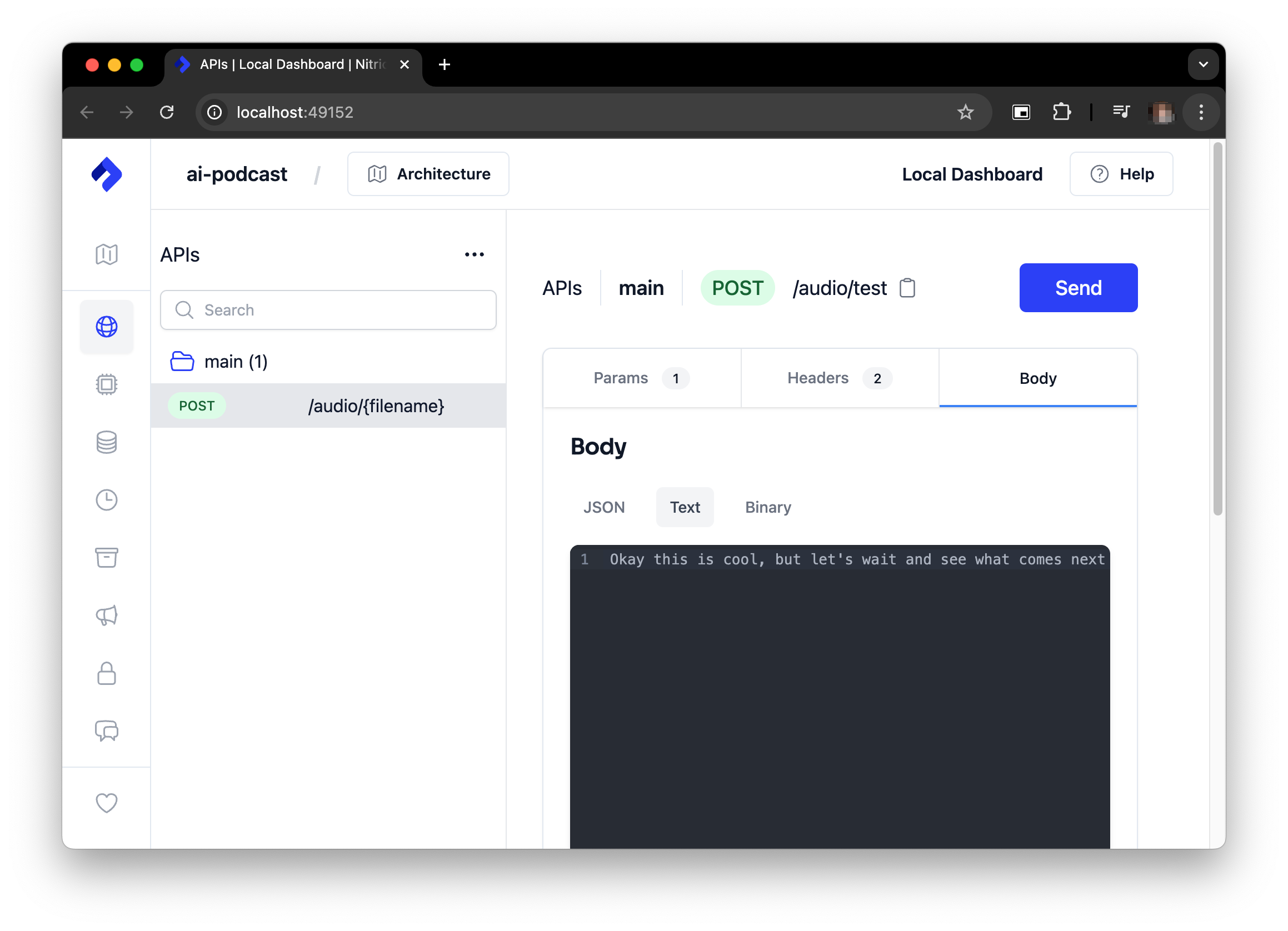
If you're running without a GPU it can take some time for the audio content to generate, so keep the text input short to start with.
Watch the logs in the terminal where you started the project to see the progress of the audio generation. When it's complete you'll can access it from the clips bucket using the local Nitric Dashboard e.g. http://localhost:49152/storage/.
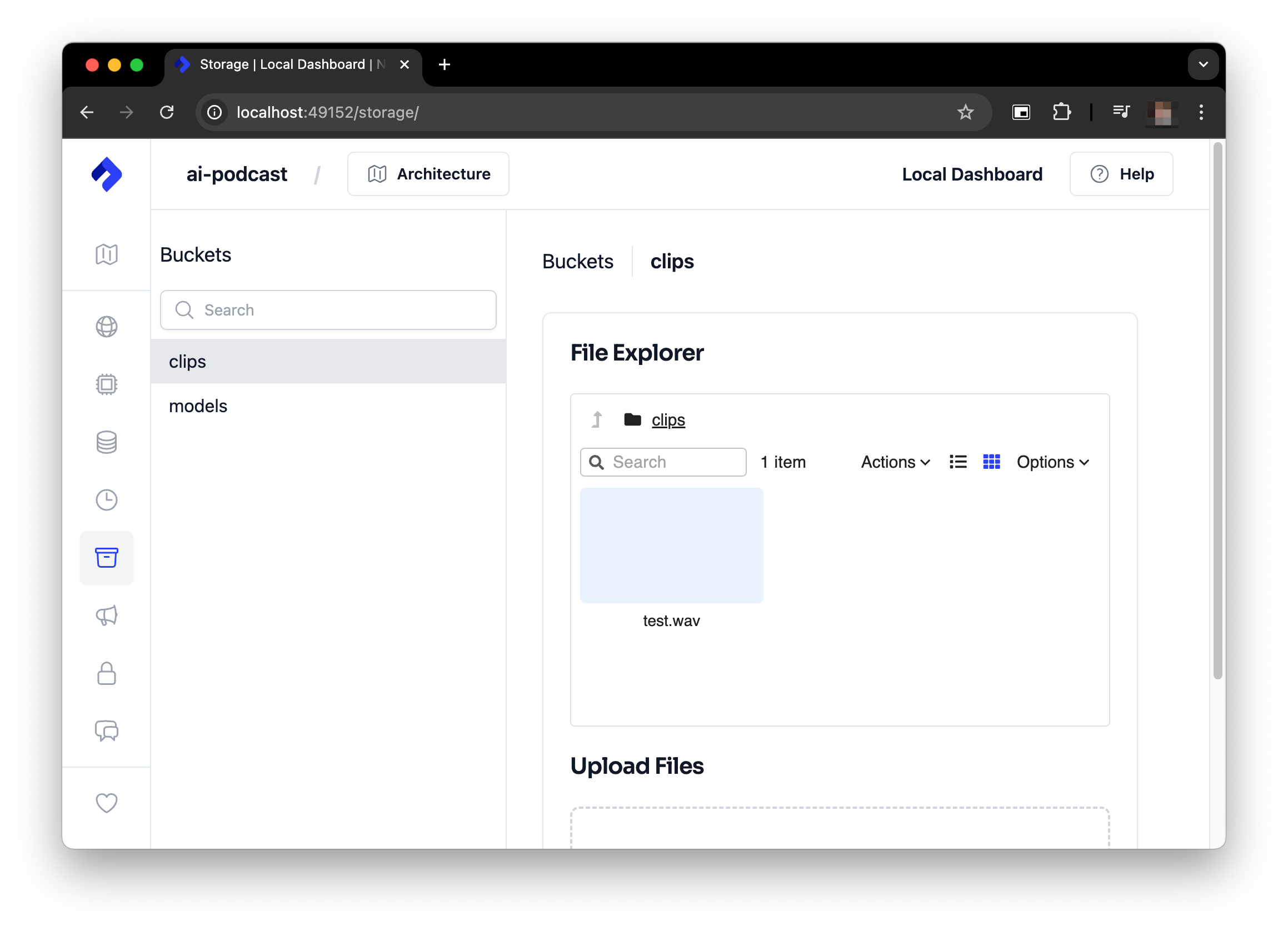
Once the generation is complete you should have something like this:
You can find your generated clip in the clips bucket in the Nitric Dashboard.
It can also be located in .nitric/run/buckets/clips directory of your project.
Feel free to play around with it a bit more before continuing on. It can be fun to experiment with different text inputs and see what the model generates.
Prepare to deploy to the cloud
Before we can deploy our project to the cloud we need to make a few changes. First, we want to be able to cache models to be used between runs without having to pull them from Hugging Face each time.
This is why we added the models bucket and download topic initially. It's time to use them. Let's add the download topic subscriber and api endpoint to services/api.py.
We'll also update our audio generation job to download the model from the bucket before processing the audio.
If you like the download/cache step can also be rolled into the audio generation job. However having the download in a separate job is more cost effective as you won't be downloading and caching the model on an instance where you're also paying for a GPU.
Once that's done we can give the project another test, just to make sure everything is still working as expected.
If nitric isn't still running you can start it again with:
First we'll make sure that our new model download code is working by running:
Then we can test the audio generation again with:
You should get a similar result to before. The main difference is that the model will be downloaded and cached in a nitric bucket before the audio generation starts.
Defining our service docker images
So that the AI workload can use GPUs in the cloud we'll need to make sure it ships with drivers and libraries to support that. We can do this by specifying a custom Dockerfile for our batch service under torch.dockerfile.
We'll also add a dockerignore file to try and keep the image size down.
We'll also need to update the python.dockerfile to ignore the .model directory.
Let's also update the nitric.yaml to add the new dockerfile to our runtimes.
With that, we're ready to deploy our project to the cloud.
Deploy to the cloud
To deploy our project to the cloud we'll need to create a new Nitric stack file for AWS (or GCP if you prefer). We can do this using the Nitric CLI.
This will generate a nitric stack file called test which defines how we want to deploy a stack to AWS. We can update this stack file with settings to configure our batch service and the AWS Compute environment it will run in.
Requesting a G instance quota increase
Most AWS accounts will not have access to on-demand GPU instances (G Instances), if you'd like to run models using a GPU you'll need to request a quota increase for G instances.
If you prefer not to use a GPU you can set gpus=0 in the @gen_audio_job decorator in batches/podcast.py.
Important: If the gpus value in batches/podcast.py exceeds the number of
available GPUs in your AWS account, the job will never start. If you want to
run without a GPU, make sure to set gpus=0 in the @gen_audio_job
decorator. This is just a quirk of how AWS Batch works.
If you want to use a GPU you'll need to request a quota increase for G instances in AWS.
To request a quota increase for G instances in AWS you can follow these steps:
- Go to the AWS Service Quotas for EC2 page.
- Find/Search for Running On-Demand G and VT instances
- Click Request quota increase
- Choose an appropriate value, e.g. 4, 8 or 16 depending on your needs
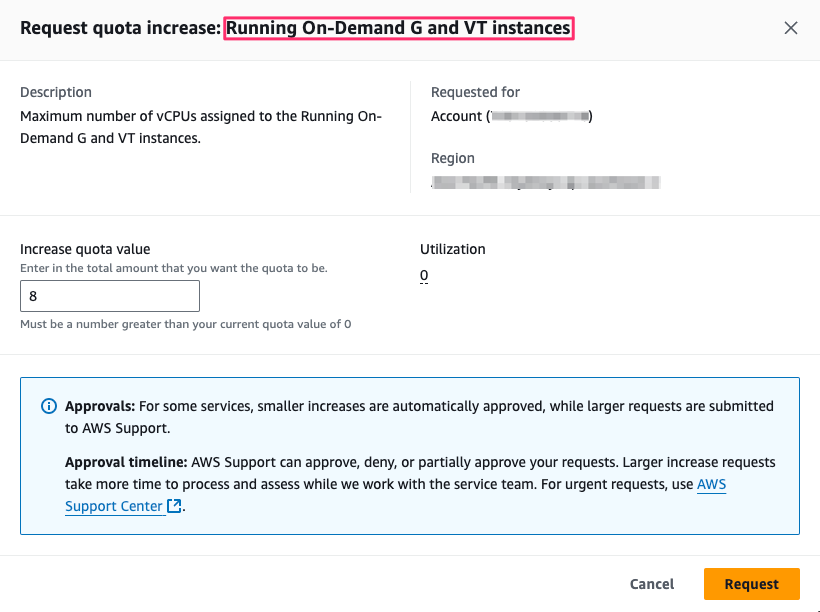
Once you've requested the quota increase it may take time for AWS to approve it.
Deploy the project
Once the above is complete, we can deploy the project to the cloud using:
The initial deployment may take time due to the size of the python/Nvidia driver and CUDA runtime dependencies.
Once the project is deployed you can try out some generation, just like before depending on the hardware you were running on locally you may notice a speed up in generation time.
Running the project in the cloud will incur costs. Make sure to monitor your usage and shut down the project if you're done with it.
Running on g5.xlarge from testing this project will cost ~$0.05/minute of audio you generate. Based on standard EC2 pricing for US regions.
You can see the status of your batch jobs in the AWS Batch console and the model and audio files in the AWS S3 console.
Next steps
In part two of this guide we'll look at adding an LLM agent to our project to automatically generate scripts for our podcasts from small prompts.