Until macOS 26.4, Archive Utility had nearly unrestricted filesystem access. Combined with a drag-and-drop sandbox quirk, this let an attacker bypass App Sandbox data containers, Transparency, Consent, and Control (TCC) protections, and hijack third-party apps — all without special permissions or elevated privileges.
Affected Platforms#
- macOS Tahoe 26.0.0 – 26.3.2
- Earlier versions of macOS are likely affected as well, but have not been tested.
Summary#
Through Archive Utility, the default compression utility in macOS, an attacker can:
- Gain full access to files protected by macOS app data containers, including those used by Apple apps (e.g., Safari, iMessage, Notes), third-party apps (e.g., Signal, WhatsApp), and iCloud Group Containers — without triggering any system or permission prompts.
- Gain full access to files protected by Transparency, Consent, and Control (TCC), such as those inside
~/Desktopand~/Documents, even if the user chooses “Don’t Allow” in the TCC prompt. - Hijack third-party apps by replacing the executable under
/Contents/MacOS/inside their application bundles, impersonating apps the user has already installed and trusted — including background agents like ones from Chrome or Figma. macOS displays a notification that it prevented modifying the app, but the attack still succeeds.
The attack requires only two user actions: running the attacker’s code and dragging and dropping one specific file.
Summary for Non-Technical Readers#
We found a major macOS security issue that Apple patched in macOS 26.4. If an attacker tricks you into running their code and dragging and dropping one specific file, they could:
- Read private app data, such as data from Notes, Messages, WhatsApp, or Safari, without notifying you or asking for permission.
- Access files in places you expect to be private, such as your Desktop or Documents folders, even if you choose not to give permission.
- Secretly replace trusted apps you already have installed with malicious versions.
All this can happen without your Mac’s password or any special approval. The attack bypasses macOS security protections by taking advantage of a bug in the Mac’s built-in Archive Utility, the tool macOS uses to open and compress zip files.
Background#
A Quick Introduction to macOS App Sandbox and Data Containers#
macOS relies on several layers of protection to isolate apps and safeguard user data:
- App Sandbox restricts what each app can do at the kernel level. Sandboxed apps can only access resources they have been explicitly granted permission to use. This limits the damage if an app is compromised.
- Data Containers give each sandboxed app a dedicated storage directory under
~/Library/Containers/(or~/Library/Group Containers/for shared data between apps from the same developer). The sandbox prevents other apps and processes, including non-sandboxed ones like Terminal and even root processes, from reading or writing files inside another app’s container. - Transparency, Consent, and Control (TCC) requires explicit user consent before an app can access sensitive locations such as
~/Desktop,~/Documents, and Photos. TCC prompts give users visibility and control over which apps access their data.
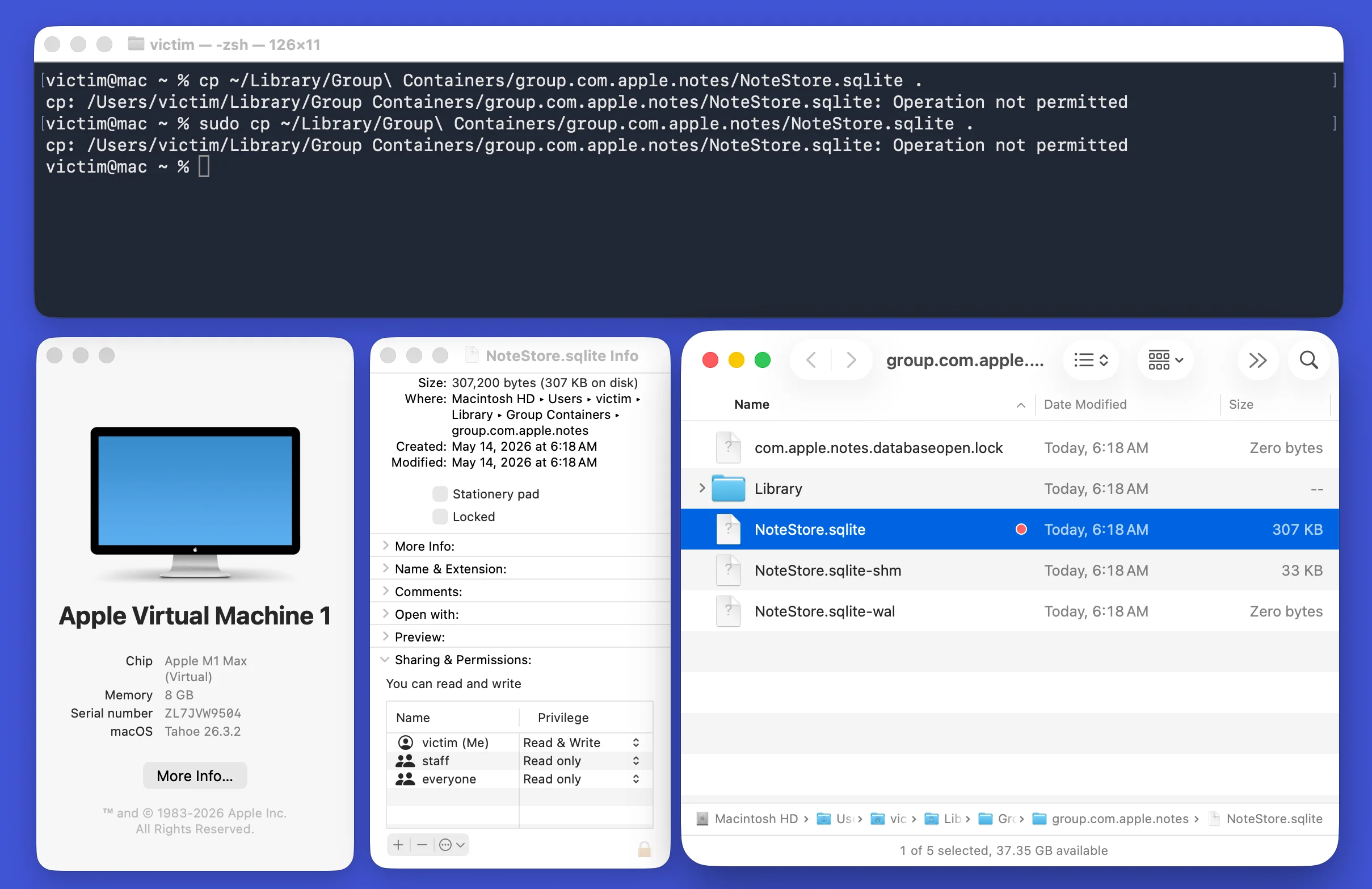
In late September 2025, we discovered that Archive Utility could be used to bypass these protections. This post explains the exploit’s basic building blocks and presents a minimal yet realistic proof-of-concept attack that requires no escalated privileges or special permissions, such as Full Disk Access. It only requires the user to:
- Run a shell script in Terminal.
- Drag and drop a specific file.
We considered this a serious vulnerability when we first discovered it because it bypassed all three protections with minimal user interaction. To get it to Apple as quickly as possible, we reported it before fully exploring its scope and as soon as we had a working proof-of-concept attack.
It did take Apple more than five months to fix the issue, from our initial report on October 17, 2025 to the release of macOS 26.4 on March 24, 2026. Although it was longer than we would have liked, we’re glad it’s now addressed.
Archive Utility’s (Nearly) Unrestricted Filesystem Access#
Until macOS 26.4, Archive Utility had nearly unrestricted access to the filesystem. The only exception appeared to be files protected by System Integrity Protection, which is beyond the scope of this exploit. Archive Utility could archive files and folders inside protected areas, such as an app data container or a third-party app bundle under /Applications. Put differently: if the user could access a file or folder through Finder, Archive Utility appeared to have the same level of access.
To demonstrate, we run the following command in Terminal to archive a file inside an app data container (Apple Notes, in this example):
open -a "Archive Utility" ~/Library/Group\ Containers/group.com.apple.notes/NoteStore.sqlite
This opens Archive Utility, which compresses NoteStore.sqlite and produces NoteStore.sqlite.cpgz in the same folder. The compressed file is still inside the app’s data container, so attempting to copy it fails as expected:
% cp ~/Library/Group\ Containers/group.com.apple.notes/NoteStore.sqlite.cpgz .
cp: /Users/victim/Library/Group Containers/group.com.apple.notes/NoteStore.sqlite.cpgz: Operation not permitted
What if an attacker could specify a target folder outside the app’s data container?
One option is to change Archive Utility’s preferences via the defaults command (note the misspelled key archive-info, which should be archive-into to mirror dearchive-into, and it looks like this typo has been around for years):
% defaults write com.apple.archiveutility archive-info /path/to/folder
Unfortunately for the attacker, this gives an error:
Could not write domain /Users/victim/Library/Containers/com.apple.archiveutility/Data/Library/Preferences/com.apple.archiveutility
No luck. Archive Utility’s preferences are protected by its own data container. We couldn’t find a way to pass Archive Utility an argument that specifies the output folder, including by attempting to invoke com.apple.desktopservices.ArchiveService directly through XPC. If we had found a way, the next section wouldn’t have been necessary.
Drag & Drop: An Intentional Sandbox Loophole#
Here’s one interesting aspect of the macOS app sandbox: dragging and dropping a file or folder onto an application grants it unrestricted access to the dropped item. This is by design. Without it, apps couldn’t access files dragged from protected locations like ~/Desktop or ~/Documents, and drag and drop wouldn’t work in sandboxed apps at all.
We came across this behaviour by accident. In our day-to-day workflow we often drag-and-drop files from Finder into Terminal as a quick way to insert a file’s path. For a long time, we thought that was all it did. But as it turns out, it also gives the Terminal process permanent access to the file or folder, even if it’s inside a protected app data container.
macOS treats drag and drop as an expression of user intent, similar to choosing a file in an Open panel. When a user drops a file onto an app, macOS extends the app’s sandbox to include that file. For sandboxed apps, this is done through security-scoped bookmarks. For non-sandboxed apps like Terminal, macOS instead applies a com.apple.macl extended attribute to the dropped file, as Jeff Johnson discovered in macOS 10.15 Catalina. This attribute permanently grants the receiving app access to the file and bypasses any privacy protections that would otherwise block it.
The problem is that this access grant cannot be easily revoked. The com.apple.macl attribute is protected by System Integrity Protection (SIP), so it cannot be removed through normal means, not even with sudo. There is no supported user-level way to revoke a drag-and-drop access grant.
Unleashing Archive Utility#
Knowing about the drag-and-drop loophole, an attacker can try to convince a user to drag and drop Archive Utility’s preferences file into Terminal, which lets them rewrite Archive Utility’s output folder. From there, copying a file out of an app data container is a two-step move: compress the target file inside a protected area, then extract the archive into a folder the attacker controls.
To test this, drag this file into Terminal:
~/Library/Containers/com.apple.archiveutility/Data/Library/Preferences/com.apple.archiveutility.plist
Doing this even once permanently grants any process run in Terminal access to that file or folder, even inside a protected app data container. Every subsequent Terminal process will have access to com.apple.archiveutility.plist and no further user interaction is required.
With that, we can run the defaults command to change Archive Utility’s output folder:
defaults write com.apple.archiveutility archive-info /path/to/folder
open -a "Archive Utility" ~/Library/Group\ Containers/group.com.apple.notes/NoteStore.sqlite
Success? Not quite — this still produces an error:
Unable to archive "NoteStore.sqlite" into "(null):.
(Error 1 - Operation not permitted)
We’re close. We can change Archive Utility’s preferences and direct where it creates or extracts archives. To copy a target file out of its protected location, though, we realised we still needed the right sequence of calls and preference changes.
Introducing au‑cp: Golden Copy#
After some experimentation, we found a sequence that copies any file out of an app container into a folder of the attacker’s choosing:
defaults write com.apple.archiveutility archive-format aar

# Archive the original file, then move it outside the sandbox to temp_dir
defaults write com.apple.archiveutility archive-move-after "${temp_dir}"
defaults write com.apple.archiveutility archive-info "."
defaults write com.apple.archiveutility dearchive-reveal-after 0

open -W -j -g -a "Archive Utility" "${source_file}" >/dev/null 2>/dev/null

# Copy the file to dest_folder, then unarchive the compressed file back to its original location
cp -r $temp_dir/$src_filename $dest_folder
defaults write com.apple.archiveutility dearchive-into "."
defaults write com.apple.archiveutility dearchive-move-after "${temp_dir}"
defaults write com.apple.archiveutility dearchive-reveal-after 0
open -W -j -g -a "Archive Utility" "${source_file}.aar"
We bundled this into a new command called au‑cp (Archive Utility Copy, or “Golden Copy” since Au is the chemical symbol for gold).
We built several variants of au‑cp for different protected locations. The one above handles app data containers, application bundles need a slightly different variant.
What can an attacker do with au‑cp?
Data Exfiltration#
As shown above, au‑cp can access files inside app data containers, whether they belong to first-party Apple apps, third-party apps, or iCloud Group Containers. The macOS security model assumes that data inside app data containers cannot be accessed by other programs, so many apps do not encrypt their local data at rest. This is the case for iMessage, Notes, and Safari, as well as third-party apps like WhatsApp. au‑cp can access all of this data without user permission.
au‑cp can also reach data protected by TCC, such as ~/Desktop, ~/Documents, and Photos. Doing so still triggers a TCC permission prompt — but even if the user chooses “Don’t Allow,” au‑cp gains full access anyway.
Hijacking Third-Party Applications#
Beyond file access, au‑cp can tamper with third-party application bundles under /Applications/, replacing their executables with attacker-controlled code. This impersonates apps the user has already installed and trusted — including background agents like one from Chrome and Figma.
Normally, when there is an attempt to modify an application bundle through Terminal, macOS prevents it and notifies the user, as shown below:
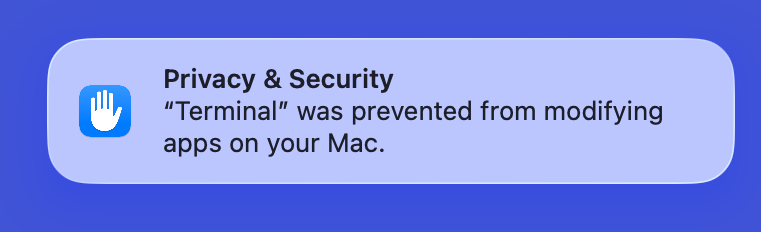
Even though macOS displays this notification when modifying an application bundle through au‑cp, the modification still succeeds.
Hijacked apps launch normally with no warning to the user. The one caveat: if the app accesses TCC-protected folders or its own keychain items, the user is prompted to grant access again.
What happened to code signing?#
We don’t know. Code signing should have prevented this kind of tampering with the application bundle, but for some reason macOS didn’t complain. We would like to investigate this further.
If you have any ideas, please let us know!
A Realistic Proof-of-Concept Attack: pb2au#
Our proof-of-concept attack is called pb2au, the hottest new AI coding agent that grants you the magical ability to turn lead into gold!
The attack requires only two user actions, presented as installation instructions:
- Run the install shell script, without
sudo. - Drag and drop what looks like an app bundle into what looks like the Applications folder.
Both steps look like reasonable, inconspicuous parts of “installing” pb2au, as we explain below.
Step 1: Run a Shell Script#
We took inspiration from a very common Mac program: Homebrew. Homebrew instructs users to paste a shell command into Terminal to install it:
/bin/bash -c "$(curl -fsSL https://raw.githubusercontent.com/Homebrew/install/HEAD/install.sh)"
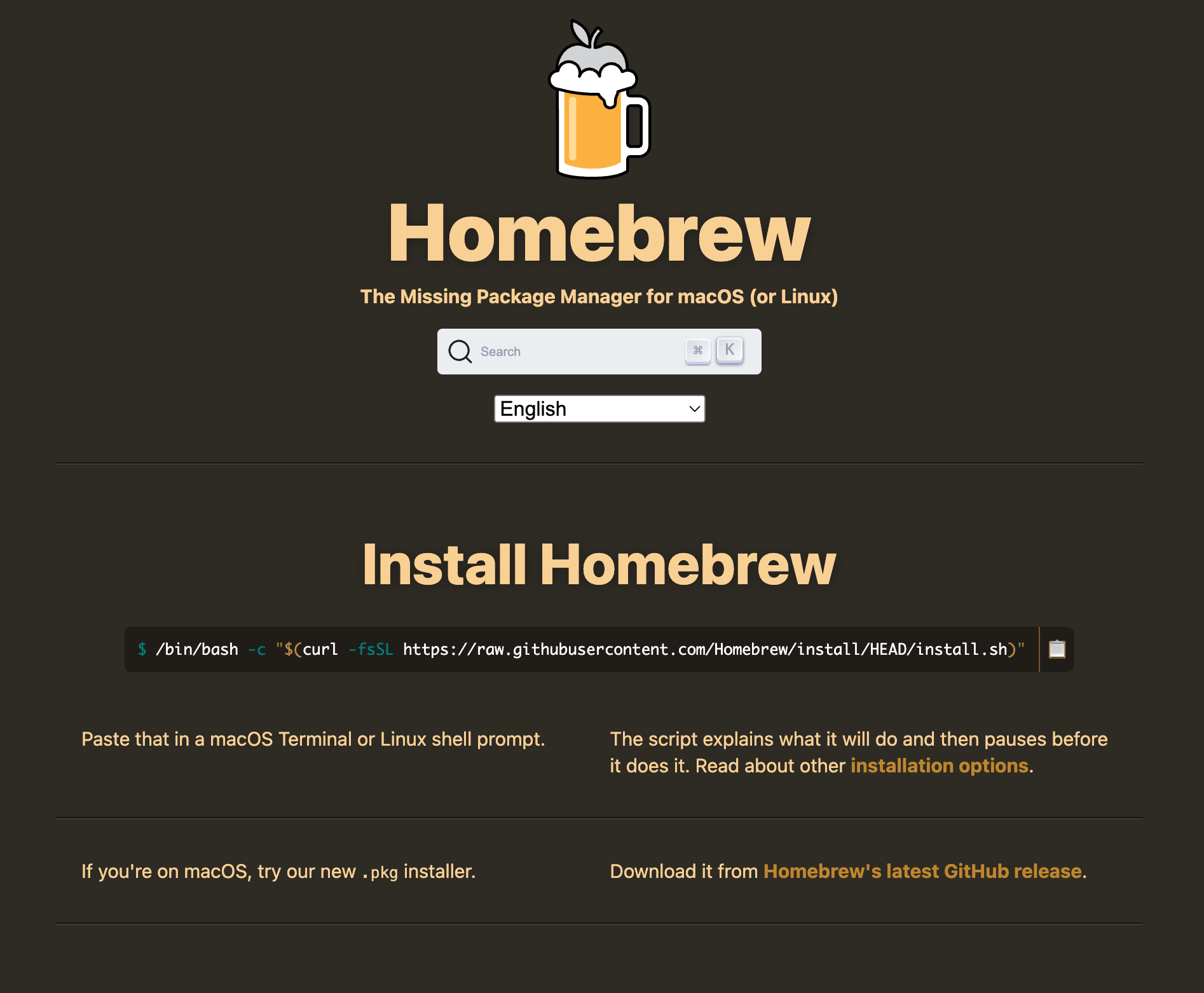
Other examples include:
| Software | Install Command |
|---|---|
| OpenClaw | curl -fsSL https://openclaw.ai/install.sh | bash |
| Rust toolchain | curl --proto '=https' --tlsv1.2 -sSf https://sh.rustup.rs | sh |
| NVM (Node Version Manager) | /bin/bash -c "$(curl -fsSL https://raw.githubusercontent.com/nvm-sh/nvm/v0.39.7/install.sh)" |
| Oh-my-Zsh | sh -c "$(curl -fsSL https://raw.githubusercontent.com/ohmyzsh/ohmyzsh/master/tools/install.sh)" |
| PNPM | curl -fsSL https://get.pnpm.io/install.sh | sh |
It’s common for Mac users, especially developers, to install popular software by running a shell command. Crucially, these scripts don’t require sudo, and some explicitly discourage using it. So pb2au’s “install” doesn’t need sudo or any elevated permissions either.
Step 2: Drag & Drop#
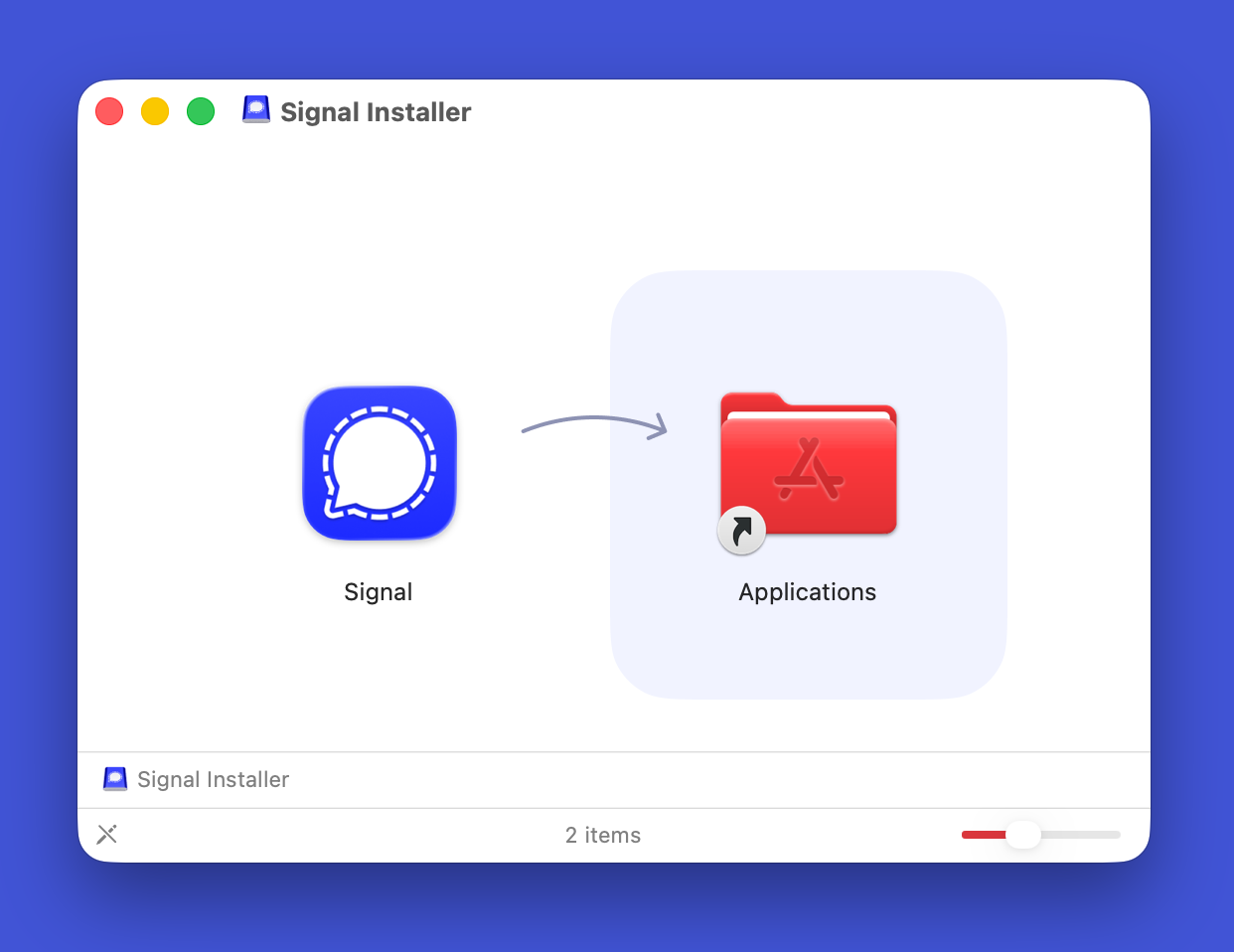
With our shell script running in Terminal, we need the user to grant Terminal access to com.apple.archiveutility.plist to enable au‑cp. Asking them to drag that exact file into Terminal would be far too conspicuous:
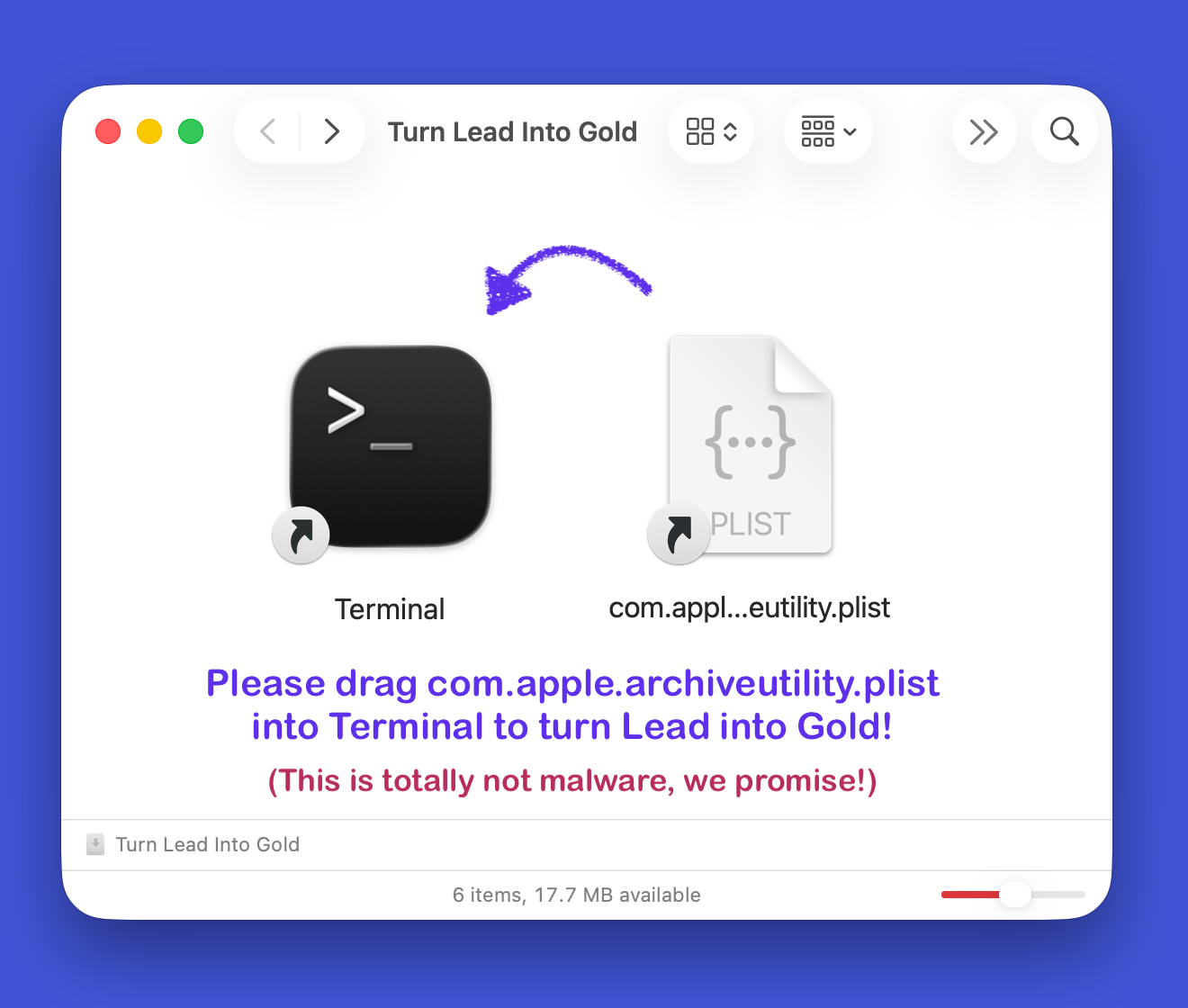
Here’s where Finder aliases and symbolic links come in: dragging an alias or symlink from Finder into another application grants access to the original file or folder, not just the link itself. Finder aliases can also be customized with any icon, even if it doesn’t match the original file type.
Our install script does the following:
- Downloads a disk image containing art assets for a convincing-looking app installation experience.
- Mounts the DMG, creates a symbolic link to
com.apple.archiveutility.plist, and gives it the friendly name “Drag Me!”. It also creates an alias to Terminal, with the alias’s name and icon changed to match the Applications folder. - Instructs the user to drag and drop the “Drag Me!” file into the Applications folder, a common way to install macOS apps outside the App Store. In reality, the user is dragging
com.apple.archiveutility.plistinto Terminal. - Waits for the user to complete this action by checking in the background whether the script now has access to
com.apple.archiveutility.plist.
Once the user performs the drag-and-drop operation, pb2au setup is complete.
No further user interaction is required beyond this point. Any future process run in Terminal will be able to use
au‑cpto gain unrestricted access to files protected by app data containers or TCC.
Step 3: Turning Lead Into Gold… for Profit!#
The stage is now set. The attacker can use au‑cp to gain unrestricted access to files protected by app data containers or TCC.
iMessage, Notes, Safari, Mail, WhatsApp, Telegram, and More#
With full access to the user’s app data containers, an attacker can copy data such as:
| App | Path | Description |
|---|---|---|
| iMessage | ~/Library/Messages/chat.db |
iMessage database, including message history |
| Notes | ~/Library/Group Containers/group.com.apple.notes/NoteStore.sqlite |
Apple Notes database |
| Safari | ~/Library/Containers/com.apple.Safari/Data |
Safari’s app data container, which includes all the user’s tabs, bookmarks, and even cookies |
~/Library/Mail/V10 |
Mail app data container, with all the user’s inboxes, messages, and attachments | |
~/Library/Group Containers/group.net.whatsapp.WhatsApp.shared/ |
WhatsApp’s shared container, which includes the user’s messages, contacts, and media | |
| Telegram | ~/Library/Group Containers/6N38VWS5BX.ru.keepcoder.Telegram/ |
Telegram’s shared container, which includes the user’s messages, contacts, and media |
These are just a few of the files and folders that are normally inaccessible without explicit user permission — all copied by au‑cp.
Note on Cookie Storage and Encryption#
Cookie theft is a major browser risk. Safari stores its cookies unencrypted within its app data container, which is normally inaccessible to other apps. As we’ve shown in this post, though, if an attacker can gain access to app data containers, they can also access Safari’s container and steal the user’s cookies.
Google Chrome and other Chromium-based browsers do not rely on macOS sandboxing to protect cookies. Instead, they store the encryption key for sensitive data, including cookies, in the macOS Keychain (or similar services on other platforms). Simply copying the cookies from Chrome’s data folder wouldn’t be enough; the attacker would need another way to access the macOS Keychain.
Firefox, by contrast, neither uses app data containers nor encrypts its cookies. Instead, it stores cookies in a plaintext
cookies.sqlitefile. This issue remains unresolved, with a 25-year-old ticket still open.
Hijacking Signal Desktop#
We use Signal, a popular end-to-end encrypted messaging app, to demonstrate app hijacking.
While Signal doesn’t rely on macOS sandboxing to protect its messages, it stores those messages in a database encrypted at rest, with the encryption key stored in the user’s macOS keychain. An attacker still needs to trick the user into entering their keychain password to access Signal’s local database encryption key.
Phishing or social engineering have always been possible (there have been plenty of examples in the past: [1], [2], [3]), but a security-conscious user is unlikely to enter their keychain password into an unfamiliar dialog or one that isn’t requested by the Signal app itself. This is where hijacking Signal comes in.
With au‑cp, an attacker can replace Signal’s executable inside its application bundle with their own code. The next time the user launches Signal, the attacker’s executable attempts to access Signal’s macOS keychain, triggering macOS’s keychain-access system prompt:
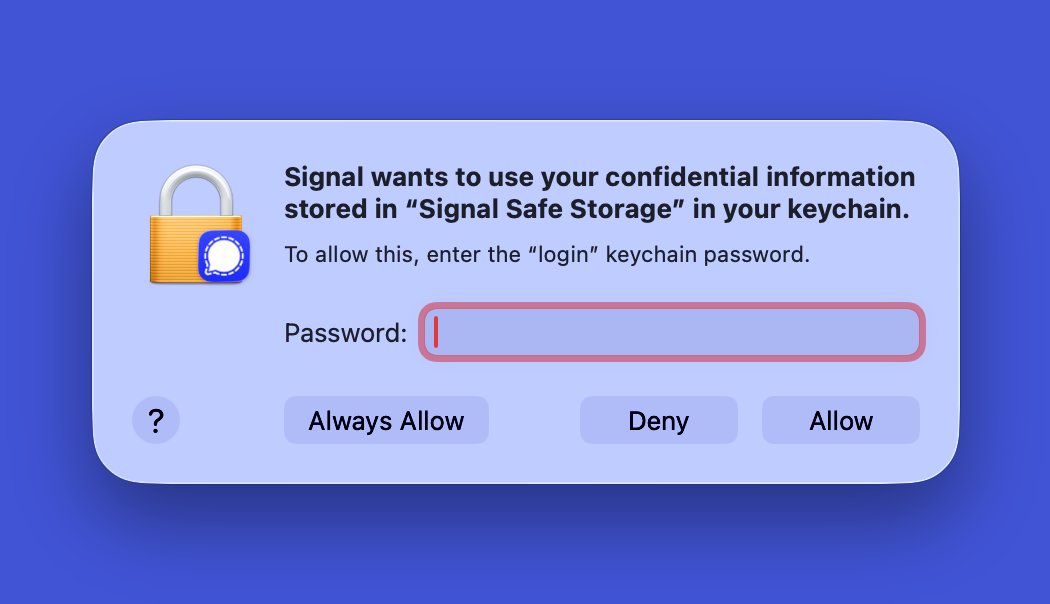
This isn’t a fake or spoofed prompt, it is the actual macOS system prompt the user would see if their keychain were simply locked. There is no indication that the process triggering it is anything other than Signal itself.
If the user enters their keychain password, the attacker’s code gains access to the keychain without knowing the keychain password. At that point, it can copy the entries inside Signal’s keychain and then launch the original Signal executable.
With this, the attacker can steal Signal’s messages, and even clone the user’s entire Signal session without any indication to the user:
Demos & Videos#
Stealing Safari, Messages, WhatsApp data#
Spying on the clipboard through hijacking background agents#
Hijacking 1Password#
Further Investigation#
As mentioned earlier, we chose to report what we had and defer further investigation. Several avenues remain that we would have liked to explore, particularly whether this vulnerability is exploitable from inside a sandboxed macOS app.
We also wanted to test whether an attacker could steal iCloud access tokens or cookies this way. We suspect this may be possible because the vulnerability exposes app and group containers the same way we extracted Safari’s web data.
- Restrict Archive Utility’s ability to access files inside protected areas (e.g., app data containers, TCC-protected folders, application bundles).
- Drag and drop should not grant target applications unrestricted access to the dragged file, especially not Terminal.
- Improve verification of application bundles to detect unexpected modifications.
- Prevent executables from creating aliases or symbolic links to files and folders they are not permitted to access.
Mitigations Introduced in macOS 26.4#
-
Archive Utility can no longer access files inside protected areas (e.g., app data containers, TCC-protected folders, application bundles), at least when invoked from another application.
-
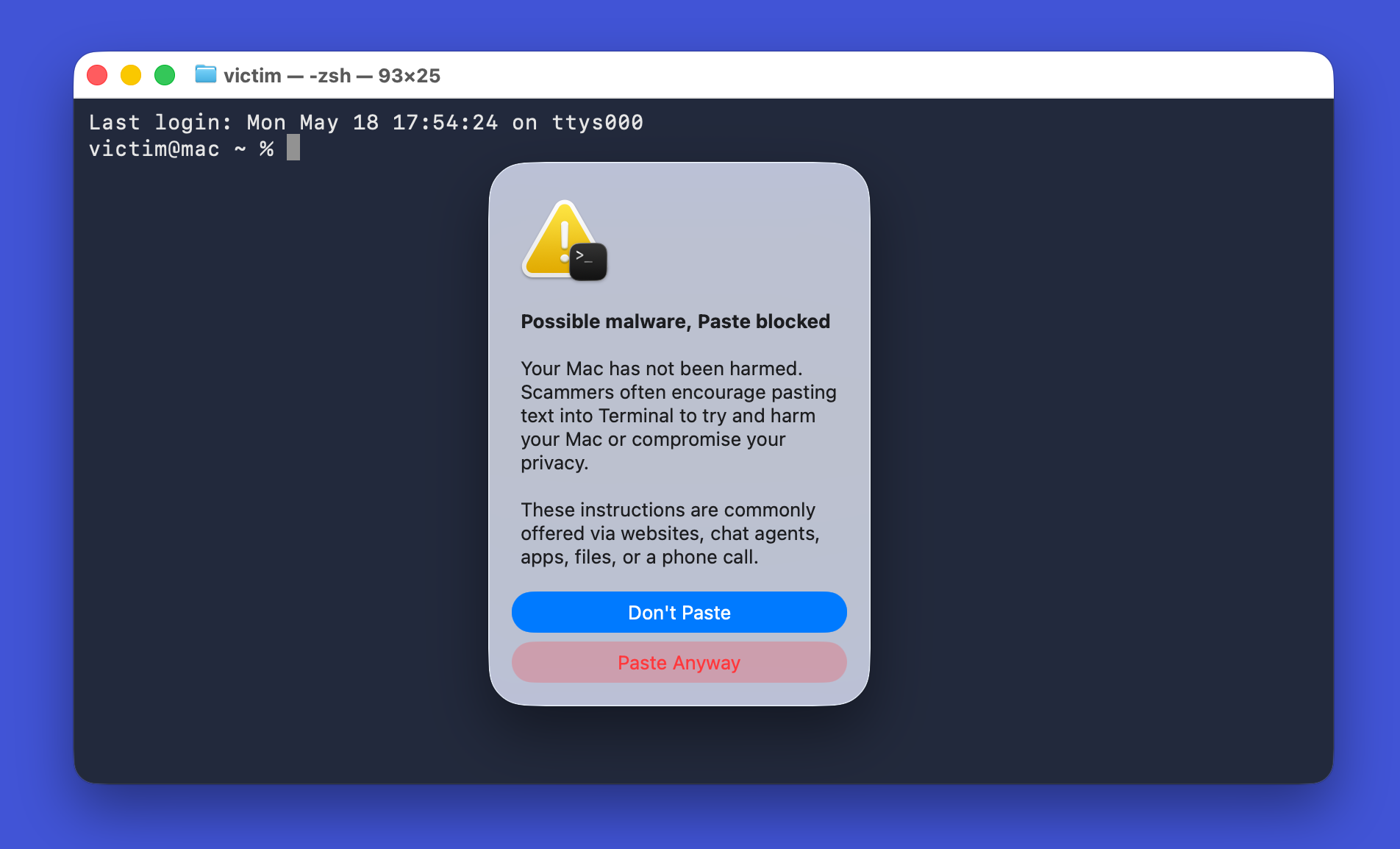
Terminal now shows a warning when pasting commands into a terminal window. It doesn’t apply to every command, and in our testing the warning did not always appear. We first assumed it was based on a blacklist or a heuristic for dangerous commands. Thanks to a detailed write-up by Ferdous Saljooki (@malwarezoo), it turns out the warning has nothing to do with the command itself. Instead, it depends on a mix of factors, including how recently Terminal was opened, where the command was copied from (browsers, messaging apps, etc.), and whether developer tools are installed. It seems the intent is to prevent less tech-savvy users from being tricked into running dangerous commands, while avoiding getting in the way of developers who use Terminal regularly.
Report Timeline#
| Date | Event |
|---|---|
| October 17, 2025 | Mysk submits report to Apple. |
| October 23, 2025 | Mysk sends first follow-up. |
| October 27, 2025 | Apple responds: still investigating, no updates to share. |
| November 3, 2025 | macOS 26.1 released; issue still present. |
| November 4, 2025 | Mysk sends second follow-up. |
| November 10, 2025 | Apple responds: issue confirmed reproducible; investigating underlying cause. |
| November 19, 2025 | Apple requests additional information, specifically a simpler proof of concept. Notes current PoC “requires a pretty high amount of user interaction.” |
| December 11, 2025 | Mysk provides further information and clarification. No new PoC provided, as the current one is considered simple enough. |
| December 12, 2025 | macOS 26.2 released; issue still present. |
| December 16, 2025 | Apple confirms understanding of the attack flow; fix scheduled for spring 2026. Notes attack requires “a significant degree of user interaction and social engineering.” |
| December 16, 2025 | Mysk provides additional clarification, highlighting risks to Signal and 1Password users. Requests potential disclosure to 1Password. |
| December 16, 2025 | Apple responds, requesting more time to meet internally. |
| February 11, 2026 | macOS 26.3 released; issue still present. |
| March 10, 2026 | Mysk sends third follow-up. |
| March 17, 2026 | macOS 26.3.2 released; last affected version. |
| March 24, 2026 | macOS 26.4 released; issue fixed, but no CVE assigned or credit given in the security advisory. |
| March 24, 2026 | Mysk sends fourth follow-up. |
| March 26, 2026 | Apple confirms changes made in macOS 26.4 to address the issue and asks Mysk to confirm the fix. |
| March 26, 2026 | Mysk confirms the fix to Apple and requests information about the fix and lack of CVE/credit in the security advisory. |
| April 9, 2026 | Apple responds that a CVE will be assigned shortly, and credit will be given in an upcoming security advisory. Also notes that Mysk’s report overlapped with a previously reported issue and was handled as a duplicate. |
| April 9, 2026 | Mysk requests to publish the report publicly. |
| April 15, 2026 | Apple provides the CVE entry and credit, requesting no publication of details until fixes are released on all platforms. Also confirms pending fixes for older macOS versions scheduled alongside macOS 26.5. |
| May 11, 2026 | macOS 26.5 released; the security advisory for macOS 26.4 is updated to include the CVE entry and credit. |
| May 11, 2026 | Mysk sends fifth follow-up. |