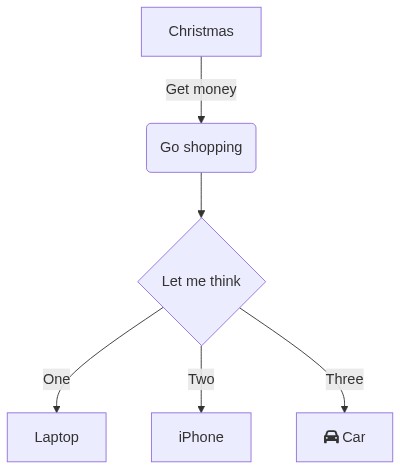
Getting Started
- Go to Mermaid Live Editor
- Create or edit your chart
-
Copy the
encoded stringfrom your browser URL, it looks like this:https://mermaid.live/edit#pako:eNpNkM9qwzAMh19F6NRB8wI5DNak7aWwwXqLexCxUpvNf3AURkny7rNbynaTPn0_ITRjHzRjjddE0cC5VR7grWtMsqM4Gi9QVa_LkQVc8HxbYLc5BhhNiNH660uxd0WBZj4ViUGM9V9rGTT37LvnBdruRFFCvPzx809YYN_ZD5MX_-cmcU4cuoHqgaqeEjSUsqBECW7RcXJkdT55LiGFYtixwjqXmgeavkWh8mtWp6hJeK-thIS1pIm3SJOEz5vvn_3DaS3lB7gHXH8BFrFcZw -
Paste the
encoded string(e.g.pako:eNpNkM9...) afterhttps://mermaid.ink/img/, for example:*
Use
https://mermaid.ink/svg/if you want a SVG image.https://mermaid.ink/img/pako:eNpNkM9qwzAMh19F6NRB8wI5DNak7aWwwXqLexCxUpvNf3AURkny7rNbynaTPn0_ITRjHzRjjddE0cC5VR7grWtMsqM4Gi9QVa_LkQVc8HxbYLc5BhhNiNH660uxd0WBZj4ViUGM9V9rGTT37LvnBdruRFFCvPzx809YYN_ZD5MX_-cmcU4cuoHqgaqeEjSUsqBECW7RcXJkdT55LiGFYtixwjqXmgeavkWh8mtWp6hJeK-thIS1pIm3SJOEz5vvn_3DaS3lB7gHXH8BFrFcZw -
Done, you could use the URL as a regular image URL:
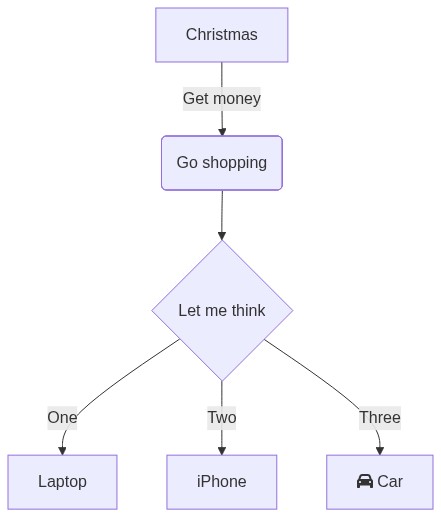
Image type
You may select any of the following image types for the
/img endpoint by adding e.g. ?type=png:
jpeg(default)pngwebp
Use /svg to get an SVG image.
PDF output options
You can generate a PDF using /pdf endpoint. Add the
fit URL parameter to make the PDF size fit to the
diagram size. Add the paper URL parameter to set a
paper size format e.g. paper=a3. Default is
a4. The supported paper formats are listed
here. This
has no effect if using fit. Add the
landscape URL parameter to make the PDF landscape. This
has no effect if using fit.
Example:
https://mermaid.ink/pdf/pako:eNpNkM9qwzAMh19F6NRB8wI5DNak7aWwwXqLexCxUpvNf3AURkny7rNbynaTPn0_ITRjHzRjjddE0cC5VR7grWtMsqM4Gi9QVa_LkQVc8HxbYLc5BhhNiNH660uxd0WBZj4ViUGM9V9rGTT37LvnBdruRFFCvPzx809YYN_ZD5MX_-cmcU4cuoHqgaqeEjSUsqBECW7RcXJkdT55LiGFYtixwjqXmgeavkWh8mtWp6hJeK-thIS1pIm3SJOEz5vvn_3DaS3lB7gHXH8BFrFcZw?fithttps://mermaid.ink/pdf/pako:eNpNkM9qwzAMh19F6NRB8wI5DNak7aWwwXqLexCxUpvNf3AURkny7rNbynaTPn0_ITRjHzRjjddE0cC5VR7grWtMsqM4Gi9QVa_LkQVc8HxbYLc5BhhNiNH660uxd0WBZj4ViUGM9V9rGTT37LvnBdruRFFCvPzx809YYN_ZD5MX_-cmcU4cuoHqgaqeEjSUsqBECW7RcXJkdT55LiGFYtixwjqXmgeavkWh8mtWp6hJeK-thIS1pIm3SJOEz5vvn_3DaS3lB7gHXH8BFrFcZw?paper=a3&landscape&width=700Background colors
Images are generated with a transparent background by default.
As mermaid diagram with light themes are barely readable on dark
backgrounds (and vice-versa), it is possible to force a background
color by appending the following query parameter to any
/svg or /img URL:
?bgColor=<color>. The color value is
interpreted as an hexadecimal color code by default, but you can
also use
named colors
by prefixing the value with !.
Examples:
-
Add a red background using hexadecimal color:
?bgColor=FF0000 -
Add a white background using named color:
?bgColor=!white
Demo:
https://mermaid.ink/svg/pako:eNpNkM9qwzAMh19F6NRB8wI5DNak7aWwwXqLexCxUpvNf3AURkny7rNbynaTPn0_ITRjHzRjjddE0cC5VR7grWtMsqM4Gi9QVa_LkQVc8HxbYLc5BhhNiNH660uxd0WBZj4ViUGM9V9rGTT37LvnBdruRFFCvPzx809YYN_ZD5MX_-cmcU4cuoHqgaqeEjSUsqBECW7RcXJkdT55LiGFYtixwjqXmgeavkWh8mtWp6hJeK-thIS1pIm3SJOEz5vvn_3DaS3lB7gHXH8BFrFcZw?bgColor=555555
Themes
You can change the theme of the diagram without modifying the diagram code. See the mermaid theme docs for details. Note that these are the built-in mermaid.js themes and not the custom mermaid live editor themes.
Current available theme options are:
- default - This is the default theme for all diagrams.
- neutral - This theme is great for black and white documents that will be printed.
- dark - This theme goes well with dark-colored elements or dark-mode.
- forest - This theme contains shades of green.
Demo:
https://mermaid.ink/img/pako:eNpNkM9qwzAMh19F6NRB8wI5DNak7aWwwXqLexCxUpvNf3AURkny7rNbynaTPn0_ITRjHzRjjddE0cC5VR7grWtMsqM4Gi9QVa_LkQVc8HxbYLc5BhhNiNH660uxd0WBZj4ViUGM9V9rGTT37LvnBdruRFFCvPzx809YYN_ZD5MX_-cmcU4cuoHqgaqeEjSUsqBECW7RcXJkdT55LiGFYtixwjqXmgeavkWh8mtWp6hJeK-thIS1pIm3SJOEz5vvn_3DaS3lB7gHXH8BFrFcZw?theme=dark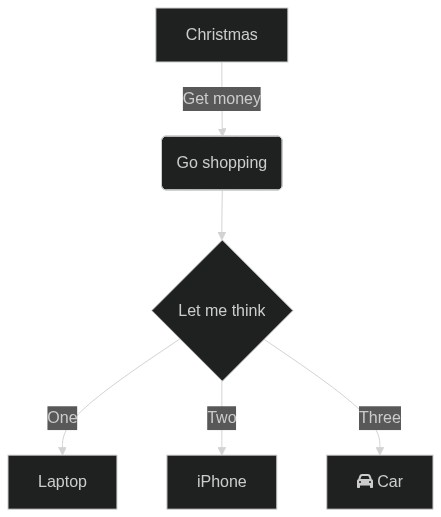
https://mermaid.ink/img/pako:eNpNkM9qwzAMh19F6NRB8wI5DNak7aWwwXqLexCxUpvNf3AURkny7rNbynaTPn0_ITRjHzRjjddE0cC5VR7grWtMsqM4Gi9QVa_LkQVc8HxbYLc5BhhNiNH660uxd0WBZj4ViUGM9V9rGTT37LvnBdruRFFCvPzx809YYN_ZD5MX_-cmcU4cuoHqgaqeEjSUsqBECW7RcXJkdT55LiGFYtixwjqXmgeavkWh8mtWp6hJeK-thIS1pIm3SJOEz5vvn_3DaS3lB7gHXH8BFrFcZw?theme=dark&bgColor=1b1b1f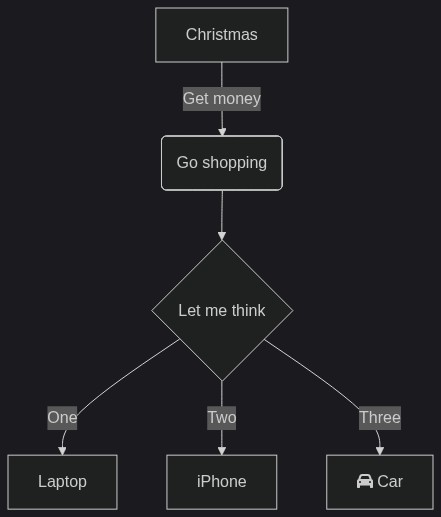
Image size
You can control the image size by using width and
height URL parameters. By default, without specifying
width or height, the size of the image will be the normal mermaid
image size.
You can scale the image by using the scale parameter.
The scale must be a number between 1 and 3. You can only set a scale
if one or both of width and height are set.
Demo:
https://mermaid.ink/img/pako:eNpNkM9qwzAMh19F6NRB8wI5DNak7aWwwXqLexCxUpvNf3AURkny7rNbynaTPn0_ITRjHzRjjddE0cC5VR7grWtMsqM4Gi9QVa_LkQVc8HxbYLc5BhhNiNH660uxd0WBZj4ViUGM9V9rGTT37LvnBdruRFFCvPzx809YYN_ZD5MX_-cmcU4cuoHqgaqeEjSUsqBECW7RcXJkdT55LiGFYtixwjqXmgeavkWh8mtWp6hJeK-thIS1pIm3SJOEz5vvn_3DaS3lB7gHXH8BFrFcZw?width=200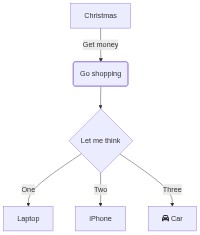
https://mermaid.ink/img/pako:eNpNkM9qwzAMh19F6NRB8wI5DNak7aWwwXqLexCxUpvNf3AURkny7rNbynaTPn0_ITRjHzRjjddE0cC5VR7grWtMsqM4Gi9QVa_LkQVc8HxbYLc5BhhNiNH660uxd0WBZj4ViUGM9V9rGTT37LvnBdruRFFCvPzx809YYN_ZD5MX_-cmcU4cuoHqgaqeEjSUsqBECW7RcXJkdT55LiGFYtixwjqXmgeavkWh8mtWp6hJeK-thIS1pIm3SJOEz5vvn_3DaS3lB7gHXH8BFrFcZw?width=200&scale=2