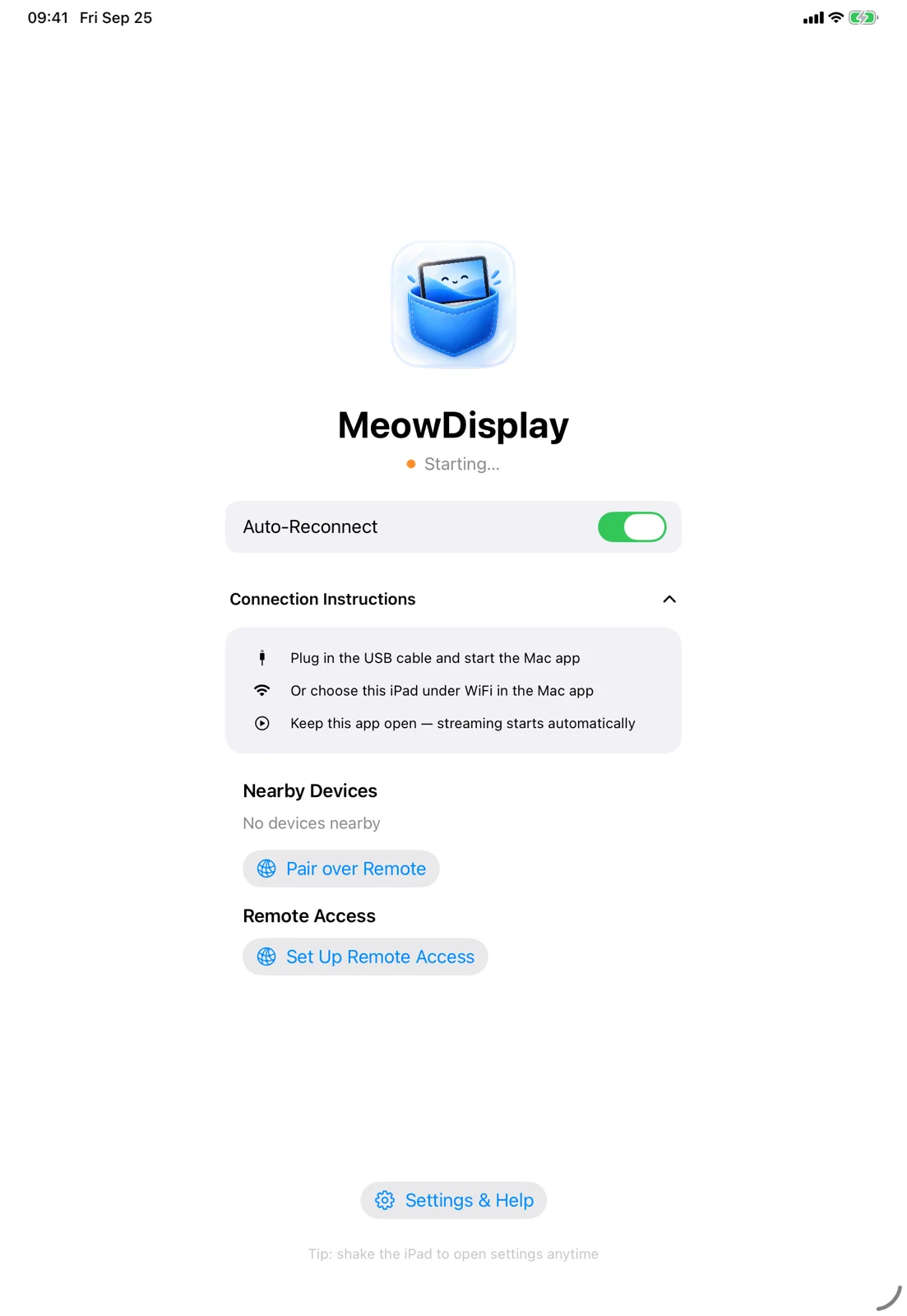
Turn an iPhone, iPad, Android device or another Mac into a display for your Mac. Mirror it, extend it, and control it with touch.
Free and open source. iOS 2.1 on the App Store · Mac 2.1 for macOS 14+ · Android 10+ in closed testing. All downloads ›
Devices
Displays
USB Plug in.Wi-Fi Stay nearby.Remote Access Go further.
Floating windows New in 2.1
Float Mac windows over your layout.
In Window view, a Mac window can float over your panes instead of taking a place in the layout. Move it, resize it, tuck it against an edge, and put it back in the layout when you’re done.
Safari and Notes side by side in two panes on an iPad, in Window view. Notes can float over Safari, then be moved, resized, tucked into an edge behind a thin strip, brought back, and added to the layout again.
Arrow keys move it. Plus and minus make it larger or smaller. Option or Alt with an arrow key tucks it into that edge.
Float a window out of its pane, move and resize it, tuck it against an edge, then bring it back.
Float · Move · Resize · Tuck
Float
Drag a window onto Float, or choose Float This Pane.
Move and resize
Drag its title to move it. Drag a lower corner to resize.
Tuck away
Throw it at an edge. Tap the strip to bring it back.
Choose individual Mac windows instead of showing the full display. Arrange them in tabs or panes, then swap or resize them as you work. To move a window, touch and hold its label, then drag it.
Mac windows
Touch and hold a window’s label, then drag it.
Tab · Split · Swap · Resize
Tab
Drop a window on the top strip to add it as a tab.
Tap to click, swipe to scroll, hold then move to drag, or hold longer to right-click. MeowDisplay distinguishes these gestures by how long you pause before moving.
Tap Finder in Stage Peek to browse your Mac’s files.
Tap · Allow · Preview · Save
Per-device displays
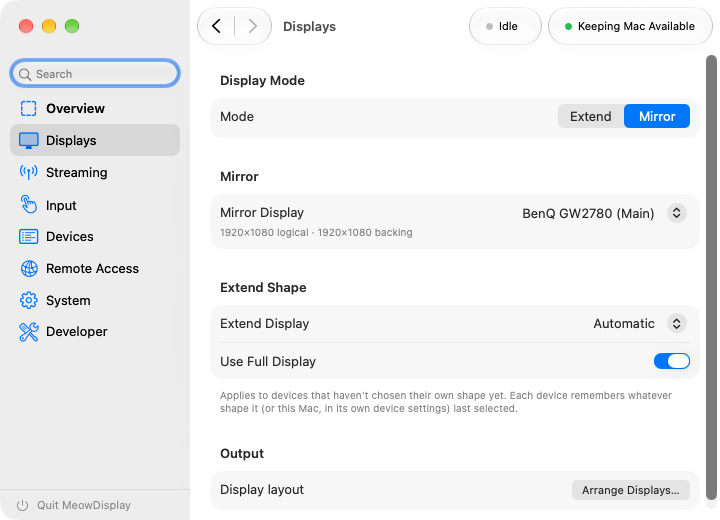
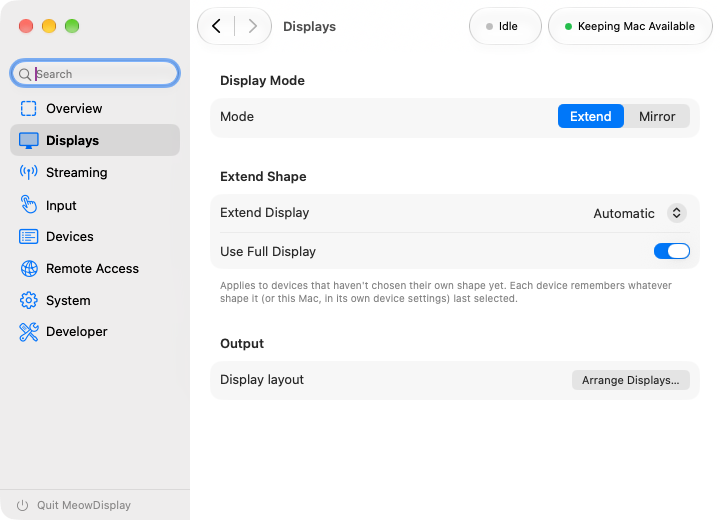
Choose a display mode for each device.
You can Mirror on one receiver and Extend on another. Change each device’s mode separately. Drag the virtual displays to arrange them around your Mac, just like in Displays settings.
Drag either receiving display. Each receiver can independently Mirror or Extend.
Features can differ by platform. Android is currently in closed testing. Platform status ›
Two ways to make room.
Mirror your display or add another.
Mirror what’s on your Mac, or give it a whole new display. Switch between them any time in the Mac app.
Mirror. The same screen on both.
Your iPhone shows the selected Mac display as you work. If your Mac has more than one display, choose which one to share.
Extend. A second screen of its own.
Your iPhone becomes a separate display beside your Mac. Drag a window over, keep a reference or a second app there, and arrange it with your other displays in macOS.
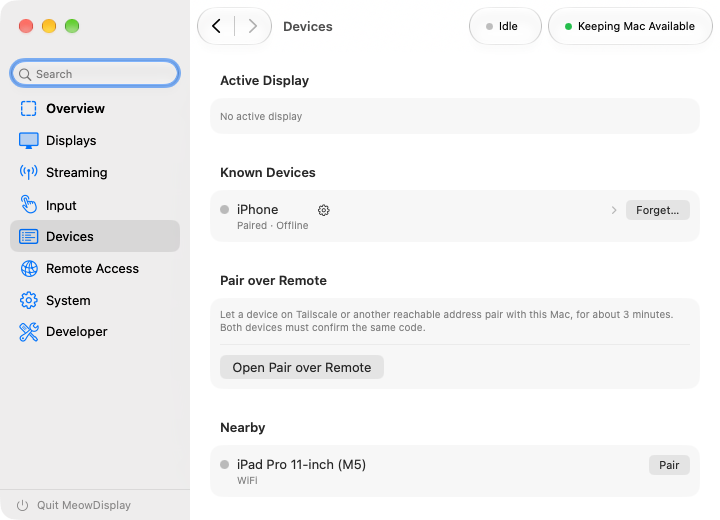
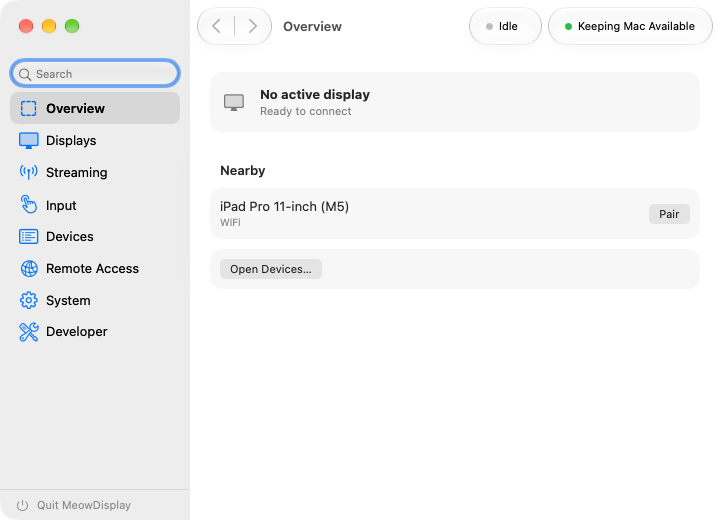
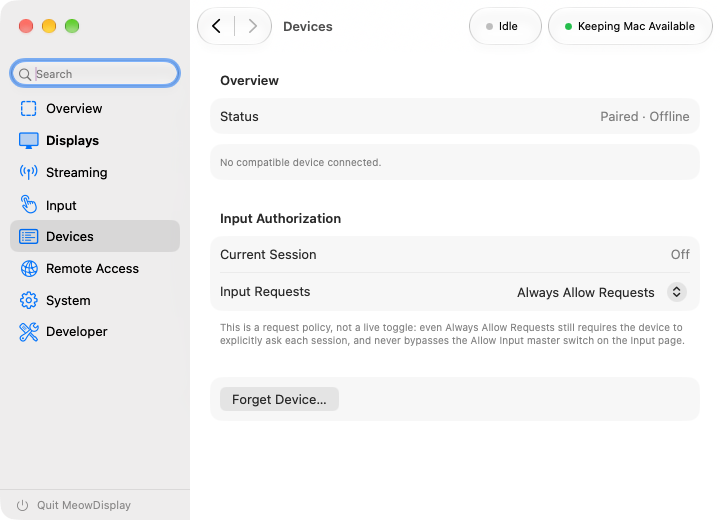
Your paired iPhone, iPad, Android device or receiving Mac appears in Devices on your Mac. See its connection, choose Mirror or Extend for that device, pause or disconnect it, and manage its permissions. Android is currently in closed beta.
Pair once and you’re set. Forget removes a device whenever you like.
Leave MeowDisplay and your Mac keeps going in a floating window.
Input
Control your Mac from the receiver.
Tap, drag, scroll, swipe between Spaces, and type from the receiver. Touch, keyboard, and mouse input travel back to your Mac. You stay in control with Allow Input.
Direct TouchTap exactly where you look
TrackpadGlide the pointer, like a MacBook
One fingerTap & drag
Two fingersScroll
Three-finger tapSpotlight
Requires Accessibility permission on the Mac. Pausing the stream also pauses input.
Allow Input on the Mac is the master switch for remote control. Your iPhone and iPad can always connect and show your Mac. Whether they can control it is up to you.
Off: look, don’t touch.
Connected devices still show your Mac, but nothing they do reaches it. The receiver hides its control tray; its Settings gear stays reachable.
On: control, with permission.
A device has to ask for control each session. With Ask, your Mac shows a prompt to approve. Always Allow Requests skips the prompt, but the device still has to ask.
Every session starts off.
Connecting never turns input on by itself.
Controlling your Mac requires Accessibility permission. Pausing the stream also pauses input.
A fingertip covers exactly what you’re aiming at. In Direct Touch or Trackpad, keep one finger down and use a second: the pointer moves from where it already is, and a tap clicks right where it points.
Place it, then refine it.
In Direct Touch, your first finger puts the pointer where you touch. Add a second finger and the pointer stops jumping. Move either finger to nudge it onto small targets.
Tap to click at the pointer.
Tap the second finger to click. Tap twice to double-click, or tap, then hold and move, to drag from that exact spot.
Trackpad works the same way.
The pointer is already relative there. Rest one finger, then tap another to click or drag right where the pointer is.
Lift to finish.
Lift every finger and your next touch starts fresh.
Works in Direct Touch and Trackpad. There’s nothing to turn on.
Hold one finger, add a second to nudge the pointer, then tap to click.
Smart Touch Experimental
Scroll and move windows with one finger.
With Direct Touch, Smart Touch checks what’s under your finger before it acts. Scrollable areas scroll with one finger, and title bars move their window.
Up, down, sideways and diagonally.
Lists, documents, web pages and spreadsheets follow your finger. Straight swipes stay on course; diagonal ones move both ways.
Hold a title bar to move the window.
Hold for a moment, then drag. A haptic tells you when the window is ready.
Hold anywhere else for Direct Touch.
Holding still turns that touch into plain Direct Touch.
Taps stay taps.
Two-finger scroll, pinch, rotate and Mac gestures work as before.
No guessing.
If MeowDisplay isn’t sure what’s under your finger, it’s ordinary Direct Touch.
Optional and off by default. Works best with apps that expose standard macOS accessibility information.
Try it: drag the page or the table, tap Read, or hold the title bar, then drag.
Apple Pencil
Use Apple Pencil with your Mac.
On supported iPad models, Apple Pencil strokes reach your Mac as pen-tablet input, separate from your fingers.
Pencil hovering above iPad
Every stroke, live. Pencil input is sent at the iPad’s full touch sample rate.
Tilt and hover. Tilt travels with each stroke. On iPads with Pencil hover, the pointer follows the tip before it touches.
Your palm stays out of it. Fingers resting on the screen are ignored while the tip is down.
Apple Pencil support is still evolving, with more capabilities and refinements planned. What works today ›
Trackpad mode
Use your device as a trackpad.
In Trackpad mode, the pointer moves from wherever it is, just like on a MacBook. Touching the screen never makes it jump.
Don’t need the picture? Turn Video off and keep going. Your iPhone becomes a trackpad and keyboard for your Mac, with the trays and gestures still ready.
Hold ⌘ and the commands that go with it appear right beside it. Add ⌥ or ⇧ and the palette changes. Slide onto a command and let go — no keyboard needed. Try it below.
One key, or a few. Modifiers stay latched until you use them, so a chord is just a tap or two.
Quick actions, always there. The Function Tray keeps Zoom, Undo, Redo and Return one tap away, on either side of the screen.
Made yours. Choose the shortcuts in each palette, reorder or hide controls, and keep separate profiles.
Automatically hide the Control Tray.
Auto-hide hides the Control Tray after a short period of inactivity. It stays visible while you use it and reappears when you reach for it.
Prefer it always visible? Turn Auto-hide off. Show, Hide and Collapse still work the way they always have.
Use an Android phone or tablet as a receiver over Wi-Fi or a private network. Mirror, Extend, Window view and Natural Touch are available to closed testers. Android connects over the network; USB isn’t supported.
Closed test · Android 10 or later · Works with Mac 2.0 or later · How to join ›
Connections
Connect by USB, Wi-Fi or a private network.
Connect over USB on iPhone/iPad, local Wi-Fi, or a private network such as Tailscale. Android uses network connections, not USB. There’s no MeowDisplay account or hosted streaming relay.
Connect a data cable, unlock your iPhone or iPad, and tap Trust. No extra USB tunnel tool is required.
02
Local Wi-Fi
On the same network, your Mac finds your device on its own. Nearby devices can also connect directly over peer-to-peer Wi-Fi.
03
Private-network connections
Use a private network you already trust, such as Tailscale, to reach a paired Mac from elsewhere. Pairing still verifies every connection.
Remote Access
Reach your Mac over a private network.
Connect through a private network such as Tailscale. Paired devices can exchange their own Tailscale addresses; automatic dialing is enabled only on verified Android–Mac IPv4 routes. You can also enter an address yourself.
Wake & Connect sends a Wake-on-LAN request to your paired Mac, then reconnects. It needs Wake for Network Access, supported hardware, and a way for the wake request to reach the Mac’s local network.
Auto-Reconnect restores the session when the connection returns.
A sleeping Mac can’t pass along its own wake request over Tailscale. From farther away, another device or router on the Mac’s network has to send it.
Designed for an existing logged-in Mac session that sleeps or locks. Cold boot and the fully logged-out login screen are outside the current supported workflow.
Built for your devices
Native apps for Mac, iOS and Android.
Native Mac and iPhone/iPad apps are built with Swift, and the Android receiver is built in Kotlin. Capture, decoding and input use platform-native frameworks. A Mac remains the sender.
Swift 6SwiftUIScreenCaptureKitVideoToolboxNetwork.frameworkMetalKotlinJetpack ComposeMediaCodec
Pairing & privacy
Pair your devices with a matching code.
Confirm the matching code on both devices. Future connections authenticate against the device identity you trusted.
MeowDisplay uses mutually authenticated TLS 1.3 and pins each paired device’s public key. A saved network address helps find your Mac; it doesn’t replace that trust.
Yes. The Mac, iPhone and iPad apps are free, and Android is in free closed testing. There are no subscriptions, ads or MeowDisplay accounts. The source is open under GPL-3.0. Donations are optional and greatly appreciated.
The sender runs on macOS 14+. Receivers include iPhone/iPad (iOS/iPadOS 16.4+), Android (10+, closed beta), and another Mac (standalone receiver from macOS 12, or integrated receiving in the main Mac app). Mac-to-Mac input is implemented but physical two-Mac verification is pending. Compare platforms ›
Do I need a monitor or a dummy display adapter?
No dummy adapter is needed. Extend creates a virtual display in software, so your iPhone or iPad can be the Mac’s screen, including with the lid closed. MeowDisplay is designed to work with no monitor attached; headless setups are still being tested on more Macs. Mirror copies a physical display, so it needs one to be active. Clamshell and headless use.
Is MeowDisplay a remote desktop app?
MeowDisplay lets you use your own Mac from another device, including for professional work. It is not an enterprise remote-support or fleet-management service. Feature availability depends on the receiving platform and release version.
Do I need Tailscale?
No. USB and local Wi-Fi work without it. Remote Access needs a reachable network; Tailscale is one option. Third-party networking services have their own terms.
Can I wake my Mac from another network?
Local Wake & Connect depends on Mac hardware and settings. Waking an unreachable Mac from another network requires something on its own LAN to send a wake packet. MeowDisplay does not provide a hosted wake relay.
Get started
Get MeowDisplay for your devices.
Free on Mac, iPhone and iPad today. Android 2.0 is in closed beta.