Feels like Finale
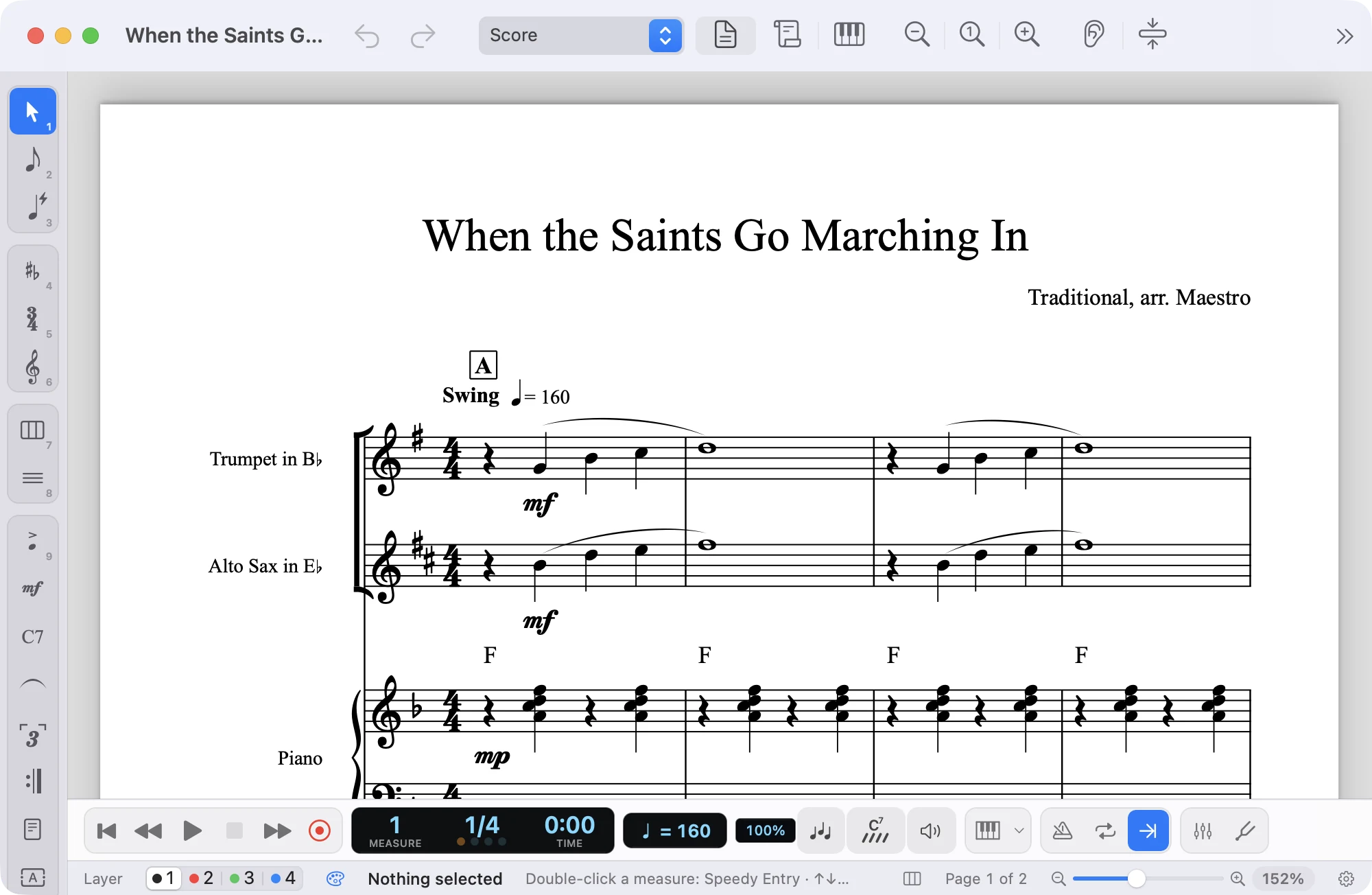
Simple Entry and Speedy Entry, the Main Tool Palette, Page View and Scroll View: years of habits still work.
Maestro
Music notation editor
Maestro is a music notation editor designed for people coming from Finale: enter notes quickly with the keyboard or MIDI, listen, and print score and parts.


Version 1.7.0Free, with no limitations!For Mac, Windows and iPad
Opens and saves
What it does
Simple Entry and Speedy Entry, the Main Tool Palette, Page View and Scroll View: years of habits still work.
Finale (.musx and .mus), MuseScore (.mscz), Guitar Pro, MusicXML and MIDI scores become Maestro documents, ready to edit, and go back to Finale as .musx when needed; iReal Pro songs become lead sheets with chord symbols. Finale’s fonts are built in.
Playback with performance styles (Baroque, Classical, Romantic, jazz) that play like a musician, General MIDI sounds, mixer, swing and metronome; export to M4A or WAV, including backing tracks without your part.
Automatic layout, parts with cue notes, guitar and bass tablature, your choice of music font. Print-ready PDFs and PNG or SVG images.
Setlists as a single PDF or audio, tuner, tap tempo and a visual metronome.
Analyze chords, harmonize a melody for a horn section, check instrument ranges.
Coming from Finale? Here’s how to switch to Maestro Coming from MuseScore? Open your .mscz files Have Guitar Pro files? Open them with their tablature
Beyond Finale
Things you did by hand in Finale, or not at all: Maestro reads paper scores, finds the chords, plays along with you and keeps the page tidy.
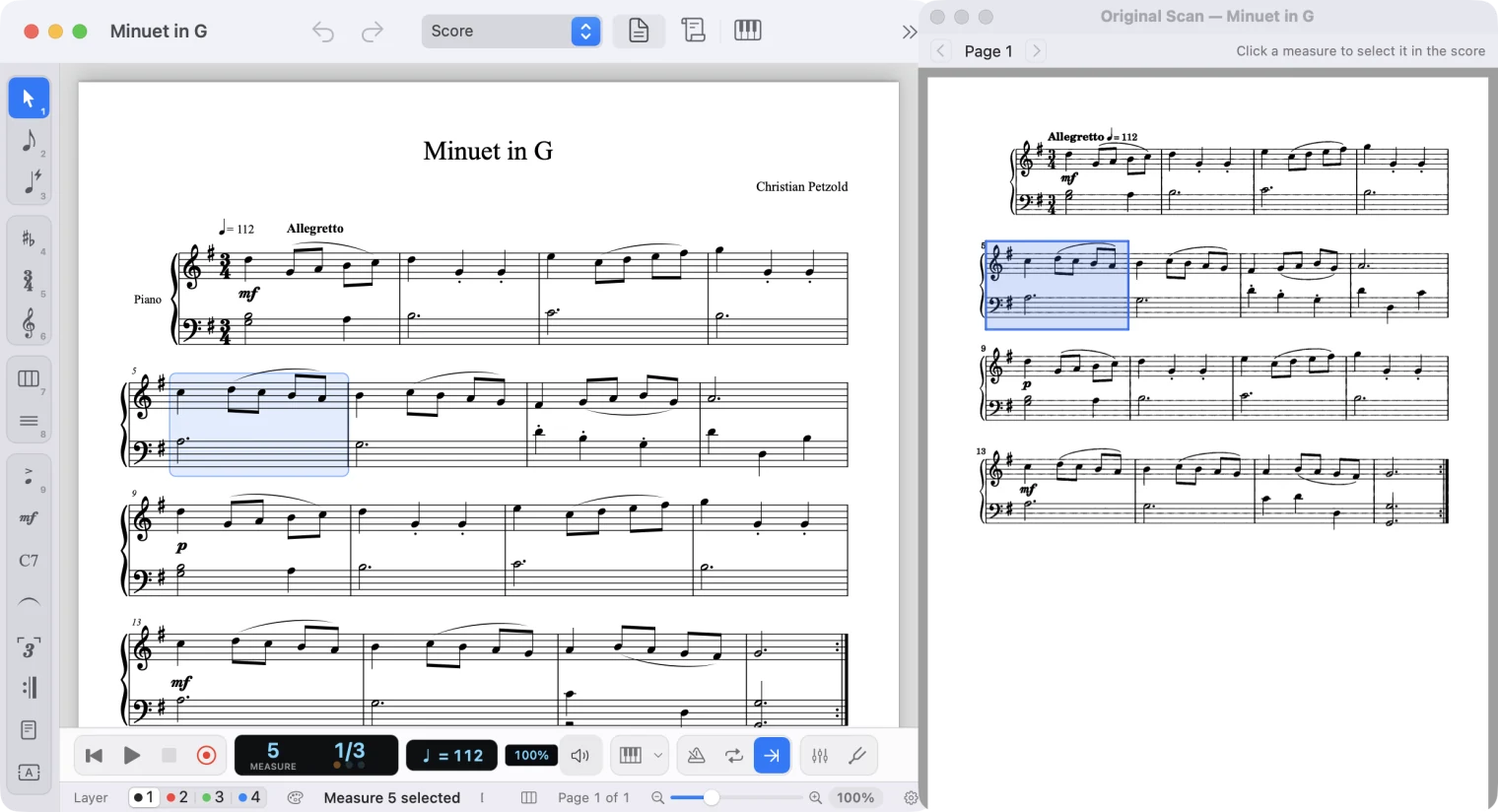
Scan or photograph a printed score and Import Scanned Score turns it into notes you can edit: it first straightens crooked pages and cleans up the background, then recognizes them with Audiveris. Correct it with the original scan alongside, which highlights the measure you’re working on.
On Mac and Windows, not in the Mac App Store version. PDFs exported from a notation program open directly.
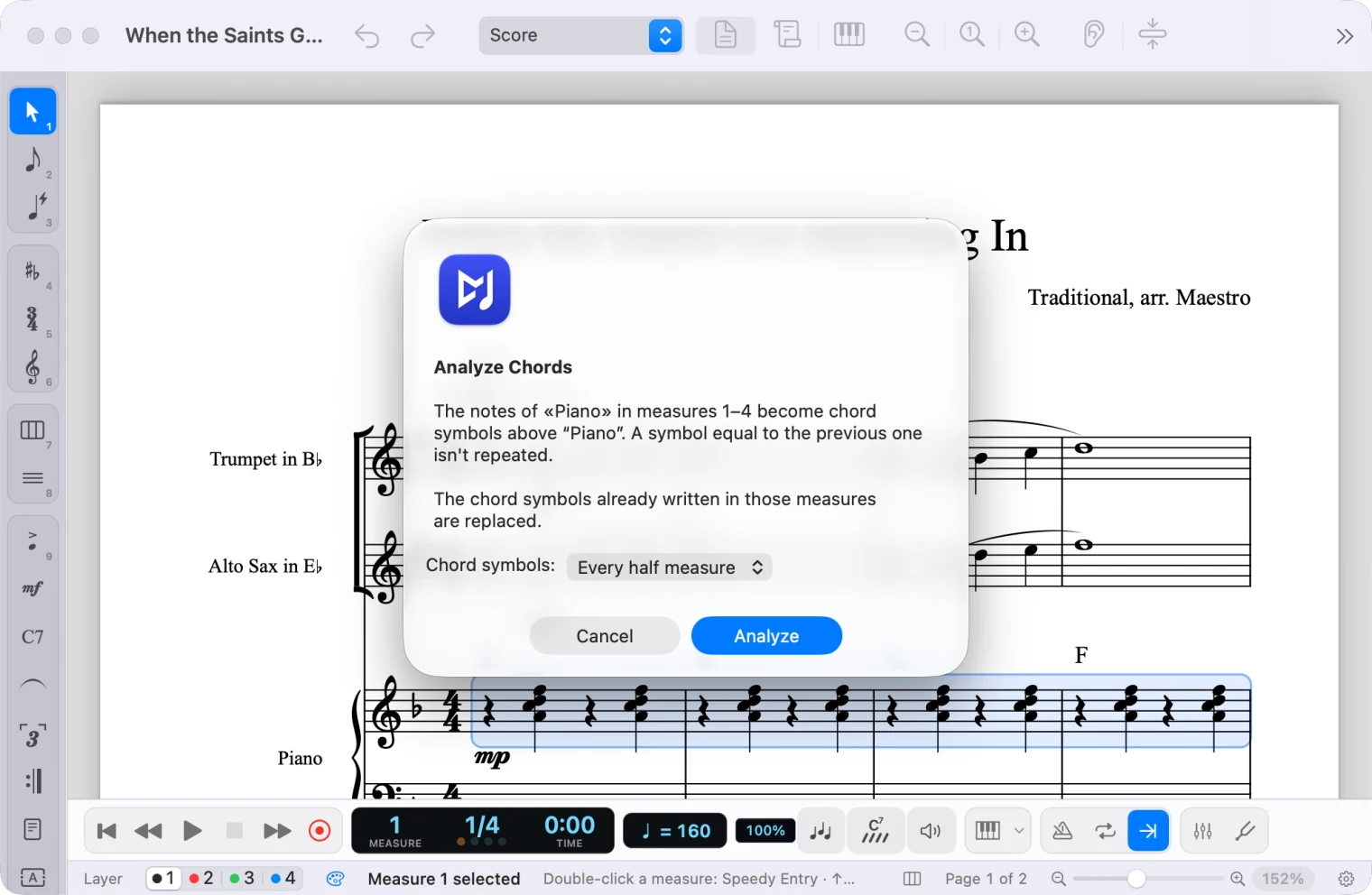
Analyze Chords reads the notes and writes the chord symbols, with tensions and inversions: G13, C7(♭9), C/E. From those symbols, Harmonize Section spreads the melody across the saxes or the brass, in block voicing or drop 2.
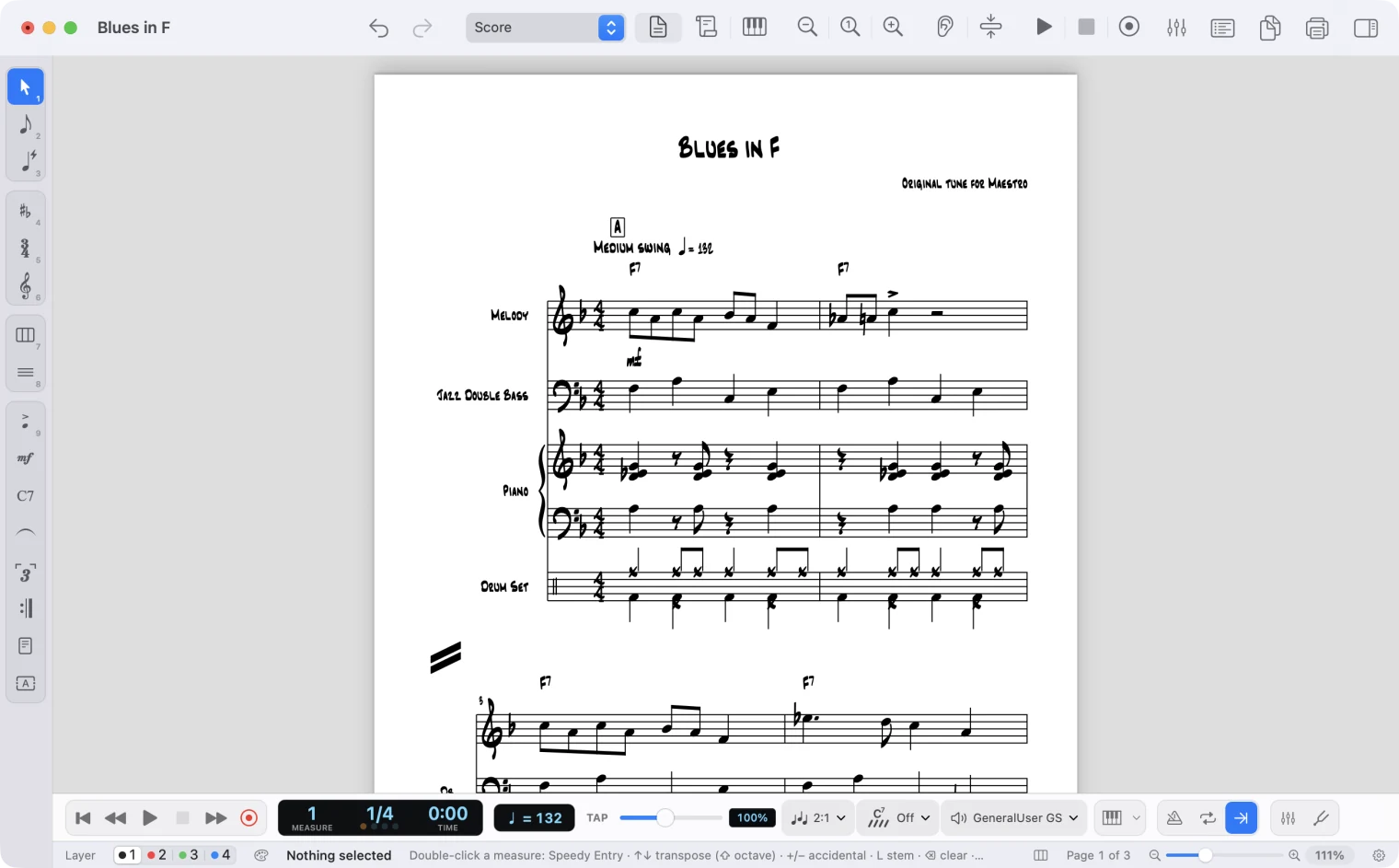
From the chord symbols, bass, piano and drums back you up while you practice a solo: swing, ballad, bossa nova, funk, salsa and more, with a fill at the end of each section and an ending. Write into the score turns the accompaniment into real staves, ready to print.
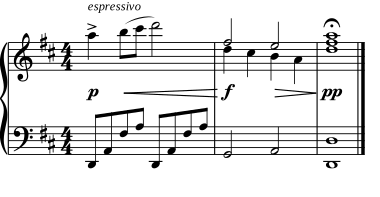
Dynamics, hairpins and expressions rest on the notes instead of sitting at a fixed height, so they don’t collide with them. Staves move apart where something sticks out, nearby dynamics line up, and two voices on one staff make room for each other. Everything can still be moved by hand.
Mixer and tuner
Two studio tools, always at hand: they open with the two buttons at the end of the playback bar.
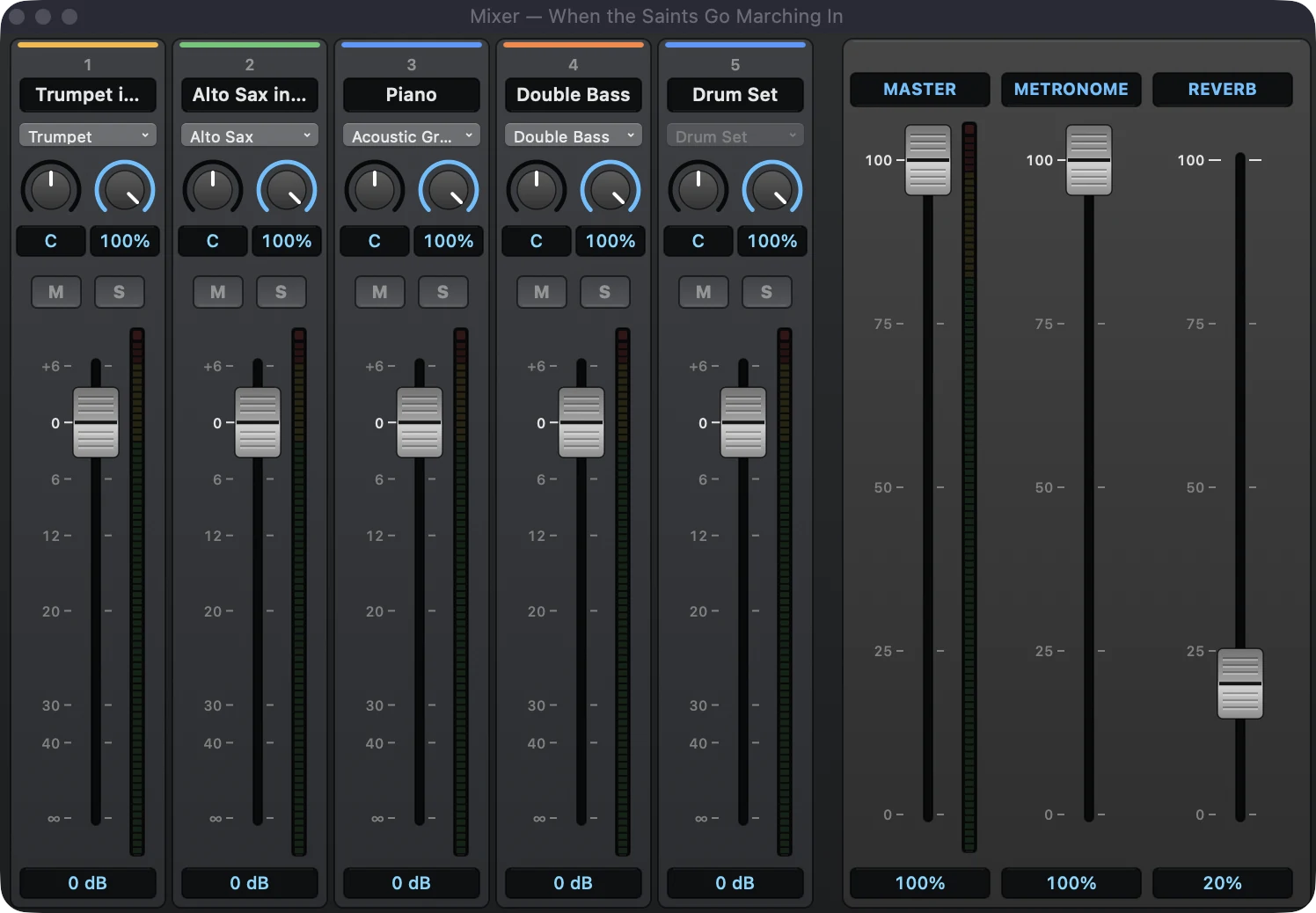
A studio console with a channel for each instrument: sound, pan, reverb, mute and solo, fader and stereo meters, plus master, metronome and reverb. Right-click to type exact values, copy settings from one channel to another and pick each channel’s color; the look can be customized, light theme included. You hear it at once, even while the score plays, and the settings are saved in the score.
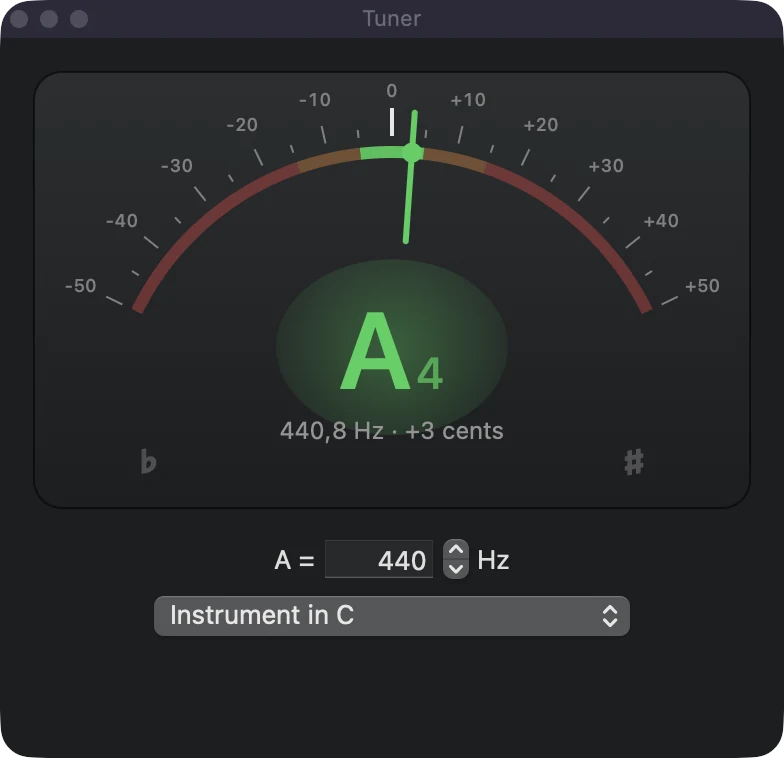
It listens to the microphone and shows the note, the frequency and how many cents sharp or flat you are. Pick the reference A and the transposing instrument, to read the note as it is written in your part.
Piano roll
View → Piano Roll shows the score as bars over a keyboard: look at it, listen to it and fix it by dragging notes, and the notation rewrites itself.
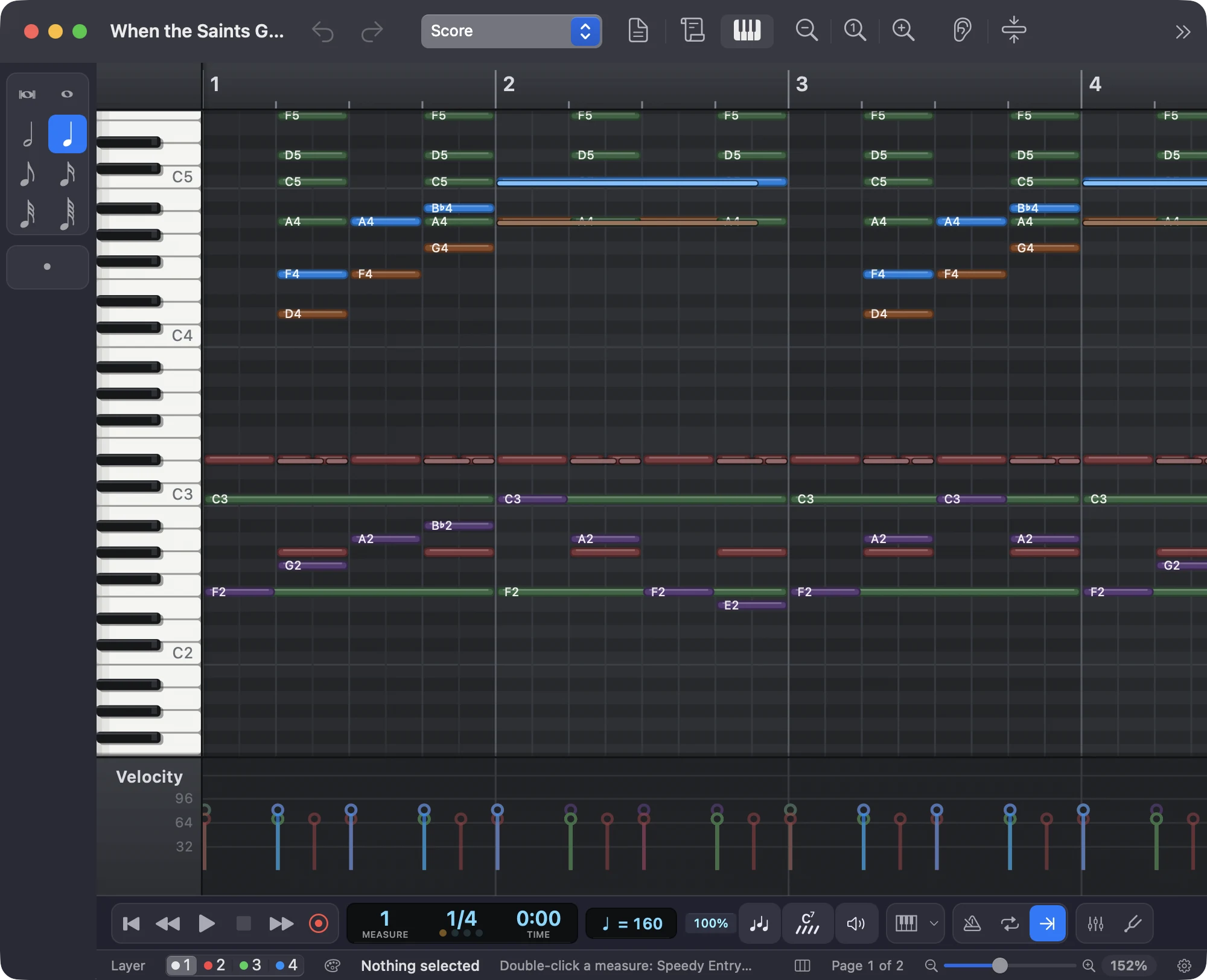
Move notes up and sideways, stretch them from the edge, copy them, create new ones with a double-click: the measures you touch turn back into notation, with ties, rests and spelling in the right place.
In the lane at the bottom, set how strongly each note plays, even by drawing a crescendo: it applies to playback, MIDI and audio, with no extra marks in the score.
Drums on their own become an editor with one row per sound; trills, staccatos, arpeggios and swing show the way playback plays them.
Dark or light theme, colors by instrument, velocity or voice, separate time and pitch zoom: right-click, just like the mixer.
Up close
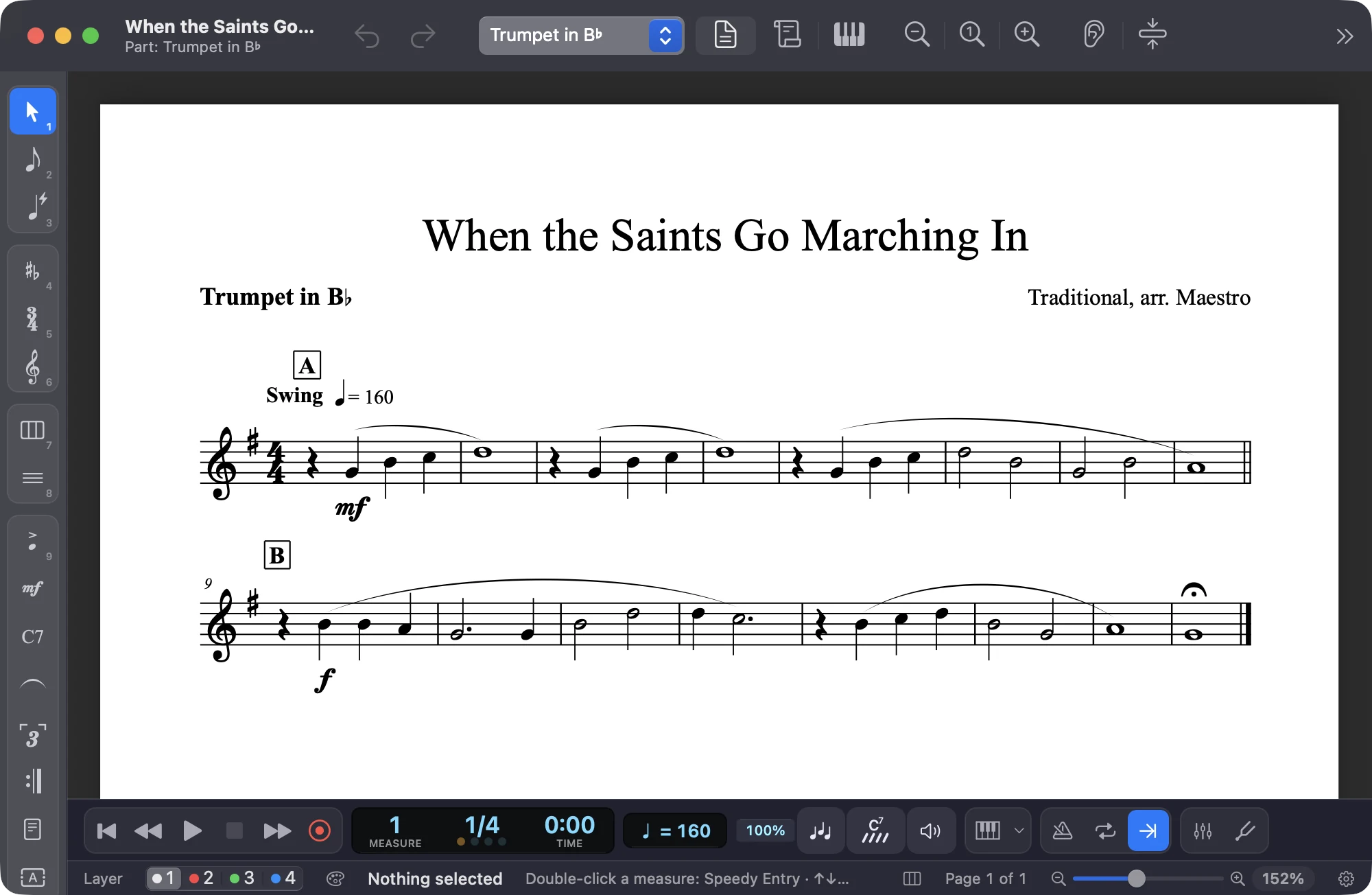
From score to parts in one click: each instrument has its own layout, with multimeasure rests, rehearsal marks, dynamics and cue notes.
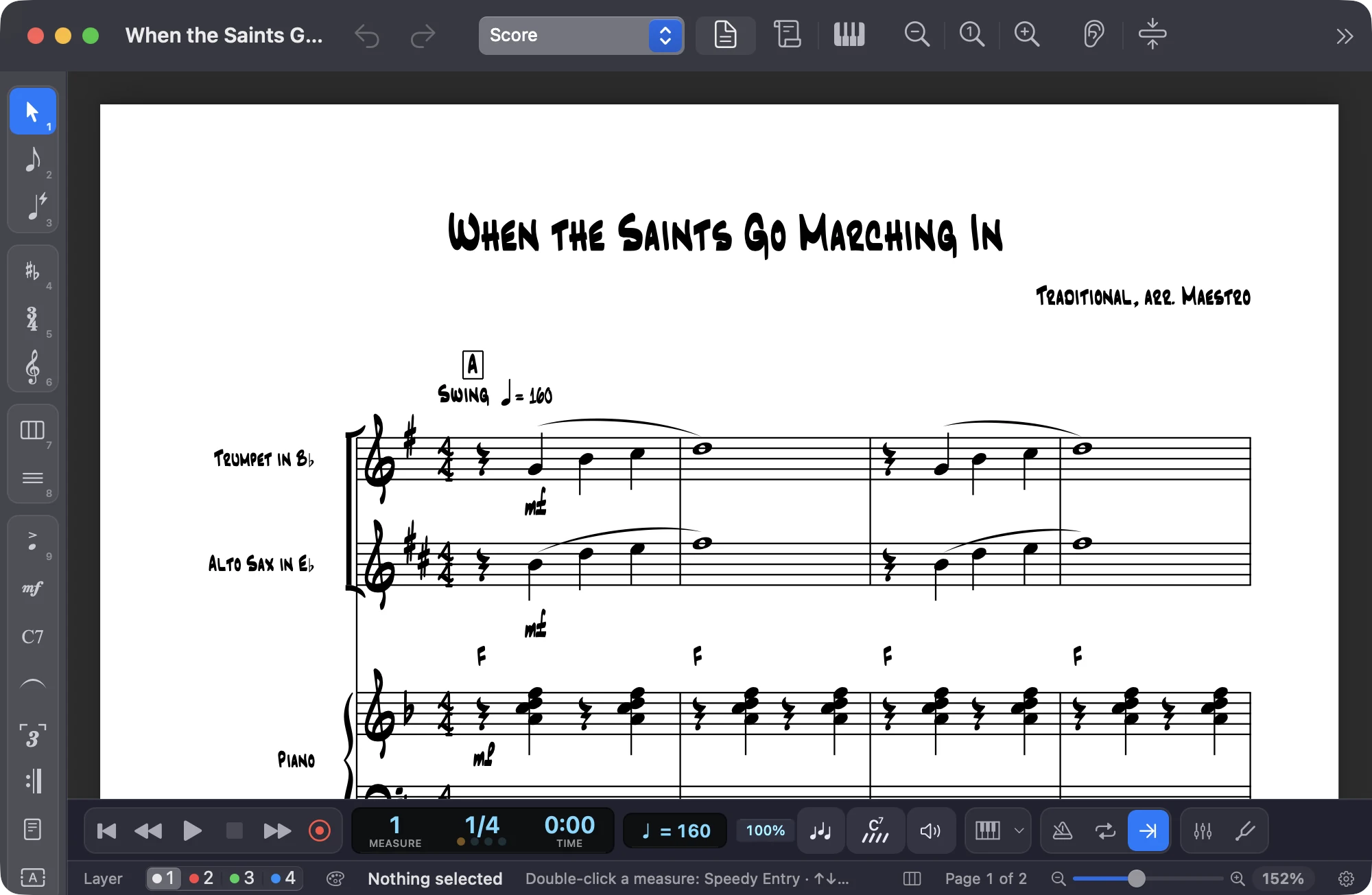
Document → Fonts… changes the music font and every kind of text. The Jazz handwritten style uses Finale’s fonts, which come with Maestro: notes, chord symbols and names look written by hand.
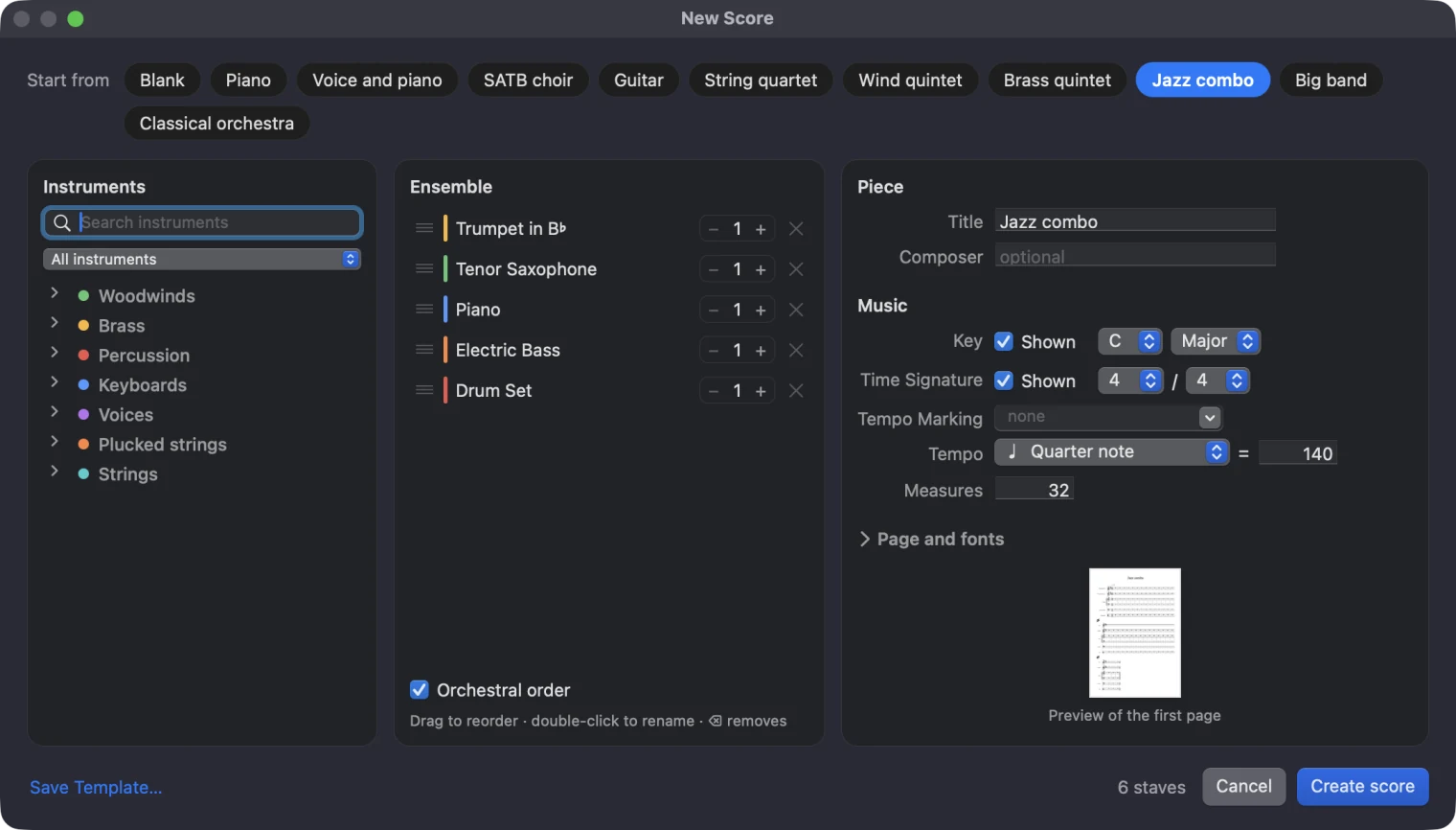
Pick a template (jazz combo, big band, string quartet, SATB choir and more), change the instruments as you like and start writing.
Virtual instruments
Below the score, a panel follows the instrument: piano, drums or a guitar neck. A click plays the note and, while you write, puts it in the score.
88 keys: a click plays and, with Speedy or Simple Entry, writes. While the score plays, the keys light up in each staff’s color.

On a percussion staff you get a drum machine: one pad per sound, which plays and writes the hit and lights up in time.

On guitar, bass and ukulele you get the neck: pick a string and fret and the note is written right there, tablature included.

View → Panels → Virtual Instruments (⌥⌘J; Ctrl+Alt+J on Windows), on Mac and Windows.
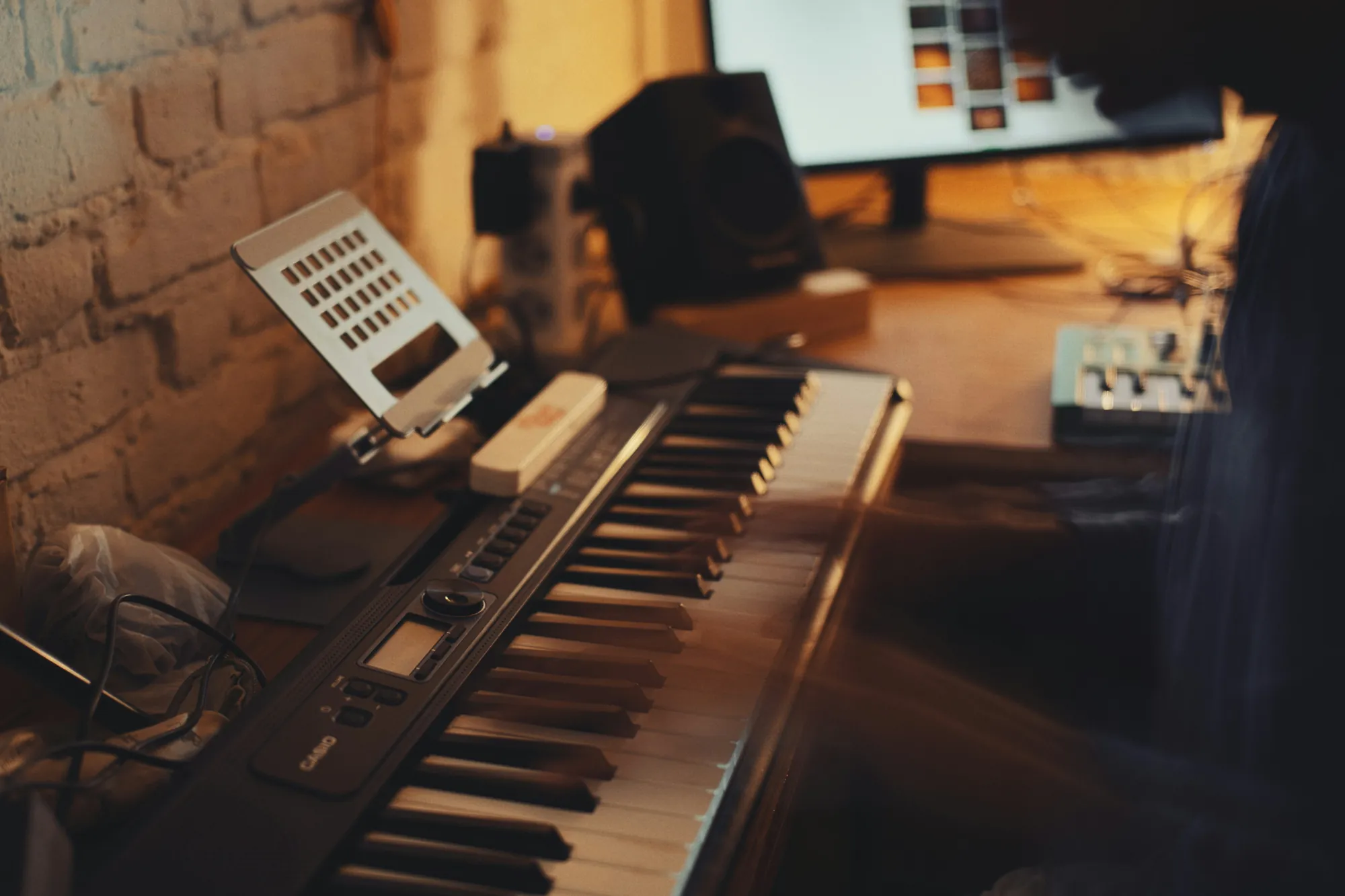
MIDI keyboard
Plug in a MIDI keyboard: write note by note with Speedy Entry, or record as you play and Maestro transcribes it, even with both hands. No keyboard? Sing or play into the microphone.

Where music happens
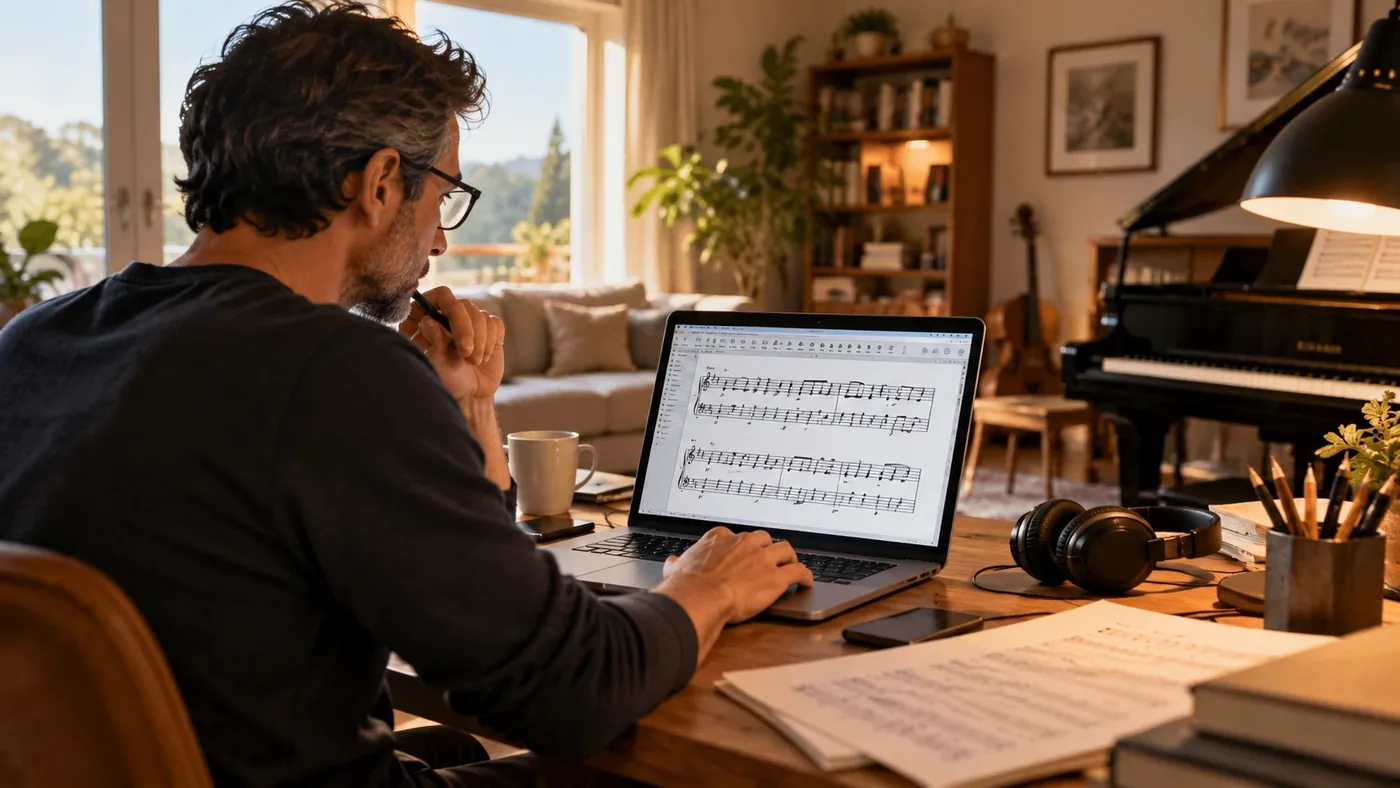
On the sofa, on the living room rug or in the rehearsal room: write the idea down as soon as it comes, with your computer keyboard, and hear it right away.
Follow us
News as soon as it lands, previews of upcoming versions and tips for writing music faster.
Why trust it
The Mac app is signed and notarized by Apple: it opens without warnings.
No account and no data collected: Maestro only goes online to check for updates.
134 versions since 29 September 2026, the latest on 10 November 2026. Maestro updates itself.
You can always export them as MusicXML, the open format read by Finale, MuseScore, Sibelius and Dorico, and as .musx to reopen them in Finale.
Yes: no limitations, no subscription and no account, on Mac and Windows. And it will stay free.
A group of musicians who are also developers. We wrote music with Finale for years and, when it was discontinued, we wanted to keep working the same way: that’s where Maestro comes from, and it grows with the feedback of the people who use it.
Yes: since version 1.0 Maestro is ready for everyday work, and new versions with features and fixes keep coming out and install themselves. If something doesn’t work, write to us: every report helps.
On Macs with macOS 13 Ventura or later, Apple Silicon or Intel; on PCs with 64-bit Windows 10 or 11, with an Intel, AMD or ARM processor. A score saved on one opens on the other.
Yes: .musx files and older .mus files too, from Finale 1.0 onwards, without Finale installed. Finale’s fonts are included, so the score opens looking the way it should. MuseScore (.mscz), Guitar Pro, MusicXML and MIDI files open as well.
Yes: share a song or a playlist from iReal Pro in iReal Pro format and open it with Open, or paste a copied iReal Pro link. It becomes a lead sheet with chord symbols, form, style and tempo, with the accompaniment already on. You don’t need iReal Pro.
Yes. Maestro saves in its own format (.maestro); Export Finale (.musx) in the File menu reopens it in Finale with its layout, and Export MusicXML takes it to MuseScore, Sibelius or Dorico. It also exports PDF, MIDI, audio (M4A or WAV), PNG or SVG images, LilyPond and MEI.
No. Maestro works offline and without signing up: it only goes online to check for updates, and it collects no data about you or your scores.
Yes: enter notes one by one with Speedy Entry, or record while you play and Maestro transcribes, even with both hands. Without a MIDI keyboard, write with your computer keyboard, the on-screen piano, drums or guitar neck, or by singing into the microphone.
Yes: Import Scanned Score recognizes the notes in a scanned PDF or in photos of the pages with Audiveris, free and open source, which Maestro downloads the first time. Always check the result, with the original scan alongside. It works on Mac and Windows, but not in the Mac App Store version.
Yes: with NVDA, JAWS and Narrator on Windows and VoiceOver on the Mac, Maestro tells you every note you enter and where you are in the score, and it works from the keyboard. All about accessibility →
Maestro is available in English, Italian, German, French, Spanish, Brazilian Portuguese, Japanese, Simplified Chinese and Korean. By default it uses the system language; to change it, pick one under Language in Settings.
Maestro is free, for Mac and Windows. Download it and open your first score in a minute.