For the last few months my laptop has been the bottleneck in my own workflow. Not the CPU, not the RAM – the fact that it’s a laptop.
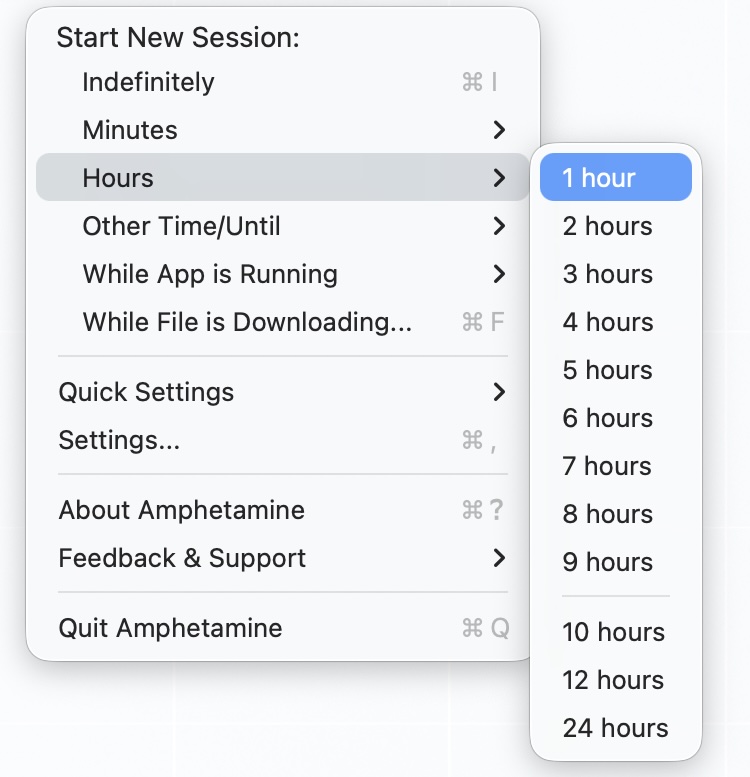
I run long AI coding sessions now. Claude Code churns away on a feature for twenty minutes, I go make coffee, and if I close the lid the session dies with it. So for a while I did the obvious dumb thing: I kept the Mac awake with Amphetamine , lid open, plugged in, sitting on a desk I then couldn’t walk away from. The machine doing the work had to be the machine in front of me, powered on, present. That’s backwards.
So I moved the whole thing off my laptop. There’s now a small VPS that runs the agents, the code, the databases, and the editor GUI. I reach it from my MacBook at my desk, from the couch, or from my phone on the train. Close the laptop, the work keeps running on the server. Open my phone twenty minutes later and I’m looking at the exact same session, right where it was.
If you’ve used Claude Code’s Remote Control to pick a session up from the phone app, it’s a bit like that, except it’s on by default, running all the time, and it’s my own server with none of the limits. Every project I have, not just the one I remembered to start a remote session for.
This post walks through how it’s built and why each piece is there. It’s also written so you can hand the whole thing to an LLM and have it build the same setup for you. More on that at the end, but keep it in mind as you read: everything here is a real command I ran on a real server, not a sketch.
What you get#
A server in the cloud isn’t new, I’ve had those for twenty years. What’s new is that the machine doing the work is no longer tied to the machine I’m sitting at.
- I can close my laptop. The agent, the editor, the database, all of it lives on the server. My laptop is a window, not the engine. Shut the lid, get on a train, nothing stops.
- I hand off between devices instantly. Start a task on the MacBook, check on it from my phone in the kitchen, back to the desk. Same session, same state, no syncing, no “let me push this real quick so I can pull it elsewhere”.
- It survives a dropped connection. My train goes through a tunnel, SSH drops, the work on the server doesn’t care. I reconnect and reattach.
- No more caffeine hacks. Amphetamine, Caffeine,
caffeinate, the littlewhile true; do; donetricks, … all gone. The laptop is allowed to sleep because it isn’t doing anything important.
It all rests on three pieces: a network layer (Tailscale), a server (a VPS), and a coding GUI you reach from a browser (I use T3, but that part is swappable). Then a bunch of small tweaks on top that make it pleasant instead of fiddly.
Tailscale: the network that makes it private#
The first problem with “a server I reach from anywhere” is the “from anywhere” part. You do not want an editor with a shell on it exposed to the open internet. That’s how you end up in someone’s botnet.
Tailscale solves this cleanly. It’s a mesh VPN built on WireGuard , but you never touch a WireGuard config. You install a client on each of your devices, log in, and they all end up on one private network (a tailnet) where they can talk to each other directly, encrypted, no matter which network they’re physically on. My laptop, my phone, and the VPS all see each other as if they were on the same LAN, whether I’m at home, on cellular, or on hotel wifi.
There are proper native clients for everything: macOS, Windows, Linux, iOS, and Android. On the phone it’s an app-store install and a login, that’s the whole setup. Once a device is on your tailnet it can reach the VPS by name, and nothing outside the tailnet can.
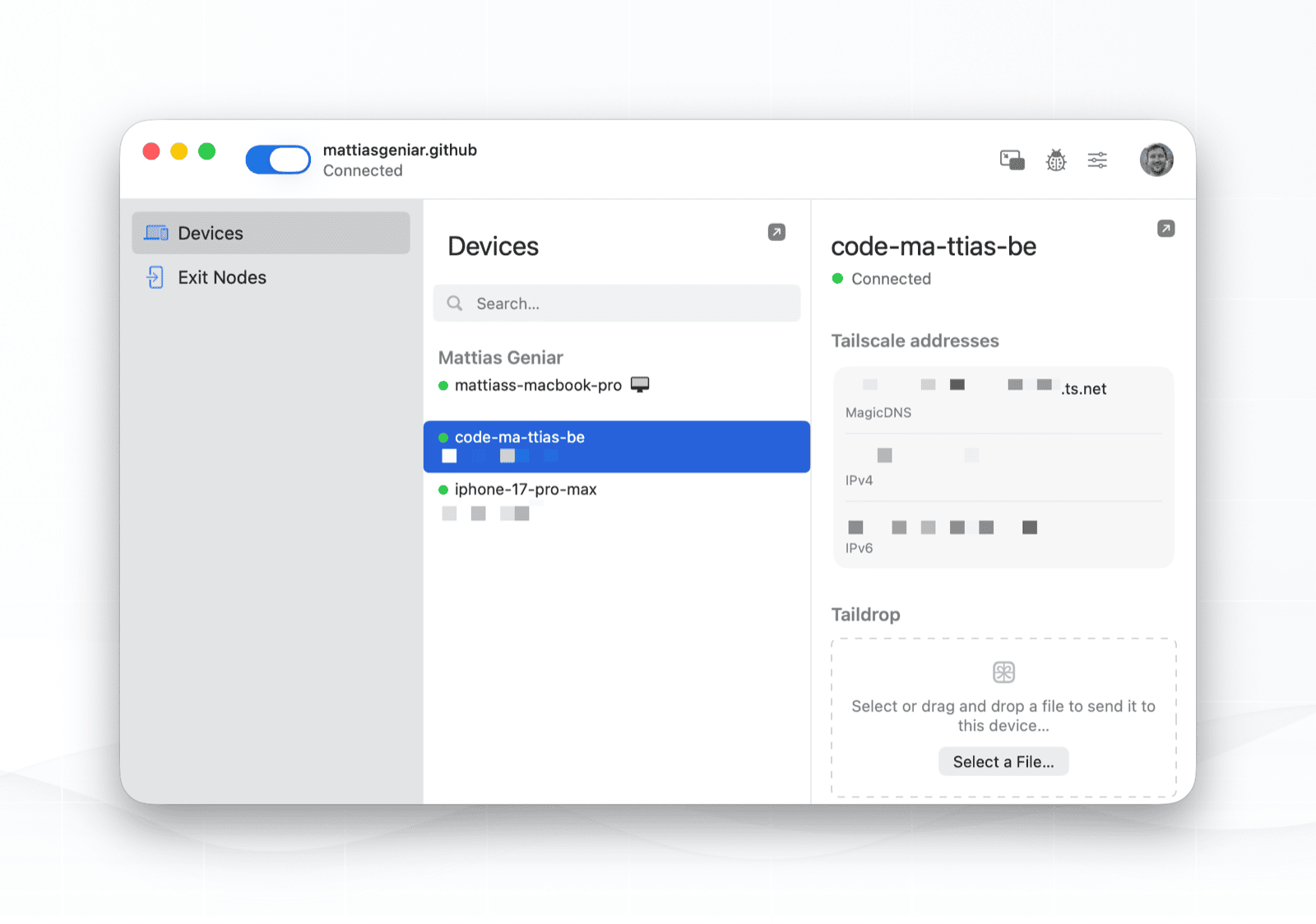
That last part is what makes the whole thing safe. The VPS exposes exactly one port to the public internet: SSH, and even that I keep only as a break-glass door in case Tailscale itself is ever down. Everything else, the editor, the preview servers, the databases, is bound to localhost and published only onto the tailnet. The firewall denies inbound by default and allows the tailnet interface:
$ sudo ufw status verbose
Status: active
Default: deny (incoming), allow (outgoing), disabled (routed)

To                         Action      From
--                         ------      ----
9999/tcp                   ALLOW IN    Anywhere                   # SSH (break-glass, public)
Anywhere on tailscale0     ALLOW IN    Anywhere                   # Tailnet (all services)
Tailscale also does the SSH auth for me (tailscale up --ssh), so device-to-device SSH inside the tailnet needs no key juggling, and it can hand out real, valid HTTPS certificates for your machines. That’s how the editor gets a proper https:// URL with no cert warnings, reachable from Safari on my phone, without ever being public. tailscale serve puts a localhost port onto the tailnet over HTTPS and nothing more.
If you only copy one thing from this post: put the server on a tailnet and keep it off the public internet.
The server: a standard Ubuntu 26.04 LTS VPS#
The server itself is deliberately unremarkable. It’s a DigitalOcean droplet running Ubuntu 26.04 LTS, 2 vCPUs, about 8 GB of RAM, 28 GB of disk, plus a 100 GB block volume I added a few days later. Any provider works. Hetzner, Vultr, whoever. You want enough RAM to run a few agents plus a database or two at once, so I’d aim for 8 GB rather than 4, and add a bit of swap.
On top of the base OS it’s just a normal dev machine: git, tmux, PHP, Node, a database or two, … and Docker for anything that’s easier in a container.
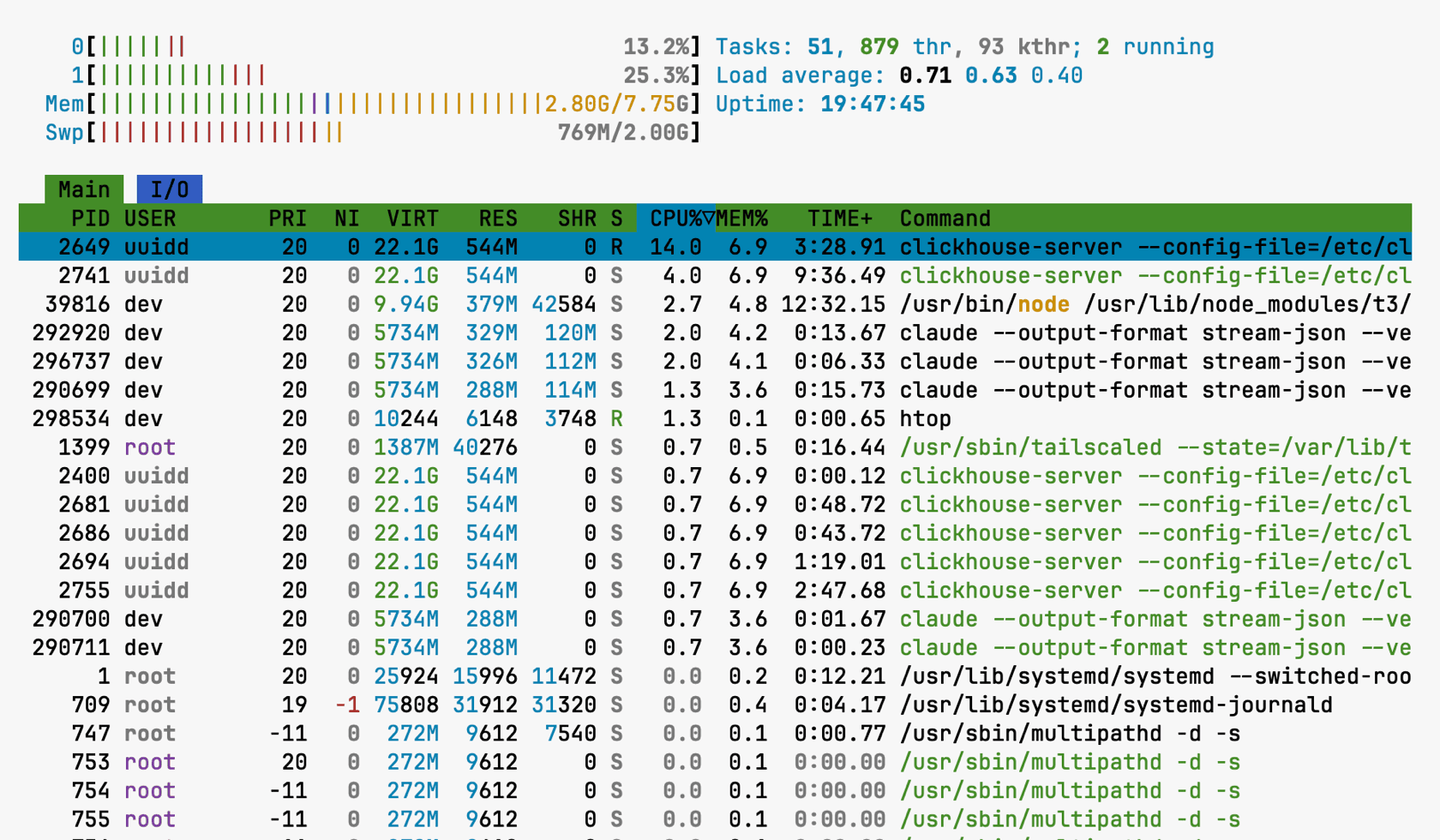
I also turn off automatic updates on this server, which feels wrong until you think about it. Unattended-upgrades can decide to reboot at 3am, and a reboot kills every running tmux session and every in-flight agent. That’s the exact thing this setup exists to prevent. So I patch by hand, when I choose to, and let the sessions live:
$ sudo apt-get purge unattended-upgrades
$ sudo systemctl mask apt-daily.timer apt-daily-upgrade.timer
Long-running work goes in tmux, one session per project. Detach with Ctrl-b d, reattach from any device with tmux attach. That’s the fallback layer that survives everything, including the fancier GUI on top of it dying. If the browser editor ever breaks, ssh in and tmux attach and I’ve lost nothing.
Put the data on its own btrfs volume#
I got this wrong when I first built this server.
Cloud images hand you ext4 as the disk by default. ext4 can’t share blocks between files, so every worktree with its own node_modules costs the full copy. Ten of them took this 28 GB disk down to 687 MB free in about a day, and I ended up deduplicating the worktrees with jdupes
to get the space back. Hardlinks work. They’re still a workaround for a filesystem that can’t share blocks.
You pick the filesystem on a second disk, though. Every provider sells block storage by the gigabyte, so the server now has a 100 GB volume formatted btrfs with /home/dev on it: projects, worktrees, database dumps, agent state, all of it off the root disk.
$ findmnt -no SOURCE,FSTYPE,OPTIONS /home/dev
/dev/sda[/@home] btrfs rw,noatime,compress=zstd:3,discard=async,space_cache=v2,subvolid=256,subvol=/@home
Moving an existing home across is an rsync -aHAXS --delete and one line in /etc/fstab. Do it while nothing is writing to it, and keep nofail in the mount options so a volume that doesn’t show up can’t stop the server from booting.
Copy-on-write is the reason to bother. cp --reflink clones a file by sharing its blocks instead of copying them, so duplicating a gigabyte costs nothing until something writes:
$ df -h /home/dev | tail -1
/dev/sda        100G   10G   89G  11% /home/dev
$ cp --reflink=always big.bin clone.bin
$ df -h /home/dev | tail -1
/dev/sda        100G   10G   89G  11% /home/dev
$ ls -lh big.bin clone.bin
-rw-rw-r-- 1 dev dev 1.0G Jul 25 11:02 big.bin
-rw-rw-r-- 1 dev dev 1.0G Jul 25 11:02 clone.bin
A gigabyte cloned and the free space doesn’t move. Ten checkouts of the same node_modules are that problem at scale.
I mount it with compress=zstd:3 too. That puts 14 GB of home in 8.9 GB on disk:
$ sudo compsize /home/dev
Processed 562962 files, 143632 regular extents (202015 refs), 404795 inline.
Type       Perc     Disk Usage   Uncompressed Referenced
TOTAL       65%      8.9G          13G          15G
none       100%      7.1G         7.1G         7.4G
zstd        27%      1.7G         6.4G         8.1G
The jdupes cron still runs, and on btrfs it now uses jdupes -B, which dedupes matching files into shared extents rather than hardlinking them, so writing to one copy can’t reach the others.
The full disk layout, /tmp included#
There’s a second default I got wrong, and it ships with every cloud image: /tmp is a tmpfs, so it lives in RAM. Ubuntu sizes it at half your memory, 3.9 GB here. A tmpfs page can’t be reclaimed until the file is deleted, so every gigabyte of build scratch stays charged to memory until something cleans it up. I caught /tmp sitting at 1.9 GB used while Shmem was only 122 MB, which means about 1.75 GB of it had been pushed out into swap. At 81% full the box had eaten its whole memory headroom: fork started failing with ENOMEM and even echo returned nothing.
So /tmp is a second btrfs subvolume on that same volume now, and the ceiling went from 3.9 GB of memory to 85 GB of disk. Be warned though, a tmpfs gets wiped at every boot and a real filesystem doesn’t, so you want a D /tmp 1777 root root 10d line in /etc/tmpfiles.d/ to clear it at boot and age out whatever survives. Keep nofail on both volume lines: a volume that doesn’t show up then can’t stop the server from booting, and /tmp falls back to the empty directory on the root disk. nosuid,nodev because /tmp is world-writable, and noatime so reading a file doesn’t cause a write. The fstab, minus the /boot and swap lines:
LABEL=cloudimg-rootfs / ext4 discard,commit=30,errors=remount-ro 0 1
UUID=e5cb1006-874e-4ede-933b-ff1f9cd45a0b /home/dev btrfs subvol=@home,noatime,compress=zstd:3,nofail,x-systemd.device-timeout=15 0 0
UUID=e5cb1006-874e-4ede-933b-ff1f9cd45a0b /tmp btrfs subvol=@tmp,noatime,nosuid,nodev,compress=zstd:3,nofail,x-systemd.device-timeout=15 0 0
The coding GUI: T3, but bring your own#
This layer is the least settled of the three, and that’s fine.
I want a proper editor I can drive from a browser, including my phone’s browser, so I’m not squinting at tmux on a 6-inch screen when I just want to review a diff and approve a change. The server runs the editor as a service: I open a URL and there’s my project, my files, my git state, my agents.
Right now I use T3 Code
for this. It’s a web GUI that runs on the server (not on my Mac), speaks to Claude Code and Codex, does git worktrees, shows diffs, and opens pull requests. It has first-class Tailscale support, so t3 serve --tailscale-serve publishes it on tailnet-only HTTPS and I open that URL from anything. It’s early software, the project says so itself, and I’ve hit rough edges. But it does the job today.
My one current issue with T3 is that I can’t queue up multiple messages in the editor: a new message can only be sent once the agent has finished processing the previous one. That’s a matter of time, I imagine, before that’s fixed.
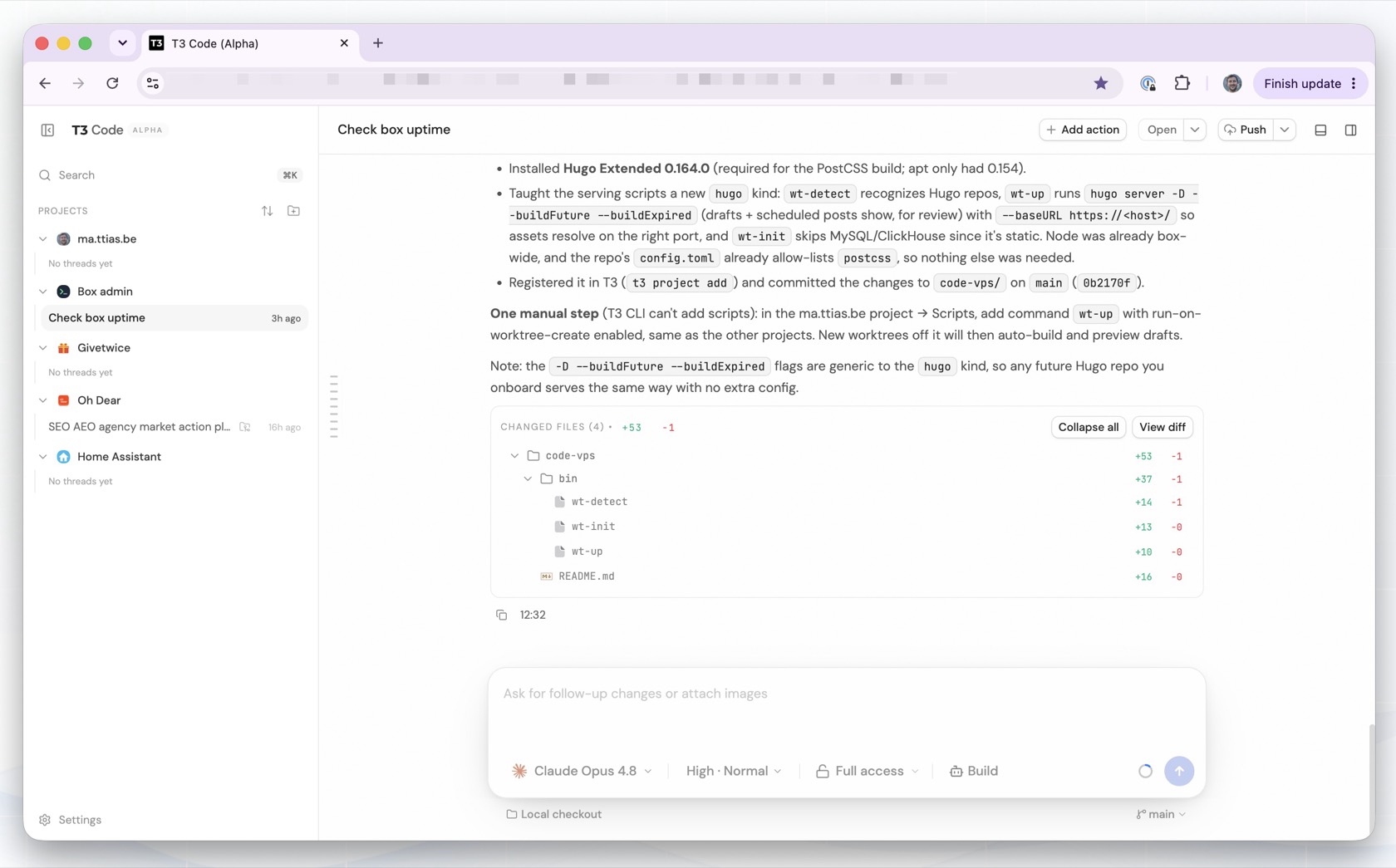
This piece is swappable, and chances are, I’ll end up trying a few different web GUIs over the coming weeks. The whole space of “browser-based agent coding UIs” is moving fast, and a year from now the good option might be something else entirely. Nothing else in this setup depends on the specific GUI. The network is Tailscale, the server is a plain Ubuntu VPS, the work lives in git and tmux. If I rip out T3 tomorrow and drop in a different editor, the foundation doesn’t move. Pick whatever’s good now, and don’t marry it.
T3 itself isn’t the recommendation here, the shape is. A few others solve the same problem already: Emdash and Orca are open-source apps that run agents in parallel git worktrees, with remote-over-SSH execution so the runtime can sit on another machine. CloudCLI and Paseo go the web route like T3: a self-hosted server you reach from a browser or your phone. I haven’t run all of them in anger, so this isn’t a leaderboard.
No code editor#
I haven’t opened a real code editor in months. No VS Code, no PhpStorm, no vim beyond a quick :wq on a config file. And I don’t miss it.
That’s the biggest change in how I work. I assumed the browser GUI was me swapping my editor for a worse one I could reach from my phone. Turns out I don’t use it as an editor at all. I open T3 to read a diff, approve a change, start the next task, and watch an agent work. I almost never type code into a file by hand.
The loop now is: describe what I want, let the agent write it, read the diff, run the tests, say what’s wrong, go again. The editor used to be where I did that middle step. It’s mostly gone, and what’s left is the two ends, deciding what to build and judging whether it’s right. Those are the parts I want to be doing anyway.
So what I tuned the setup for isn’t editing, it’s that loop: how fast I get from an idea to a diff I can judge, from anywhere, without a machine I have to keep awake. A snappy editor does nothing for that. A server that runs the suite in a couple of seconds and shows me the result on my phone does.
I’m not claiming hand-coding is dead. I still read every line before it merges, and I still drop into the code when an agent is flailing. But the editor as the place I spend my day is over.
The custom sauce#
Everything above is the skeleton. These are the tweaks that make it feel like mine rather than a generic tutorial, and they’re the bits I’d miss if they were gone.
The agents update themselves every morning#
Claude Code, Codex, and T3 all ship new versions constantly. I don’t want to npm update three tools by hand every morning, and I don’t want stale versions either. A systemd timer updates all three at 05:00 my time, before I’m awake, so whatever I open is already current.
It runs on UTC (as servers should), but I pin the schedule to my actual timezone, so daylight saving never shifts it:
[Timer]
# Box runs UTC; the explicit timezone keeps this at 05:00 local year-round.
OnCalendar=*-*-* 05:00:00 Europe/Brussels
Persistent=true
If that looks like it clashes with turning off automatic OS updates earlier, the difference is what can reboot the server. An OS upgrade can, and it drags every session down with it. These don’t touch the OS: Claude and Codex just swap a binary the next run picks up, and T3 only restarts itself. That restart still drops a live T3 connection, which is exactly why it runs at 05:00 and not while I’m working.
T3 gets the careful treatment because it’s alpha software backing the UI I work in: after each update the timer health-checks it, and if the new version doesn’t come back up, it rolls back to the previous one automatically. I tested both paths on the way in, a real upgrade and a forced failure, because an auto-updater you haven’t watched roll back is just a hope.
Onboarding a workspace in one command#
Adding a project shouldn’t be a checklist I half-remember. newproject clones the repo, provisions its databases, writes its .env, and registers it in T3, which can’t add a project from its own UI on a remote server. The whole script is about a dozen lines:
#!/usr/bin/env bash
set -euo pipefail
URL="${1:?usage: newproject <git-url> [title]}"
NAME="$(basename "$URL" .git)"
DEST="$HOME/projects/$NAME"

git clone "$URL" "$DEST"
cd "$DEST"
worktree-init                                    # databases, .env, dependencies
t3 project add "$DEST" --title "${2:-$NAME}"
The real work is in worktree-init. Every project gets its own MySQL and ClickHouse database named proj_<name>, with the credentials written into .env. It reaches MySQL through a ~/.my.cnf file instead of sudo mysql, so the same script runs unattended from cron without hanging on a password prompt:
NAME="$(basename "$PWD")"
DBNAME="proj_$(printf '%s' "$NAME" | tr 'A-Z-' 'a-z_' | tr -cd 'a-z0-9_')"
DBPASS="$(sed -n 's/^DB_PASSWORD=//p' .env | head -1)"     # reuse if already set
[ -n "$DBPASS" ] || DBPASS="$(openssl rand -hex 16)"

mysql <<SQL
CREATE DATABASE IF NOT EXISTS \`$DBNAME\` CHARACTER SET utf8mb4;
CREATE USER IF NOT EXISTS '$DBNAME'@'localhost' IDENTIFIED BY '$DBPASS';
ALTER USER '$DBNAME'@'localhost' IDENTIFIED BY '$DBPASS';
GRANT ALL PRIVILEGES ON \`$DBNAME\`.* TO '$DBNAME'@'localhost';
SQL
That ALTER USER right after CREATE USER IF NOT EXISTS looks redundant, and it’s there because of a bug. IF NOT EXISTS keeps the old password when the user already exists, so the first time I deleted a project’s .env and re-ran, the freshly generated password and the database’s actual password drifted apart and the app couldn’t connect. Setting it every run keeps them in sync.
Serving is the part T3 triggers. When I start a thread, T3 makes a git worktree and runs a single setup script. Mine is worktree-up: it installs dependencies and puts the app on the tailnet. The fiddly bits are all Laravel:
# APP_URL portless: domain-scoped routes match Request::getHost(), which drops the
# port, so "host:8563" would never match. ASSET_URL WITH the port: Vite builds
# asset links from it, not the request, so portless sends every stylesheet to :443
# (that's T3 Code, not the app).
envset APP_URL   "https://$HOST"
envset ASSET_URL "https://$HOST:$PORT"

export PHP_CLI_SERVER_WORKERS=4    # php -S is single-request and self-deadlocks otherwise
nohup php artisan serve --host=127.0.0.1 --port="$PORT" >"$LOG" 2>&1 &
tailscale serve --bg --https="$PORT" "127.0.0.1:$PORT"
Every comment in there is a debugging session I only want to have once. The $PORT comes from worktree-port, which hashes the worktree name for a starting point and then linear-probes for a free one, so every worktree keeps a stable URL and two of them never fight over the same port. A naive hash % range collides about one time in five by the time you’ve got a couple of dozen worktrees, and the one that loses just fails to bind without saying anything.
Previewing worktrees#
A reader asked the practical version of this:
How do you view the output when you’re switching devices? Do you have specific domain names for all your projects so that you can use the browser?
No domains. Nothing in DNS, no reverse-proxy vhost, no per-project config anywhere. Every preview is a port on the one hostname the server already has, and that hostname comes from Tailscale: code-ma-ttias-be.tail854658.ts.net. The app binds to 127.0.0.1 on a port nobody outside can reach, and one line publishes it:
tailscale serve --bg --https="$PORT" "127.0.0.1:$PORT"
Which gets me this, one entry per running preview:
$ tailscale serve status
https://code-ma-ttias-be.tail854658.ts.net:8443 (tailnet only)
|-- / proxy http://127.0.0.1:8088

https://code-ma-ttias-be.tail854658.ts.net:8809 (tailnet only)
|-- / proxy http://127.0.0.1:8809
Same host every time, different port per worktree. worktree-port pins that port for the life of the worktree, so a branch’s preview lives at the same address today and next Tuesday.
The certificate is the part that makes this usable on a phone. Tailscale gets a real Let’s Encrypt cert for the MagicDNS name and renews it, so this is ordinary trusted HTTPS, not a self-signed thing I have to click past on iOS:
$ echo | openssl s_client -connect code-ma-ttias-be.tail854658.ts.net:8443 \
    -servername code-ma-ttias-be.tail854658.ts.net 2>/dev/null \
    | openssl x509 -noout -issuer -subject
issuer=C=US, O=Let's Encrypt, CN=YE2
subject=CN=code-ma-ttias-be.tail854658.ts.net
Switching devices is then just… opening the URL. MagicDNS resolves that name identically on my MacBook, my phone, and the iPad, so a link I open at my desk is the same string on the couch. No VPN toggle to flip, no login. And it stays tailnet-only: from the public internet that name points at a 100.x address nobody can route to.
Could I give each project a subdomain instead? Sure, and then every new project needs a DNS record, a wildcard certificate, and a vhost, all for a preview that exists for the three days the branch does. A port costs me nothing and Tailscale already owns the cert.
The catch with ports is that any dev server generating absolute URLs has to be told which one it’s on, or it points every asset at :443, where T3 lives and the app doesn’t. Laravel needs the port in ASSET_URL, as above. Hugo needs --baseURL "https://$HOST/" with the scheme, so live reload picks wss and its default appendPort tacks the :8809 back on. Two frameworks, same debugging session.
Every agent gets its own worktree#
If you run more than one agent at once, they can’t share a working directory. Two agents editing the same files on the same branch trip over each other instantly. The fix is git worktrees
: each agent gets its own checkout of the repo, on its own branch, in its own directory, all backed by the same .git.
T3 does this part for me. Start a new thread and it runs git worktree add under the hood, so I can have four agents working on four features at once, each isolated on the filesystem. That much is automatic.
The reader who nudged me toward writing this had a fair point, though. In a tool like Conductor
you press + and get a new isolated workspace with its environment already set up. T3 creates the worktree, but the environment inside it is on you. A fresh worktree is a bare checkout: no .env (it’s gitignored, so it doesn’t come along), no installed dependencies, no running app. That’s what worktree-up is for. It’s the glue Conductor bundles and T3 makes you supply: copy the .env in, composer install, start the preview. The catch is that it’s a one-time cost. You write worktree-up once per project (or, more realistically, let Claude build this once for you), flag it “run on worktree create,” and from then on every new worktree is a single click for me too. More setup up front, in exchange for controlling exactly what a worktree gets.
The isolation isn’t total, and the gap is easy to trip over. Each worktree gets its own files, its own branch, its own copied .env, and its own preview server on its own port. What they share is the database: worktree-init makes one MySQL and ClickHouse database per project, and every worktree of that project points at it. Two agents on two branches see the same tables, and a migration one of them runs lands for both. That’s usually what I want for a quick feature branch, but if you need real per-branch data isolation you’d key the database name on the branch in worktree-init rather than the project.
One more gap T3 leaves: there’s no “worktree removed” event, so nothing tears down the preview server when I delete a worktree. I handle that with a one-minute reaper (worktree-gc) that drops any preview whose worktree directory has vanished. Not elegant, but a merged branch doesn’t leave a dead php process and a bound port behind. That’s the whole thing, about twenty lines:
Update: the reaper frees the port, but it never deletes the worktree directory, and each one carries its own node_modules. That filled the disk a day after I published this. I wrote up how I deduplicated the worktrees with jdupes
, and why copy-on-write would have been the better fix if the server weren’t on ext4.
# worktree-gc, on a one-minute systemd timer. T3 fires a script on worktree
# *create* but has no teardown event, so a merged or deleted worktree would
# otherwise leave a server and a bound port behind.
set -euo pipefail

REG="$HOME/.worktree-serve"
[ -d "$REG" ] || exit 0
shopt -s nullglob

for p in "$REG"/*.pid; do
    NAME="$(basename "$p" .pid)"
    PID="$(cat "$p" 2>/dev/null || true)"
    DIR="$(cat "$REG/$NAME.dir" 2>/dev/null || true)"

    DEAD=0
    if [ -z "$PID" ] || ! kill -0 "$PID" 2>/dev/null; then DEAD=1; fi
    if [ -n "$DIR" ] && [ ! -d "$DIR" ]; then DEAD=1; fi
    [ "$DEAD" = 1 ] || continue

    PORT="$(cat "$REG/$NAME.port" 2>/dev/null || true)"
    [ -n "$PID" ]  && kill "$PID" 2>/dev/null || true
    [ -n "$PORT" ] && tailscale serve --https="$PORT" off 2>/dev/null || true
    # (also tears down the worktree's docker compose stack, if it has one)

    rm -f "$REG/$NAME.url" "$REG/$NAME.port" "$REG/$NAME.pid" "$REG/$NAME.dir"
    echo "reaped $NAME"
done
One project that manages the server itself#
One of the “projects” in my editor is the server’s own admin repo. So from the same UI where I write code, I have a workspace whose job is administering the server: spin up a new project, install a package, tweak a config, check what’s running. The server can drive itself through the same agent interface as everything else. Think OpenClaw or Hermes, but for your own dev server.
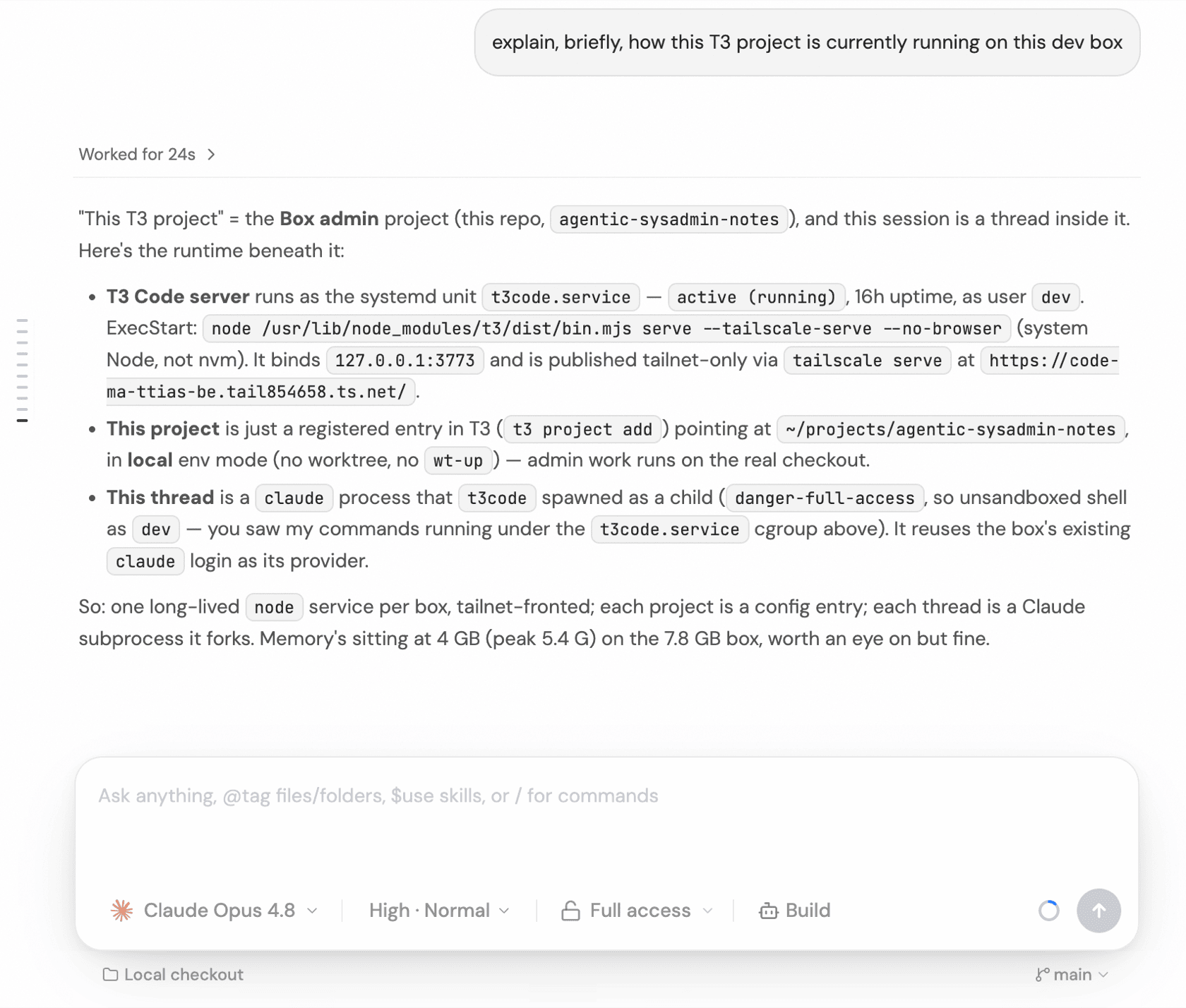
Because that admin repo is tracked in git, every change to how the server works, the scripts above included, is reviewable in a diff and deployed by copying files out of the repo instead of hand-editing live files and hoping I remember what I changed. The server’s config is code.
The details#
A pile of little decisions to save you some time:
- Anything that listens binds to
127.0.0.1and is published to the tailnet withtailscale serve. Nothing gets a public port. Be warned though: Docker’s iptables rules bypass the firewall entirely, so container ports need an explicit127.0.0.1:prefix or they end up exposed. - Databases are per-project and localhost-only, so I can throw a real MySQL and ClickHouse at any project without ever exposing them.
A whole server, including cron jobs#
The Remote Control comparison from the top only goes so far. This is a full Linux server that never sleeps, and that buys a couple of things a laptop-bound setup can’t.
It runs work on a schedule. The server is awake at 6am whether I am or not, so I let it earn its keep while I sleep. Some of that is ordinary cron: the nightly database dumps, the 05:00 tool updates from earlier. Better still, put an agent on a timer. Claude Code runs headless with claude -p, so a cron line or a systemd timer can hand it a chore:
# 6am cron, while I'm asleep: bump deps and open a PR if anything moved
0 6 * * *  cd ~/projects/app && claude -p "bump composer + npm deps, run composer audit, open a PR if changed"

# Monday 7am: draft the week's changelog from the merged PRs
0 7 * * 1  cd ~/projects/app && claude -p "summarise last week's merged PRs into a changelog entry, open a PR"
Dependency bumps, a composer audit, a summary of last week’s changes for the changelog, pre-provisioning a workspace so it’s warm before I sit down, a weekly sweep for dead code. None of it needs me at the keyboard, and none of it needs my laptop powered on. I wake up to a branch, read it over coffee, and merge or bin it.
It also runs my CI so my laptop doesn’t have to. Before I push and burn real CI minutes, I run the suite on the server. It can peg all its cores at 100% for a couple of minutes building assets and running tests, while my laptop stays cool and free for something else. The agent already lives next to the code, so it runs the suite and reads its own failures without shipping anything back and forth.
One note on all this scheduled work: the more you lean on it, the more a silently-broken job costs you, and a cron line that stops firing doesn’t announce itself. If you’re starting to rely heavily on this kind of automation on your dev server, consider monitoring those cronjobs with Oh Dear too (my own product, so I’m biased, but this is exactly what it’s built for).
A workspace for Home Assistant#
Not every workspace on the server is code. One of them is my house.
I run Home Assistant at home, and it has an MCP server, the protocol agents use to talk to outside tools. So I gave the server a Home Assistant project whose MCP connection points at my house. Now, from the same T3 UI where I review a pull request, I can ask what the temperature is in the office, flip a switch, or check whether I left the garage open. From my phone, from anywhere.
The server can’t reach my home network, of course. It’s a VPS in a data centre, not a device on my LAN. The connection goes out through Nabu Casa , Home Assistant’s cloud, which gives my instance a stable external URL. The MCP server on it holds a long-lived token and talks to that URL. From the agent’s side it’s just another tool: it can see all 2,196 entities my Home Assistant exposes, and act on them.
An always-on server that manages my home from a chat interface, reachable from my phone – that’s most of what those self-hosted assistants are for. I didn’t set out to replace one, but between the dev workspaces, the scheduled agents, and now the house, this server has become the always-on assistant I’d otherwise have installed OpenClaw to get.
Monitoring your dev server#
This server went from a toy to something I lean on. My code lives here, my databases, the link to my house, the agents that run overnight. If it falls over, or starts leaking something I didn’t mean to expose, I want to know before I trip over it myself.
I monitor it with Oh Dear , which I co-founded, so take this as the biased recommendation it is. Uptime is the obvious half: is the server answering. The more interesting half for a server like this is port scanning .
The security model here is “one public port, everything else on the tailnet.” That holds only as long as my firewall rules stay correct, and firewall rules rot. Docker punches straight through ufw. A docker run -p 8080:8080 I forgot to pin to 127.0.0.1. A package that helpfully opens a port when I install it. From the server itself it all looks fine, while from the outside there’s now a port reachable that I never meant to expose.
Port scanning checks the server the way an attacker would, from the outside. Oh Dear scans all 65,535 TCP ports on the public IP once a day by default, more often if you want, and you tell it which ones are meant to be open. On the first scan it shows you what it found and asks you to set a baseline. On mine that’s one port, 9999, the SSH break-glass door, and nothing else:
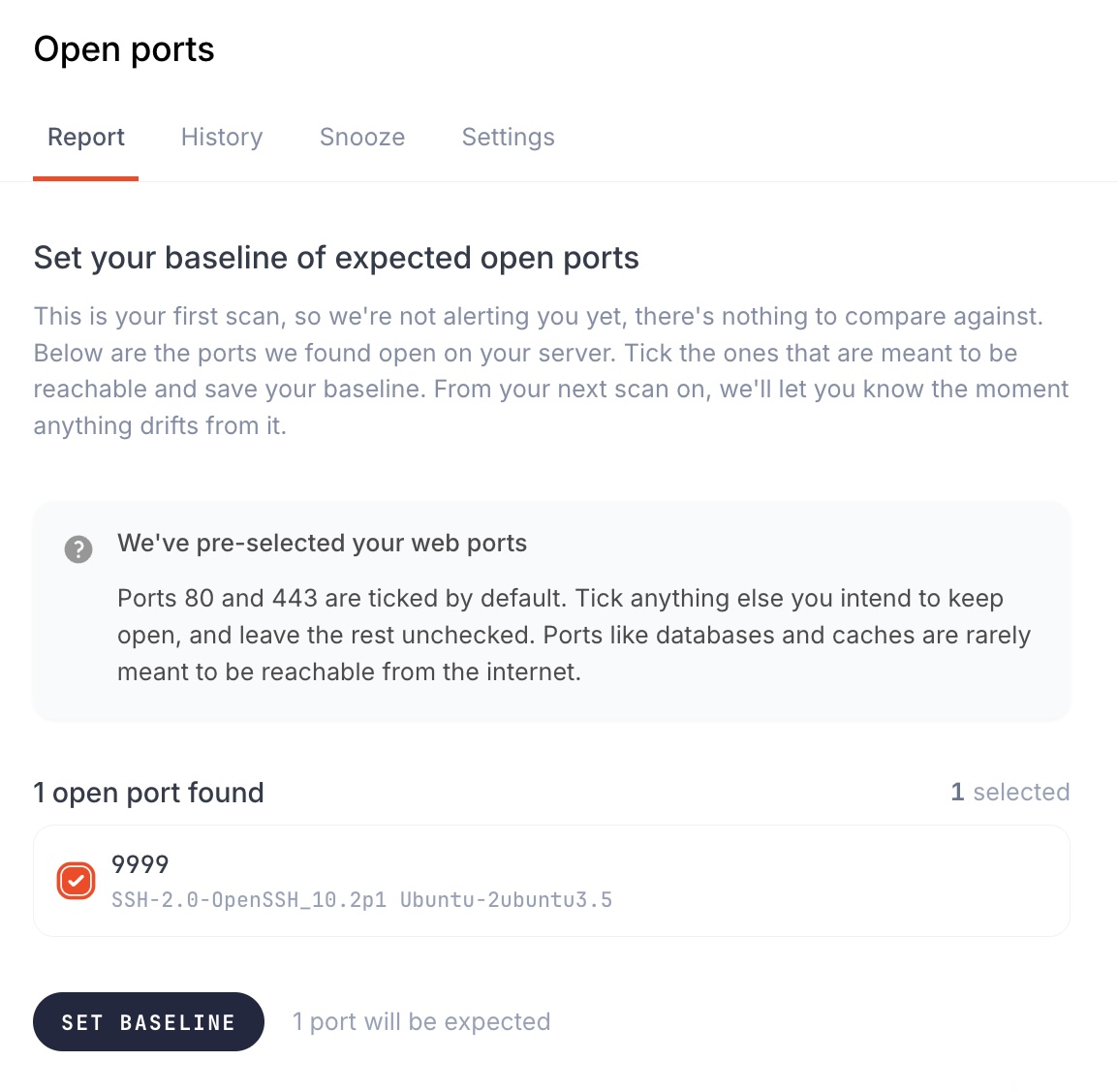
From then on, every scan is checked against that baseline. As long as 9999 is the only thing answering, it stays green. The moment an unexpected port responds, I get a notification.
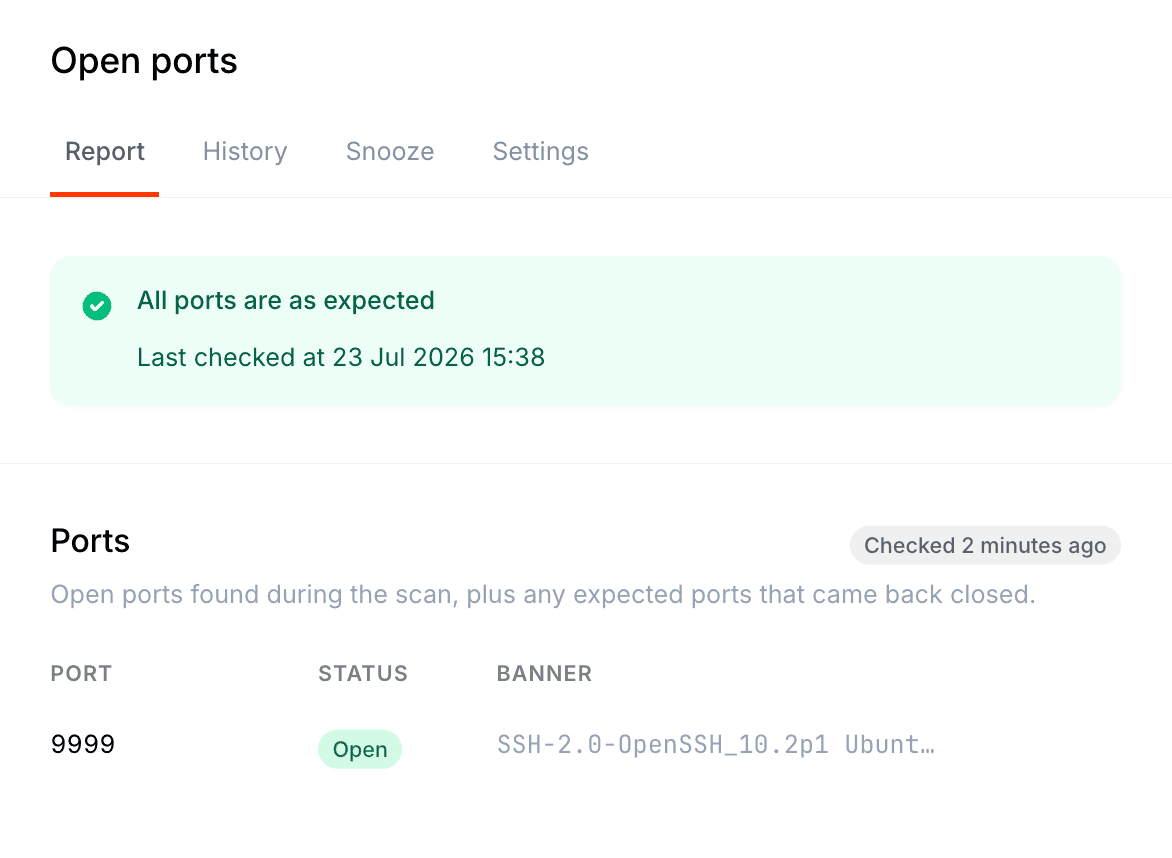
So the day I fat-finger a Docker flag and expose a database, I hear about it instead of reading about it in an incident report later. It’s the backstop for the exact mistake a tailnet-only server is one docker run away from: “ah, I thought that was firewalled.”
Hand this post to your own agent#
I said at the top this doubles as a setup guide, and I mean it literally. This post is written to be a prompt.
If you have Claude Code, Codex, or a similar coding agent, you can hand it this entire article and say “build me this on a fresh Ubuntu VPS, here’s the IP”. The agent has enough here to provision the server, install Tailscale, lock down the firewall, set up the browser GUI, and wire in the auto-updates. That’s how I’d bootstrap a second one now: give an agent the write-up and a root login, and check its work as it goes. Verify each step rather than trusting it blindly, the same way I’d review a colleague’s pull request, but the bulk of the typing is done for you.
I set out to stop keeping my laptop awake, and I ended up with an environment I can rebuild just by describing it.
If you build your own version, or you’ve got a sharper take on the GUI layer, let me know – I’d love to see what you come up with. New GUIs for this pop up weekly, chances are there’s a better one out by the time you read this.