LWN.net needs you!Without subscribers, LWN would simply not exist. Please consider signing up for a subscription and helping to keep LWN publishing.
Jujutsu is an increasingly popular Git-compatible version-control system. It has a focus on simplifying Git's conceptual model to produce a smoother, clearer command-line experience. Some people already have a preferred replacement for Git's usual command-line interface, though: Magit, an Emacs package for working with Git repositories that also tries to make the interface more discoverable. Now, a handful of people are working to implement a Magit-style interface for Jujutsu: Majutsu.
Magit was started by Marius Vollmer in 2008; over time, the project grew
organically to cover the users' needs for an intuitive Git interface. The
current version is v4.5.0, and new releases come every few months. The
project's statistics
page shows that a majority of the code at this point has been written by
Jonas Bernoulli, but many authors have contributed improvements for their
specific workflows and use cases. The result is a startlingly comprehensive
feature set, which Bernoulli
calls
"essentially complete
", covering "about 90% of what can be done using
git
".
Majutsu is much younger: it was started in November 2025 by Brandon Olivier and has had six contributors so far, reaching version 0.6.0 on February 12. Its interface is already fairly comprehensive, however, owing both to Jujutsu's fewer corner cases and to the libraries written for Magit. Both projects are licensed under version 3 of the GPL, and Majutsu reuses Magit's interface design and libraries for handling transient windows. (Emacs predates most graphical interfaces, and calls the things everyone else calls windows "frames". It calls panels that subdivide a frame "windows".)
Discoverable design
Magit's transient windows are core of its semi-graphical interface, allowing the package to combine keyboard-driven actions with text-based status display. When Magit is started for the first time (by typing "C-x g" or "M-x magit", depending on how good one is at remembering arcane Emacs incantations), it shows a status summary screen:
![[A screenshot showing the Magit status screen]](https://static.lwn.net/images/2026/magit-status-screen.png "A screenshot showing the Magit status screen")
From that status screen, there are a number of keyboard shortcuts that can be used to perform Git operations. Hitting "d", for example, brings up the transient window for diffs, which lists all of the various things that can be done with diffs in Magit:
![[A screenshot showing Magit's transient diff command window]](https://static.lwn.net/images/2026/magit-transient-diff.png "A screenshot showing Magit's transient diff command window")
Continuing to type the characters shown in green (on my theme, at least) applies possible command-line flags — which are saved until they are reset. For example, my --stat and --no-ext-diff flags (which generate a diffstat and turn off external diffing programs, respectively) are already turned on, and will be applied to all diff-related commands I use until I turn them off again. Actually choosing an operation to perform requires typing one of the un-prefixed letters shown at the bottom of the transient window (not shown here because they've scrolled off the screen). Typing the same letter again, however, is always bound to "do what I mean", and does a reasonable thing involving the current cursor position in the status buffer is. So, hitting "d" again (with my cursor in the status buffer on one of the listed recent commits) opens the diff associated with the chosen commit in a new window:
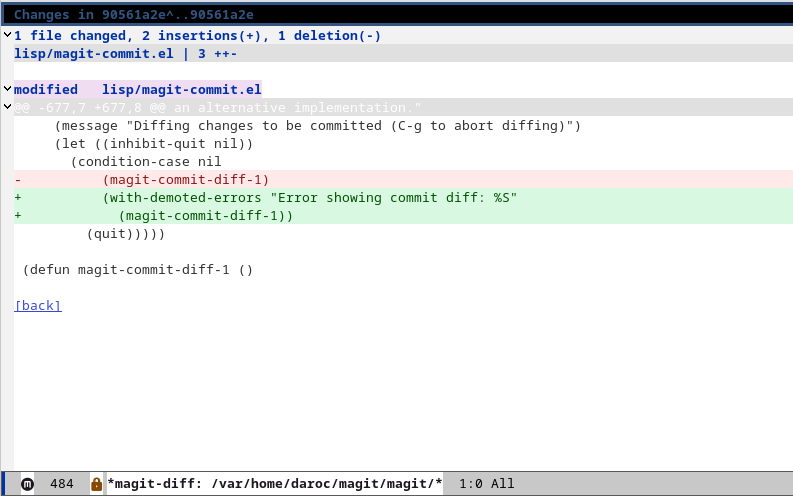
Typing "q" will close any of Magit's temporary windows and return to the status buffer. Typing "?" lists all of the keys that pop up a transient window to begin with, although they're mostly mnemonic, such as "l" for logs or "c" to commit.
Magit commands like this are context-sensitive. If the cursor in the status buffer is on a commit identifier (branch, tag, or hash), hitting "d d" shows the diff associated with that commit. If the cursor is on a file with unstaged changes, hitting "dd" shows the diff of that file against the staging area. Within that diff, placing a cursor on a particular hunk and typing "s" stages it. Normal Emacs navigation, such as clicking or arrow keys, suffices to navigate to any Git object, such as a file, commit, hunk, or tree. Once the cursor is on it, the default contextual commands will do something useful.
When updating something about Git's state using Emacs, such as staging or unstaging a hunk, all Magit's buffers remain automatically in sync. This includes editing a file in the repository with Emacs — saving the edited file will make Magit update the diffs if they are open in another window. If the repository is updated outside of Magit, typing "g" forces a manual refresh.
This design makes the use of Magit pleasingly discoverable — performing simple operations is intuitive, and all of the text on the status screen can be interacted with. Performing a more complex operation involves opening the appropriate transient window and then turning on and off options and selecting the appropriate operation. It doesn't require going to the Magit manual or the Git manual, because there is a handy short reference guide right there in Emacs. By the same token, for all that Magit calls itself an alternate Git porcelain, one's existing knowledge of the Git command line is not obviated: Magit commands can use almost all of the same flags and Git subcommands as the normal command-line interface.
Majutsu
Despite operating on top of a different version-control system, Majutsu looks fairly similar at first glance:
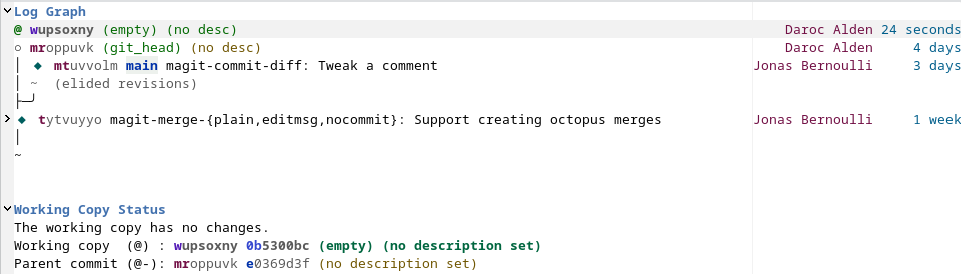
The main difference is that Jujutsu does away with the concept of a staging area: there is always a particular working commit (given the short name "@"), and one just edits that commit in-place, rather than staging changes and committing them only once they're finished. Consequently, Majutsu puts the graph of recent commits at the top, with expanded details about the state of the current working commit down below.
The interface works exactly the same way as Magit, which is unsurprising since it reuses Magit's libraries: start typing, and a transient window will pop up to show possible completions of the command. Majutsu does have fewer transient windows (25 vs. Magit's 37), but that is partially a result of Jujutsu having fewer commands than Git. The Majutsu manual goes into more detail about the available transient windows. It does have an overall more bare-bones feel than Magit, which is somewhat to be expected with many fewer years of contributions.
The graph in the main status window shows some differences from Git's model — for example, it shows commit identifiers (on the left side, starting with a pink or purple letter) instead of commit hashes. Jujutsu commit identifiers are stable through rebases and other history-modification operations, so they can be used to refer unambiguously to a commit even in the middle of a rebase. The colored letters at the beginning highlight the minimum prefix needed to refer to them unambiguously: Jujutsu will understand "r" to refer to commit "rkrmpkzv", at least until the repository gets another commit ID starting with "r". Jujutsu commits do still have cryptographic hashes — for signing, and for interoperability with Git — which can be seen at the bottom of the status window, starting with blue letters. These names, while normally quite helpful at the Jujutsu command-line, are less helpful in Majutsu, because commits are typically referred to by placing the cursor on them instead of referring to them by name.
An example of that is Majutsu's rebase interface, which is simplified compared to Magit's interface. In Magit, a rebase is started using "r r", whereupon one will have to select a starting revision, and go through Git's normal interactive-rebase workflow. In Majutsu, the experience is more visual. A rebase starts with "r", but then one can select which revisions should be picked, squashed, or rebased onto directly in the main status window or in the detailed log window. Once the correct commits have been selected pressing return actually performs the rebase. The procedure is greatly streamlined compared to Magit, which makes sense given that Jujutsu's design encourages rebasing more frequently than Git does.
There are some rough edges with Majutsu. Using it to clone a new Git repository (with "M-x majutsu-git-clone") was a bit confusing — it warned me about being used outside a Jujutsu repository, and asked if I wanted to create one. When I did so and then cloned my target repository, it checked it out into a subdirectory, leaving me with two nested repositories. That's a fairly minor detail, however.
More annoying is the fact that Jujutsu's log command (and therefore Majutsu's status buffer) doesn't show commits from before importing a Git repository. This is despite the fact that Jujutsu supports operating colocated with Git, using both in the same repository. Subsequent commits made with Git in a colocated repository are shown, but it makes for an awkward transition. Other operations, such as committing and moving bookmarks (the equivalent of Git's tags) around, went smoothly.
Jujutsu is an interesting experiment in building a version-control system with a simplified design. After years of using Git, it can feel uncomfortable — but Majutsu makes it easy to explore. For a version-control system that has to wrestle with Git's dominance, having a discoverable interface feels like an important step toward making it easier for inveterate Git users to migrate. Majutsu has a ways to go before it reaches Magit's level of polish, but it's more than ready to help people curious about Jujutsu experiment without leaving the comfortable embrace of Emacs.