Everything in one ZIP
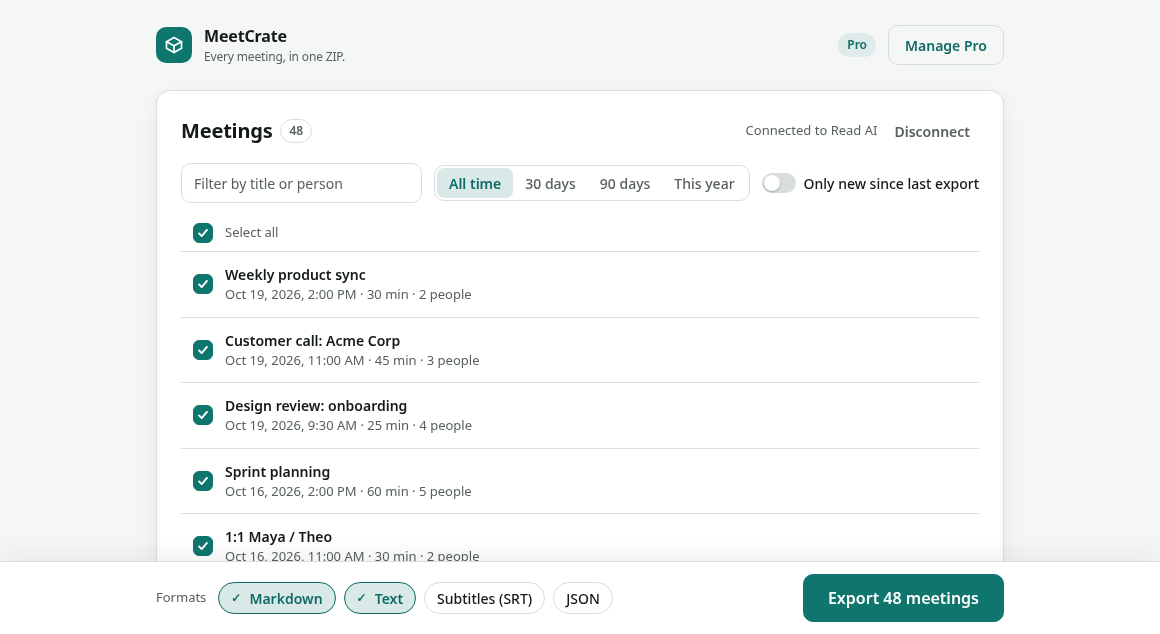
One file per meeting with the summary, action items as a checklist, chapters, key questions, topics and the full transcript with speakers and timestamps. Plus an index.csv with one row per meeting.
LGD Ventures
MeetCrate saves every Read AI and Fathom meeting (transcripts, summaries and action items) as Markdown, TXT, SRT or JSON, in one ZIP on your computer. Official APIs only.
Add to Chrome — free See pricing
Also on Microsoft Edge
MeetCrate · your meetings
Features
MeetCrate is a browser extension for Read AI and Fathom users (on Google Chrome and Microsoft Edge) that exports every meeting at once (transcripts, summaries and action items as Markdown, TXT, SRT or JSON in one ZIP) through each service’s official API: Read AI’s read-only sign-in, or your own Fathom API key. Files are created on your computer; nothing is sent to an LGD Ventures server.
Read AI and Fathom download meetings one at a time. MeetCrate exports all of them at once, from one notetaker or both, ready for Obsidian, Notion, Drive or a plain folder.
One file per meeting with the summary, action items as a checklist, chapters, key questions, topics and the full transcript with speakers and timestamps. Plus an index.csv with one row per meeting.
Markdown with YAML front matter for Obsidian and Notion, plain text, subtitles with speaker names, and the raw API JSON so nothing is lost.
Next time, export just the meetings you haven’t exported yet. Ideal for a weekly backup.
Close the tab or lose Wi-Fi and the export continues where it stopped. MeetCrate stays within Read AI’s and Fathom’s rate limits and tells you when it’s waiting. Meetings still processing are skipped and retried in one click.
You sign in on Read AI’s own page, or paste your Fathom API key, which stays in your browser. Files go straight to your computer: no MeetCrate account, no servers. The extension has no trackers or analytics.
How it works
01
Sign in to Read AI (read-only), paste your Fathom API key, or both.
02
All of them, a date range, or only what’s new. Markdown, TXT, SRT and/or JSON.
03
Unzip into your notes app or keep it as a backup. Run it again any time.
Pricing
No subscription. One payment unlocks your whole archive. Prices as of Oct 2026.
$0forever
$29one-time
Price as of Oct 2026. Pay once, no subscription.
Also: LGD Pro Pack: MeetCrate Pro, ChatCairn Pro and BackTrail Pro, one-time US$79, one key unlocks all three.
Secure checkout by Lemon Squeezy (merchant of record). Prices in USD. 14-day refund on request. Your license key arrives by email.
Read AI and Fathom. Connect one or both; with both, you get one list and one ZIP with every meeting, each tagged with its source. One Pro license covers both.
Any plan, including Free. Both offer an official API on every plan (Fathom’s free plan doesn’t include AI action items, so those exports have none). MeetCrate only reads meetings your account can already see.
In Fathom, open Settings → API Access and create an API key, then paste it into MeetCrate’s Fathom card. The key stays in your browser and is only sent to Fathom’s API. Your browser asks once to allow access to api.fathom.ai.
Read AI’s Download button saves one meeting report at a time, with no multi-select. MeetCrate exports all your meetings in one ZIP: one file per meeting in Markdown, TXT, SRT or JSON, plus an index.csv with one row per meeting. Next time, it can export only the meetings you haven’t exported yet.
Copy and paste works for a meeting or two, but you open, copy, name and save each one by hand. MeetCrate does every meeting at once and keeps the structure: speakers and timestamps, the summary, action items as a checklist, chapters and topics, with each file named by date and title.
It depends on what you need. Both export in bulk. MeetCrate Free covers 25 exported meetings in total; MeetingVault Free covers your 10 most recent. Both cost $29 one-time for the rest (prices checked Oct 2026). MeetingVault uses your existing Read AI login in the browser and saves Markdown, CSV or JSON. MeetCrate connects through Read AI’s official sign-in with read-only access, and also saves plain text and SRT subtitles.
Free exports 25 meetings in total from your connected notetakers. Pro is $29 one-time (as of Oct 2026), with no subscription: export your whole archive from every connected notetaker, on up to 3 browsers. Product Hunt launch offer: the code PRODUCTHUNT takes 30% off Pro (US$20.30 instead of US$29) until Nov 11, 23:59 ART.
No. For Read AI you sign in on Read AI’s own page and MeetCrate gets a read-only token; for Fathom you paste your own API key. Both stay in your browser, and meetings go straight from Read AI or Fathom to your computer. See the privacy policy.
Title, date, duration, source, participants, summary, action items and the full transcript with speakers and timestamps. Read AI meetings also include chapters, key questions and topics when Read AI has them.
Yes. The Markdown files have YAML front matter and a checklist for action items. Drop the folder into an Obsidian vault, or use Notion’s Markdown import.
Contact
Tell us and we usually ship a fix within days.