Markdown, beautifully rendered
in your terminal
A terminal-based Markdown previewer with a GUI-like experience. Rich rendering, interactive navigation, and editor integration — all without leaving your terminal.
leaf
════
Terminal Markdown previewer — GUI-like experience.
leaf lets you read Markdown files directly in the terminal with a clean, focused interface. Designed for developers, CLI users, and AI-assisted workflows.
Usage
─────
bash
12345
leaf README.md# Open a file
leaf -w README.md# Watch mode
leaf# Fuzzy picker
leaf --picker# Directory browser
cat file.md | leaf# Stdin
leaf leaf-summary.md ⟳ watch ctrl+e edit · ctrl+f find · t toc · ? help · q quit
Why leaf ?
Leave your terminal to preview?
Previewing Markdown shouldn't mean switching to a browser or a heavy GUI app.
Web viewers are overkill
For a quick preview, you don't need a full web application with login and setup.
CLI tools lack interactivity
Existing terminal tools dump Markdown as plain text — no navigation, no search, no style.
Syntax highlighting
Beautiful code blocks with syntax coloring for 40+ languages. Line numbers, decorative frames, and language labels included.
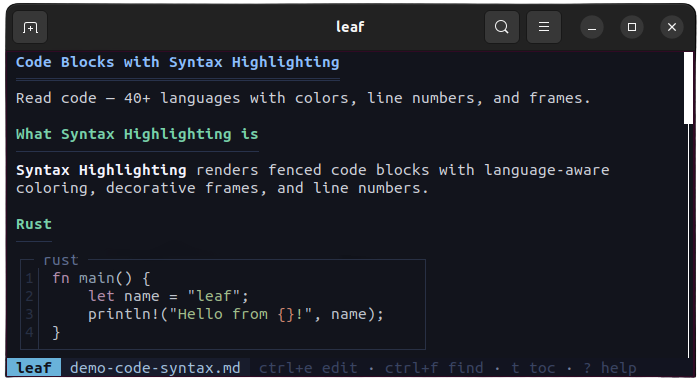
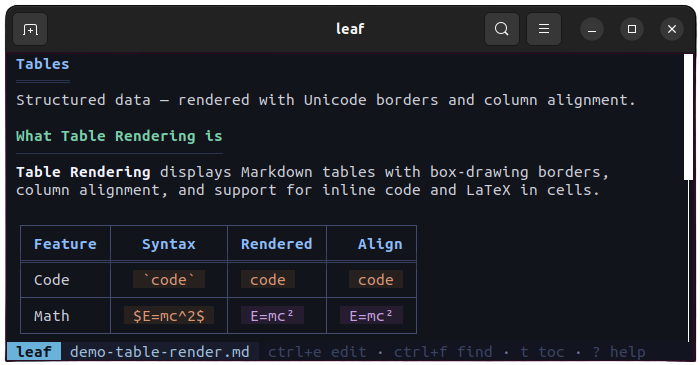
Table rendering
Markdown tables rendered with Unicode box-drawing borders, column alignment, and inline code support.
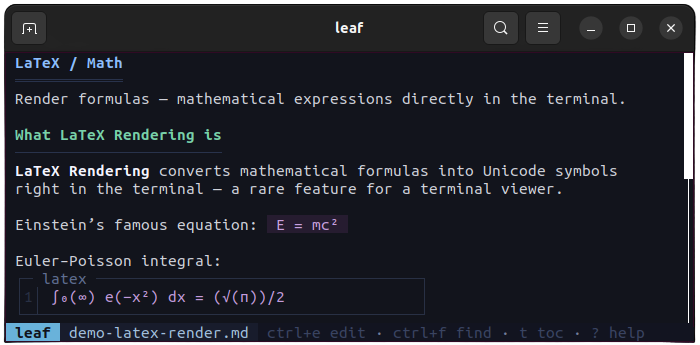
LaTeX math
Inline and block math formulas converted to Unicode symbols — no external renderer needed.
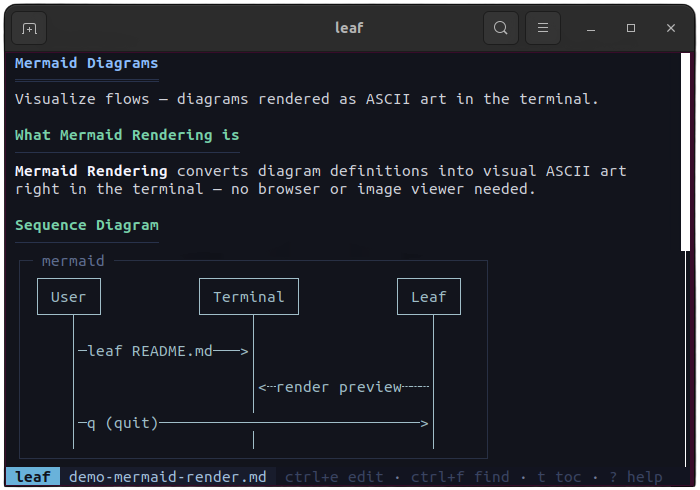
Mermaid diagrams
Flowcharts, sequence diagrams, and pie charts rendered as ASCII art directly in the terminal.
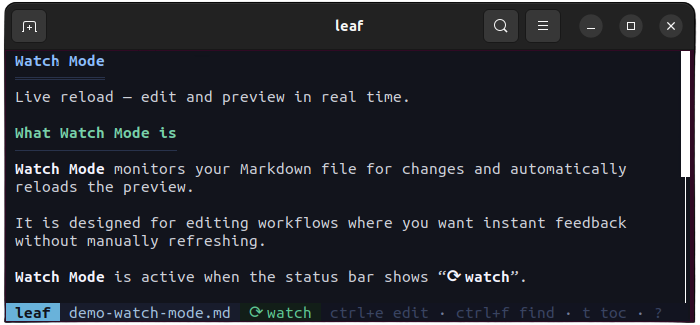
Watch mode
Auto-reload when the file changes on disk. Scroll position is preserved. Toggle with -w flag or press w.
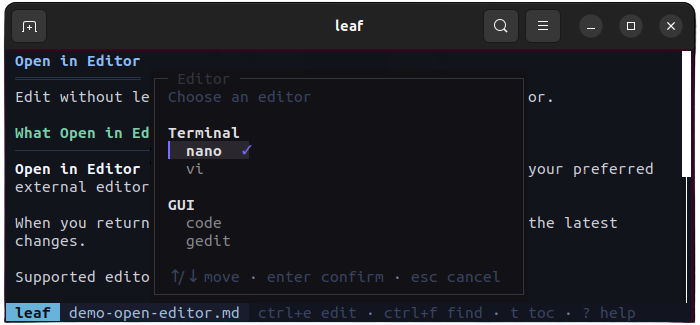
Editor integration
Press Ctrl+E to open in your editor. leaf detects vim, nano, VS Code, and more — reloads preview on return.
File picker
Fuzzy finder with Ctrl+P or directory browser with --picker. Scan and open any Markdown file instantly.
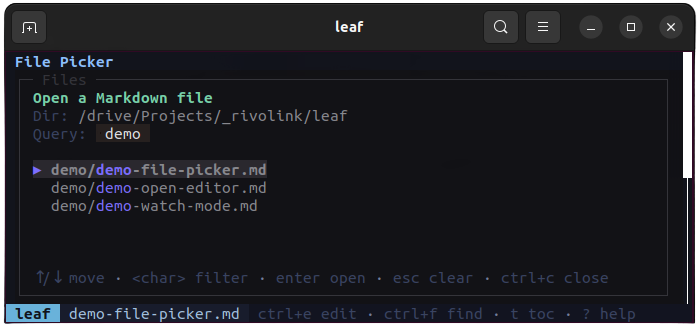
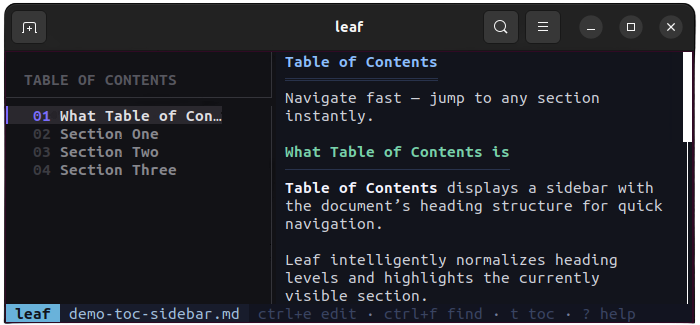
Table of contents
Sidebar TOC with heading hierarchy and active section tracking. Toggle with t, jump with 1-9.
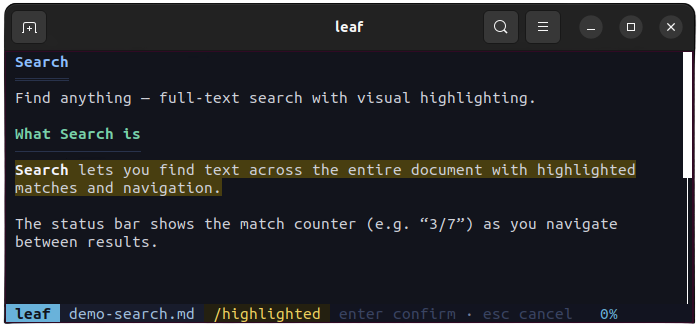
Full-text search
Press / to search. Matches are highlighted with a counter. Navigate with n/N.
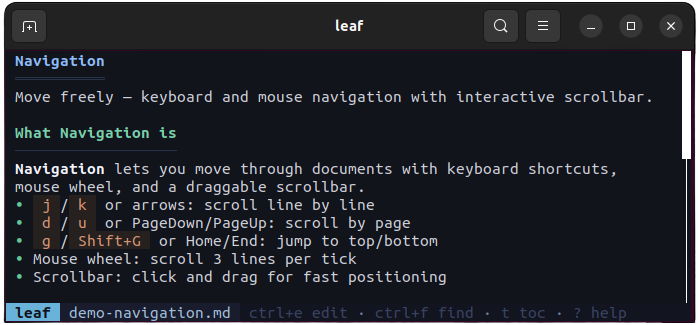
Keyboard navigation
Vim-like keybindings — j/k, d/u, g/G. Mouse scroll and scrollbar click supported too.
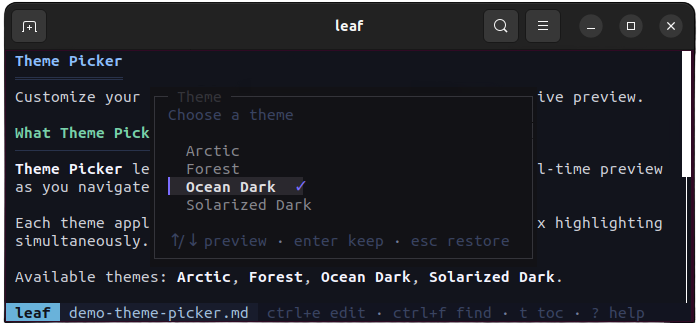
Theme picker
4 built-in themes — Arctic, Forest, Ocean, Solarized-Dark. Live preview with Shift+T.
Everything you need
Syntax Highlighting
40+ languages with beautiful color themes.
4 Built-in Themes
Arctic, Forest, Ocean, Solarized-Dark with live preview.
Full-text Search
Find anything with highlighted matches and keyboard navigation.
TOC Sidebar
Interactive table of contents with active section tracking.
Stdin Support
Pipe output from any tool — claude, aichat, cat — directly into leaf.
Secure Auto-update
One-command update with SHA256 verification.
Install in seconds
Built for developers
Preview AI output
Pipe output from Claude, ChatGPT, or any AI tool directly into a beautiful preview.
$ claude "explain Rust" | leaf
Read docs while coding
Preview your README, CHANGELOG, or any docs with live reload as you edit.
$ leaf --watch README.md
Explore Markdown projects
Open fuzzy finder, navigate directories, and preview any Markdown file instantly.
$ leaf
Frequently Asked Questions
What platforms does leaf support?
leaf runs on macOS (Intel & Apple Silicon), Linux (x64 & ARM), Windows, and Android via Termux.
How do I update leaf?
Run `leaf --update` — it downloads the latest release and verifies it with SHA256.
Can I customize the appearance?
Yes! leaf ships with 4 themes (Arctic, Forest, Ocean, Solarized-Dark). Switch with Shift+T or set a default in config.toml.
Does leaf support piping from stdin?
Absolutely. Pipe any Markdown content: `cat notes.md | leaf` or `claude "explain X" | leaf`.
Is leaf open source?
Yes, leaf is MIT licensed and hosted on GitHub.
Try leaf now
Install in one command and start previewing Markdown in your terminal.
$ curl -fsSL https://leaf.rivolink.mg/install.sh | sh